A:AnswerI just went through the exact same thing. I was on the verge of returning it.
After getting hung up on by Microsoft and wasted 2 hours in a chat, I ended up doing a clean install from the Microsoft store and that let me switch off S mode!
A:AnswerI use this laptop for online school every day and even after a year only have to charge it every other day or so, and even then, it does not take long to charge
A:AnswerThis Lenovo IdeaPad 3 15 Laptop, model number 81X800KLUS, ships with a 30-day trial of Microsoft Office 365 included as part of the Windows 11 operating system. To keep the program active after the trial period, you will need to purchase a product key. You will not need to download any additional software.
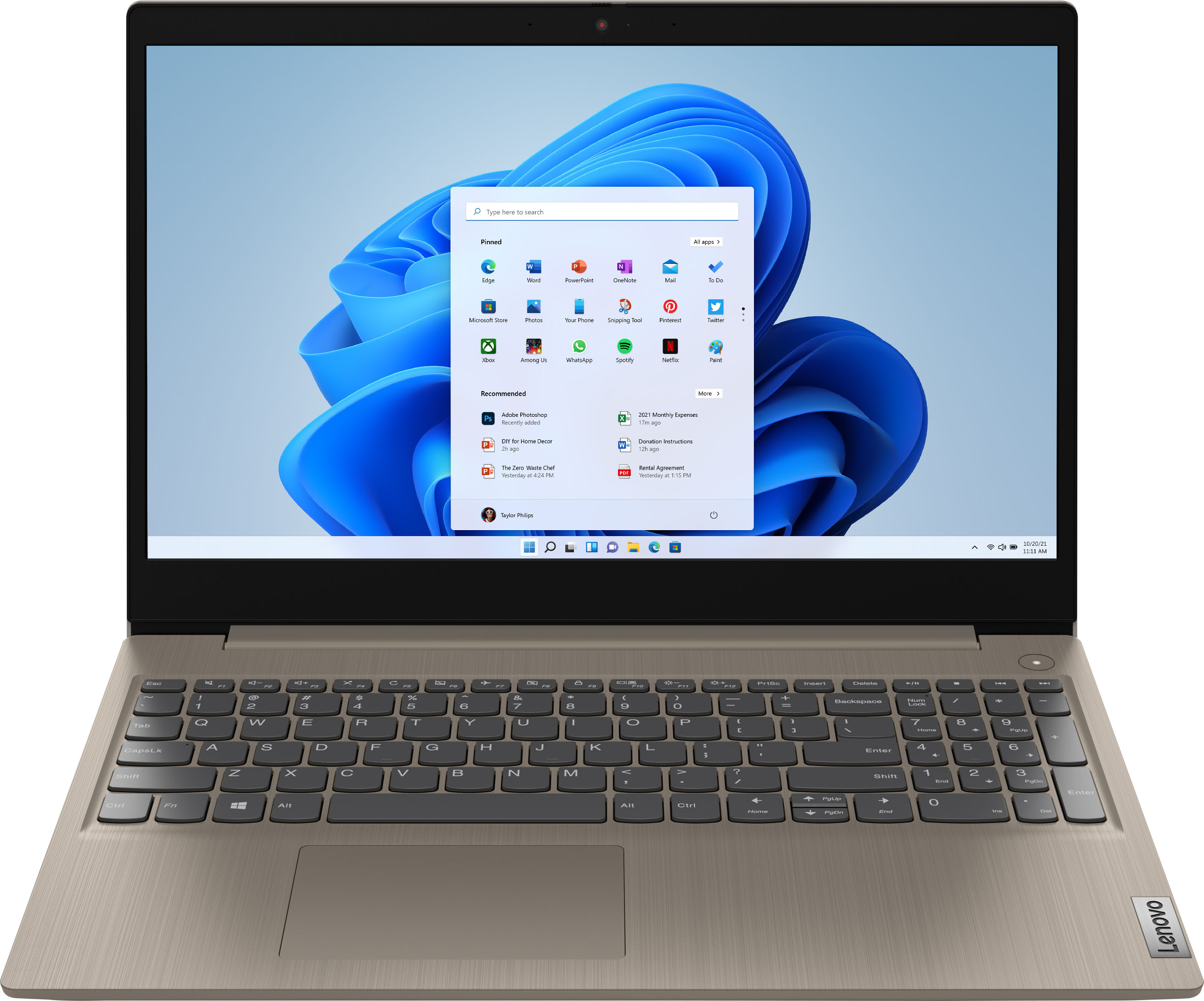
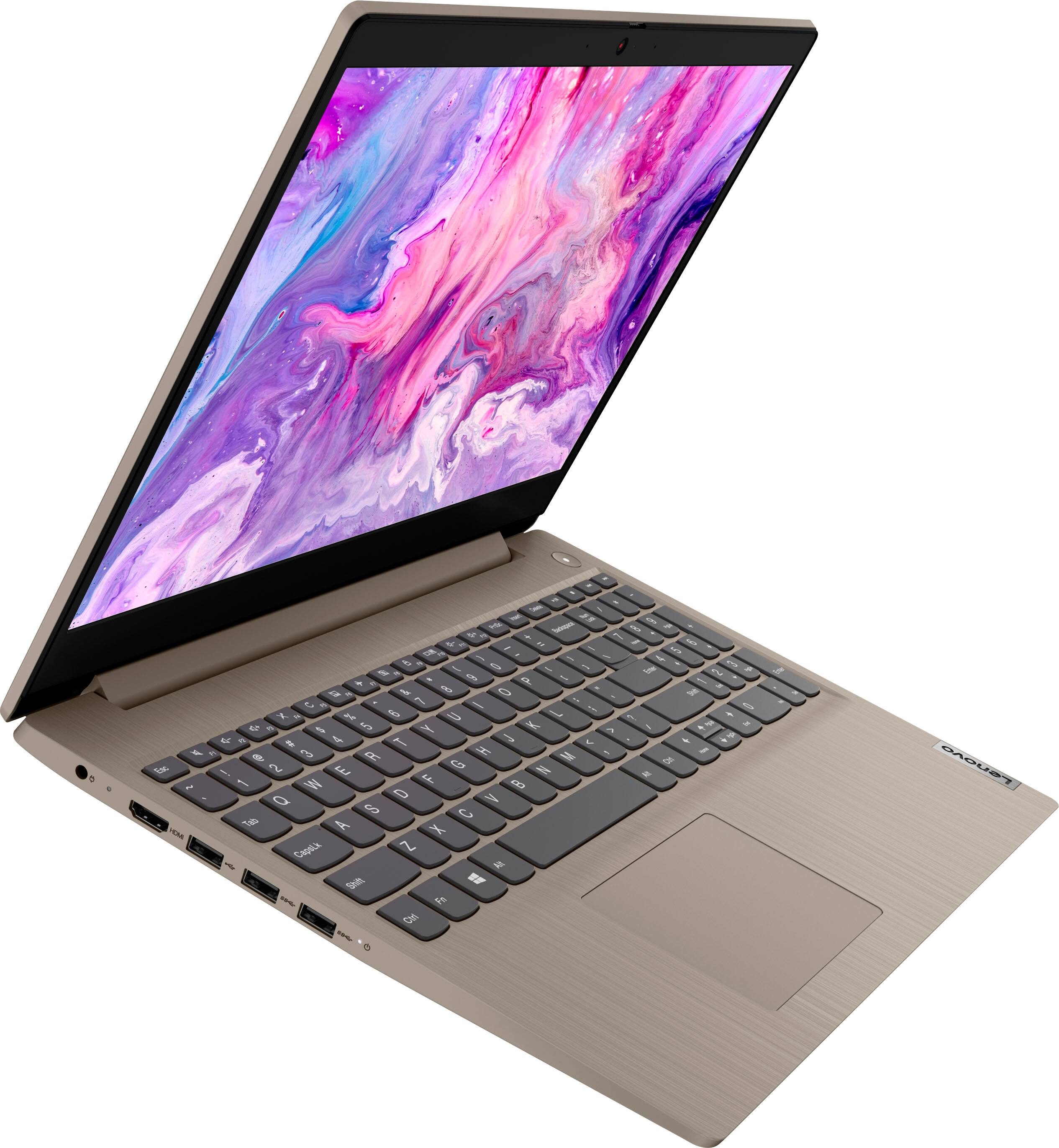
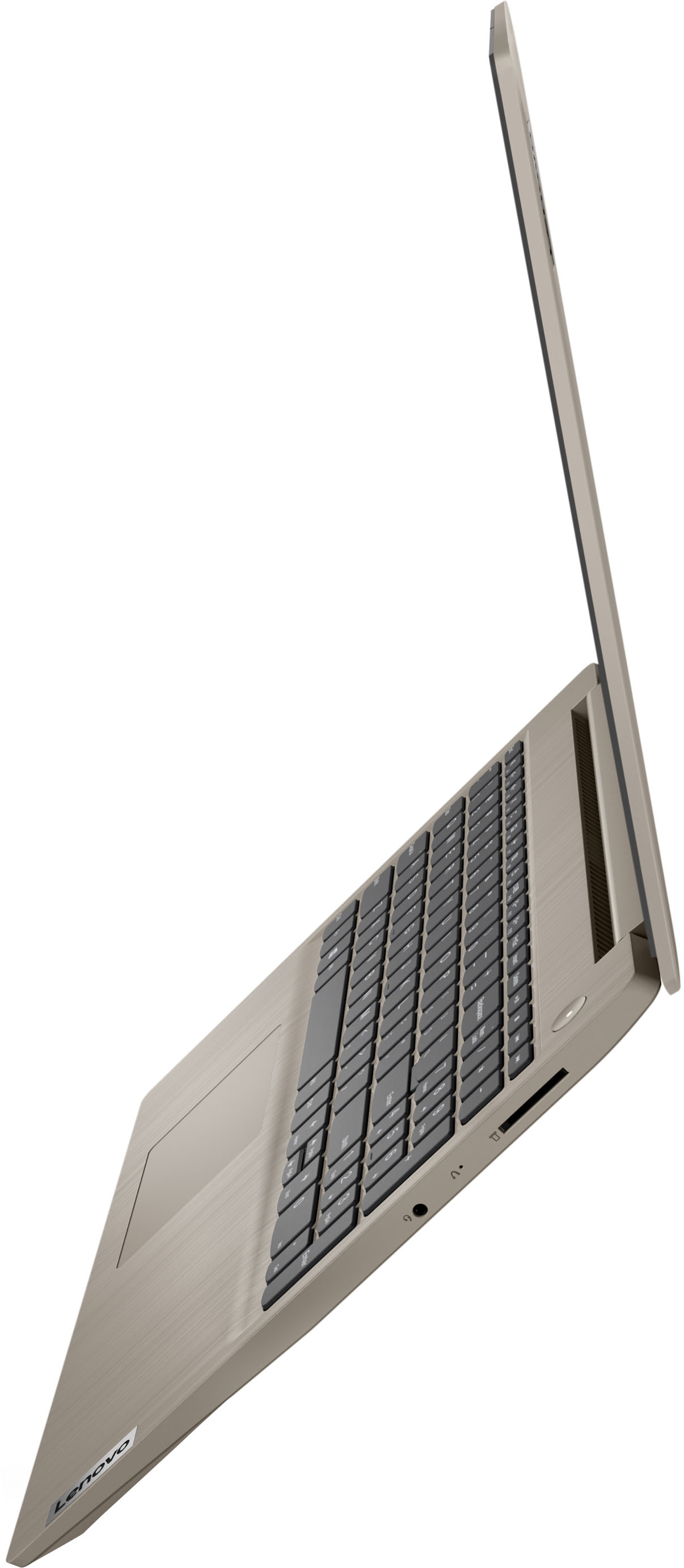
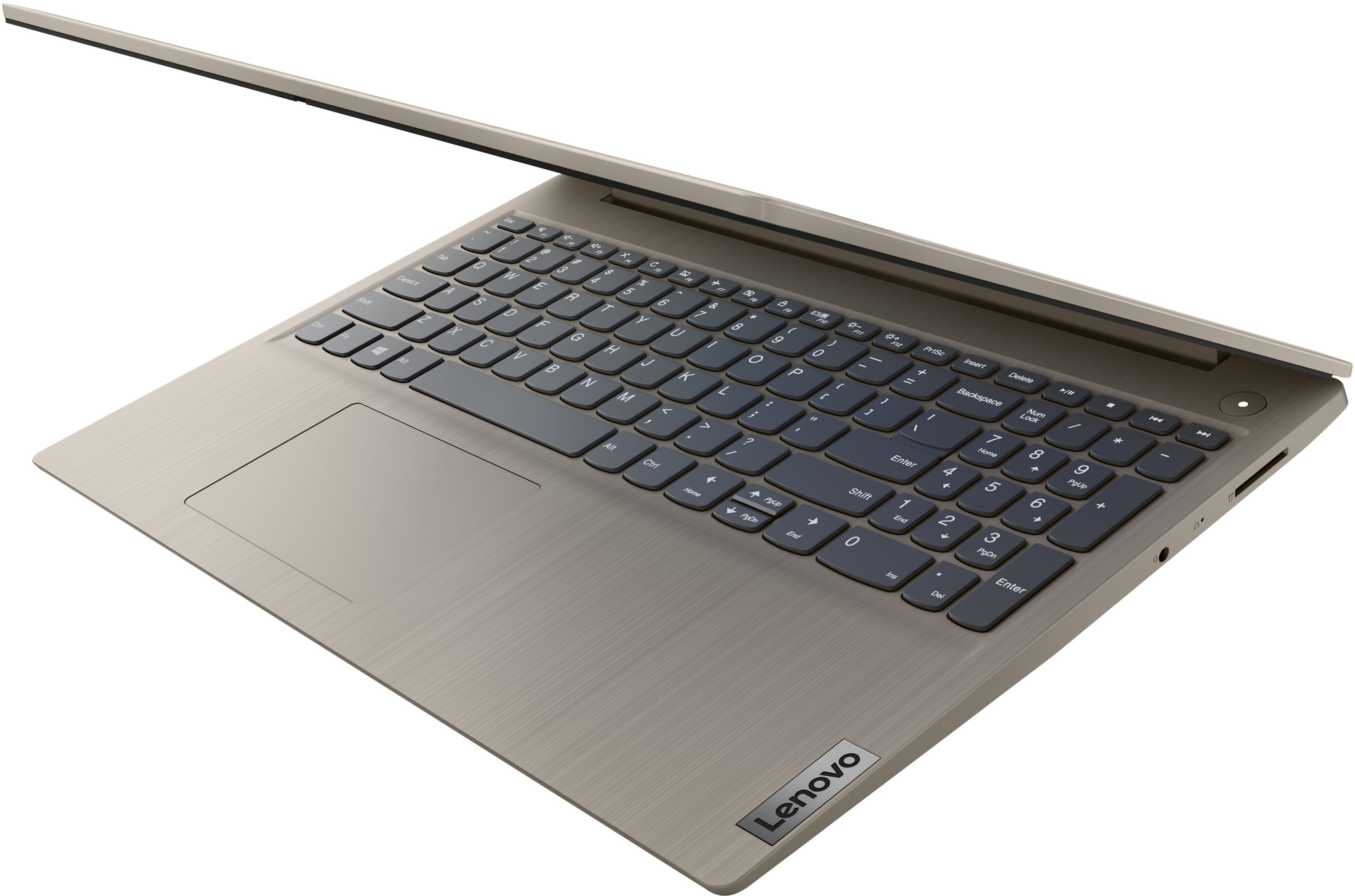
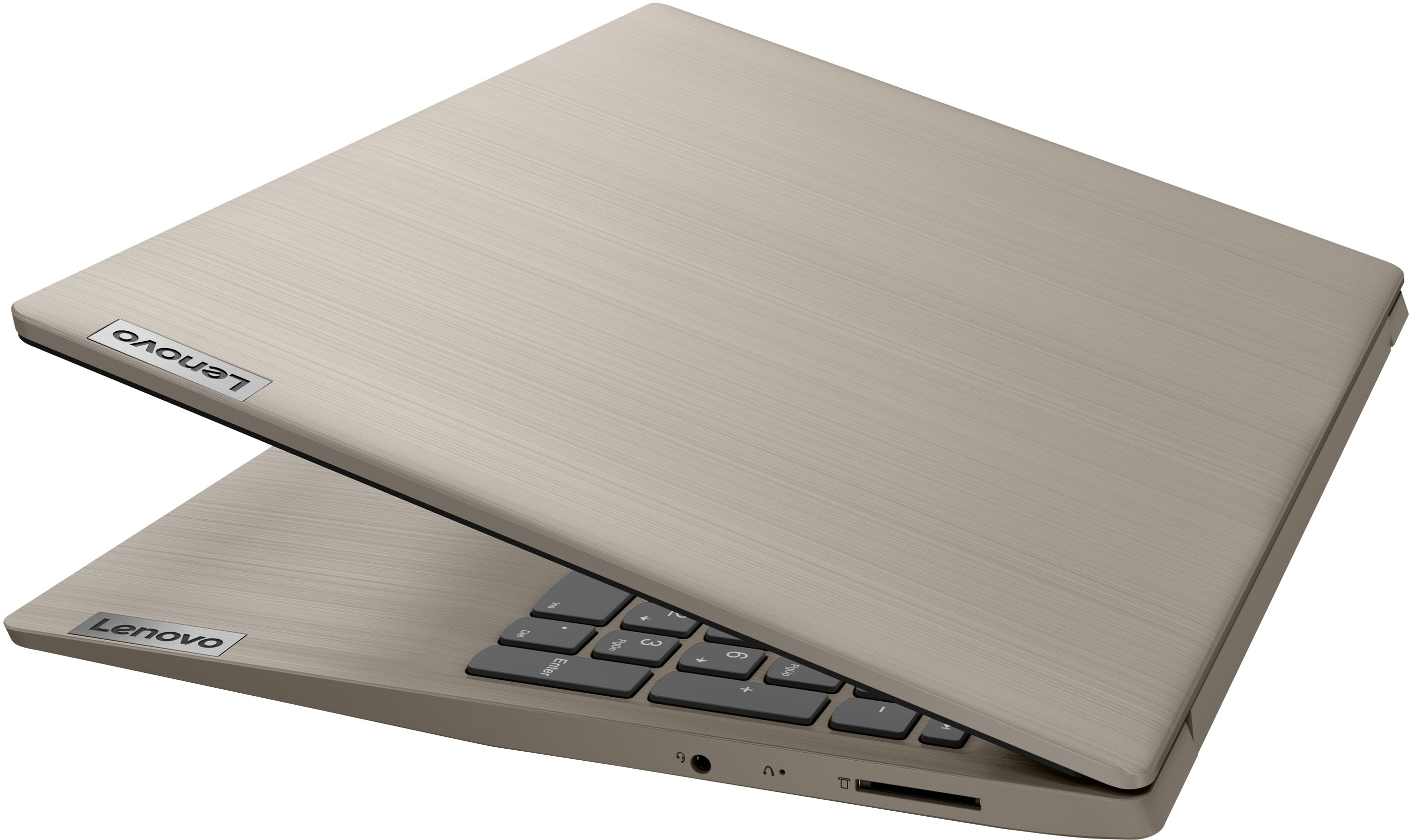
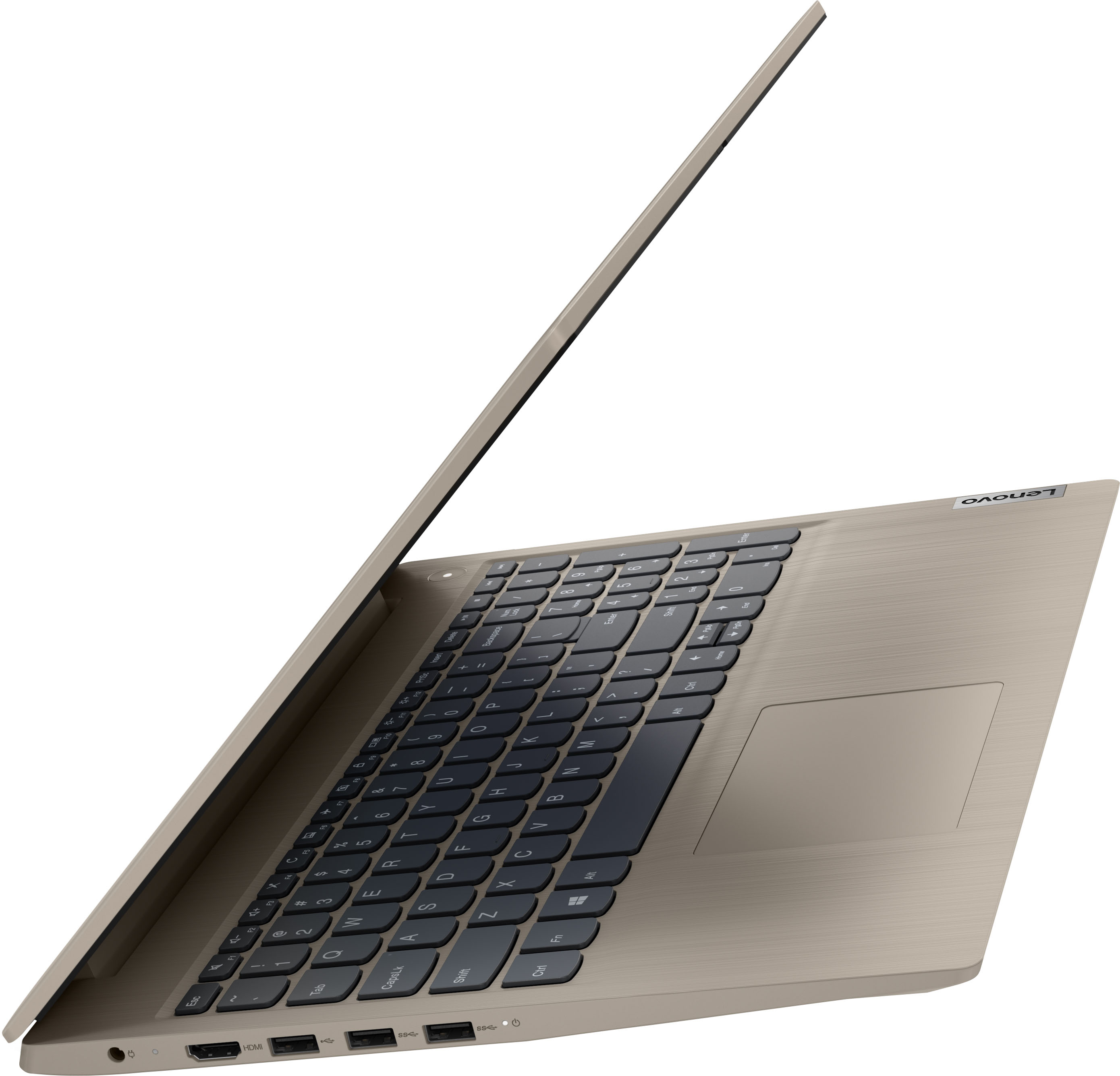
A:AnswerYes! There are 3 USB ports/plugs. So 1 for your external mouse leaves 2 available for flash drives and other things. There is also an HDMI port/plug.
A:AnswerYou are not required to use the touch screen for normal laptop functionality using Windows Operating System. Using the built in touchpad or an external mouse will provide the same functionality.
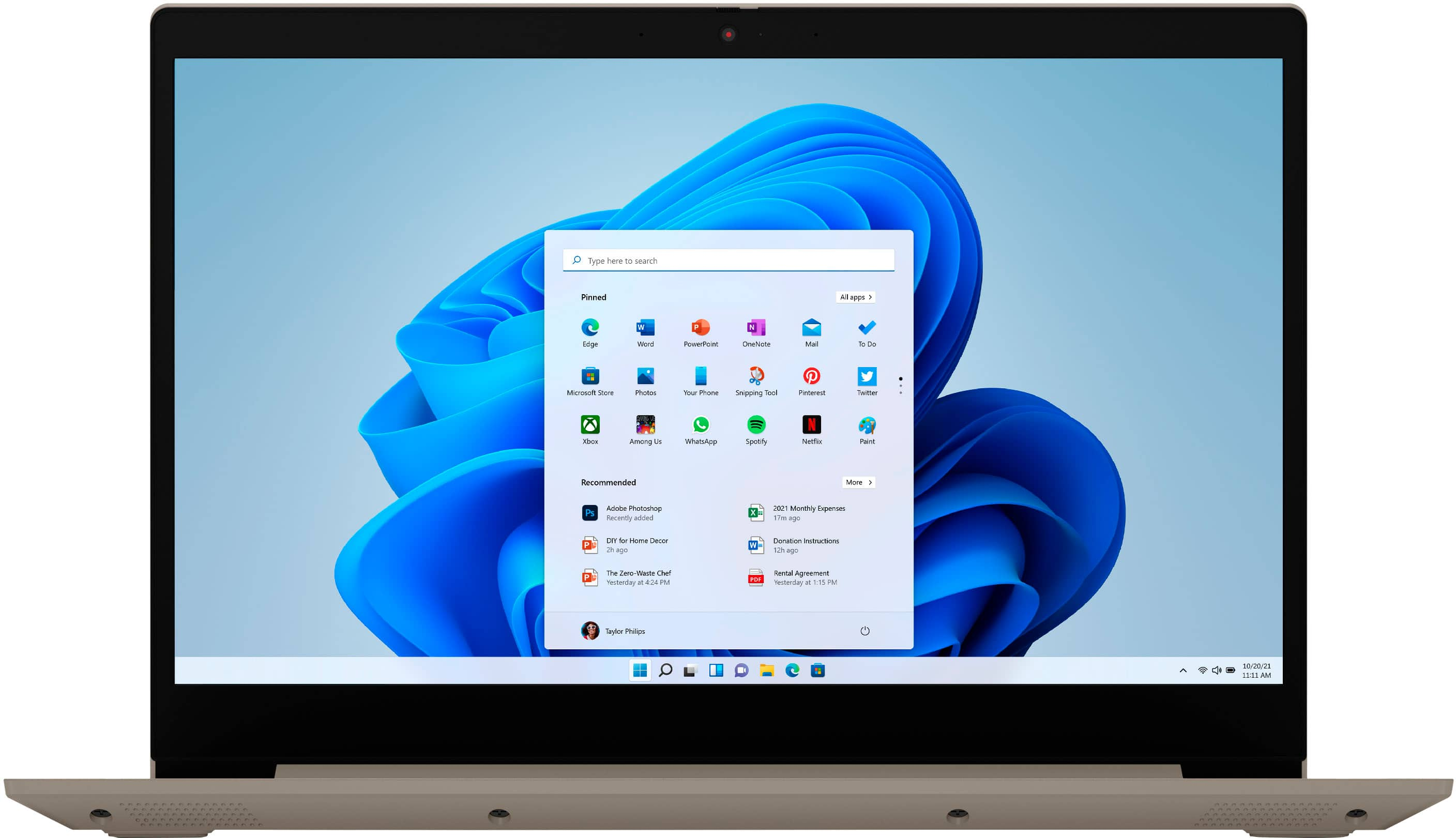
A:AnswerThat really will depend on the requirements and compatibility of the specific software you will be using for your job. This Lenovo IdeaPad 3 15 Laptop ships with Windows 11 S-Mode, 64-bit Operating System installed. Windows 11 S-Mode provides added security by only allowing APPs available ( and therefore certified by Microsoft) at the Microsoft Store. If you don't need the added security or you need to install APPs not available at the Microsoft Store, you can switch to standard Windows 11 Home 64-bit Operating System, at no additional cost. We recommend you check with the the specific software publisher's web sites, of the specific software APPs you will be using for your job, for their compatibility with Windows 11 S-Mode 64-bit operating system and the minimum/recommended hardware requirements (Is a Graphics card required, the processor speed and the minimum required system RAM and the minimum available hard drive space) to run their program, then compare those requirements to this system's configuration. If you choose to switch out of S-Mode for Windows 11 Home: Here is a link to instructions for switching from Windows 11 S-Mode to Windows 11 Home: https://support.microsoft.com/en-us/help/4456067/windows-10-switch-out-of-s-mode
A:AnswerYou could but not at max graphics, its more for business or work, you can play older games on it but the memory and core are not really built for gaming. for that i would suggest a good priced Acer or Razor laptop, Acer being the cheapest and razor being the gaming laptop to see the max potential for a good gaming experience.
A:AnswerThis Lenovo IdeaPad 3 15 laptop, model number 81X800KLUS, ships with the latest version of Microsoft's Windows 11 S-Mode, 64-bit Operating System Version and will continue to receive updates from Microsoft for approximately the next 10-years or until Microsoft updates this plan.
A:AnswerYes, the internals are sufficient for general graphic design but for the more sophisticated design it may be recommended to get a more powerful processor.
A:AnswerThis Lenovo IdeaPad 3 15 Laptop, model number 81X800KLUS, ships with 8GB DDR4-2666MHz RAM installed (4GB Soldered DDR4-2666 + 4GB SO-DIMM DDR4-2666MHz RAM). The maximum supported RAM that this model configuration can support is: Up to 12GB (4GB soldered + 8GB SO-DIMM) DDR4-2666MHz RAM. We recommend you consult with your certified technician about your RAM upgrade options.
A:AnswerMost pens that have windows 11 compatibility are compatible but pens that are for windows 10 usually aren't. Been trying to find the best one myself. The surface pens and Wacom I believe we're the highest recommended.
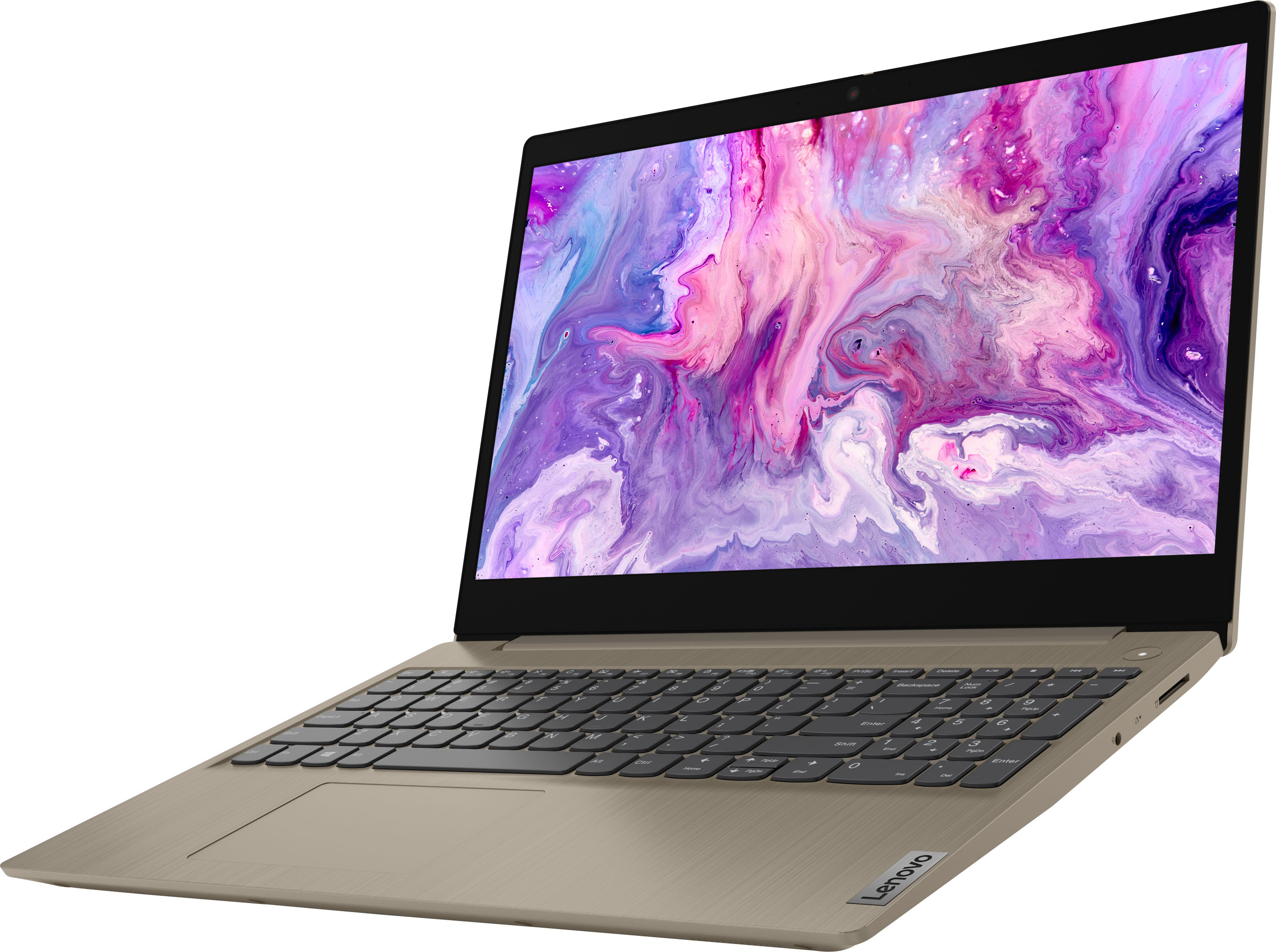
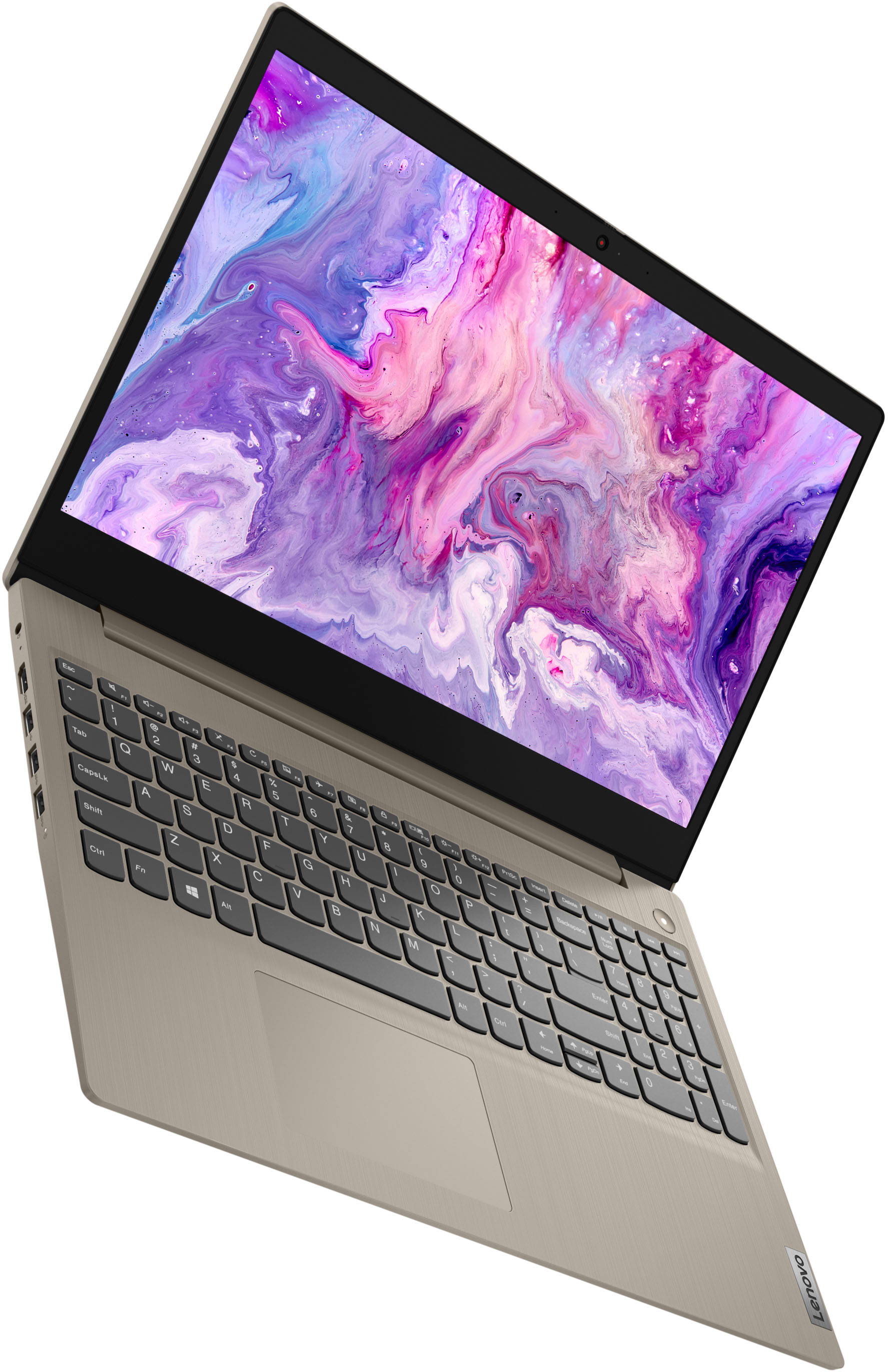
A:AnswerNo. This Lenovo IdeaPad 3 15 Laptop, model number 81X800KLUS, is a traditional laptop configuration. The screen will open to a maximum of approximately 110-degrees only.
A:AnswerThis Lenovo IdeaPad 3 15 Laptop, model number 81X800KLUS, ships with 8GB DDR4-2666MHz RAM installed (4GB Soldered DDR4-2666 + 4GB SO-DIMM DDR4-2666MHz RAM). One memory soldered to systemboard, one DDR4 SO-DIMM slot, dual-channel capable. The maximum RAM that this model configuration can support is: Up to 12GB (4GB soldered + 8GB SO-DIMM) DDR4-2666MHz RAM. There is also a 256GB M.2 2242 PCIe 3.0x4 NVMe solid state hard drive installed. The maximum storage capacity that this model can support is: up to two drives, 1x 2.5 inch HDD + 1x M.2 SSD: 2.5 inch HDD up to 1TB + M.2 2242 SSD up to 512GB or M.2 2280 SSD up to 1TB. We recommend you consult with your certified technician about your upgrade options.
A:AnswerWe are sorry to hear that you are having issues with your Lenovo IdeaPad L340 Laptop. To improve the performance of your IdeaPad L340, check to be sure any software you installed is compatible with Windows 10. Incompatible software can slow down system performance and cause slow boot up of your computer. Additionally, there is no need to install Microsoft Office software. The software is already part of the operating system, you just need to activate the software with a purchased product key. If you have installed a copy of Microsoft Office, this is conflicting with the existing copy on the system and this will slow your system down. If you have installed a 3rd party anti-virus program, be sure that Windows Defender is turned off and that the trial version of McAfee Anti-Virus software is uninstalled. There can only be one anti-virus program on the system. Here is a link to instructions for uninstalling McAfee from a Windows computer: https://service.mcafee.com/?articleId=TS101331&page=shell&shell=article-view You may need to restore your system to original factory default settings if any of the programming errors have occurred. You can do that by typing "restore" in the Cortana search window. Just click on the magnifying glass icon at the bottom left of your Windows 10 Desktop. Click on "Reset This PC" Then click on "Get Started" and follow the on screen directions to restore to factory defaults. If the problem persists, we recommend you contact Lenovo Tech Support at: 877-453-6686. Regarding a new computer purchase, we always recommend you check the requirements and compatibility of any software/games you will be installing on your new computer, before you invest in any computer. Be sure your new computer can support the software/games you will need to use and your workload.
A:AnswerIt is possible to setp this Lenovo IdeaPad 3 15 laptop without a Microsoft Account. Here is a link to more information: https://www.windowscentral.com/how-set-windows-11-without-microsoft-account. This Lenovo IdeaPad 3 15 model number 81X800KLUS, ships with Windows 11 S-Mode, 64-bit Operating System installed. Windows 11 S-Mode provides added security by only allowing APPs available ( and therefore certified by Microsoft) at the Microsoft Store. If you don't need the added security or you need to install APPs not available at the Microsoft Store, you can switch to standard Windows 11 Home 64-bit Operating System, at no additional cost. If you choose to switch out of S-Mode for Windows 11 Home: Here is a link to instructions for switching from Windows 11 S-Mode to Windows 11 Home: https://support.microsoft.com/en-us/help/4456067/windows-10-switch-out-of-s-mode
A:AnswerYes. This Lenovo IdeaPad 3 15 Laptop, model number 81X800KLUS, ships with 1x System FAN L 81WB FAN, Lenovo Part Number - 5F10S13910, installed.