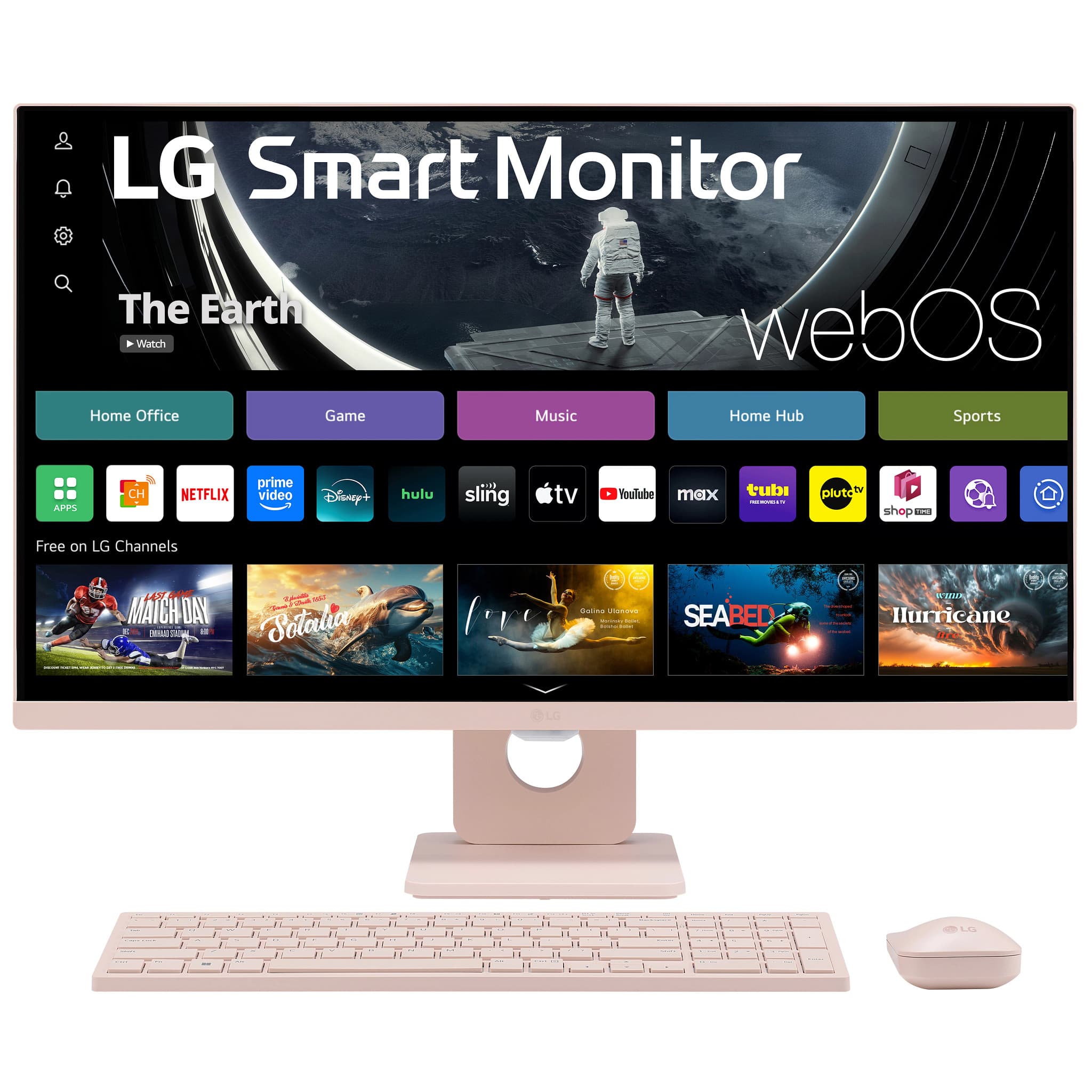
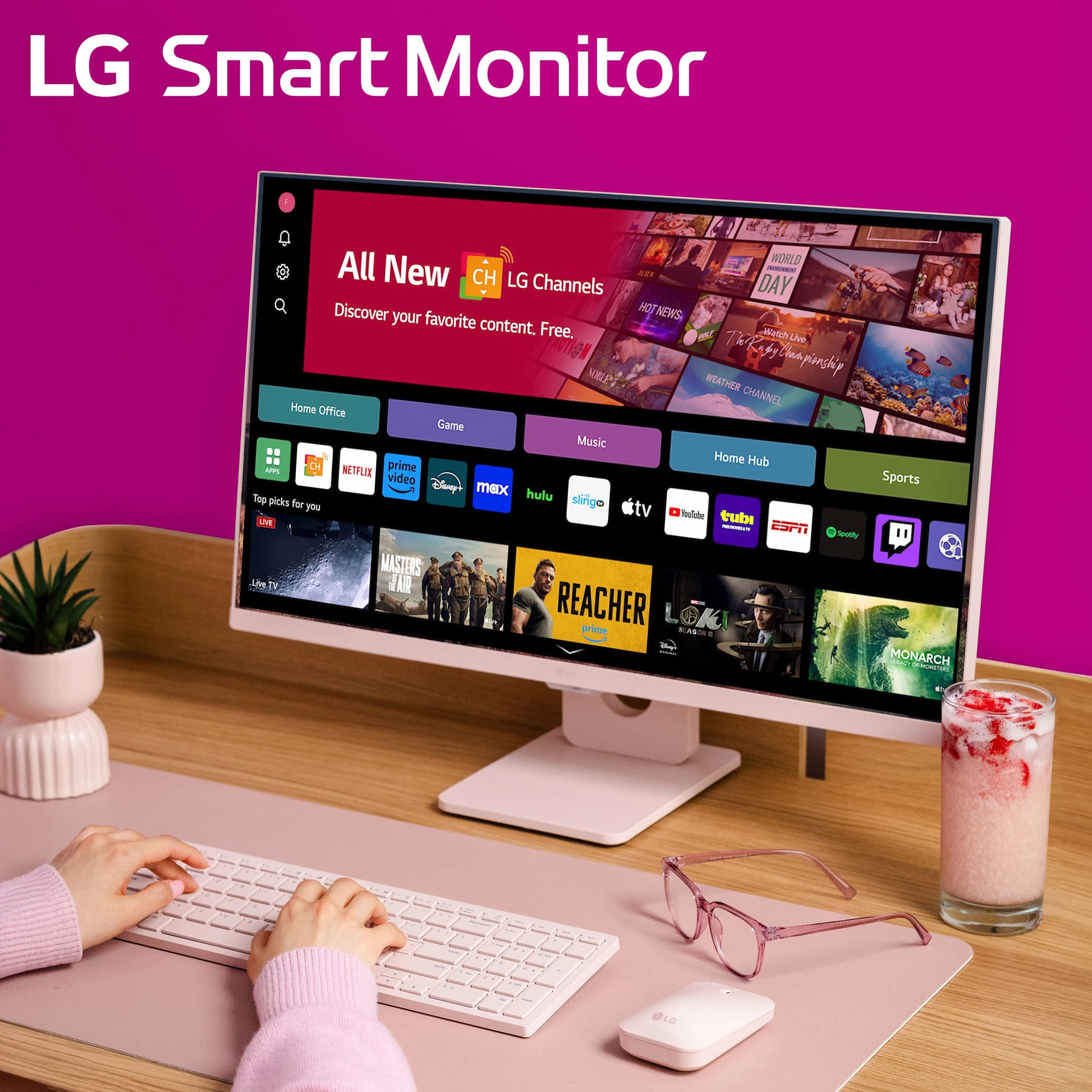
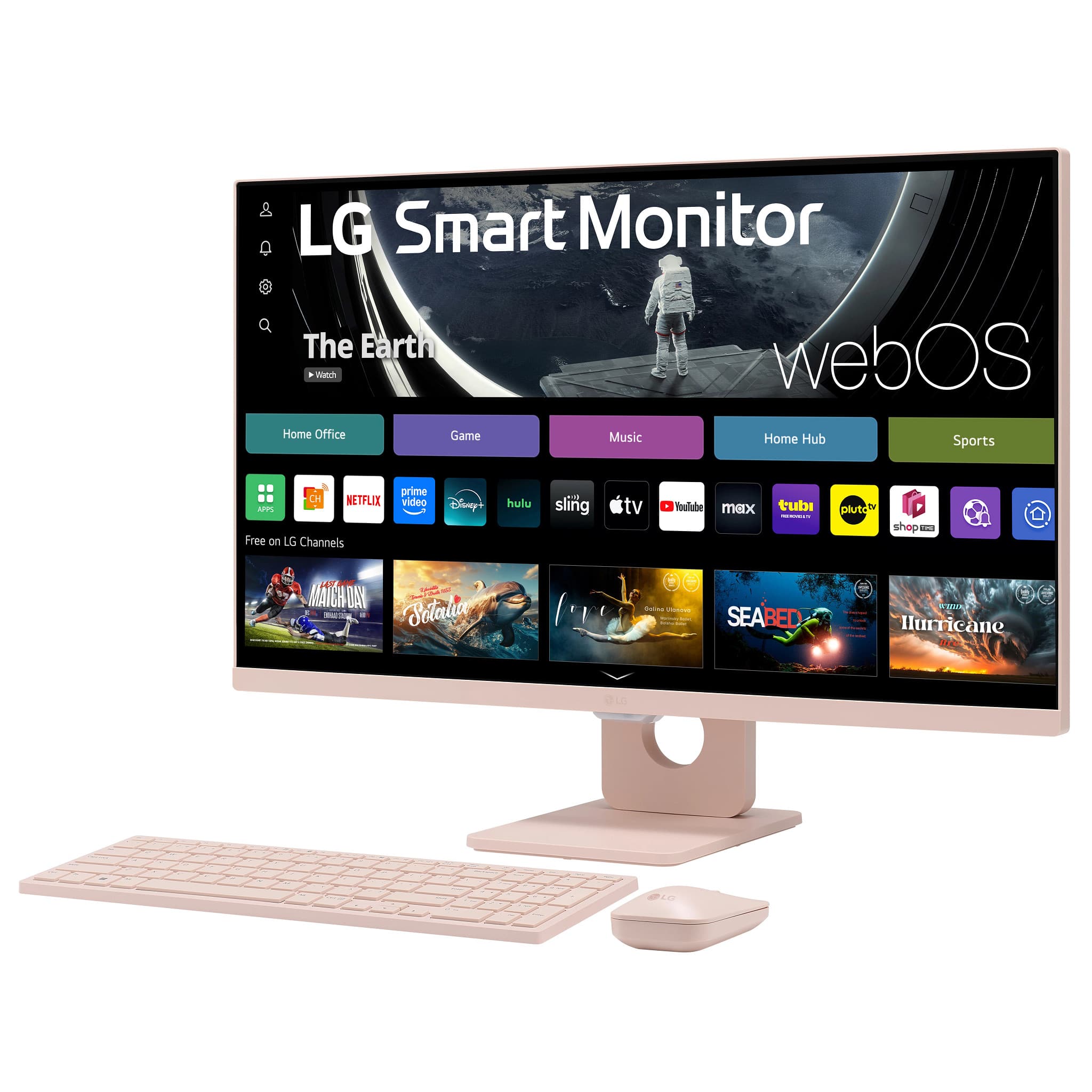
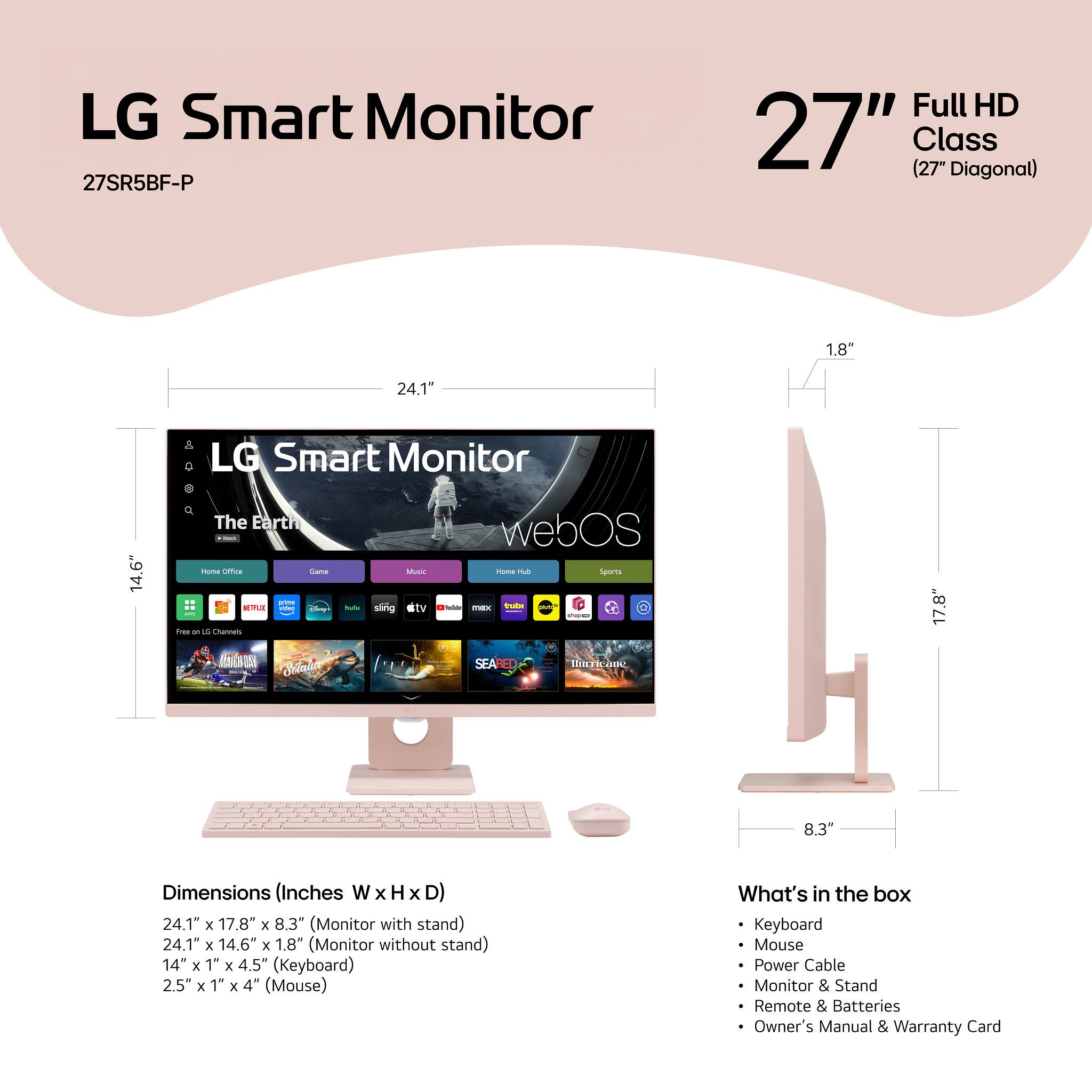
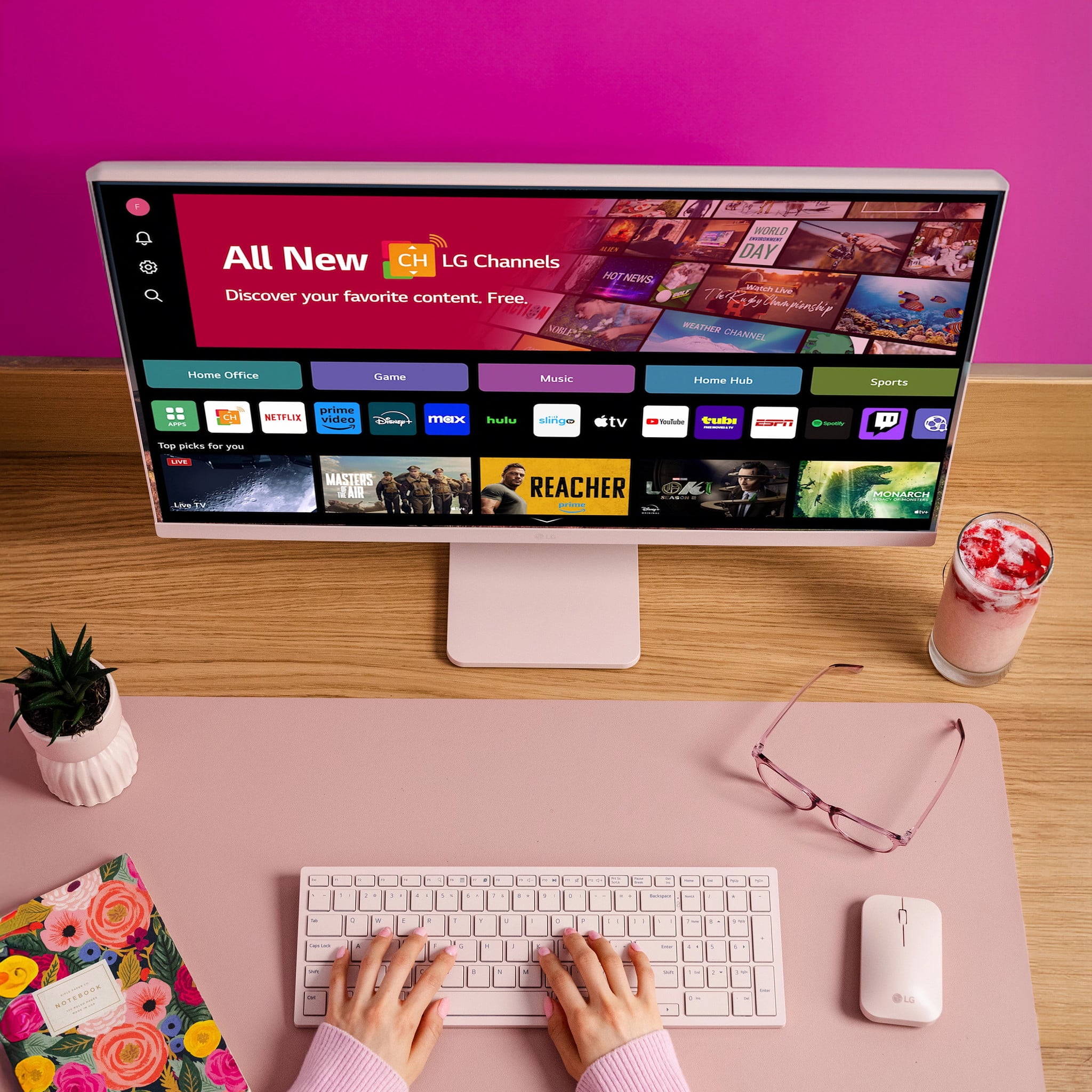
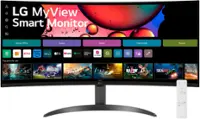
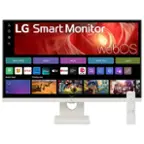
A:Answer Hi there, Chandana. Thank you for your question about connecting a mouse and keyboard to your MacBook using the LG 27SR5BF-P Smart Monitor. Here’s how to set it up:
1. Connect the Monitor to Your MacBook
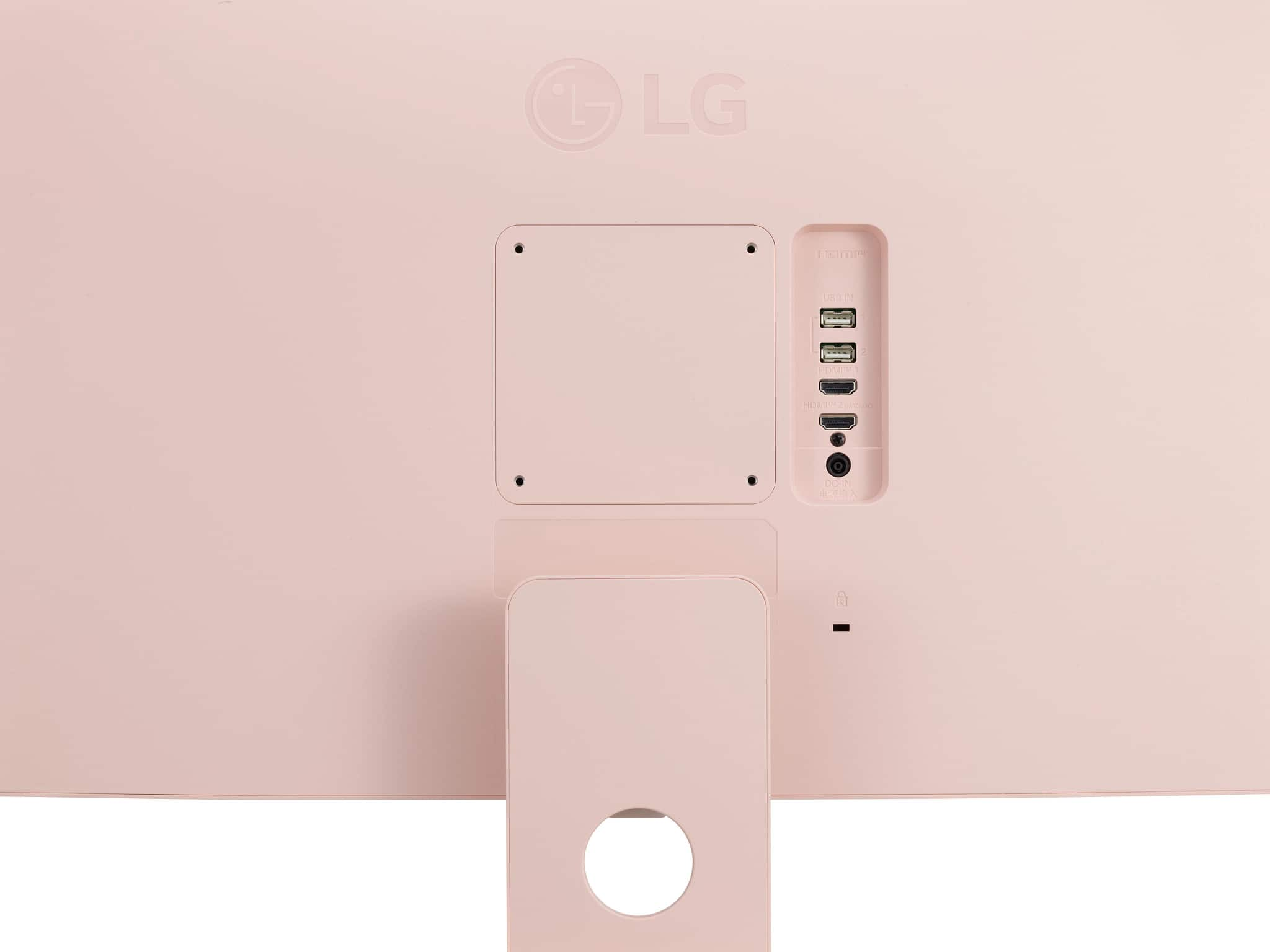
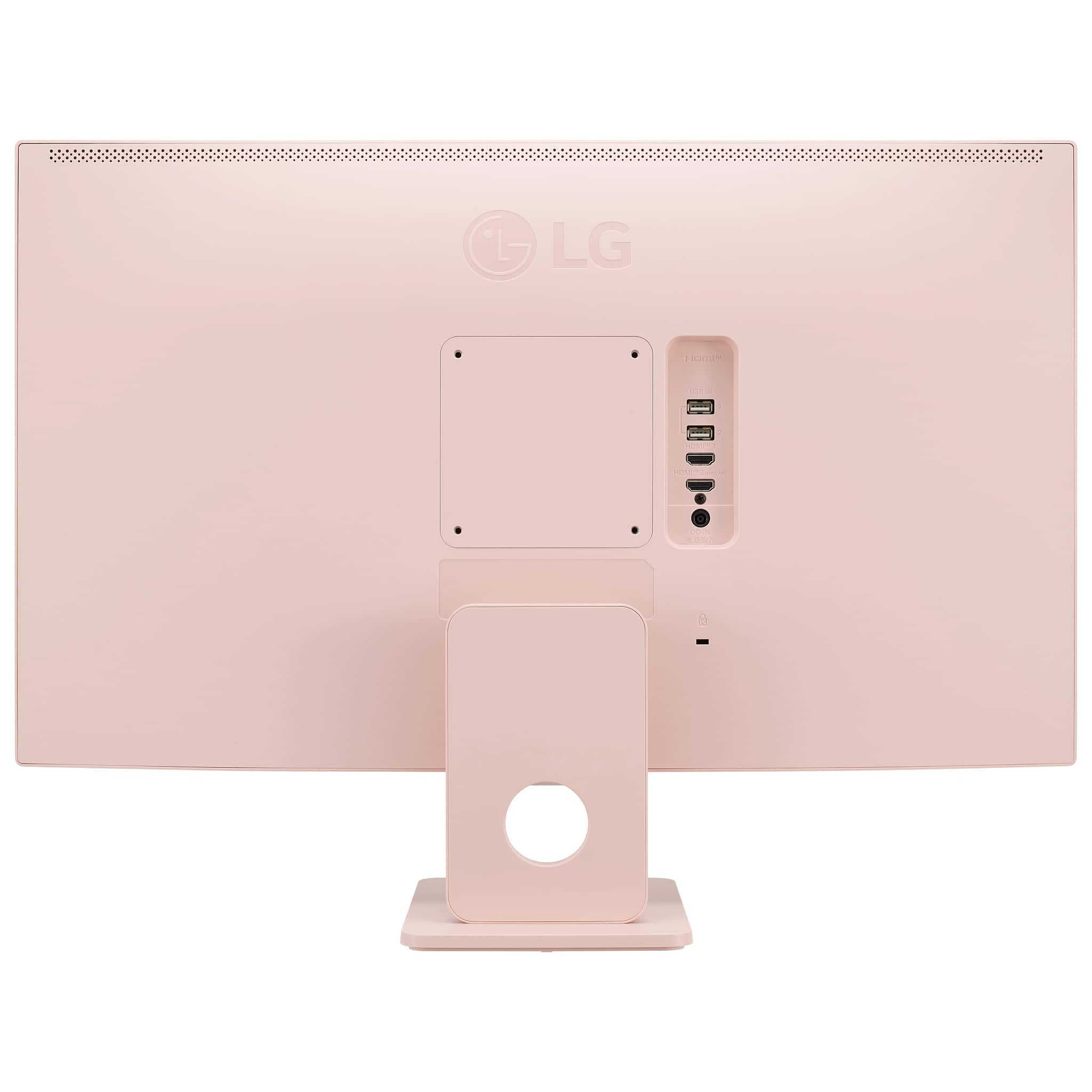
Use the provided HDMI cable to connect your MacBook to the monitor. Ensure the monitor is powered on and set to the correct input source (HDMI).
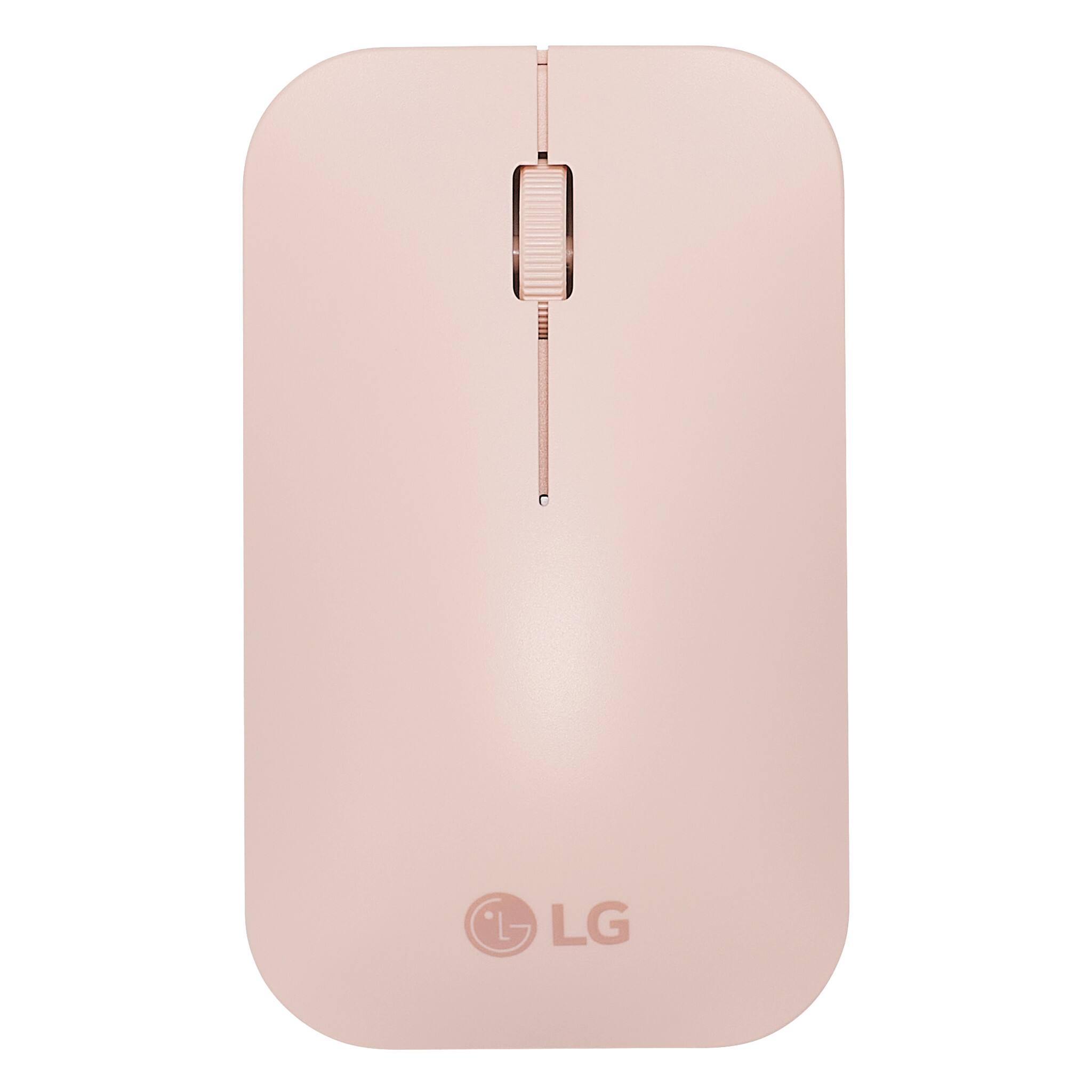
2. Connect the Keyboard and Mouse to the Monitor
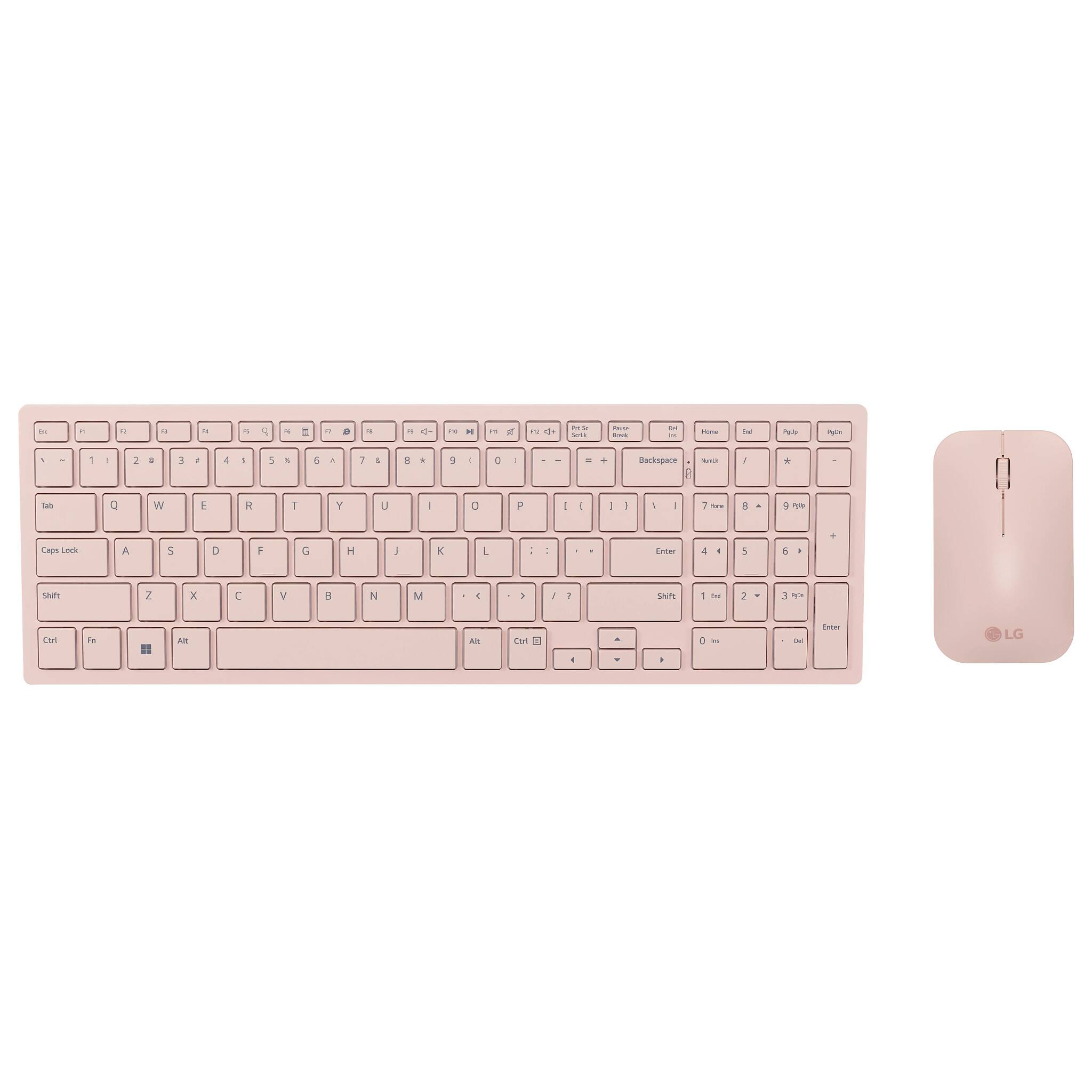
Plug the USB receiver (dongle) for the included wireless keyboard and mouse into one of the monitor’s USB downstream ports. These are located on the back or side of the monitor.
3. Check Compatibility on Your MacBook
Ensure your MacBook detects the peripherals. You can test by typing on the keyboard or moving the mouse.
No additional drivers are usually required as macOS supports standard USB devices.
4. Adjust Monitor Settings (Optional)
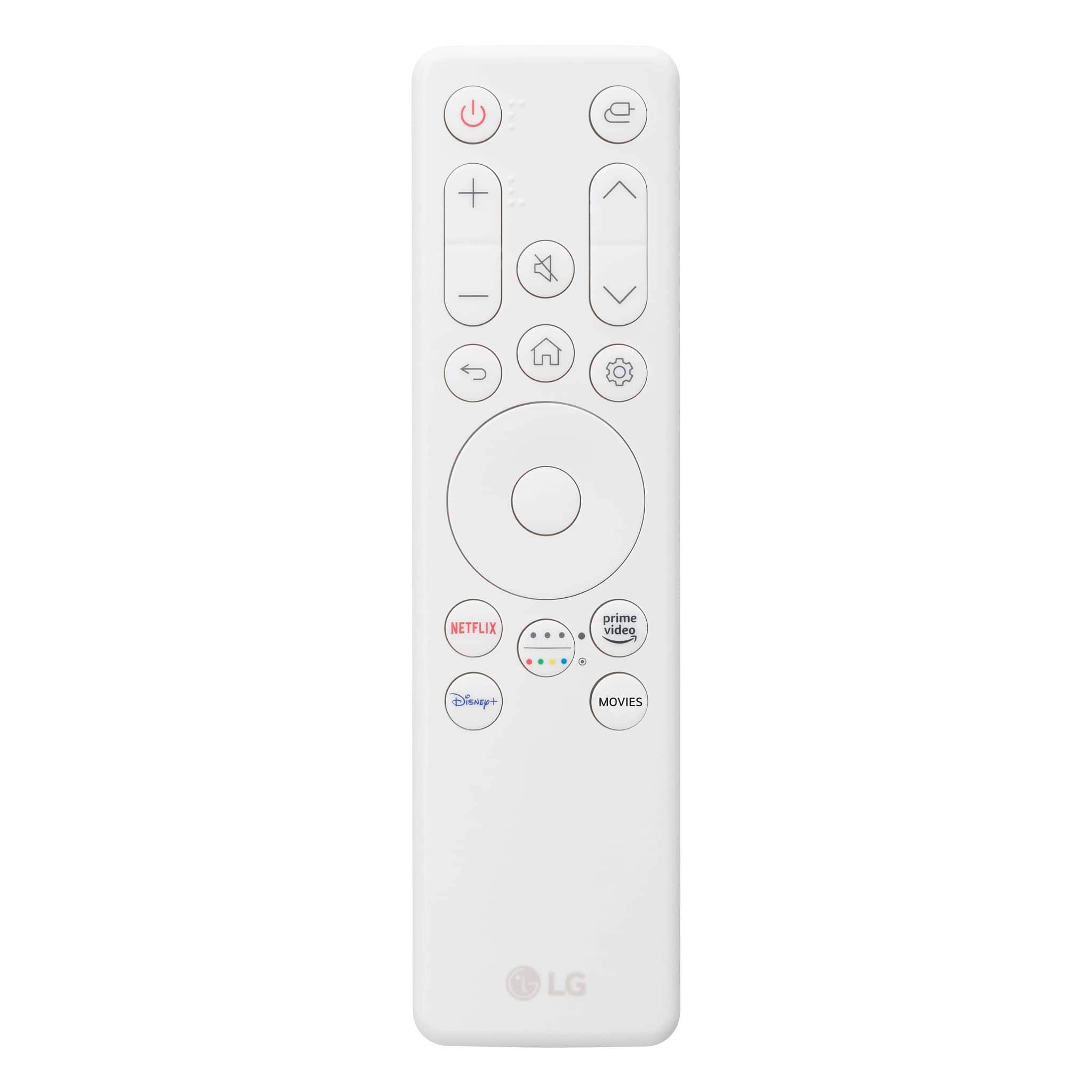
Use the monitor’s settings to fine-tune display preferences, or use the remote control to configure additional features if needed.
https://www.lg.com/us/monitors/lg-27sr5bf-p-smart-monitor#pdp_specs
If you encounter any issues, please ensure the keyboard and mouse batteries are installed properly, and the USB receiver is securely connected. Should you need further help, feel free to contact us via social media @LGUSSupport.
—Renzo