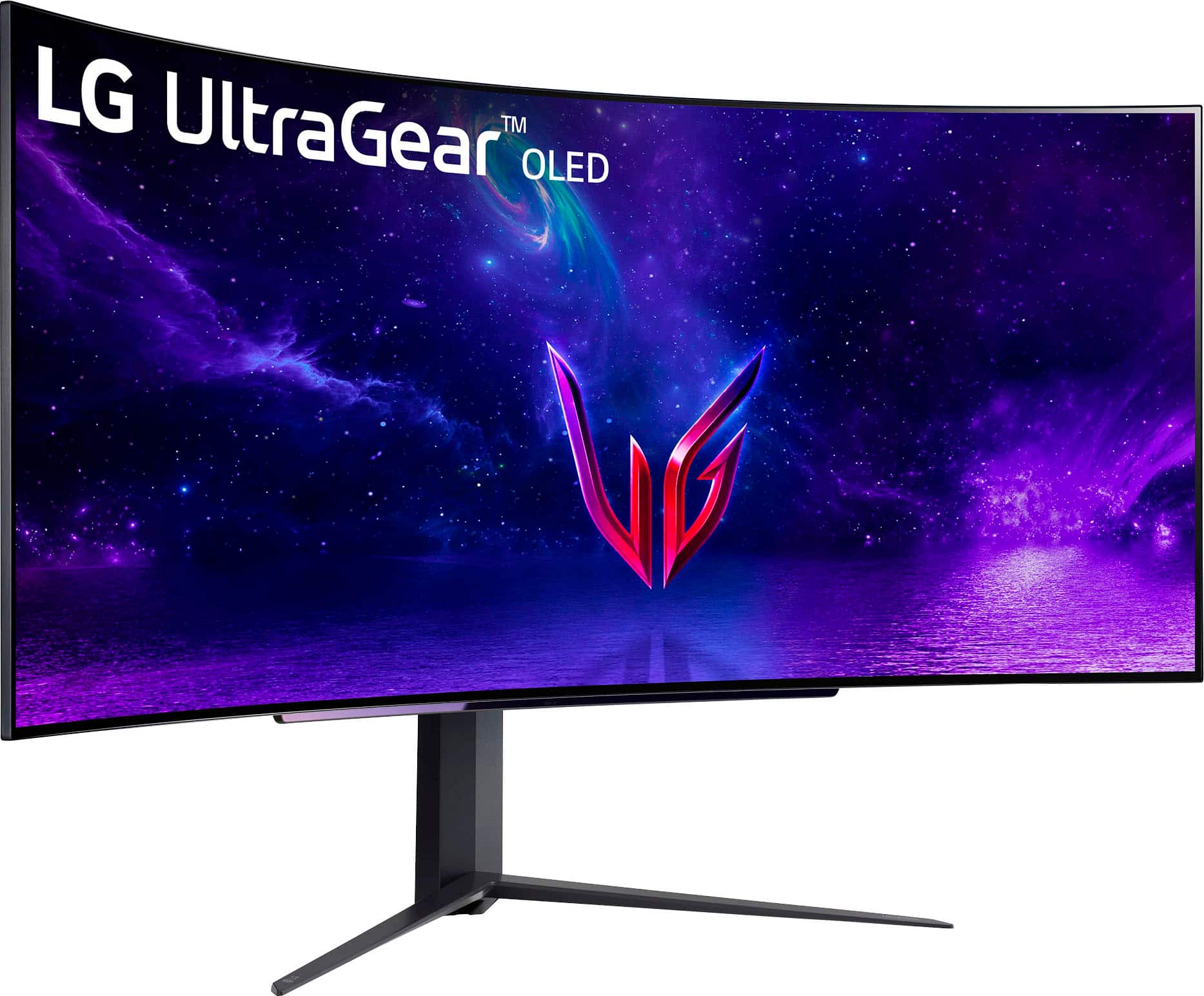
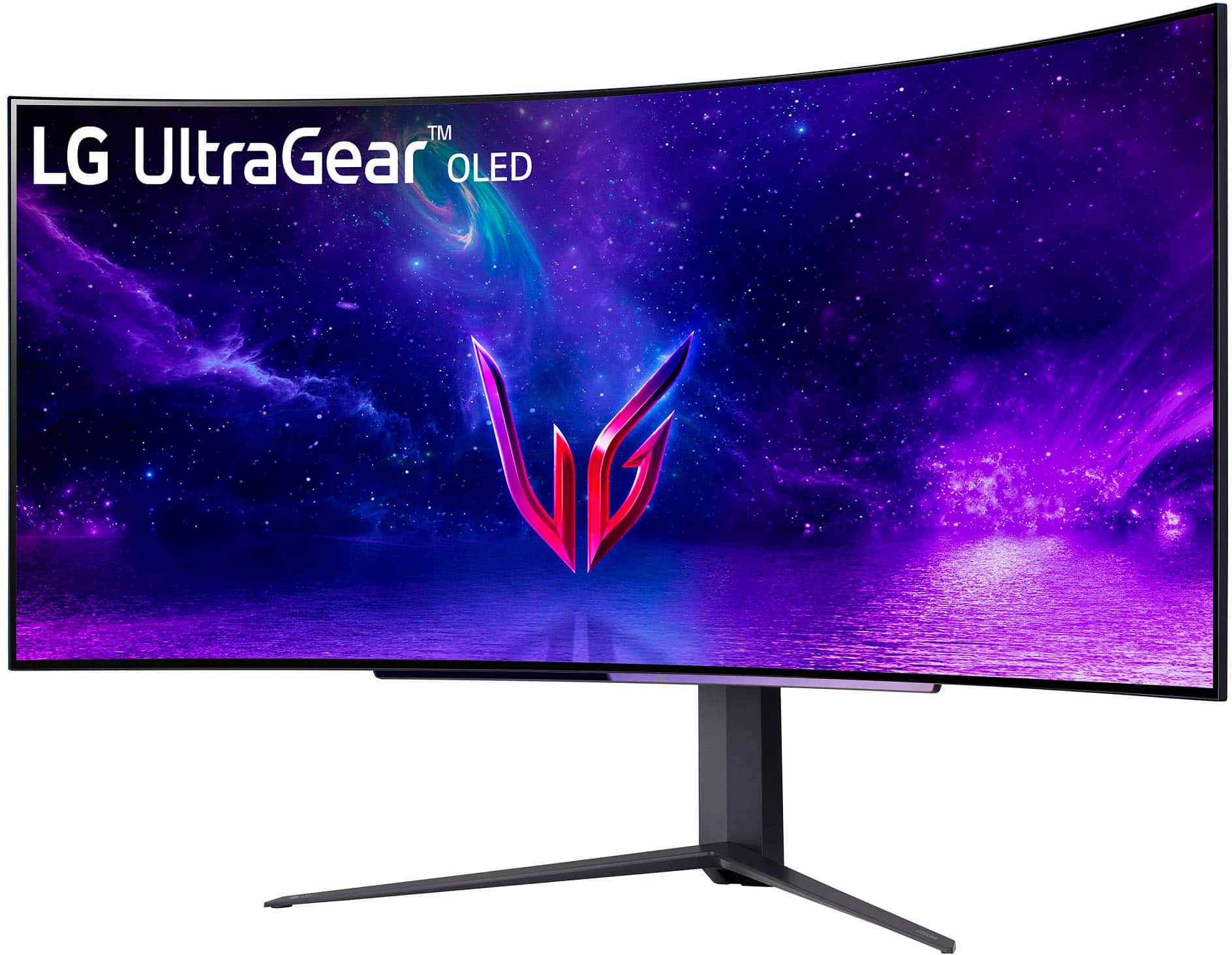
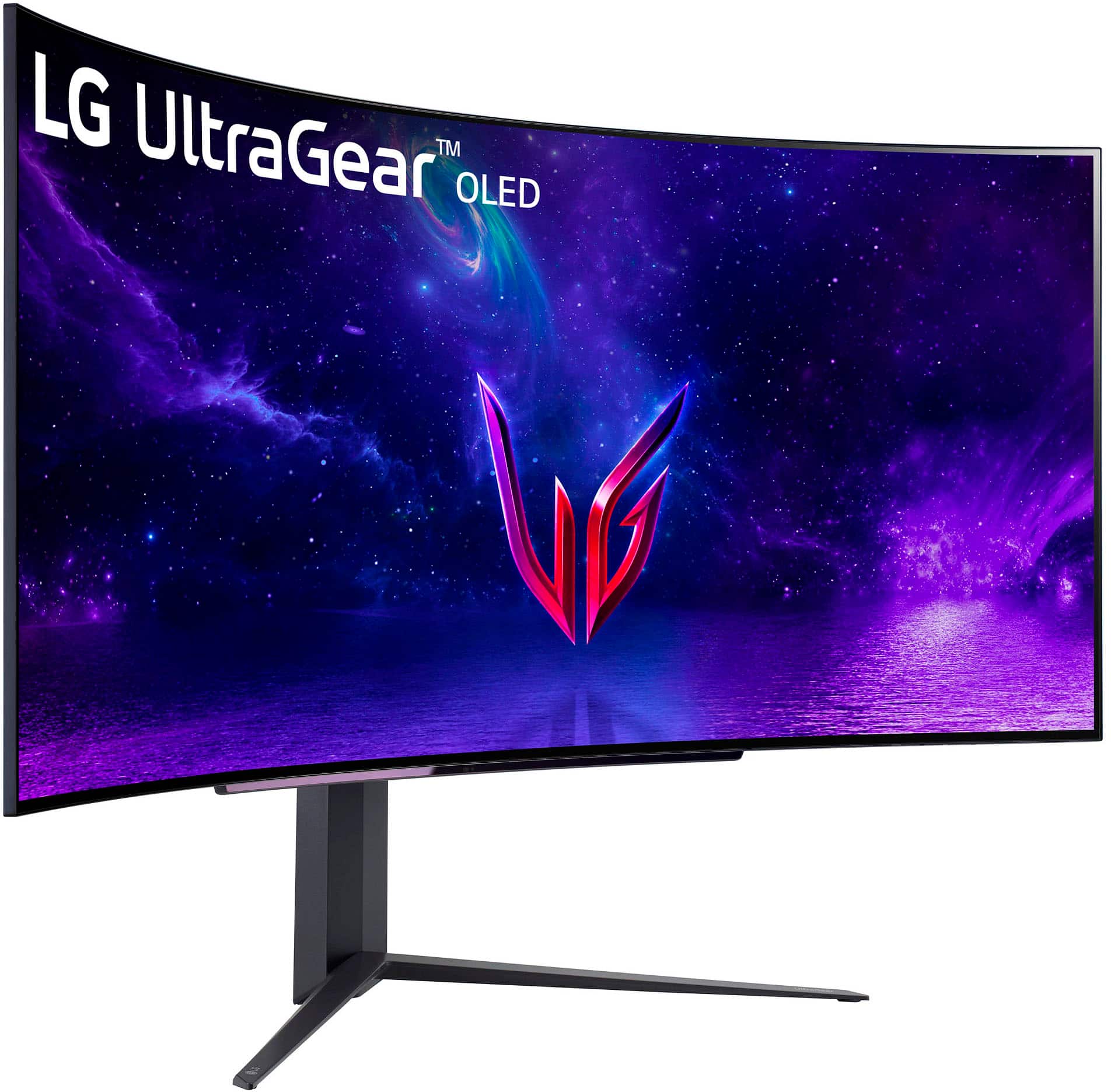
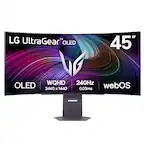
A:AnswerNo, it is not. You also really wouldn’t want that because of the size of the monitor you’d have to reach so far, plus that also leads to a dirty screen after a while.
A:AnswerHello there, Marcel. Thank you for your inquiry about the 45GR95QE-B.AUS monitor. Yes, this model supports picture-by-picture (PBP) functionality, allowing you to connect multiple sources and display them simultaneously on the screen. You can utilize your Dell XPS L702X with HDMI and mini DisplayPort to set up a triple-split configuration for viewing different pages or plans at once, which is perfect for your needs as a contractor estimator. If you have any further questions or need assistance with the setup, please feel free to send us a private message on Social Media @LGUSSupport. We’re here to help!
—Avril
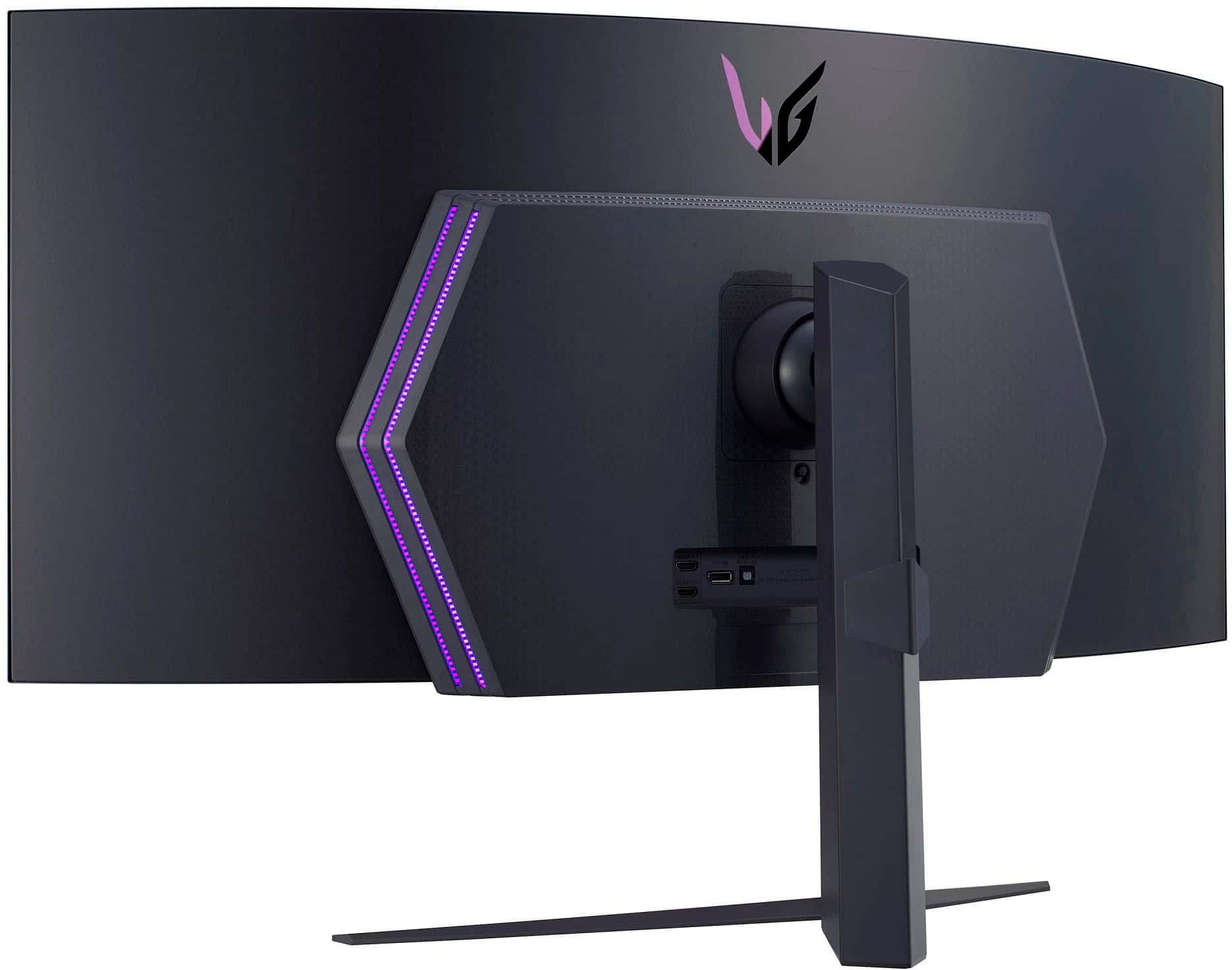
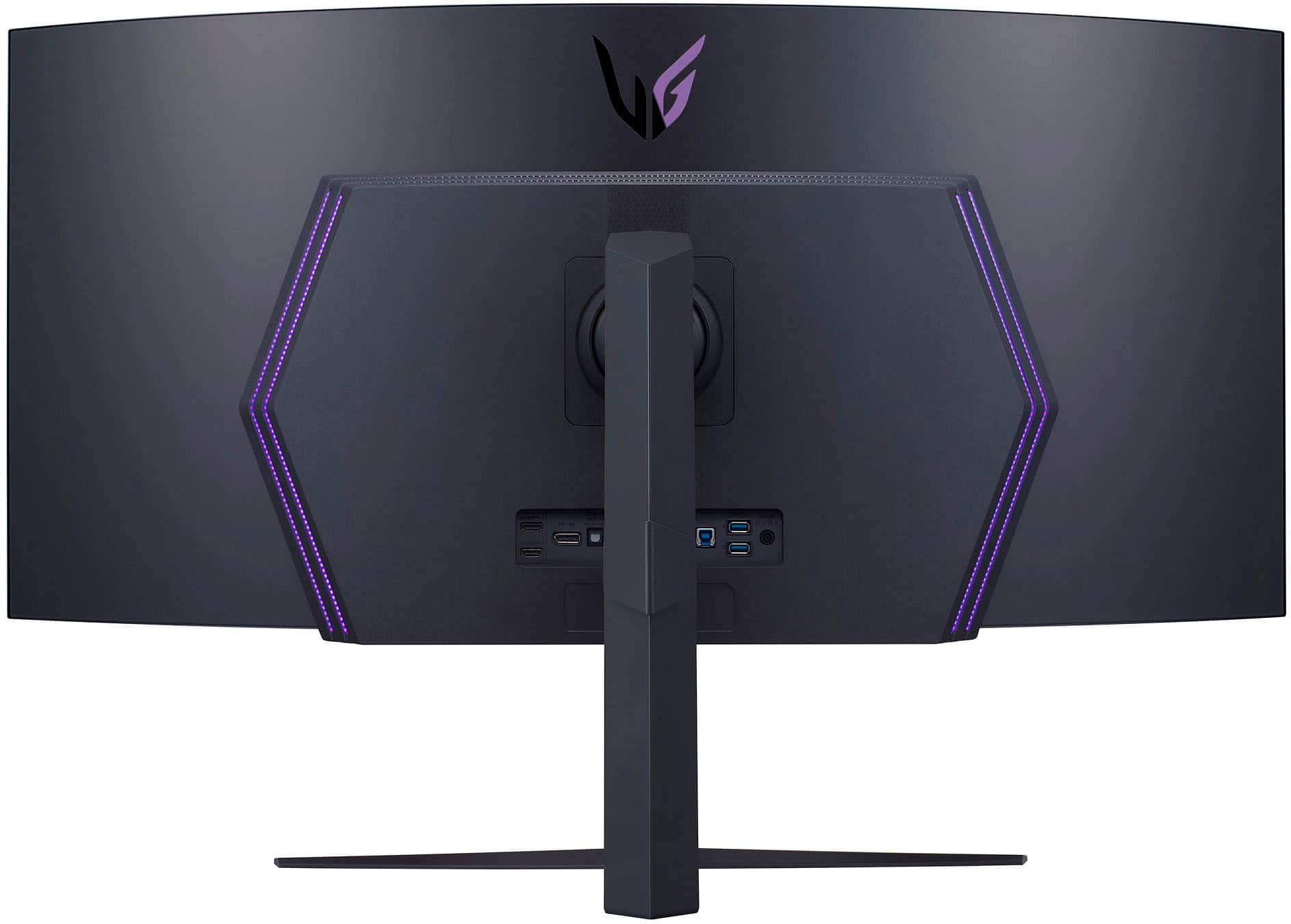
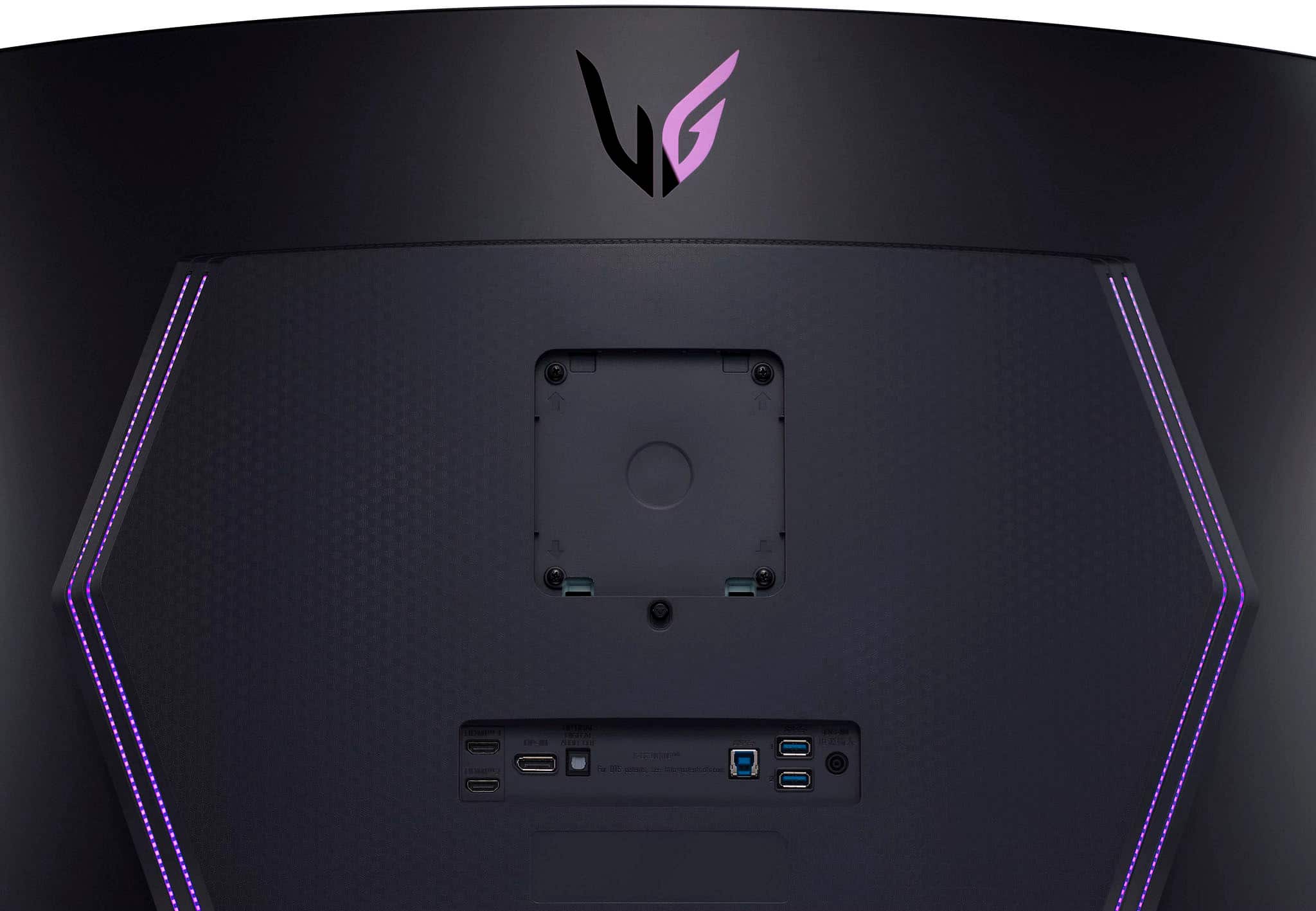
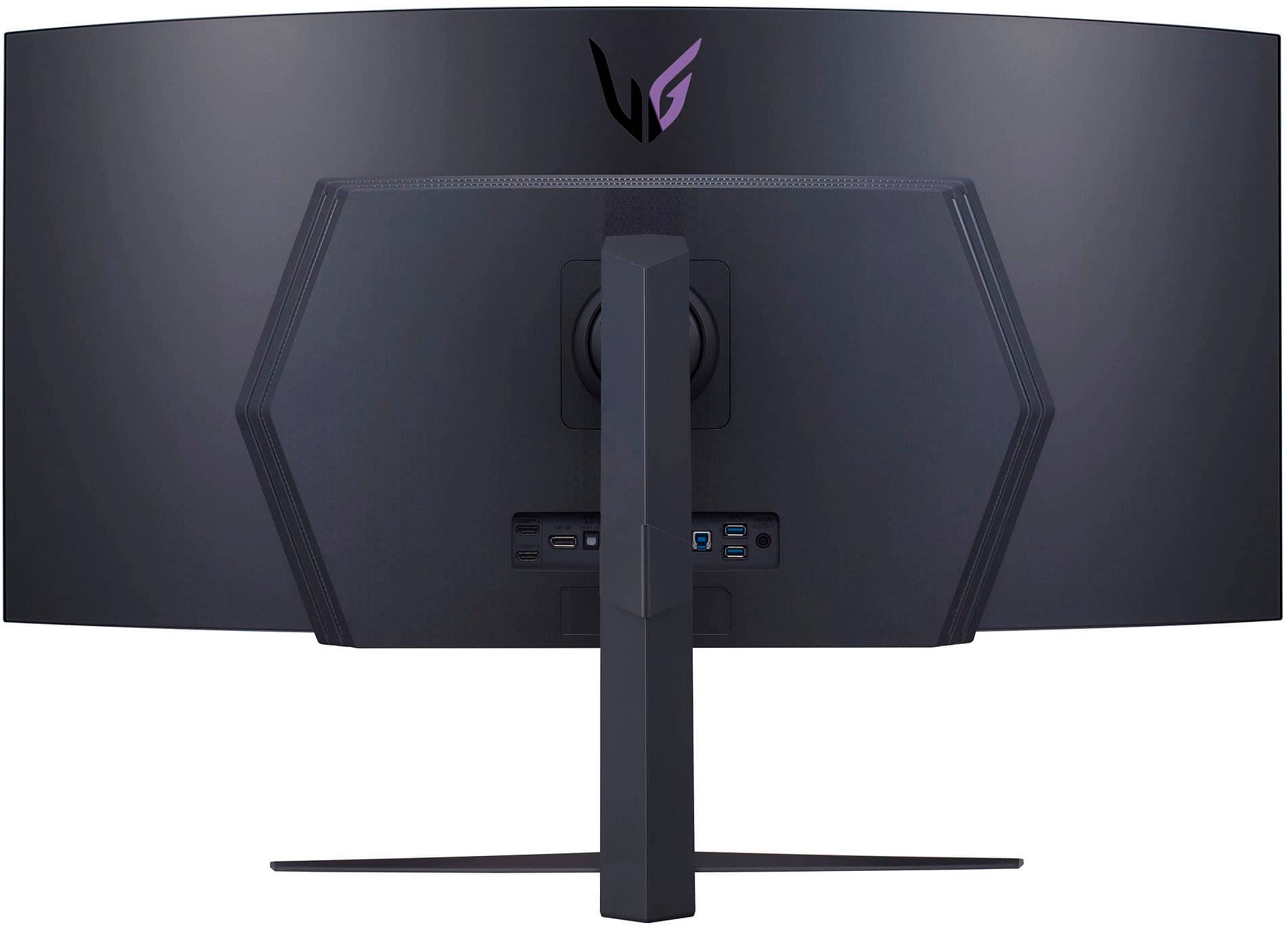
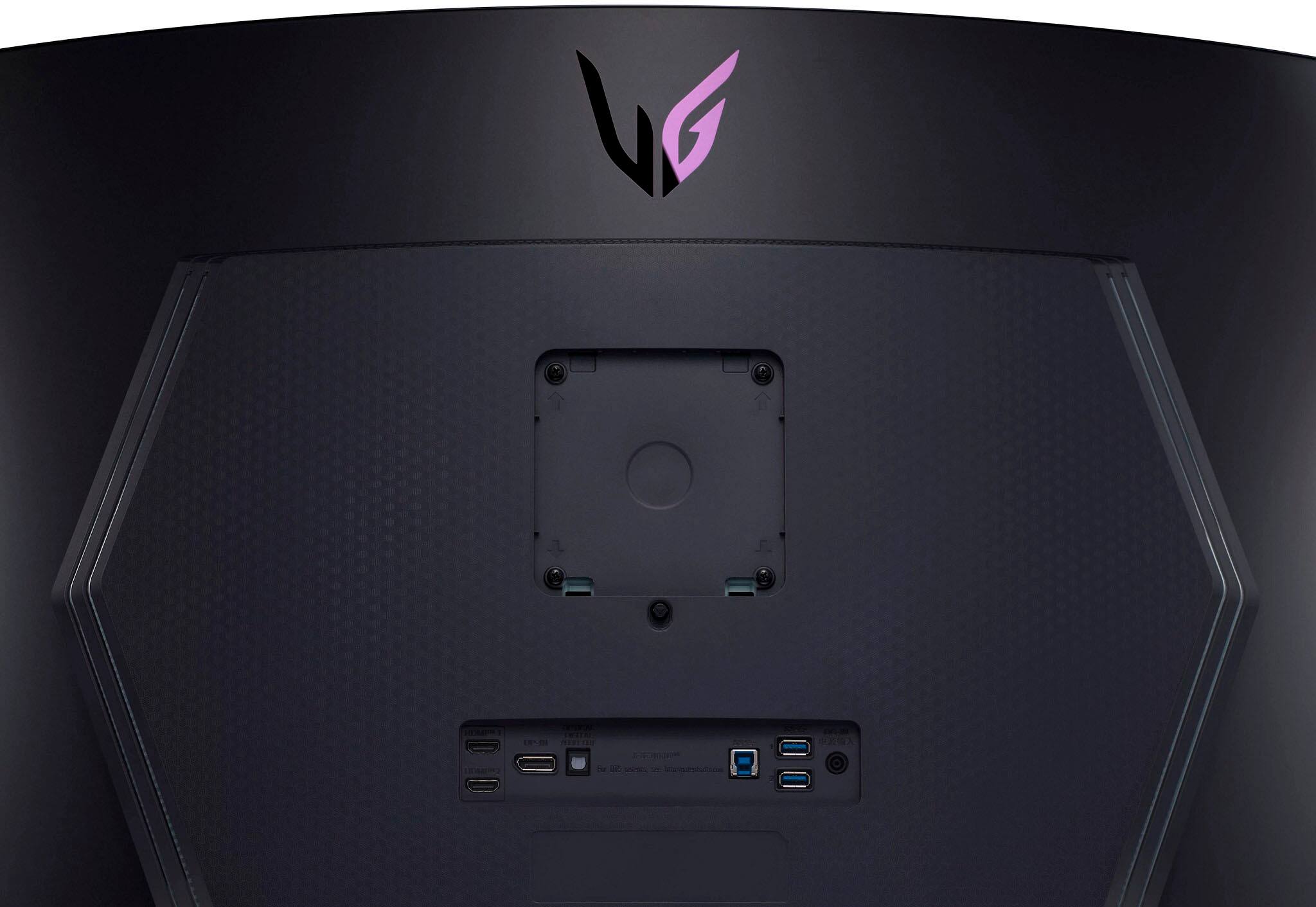
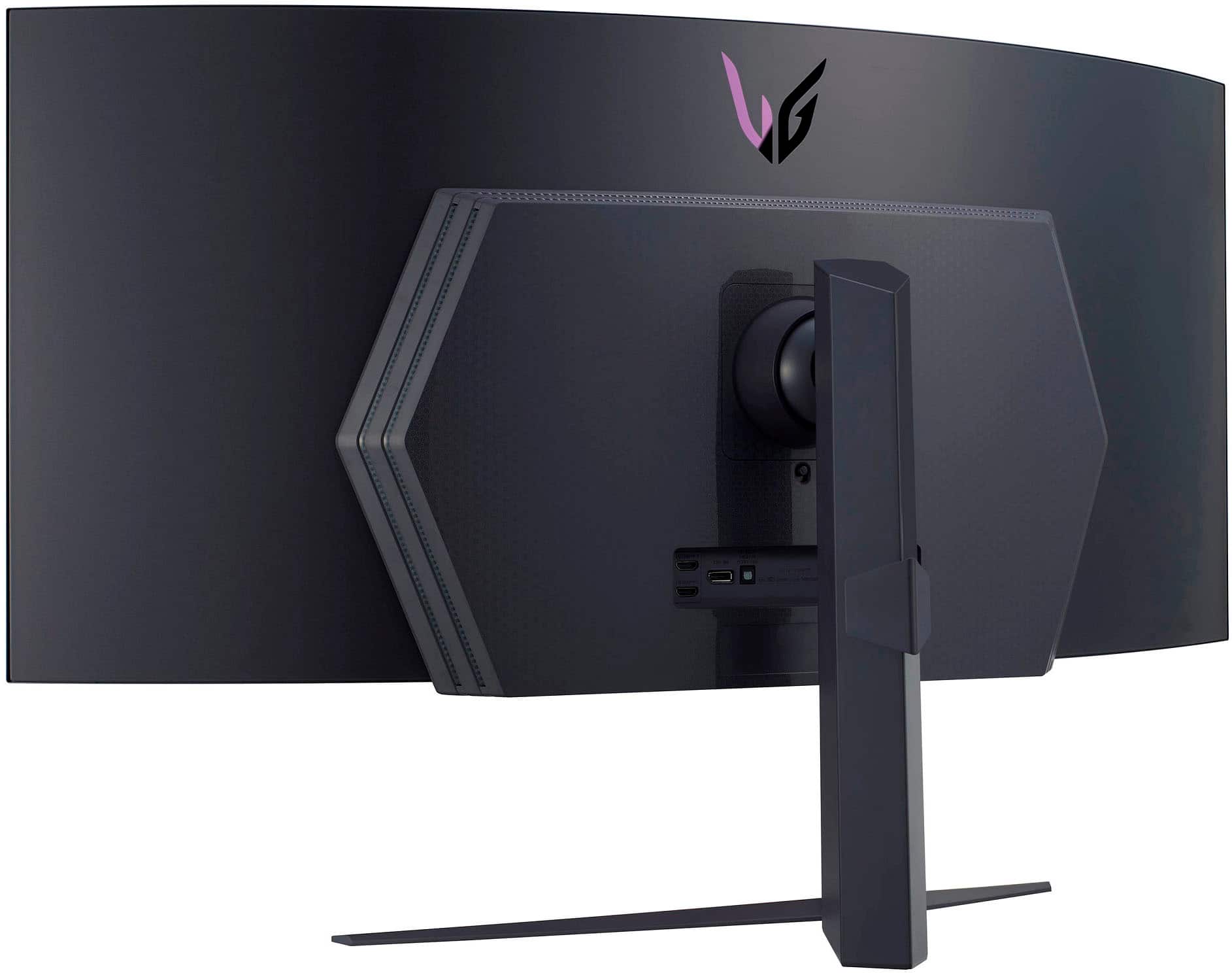
A:AnswerHello there! Thank you for your question about the 45GR95QE-B.AUS monitor. We understand you’re looking to activate the LED light on the back of your monitor. This LED light typically indicates power status or can be customized through the monitor’s settings.
To turn it on, please check the on-screen display (OSD) menu by pressing the joystick button on the back or bottom of the monitor. Look for the “LED” or “Lighting” settings and make sure it is enabled.
If you need further assistance or have any other questions, please feel free to send us a private message on Social Media @LGUSSupport. Our team is here to help! Thank you for choosing LG!
—Avril
A:AnswerHello there! The 45GR95QE-B.AUS monitor typically comes with a manufacturer's warranty included in the purchase. This warranty generally covers defects in materials and workmanship for a specific period. For detailed warranty information and coverage specifics, it’s best to refer to the user manual or the warranty documentation included with your purchase.
If you have any further questions or need assistance, feel free to reach out to us via private message at @LGUSSupport.
Thank you for choosing LG!
—Avril
A:AnswerAccording to Apple's website, yes it should actually work.
""
Display Support
M3 Pro
Simultaneously supports full native resolution on the built-in display at 1 billion colors and:
Up to two external displays with up to 6K resolution at 60Hz over Thunderbolt, or one external display with up to 6K resolution at 60Hz over Thunderbolt and one external display with up to 4K resolution at 144Hz over HDMI
One external display supported at 8K resolution at 60Hz or one external display at 4K resolution at 240Hz over HDMI
M3 Max
Simultaneously supports full native resolution on the built-in display at 1 billion colors and:
Up to four external displays: Up to three external displays with 6K resolution at 60Hz over Thunderbolt and one external display with up to 4K resolution at 144Hz over HDMI
Up to three external displays: Up to two external displays with 6K resolution at 60Hz over Thunderbolt and one external display with up to 8K resolution at 60Hz or one external display with 4K resolution at 240Hz over HDMI
Thunderbolt 4 digital video output
Support for native DisplayPort output over USB‑C
HDMI digital video output
Support for one display with up to 8K resolution at 60Hz or 4K resolution at 240
""
A:AnswerHi there, Jp. Thank you for your question about the 45GR95QE-B.AUS monitor. Unfortunately, this model does not come with built-in speakers. However, you can connect external speakers or use headphones through the audio output to enhance your gaming experience. If you have any further questions or need assistance with your setup, please feel free to send us a private message on social media @LGUSSupport, and our team will be happy to help. We appreciate your time! —Avril
A:AnswerHello there. Thank you for your question about the 45GR95QE-B.AUS monitor. This model does not come with a built-in microphone. If you need audio input for communication, you would need to use an external microphone connected to your computer or device.
If you have any further questions or need assistance with your setup, please feel free to send us a private message on Social Media @LGUSSupport. We’re here to help with any additional information you may need. Thank you for choosing LG!
—Avril
A:AnswerIf you have displayport output on your desktop, then yes, no problem. If you have HDMI output, then maybe. Not all HDMI ports will support 3440x1440 @ 240 hz and variable refresh rate.
A:AnswerHello there! Thank you for your inquiry about the 45GR95QE-B.AUS monitor. This unit does not include a built-in microphone, so any microphone functionality would need to come from an external device. If you have further questions or need assistance with connections, please send us a private message on Social Media @LGUSSupport, and our team will be happy to help you. We appreciate your engagement! —Avril
A:AnswerI've seen this too. I don't think the video they're feeding to the monitor even has the full 3440x1440 resolution, or 240hz, or HDR. When I was there though, I just plugged in a computer that was running next to it to test it out. It really is a great monitor, and that video they have looping on it at the store really doesn't do it any justice.
A:AnswerYou can't load any apps on this monitor. It's not a smart TV. You will need to connect some device with HDMI or DIsplayport output, then load your apps up on that device.
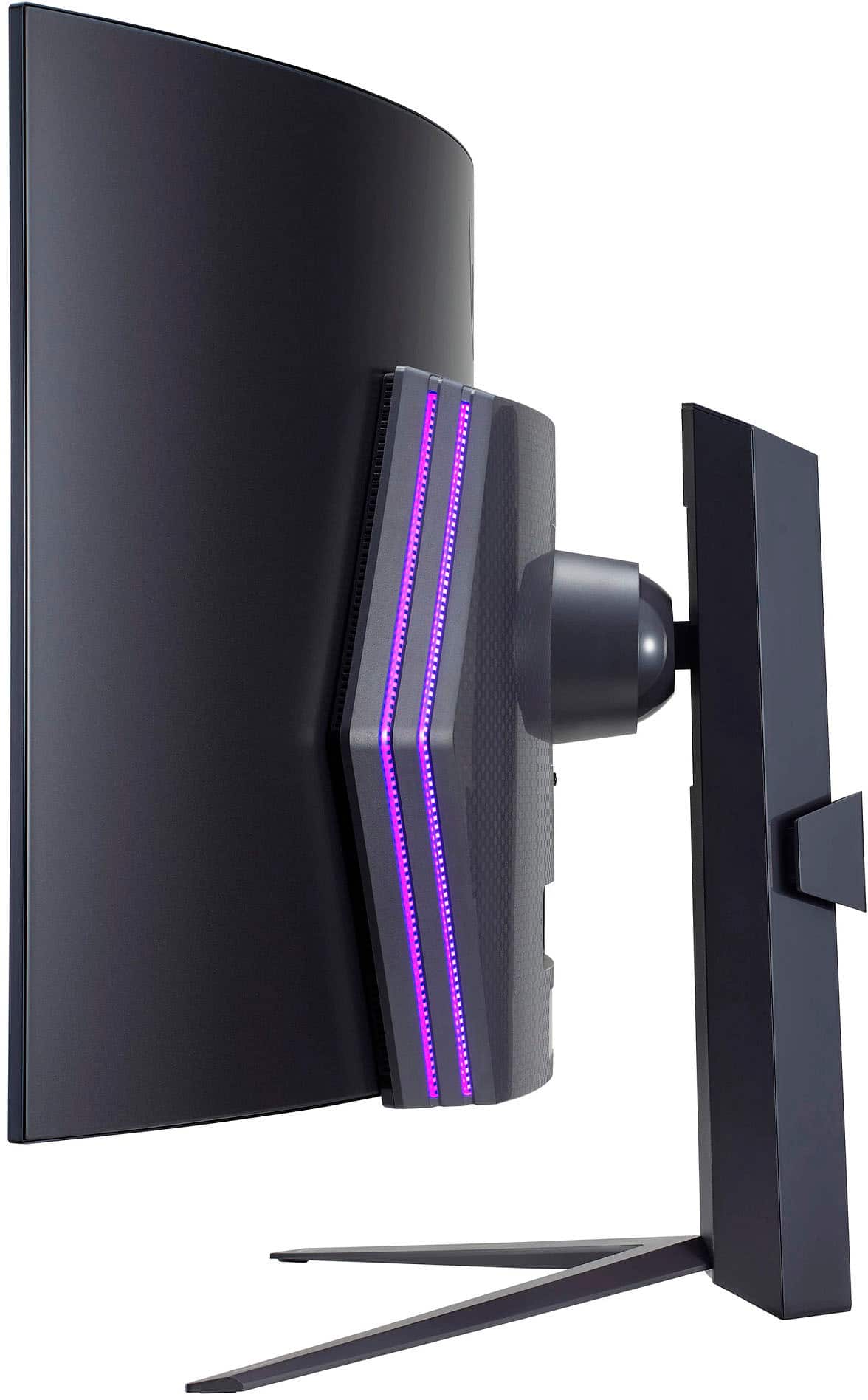
A:AnswerHello there! Thank you for your question about the 45GR95QE-B.AUS monitor. The depth of this monitor is approximately 14.3 inches (363 mm). If you have any further questions or need assistance, please feel free to send us a private message on Social Media @LGUSSupport—we’re here to help!
—Avril
A:AnswerHi there, Calvin! Thank you for reaching out and sharing your experience with the 45GR95QE-B.AUS monitor. It sounds like there may be an issue with the DisplayPort (DP) connection. Here’s a troubleshooting step you can try: ensure that the DisplayPort cable is securely connected to both the monitor and your computer. If possible, test with a different DP cable or try connecting to another device to see if the issue persists.
If the problem continues, please send us a private message on Social Media @LGUSSupport, and our team will be more than happy to assist you further. We appreciate your patience and look forward to resolving this for you!
—Avril
A:AnswerHello there! Thank you for your thoughtful question regarding your 45GR95QE-B.AUS monitor. For optimal performance and visual quality while gaming and using Adobe programs with your Mac mini, we recommend using DisplayPort over HDMI. DisplayPort typically supports higher refresh rates and better color depth, which can enhance your experience, especially for graphic design and gaming.
If you have any more questions or need further assistance with your setup, please don't hesitate to send us a private message on Social Media @LGUSSupport. We're here to ensure you get the best experience possible! —Avril
A:AnswerHDR should be set to auto by default on the monitor. It requires your PC to allow the HDR in your settings. If you have a Windows OS, you will need to go in and turn on HDR. Im pretty sure you can right-click your desktop. Go to Display Settings. You should see HDR in there. Click on it, and then go toggle it on for the display.
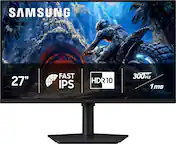
For Gamers: Some video games require you to enable it within the video game. Others will auto detect that HDR is enabled like Apex Legends and enable it automatically.