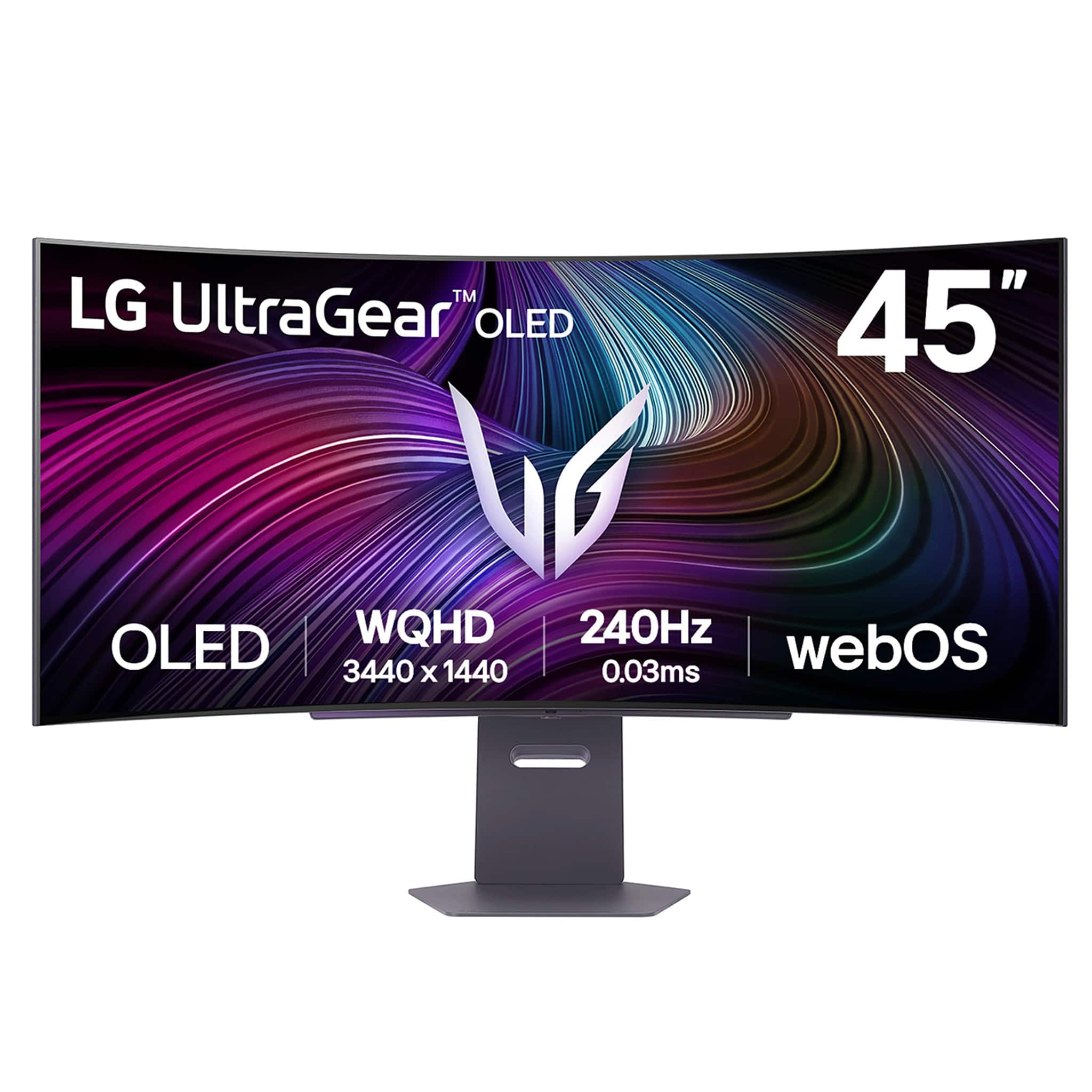
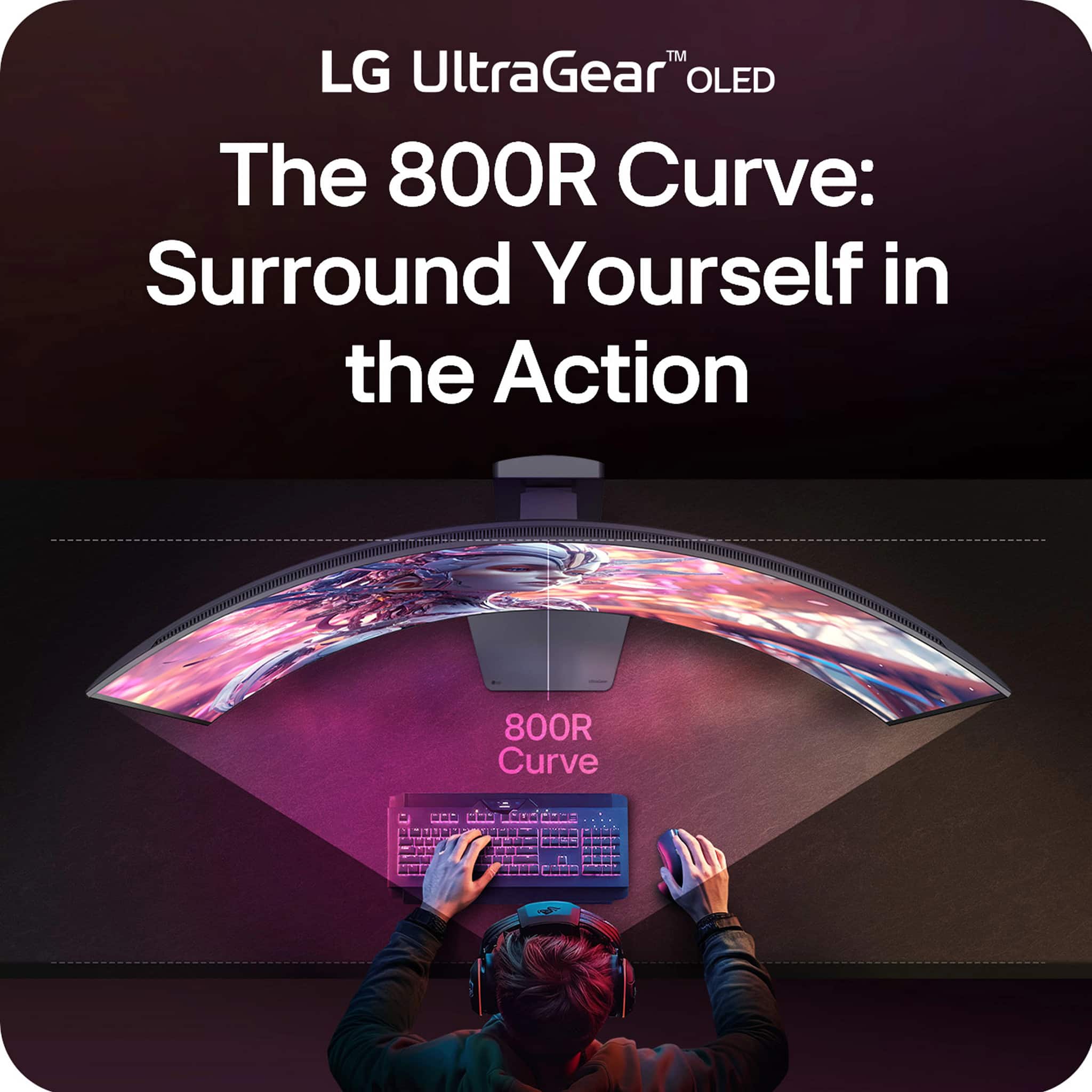
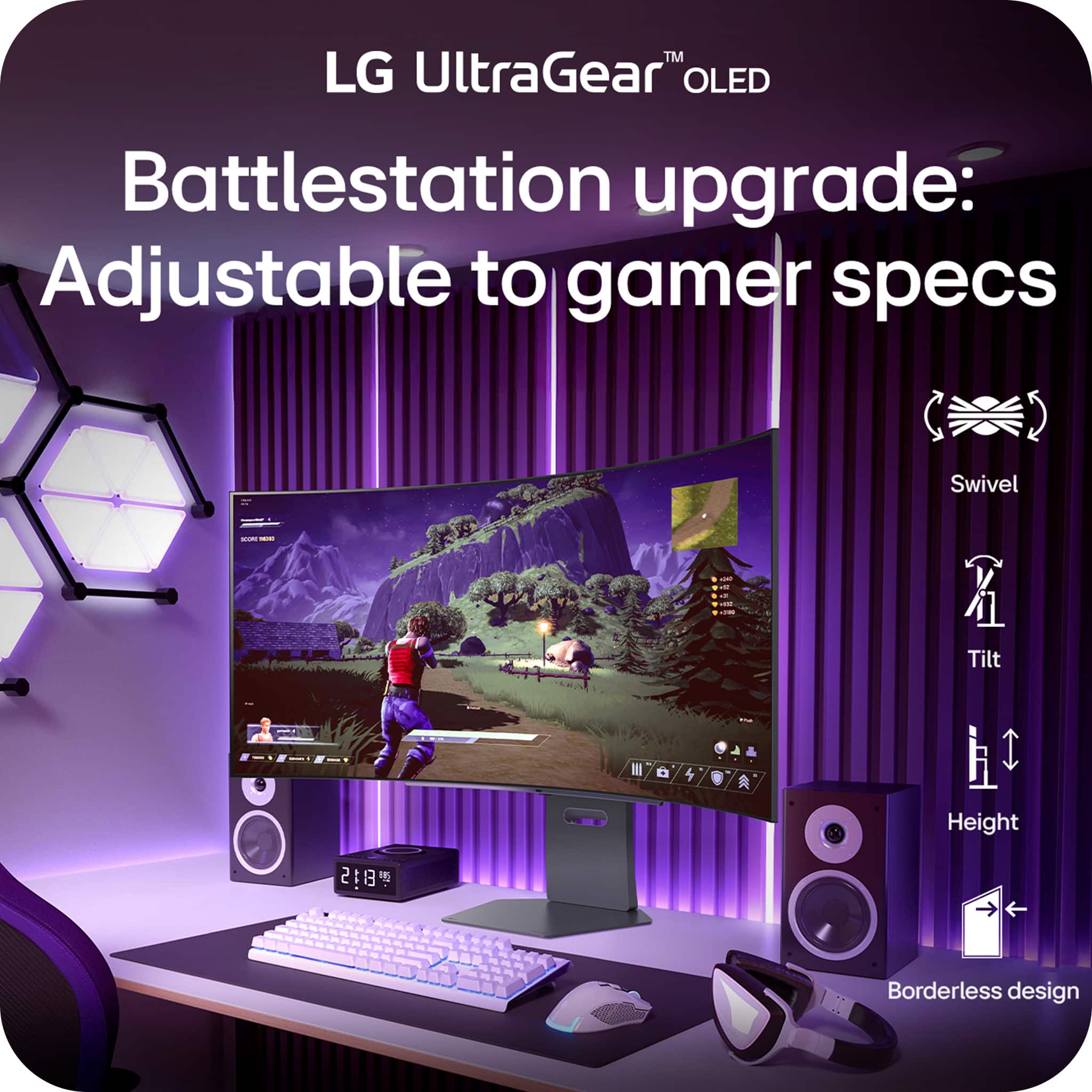
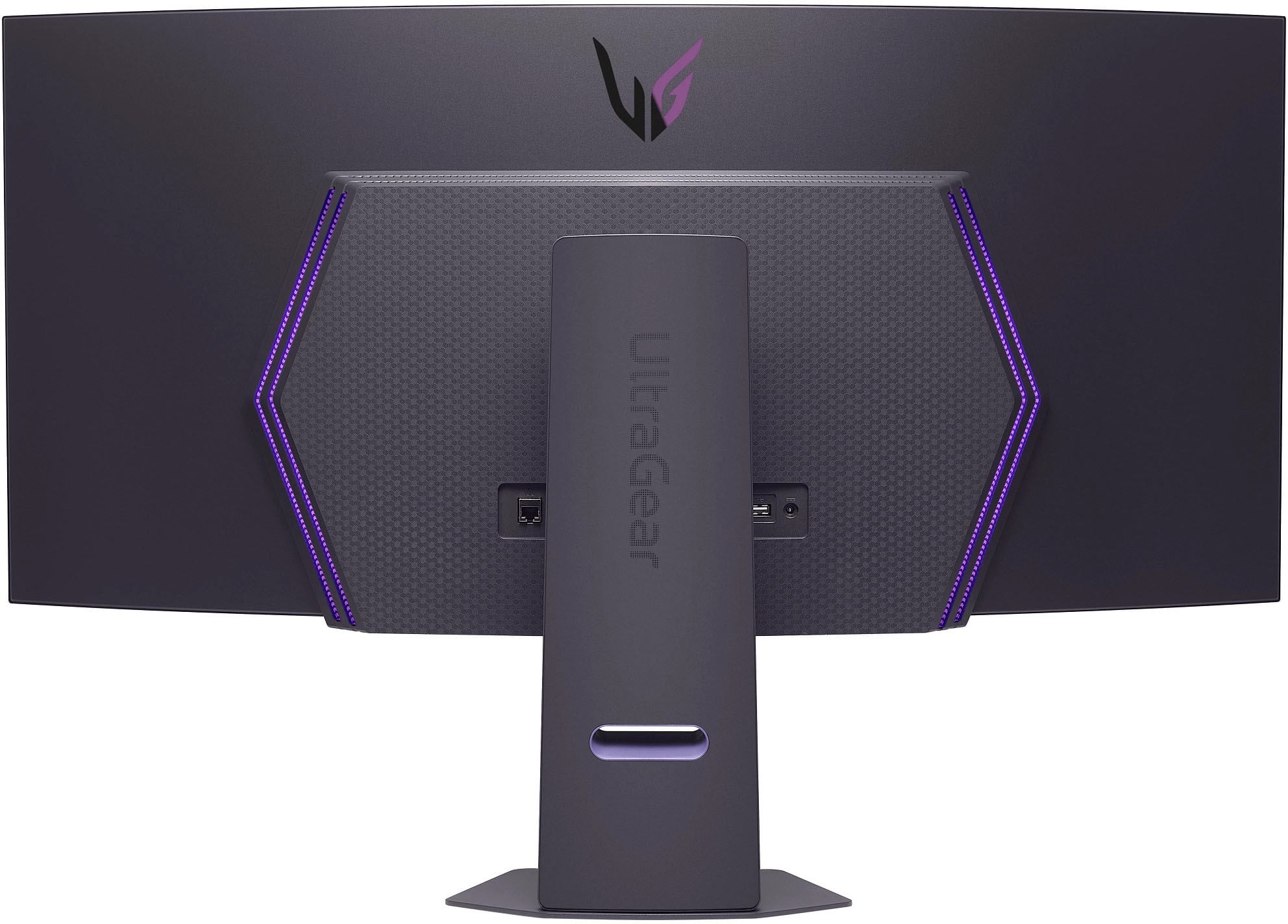
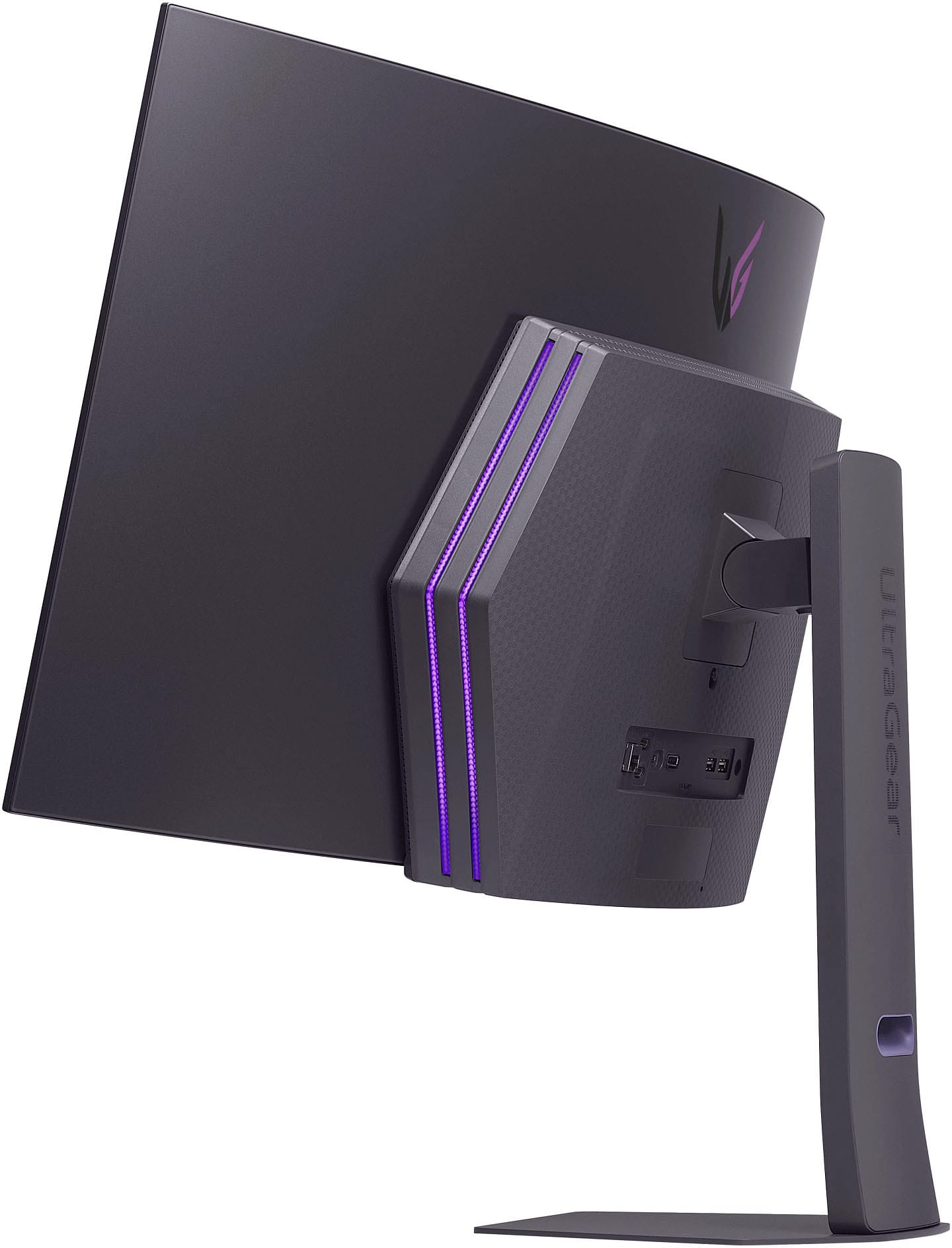
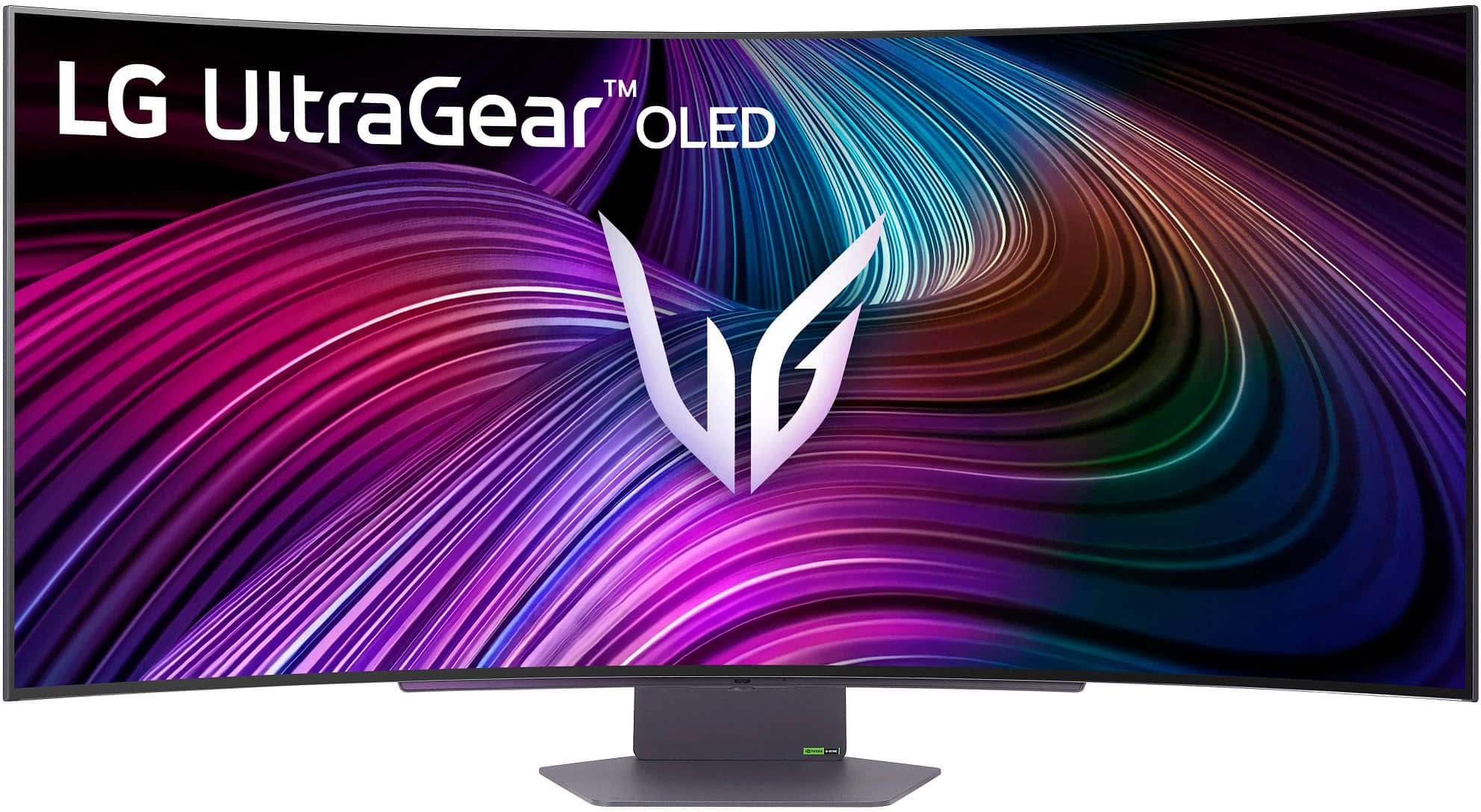
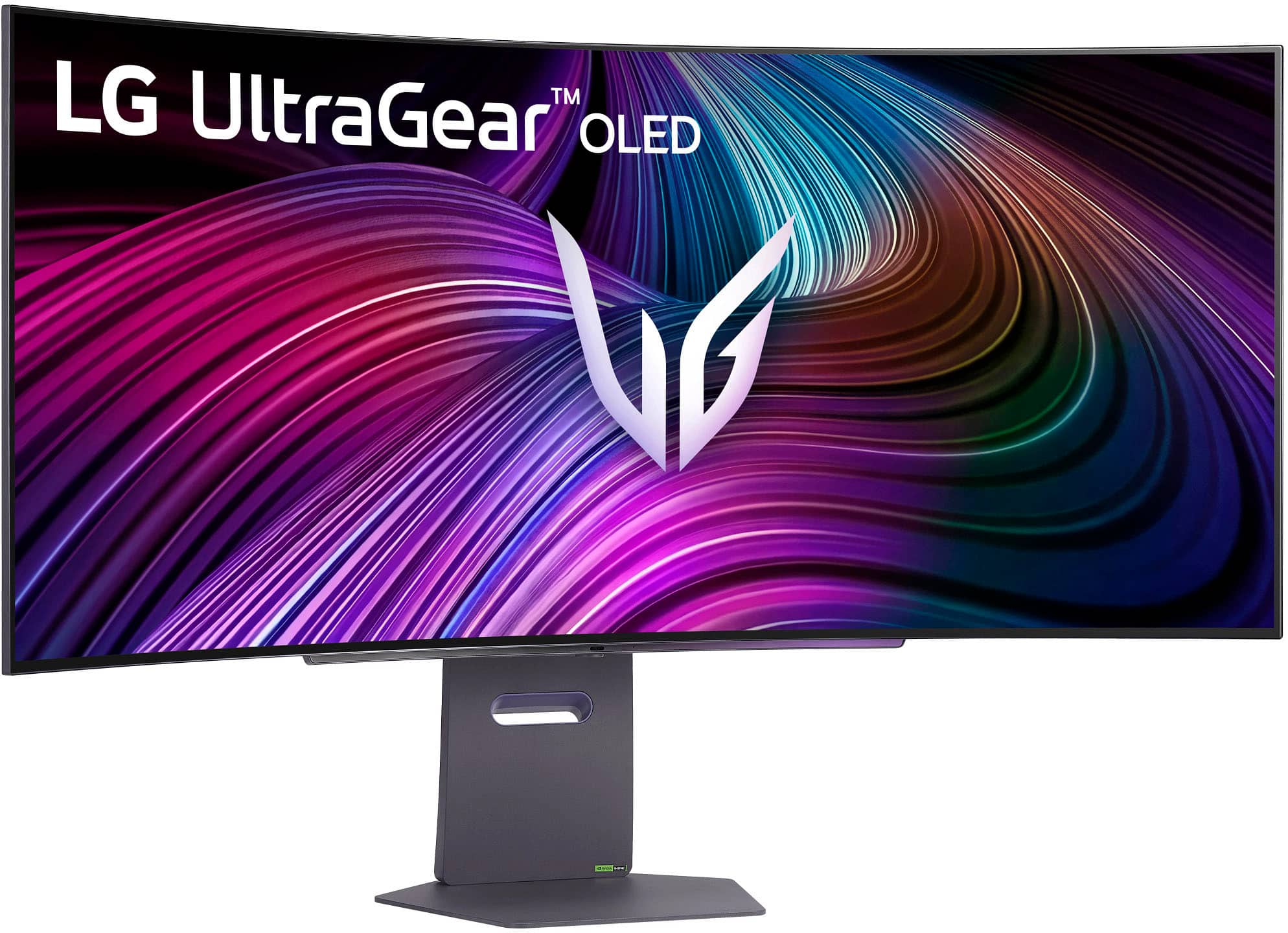
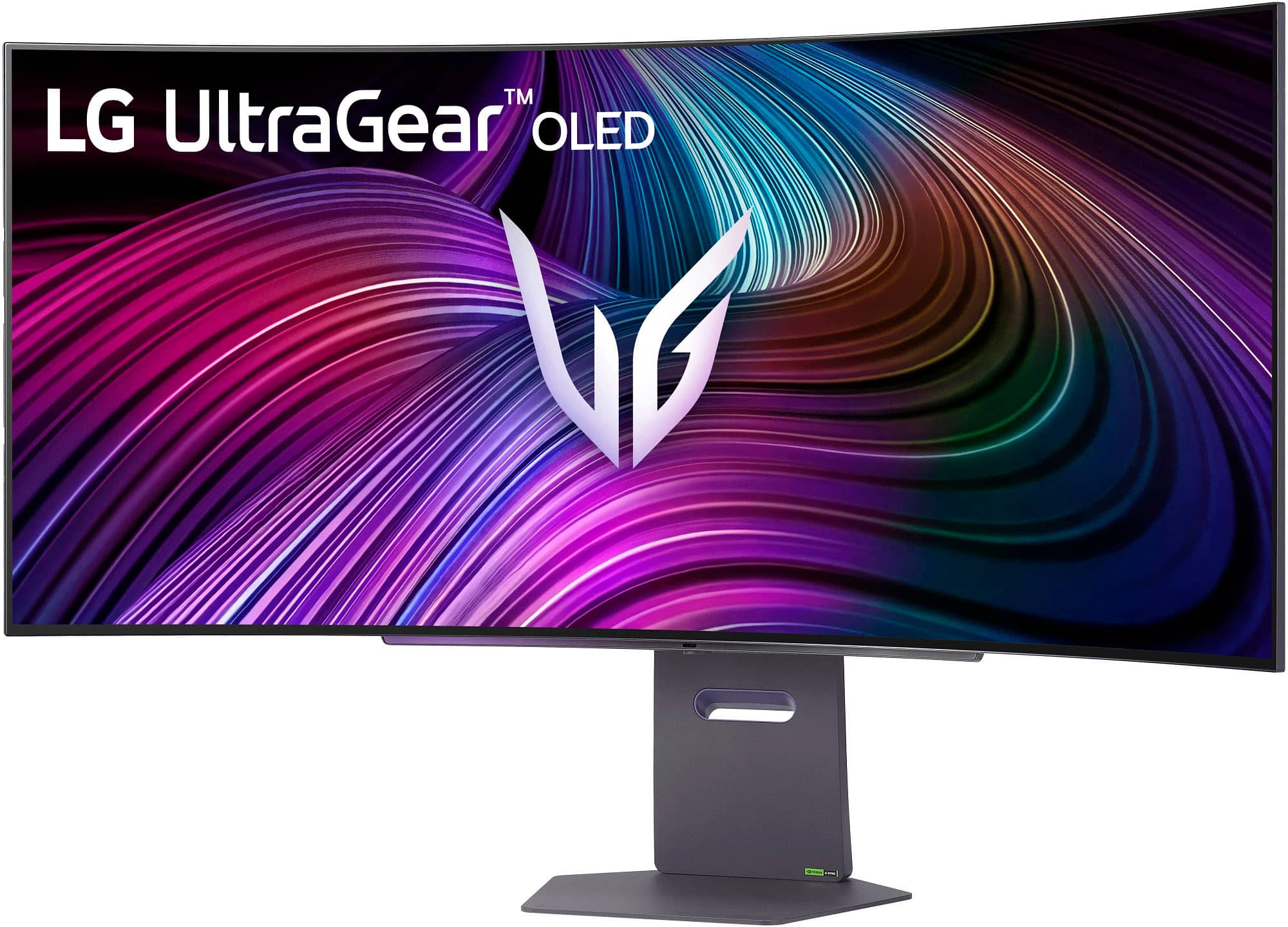
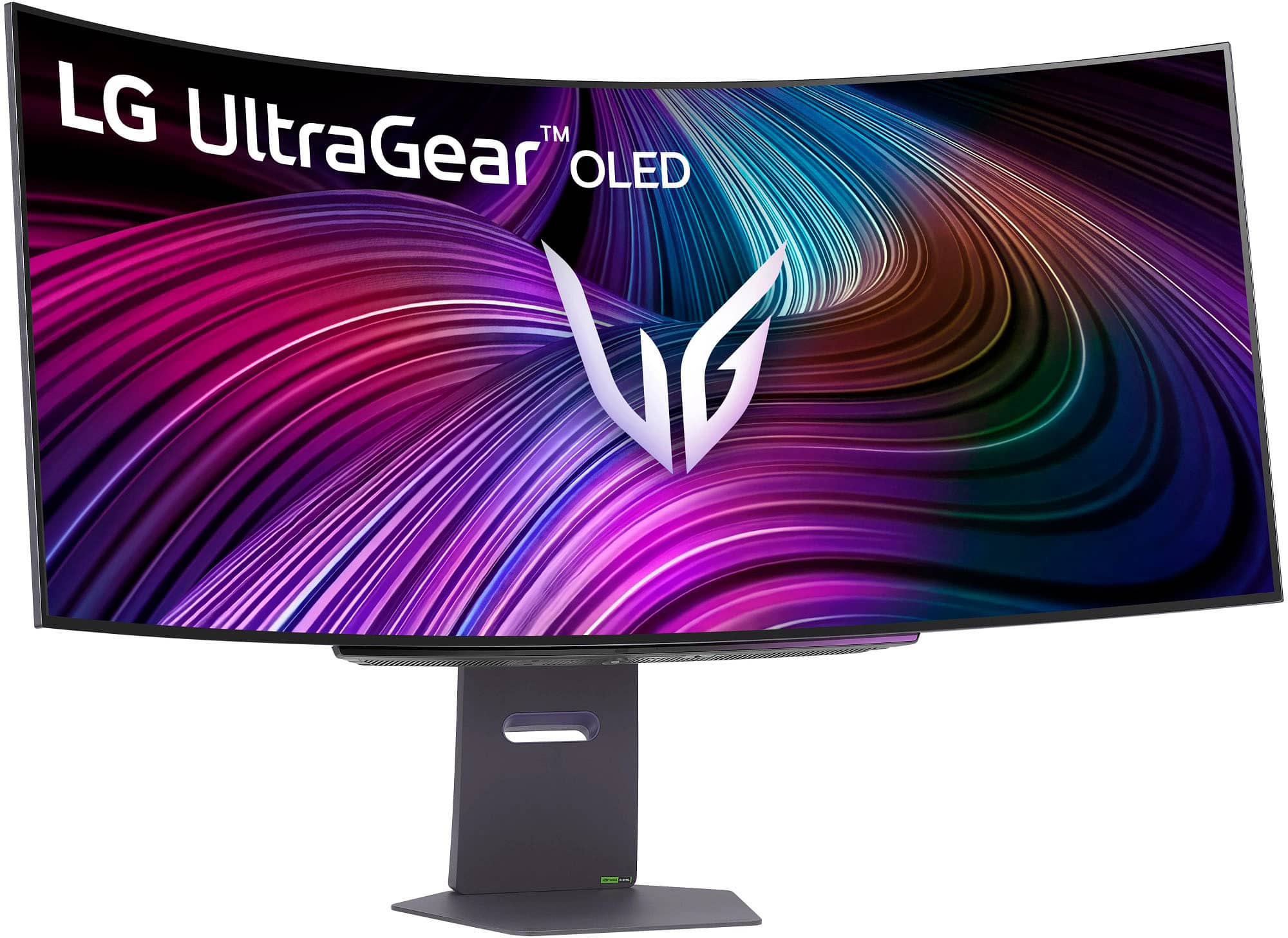
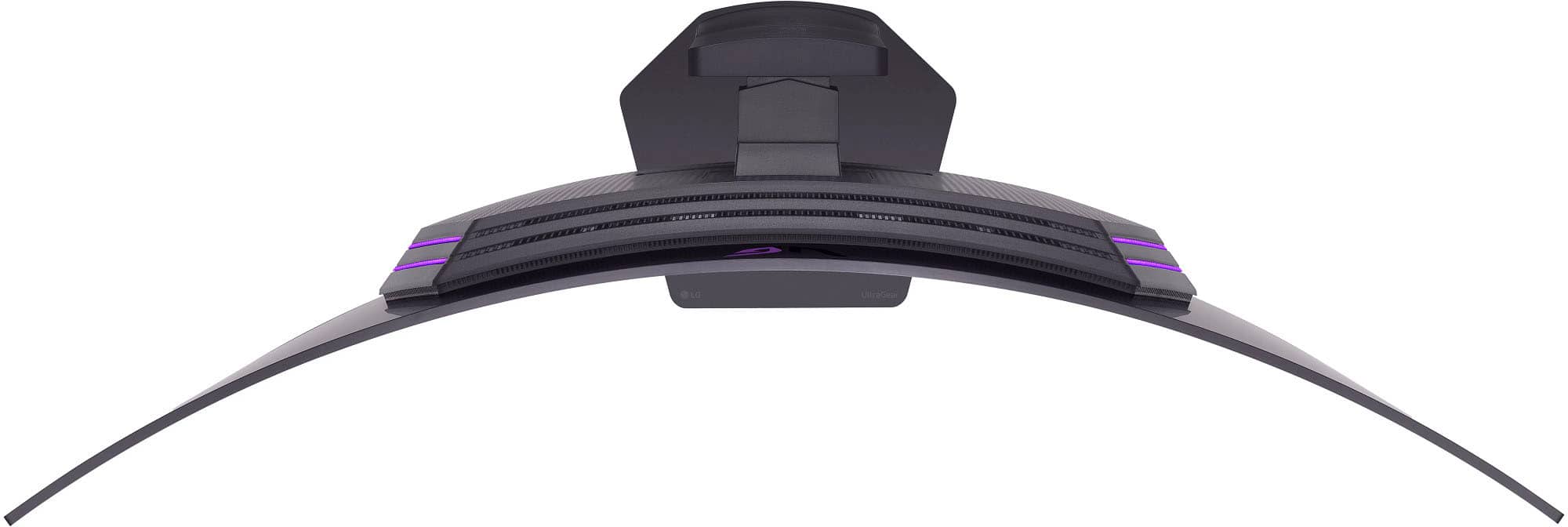
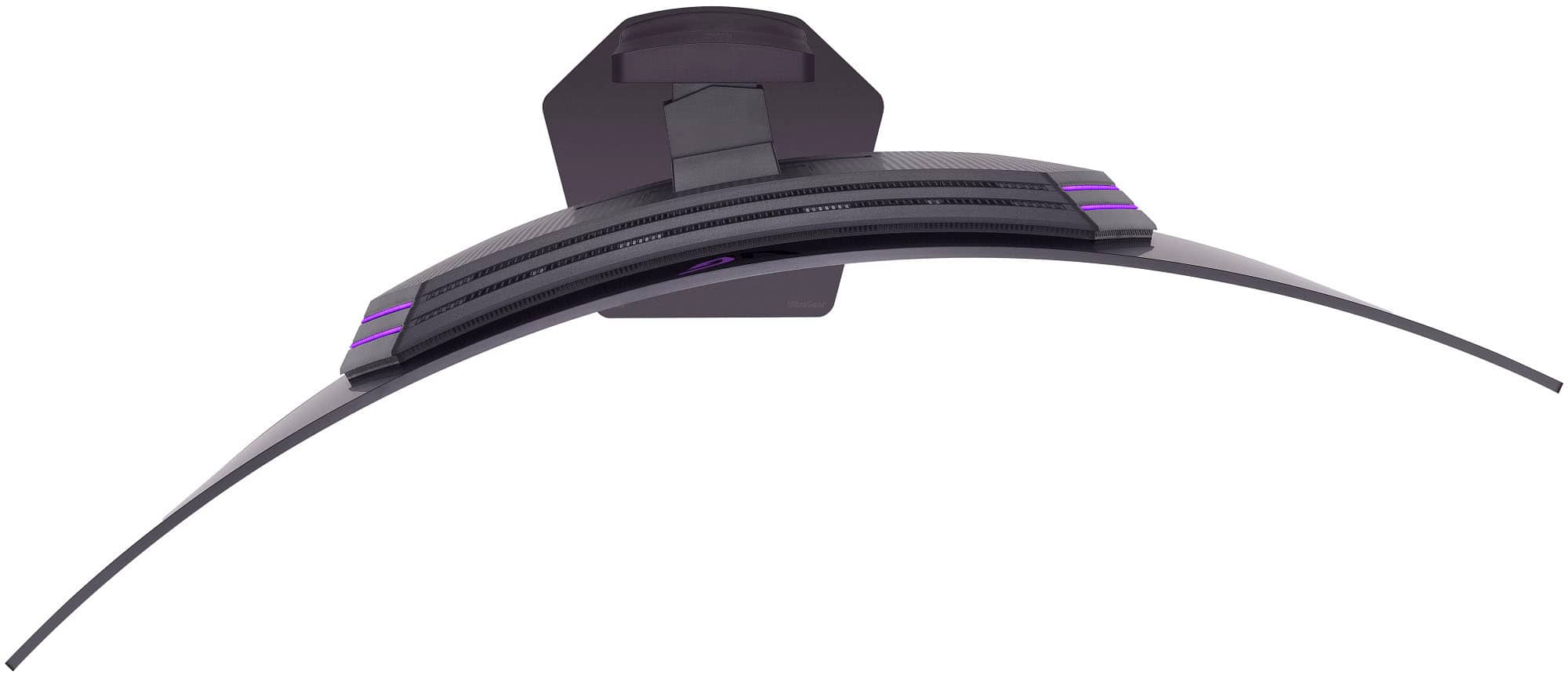
A:AnswerThe stand for the LG 45 Inch UltraGear™ OLED WQHD 240Hz 0.03ms G-Sync Compatible 800R Curved Gaming Monitor with webOS and DisplayHDR™ TRUE BLACK 400, Model # 45GX90SA-B can be swiveled (Swivel (Angle) -10~10º)...^Ivan.
A:AnswerHi, there. Thank you for reaching out! We understand your concern about having your LG Monitor (45GX90SA) model not powering on after just one week. We aim to offer top-notch products and ensure a smooth experience.
To start troubleshooting, try the following step: Unplug the monitor from the power source, wait for about 30 seconds, then plug it back in. After doing this, check if the red light still flashes or if the monitor powers on. For more help, visit https://www.lg.com/us/support/help-library/lg-monitor-troubleshooting-no-power--20150893043202.
If that doesn't work, please send us a private message on social media @LGUSSupport, and our team will be more than happy to help resolve this issue. We’re here to make sure you get the most out of your monitor. ^Juvy
A:AnswerWhether you get black bars on the sides on or the top and bottom of the LG UltraGear™ 45" OLED 240Hz 0.03ms G-Sync®/FreeSync™ Premium Pro Smart Gaming Monitor with DisplayHDR 400 TRUE BLACK - Black, Model # 45GX90SA-B when viewing or streaming a movie, or video content will depend on what aspect ration the movies, or video content are.
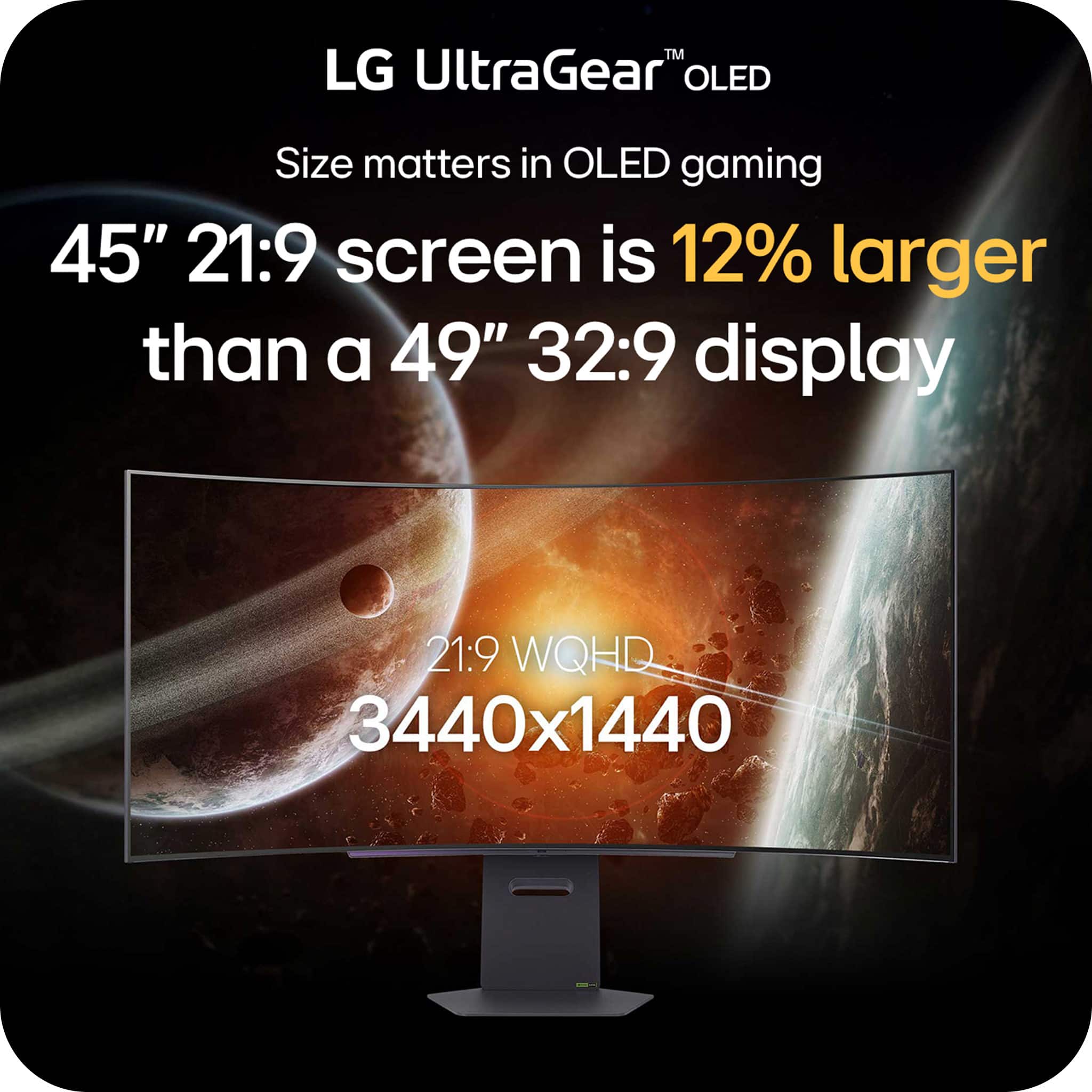
The monitor has a native WQHD (3440 x 1440) resolution which is an aspect ratio of 21:9.
When viewing 16:9 video content on a 3440 x 1440 screen, you will get black bars at the sides, because the content does not match the native resolution or aspect ratio of the monitor.
Some movies have a 2.35:1 aspect ratio and those will also have black bars on the top and bottom on a 3440 x 1440 screen...^Ivan.
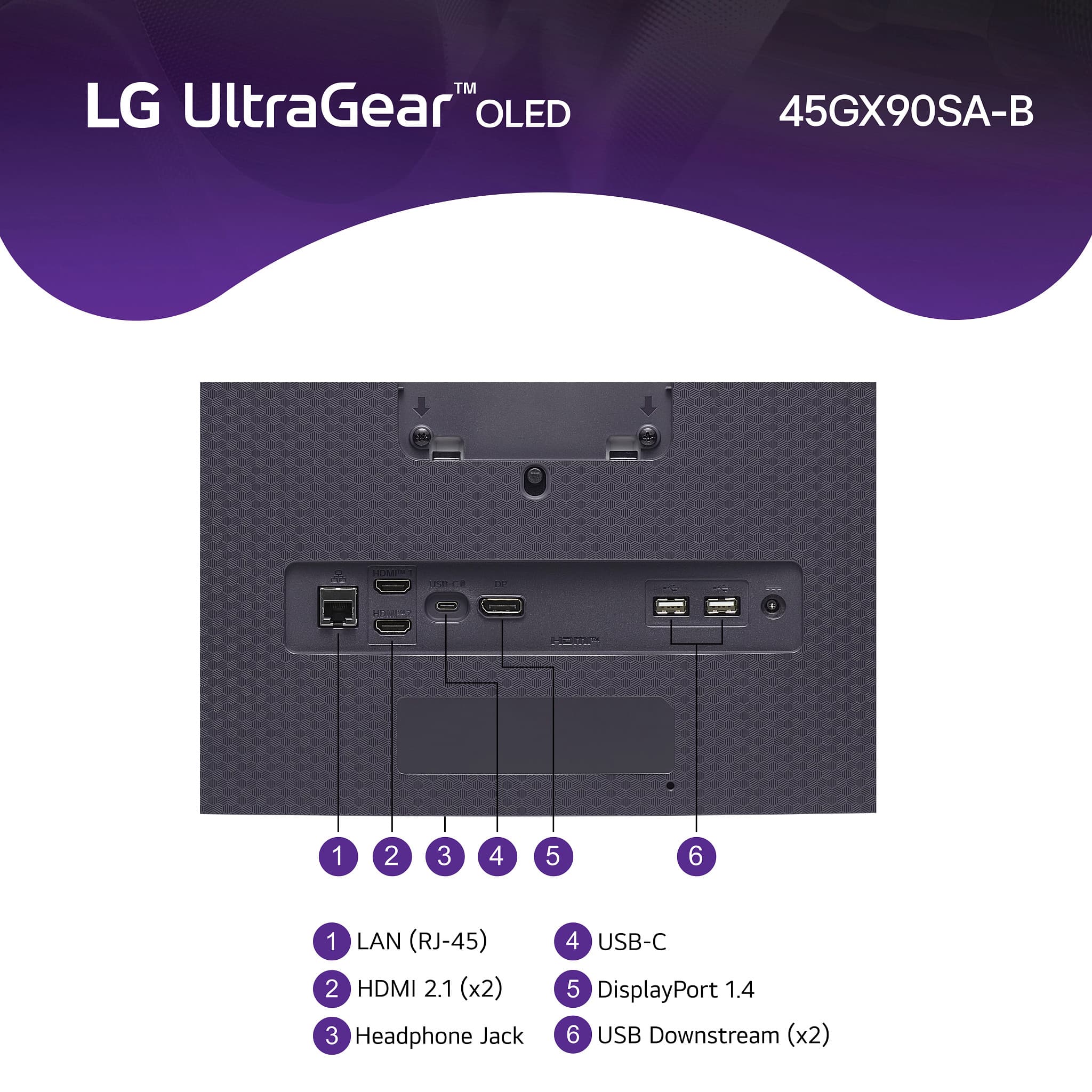
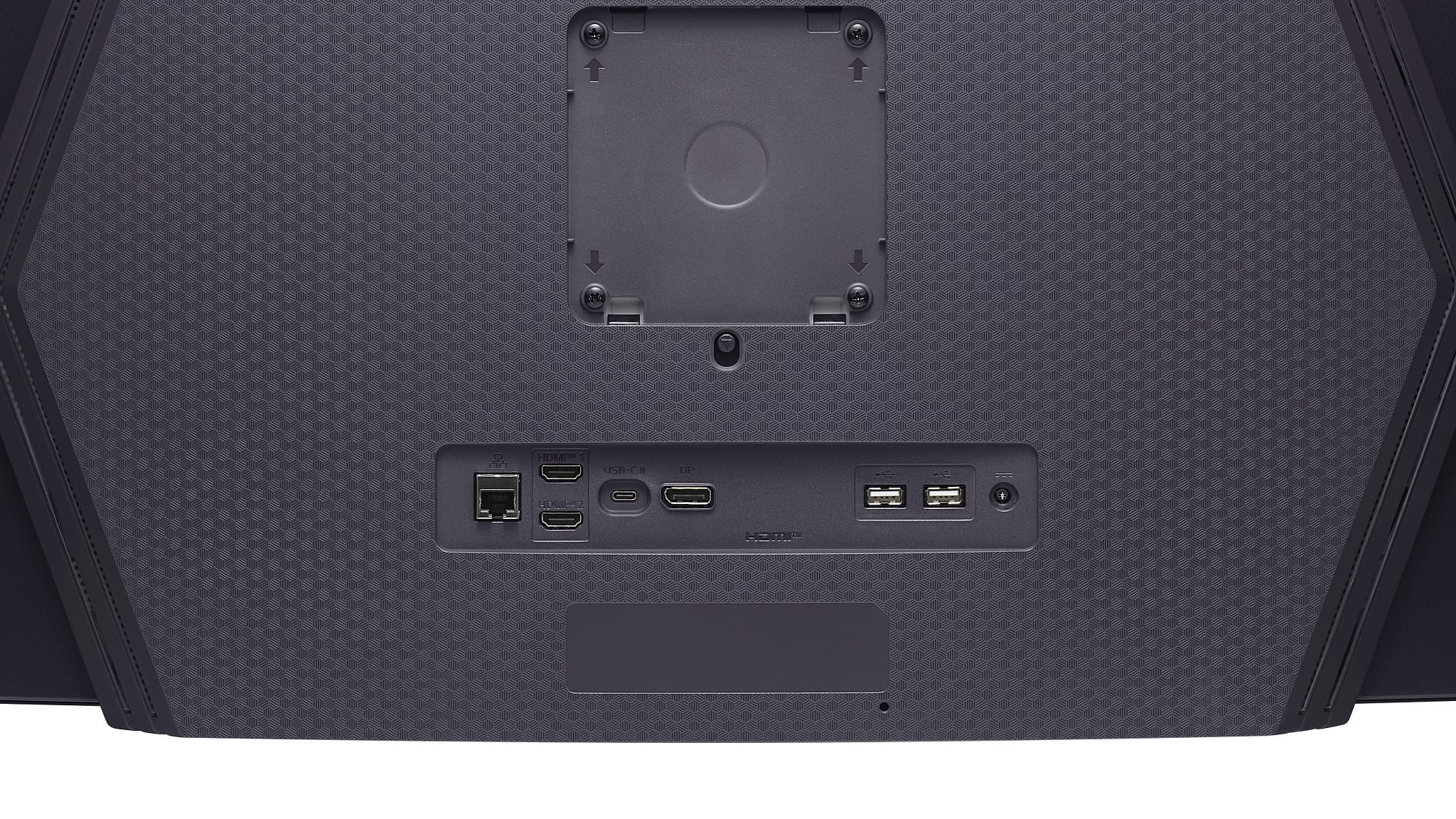
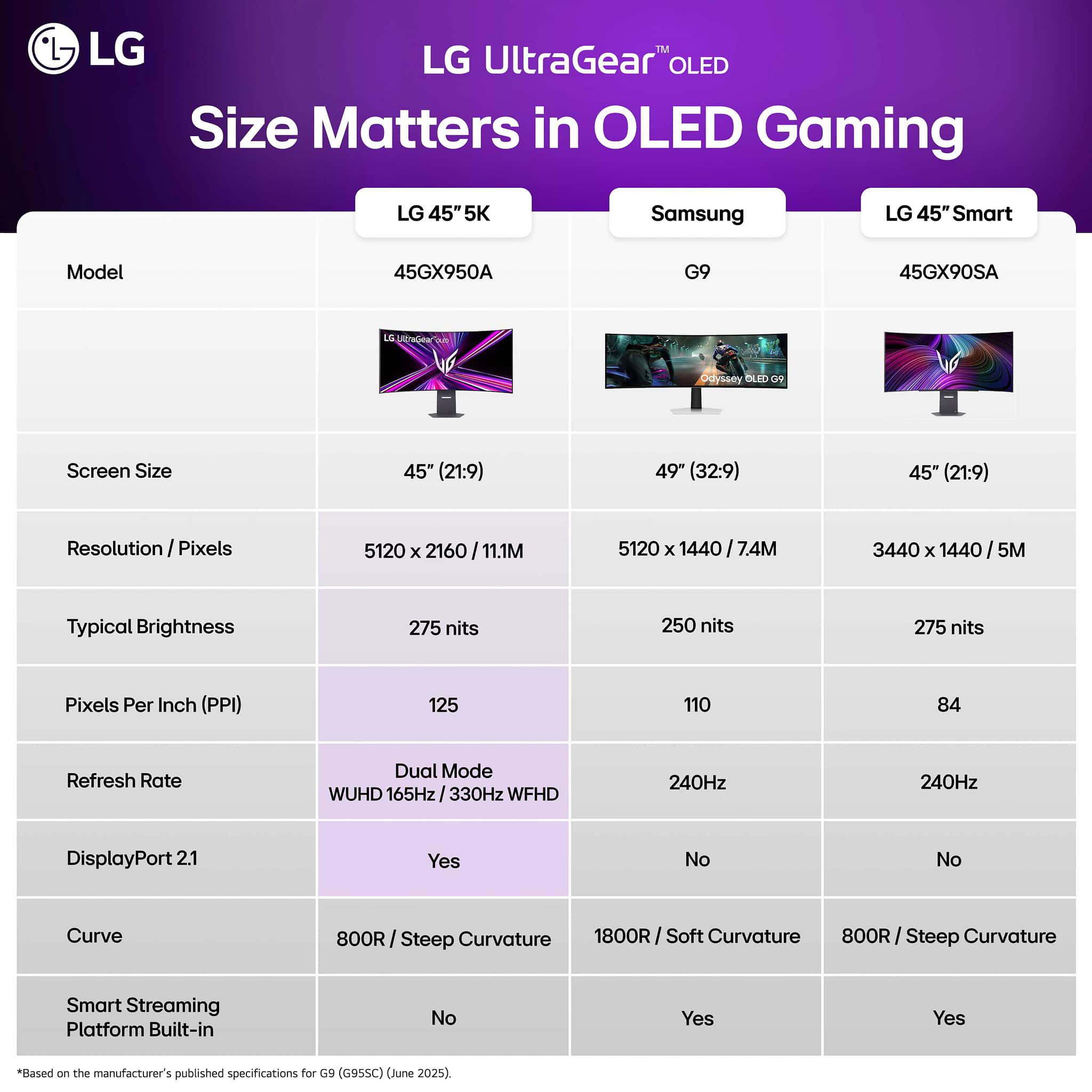
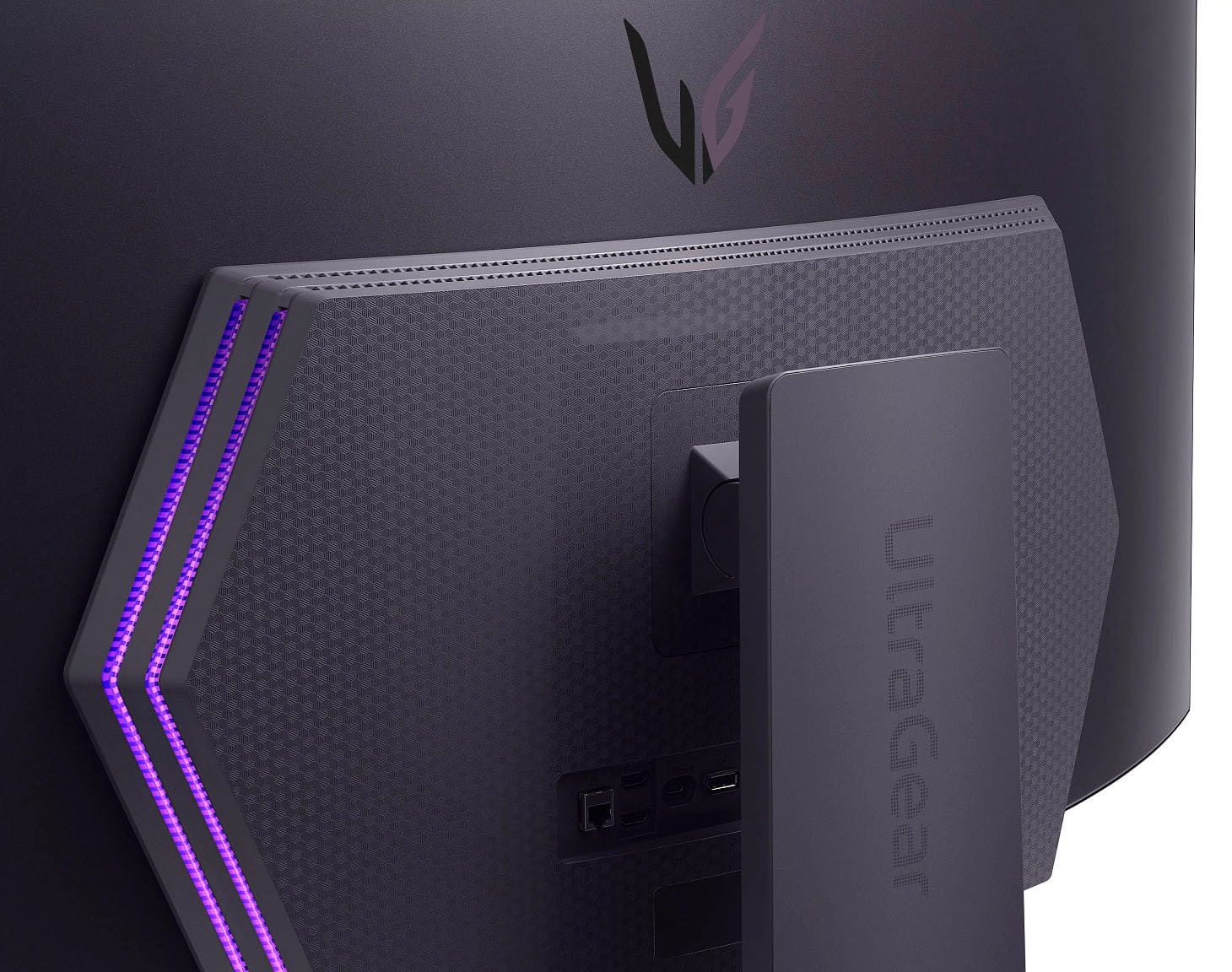
A:AnswerThank you for pointing out that discrepancy. The fourth thumbnail image of a DisplayPort 2.1 port for the LG 45-inch UltraGear™ OLED WQHD 240Hz 0.03ms G-Sync Compatible 800R Curved Gaming Monitor with webOS, Model # 45GX90SA-B, is an entry error. The DisplayPort version for the DisplayPort on the monitor is DisplayPort version 1.4, as you have noted.
We will have Best Buy correct that!...^Ivan.
A:AnswerThis model does NOT support PBP (Picture-by-picture) with 2 inputs. The older model did, and mine died... now im stuck with this one and its single input only. You can turn on the webOS garbage next to your monitor input, but that's not helpful.
A:AnswerHello there, Sam. Thank you for sharing your inquiry with us. We understand that you're trying to locate the Picture-by-Picture (PBP) feature on your LG UltraGear 45" OLED Gaming Monitor (45GX90SA-B) and have had difficulty finding it.
The LG 45GX90SA-B monitor does support PBP, which allows you to display content from two different input sources simultaneously on your screen. Based on typical LG monitor menu structures, here's how you can usually find and enable this feature:
Access the On-Screen Display (OSD) Menu: Press the joystick button (usually located at the bottom center of the monitor) to bring up the OSD menu.
Navigate to Settings: Use the joystick to navigate through the menu and select "Settings" (or a similar option like "Menu" or "Function").
Find PBP/PIP: Look for an option related to "Input," "Picture," or "Display." Within these sections, you should find "PBP (Picture-by-Picture)" or sometimes "PIP (Picture-in-Picture)" which might lead to PBP settings.
Select PBP Mode: Once you find the PBP option, select it. You might then need to choose the layout (e.g., side-by-side) and assign the input sources for each side of the PBP display (e.g., HDMI 1 for one side and DisplayPort for the other).
Confirm Settings: After making your selections, confirm them to activate PBP.
It's important to note that for PBP to function, you generally need to have two active input sources connected to the monitor (e.g., a PC connected via DisplayPort and another device via HDMI). Some PBP functionalities might have limitations regarding resolution and refresh rate depending on the input combination.
If you've already explored the OSD menu thoroughly and still cannot locate it, or if the options are greyed out, please ensure that you are using compatible input combinations as some monitors have specific requirements (e.g., not all input types may support PBP simultaneously).
https://www.bestbuy.com/site/lg-ultragear-45-oled-240hz-0-03ms-g-sync-freesync-premium-pro-smart-gaming-monitor-with-displayhdr-400-true-black/6619493.p?skuId=6619493
Your feedback is important, and we'd like to assist you further. Please send us a private message on Social Media @LGUSSupport and our team will be more than happy to explore possible solutions. We appreciate your patience. —Renzo