A:AnswerI have the same setup and I don't have any pulsing. The backlight turns off after 4-5 seconds and comes back on when my hands get near the keyboard. Mouse movements have no effect on the backlighting of the the keyboard. The only interaction I know of between the mouse and the keyboard is if you use Logitech Flow to use on more than one system, the keyboard can switch to the other system when the mouse does. Killer feature!
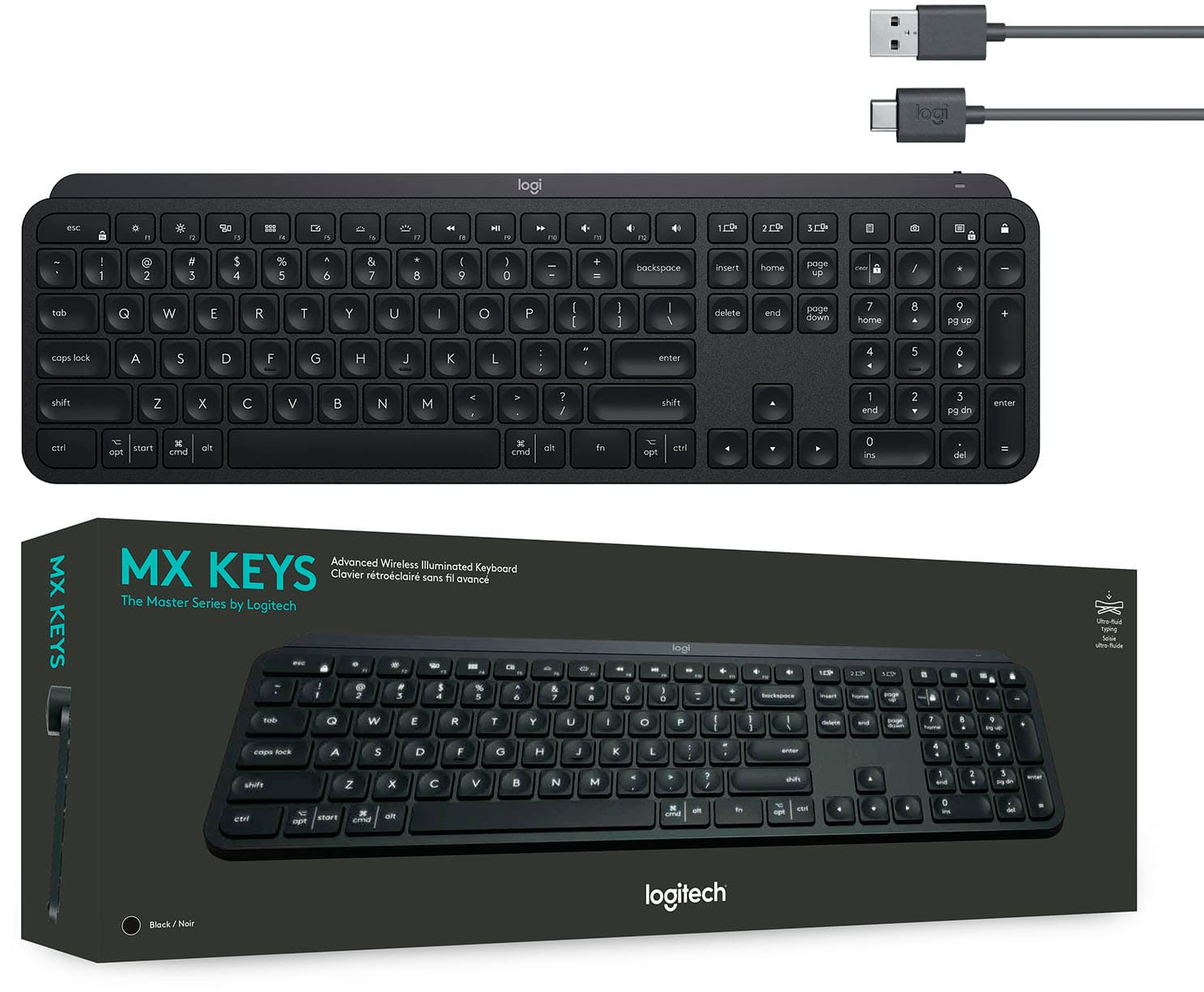
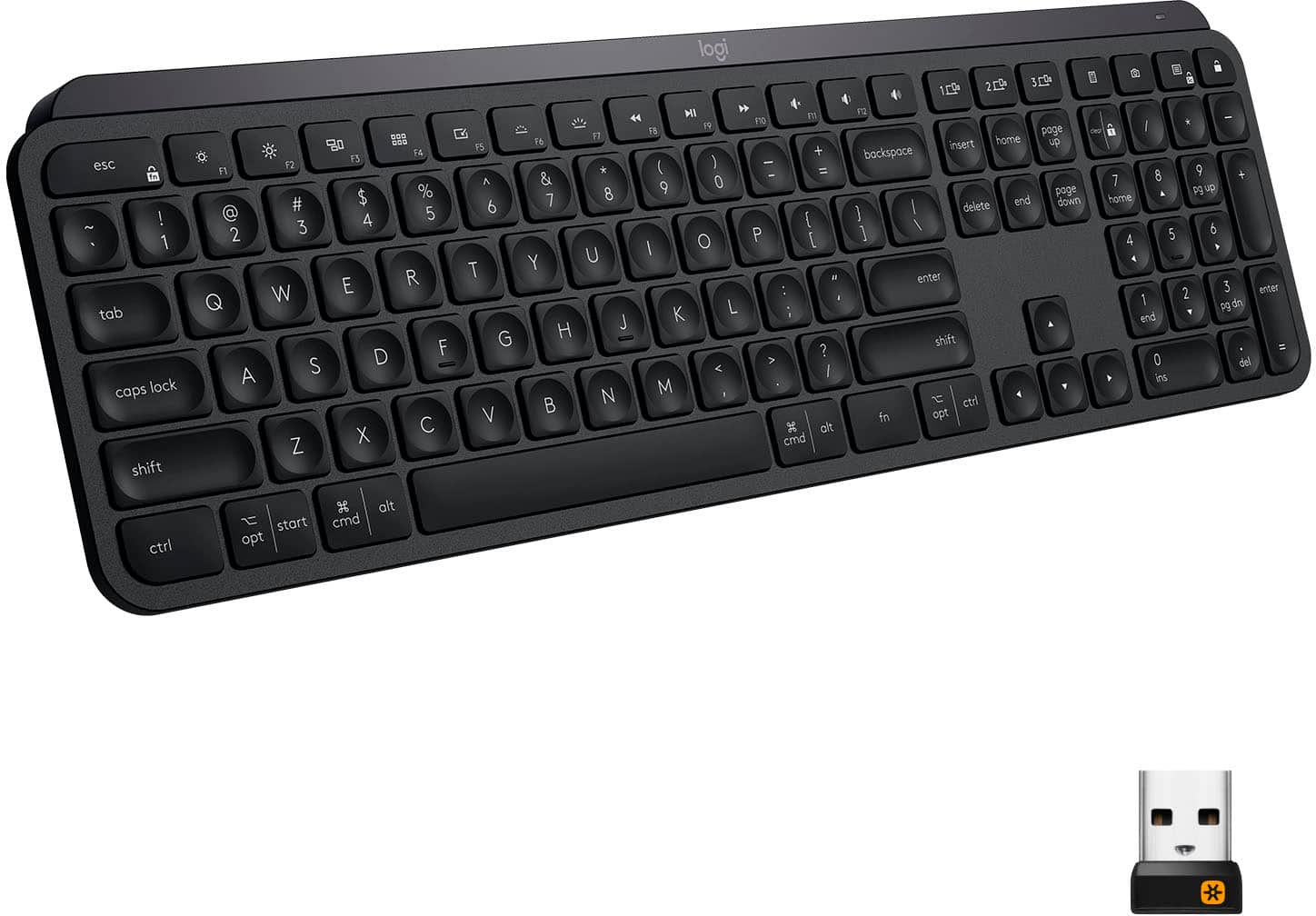
A:AnswerIf I follow your question, the answer is yes. The keyboard will detect if it is connected to your Mac or Windows 10. One key is "opt" for Mac, "Windows Start" for Windows. Another key is "cmd" when on Mac, "alt" when on Windows. A third key is "opt" for Mac, or "ctrl" for Windows. All keys are properly labeled for each dual function.
Hope that answers what you were asking.
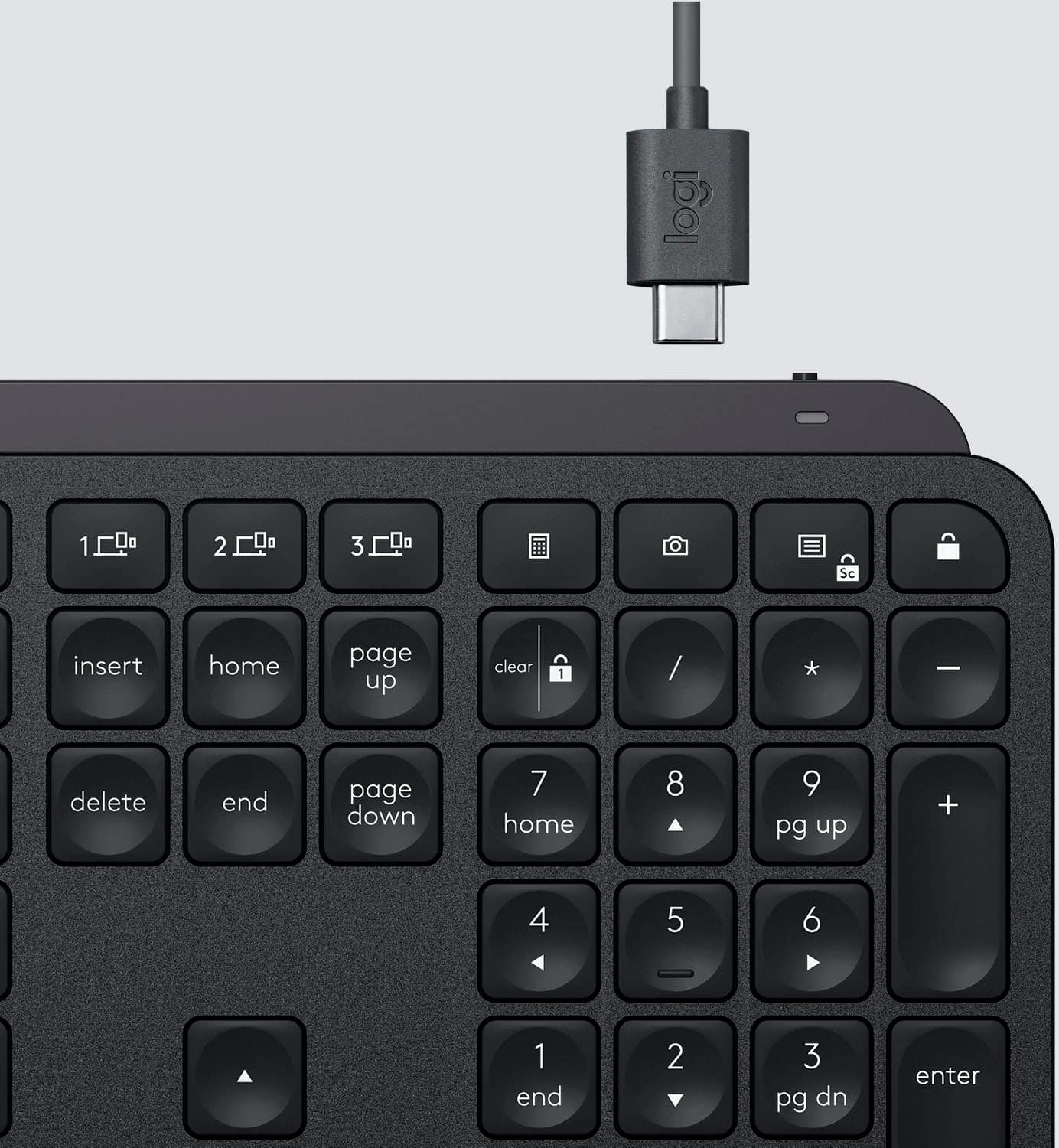
A:AnswerIt does not seem to work as a wired keyboard at all, I guess the selling point is that you can connect three devices wirelessly and switch between them.
A:AnswerThe only tactic that worked for me after changing the Lock key to Sleep function and pressing it only to have it shut down my computer was to re-boot the computer, which brought it back to life. Submitted this issue to Logitech Support, but no response yet. I'm not holding my breath because all the other responses from Logitech Support don't even address the issue, let alone try to fix it -- just bad software design and poorly-trained support staff, I guess.
A:AnswerThis was driving me crazy as Logitech used to have the option to change the Camera key to Print Screen in the past and for some reason, with their Logi options+ update, they removed Print Screen as one of the keys you can remap it to. All of the suggestions here are not helpful. So here is how to add Print Screen to the Logitech MX Keys:
1. Open the Windows on screen keyboard
2. Open Logitech Logi Options+ (you will need to install it if you haven't done so)
3. Select your Logitech MX Keys keyboard
4. Select the icon for the camera key on the keyboard as shown in the attached screenshot
5. Choose "Keyboard shortcut" to map a new key.
6. Go to the onscreen keyboard and click on the Print Screen onscreen key. It should appear now on the Logitech app.
7. Close the Logitech app.
P.S. The reason for me not wanting to use the Screen Capture feature built into Windows, which the Logitech software opens when you press on the camera key, is because I use a better software application for my screen captures.

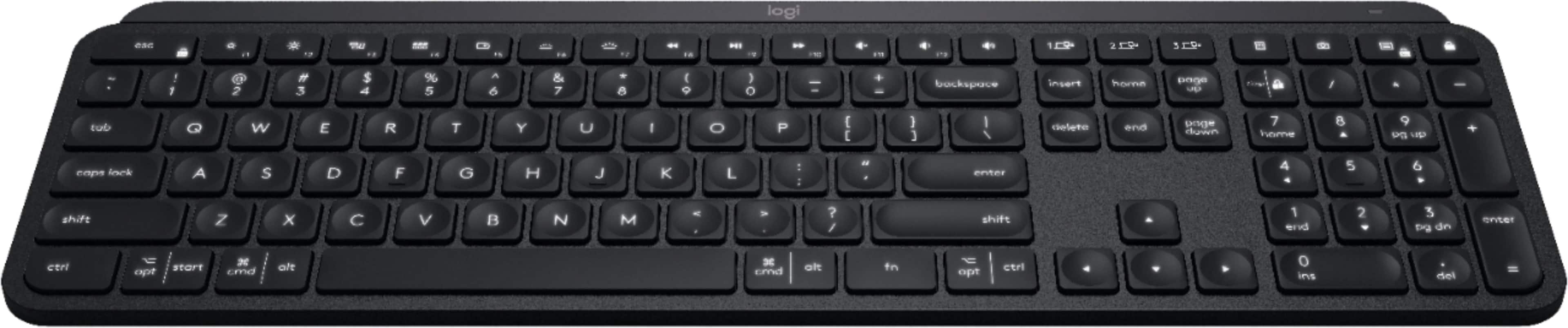
![The text on the image is grouped and corrected as follows:
1. F10, F11, F12: These keys are located in the top row of the keyboard, and they are used to access function keys.
2. 1, 2, 3: These are the number keys in the top row of the keyboard.
3. Sc - - + =: These are the arrow keys in the top row of the keyboard.
4. Backspace, Insert, Home, Page Up, Clear: These keys are located in the bottom row of the keyboard.
5. 1 / - P { [ } ] I / delete: These are the function keys that are used to navigate and modify text.
6. 7, 8, 9: These are the number keys in the bottom row of the keyboard.
7. Page Up, Page Down: These keys are located in the middle row of the keyboard and are used to navigate through documents.
8. Home, End, Page Up, Page Down: These keys are also located in the middle row of the keyboard and are used to navigate through documents.
9. Shift, Ctrl, Alt, Fn, Windows, Opt, Ctrl: These are the function keys that are used to access various system functions and shortcuts.
10. 0, Ins, Del: These are the number keys in the bottom row of the keyboard.
The image shows a close-up view of a black keyboard with the keys labeled, making it easier to identify and understand their functions.](https://pisces.bbystatic.com/image2/BestBuy_US/images/products/6366/6366560cv15d.jpg)