
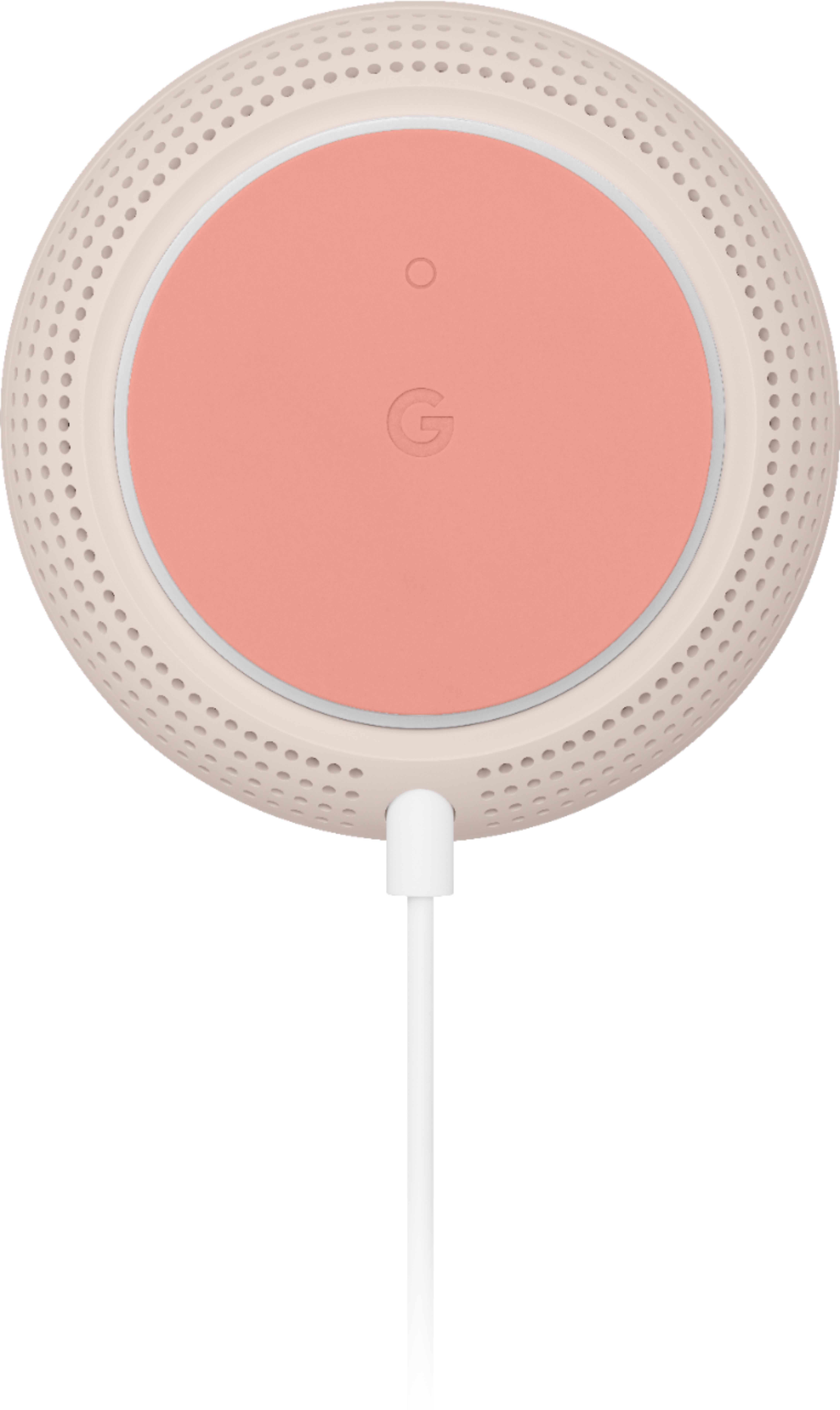
A:AnswerMy google nest works very well with my spectrum wifi. There is no additional cost to connect the nest to the modem. Nest connects to modem via ethernet and then wirelessly to remote units. Installation is quick and easy. You need to download a free google home app to a mobile device, and the app will walk you through the setup process. You then use the app to manage the network.
A:AnswerGoogle Nest Wifi is a Wi-Fi mesh system that connects to your modem provided by your internet service provider. Most Wi-Fi enabled devices including Nest cameras can connect to internet via Google Nest Wifi. Nest Wifi router and points provide reliable Wi-Fi coverage throughout your home. You can check the following link to see an estimate of how much Wi-Fi coverage you’ll get with a Google Nest Wifi system, so you can calculate how many Nest Wifi devices you need to cover all your Nest cameras: https://support.google.com/wifi/answer/7182840
A:AnswerGoogle Nest Wifi is not compatible with 3rd party routers to create a mesh network. You can only use Nest Wifi routers, points, and Google Wifi points to create a Wi-Fi mesh network. We recommend setting up Nest Wifi router as your primary router directly hard-wired to your modem's WAN port with an Ethernet cable. If you still want to use your current router with Nest WiFi, you can use it as a downstream switch to Nest WiFi router.
No, Google Nest Wifi point will not work with a Linksys router to create a Wi-Fi mesh.
A:AnswerYes. We had the same 1 router/1 point and had a weak spot in the house. Added the extra point and now signal is great everywhere. House is 2800 sq ft.
A:AnswerYes, Nest Wifi points can only be used with Nest Wifi router and Google Wifi point. It won't work with a 3rd party router. Although Google Nest Wifi system is compatible with Google Fiber. You can set up Nest WiFi router as your primary router hard-wired to your Google Fiber modem's WAN port. Google Fiber has a modem/router combo and you may need to disable its Wi-Fi functionality in order to avoid a Double NAT.
A:AnswerYou can definitely replace the current router with Nest Wifi router and create the Nest Wifi mesh by adding Nest Wifi points throughout your home. You don't need to buy a new modem, but you can't get rid of the current one, either as you need a modem with broadband internet to connect Nest Wifi router to.
If you have the modem/router combo device, then you would need to turn off its Wi-Fi functionality by putting it in Bridge mode. You can find out more about Bridge mode here: https://support.google.com/wifi/answer/6240987
A:AnswerMy personal opinion I would invest in the newer if you have the extra cash. The coverage is better on the new Google Nest Wifi. You can get it with the extra access points. I believe from 1 up to 3 and you can always buy additional ones later. I bought the router w/2 access points on black friday for $249 and later bought 1 more access point. I have overkill on wifi now, BUT we do a lot of streaming and I have a metal shop about 75ft away from my back door that I had absolutely no wifi at all in. I placed my router in my livingroom and one access point in my kitchen, which is in between the router and the shop & one access point in the shop itself and now I have great wifi. I pay for 100mbps and when I run the fast test out there I am getting every bit of my 100mbps.
Also, I dont know about the first gen, but with the nest wifi the access points also doubles as google nest home mini's and have good sound.
I have also added the Google Home Hub Max which pretty much runs everything in my house and I can play music from it and it will play on all access points at the same time (if you set it up in the settings that way) it's like having your whole house on surround sound. You can also call between each access point, like an intercom. I love it..... no more running out in the cold to get hubby out of the shop..... Google does it for me now.....lol
So, there are other benefits to upgrading to the newer version depending on your lifestyle & it does cover more square footage. I looked at both systems when buying and I am very happy with my decision.
Happy Shopping
LooneyGirl
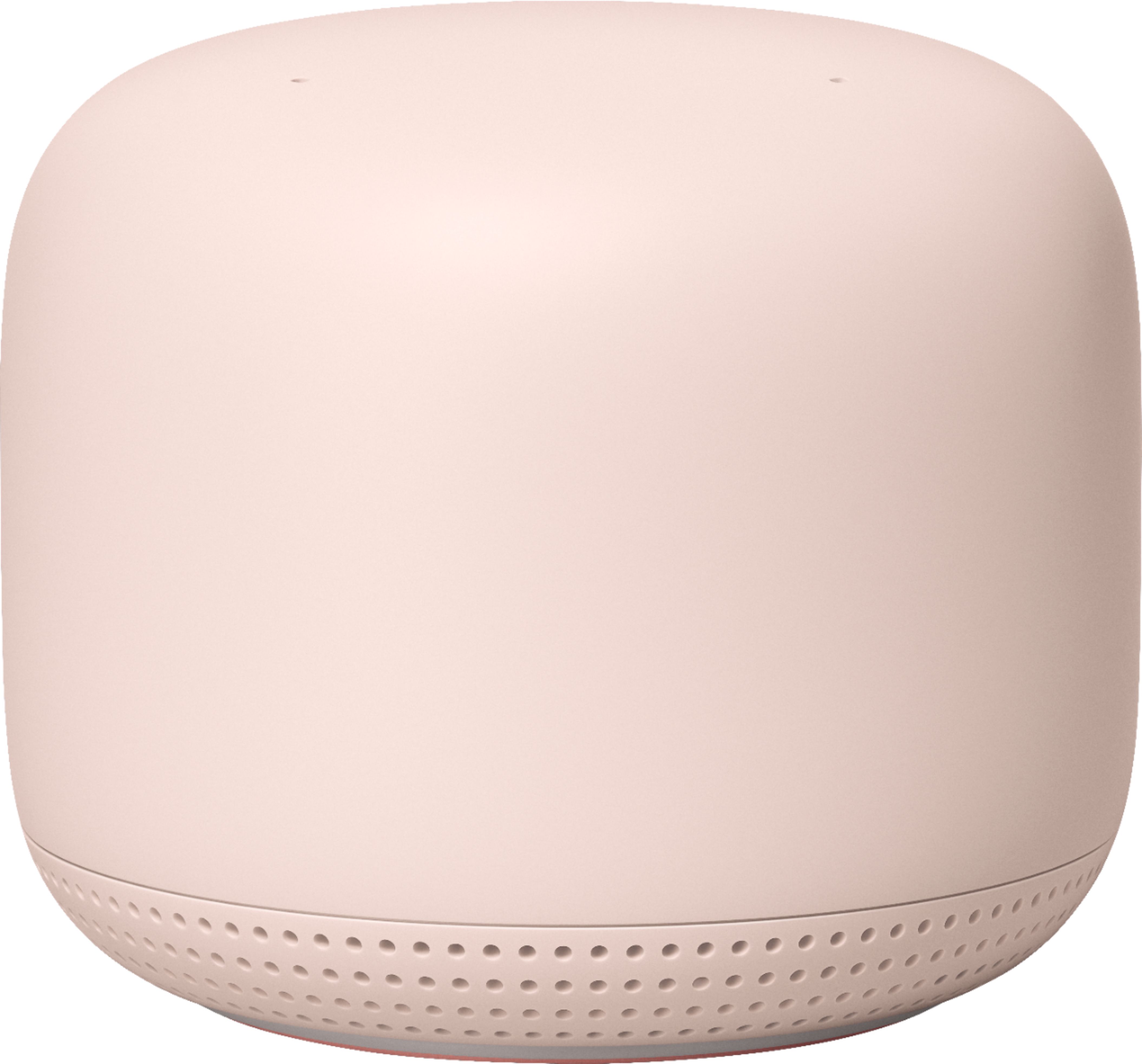
A:AnswerAs a general rule, points work best when they’re no more than two rooms away from each other. If the far end of your house has weak Wi-Fi, don’t put a Wifi point in that exact spot. Instead, put it part way in that direction. Try to place it in an elevated position like on a shelf. To provide Wi-Fi coverage to every corner of your home, the connection between each point needs to be strong. Make sure the Nest Wifi router and points are evenly spread out but not too far from each other. Try to perform a mesh test to make sure that location gives you a good connection.
A:AnswerWe recommend checking this link to see what the light on your Wifi device means and what you can do to resolve:
https://support.google.com/googlenest/answer/6191584
If issue persists, we recommend contacting our support team so we can better assist you with your concern. You can reach us anytime here: https://support.google.com/googlenest/gethelp
A:AnswerThe google nest system doesn't replace the router or modem that connects to your internet provider. You just run a network cable either from your orbi router to your google nest base unit or directly from your modem then the google system creates it's own internet and wifi which you can control from your smart phone. Your whole house will have amazing wifi and you can extend by adding the nest pods as needed creating a mesh of connectedness.
A:AnswerYour Wi-Fi speed will rely on your current Internet speed and reception provided by your internet service provider (ISP). Nest Wifi will replace your traditional router to provide more reliable Wi-Fi coverage throughout your home. Your current setup should be adequate for your home size but if you want more information, you can visit this page: https://support.google.com/googlenest/answer/7182840?hl=en
A:AnswerAlthough the number of add-on points may depend on your needs, we recommend adding up to 5 Nest Wifi router/points in a Nest Wifi mesh. You can check out the following support article to determine how many points you may need: https://support.google.com/googlenest/answer/7182840
A:AnswerYes, Google Wifi is compatible with Nest Wifi but you will need to create a new Nest Wifi mesh system in the Google Home app. Nest Wifi router will be your primary router since it has better capabilities such as an improved processor and a 4x4 radio. Then, you can add your Google Wifi and Nest Wifi points. You can read more about the compatibility and setup here: https://support.google.com/googlenest/answer/9548099
A:AnswerGoogle Nest WiFi system is compatible with Google Fiber. You can set up Nest WiFi router as your primary router hard-wired to your Google Fiber modem's WAN port. Keep in mind, Google Fiber has a modem/router combo and you may need to disable its Wi-Fi functionality in order to avoid a Double NAT.
A:AnswerGoogle Nest WiFi system is equipped with a fast processor and 4x4 radio to provide fast and large coverage (router: up to 2,200sq.ft. and point: up to 1,600sq.ft. If you need to keep your modem and router in the basement, then you can place wireless Google Nest WiFi points on the first floor to deliver reliable and strong Wi-Fi.
A:AnswerHi there, mini. No, the Nest Wifi does not have Chromecast built-in as t's a Wi-Fi network provider, not a streaming player. You are able to connect your Chromecast to device once it has been set up.