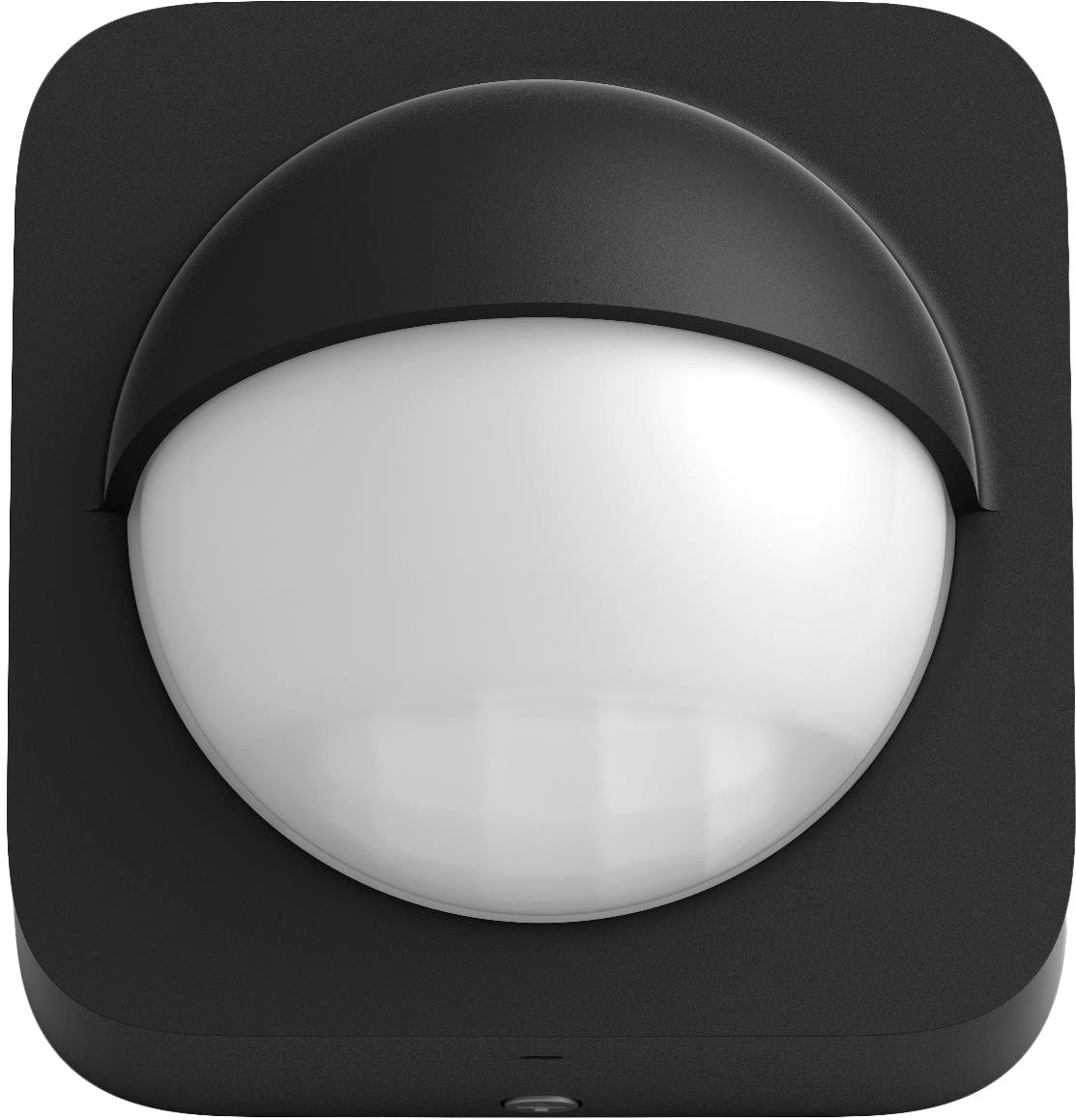
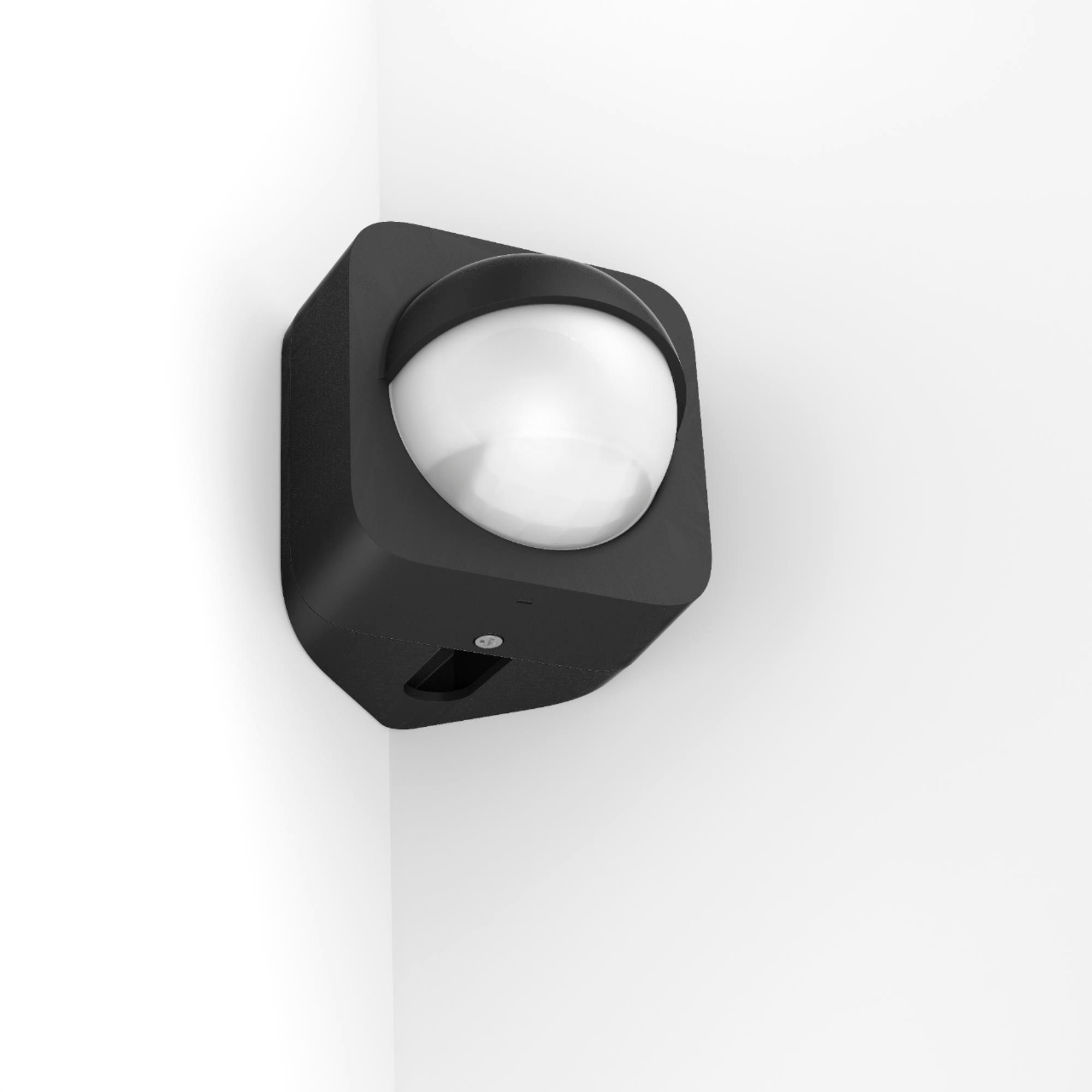
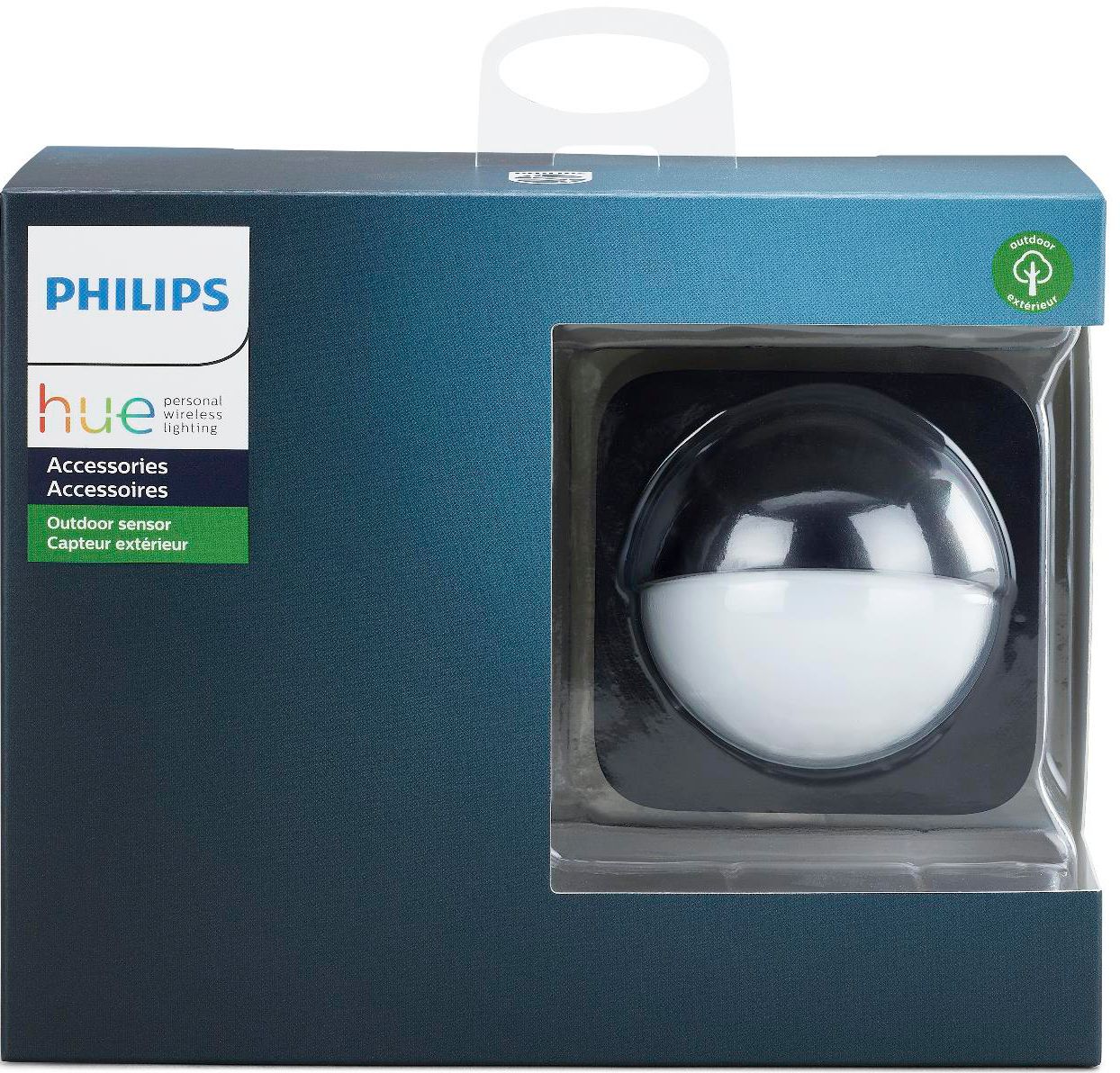
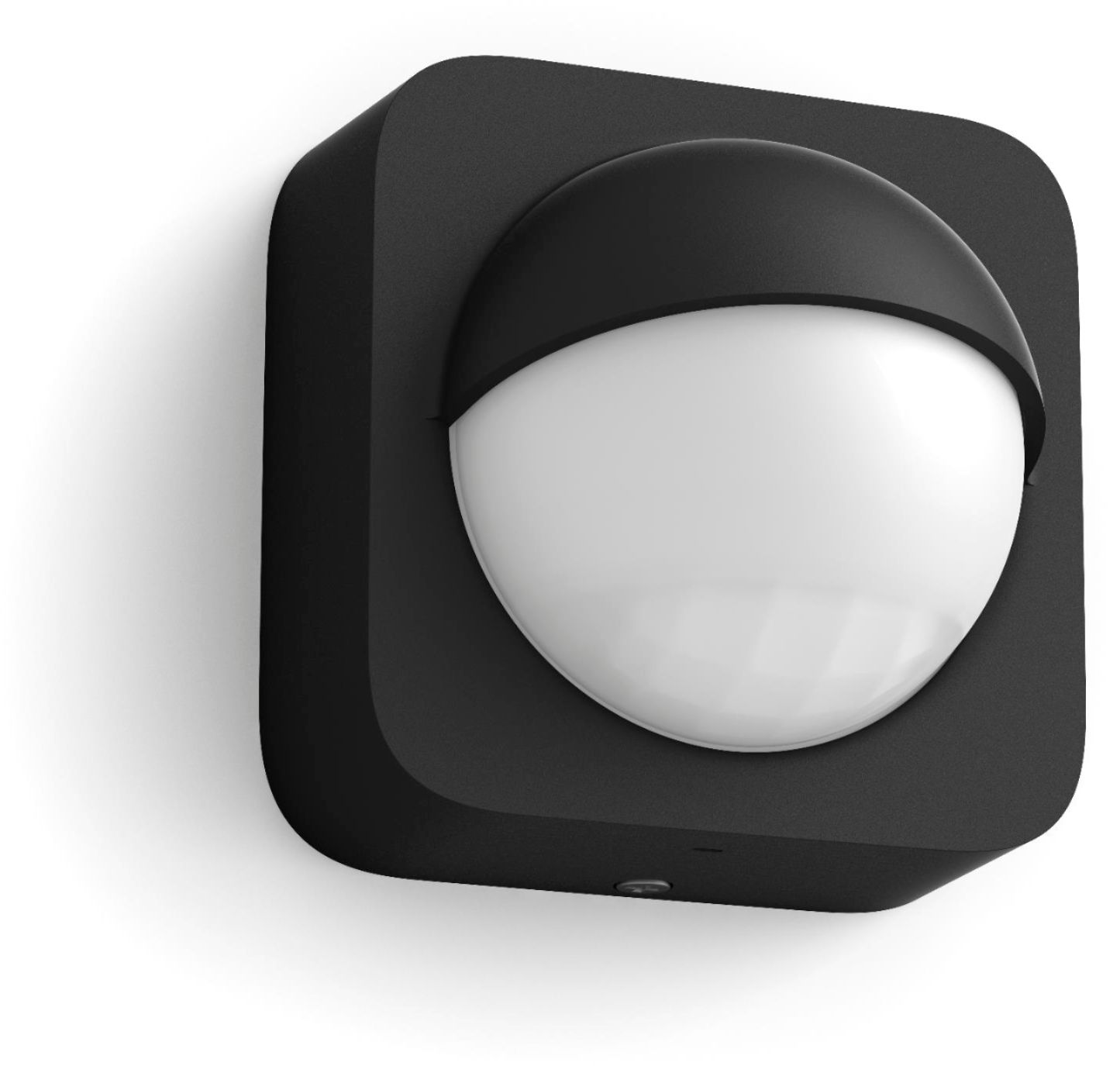
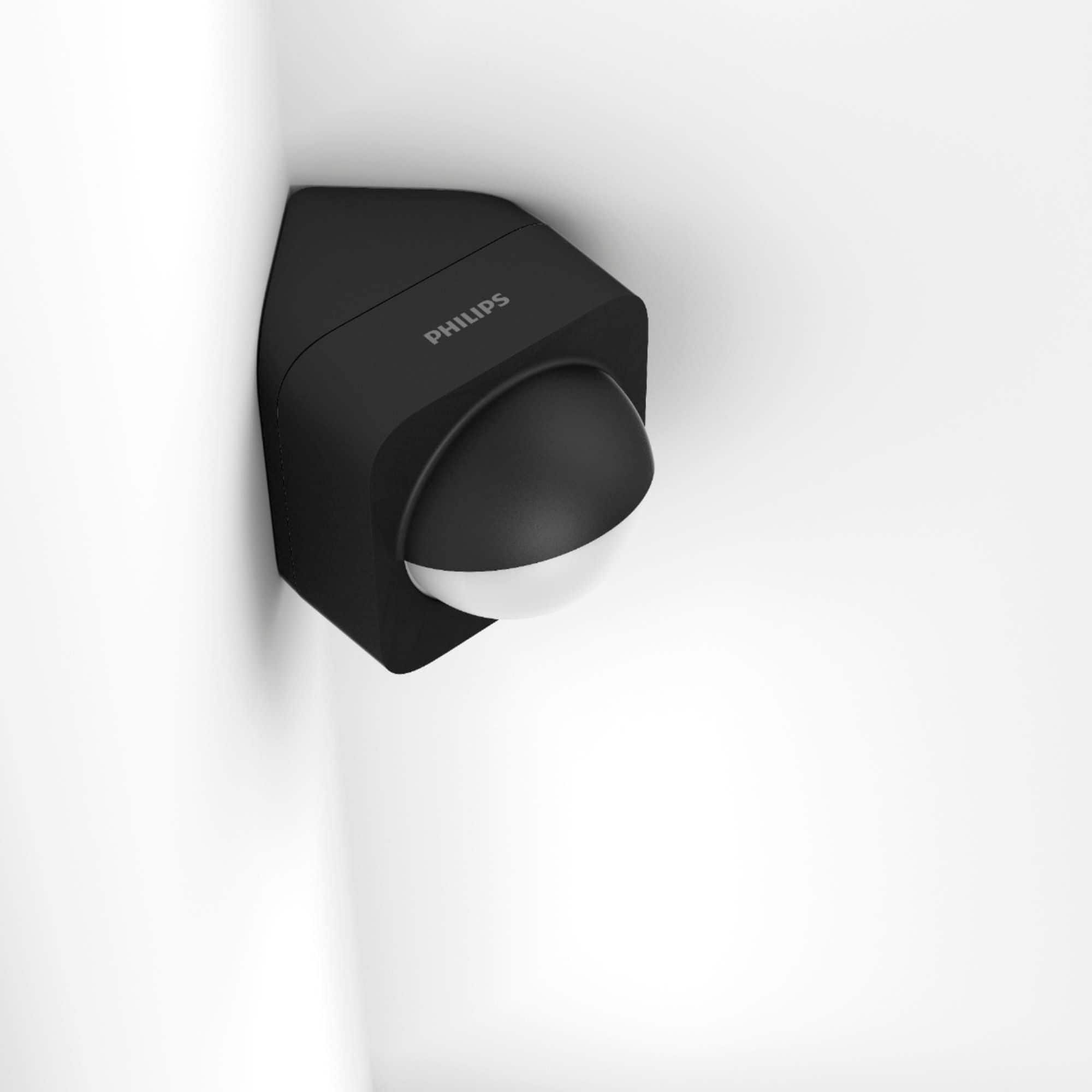
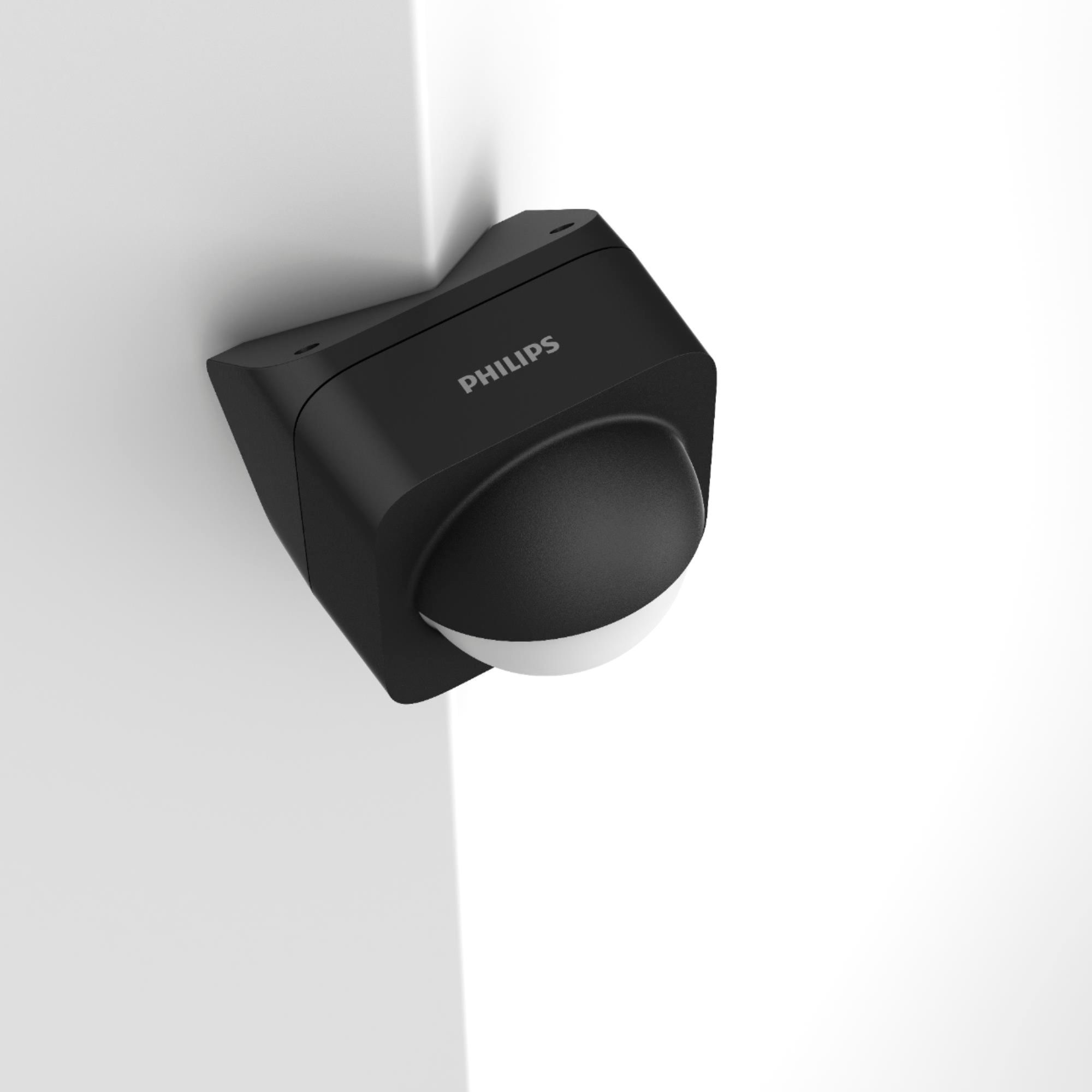
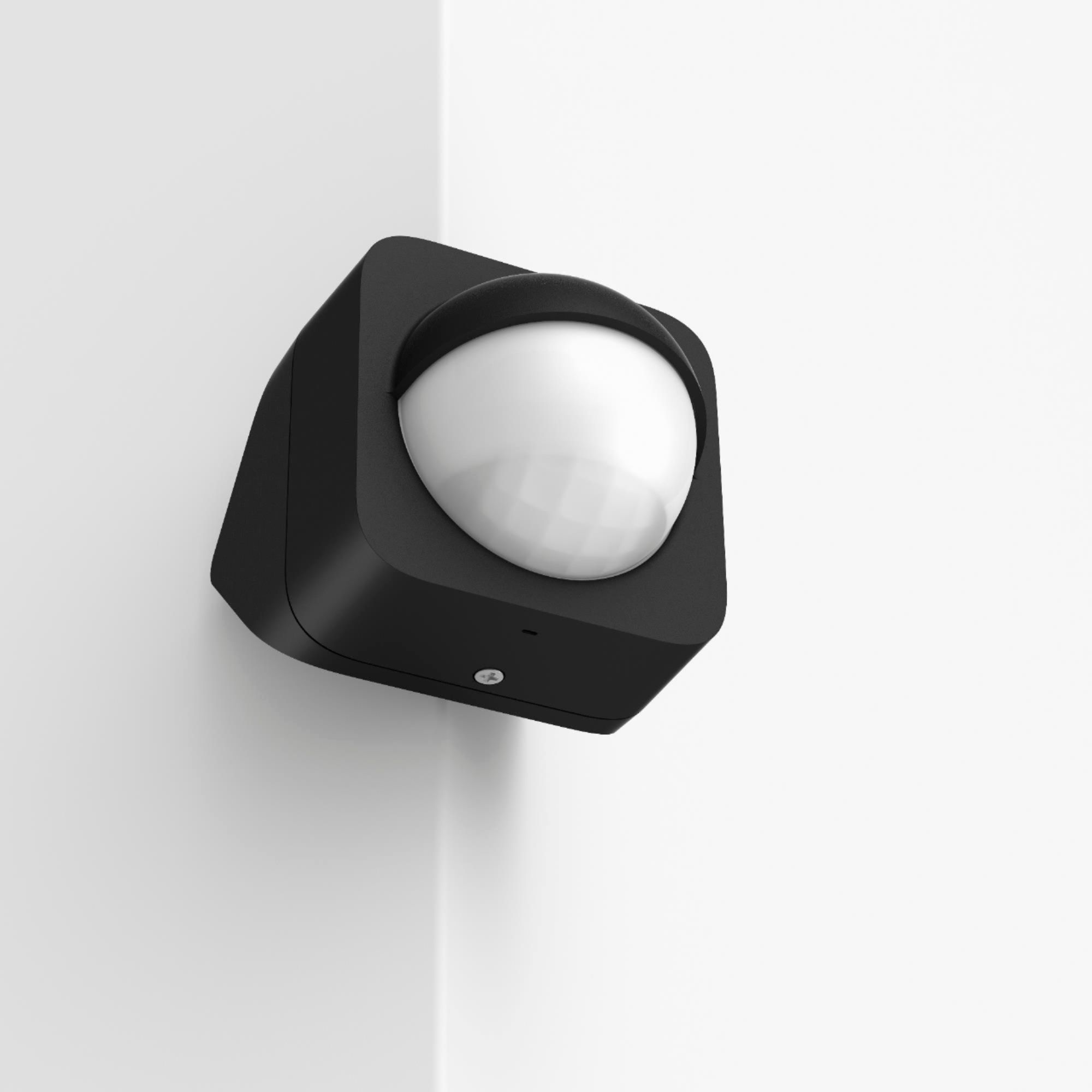
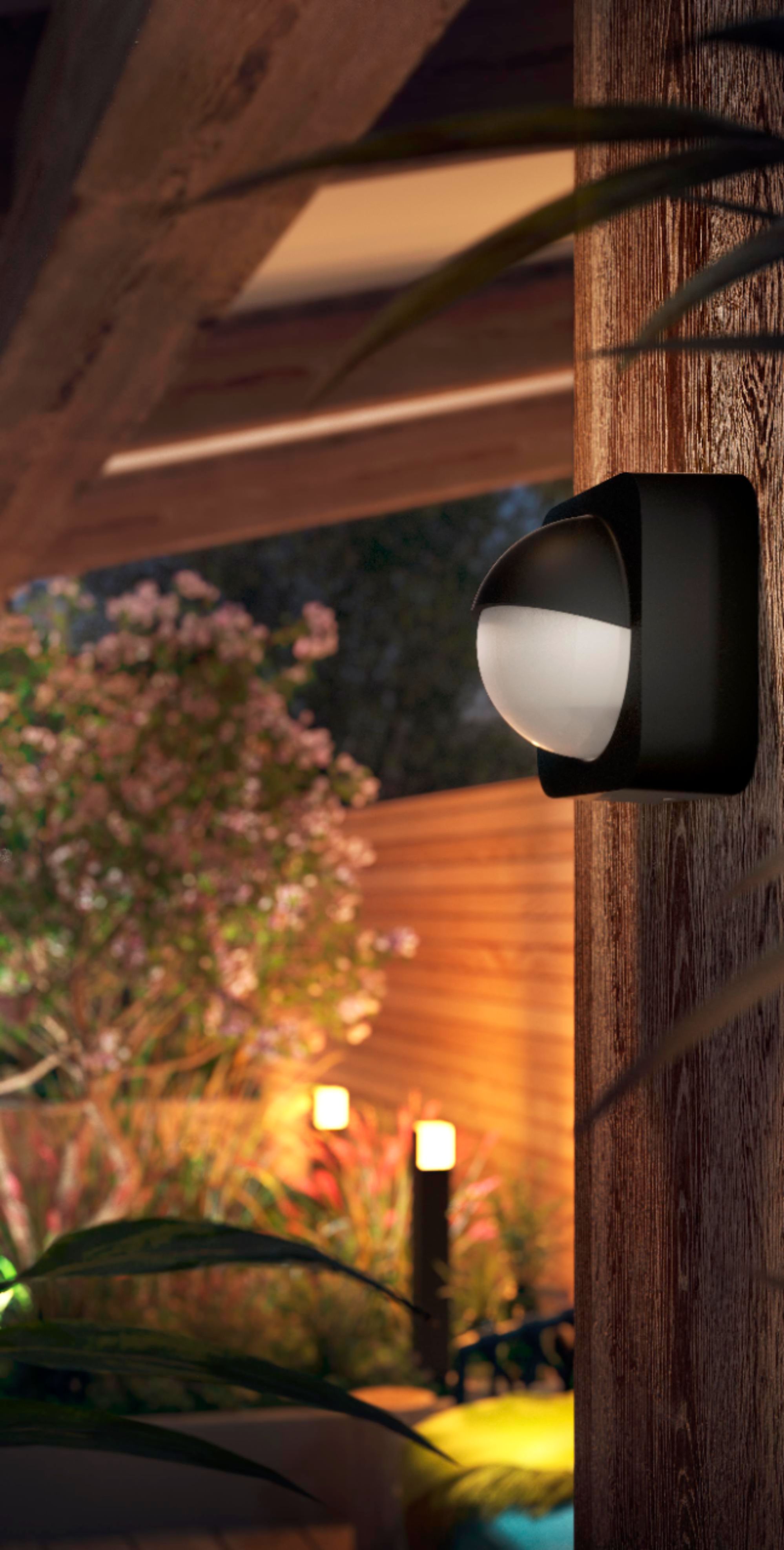
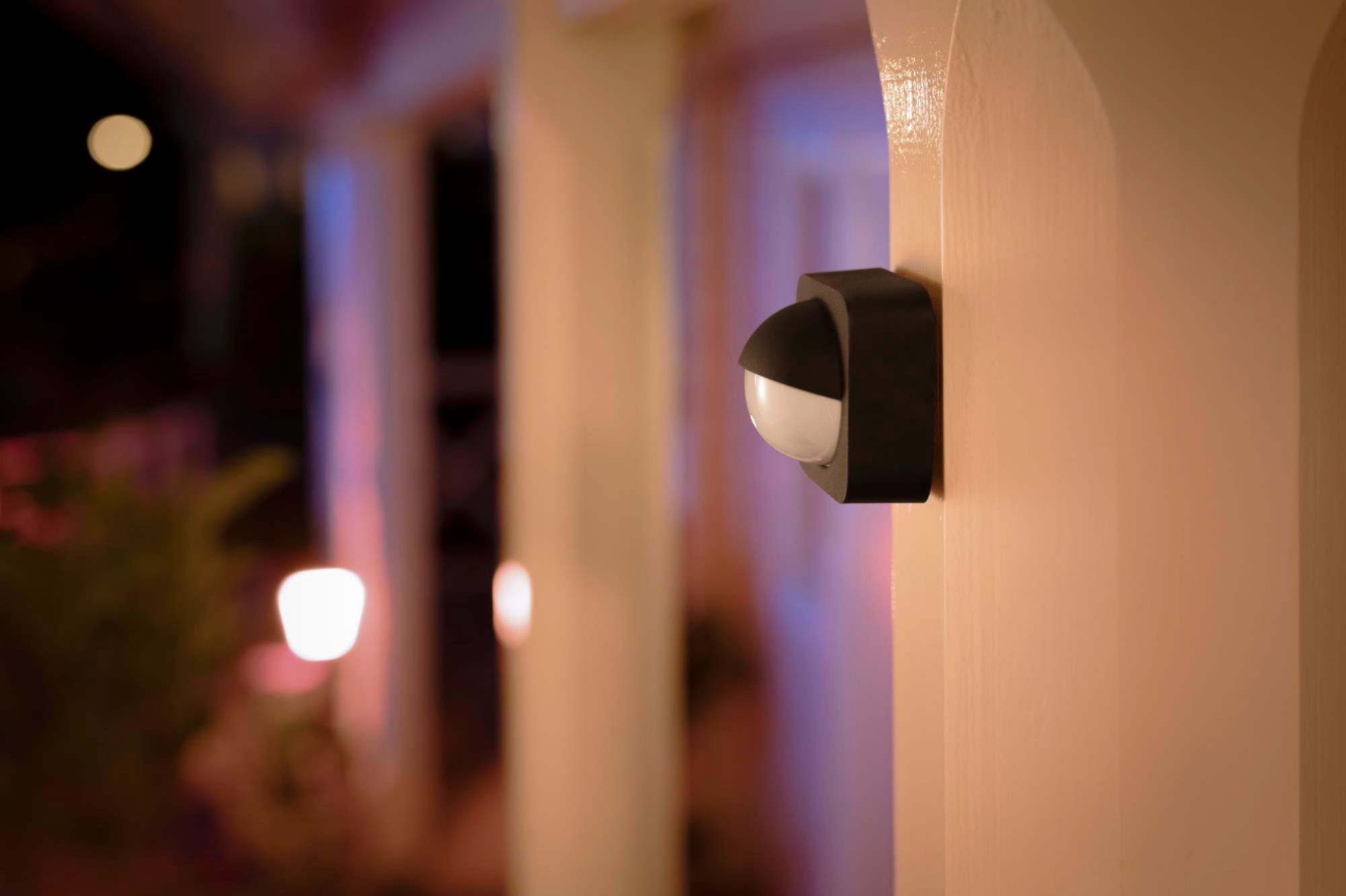
A:AnswerWhen I first set my sensor up, it did activate from the street, which was about 100 feet from the sensor. However by easily adjusting the sensitivity in the app, I was able to limit activation to a radius of about 10 feet.
A:AnswerOne way to do this would be to buy a Philips-Hue Smart Plug.
- Plug it into any working electrical outlet; then,
- Link it automatically to your Philips-Hue Hub; then,
- Link the Smart Plug to activate when your Philips-Hue Sensor near your front door senses motion; then,
- Plug in any sound-making device you choose (for example a radio; a cassette tape recording of barking dogs).
Your Hue Motion Sensor doesn't recognize WHAT you plug into the Hue Smart Plug. Once linked to your Hue Hub, the Hue Motion Sensor can be linked to several Hue devices in and around your home (Hue light bulbs, Hue Smart Plugs, for example). When the Hue Motion Sensor senses movement, it instantly "shares" that information with your Hue Hub, and the Hue Hub instantly turns on whatever Hue device you have chosen to be linked with the Hue Motion Sensor. The Sensor is just a tool. The Hub is the "brain" that instructs the Hue devices to carry out the simple automation that you created via your Philips-Hue App on your smart phone or tablet.
Per your question, that simple automation could also include how long you want whatever device you have plugged in to your Smart Plug to be ON. If you set it for a minute (for example), the Hue Hub, upon being notified of motion detection, would turn on the electricity flow to your Hue Smart Plug for one minute, and then turn it off. YOU set the volume on your plugged-in noise box. Again, the Hue Hub doesn't know or care what non-Hue electrical device you have plugged into your Smart Plug. It could be a radio, an electric blanket, a lamp, for example. All the Hue Hub does is receive the motion instruction, and turns the Hue Smart Plug on (and then off), per your automation.
A:AnswerThis is not a light. This is simply a motion sensor that you can use with your existing hue lights to have them turn on or change effects when motion is detected.
A:AnswerThis device is not used to set off an alarm. The main purpose is to turn on/off lights. Hue devices communicate using zigbee protocol. A hue hub is required for any kind of control. With that said, I have my hue motions linked to my hubitat hub. There are limitless control capabilities with hubitat programming.
A:AnswerYes, the Hub "thingie" is the "brain" for all of the Hue products. The Hub is what you program to operate the devices. Once your Hub is correctly installed, you can download the free Philips Hue App so you can remotely control each Hue device from your compatible smart phone and/or tablet. Each time you add a Hue light bulb or strip light or sensor (for example), the Hub senses a new device, and automatically downloads its information. The Hub will then prompt you to identify the room in which the device has been located, and the new device will show up on your Philips Hue App.
For motion sensors, the Hub will walk you through the time of day and/or night you want the sensor to be active. The sensor itself is entirely useless until you also have at least one Hue lightbulb that you want to be activated when the sensor senses motion. I have gradually added at least one Hue light bulb to each room, to my front porch, to my back porch, and to a backyard floodlight. Through the Hue Hub, via the Hue App, I linked the Hue floodlights, and several interior Hue lights to the sensor on my back porch. Those lights will turn on during the programmed hours if motion is sensed. It works great!
Without a Hub, you can stare at your Hue sensor all day and wish it to activate. But without a Hub, it is just an object hanging on a wall. Connecting it to a Hub activates it. Just like your fingers won't move without an impulse from your brain. The Hub needs a device to control. A Hue device needs a Hub to fulfill its purpose. Sure, you can buy a Hue color lightbulb, and you can manually turn it on and off at the light switch. But without a Hub, you can't access its "remote" features, nor can you change the colors in the bulb. Instead, it would operate like any traditional white light bulb -- only lots more expensive.
This is why you'll find so many "starter packs", each with a Hub and at least one Hue device.
A:AnswerThat depends on what setup you want to have. You can use this sensor to trigger another smart device (bulb, outlet, switch, for example) the other device does not have to be HUE but you will need another app or hub if it is not hue.
A:AnswerYes.
"Make sure your Hue bulbs are connected and powered on, then head into the Alexa app (which you should have already installed when setting up your Echo). Select Devices, then the Plus button, then Add Device. After a few seconds of searching, your Hue lights should be detected and added.
If you prefer you can use a voice command instead: say "Alexa, find my devices" and your Alexa smart speaker will scan your house for compatible Hue bulbs.
However you add the Hue bulbs, once they're connected you can control them through the Alexa app or via your voice, with commands like "Alexa, turn the bedroom lights off".
Through the Alexa app you can group your Hue bulbs together and even group them with smart lights of a different brand. However, without the Hue Bridge you can't create custom scenes, have lights turn on or off based on your location, or access various other advanced features available in the Hue app." -the-ambient.com