A:AnswerMaster,
If your hearing aids are Bluetooth enabled, they can be connected to this TV via Bluetooth. Go to Settings > All Settings> Sound > Sound Output > Bluetooth Speaker List > select or pair your hearing aids.
~Samsung Pro
A:AnswerChatGPT said:
Downloading Paramount+ on your TV is generally pretty straightforward, and it depends on the type of smart TV you have. Here's a general guide to help you get started:
1. Samsung Smart TV (Tizen OS)
If you have a Samsung Smart TV (like the DU6900 Series you mentioned earlier), it should be running the Tizen OS. Here’s how to download Paramount+:
Press the Home Button on your remote to open the Smart Hub.
Navigate to the Apps section on the menu.
Search for "Paramount+" using the search bar (or you can browse the apps).
Once you find Paramount+, select it and then click on Install.
After the app installs, you can open it from your apps list and sign in with your Paramount+ account details or start a free trial.
A:AnswerStew,
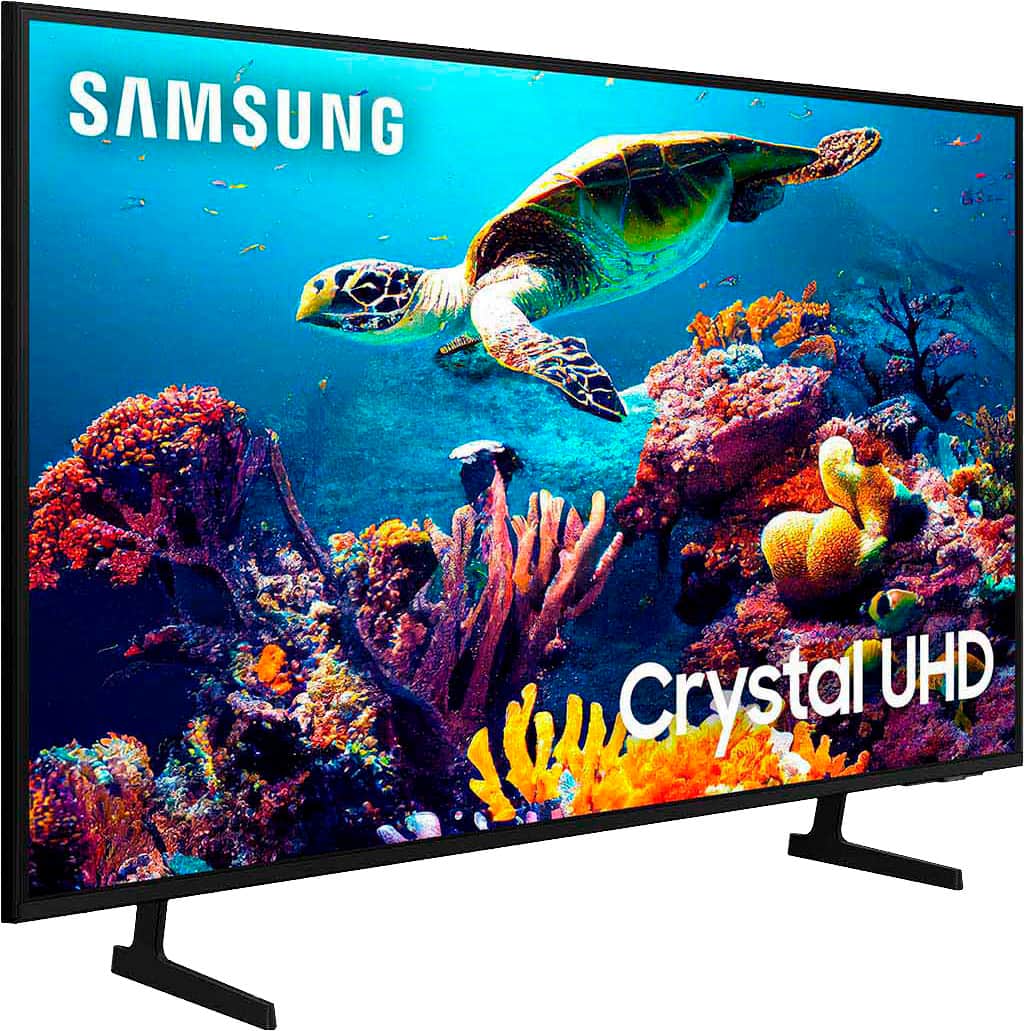
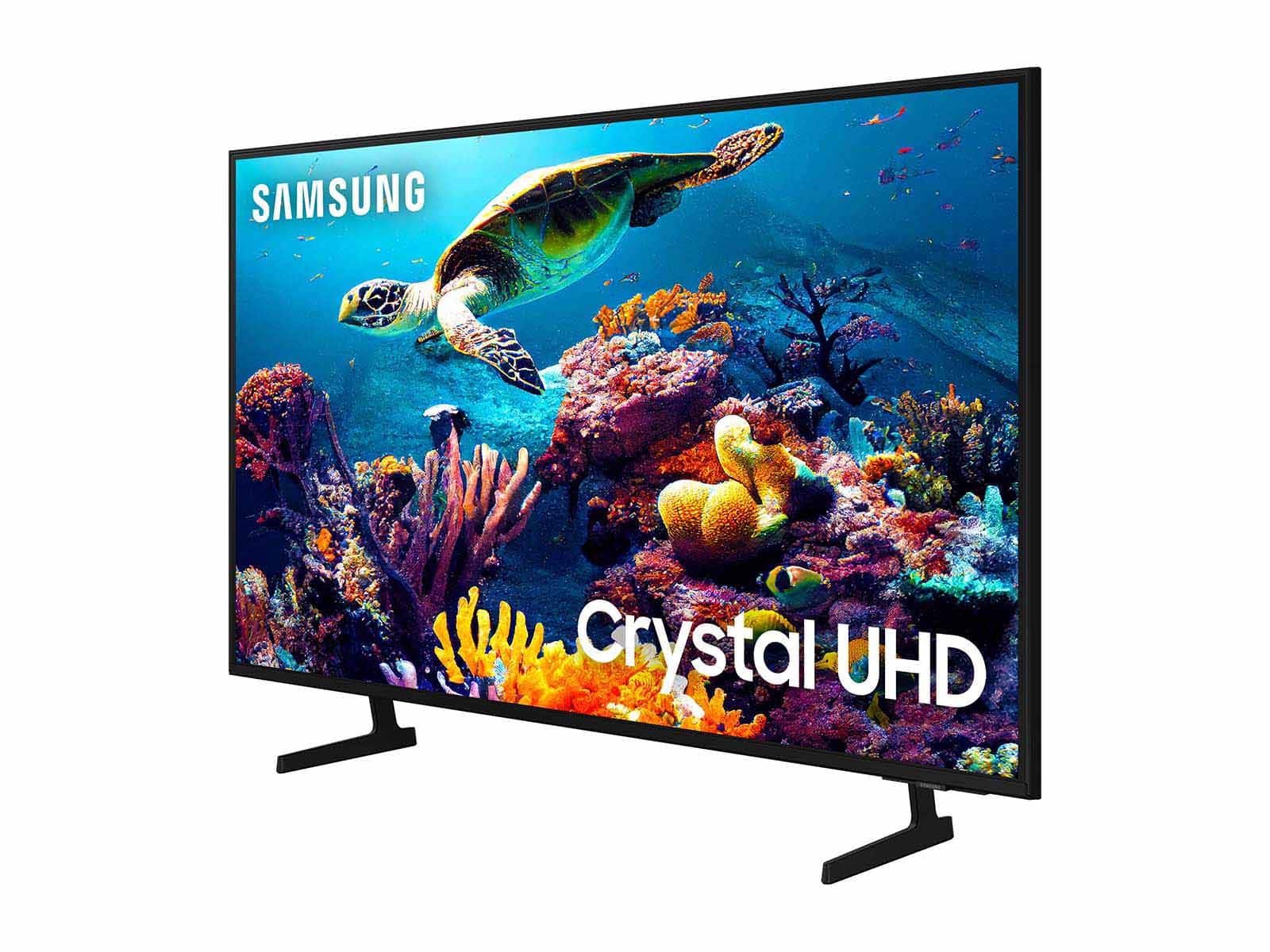
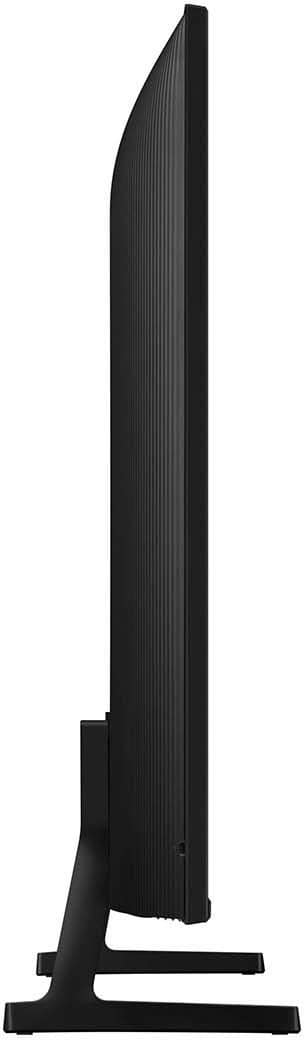
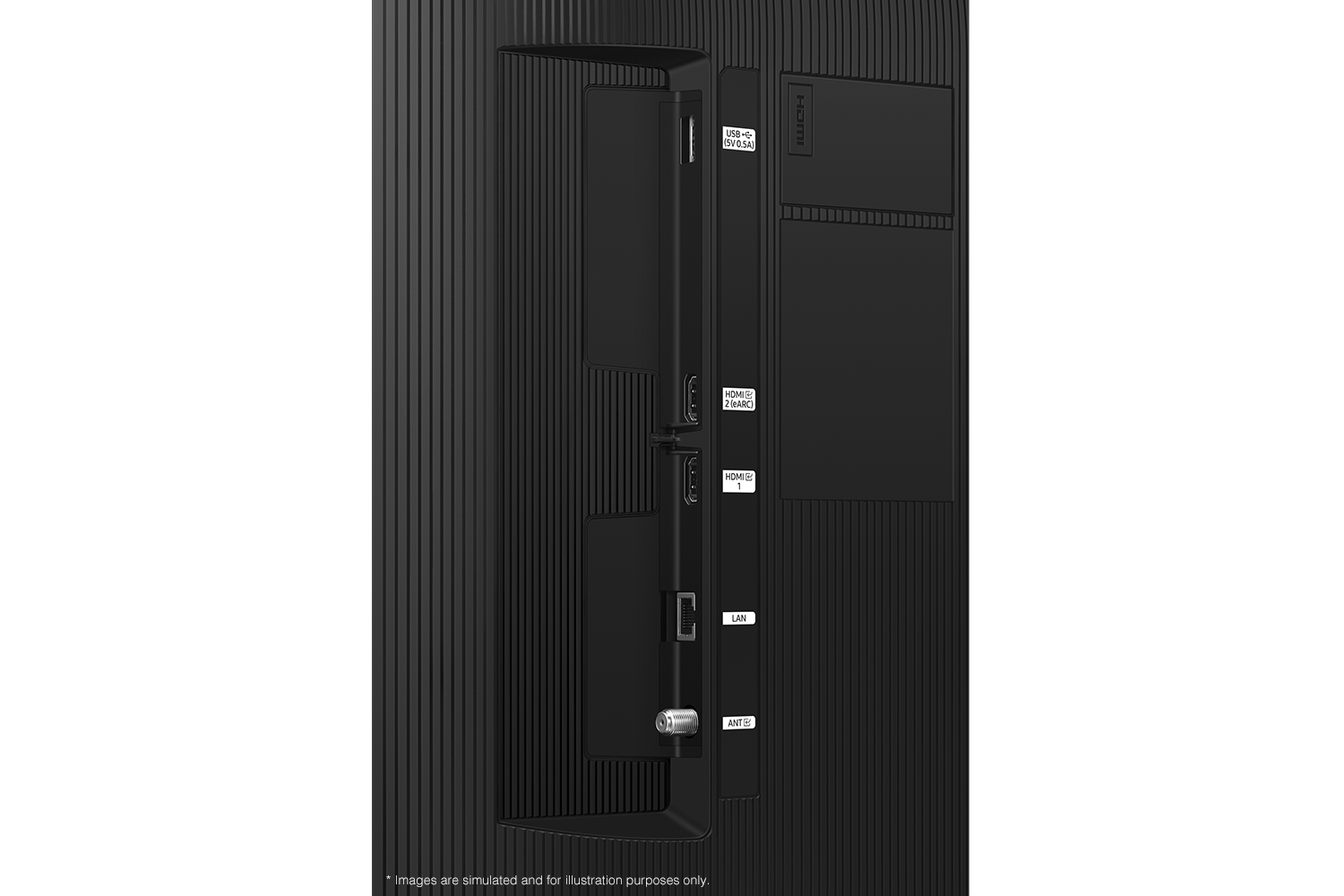
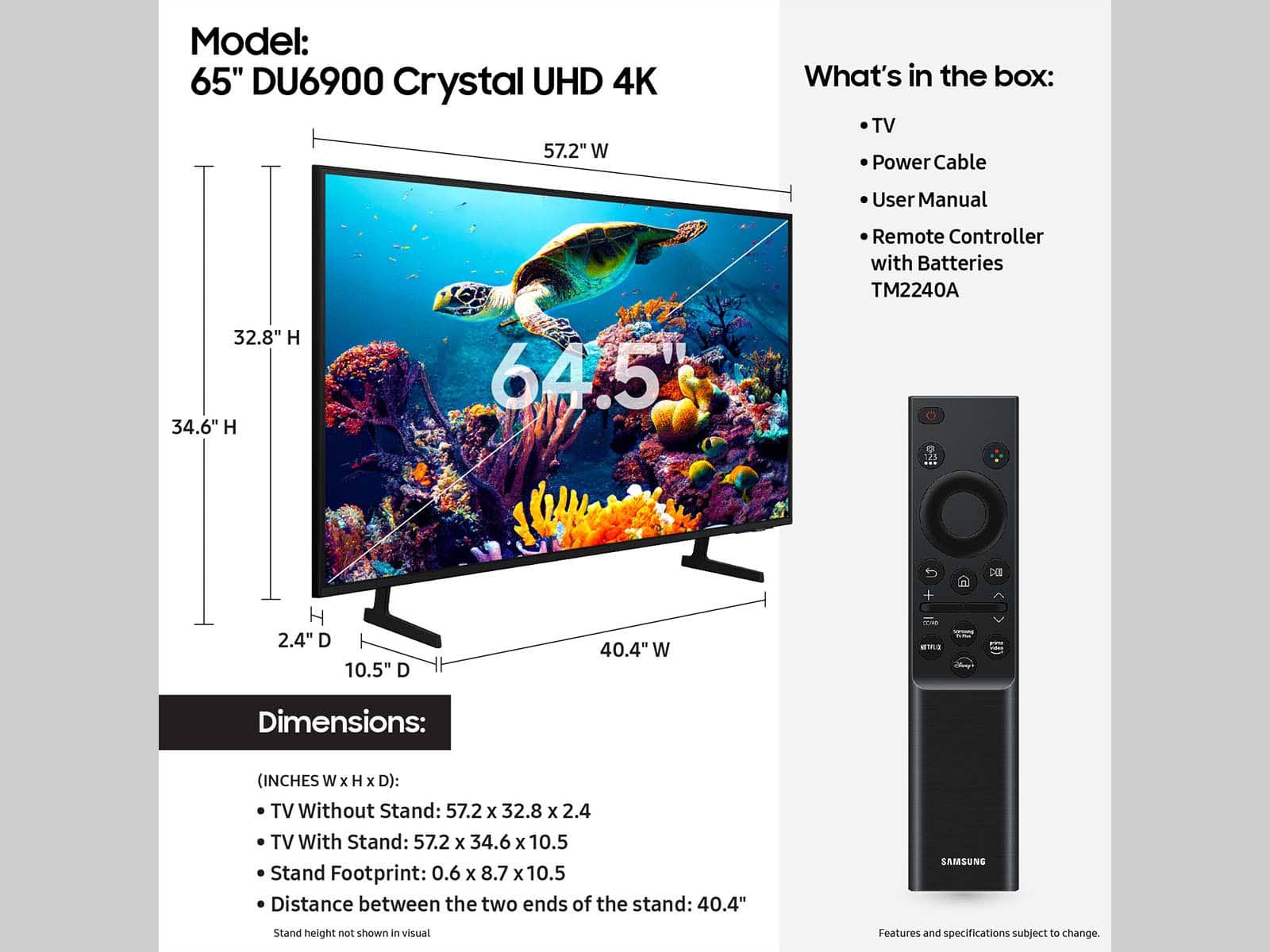
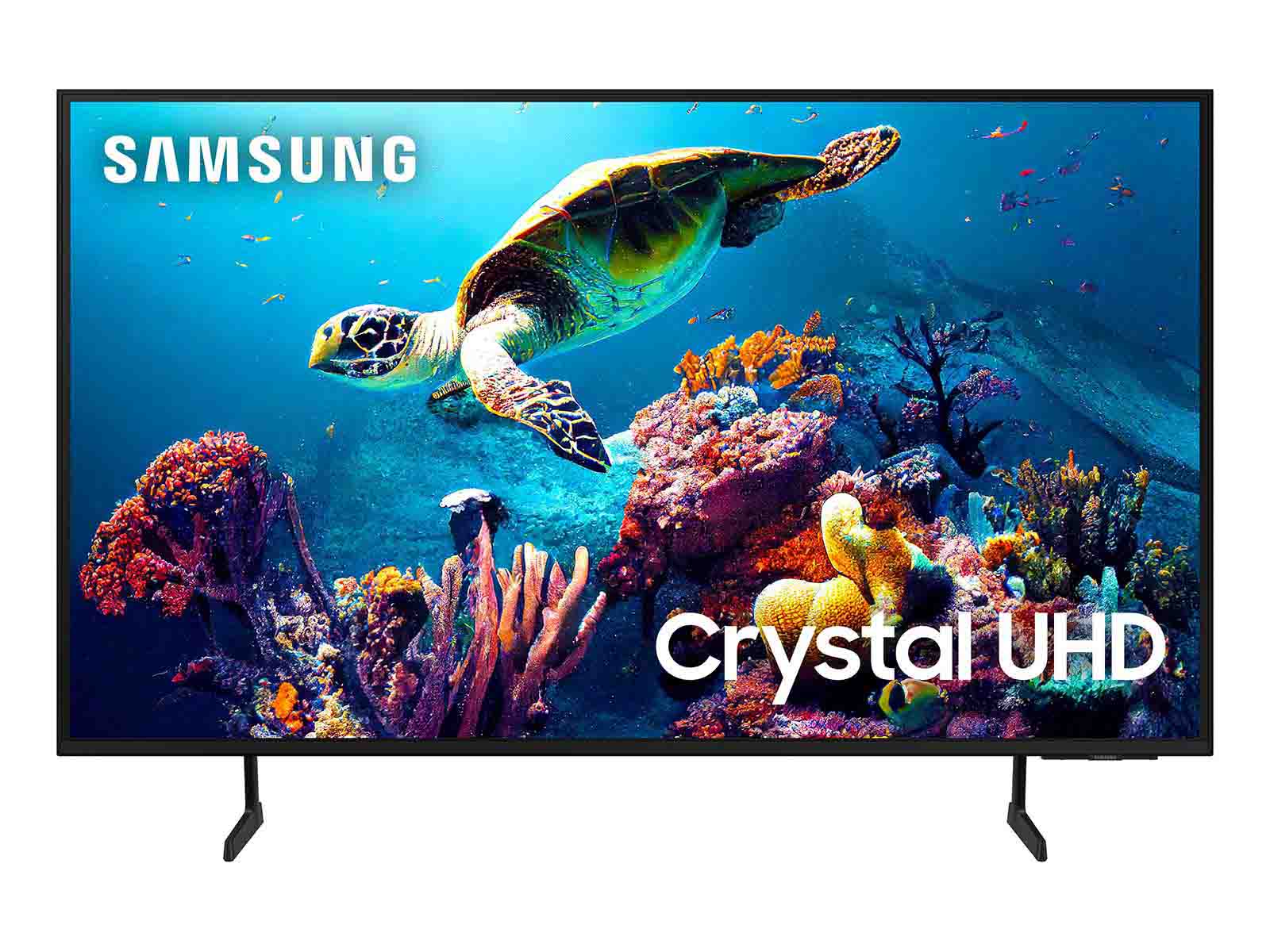
The DU6900 TV offers 2 HDMI ports and is Bluetooth and Wi-Fi capable, allowing a seamless connection across multiple devices at a time. If your external device requires an Optical port, we recommend utilizing an HDMI to Optical Converter. These can be found at your local electronics store. Please also keep in mind that an Optical port can be found on our DU8000F Series and above.
~Samsung Pro
A:AnswerMy remote control would also not turn the volume of the TV up or down and was stuck on level 15.
I
paired with my ROKO device remote and that remote functions properly.
A:AnswerStrawberryBlonde,
Some apps are already downloaded onto the TV, and others can be downloaded from the app store. All of the apps mentioned are easily available on the DU6900 TV.
~Samsung Pro