A:AnswerTCL Roku TVs support screen mirroring with compatible Android and Windows devices. Here is a great article with more details on how: https://support.roku.com/article/208754928-how-to-use-screen-mirroring-with-your-android-or-windows-device. Additionally, this TV features various inputs that can be used to connect external devices like a Chromecast. Hope this helps! Thank you, TCL Customer Support
A:AnswerWe're truly sorry to hear about your experience as this does not sound normal for one of our TVs. If you need any further assistance, please reach out to us at [email protected] with your contact information and a description of what you need help with. Enjoy! Thank you, TCL Customer Support
A:AnswerFor inquiries concerning stock and availability, you would want to contact your local Best Buy or Best Buy Customer Support as they would be best equipped to further assist you. Hope this helps! Thank you, TCL Customer Support
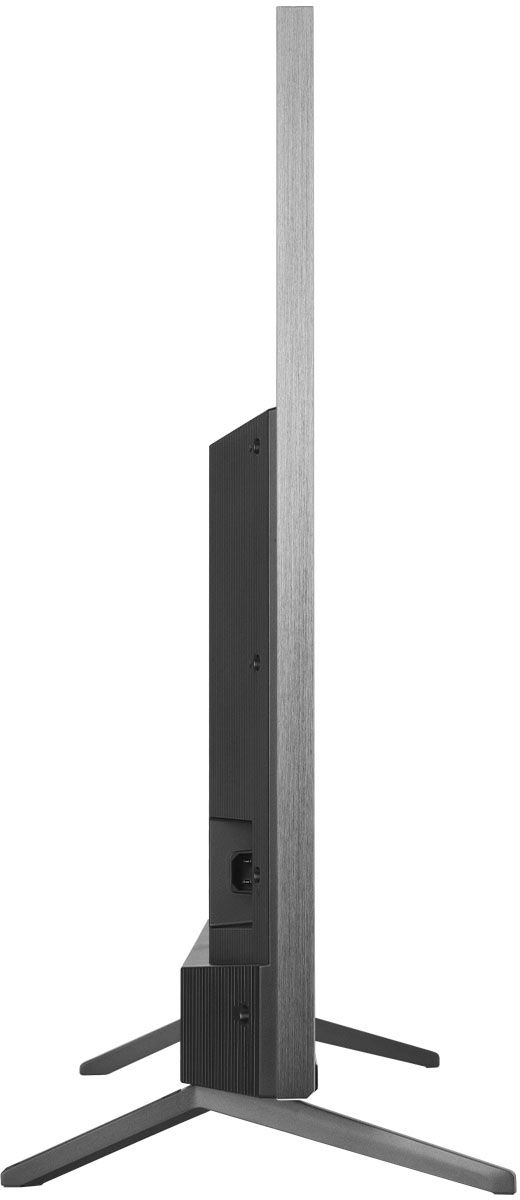
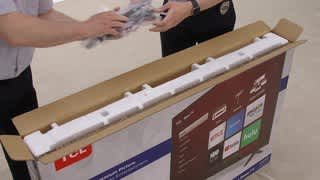
A:AnswerI wouldn't. Get something heavier. This tv weights a lot! You need more balance and that mount may not handle it. I have a hard time picking it up myself.
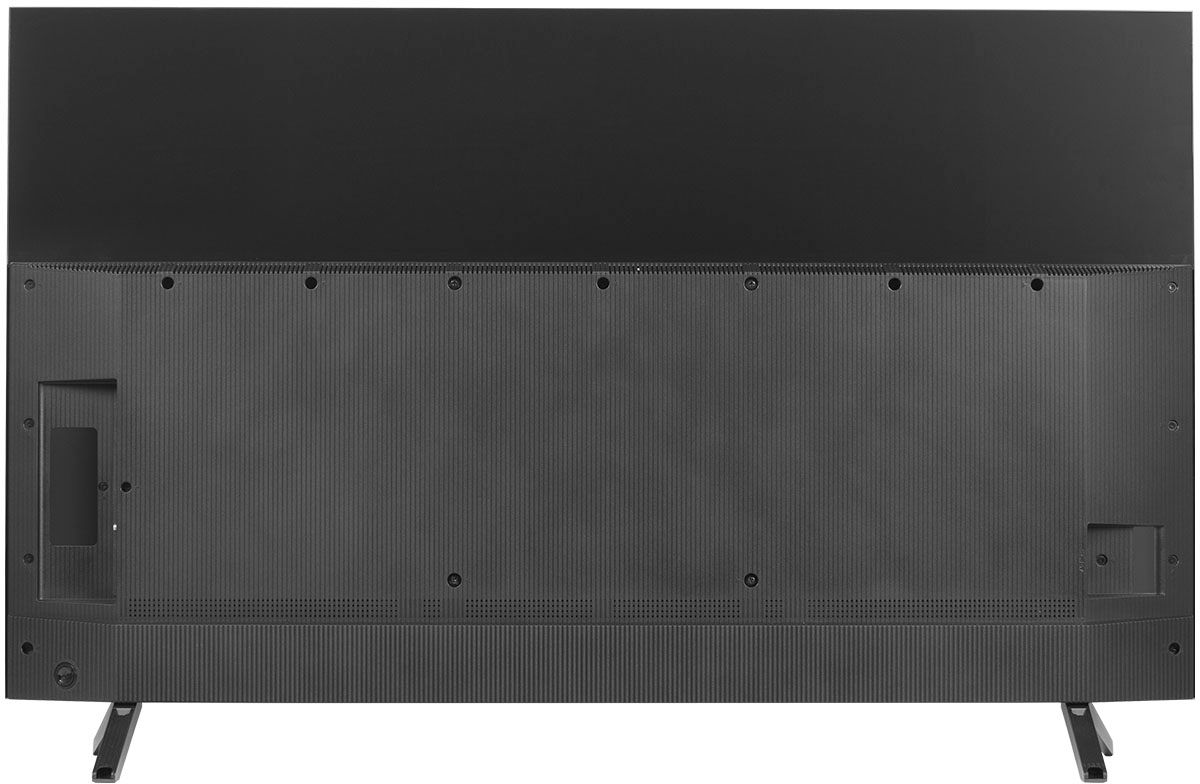
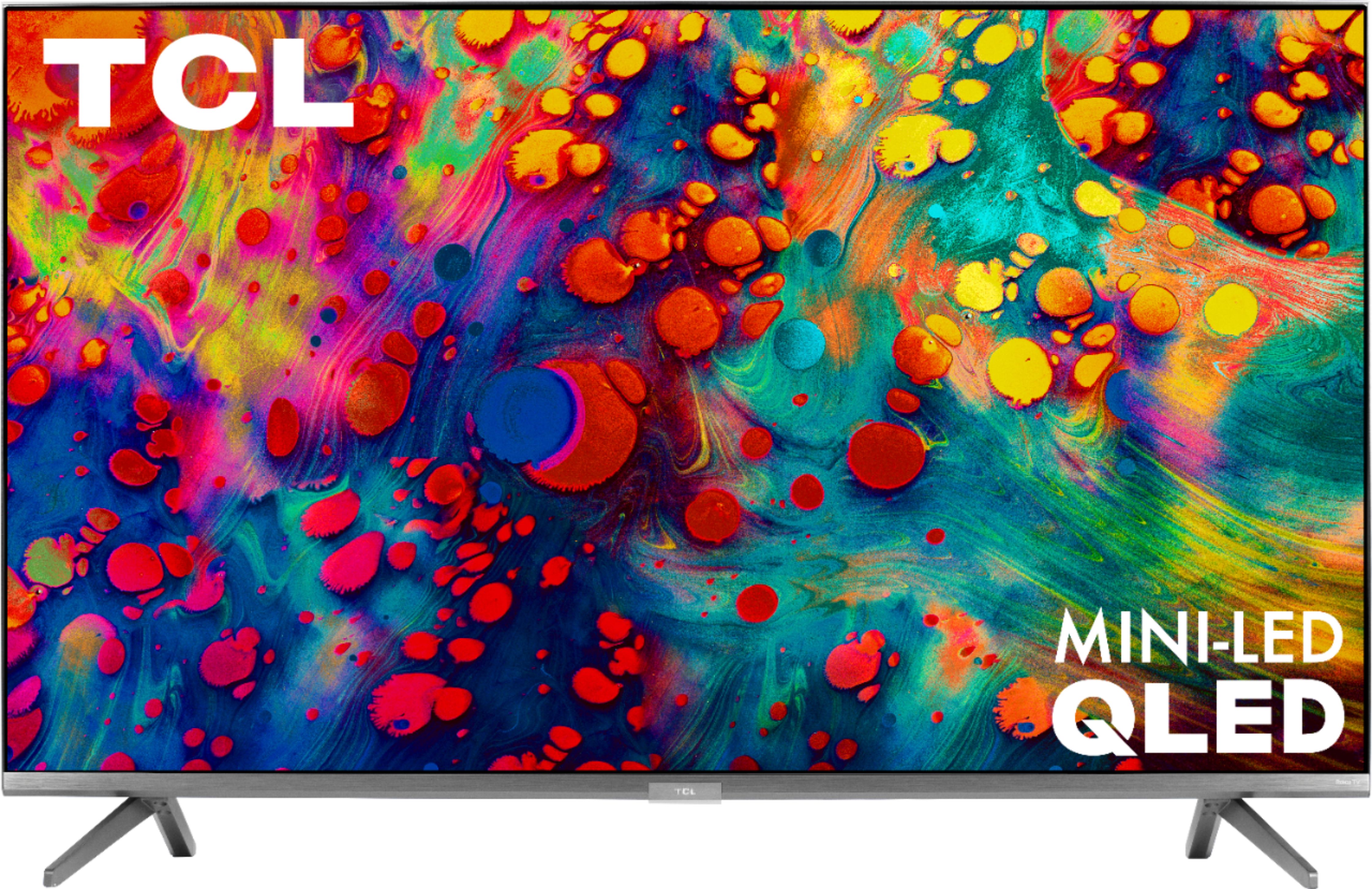
A:AnswerAbsolutely! This TCL Roku TV is compatible with most wall mounts that support a 300mm x 300mm VESA mounting pattern. Hope this helps! Thank you, TCL Customer Support
A:AnswerThe YouTubeTV streaming channel is one of the thousands of streaming channels offered through the Roku Channel Store. You can also visit www.roku.com/whats-on to see other streaming channels Roku offers. Hope this helps! Thank you, TCL Customer Support
A:AnswerCan affirm variable audio out via HDMI to a modern sound bar system. Cannot vouch for same for the Headphone Out (the only way to connect to std RCA outs).
A:AnswerCurrently, our Roku based TVs do not support Bluetooth. If you are trying to connect a sound bar or speakers you can use the Optical port, or the HDMI ARC port. For Headphones, there is a Headphone jack on the back of the TV, or you can download the Free Roku app for private listening. Hope this helps! Thank you, TCL Customer Support
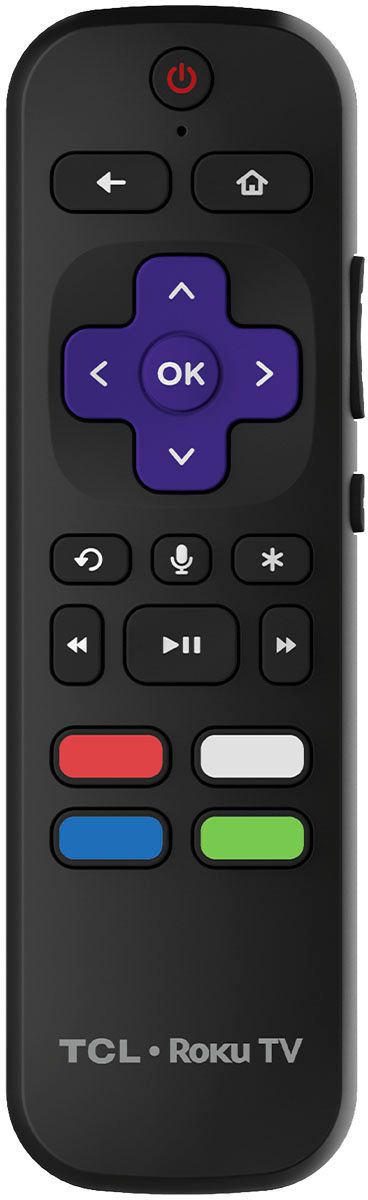
A:AnswerWhen press * key look for pictures settings, this will take you into an advance settings, from here you can change picture modes, you can turn off soap opera effect, ect.
Depending on the type of content you are watching it will give you the options to change pictures modes.
For example, if are watching a movie that is in Dolby Vision when you go to settings it will give you the option to change from hdr bright to hdr black.
You have to set up your picture modes for every different type of content you watch whether it's 1080p, 4k, HDR, or Dolby Vision. Once you set up your preferred picture settings for every different content you watch, it will save them. So When you go back and watch anything in 4k it will give you the picture settings you set for that type of content.
A:AnswerIf you log into your existing Roku account and activate the TV under that account, it will automatically download all of your existing streaming channels. Hope this helps! Thank you, TCL Customer Support