A:AnswerYes but there are a lot of reviews out there where customers received faulty hubs and had to request a replacement from ThermalTake in order to get their fans to work.
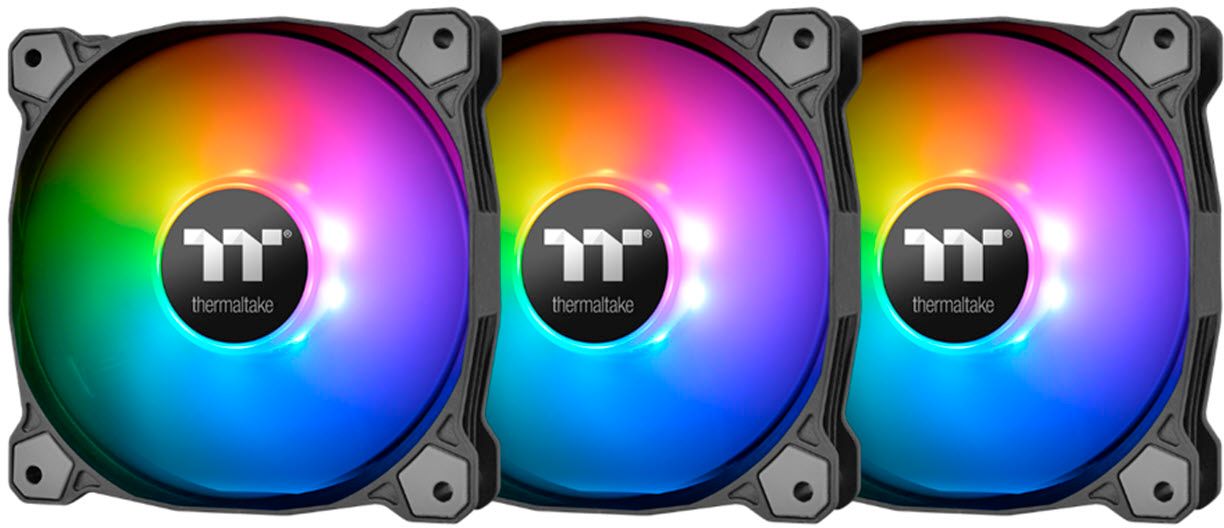
A:AnswerYes. Each fan has 9 LEDs on it that you can customize individually through their software. It doesn't however save the profile to the fan. So, you have to open the software every time you boot or it resets to rainbow RGB.
A:AnswerIt came with the RGB controller that plugs into a USB header on the motherboard. The three fans then connect to the controller(which can do 5 at once). So, you don’t need the fan pins, one USB header is all you need.
A:AnswerIf you have the thermaltake pure plus 12 you have to use the appropriate connector that joins the two controllers together and you need the software.
A:AnswerMake sure you are connecting them to the correct ports on your motherboard. On my Z-Series TufGaming board it was a little bit difficult to which ports to use and there are not good instructions included with the product. Refer to the manual for your MB for which ports to use with accessory lights. Do you have other items which display lights like a GPU that is showing the lights? If so check your ports and you will need to check the controls in the bios to ensure that the lights for ram and the fans are supported by that MB.
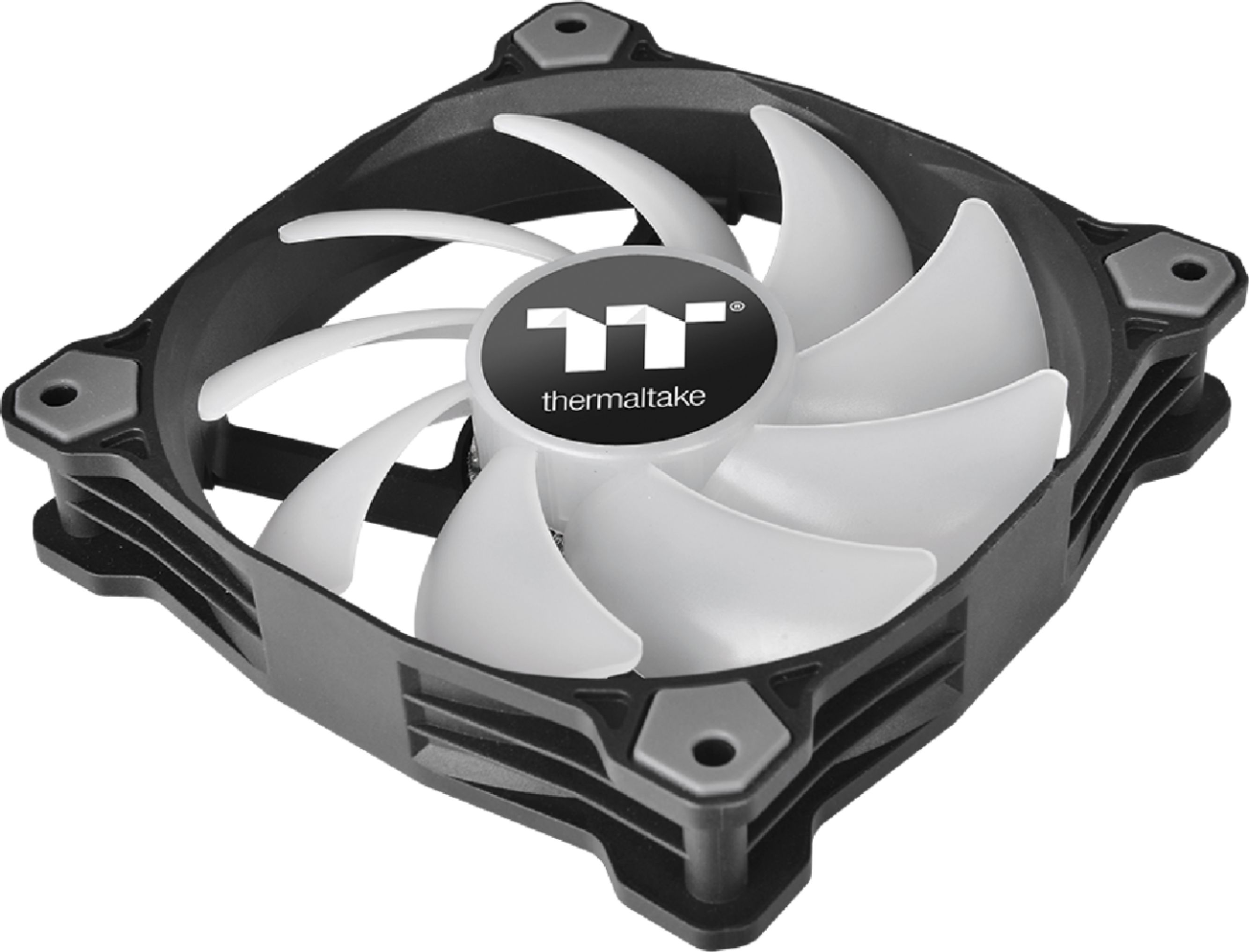
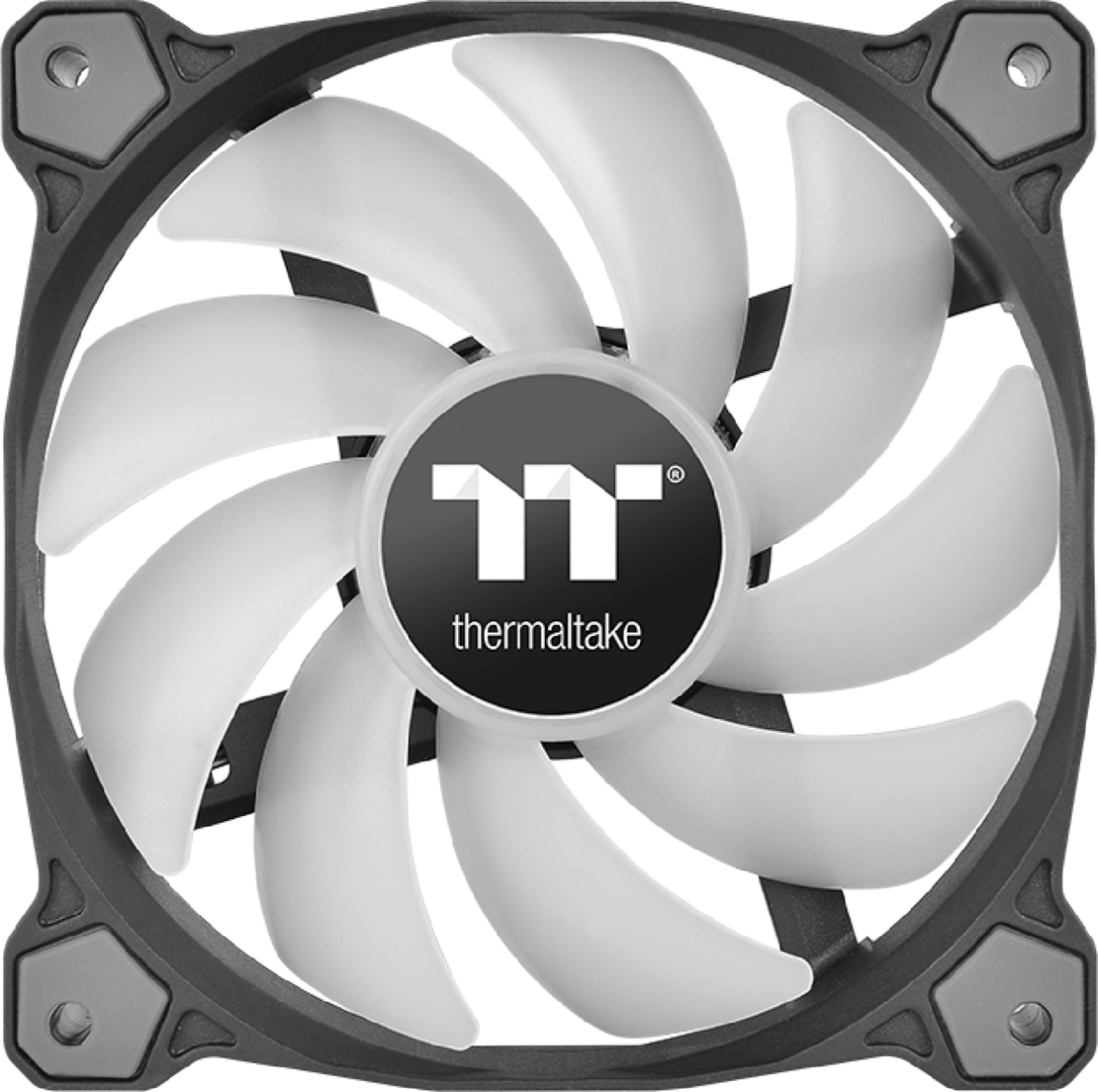
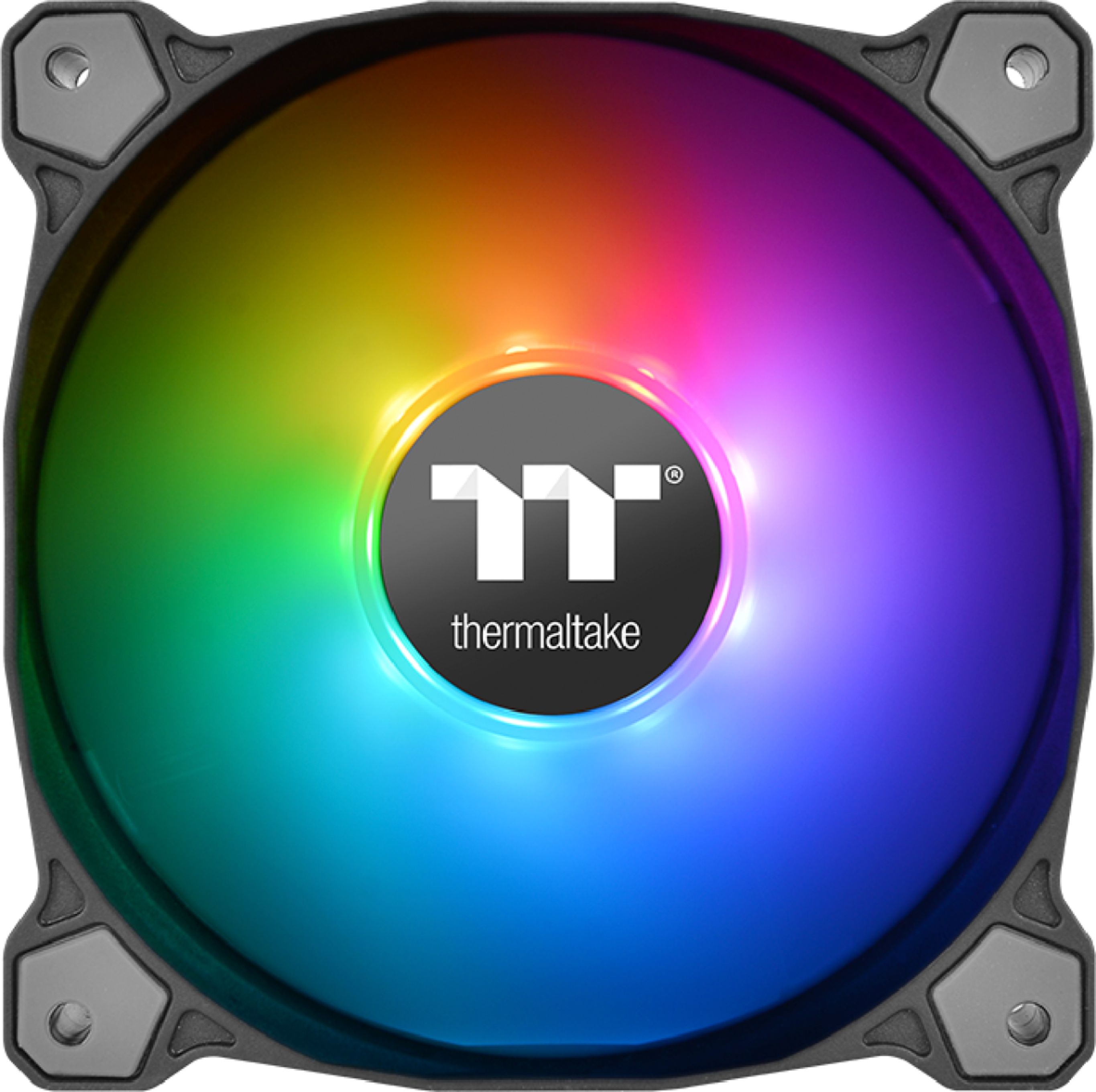
A:AnswerRiing series have the LED effects around the outside circumference of the fan opening as opposed for instance to the Pure Plus 12 or 14 setups from Thermaltake the LED's are located around the circumference of the inner area where the fan motor is located and projecting the light effects onto the blades causing them to glow with the light effects.