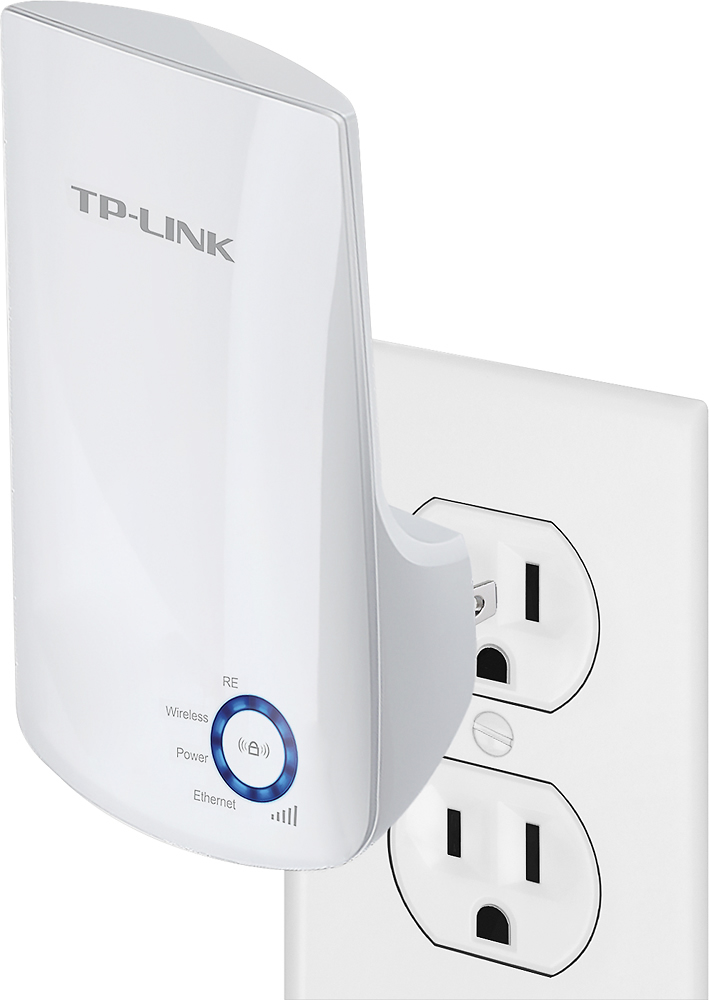
A:AnswerI found it very easy to set-up. If your router has a WPS button, you only need to push that and then push the range extender button on the device and it will automatically sync up. If you don't have a WPS button you can also use the Tether app available on your smartphone. I recommend trying to see if you have the WPS button as it is the easiest to use.
A:AnswerThe WiFi extender needs to be configured to join your existing WiFi network; however, the included Quick Installation Guide provides intuitive, quick and easy setup instructions to guide you through the process.
A:AnswerIf your primary concern is providing additional N300 2.4GHz WiFi within your home, this WiFi extender can help. Please note that range will vary depending on your existing WiFi network's reach, as well as the physical layout of your home.
A:AnswerOur WiFi extenders are universally compatible with WiFi routers. Extended range will vary depending on your existing network range and environment including physical obstructions (i.e. walls, etc.)
A:AnswerOur WiFi range extenders are universally compatible with WiFi routers and WiFi gateways. If your CenturyLink Modem is also a WiFi gateway, it will work.
A:AnswerYes, you can use the WiFi extender to essentially "convert" a WiFi connection to Ethernet. Once the extender is successfully set up and connected to your WiFi network, you can then run an Ethernet cable between it and your computer or device to provide said device with connectivity.
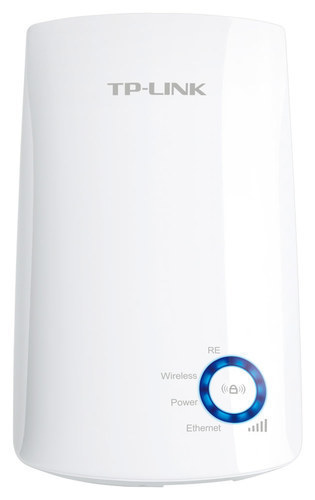
A:AnswerFor optimal results, we recommend installing the adapter in a position within your home where the router's WiFi signal is sufficiently strong; yet far enough from the router to effectively extend its range. Please verify the RE status LED is indicating a solid connection. That being said, your home's physical layout will always play a role in WiFi propagation, whether from a router or WiFi extender.
A:AnswerHello,
If you place the extender in the first floor It will work for sure.
Easy to setup, just download the phone app and follow the steps (it takes like 3 minutes)
Regards,
Daniel
A:AnswerHave you tried rebooting it? I haven't had that issue but usually when a WiFi extender loses connectivity, it needs to be rebooted. Unplug it from its power source then give it a few minutes to reboot. Once all the blue LEDs are lit, that means it's got good connection to your router and it's ready for use