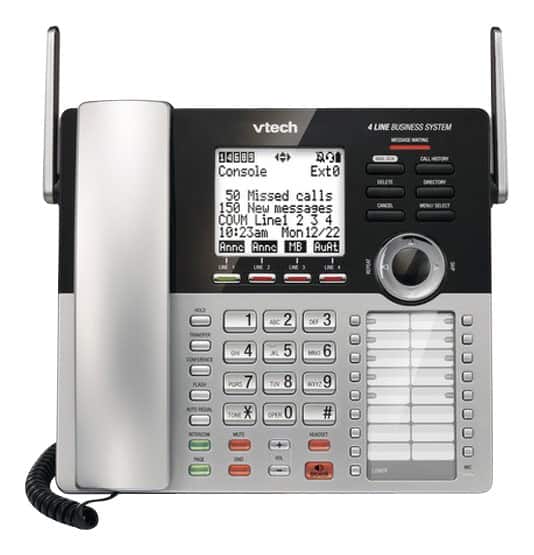
A:AnswerThis model can let you set number of rings from 2 to 7 times, before the general mailbox picks up a call. Below are the set up steps:
When the console is idle, press MENU/SELECT.
Press or to scroll to Ans sys setup, then press MENU/SELECT or
/SKIP.
Press MENU/SELECT or /SKIP to select Gen MB setup.
Press MENU/SELECT or /SKIP again to select No. of rings.
Press or to choose the desired number of rings (2-7 or Toll saver).
Toll saver - the answering system answers a call after two rings when
there are new messages, and after four rings when there are no new
messages. This enables you to check for new messages without paying
for a toll call.
6. Press MENU/SELECT or /SKIP to save the setting and return to the
previous menu.
A:AnswerPat, when there is no dial tone, the first check would be whether the telephone line has been plugged in correctly. But it is difficult to verify the cause of the issue. Please contact our Customer Service at 1-800-595-9511. Our CS opens from Monday to Friday, 9am to 5pm.
A:AnswerYes. CM18445 system can allow user to do the above.
1. Press on the Hold button to put a call on hold and let the on-hold music to be played for the caller.
2. Press on the Line X button to pickup the 2nd call.
Repeat 1 & 2 to put the second call on hold and pick up the first line again.
A:AnswerNo. Message left at extension handset and desk-sets are for that persons only. The messages cannot route to another person. For the same reason, the maincole cannot listen to the messages left to the desk-sets.
A:AnswerYes, you can register 2 wireless headsets into the same CM18445 Console.
Each of the headset will be assigned a separate extension number (from 9 => 8 => 7 => 6 ... etc, with Console extension number being 0 as default).
From the Console you can intercom or transfer a call to each of the headsets.
User is also given an option to link one of the wireless headset with the Console, in that case, the linked headset will behave like a wired headset connected to the Console.
ie. there are 2 ways to register a wireless headset to your system, either
- as separate extension or
- as an accessory dedicate to the Console (limited to 1 headset to each extension).
No, you cannot add a total of 10 wireless headset to the system. Max allowable is 9.
We don't recommend user to purchase only 1 Console but 9 headsets, reason is every headset user will be fighting for the dial pad on the console to make a call.
The optimal configuration recommended is 1 Console + 4 Desksets / Handsets + 5 Wireless Headsets each used as accessory to the Console/Deskset/Handset.
A:AnswerThere is a Ring Group setting on the Console for user select which extension to ring when there is incoming call on each of the tel. lines.
Console Main Menu => Ringer Setting => Ring Group => Select the Line you want to setup
=> press on the Dial pad 0 - 9 to toggle which extension need to ring when there is an incoming call on that particular line.
A:AnswerPls follow the below steps to disable auto-attendant and enable GM using your customized greeting.
1. Console Main Menu => Line Mode => All Lines => Gen MB Only
2. Console Main Menu => Ans sys setup => Gen MB setup => Anncment setup => User anncment => Press SELECT to Record Greeting => Press SELECT to Stop => Select OK to save.
A:AnswerThere are three types of announcement in the answering system for
three line modes, Gen MB only, Auto attendant, and Announce only,
respectively. The respective announcement will be played when an incoming
call isn’t answered after the set number of rings.
Firstly, make sure you have recorded different announcement for each Line
mode under Ans Sys setup menu.
Then, select the line mode under Line mode menu to designate the answering
behavior and announcement of each telephone line to respond to incoming calls.
NOTES:
If the Auto attendant option is selected, make sure both the daytime and night time
announcements are recorded, and the announcement time is set for daytime announcement.
Night time announcement will be played for unanswered incoming calls outside of the designated
announcement time period.
If the No answer option is selected, no announcement will be played when an incoming call isn’t
answered after the set number of rings.
A:AnswerTo avoid accidentally delete new messages, user is required to at least listen part of each of the message so they would become "old message".
Console => Press MAIL BOX button => Check screen : X New Message with X as 0. Select "Delete all old".
A:AnswerThe voice mail on the target extension(s) must be turned ON.
Any extension within the system when on a call, can then press TRANSFER button, select the extension number to transfer the call.
The voicemail on that target extension will pickup after a few rings.