Customer Ratings & Reviews






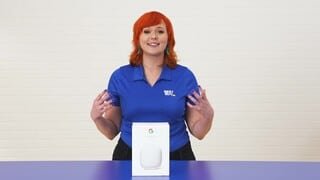



- Model:
- GA03030-US
- SKU:
- 10961714
Rating by feature
- Setup
Rating 4.6 out of 5 stars
- Range
Rating 4.5 out of 5 stars
- Signal Strength
Rating 4.4 out of 5 stars
- Pros mentioned:Ease of use
Google
||Posted . Owned for 2 months when reviewed.This reviewer received promo considerations or sweepstakes entry for writing a review.Perfect for what I needed to accomplish. Easy set up and instructions to follow for a seamless install.
I would recommend this to a friend Absolutely the Best
||Posted . Owned for 1 month when reviewed.This reviewer received promo considerations or sweepstakes entry for writing a review.Easy to install. Made a big difference in quality of reception for my security cameras.
I would recommend this to a friend- Pros mentioned:Ease of use
Good wifi mesh system.
||Posted . Owned for 3 weeks when reviewed.This reviewer received promo considerations or sweepstakes entry for writing a review.Good mesh wifi system, easy to set up, good wifi range.
I would recommend this to a friend Great range, great speed.
||Posted . Owned for 1 month when reviewed.This reviewer received promo considerations or sweepstakes entry for writing a review.I bought this single unit as an addition to the 3 pack set. Works perfectly as expected.
I would recommend this to a friendGreat WiFi
||Posted . Owned for 2 weeks when reviewed.This reviewer received promo considerations or sweepstakes entry for writing a review.Had the previous generation and this is a step up in performance. Would recommend.
I would recommend this to a friend- Pros mentioned:Setup
Quick!
||Posted . Owned for 5 months when reviewed.This reviewer received promo considerations or sweepstakes entry for writing a review.Great product and it practically sets itself up! No hassles so far and it’s been a few months!
I would recommend this to a friend Nest wifi upgrade
||Posted . Owned for 3 weeks when reviewed.This reviewer received promo considerations or sweepstakes entry for writing a review.I had the original google wifi but wanted to get an upgrade to utilize the 1gb fiber internet. Connection and setup is super easy. Having a problem getting the full 1gb speed so still working on that and would add the 5th star if it gets fixed. Otherwise coverage and wifi speed is an upgrade to my old one.
I would recommend this to a friendBrand response from Nest Support
Posted .Hey there, Tungsquared! We appreciate your feedback. We're glad that the setup and connection of your Nest Wifi Pro went easy. The placement of your Wi-Fi router and points is vital to have reliable Wi-Fi throughout your home. Points work best when they’re no more than two rooms away from each other. So if the far end of your house has weak Wi-Fi, don’t put a Wifi point in that exact spot. Instead, put it part way in that direction. Try to place it in an elevated position like on a shelf. You can also try the simple steps below that can improve your experience:
- Move the connected device closer to your Wifi router or point.
- Repositioning the points to avoid obstructions like walls, doors, and aquariums can improve performance.
- Make sure all unused devices are off and not draining bandwidth with large downloads.
- Check for possible sources of interference such as microwave ovens, refrigerators or other equipment.
- Run a mesh test to confirm placement of your Wifi points.
For additional assistance, we’d be happy to guide you with further troubleshooting and isolation here: https://support.google.com/googlenest/gethelp
- Pros mentioned:Ease of use
Best Mesh system
||Posted . Owned for 1 year when reviewed.This reviewer received promo considerations or sweepstakes entry for writing a review.The best mesh system on the market for the price. So customizable and easy to use.
I would recommend this to a friend Better than the previous Google Router
||Posted . Owned for 3 weeks when reviewed.This reviewer received promo considerations or sweepstakes entry for writing a review.When I bought the Google Nest Wi-Fi last month, I noticed it's much better than the previous one. Technology moves so fast, and routers usually last only 2 to 3 years. However, it's strange that two of my laptops have a weak signal—though they still work. Thankfully, my internet provider is blazing fast.
I would recommend this to a friendBrand response from Google Nest Support
Posted .Thanks for your thoughts on the Nest Wifi Pro, Jaysoncruz. While we’re glad you’re enjoying the upgrade, we hear your concerns on not getting the best speeds. There could be a few things impacting your connection — here’s some suggestions to fix this:
1. Your device is far from your Wifi router: often moving your device closer to your router or point will result in improved speeds.
2. Building materials and other objects may slow your connection: if possible, try to use your device within a clear line of sight to your router or point.
3. Some devices do not support the faster Wi-Fi standards: speed is dependent on both the router or point and the device that is connected to it. If you have an older device, it’s likely it won’t support the latest standards for the fastest speeds.
Here’s a guide with more details: https://support.google.com/googlenest/answer/7578264?hl=en&ref_topic=7620336&sjid=14351523150742169093-NC
We’re here anytime you need us: https://support.google.com/googlenest/gethelp
- Pros mentioned:Setup
Wi-Fi mess
||Posted . Owned for 1 month when reviewed.This reviewer received promo considerations or sweepstakes entry for writing a review.Great easy to setup Right out the box Down load on the app Follow instructions Done in 15 min Easy and logic
I would recommend this to a friend - Pros mentioned:Ease of use
Tv
||Posted . Owned for 1 month when reviewed.This reviewer received promo considerations or sweepstakes entry for writing a review.Love it. It does exactly what it need it to do. Easy set up
I would recommend this to a friend - Pros mentioned:Speed
Best home coverage
||Posted . Owned for 1 month when reviewed.This reviewer received promo considerations or sweepstakes entry for writing a review.Keep the bytes coming. Works as advertised. Now same upload and download speed at opppsite end of house.
I would recommend this to a friend - Pros mentioned:Ease of use
Buy it !
||Posted . Owned for 1 month when reviewed.This reviewer received promo considerations or sweepstakes entry for writing a review.Easy to install and fast! So far I love it it’s worth every penny you won’t regret it
I would recommend this to a friend - Pros mentioned:Setup
Good signal all over the house, 3840 SQ Ft home.
||Posted . Owned for 2 weeks when reviewed.This reviewer received promo considerations or sweepstakes entry for writing a review.I am not sure what issues people had setting this thing up. I plug it and in 5 minutes it was done. Just the update that took additional 5 mins.
I would recommend this to a friend They work great!
||Posted . Owned for 1 month when reviewed.This reviewer received promo considerations or sweepstakes entry for writing a review.Easy to set up and have been very reliable, maintain 500-700mbps accross 2 hops of mesh points.
I would recommend this to a friend- Pros mentioned:Speed
mesh router
||Posted . Owned for 1 month when reviewed.This reviewer received promo considerations or sweepstakes entry for writing a review.excellent purchase the google mesh works great I get excellent internet
I would recommend this to a friend So far so good
||Posted . Owned for 3 weeks when reviewed.This reviewer received promo considerations or sweepstakes entry for writing a review.So far so good. However one weekend the system just stopped, not sure why, possibly due to old modem. This system does get warm, but not as warm as the eero. The eero runs extremely warm to hot and then just stopped working just a little over a month after buying. This warm to hot was scary. This nest pro has short cables which does not allow you to place them up high.
I would recommend this to a friendBrand response from Nest Support
Posted .Hello Ande, thanks for sharing your feedback on Nest Wifi Pro. We’re glad to hear it works well so far, but we’re sorry to hear that the system stopped some time, and that the candles are below your preference. We’d be happy to share this information with the right team for future improvements. Meanwhile, in the event your system stops working again, you may try to restart your modem, even if your modem appears to be working fine, to establish a secure connection to the Wi-Fi router/point as Wi-Fi signal and connectivity will still depend on other factors like interference, multiple devices using both bandwidths on your router and the older Wi-Fi chips on your devices that might not be able to support these speeds. If you're using a modem/router combo, set it in bridge mode and disable its Wi-Fi functionality to avoid double NAT issues.
We also suggest these simple steps that might help:
- Move the connected device closer to your Wifi router or point.
- Repositioning the points to avoid obstructions like walls, doors, and aquariums can improve performance.
- Make sure all unused devices are off and not draining bandwidth with large downloads.
- Check for possible sources of interference such as microwave ovens, refrigerators or other equipment.
- Run a mesh test to confirm placement of your Wifi points.
We’re always here for your support needs. Simply let us know if there’s anything we can help you with by contacting us here: https://support.google.com/googlenest/gethelp
- Pros mentioned:Ease of use
CarolynD google nest routers
||Posted . Owned for 3 weeks when reviewed.This reviewer received promo considerations or sweepstakes entry for writing a review.Works great and was easy to install. I highly recommend this product!
I would recommend this to a friend - Pros mentioned:Speed
Google home
||Posted . Owned for 1 week when reviewed.This reviewer received promo considerations or sweepstakes entry for writing a review.Easy set up and fast WiFi speed. Love all my Google nest and home drive. App easy to use.
I would recommend this to a friend - Pros mentioned:Ease of use
Nest WIFI PRO 6e
||Posted . Owned for 1 month when reviewed.This reviewer received promo considerations or sweepstakes entry for writing a review.This equipment let me have a strong signal and better range. It was easy to set up.
I would recommend this to a friend