Customer Ratings & Reviews
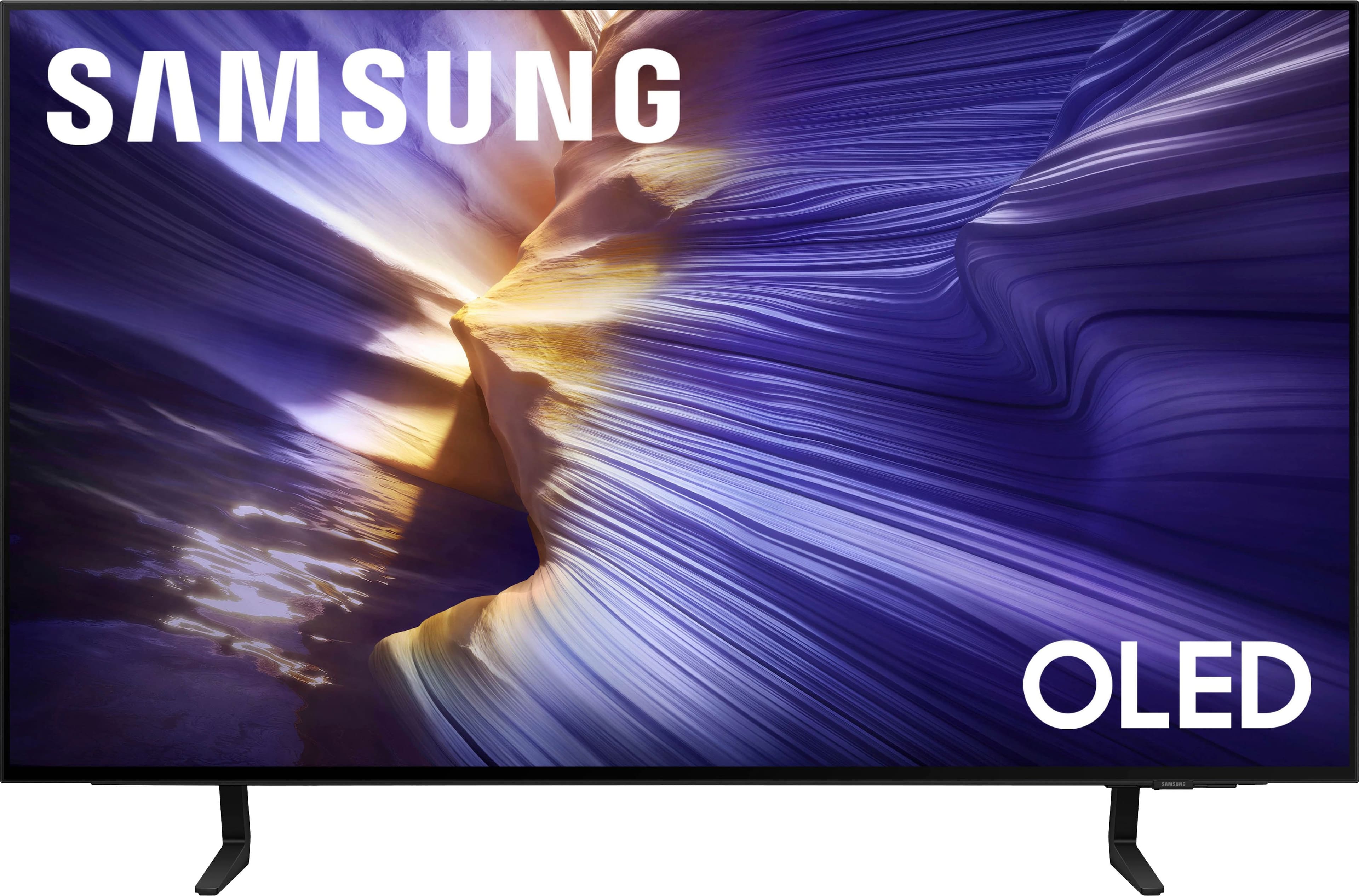



- Model:
- QN42S90FAEXZA
- SKU:
- 6613495
Rating by feature
- Picture Quality
Rating 4.7 out of 5 stars
- Sound Quality
Rating 4.6 out of 5 stars
- Brightness
Rating 4.6 out of 5 stars
Customers are saying
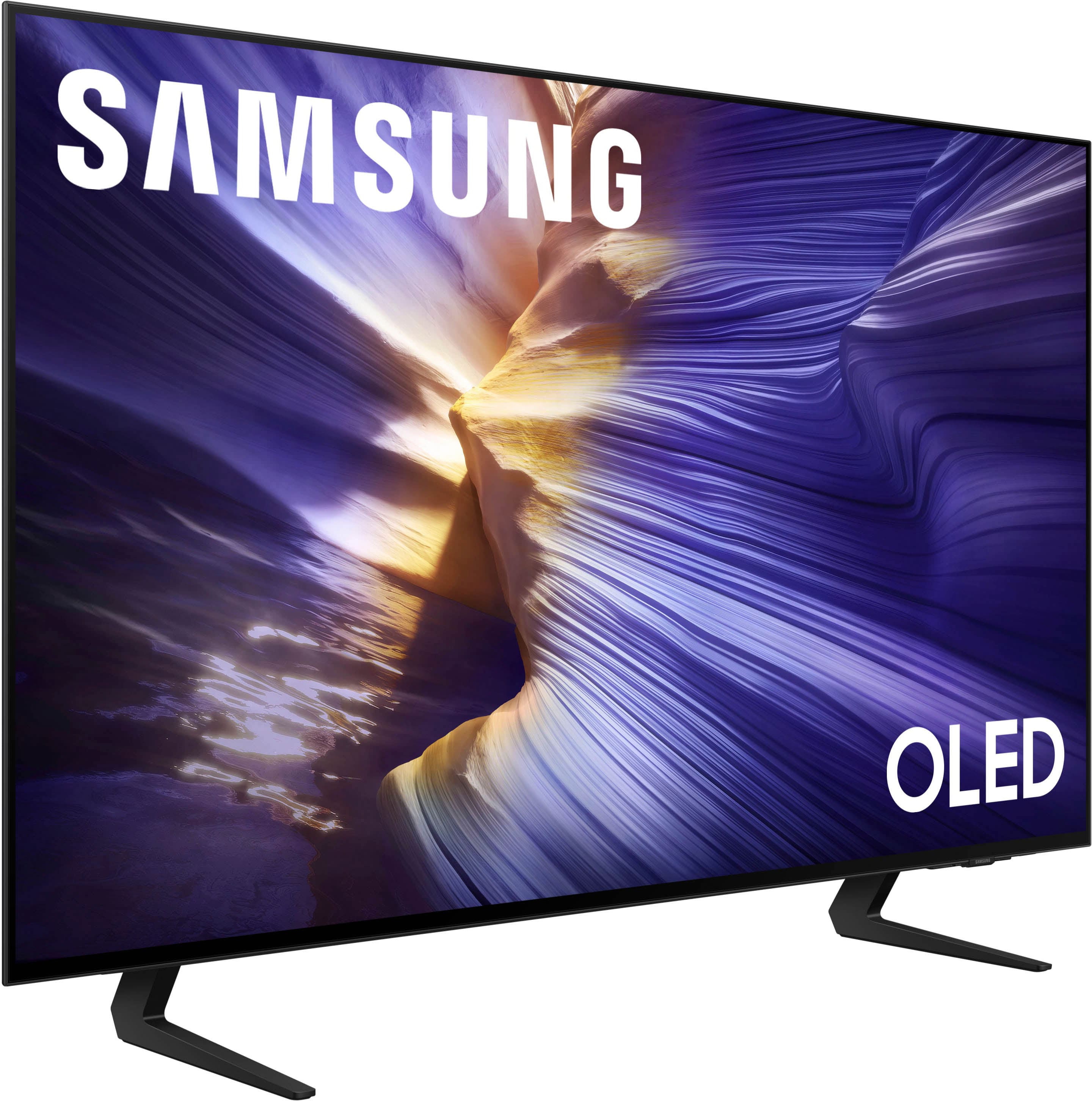
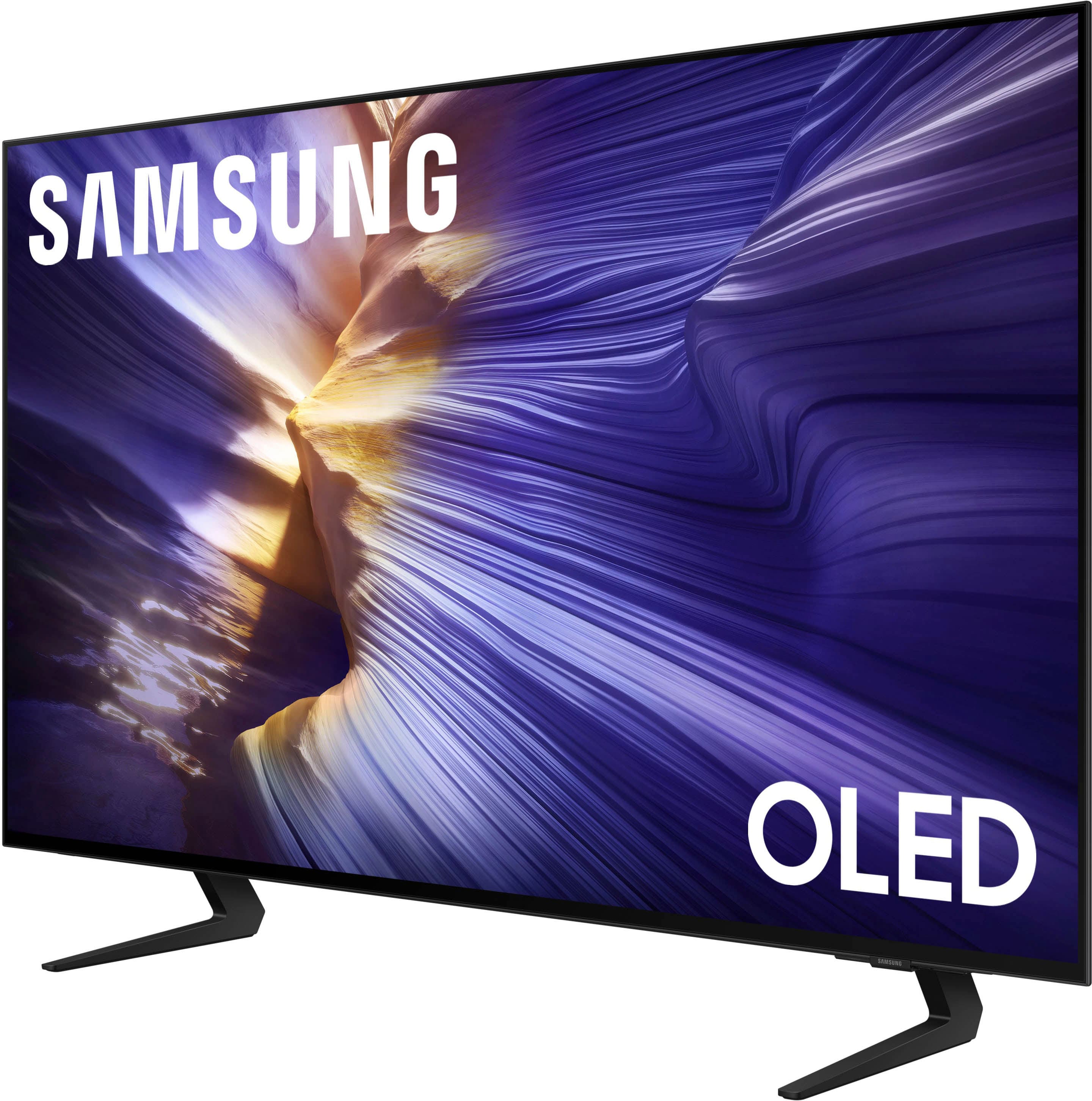
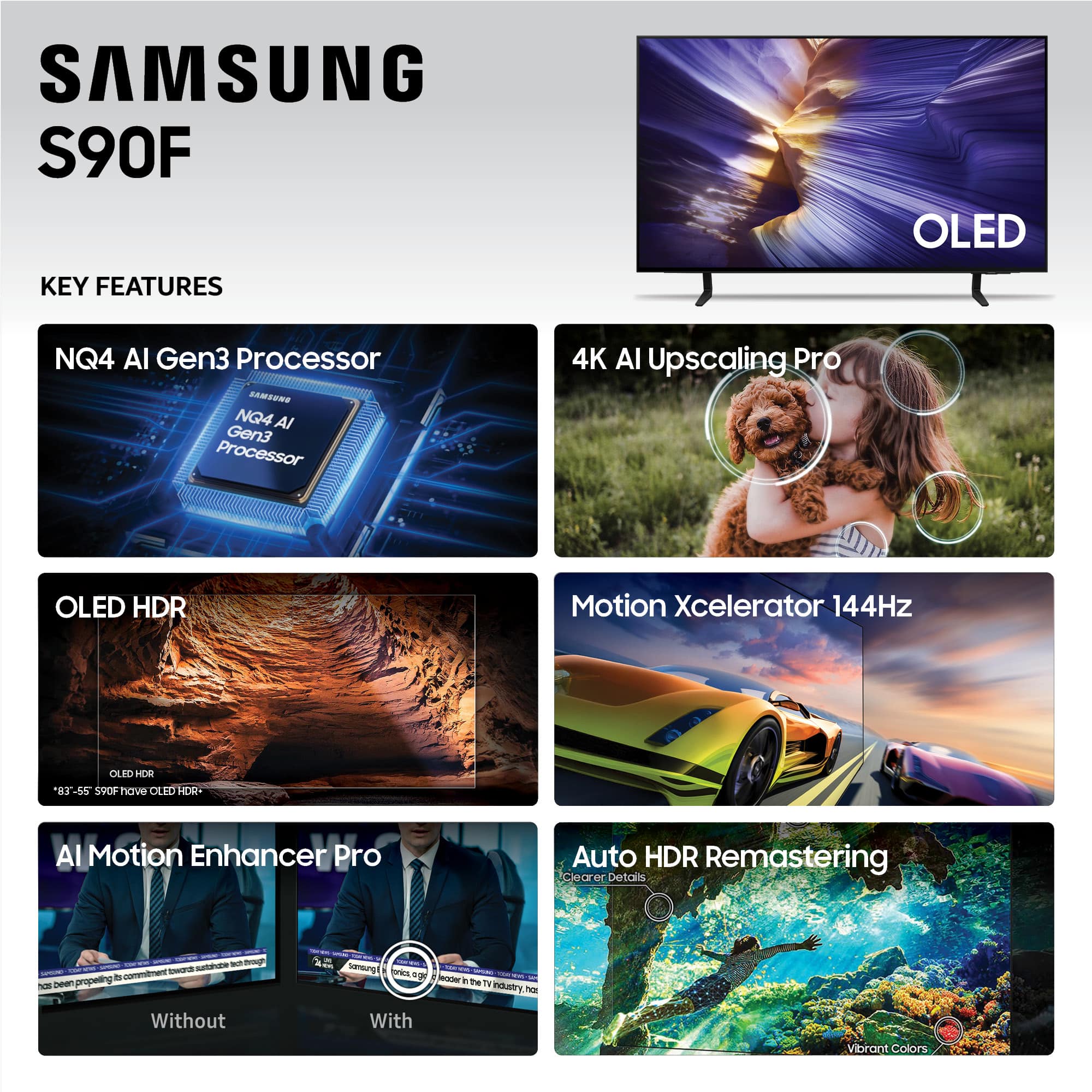
Customers highly value the picture quality of the 42” Class S90F Series OLED 4K UHD SamsungVision AI Smart Tizen TV (2025). Reviewers find the OLED quality to be exceptional, especially noting the deep blacks. There were no negative aspects mentioned about this product.
This summary was generated by AI based on customer reviews.
- Pros mentioned:Picture quality
Great first OLED TV
||Posted .This reviewer received promo considerations or sweepstakes entry for writing a review.First OLED TV, display is smooth, refreshing and easy on the eyes.
I would recommend this to a friend - Pros mentioned:Picture quality
Excellence Choice
||Posted .This reviewer received promo considerations or sweepstakes entry for writing a review.Our best smart TV so far. Easy setup and picture is super. No complaints whatsoever.
I would recommend this to a friend Outstanding Resolution TV
||Posted . Owned for 3 weeks when reviewed.This reviewer received promo considerations or sweepstakes entry for writing a review.Great product and great service at the store! This product was highly recommended for what I was looking for - best resolution for console gaming!
I would recommend this to a friend- Pros mentioned:Oled quality
Amazing tv
||Posted . Owned for less than 1 week when reviewed.This reviewer received promo considerations or sweepstakes entry for writing a review.Loved this tv and how it enhances and makes everything so vibrant
I would recommend this to a friend Best Experience
||Posted . Owned for 1 month when reviewed.This reviewer received promo considerations or sweepstakes entry for writing a review.My buying experience could not have been better. The sales rep was knowledgeable courteoud and we were in the and out in no time with a product that fit our needs.
I would recommend this to a friend- Pros mentioned:Picture quality
OLED Tv
||Posted .This reviewer received promo considerations or sweepstakes entry for writing a review.Home Screen with apps is confusing as compared to the older Samsung tv I had. Bixby feature does not work half time. But picture clear and sound good
I would recommend this to a friendBrand response from Samsung
Posted .Hi CynthiaD,
Thank you for sharing your Bixby experience. If Bixby is responding too often or not often enough, you may want to adjust the sensitivity level.
Press the Microphone button on your remote, then navigate to: Bixby Settings > Voice Wake-Up
From here, you can adjust the sensitivity to High, Medium (default), or Low, or turn Voice Wake-Up off entirely if you prefer.
If you need additional help with Bixby or voice settings, feel free to contact Samsung Support at 1-800-SAMSUNG, 8AM – 12AM EST, 7 days a week. LiveChat is also available via the ‘Support’ link on our website.
~ Samsung Advisor
Upgraded all my tvs.
||Posted . Owned for 1 month when reviewed.This reviewer received promo considerations or sweepstakes entry for writing a review.The guy was very knowledgeable on tvs and I love the tv he helped me pick
I would recommend this to a friendBest Buy for a Samsung
||Posted . Owned for 1 month when reviewed.This reviewer received promo considerations or sweepstakes entry for writing a review.I am very happy with the customer service I received when purchasing my samsung tv.
I would recommend this to a friendWanted to love this TV
||Posted . Owned for 1 week when reviewed.This reviewer received promo considerations or sweepstakes entry for writing a review.I was hoping to love this TV. However, the speakers have issues with bass. After trying another of the same, with the same issue, I returned the TV. I have had Samsung products literally all my life and never had this issue before.
No, I would not recommend this to a friendBrand response from Samsung
Posted .Lindy,
We’re sorry to hear that the sound quality of Samsung’s S90F TV did not meet your expectations. We’re always here to help, and if given the opportunity, we could have assisted with sound adjustments that may have improved your audio experience.
Should you give Samsung another look in the future, we’d be glad to assist with setup, settings, or features. You can contact us at 1-800-SAMSUNG, 8AM – 12AM EST daily, or LiveChat with a representative at the ‘Support’ link on our website.
~ Samsung Specialist
Bad TV
||Posted . Owned for 3 weeks when reviewed.This reviewer received promo considerations or sweepstakes entry for writing a review.This television worked for one hour. The screen went black, and only the sound was present. Unsure if this was the cause, but the gentleman who brought the tv from the back dragged it bouncing it on the ground. When I brought it back, the employees did not believe me. They turned the tv on to ensure that it was not working.
No, I would not recommend this to a friendBrand response from Samsung
Posted .Hi John,
We’re sorry to hear about the screen issue so soon after setting up your TV. If this happened during transport or store handling, you might want to check with Best Buy to explore your options.
Once resolved, if you have any questions about using or setting up your TV, our team is always here to assist. Reach us at 1-800-SAMSUNG (8AM–12AM EST, daily), or visit the ‘Support’ section of our website to LiveChat with us.
~ Samsung Specialist
Bad One
||Posted . Owned for 3 weeks when reviewed.This reviewer received promo considerations or sweepstakes entry for writing a review.Bad resolution, im forced to accept the item since i was so tired to keep on returning the previous monitor that i was not happy about.
No, I would not recommend this to a friendBrand response from Samsung
Posted .UrbanoL,
We appreciate your input on the picture quality of Samsung’s S90F TV. If the image isn’t meeting your expectations, there are several adjustments you can make to improve your viewing experience.
First, please ensure your TV is running the latest firmware, as updates may include important picture quality enhancements. Go to: Home > Left directional button > Settings > Support > Software Update > Update Now
Then, select a Picture Mode that best fits your environment: Home > Home > left directional key > Settings > All Settings > Picture > Picture Mode
1. Standard – Default mode for general viewing
2. Dynamic – Brighter and clearer in well-lit rooms
3. Eco – Optimized for energy saving
4. Movie – Best for watching in dark environments
5. Filmmaker Mode – Preserves content exactly as intended by creators
You can also enhance your experience by enabling AI Mode, which automatically adjusts picture and sound based on your surroundings and usage patterns: Settings > All Settings > Advanced Features > AI Mode Settings > AI Mode
If these adjustments don’t improve your picture quality, feel free to contact Samsung Customer Support at 1-800-SAMSUNG, available 8AM – 12AM EST, 7 days a week. You can also LiveChat with an agent or find helpful guides by visiting the ‘Support’ section of our website.
~ Samsung Specialist
REMOTE SUCKS
||Posted . Owned for 1 month when reviewed.This reviewer received promo considerations or sweepstakes entry for writing a review.I CAN'T READ THE REMOTE-IT SUCKS!!!!! NOTHING IS LABLED ''NEVER BUY A SAMSUNG AGAIN"
No, I would not recommend this to a friendBrand response from Samsung
Posted .Hi JosephB,
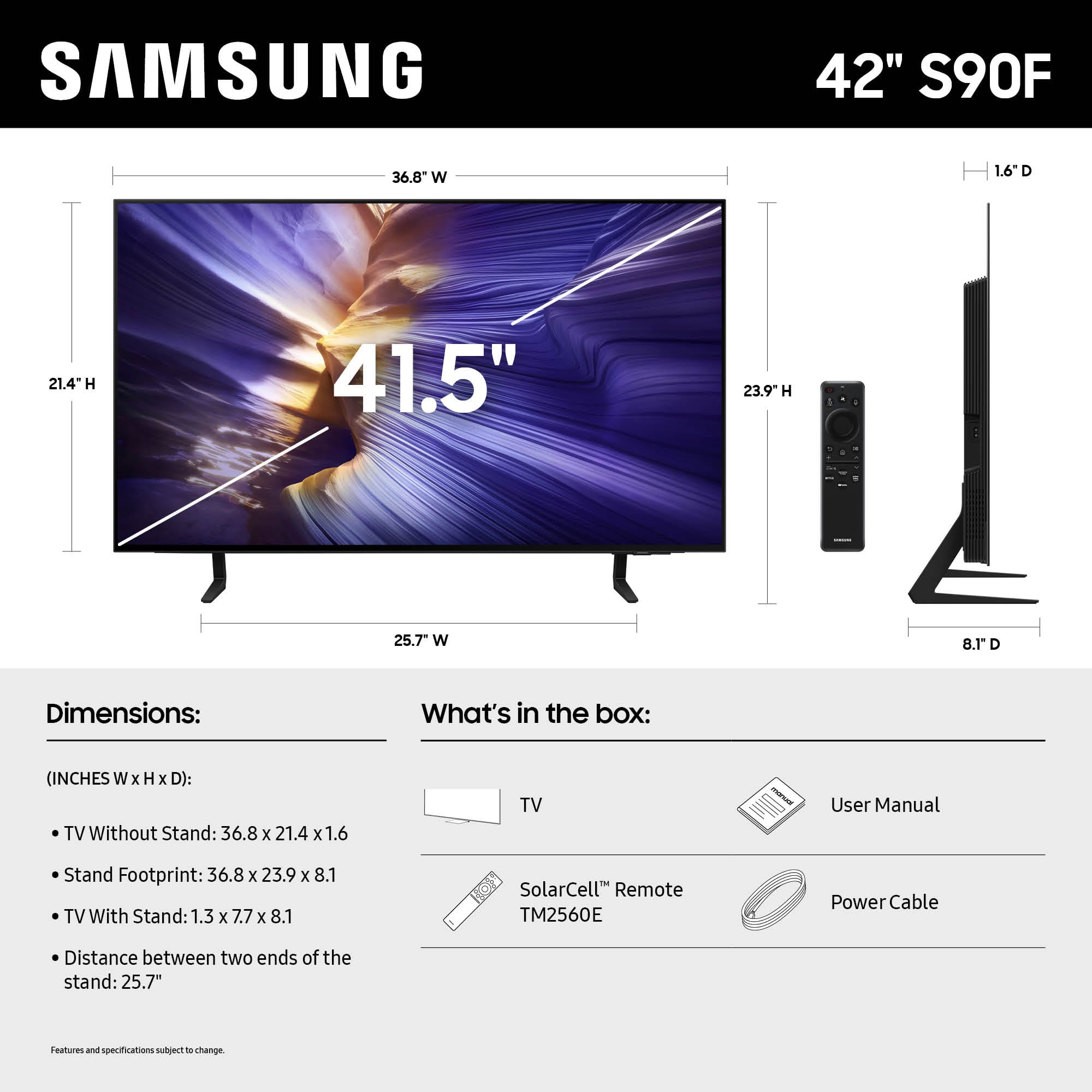
Thank you for sharing your experience with us. While the Solar Cell Remote may appear minimal, many buttons offer multiple or long-press functions to help simplify the design without sacrificing functionality. For example:
• Settings/Number/Color: Allows you to easily access your TV's Quick Settings and input channel numbers.
• Volume rocker: Push up/down to adjust volume. Press and release quickly to mute.
• Long-press Volume button: Hold for more than 1 second to open Accessibility Shortcuts.
• RETURN button: Press to go back to the previous menu or screen. While watching TV, it takes you back to the previous channel.
These functions allow for a more streamlined experience without adding extra buttons.
Learn TV Remote is a feature designed to help users become familiar with the layout and function of each button on the Samsung remote. When enabled, pressing any button (except the Power button, which will still turn off the TV) will prompt the TV to announce the button’s name and its purpose – without affecting TV operation.
This teaching mode is especially useful for users who are visually impaired or new to Samsung remotes. To enable this feature, go to: Settings > All Settings > General & Privacy > Accessibility > Learn TV Remote. To exit, simply press the Return key twice.
If you’d like more assistance with this feature, please reach Samsung Support at 1-800-SAMSUNG, available 8AM – 12AM EST, 7 days a week. LiveChat agents are also available through the ‘Support’ link on our website.
~ Samsung Advisor
- Pros mentioned:Picture quality
Great Purchase
Posted .This reviewer received promo considerations or sweepstakes entry for writing a review.This purchase was my first time forking out big money on a top of the line TV. After experiencing the difference in picture, performance, and speed- it really is worth the money. Great TV
I would recommend this to a friend - Pros mentioned:Picture quality
Stunning picture !
Posted .This reviewer received promo considerations or sweepstakes entry for writing a review.Beautiful tv with an even more beautiful viewing screen ! Colors are vibrant picture is crystal clear ! Even though it’s only 42 inches it looks amazing !
I would recommend this to a friend - Pros mentioned:Picture quality
Great tv
Posted .This reviewer received promo considerations or sweepstakes entry for writing a review.Excellent tv. Expensive but definitely worth the cost.
I would recommend this to a friend Purchaser
Posted .This reviewer received promo considerations or sweepstakes entry for writing a review.The customer service was knowledgeable and knew what item i was interested in buying. His name is Alex.
I would recommend this to a friendPerfect
Posted .This reviewer received promo considerations or sweepstakes entry for writing a review.A fantastic TV With easy operating and perfect size and sound.
I would recommend this to a friendNever got
Posted .This reviewer received promo considerations or sweepstakes entry for writing a review.Best Buy screwed up the delivery and we had to cancel.
No, I would not recommend this to a friendBrand response from Samsung
Posted .GraceS,
We appreciate you sharing your experience; however, we recommend contacting Best Buy directly to share your feedback.
If you have any questions or need help with your TV once your issue is resolved, please contact Samsung Support at 1-800-SAMSUNG, 8AM – 12AM EST, 7 days a week. LiveChat agents are also available via the ‘Support’ link on our website.
~ Samsung Specialist