Customer Ratings & Reviews
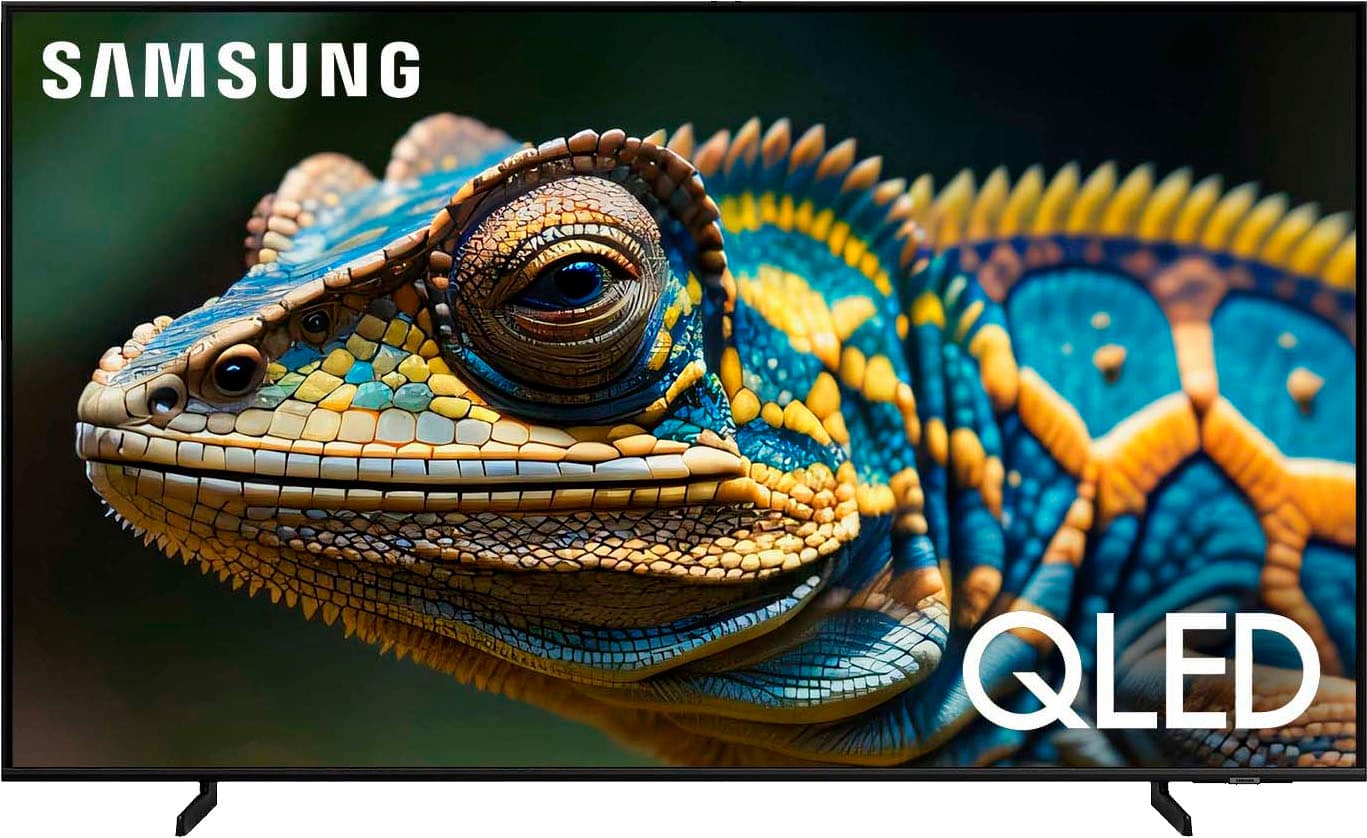
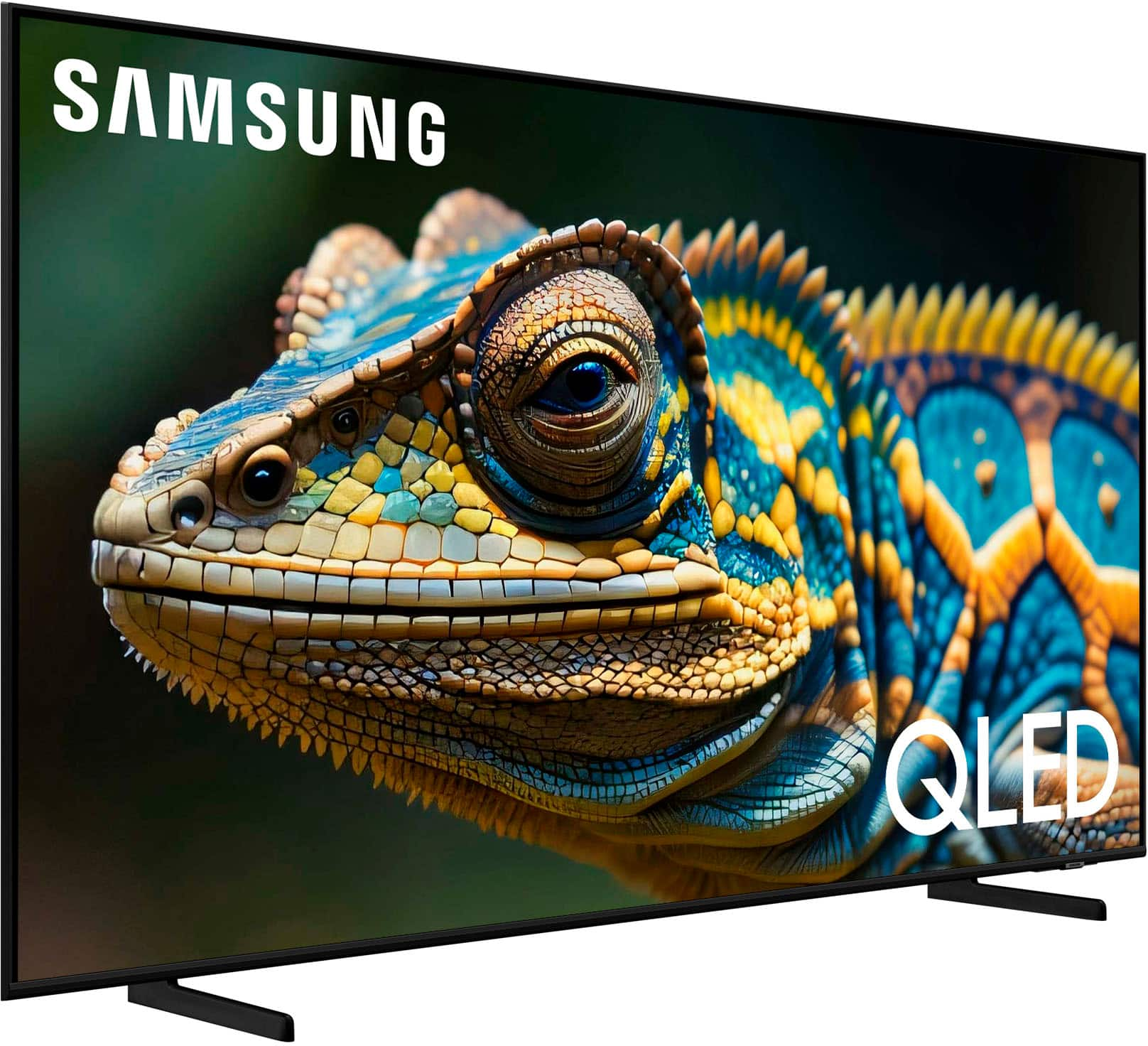
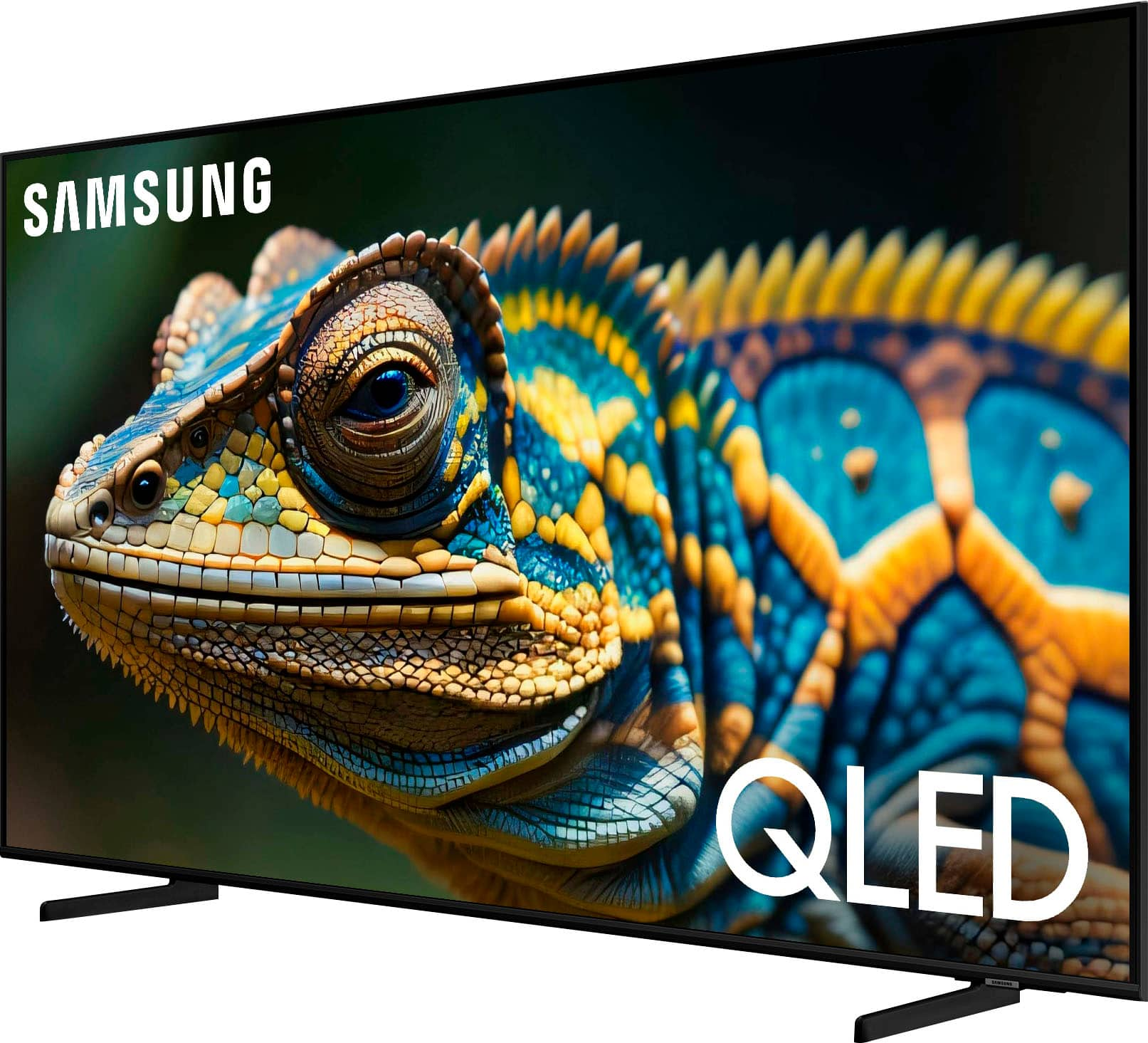
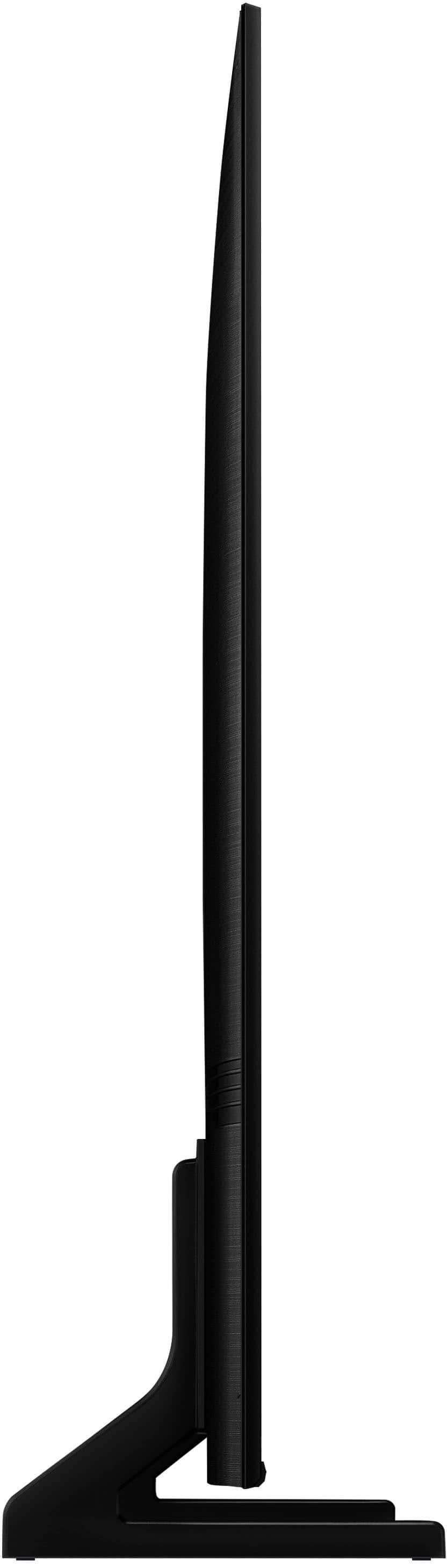






- Model:
- QN43Q60DAFXZA
- SKU:
- 11233209
Rating by feature
- Picture Quality
Rating 4.7 out of 5 stars
- Sound Quality
Rating 4.4 out of 5 stars
- Brightness
Rating 4.7 out of 5 stars
Great TV, great price
||Posted . Owned for 3 weeks when reviewed.This reviewer received promo considerations or sweepstakes entry for writing a review.Great picture, decent audio, even without a soundbar, loads of streaming options, and good for gaming.
No, I would not recommend this to a friendNew tv
||Posted . Owned for 1 month when reviewed.This reviewer received promo considerations or sweepstakes entry for writing a review.It looks just like we wanted with the color and picture
I would recommend this to a friendI’d buy another!
||Posted . Owned for 1 month when reviewed.This reviewer received promo considerations or sweepstakes entry for writing a review.Great support at the store. Very good picture. I’d buy another if I had the room!
I would recommend this to a friendGreat tv at a low price
||Posted .This reviewer received promo considerations or sweepstakes entry for writing a review.Works great beautiful pictures a bunch of free channels
I would recommend this to a friendWandJ
||Posted . Owned for 3 weeks when reviewed.This reviewer received promo considerations or sweepstakes entry for writing a review.Great picture, great sound fair price and great service
I would recommend this to a friendA great TV.
||Posted . Owned for 1 month when reviewed.This reviewer received promo considerations or sweepstakes entry for writing a review.What can I say it's the best. Beautiful picture. I just love it.
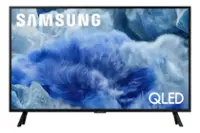
I would recommend this to a friendSamsung 43" QLED
||Posted . Owned for 3 weeks when reviewed.This reviewer received promo considerations or sweepstakes entry for writing a review.We are very happy with picture quality and interfaces. We paired it with JBL 5.0 soundbar. Very satisfying all around.
I would recommend this to a friendGreat TV
||Posted . Owned for 3 weeks when reviewed.This reviewer received promo considerations or sweepstakes entry for writing a review.Great picture easy installation. I wish there was an option for a pedestal mount instead of the two separated feet.
I would recommend this to a friendAnother Samsung High-Quality TV
||Posted . Owned for 3 weeks when reviewed.This reviewer received promo considerations or sweepstakes entry for writing a review.Exceptional TV with outstanding pictures and vivid color contrast. I would purchase this again and highly recommend it to my friends!
I would recommend this to a friendBest tv we’ve owned
||Posted . Owned for 1 month when reviewed.This reviewer received promo considerations or sweepstakes entry for writing a review.Better picture than we expected. Great service from technician who installed it. Very satisfied.
I would recommend this to a friendDependable
||Posted .This reviewer received promo considerations or sweepstakes entry for writing a review.This tv is great with great picture and clear clarity.
I would recommend this to a friendTv oled
||Posted . Owned for 1 month when reviewed.This reviewer received promo considerations or sweepstakes entry for writing a review.Very good tv images clean pictures and definitions
I would recommend this to a friendGreat TV
||Posted . Owned for 3 weeks when reviewed.This reviewer received promo considerations or sweepstakes entry for writing a review.Perfect size for guest room and the picture quality is top notch!
I would recommend this to a friendHighly recommend
||Posted . Owned for 2 months when reviewed.This reviewer received promo considerations or sweepstakes entry for writing a review.I like Samsung especially the Samsung Plus channels. I watch those most of the time. it was an easy set up
I would recommend this to a friendGood bar tv
||Posted .This reviewer received promo considerations or sweepstakes entry for writing a review.Installed in my basement bar and am happy with the results.
I would recommend this to a friendWorth the Price
||Posted . Owned for 3 weeks when reviewed.This reviewer received promo considerations or sweepstakes entry for writing a review.Good buy. Excellent for second or bedroom TV. Sound and picture quality excellent!
I would recommend this to a friendQLED TV
||Posted . Owned for 1 week when reviewed.This reviewer received promo considerations or sweepstakes entry for writing a review.Awesome TV, and easy to use solar powered remote. No batteries needed. Great price.
I would recommend this to a friendBeautiful picture
||Posted . Owned for 3 weeks when reviewed.This reviewer received promo considerations or sweepstakes entry for writing a review.Love everything about this tv, the sound quality is amazing!
I would recommend this to a friendrosebud
||Posted . Owned for 1 month when reviewed.This reviewer received promo considerations or sweepstakes entry for writing a review.We Love the clarity and brightness of the picture. Size is perfect for our size of living room. Would recommend to all.
I would recommend this to a friendMid Tier price for sub par performance
||Posted . Owned for 1 week when reviewed.This reviewer received promo considerations or sweepstakes entry for writing a review.Definitely a bit disappointed with this one after reading so many glowing reviews. Motion handling is a mess so any type of sports are pretty painful. Using the TV is also pretty brutal; the processing power is clearly not enough to run the Tizen OS without noticeable lag and delays. It’s a sleek looking TV as far as overall build quality is concerned, but even at $400-$500, the image quality didn’t hold up.
No, I would not recommend this to a friendBrand response from Samsung
Posted .Robotguy,
We appreciate your thoughts on the picture quality of Samsung’s Q60D TV. If the image you’re seeing isn’t to your liking, there are several picture settings you may want to adjust.
Go to Home > left direction button > Settings > All Settings > Picture > Picture Mode
...and select the mode that best fits your usage:
1. Standard: Is the default mode suitable for general viewing environments
2. Dynamic: Makes the picture brighter and clearer in bright viewing environments
3. Eco: Provided to save energy
4. Movie: Suitable for watching TV or movies in a dark room
5. Filmmaker Mode: Provides source content just as the creators intended. If the image is defined as Filmmaker Mode, it’ll automatically switch to Filmmaker Mode while watching.
You can also fine-tune your picture with expert settings such as brightness, contrast, sharpness and more (All Settings > Picture > Expert Settings).
Additionally, you may want to adjust the picture clarity setting by going to: Menu > Settings > All Settings > Picture > Expert Settings > Picture Clarity Settings
- Off: Picture Clarity Settings will always be off
- Auto: Picture Clarity Settings will automatically activate and deactivate based on the type of program being watched
- Custom: Allows custom adjustments and settings to be used. By selecting the Custom option, you can access these advanced settings for Judder Reduction, LED Clear Motion, and Noise Reduction.
Should you need further assistance with features or other product usage, please reach out to Samsung Support at 1-800-SAMSUNG, 8AM - 12AM EST, 7 days a week. Or visit us on the Samsung website and click on the ‘Support’ link for:
• LiveChat
• Manuals, Software, & Warranty Info
~ Samsung Specialist