Customer Ratings & Reviews
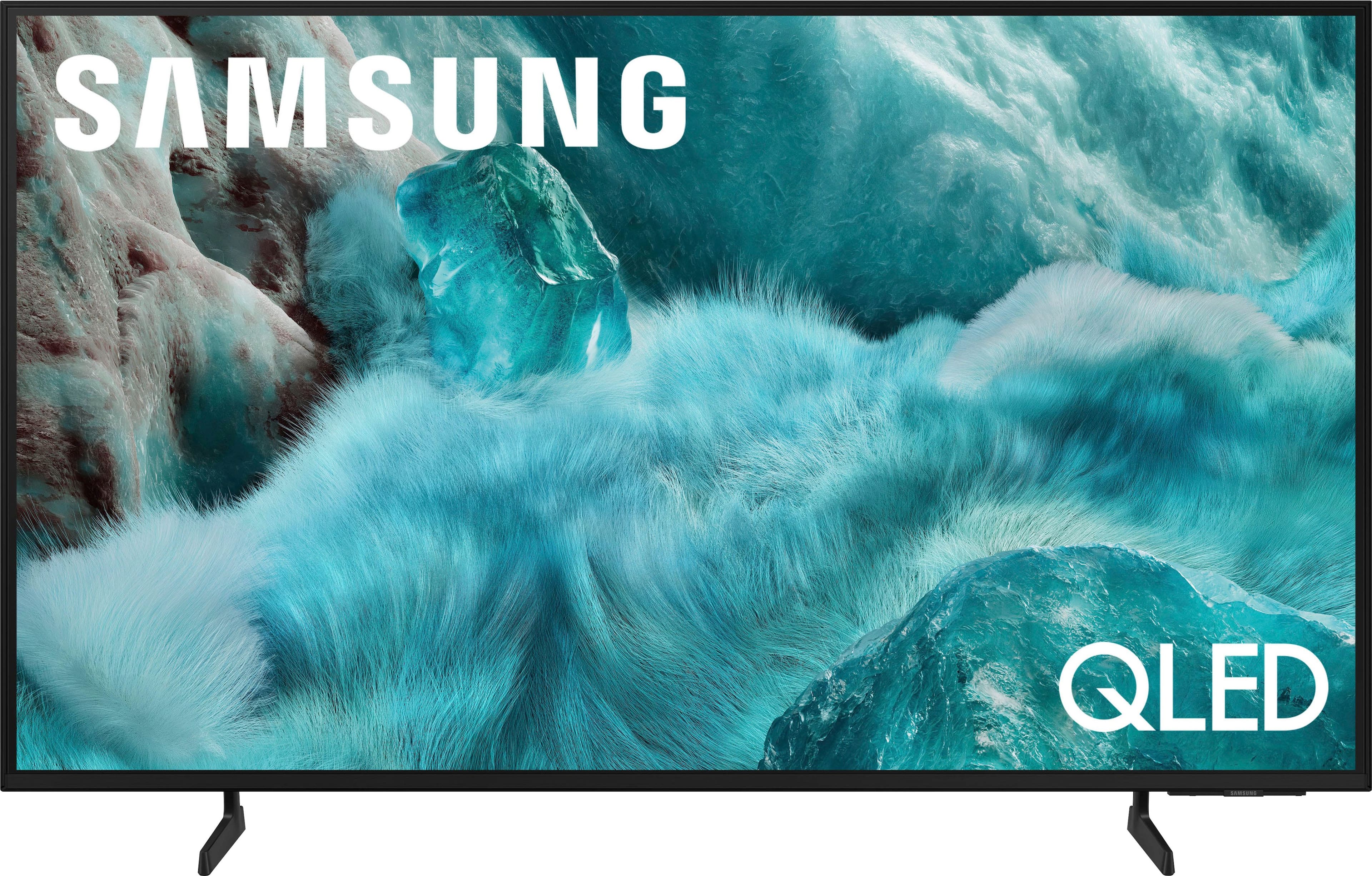
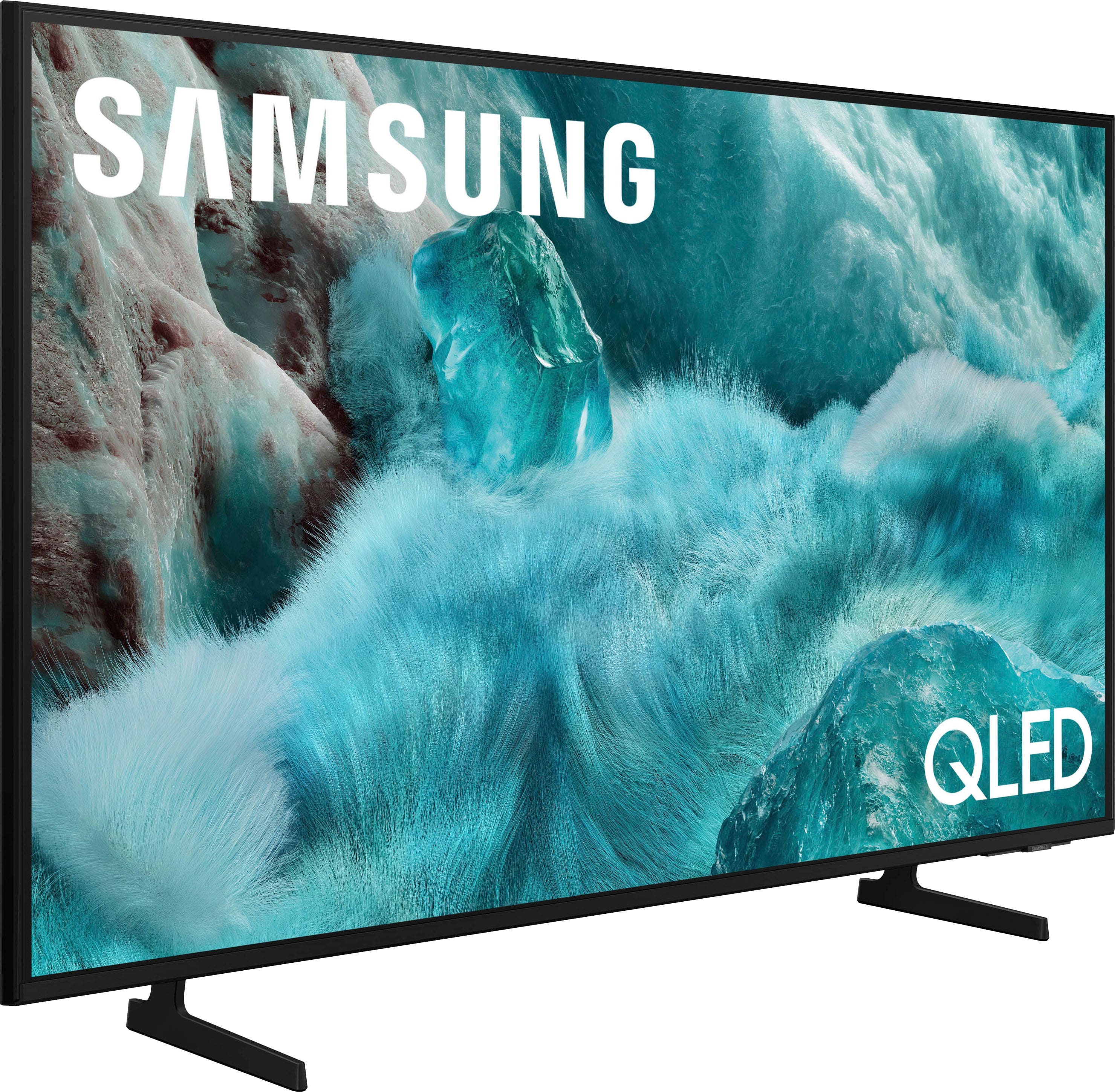
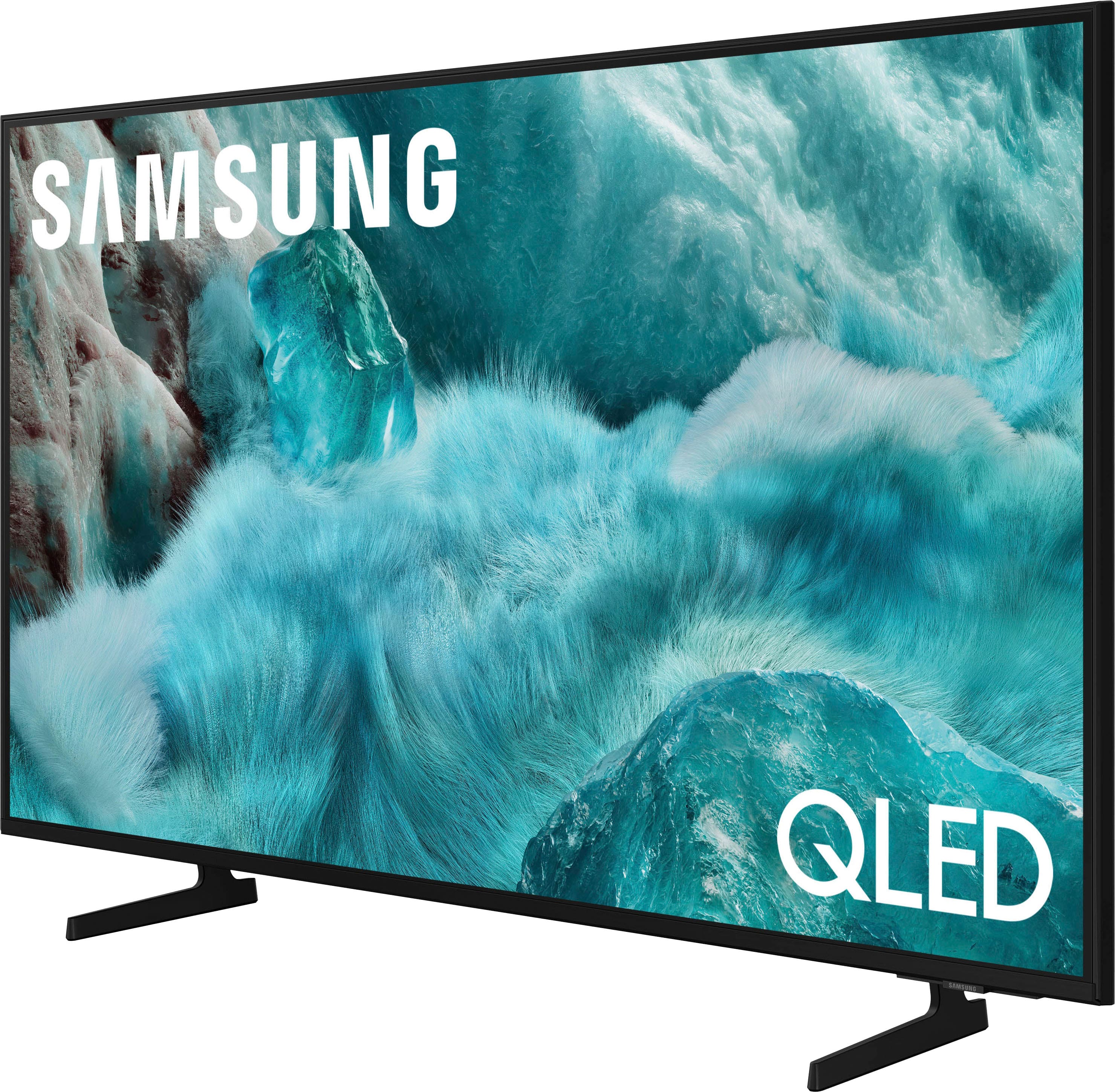
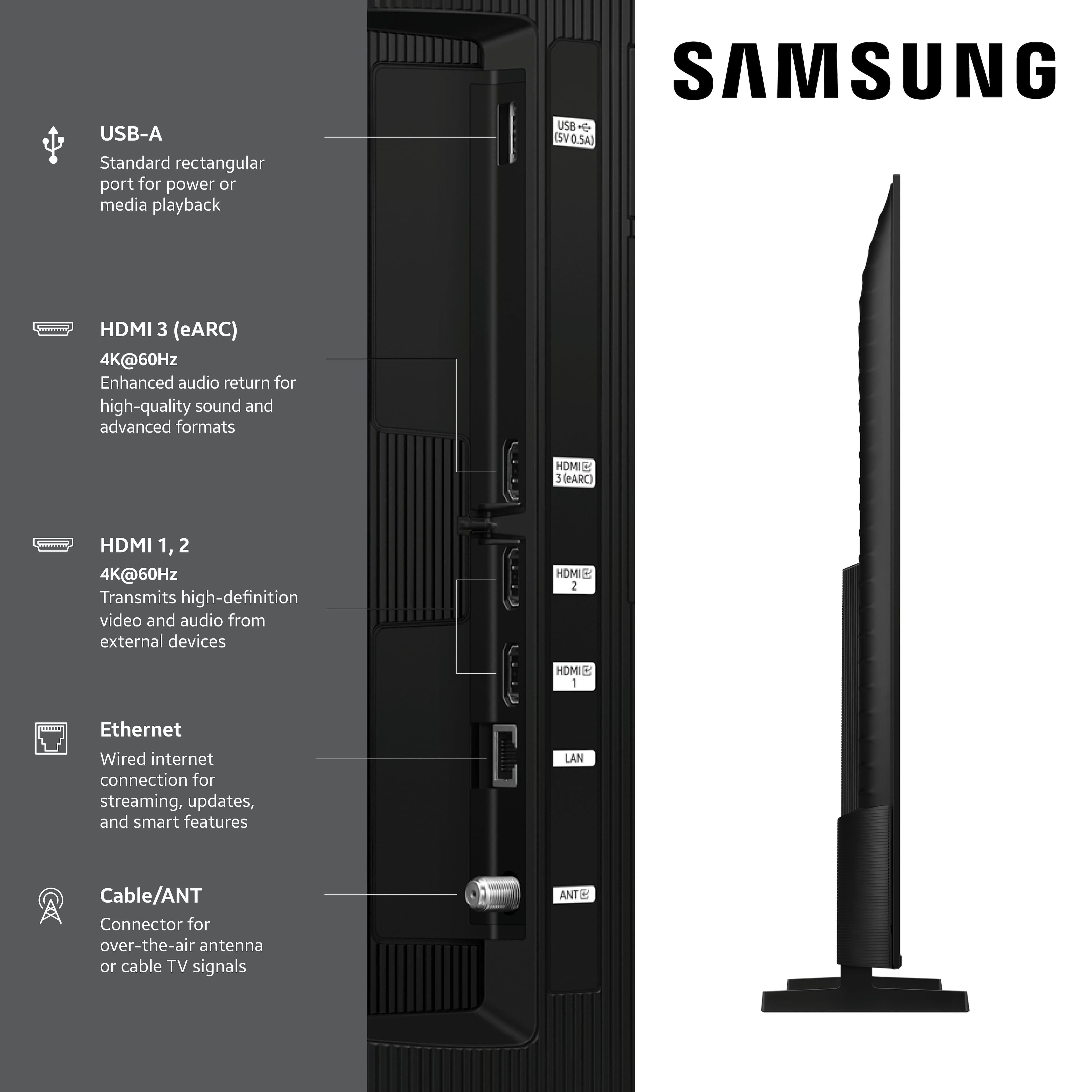
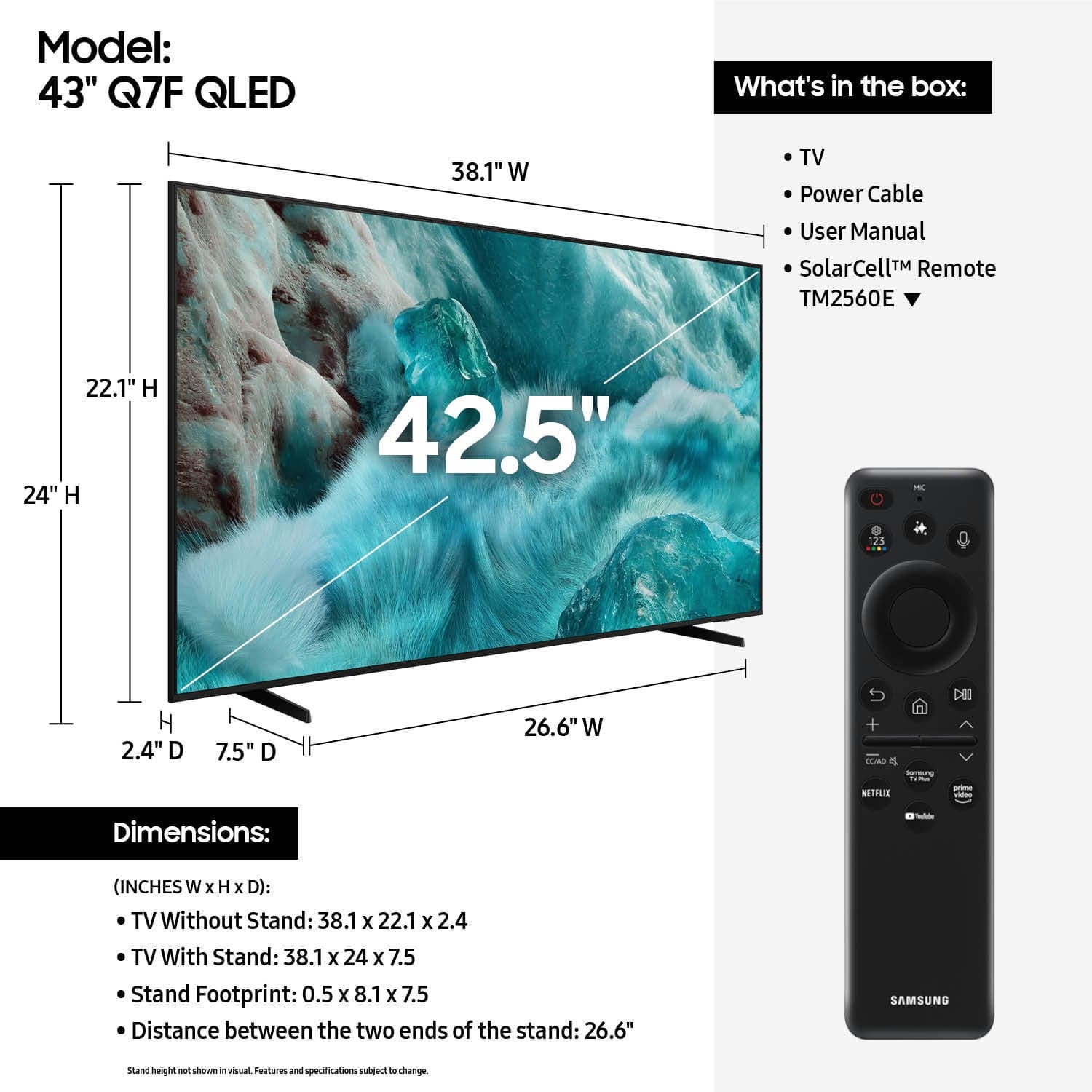



- Model:
- QN43Q7FAAFXZA
- SKU:
- 10732257
Rating by feature
- Picture Quality
Rating 4.8 out of 5 stars
- Sound Quality
Rating 4.5 out of 5 stars
- Brightness
Rating 4.8 out of 5 stars
- Pros mentioned:Picture quality
Samsung TV
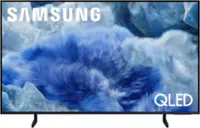
||Posted . Owned for 3 weeks when reviewed.This reviewer received promo considerations or sweepstakes entry for writing a review.This Samsung TV has a great picture with vibrant colors and good sound. It is the perfect TV for streaming as it has no buffering issues and is just the right size for my home office that doubles as a guest bedroom. The thin design and lighter weight make it much easier to hang on the wall.
I would recommend this to a friend - Pros mentioned:Picture quality
Excellent
||Posted . Owned for 3 weeks when reviewed.This reviewer received promo considerations or sweepstakes entry for writing a review.What an amazing experience. This is a TV for my bedroom, and it works exceptionally well fo what i bought it for
I would recommend this to a friend Over priced for a small tv.
||Posted . Owned for 3 weeks when reviewed.This reviewer received promo considerations or sweepstakes entry for writing a review.I purchased this tv because the one I wanted was not in stock and had to be ordered. The picture doesn't seem much better than my old 20 yr. old Insigina. Unable to connect to internet. My other tvs connect ok, The stand fit my stand top where others were too wide for my space was another reason I bought it. It's ok but over priced.
I would recommend this to a friendBrand response from Samsung
Posted .RobertE,
We appreciate your feedback on the picture quality of Samsung’s Q7F TV. If the image doesn’t quite match your preferences, there are several adjustments you can make to better suit your viewing environment and content type.
First, please ensure your TV is running the latest firmware, as updates may include important picture quality enhancements. Go to: Home > Left directional button > Settings > Support > Software Update > Update Now
To explore picture mode options, navigate to: Home > Left directional button > Settings > All Settings > Picture > Picture Mode. Options include:
• Standard – Ideal for general viewing
• Dynamic – Brighter and more vibrant for well-lit spaces
• Eco – Optimized for energy efficiency
• Movie – Best for viewing in low light
• Filmmaker Mode – Preserves the content creator’s intent and disables motion smoothing for supported content
You can further customize your image by going to: Settings > All Settings > Picture > Expert Settings, where you can adjust Brightness, Contrast, Color Tone, Sharpness, Contrast Enhancer and more.
If you’d like help finding the best picture settings for your preferences, please don’t hesitate to contact Samsung Support at 1-800-SAMSUNG, available 8AM – 12AM EST, 7 days a week. You can also LiveChat with an agent or explore additional resources on our website by clicking the ‘Support’ link.
~ Samsung Specialist
- Pros mentioned:Setup ease
samsung tv
||Posted .This reviewer received promo considerations or sweepstakes entry for writing a review.on time delivery. easy set up. printed get started instructions before you turn on tv would help to prepare what info you need.
I would recommend this to a friend - Pros mentioned:Picture quality
43” Samsung QLED
||Posted . Owned for 1 month when reviewed.This reviewer received promo considerations or sweepstakes entry for writing a review.Awesome clear picture. Great option for the bedroom.
I would recommend this to a friend - Pros mentioned:Setup ease
New TV
||Posted . Owned for 3 weeks when reviewed.This reviewer received promo considerations or sweepstakes entry for writing a review.I’m very happy with this purchase. It was relatively easy to set up and reload my apps.
I would recommend this to a friend - Pros mentioned:Picture quality
Great picture.
||Posted . Owned for 3 weeks when reviewed.This reviewer received promo considerations or sweepstakes entry for writing a review.Nice clear picture and great service from Best Buy.
I would recommend this to a friend - Pros mentioned:Picture quality
Worth the extra $
||Posted . Owned for 3 weeks when reviewed.This reviewer received promo considerations or sweepstakes entry for writing a review.Excellent picture quality. Family member with vision issues and this was a noticeable improvement over previous 4k full HD model.
I would recommend this to a friend - Pros mentioned:Picture quality
Samsung TV
||Posted . Owned for 1 month when reviewed.This reviewer received promo considerations or sweepstakes entry for writing a review.Great picture and sound quality. Price was exceptional.
I would recommend this to a friend - Pros mentioned:Picture quality
Samsung television
||Posted . Owned for less than 1 week when reviewed.This reviewer received promo considerations or sweepstakes entry for writing a review.It has been a great TV and has a beautiful picture thus far. I would recommend putting that picture in dynamic mode under settings. It looks a lot better. If you are connecting to cable like xfinity can do it wirelessly with no cables. That’s pretty awesome too.
I would recommend this to a friend - Pros mentioned:Picture quality, Setup ease
QLED TV
||Posted . Owned for 3 weeks when reviewed.This reviewer received promo considerations or sweepstakes entry for writing a review.Easy set up, great picture, and a good value for the money
I would recommend this to a friend - Pros mentioned:Picture quality
BEST TV ... BEST BUY!
||Posted .This reviewer received promo considerations or sweepstakes entry for writing a review.I made the right decision to buy QLED. And best TV ... SAMSUNG.
I would recommend this to a friend - Pros mentioned:Picture quality
Great TV
||Posted . Owned for 2 weeks when reviewed.This reviewer received promo considerations or sweepstakes entry for writing a review.Low price, Qled make a great picture. Samsung has great quality
I would recommend this to a friend - Pros mentioned:Picture quality
Great product
||Posted .This reviewer received promo considerations or sweepstakes entry for writing a review.Love it! I would recommend this TV to everyone who is looking a TV for their bedroom.
I would recommend this to a friend - Pros mentioned:Picture quality
Mr GB
||Posted .This reviewer received promo considerations or sweepstakes entry for writing a review.Great so far. I have no complain to date. Really nice TV.
I would recommend this to a friend - Pros mentioned:Picture quality
Affordable TV
||Posted .This reviewer received promo considerations or sweepstakes entry for writing a review.Good picture quality... For a 43" screen, there isn't a reason to go overboard. Fairly easy to setup.
I would recommend this to a friend - Pros mentioned:Picture quality
Samsung
||Posted .This reviewer received promo considerations or sweepstakes entry for writing a review.Samsung TV has a nice picture and sound quality is pretty good also.
I would recommend this to a friend - Pros mentioned:Picture quality
Perfect TV
||Posted . Owned for 1 month when reviewed.This reviewer received promo considerations or sweepstakes entry for writing a review.Great picture, awesome remote and can’t be more pleased.
I would recommend this to a friend - Pros mentioned:Picture quality
Happy With Entire Transaction
||Posted . Owned for 1 month when reviewed.This reviewer received promo considerations or sweepstakes entry for writing a review.Product has exceptional color. Installation and usage is was uneventful and similar to previous Samsung.. The installers from Geek Squad were exceptional. In and out in 20 minutes.
I would recommend this to a friend - Pros mentioned:Picture quality
Great tv
||Posted . Owned for 1 month when reviewed.This reviewer received promo considerations or sweepstakes entry for writing a review.Great tv not the greatest sound need sound bar but good visuals
I would recommend this to a friend