Customer Ratings & Reviews
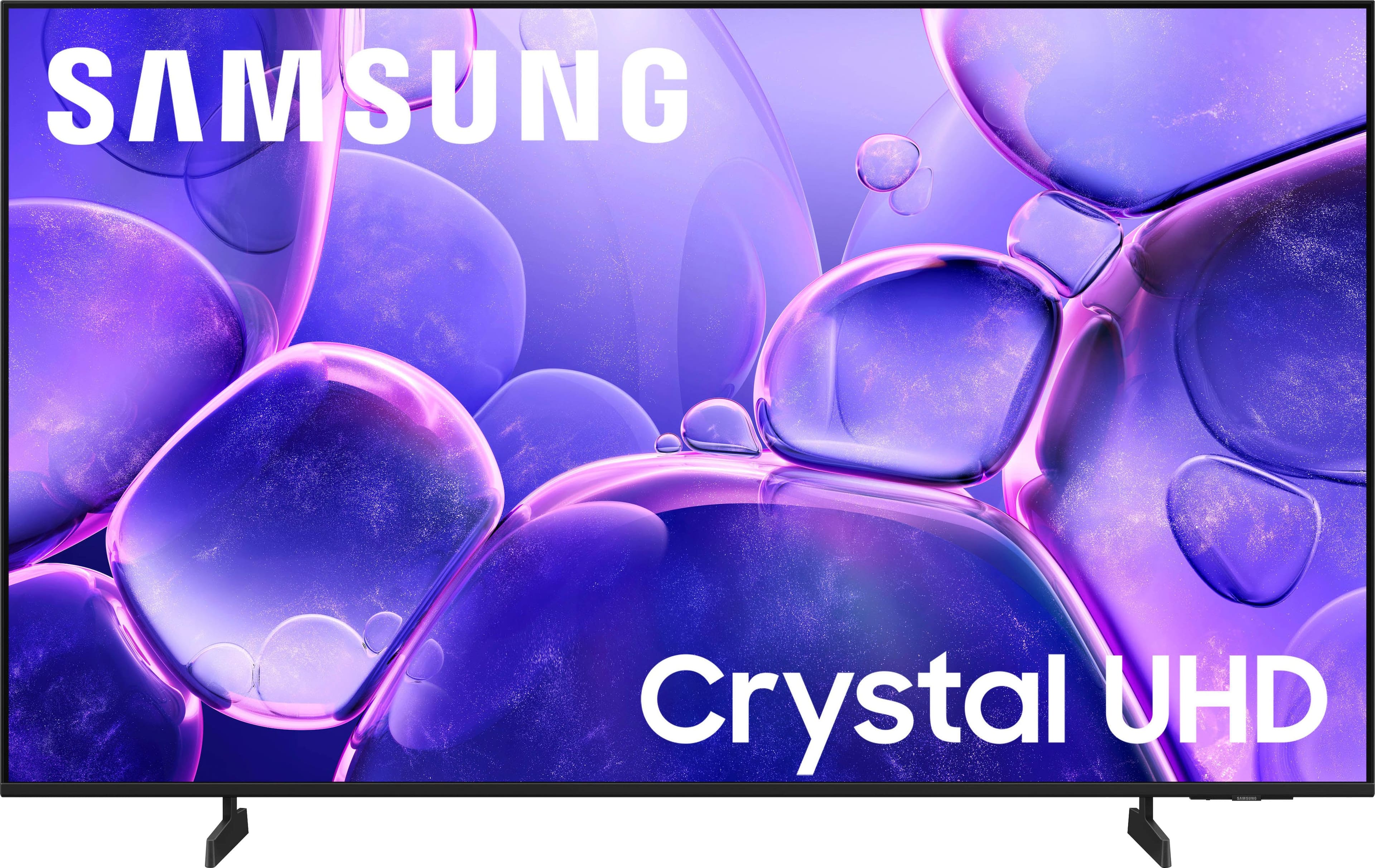
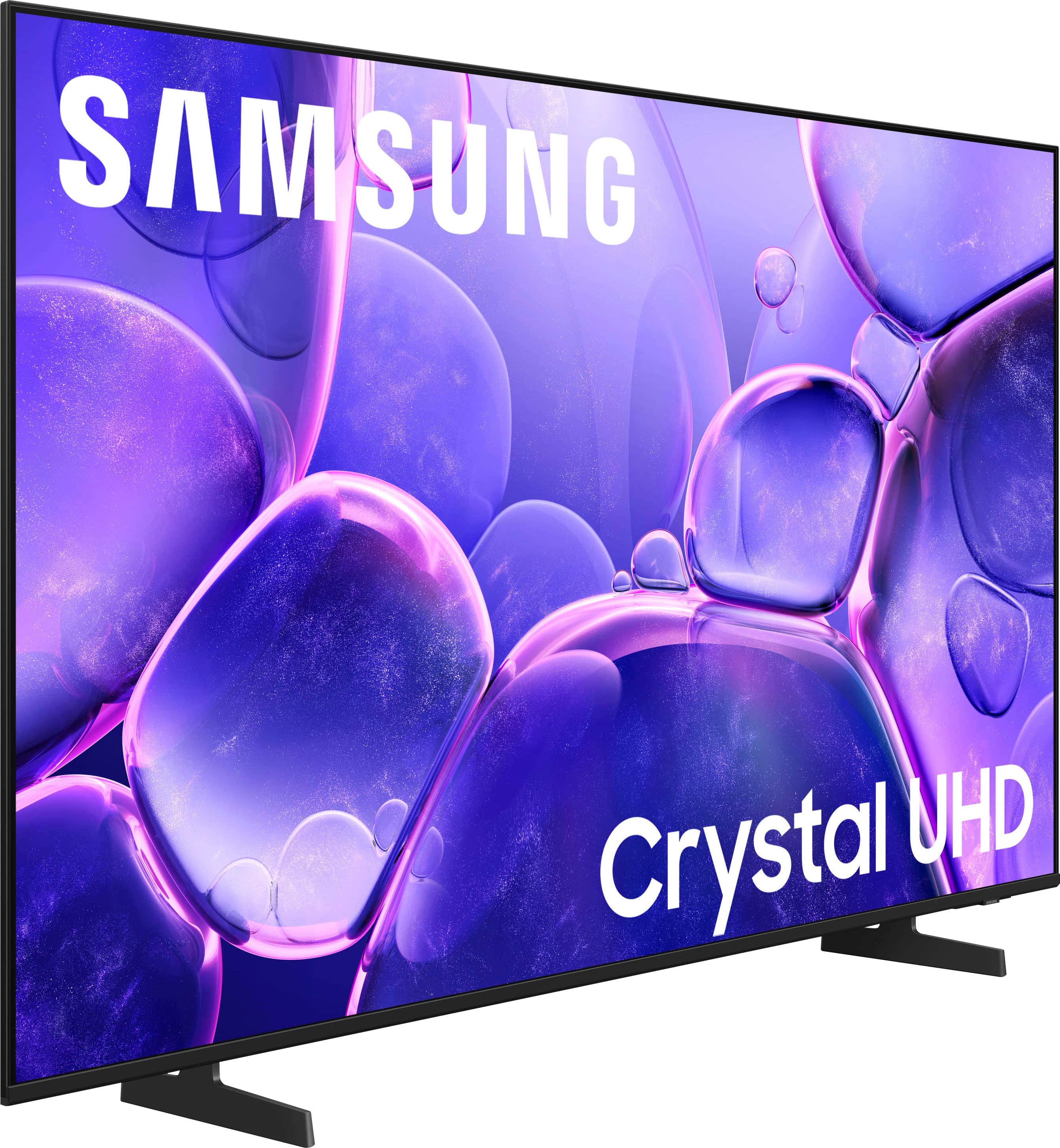
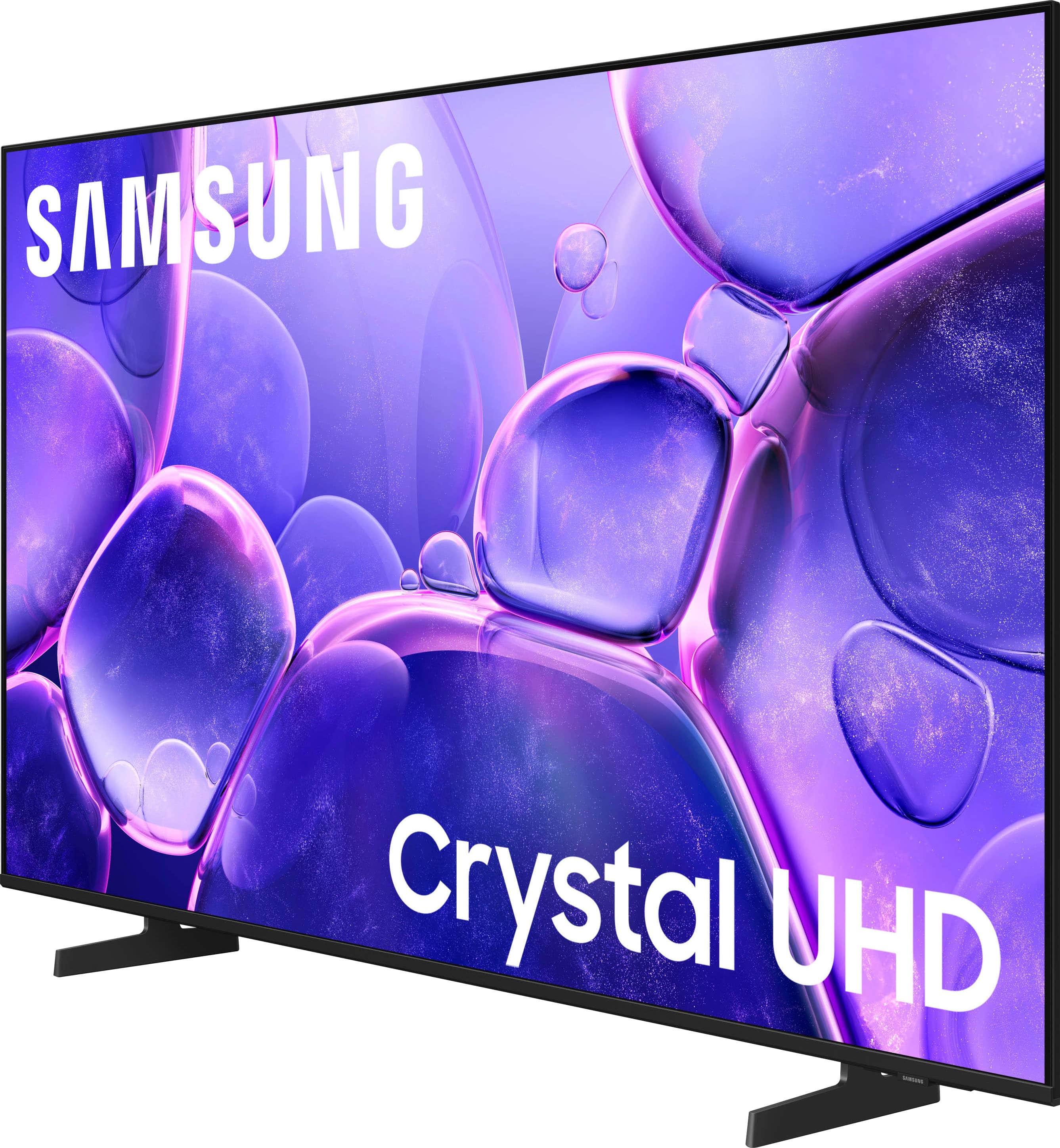
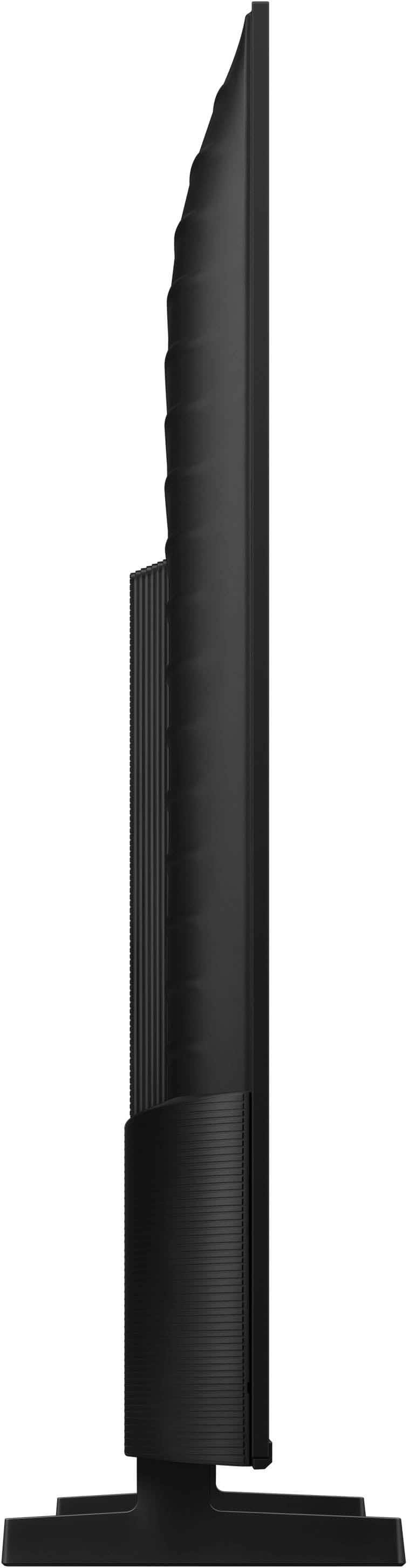


- Model:
- UN43U8000FFXZA
- SKU:
- 10187654
Rating by feature
- Picture Quality
Rating 4.8 out of 5 stars
- Sound Quality
Rating 4.6 out of 5 stars
- Brightness
Rating 4.7 out of 5 stars
Audio
||Posted . Owned for 1 month when reviewed.This reviewer received promo considerations or sweepstakes entry for writing a review.After learning hoe to adjust volume it works fairly well.still has a bit of an echo
I would recommend this to a friendGreat product and service.
||Posted . Owned for 2 weeks when reviewed.This reviewer received promo considerations or sweepstakes entry for writing a review.We're satisfied with the product and the service at the store. Thank you all at Best Buy in Hurst TX.
I would recommend this to a friend- Pros mentioned:Picture quality
My Samsung 43" U8000F Series Crystal UHD Purchase
||Posted . Owned for 2 weeks when reviewed.This reviewer received promo considerations or sweepstakes entry for writing a review.I love the TV quality and picture, but the remote is NOT user-friendly. You have to press the button upward or downward to control the sound. If you are replacing this TV on a stand you already have, like I did, make sure that you have a screw kit. I had to purchase a screw kit from Amazon to find the right screws to mount it on my stand
No, I would not recommend this to a friendBrand response from Samsung
Posted .Hi SHARONS,
We appreciate your feedback on the U8000F. If there’s anything we can assist with, please don’t hesitate to call us at 1-800-SAMSUNG, available daily from 8AM - 12AM EST. You can also visit the Samsung website and click on ‘Support’ for:
• Live Chat
• Manuals, Software, & Warranty Info
~ Samsung Advisor
- Pros mentioned:Picture quality
Better than what I had
||Posted . Owned for 2 weeks when reviewed.This reviewer received promo considerations or sweepstakes entry for writing a review.Clear picture but the sound is not the greatest could use a soundbar with it
I would recommend this to a friend - Pros mentioned:Picture quality
New tv
||Posted . Owned for 1 week when reviewed.This reviewer received promo considerations or sweepstakes entry for writing a review.Great tv for the Price and Quality of the picture.
I would recommend this to a friend Pleased
||Posted .This reviewer received promo considerations or sweepstakes entry for writing a review.Love image Easy to set up Excellent color Great sound
I would recommend this to a friend- Pros mentioned:Picture quality
Great TV!!
||Posted .This reviewer received promo considerations or sweepstakes entry for writing a review.I am just thrilled with this TV!! The picture is so clear, the colors are bright and sharp.
I would recommend this to a friend - Pros mentioned:Picture quality
Great 43 inch Smart TV
||Posted .This reviewer received promo considerations or sweepstakes entry for writing a review.Great value for a 43 inch Smart TV at Best Buy. Set up was very easy.
I would recommend this to a friend - Pros mentioned:Picture quality
Flat screen
||Posted . Owned for 1 month when reviewed.This reviewer received promo considerations or sweepstakes entry for writing a review.Great picture and fit the space perfectly that I had in my study.
I would recommend this to a friend - Pros mentioned:Picture quality
smart tv
||Posted . Owned for 1 month when reviewed.This reviewer received promo considerations or sweepstakes entry for writing a review.Clear tv we love it clear picture and enjoy everything with our smart tv
I would recommend this to a friend BESTBUY is the BEST for electronics, etc!!!
||Posted . Owned for 1 month when reviewed.This reviewer received promo considerations or sweepstakes entry for writing a review.I was incredibly pleased with the way Best Buy handled a credit from an older phone that allowed me to be in a position to purchase my TV it’s fabulous. It’s perfect where I chose the space and I couldn’t be more pleased.
I would recommend this to a friend- Pros mentioned:Picture quality
Great pucture
||Posted .This reviewer received promo considerations or sweepstakes entry for writing a review.Excellent picture for a great price and delivered with care.
I would recommend this to a friend - Cons mentioned:Remote control
Streaming
||Posted . Owned for 1 month when reviewed.This reviewer received promo considerations or sweepstakes entry for writing a review.Controller - changing channels and mute -Do Not Like
I would recommend this to a friend - Pros mentioned:Picture quality
Best tv ever
||Posted .This reviewer received promo considerations or sweepstakes entry for writing a review.The TV is a great TV all around it's great for streaming gaming and overall
I would recommend this to a friend - Pros mentioned:Picture quality
Smart buy gor a great product
||Posted . Owned for 1 month when reviewed.This reviewer received promo considerations or sweepstakes entry for writing a review.Samsung TV is terrific. Sound, picture and quality is terrific at a very modest price.
I would recommend this to a friend - Pros mentioned:Picture quality
Television
||Posted .This reviewer received promo considerations or sweepstakes entry for writing a review.Good quality and good price. Really like this television
I would recommend this to a friend Not bad
||Posted . Owned for 1 month when reviewed.This reviewer received promo considerations or sweepstakes entry for writing a review.Not bad for the price. If your looking for something cheap and on a budget than this tv is the one.
I would recommend this to a friendFlatscreen TV.
||Posted . Owned for 3 weeks when reviewed.This reviewer received promo considerations or sweepstakes entry for writing a review.Great price for a TV that’s big and still has great resolution. The Best Buy people were very helpful when I was looking for a TV and they helped me find just what I needed for a lot less money than I expected to spend.
I would recommend this to a friend- Pros mentioned:Picture quality
Good buy
||Posted . Owned for 1 month when reviewed.This reviewer received promo considerations or sweepstakes entry for writing a review.Clear screen and good size. Easy to navigate and set up as well
I would recommend this to a friend Great tv !
||Posted . Owned for 3 weeks when reviewed.This reviewer received promo considerations or sweepstakes entry for writing a review.Awesome Tv! Picture quality is great, tv fits perfectly where needed.
I would recommend this to a friend