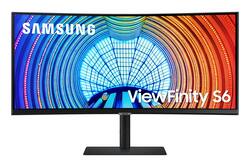
Samsung - A650 Series 34" ViewFinity LED 1000R Curved WQHD FreeSync Monitor with HDR - Black
- Key Specs
- Refresh Rate: 100Hz (The number of frames per second the device can produce natively without enhancement. Higher rates help produce smooth, seamless pictures.)
- Maximum Resolution: 3440 x 1440 (Maximum resolution refers to the highest number of pixels that a screen can process and display. Higher resolution signals produce more detailed images.)
- Response Time: 5 milliseconds (The speed at which pixels can change colors is called response time. It is measured in milliseconds (ms).)
- Panel Type: VA (Technology that affects response time and image quality.)
- Synchronization Technology: FreeSync (AMD Adaptive Sync) (Generally, these technologies allow syncing between a computer/console game's frame rate and the device's refresh rate for a smoother display without tearing.)
- Screen Size: 34 inches (Size of the screen, measured diagonally from corner to corner.)
- Display Connector(s): 1 x DisplayPort 1.2, 1 x HDMI 2.0 (The number and type of connectors used to connect to an external display.)
- General
- Product Name: A650 Series 34" ViewFinity LED 1000R Curved WQHD FreeSync Monitor with HDR
- Brand: Samsung
- Operating System Compatibility: Not Applicable
- Model Number: LS34A650UXNXGO
- Color: Black
- Display
- Refresh Rate: 100Hz (The number of frames per second the device can produce natively without enhancement. Higher rates help produce smooth, seamless pictures.)
- Maximum Resolution: 3440 x 1440 (Maximum resolution refers to the highest number of pixels that a screen can process and display. Higher resolution signals produce more detailed images.)
- Native Resolution: 3440 x 1440 (Native resolution of a screen refers to its single, fixed resolution. Sometimes screens must scale an image up or down in order to fit the native resolution. This can cause a loss of resolution or detail.)
- Contrast Ratio: 4000:1 (Measured difference between a displayed image's brightest whites and darkest blacks. The larger the first number, the more detail and color that can be displayed.)
- Response Time: 5 milliseconds (The speed at which pixels can change colors is called response time. It is measured in milliseconds (ms).)
- Display Type: LED
- Panel Type: VA (Technology that affects response time and image quality.)
- Synchronization Technology: FreeSync (AMD Adaptive Sync) (Generally, these technologies allow syncing between a computer/console game's frame rate and the device's refresh rate for a smoother display without tearing.)
- Aspect Ratio: 21:9 (The measurement of the width of a screen compared to the height of a screen, expressed as a ratio.)
- Curved Screen: true
- Pixel Density: 109 pixels per inch (The number of pixels present per inch on the device's display. Higher pixel density improves the clarity and sharpness of the displayed image.)
- Brightness: 300 candela per square meter (A measure of the total light output.)
- Screen Size: 34 inches (Size of the screen, measured diagonally from corner to corner.)
- High Dynamic Range (HDR): true (An HDR-compatible 4K TV or other HDR-compatible product displays HDR video content when it's available from sources like 4K Ultra HD Blu-ray Discs and 4K streaming services.)
- High Dynamic Range Format: HDR 10 (There are a few HDR formats that tell the TV or other HDR-compatible product how to best utilize its capabilities to display HDR content. HDR technology can support one or multiple formats, each with various benefits to picture quality.)
- Horizontal Viewing Angle: 178 degrees (The maximum angle at which the display can be viewed with acceptable visual performance from either side.)
- Vertical Viewing Angle: 178 degrees (The maximum angle at which the display can be viewed with acceptable visual performance from above or below.)
- Touch Screen: false (Touch-screen devices make navigating more intuitive. Using a touch-screen display, you can do things such as tap to select, hold and drag to move items, swipe to scroll, and pinch to zoom.)
- Connectivity
- Number of DisplayPort Inputs (Total): 1
- Number of HDMI Inputs (Total): 1
- Number of DVI Inputs: 0 (The number of digital cables carrying analog (VGA) video signals that can be connected to the product.)
- Number of Mini DisplayPort Inputs: 0
- Number of Thunderbolt Ports (Total): 0
- Display Connector(s): 1 x DisplayPort 1.2, 1 x HDMI 2.0 (The number and type of connectors used to connect to an external display.)
- Number of USB Ports (Total): 3
- USB Ports: 2 x USB-A 2.0, 1 x USB-C 3.0 (The number and type of USB ports the product has.)
- Headphone Jack: true (The device features an interface that allows for the connection of headphones.)
- Compatibility
- Wall Mountable: true (The product is able to be secured to a wall. Some products are designed ready to mount, while others may require additional hardware/accessories for installation.)
- VESA Wall Mount Standard: 100mm x 100mm (VESA wall mount standards refer to the spacing of screw holes built into a TV in order to fit with standard TV wall mounts. These standards are implemented into most TVs and monitors.)
- Voice Assistant Built-in: Not Applicable (A digital assistant built into the device that uses voice commands to answer questions and control smart devices.)
- Features
- Tiltable: true
- Adjustable Stand Height: true
- Eye Relief Features: Low blue light, Flicker free
- Built-In Webcam: false
- Integrated Speaker(s): false
- Smart Capable: false (Smart, or smart-capable devices are able to connect directly to your home network in order to stream content from the Internet, run Internet-based apps, or connect to other smart devices.)
- Dimensions
- Product Height With Stand: 21.8 inches
- Product Height Without Stand: 14.5 inches
- Product Width: 35.2 inches (The out of box width of the item. Width is measured as the horizontal distance from one side of the item to the other as it would be primarily used or placed.)
- Product Depth (With Stand): 9.2 inches
- Product Depth Without Stand: 5 inches
- Product Weight: 21.4 pounds (The out of box weight of the item.)
- Stand Included: true
- Cord Length: 59 inches
- Power
- Power Consumption: 40 watts
- Power Saving/Off Mode: 0.5 watts (This mode will turn the display and/or the device off, or into a standby mode, after a preset length of time with no activity to conserve power.)
- Certifications Listings & Approvals
- ENERGY STAR Certified: true (Devices carrying the ENERGY STAR service mark, such as computer products and peripherals, kitchen appliances, and other products, generally use 20% to 30% less energy than required by federal standards.)
- EPEAT Qualified: false (The Electronic Product Environmental Assessment Tool (EPEAT) was designed to provide an environmental assessment tool for purchasers. In order to qualify for EPEAT, a product must meet all 23 required criteria.)
- Warranty
- Manufacturer's Warranty - Parts: 1 year
- Manufacturer's Warranty - Labor: 1 year
- Other
- UPC: 887276507507
The latest in curved screen technology, the A650 ultra QHD monitor showcases ultimate user comfort and productivity. The A650 monitor provides 1000R curvature, 21:9 aspect ratio, and USB Type-C port with 90W charging power. With HDR10 technology, colors will look vivid and lifelike while the TUV-certified eye comfort care will reduce eye fatigue and keep you productive. The minimalistic, virtually borderless design, clean cable management and slim, sleek stand gives you an optimized clutter-free workstation.
- Feel fully immersed Ultra-WQHD resolution with 34” curved display: Immerse yourself in detail. Within games, movies or design projects, surround yourself with the 34” ultra-wide curved display featuring a 21:9 aspect ratio.
- Enhanced concentration and comfort: Enhance productivity and reduce eye strain for those long working days.
- Enjoy a billion colors with incredible depth 1 billion colors with HDR 10: Enjoy any content in stunning color accuracy and detail.
- Keep your setup clean and clutter-free USB Type-C with LAN Port: Contoured to your unique needs. From innovative ergonomic features to a docking station with USB-C connectivity, this monitor is designed to put your work ahead of the curve.
- Relieve your eyes from strain TUV certified Intelligent Eye Care: Keep your eyes fresh and strain-free. For those late-night projects, brightness and color temperature adjust automatically for optimization in any environment.
- Focus uninterrupted for optimal productivity: With a virtually borderless design, stay focused on your work with minimum distractions.
- Fast 100 Hz Refresh Rate: The fast 100 Hz screen refresh rate provides smoother, silkier mouse sensitivity for enhanced productivity in any application. It also reduces screen stutter in fast-moving action scenes for a flawless gaming experience.
- Stay in sync with the action: Make your entertainment experience more fluid than eve. AMD FreeSync™ keeps your monitor and graphics card refresh rate in sync to reduced image tear and stutter.
- Create a sustainable future: Transform your eco-friendly, FSC-certified packaging into practical tools or choose to recycle for enhanced sustainability. And with S6’s EPEAT and Energy Star-certified eco saving plus mode, save up to 10% of electricity while maintaining beautiful picture quality.
Whats Included
- HDMI cable
- USB Type-C Cable
Q: Is the stand height adjustable
A: The monitor can adjust up and down about 4 inches
Q: Can I mount this to my desk using a monitor arm with VESA mount?
A: This monitor has pre-tapped holes for a 4”x4” spaced mount. This should work for most monitor arms. I currently have one mounted to an Ergotron monitor arm and did not need any additional adapters to mount it
Q: Do you need to use the provided stand or can it sit on the desk without the stand?
A: There are buttons on the bottom of the stand so it couldn't sit on the bottom.
Q: Does it have a camera and mic?
A: This particular unit does not have a camera, mic, or speakers. But those are peripherals that are very easy to add, and actually preferred as it allows you to include high quality add-ons, instead of low grade built-ins. (ie, a 4k camera as opposed to a built-in 1080p)
Q: Does this use an Active Display Port input besides HDMI?
A: It has a DisplayPort, USB-C, and HDMI for use as inputs
A: undefined
A: Displayport will allow higher refresh rates at this resolution.