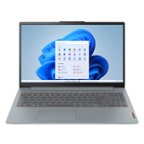
Samsung - Notebook 3 15.6" Laptop - Intel Core i5 - 4GB Memory - 1TB Hard Drive - Black
- Key Specs
- Screen Type: Full HD Widescreen LED
- Screen Size: 15.6 inches (Size of the screen, measured diagonally from corner to corner.)
- Screen Resolution: 1920 x 1080 (Full HD) (Screens come in a range of resolutions (measured in pixels, horizontal x vertical). The higher the resolution, the greater the picture quality.)
- Touch Screen: false (Touch-screen devices make navigating more intuitive. Using a touch-screen display, you can do things such as tap to select, hold and drag to move items, swipe to scroll, and pinch to zoom.)
- Processor Model: Intel 5th Generation Core i5 (Your computer's processor is like its brain. Working in combination with system memory, the power of the processor determines the complexity of software you can run, how many programs you can have open at the same time, and how fast those programs will run. Most computers feature an AMD, Intel or Snapdragon processor.)
- System Memory (RAM): 4 gigabytes (Random-access memory (RAM) is a computing device's short-term data storage, which allows active information to be accessed quickly. The size and type of RAM determines how efficiently the device can handle large amounts of information at one time. For example, gaming or video editing requires more RAM for optimal performance.)
- General
- Product Name: Notebook 3 15.6" Laptop - Intel Core i5 - 4GB Memory - 1TB Hard Drive
- Brand: Samsung
- Model Number: NP300E5K-L04US
- Display
- Screen Type: Full HD Widescreen LED
- Screen Size: 15.6 inches (Size of the screen, measured diagonally from corner to corner.)
- Screen Resolution: 1920 x 1080 (Full HD) (Screens come in a range of resolutions (measured in pixels, horizontal x vertical). The higher the resolution, the greater the picture quality.)
- Touch Screen: false (Touch-screen devices make navigating more intuitive. Using a touch-screen display, you can do things such as tap to select, hold and drag to move items, swipe to scroll, and pinch to zoom.)
- Processor
- Processor Brand: Intel
- Processor Model: Intel 5th Generation Core i5 (Your computer's processor is like its brain. Working in combination with system memory, the power of the processor determines the complexity of software you can run, how many programs you can have open at the same time, and how fast those programs will run. Most computers feature an AMD, Intel or Snapdragon processor.)
- Storage
- Hard Drive Capacity: 1000 gigabytes (The amount of data that can be stored on the device's mechanical hard drive. Hard disk drives (HDDs) typically have larger capacities than solid state drives (SSDs) but may have slower speeds.)
- Hard Drive RPM: 5400 revolutions per minute (A hard drive's data is stored on disks, or platters, that spin while transferring information to the host system. The higher the RPM, the faster the hard drive's performance.)
- Memory
- System Memory (RAM): 4 gigabytes (Random-access memory (RAM) is a computing device's short-term data storage, which allows active information to be accessed quickly. The size and type of RAM determines how efficiently the device can handle large amounts of information at one time. For example, gaming or video editing requires more RAM for optimal performance.)
- Type of Memory (RAM): DDR3L SDRAM (Each type of RAM delivers a different level of speed, bandwidth, energy efficiency and performance.)
- System Memory RAM Speed: 1600 megahertz (How fast the information-storing hardware operates. The faster the RAM, the faster memory can be transferred to other system components. Ultimately, faster RAM improves operational efficiency.)
- Compatibility
- Operating System: Windows 10 (The operating system manages all software and hardware, including files, memory and connected devices. Most importantly, it lets you interact with your device and your programs in a visual way; otherwise, you'd be typing computer code to get anything done.)
- Features
- Speaker Type: Stereo speakers
- Stylus Dock: None
- Dimensions
- Product Height: 1 inches (The out of box height of the item. Height is measured as the vertical distance from the bottom of the item to the top as it would be primarily used or placed.)
- Product Width: 14.8 inches (The out of box width of the item. Width is measured as the horizontal distance from one side of the item to the other as it would be primarily used or placed.)
- Product Depth: 9.8 inches (The out of box depth of the item. Depth is measured as the distance from the front of the item to the back as it would be primarily used or placed.)
- Certifications Listings & Approvals
- ENERGY STAR Certified: false (Devices carrying the ENERGY STAR service mark, such as computer products and peripherals, kitchen appliances, and other products, generally use 20% to 30% less energy than required by federal standards.)
- EPEAT Qualified: false (The Electronic Product Environmental Assessment Tool (EPEAT) was designed to provide an environmental assessment tool for purchasers. In order to qualify for EPEAT, a product must meet all 23 required criteria.)
- Included
- Numeric Keypad: true
- Stylus Included: false
- Other
- UPC: 887276180441
Samsung Notebook 3 Laptop: Work or play on this Samsung notebook. The 15.6-inch screen makes viewing documents or websites easy on the eyes, and 4GB of RAM and a 1TB hard drive let this computer support multitasking and store plenty of files. This Samsung Notebook comes with Windows 10 Home and an Intel Core i5 processor for optimal performance.
- Windows 10 operating system: Windows 10 brings back the Start Menu from Windows 7 and introduces new features, like the Edge Web browser that lets you markup Web pages on your screen. Learn more ›
- 15.6" Full HD display: The 1920 x 1080 resolution boasts impressive color and clarity. Energy-efficient LED backlight.
- 5th Gen Intel® Core™ i5-5200U mobile processor: Ultra-low-voltage platform. Dual-core processing performance.
- 4GB system memory for basic multitasking: Adequate high-bandwidth RAM to smoothly run multiple applications and browser tabs all at once.
- 1TB hard drive for ample file storage space: Holds a sizeable collection of digital photos, music, HD videos and DVD-quality movies. 5400 rpm spindle speed for standard read/write times.
- Intel® HD Graphics 5500: On-processor graphics with shared video memory provide everyday image quality for Internet use, basic photo editing and casual gaming.
- Built-in speakers: SoundAlive makes auto adjustments to the sound quality to optimize your audio experience.
- Weighs 4.37 lbs. and measures 1" thin: Balances portability and screen size, so you get a respectable amount of viewing space without the laptop being too cumbersome for practical portability.
- Bluetooth 4.0 interface syncs with compatible devices: Wirelessly transfer photos, music and other media between the desktop and your Bluetooth-enabled cell phone or MP3 player, or connect Bluetooth wireless accessories.
- 1 USB 3.0 port maximizes the latest high-speed devices: Also includes 2 USB 2.0 ports to connect more accessories and peripherals. USB 3.0 port is backward-compatible with USB 2.0 devices (at 2.0 speeds).
- HDMI output expands your viewing options: Connect to an HDTV or high-def monitor to set up two screens side by side or just see more of the big picture.
- Wireless network connectivity: High-speed wireless LAN built into the screen, so it connects to your network or hotspots on the most common Wi-Fi standards in both laptop and tablet modes.
- Additional port: Headphone/microphone combo jack.
Whats Included
- Samsung Notebook 3 300E5KJ
- Power adapter
Q: What is the maximum RAM capacity?
A: undefined
Q: can I download photos and videos from my Samsung galaxy s4 phone?
A: Using a USB cable you can, very easy and fast
A: Does not have a DVD-CD player, 3 USB ports 2 USB 2.0 one 3.0 port backwards compatible with 2.0. It would be much easier if you plugged in the Galaxy S7 into the computer and use Samsung Transfer.
Q: Is this touch screen? Is is good for gaming?
A: Yes, it is touch screen, but I wouldn't recommend it for gaming as the CPU/GPU just aren't powerful enough to pull off heavy 3D rendering at a great frame rate. It's pretty good for a laptop, but my guess is you'd be disappointed in gaming performance if that's a primary use.