RAM For Dell Inspiron
-
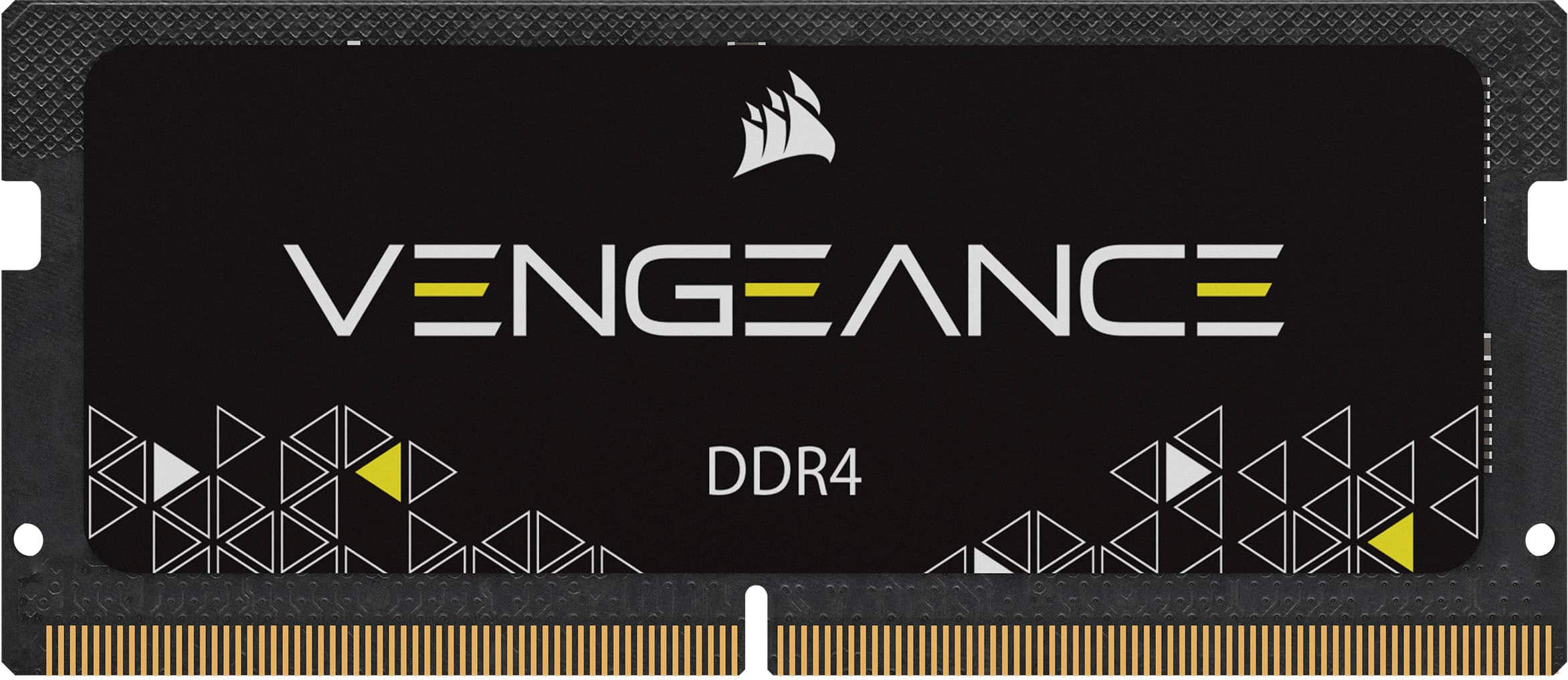
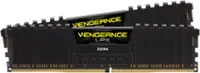
CORSAIR - VENGEANCE Series 16GB (1x16GB) DDR4 3200MHz C22 SODIMM Laptop Memory - Black
SKU: J39QHT7CHVEasy to install no problem at all looks amazing so far best for gaming love it...Great price. Highly recommend Best Buy and this product.
See all Computer Memory (RAM)Product Description
A high-performance black DDR4 SODIMM laptop memory module with 16GB capacity and 3200MHz speed.Your price for this item is $157.99 -
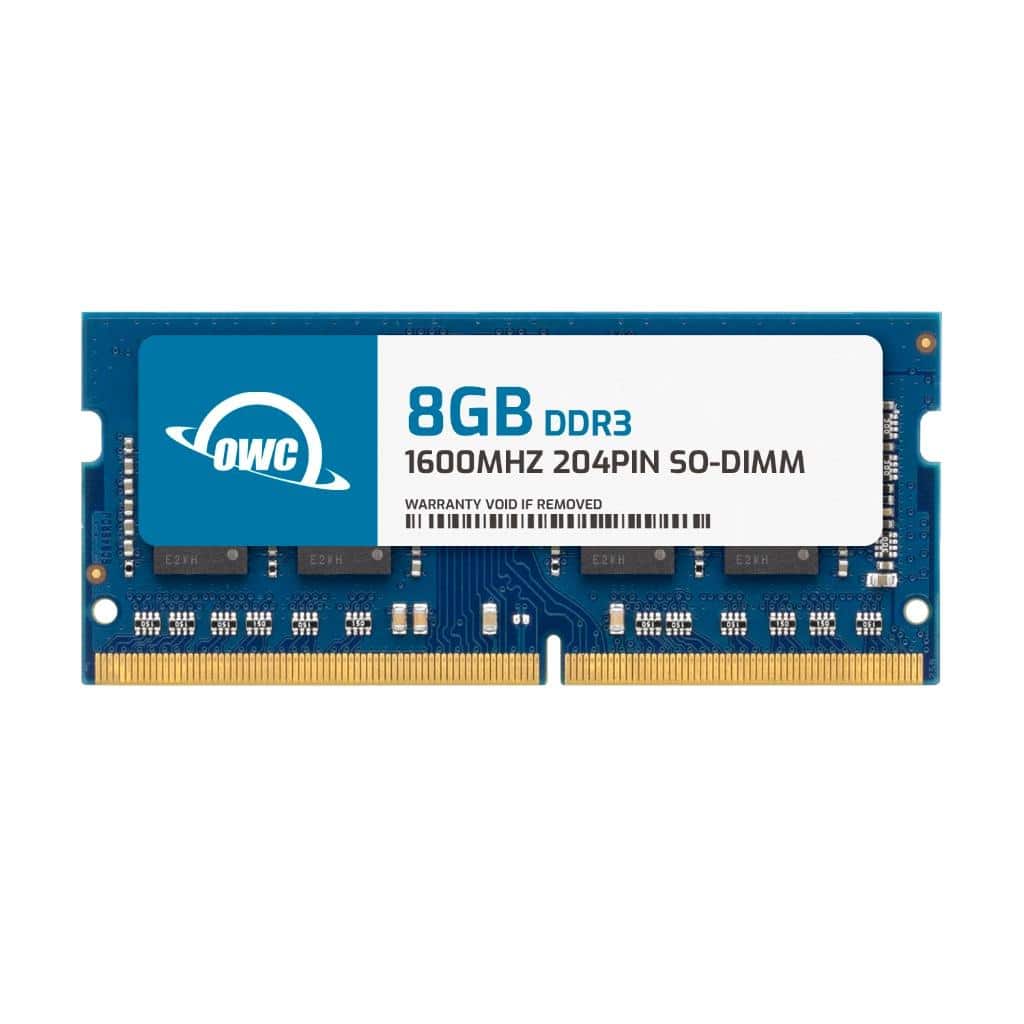
OWC - 8GB Memory RAM For Dell Inspiron 15R 5521 ware M14x R2 ware M17x R4 ware M18x - Black Chips
SKU: J3GWLFYLQVSee all Computer Memory (RAM)Product Description
An 8GB DDR3 laptop memory module with 1600MHz speed and black chips for enhanced multitasking.Your price for this item is $37.99 -
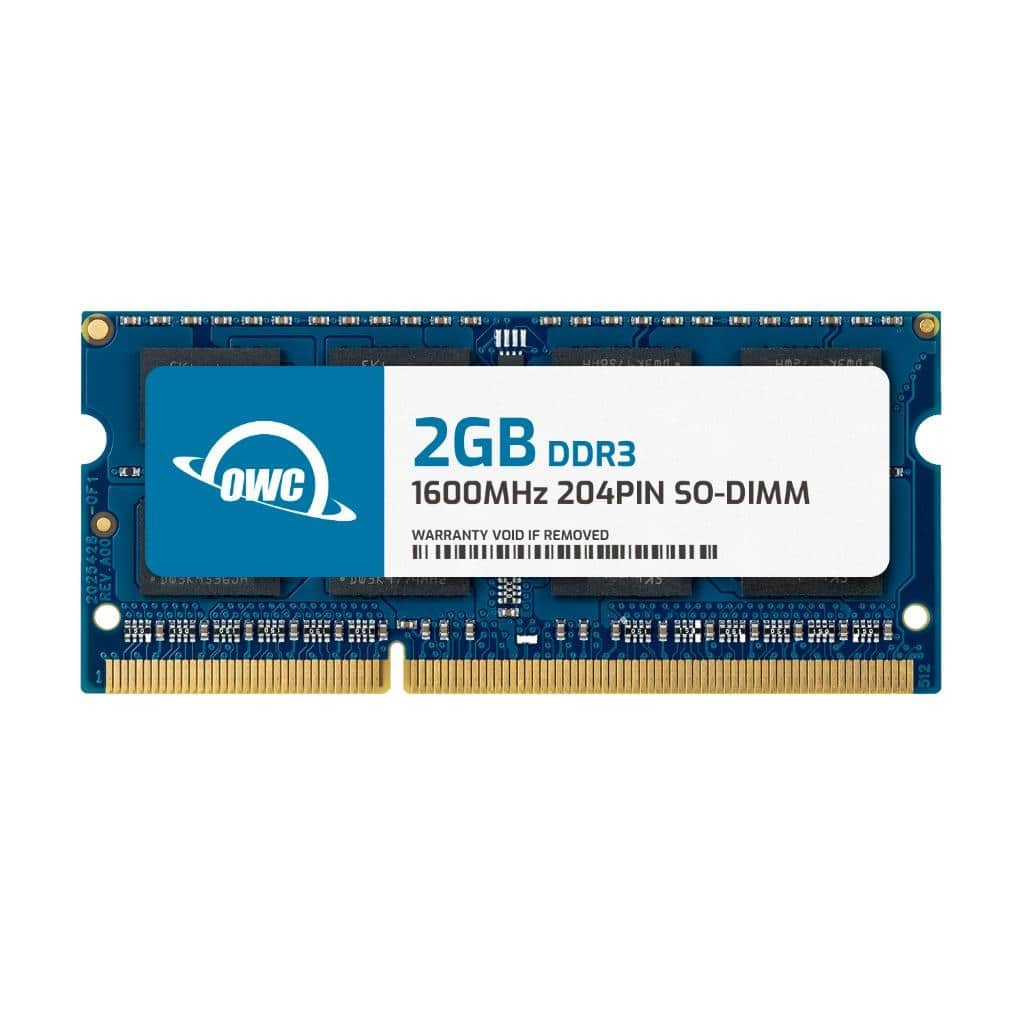
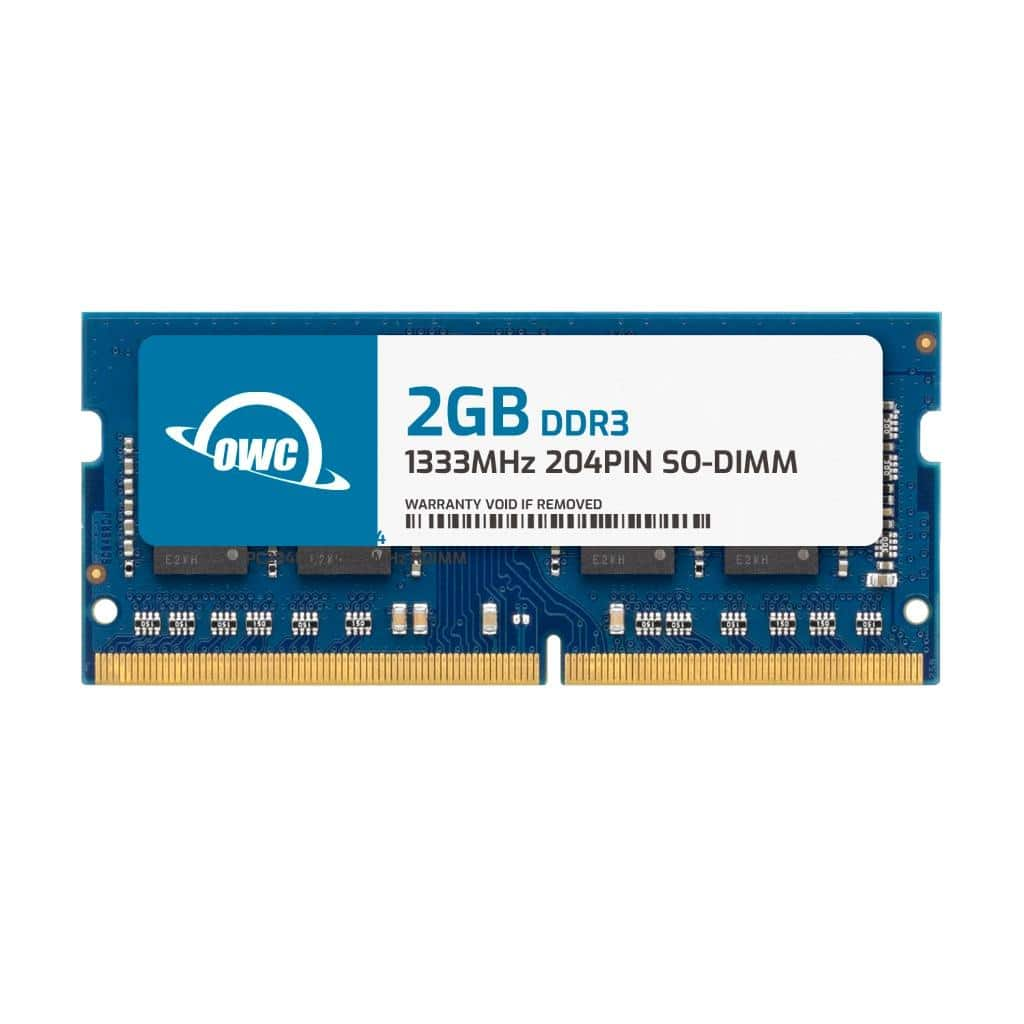
OWC - 2GB Memory RAM For Dell Inspiron 15 3521 ware M14x R2 ware M17x R4 ware M18x - Black Chips
SKU: J3GWLFYLRWSee all Computer Memory (RAM)Product Description
A 2GB DDR3 1600MHz laptop memory module with black chips, non-ECC, and 1.5V voltage.Your price for this item is $23.50 -
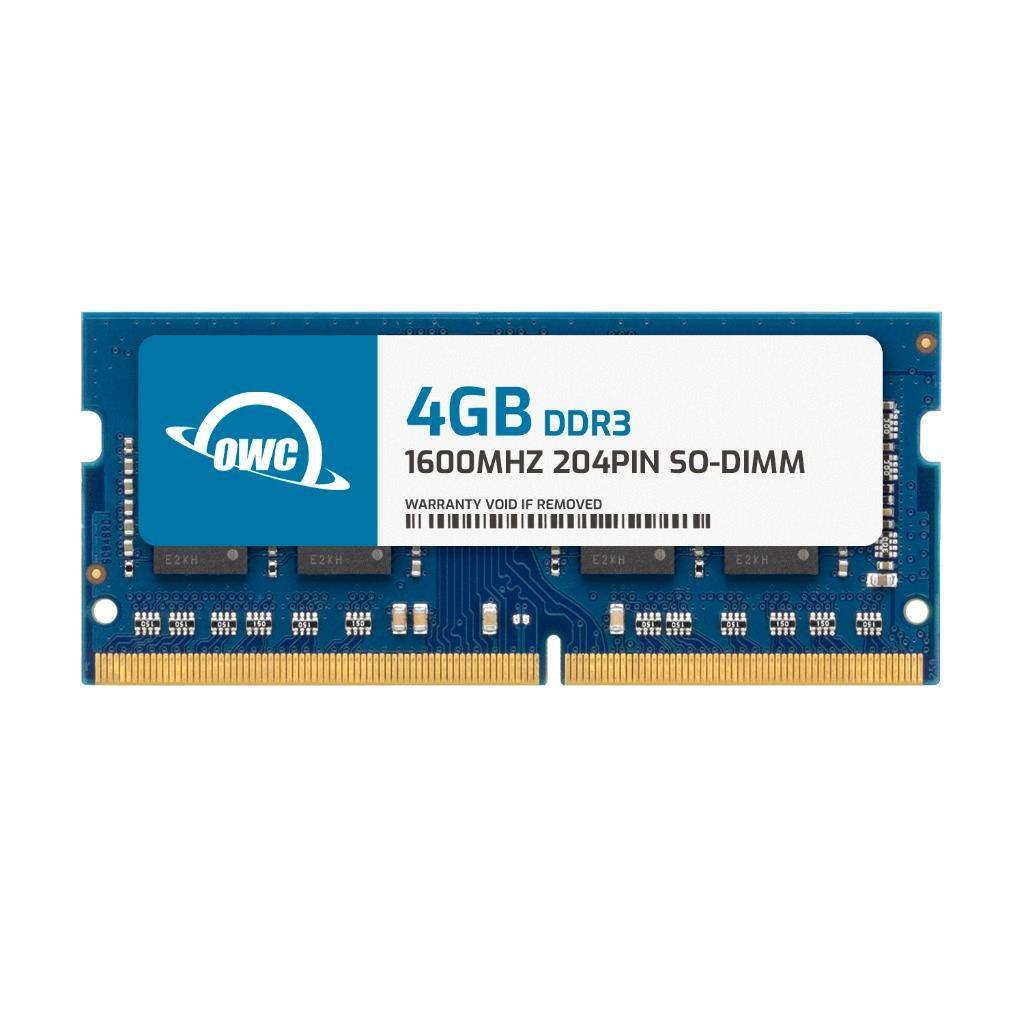
OWC - 4GB Memory RAM For Dell Inspiron 14z 5423 ware M14x R2 ware M17x R4 ware M18x - Black Chips
SKU: J3GWLFYLRJSee all Computer Memory (RAM)Product Description
A 4GB DDR3 1600MHz laptop RAM module with black chips, non-ECC, 204-pin, and 1.5V voltage.Your price for this item is $24.99 -
OWC - 4GB Memory RAM For Dell Inspiron 14 3421 ware M14x R2 ware M17x R4 ware M18x - Black Chips
SKU: J3GWLFYLSLSee all Computer Memory (RAM)Product Description
A 4GB DDR3 1600MHz laptop memory module with black chips, non-ECC, 204-pin, and 1.5V voltage.Your price for this item is $24.99 -
OWC - 2GB Memory RAM For Dell Inspiron 11 3135 ware M15x ware M17x ware M17x R2 - Black Chips
SKU: J3GWLFYG68See all Computer Memory (RAM)Product Description
A 2GB DDR3 1333MHz non-ECC SODIMM laptop memory module with black chips for enhanced multitasking.Your price for this item is $23.50 -
OWC - 4GB Memory RAM For Dell Inspiron 15 3541 Inspiron 15 5555 Inspiron 15 5559 Inspiron 15 7537 Inspiron 15 7558 - Black Chips
SKU: J3GWLFY8KTSee all Computer Memory (RAM)Product Description
A 4GB DDR3L 1600MHz laptop memory module with black chips, designed for select Dell Inspiron models.Your price for this item is $24.99 -
OWC - 4GB Memory RAM For Dell Inspiron 14 3451 - Black Chips
SKU: J3GWLFY8T3See all Computer Memory (RAM)Product Description
A 4GB DDR3L 1600MHz SODIMM RAM module with black chips, ideal for Dell Inspiron laptops.Your price for this item is $24.99 -
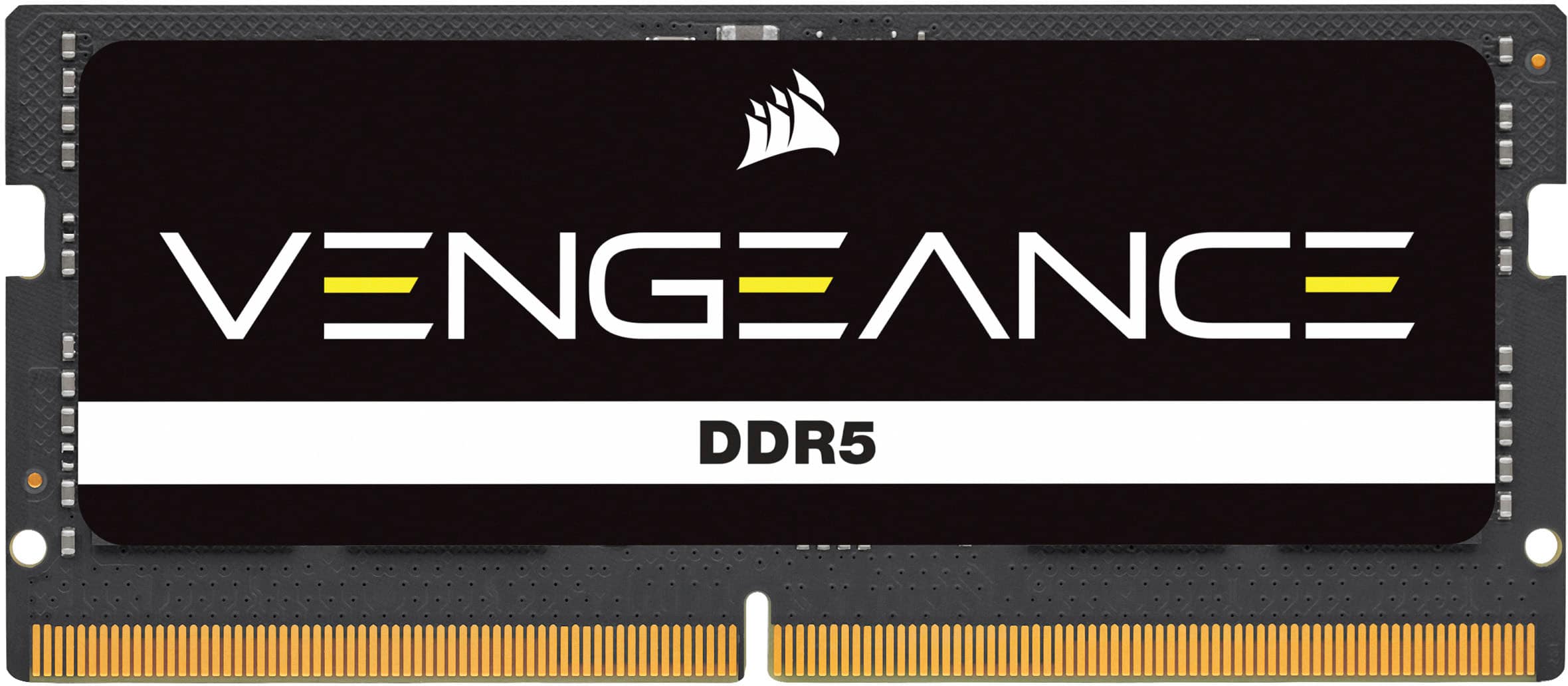
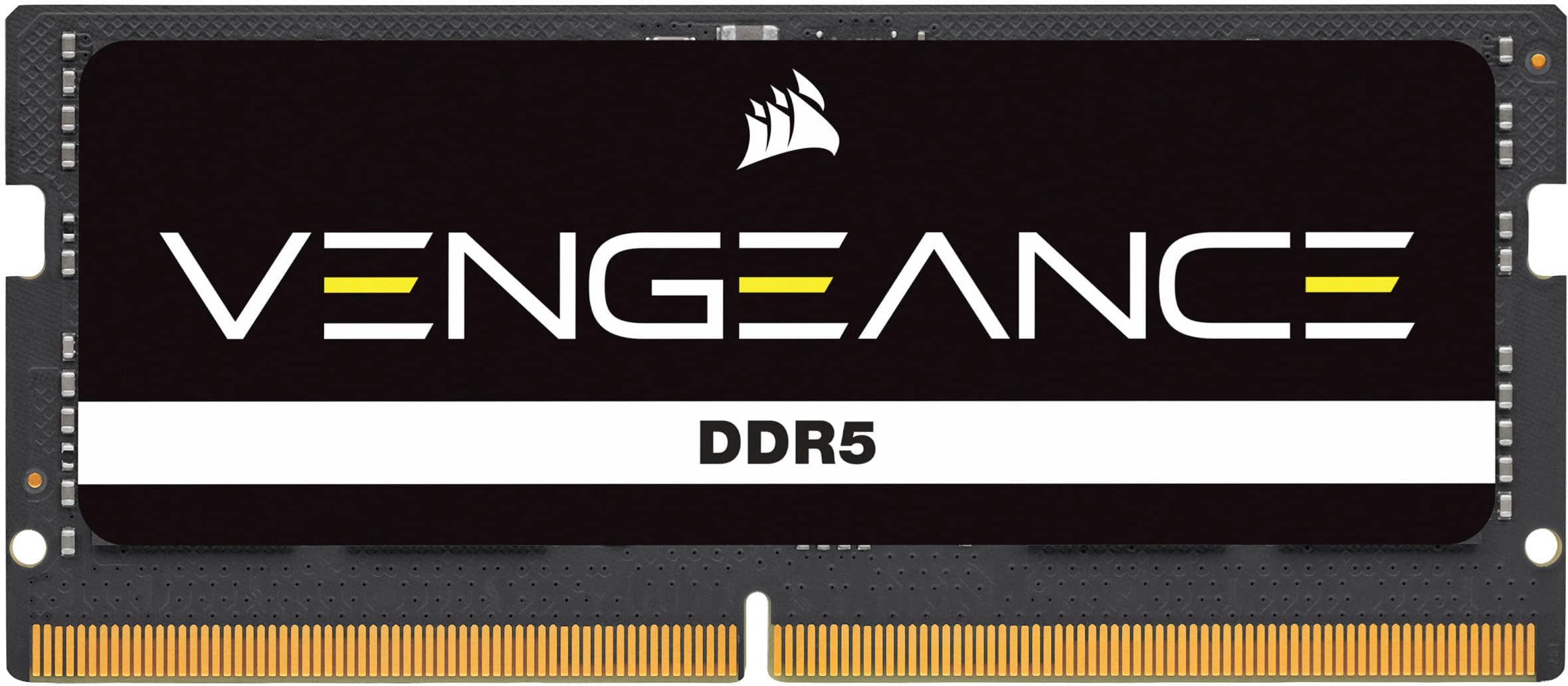
CORSAIR - VENGEANCE 16GB (1x16GB) DDR5 4800MHz C40 SODIMM Laptop Memory - Black
SKU: J39QHTJYRPBest Buys got the RAM!...Great RAM, always my go-to. I love to see Best Buy keeping the price competitive....A best buy worker recommend this memory and works pretty great.
See all Computer Memory (RAM)Product Description
A high-performance black DDR5 SODIMM laptop memory module with 16GB capacity and 4800MHz speed.Your price for this item is $199.99Save $49The previous price was $248.99 -
CORSAIR - VENGEANCE 32GB (1x32GB) DDR5 4800MHz C40 SODIMM Laptop Memory - Black
SKU: J39QHTJYRTSee all Computer Memory (RAM)Product Description
A high-performance black DDR5 SODIMM laptop memory module offering 32GB capacity and 4800MHz speed.Your price for this item is $439.00Save $46The previous price was $485.99
Best Sellers
Related Pages




FAQ
Not all RAM is compatible with every Dell Inspiron model. It's important to check your specific Inspiron model number and review the RAM specifications required before making a purchase.
To install new RAM, power off your Dell Inspiron, unplug it, and remove the battery if possible. Access the memory compartment by unscrewing the panel on the bottom, then carefully insert the RAM module into the slot at a 45-degree angle and press down until it clicks into place.
Upgrading your RAM can help improve multitasking and overall system responsiveness, especially if you run multiple programs or use memory-intensive applications on your Dell Inspiron.
While it is technically possible to mix different brands of RAM, it's best to use the same brand, speed, and capacity for optimal compatibility and performance in your Dell Inspiron.
Typically, you only need a small Phillips-head screwdriver to open the memory compartment. It's also recommended to use an anti-static wrist strap to prevent static electricity from damaging your components.