How to Project to Multiple Display Monitors

Purpose: This article provides you with step-by-step instructions to change multiple monitor settings.

NOTE: If unsuccessful, schedule an in-home appointment.

By clicking any of the links below, you are entering a site hosted and operated by third parties. Please review their Privacy Policy. Any personal information you provide is subject to that Privacy Policy. Different terms and conditions may apply.

Chrome

Extended View
  • Ensure the monitor is physically connected to the Chromebook. This can be with an HDMI, DisplayPort, DVI, or VGA port depending on the Chromebook. Once it is connected, it should automatically connect and function as an extended display.
Mirrored Display
  1. Ensure the monitor is physically connected to the Chromebook. This can be with an HDMI, DisplayPort, DVI, or VGA port depending on the Chromebook. Once it is connected, it should automatically connect and function as an extended display.
  2. At the bottom right, click on the time.
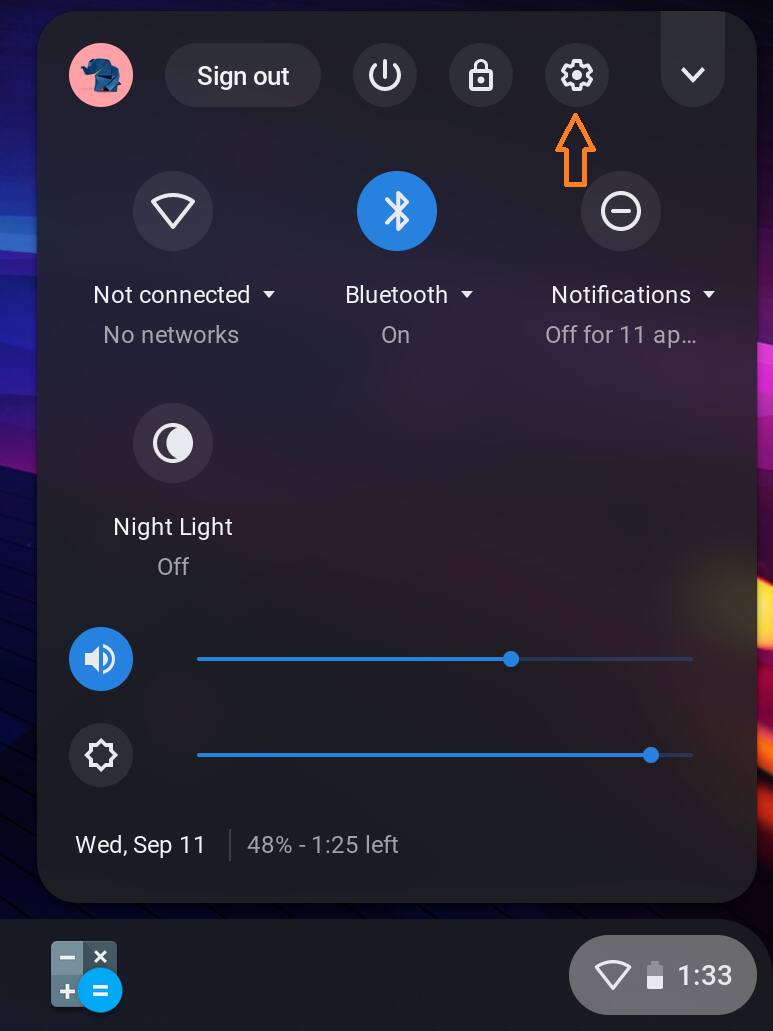
  3. Select the "screenshot" Settings icon (See Chrome OS Figure 1).

    screenshot

    Chrome OS Figure 1

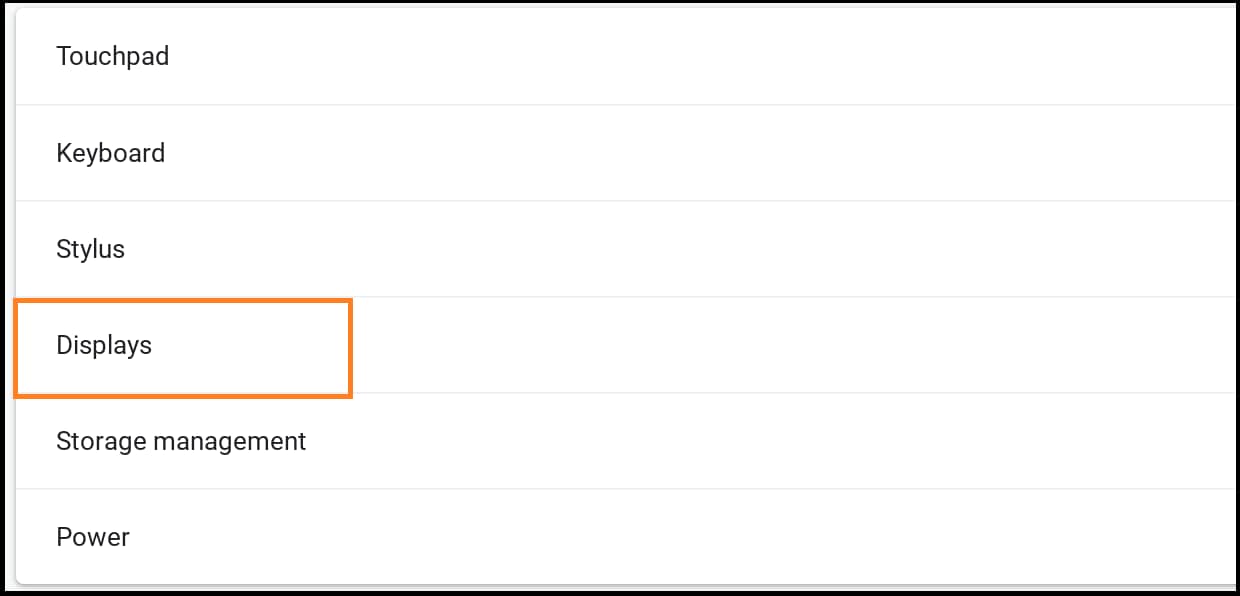
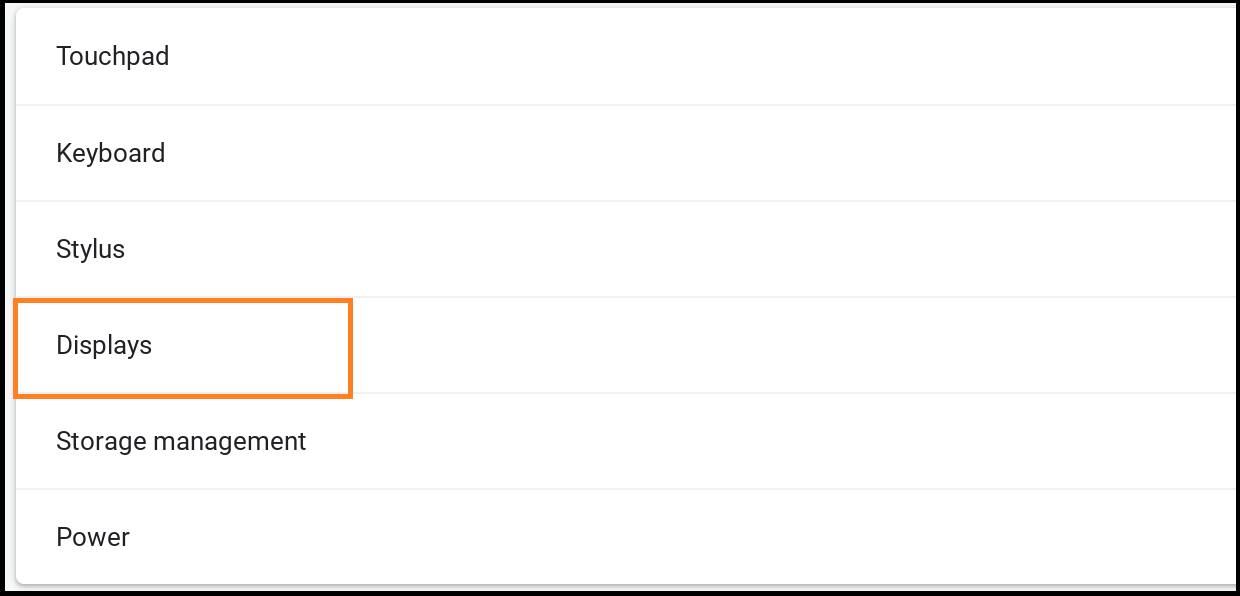
  4. In the "Device" section, select "Displays" (See Chrome OS Figure 2).


    screenshot

    Chrome OS Figure 2

  5. Select "Mirror Internal Display". The screen will show on all connected monitors (See Chrome OS Figure 3).


    screenshot

    Chrome OS Figure 3

Adjust Monitor Settings
  1. At the bottom right, select the time.
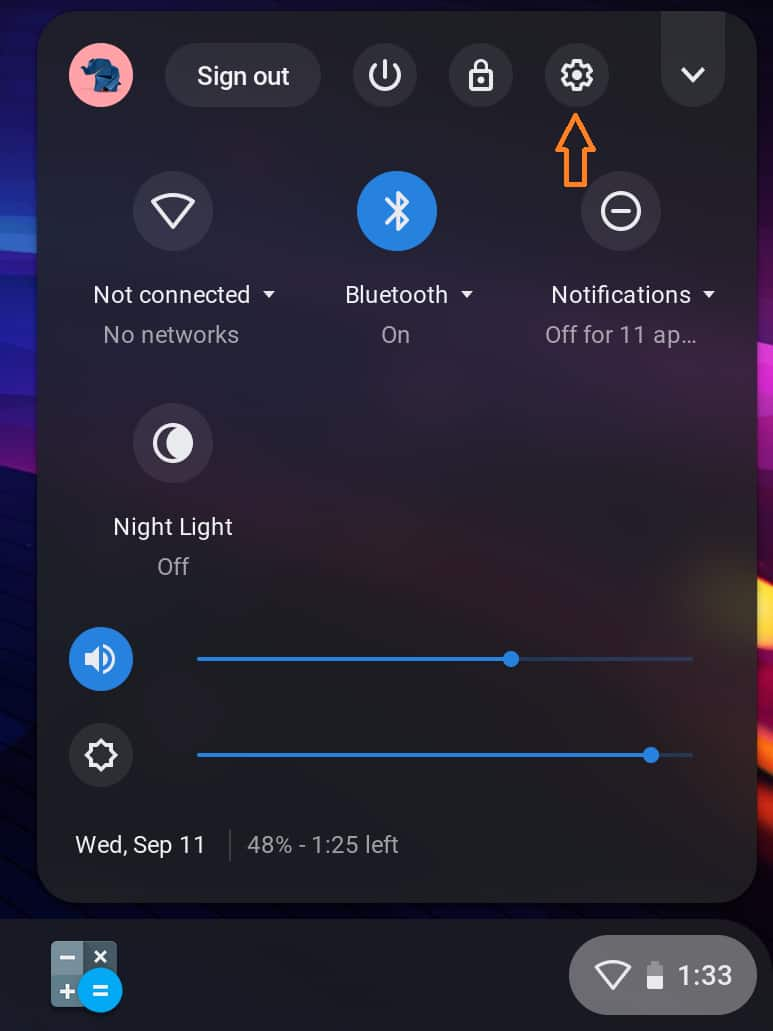
  2. Select the "screenshot" Settings icon (See Chrome OS Figure 4).

    screenshot

    Chrome OS Figure 4

  3. In the "Device" section, select "Displays" (See Chrome OS Figure 5).


    screenshot

    Chrome OS Figure 5

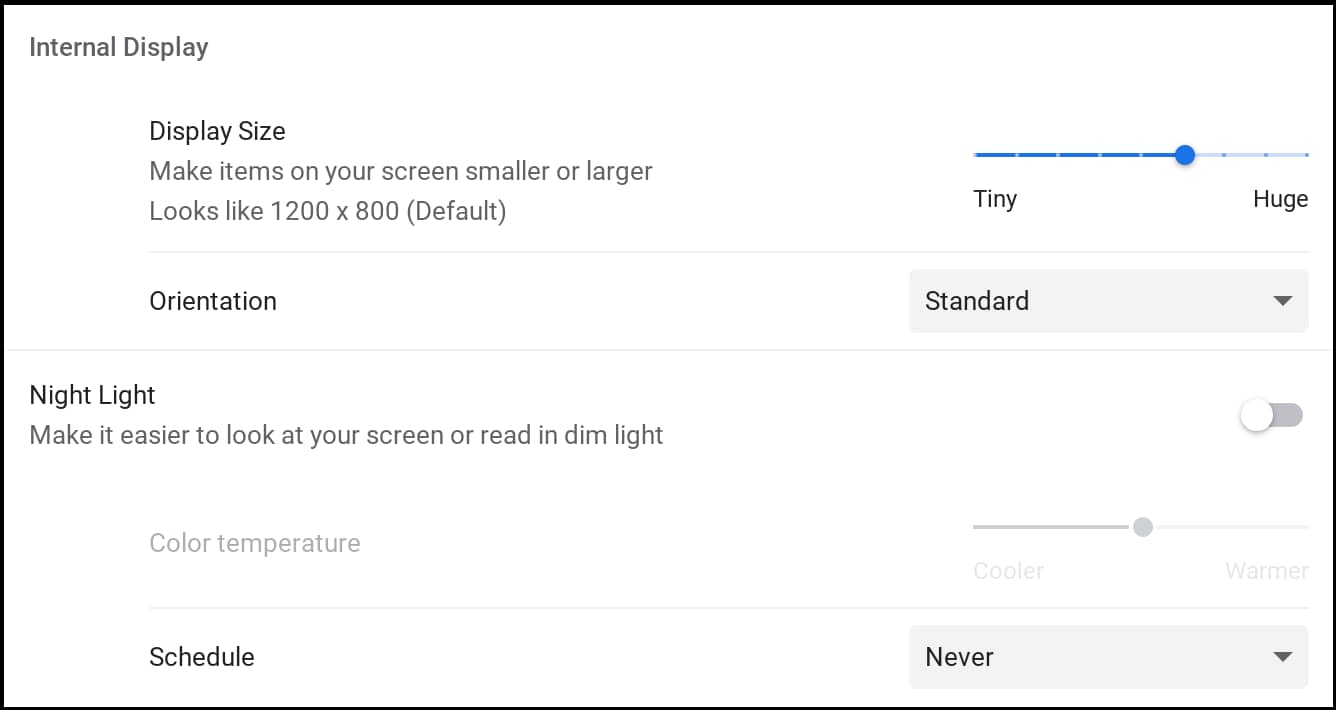
  4. To adjust the Chromebook screen, select "Internal Display". To adjust the monitor screen, select the name of the monitor (See Chrome OS Figures 6 & 7).


    screenshot

    Chrome OS Figure 6


    screenshot

    Chrome OS Figure 7

macOS

Extended or Mirrored
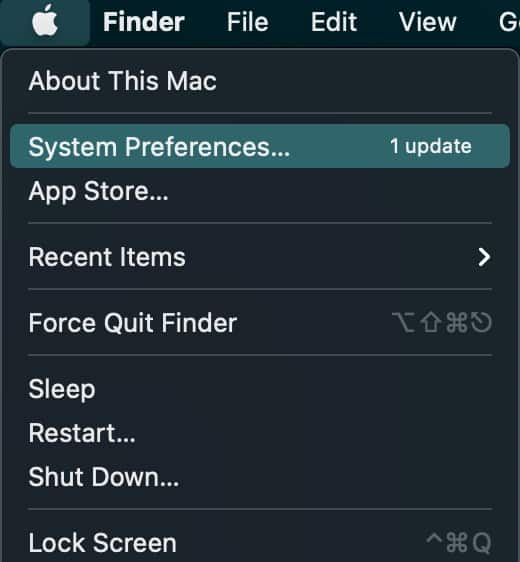
  1. Click on the "screenshot" Apple menu icon, then choose "System Preferences" (See macOS Figure 1).

    screenshot

    macOS Figure 1

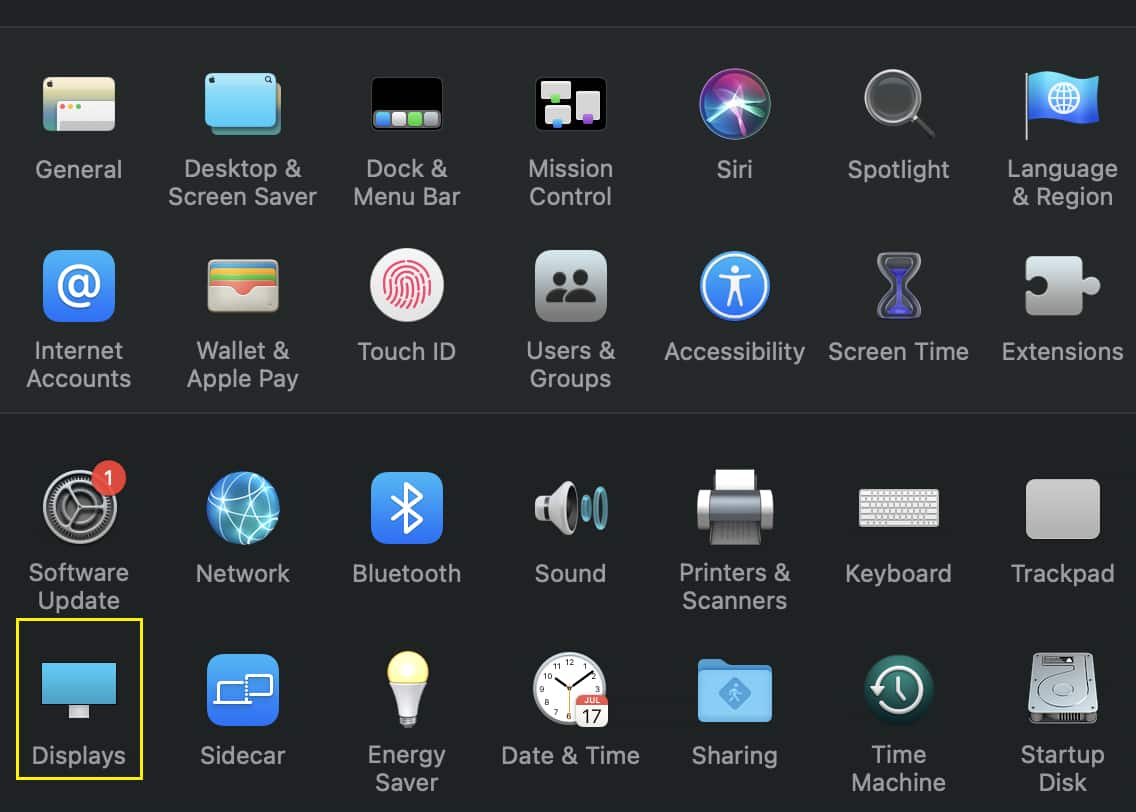
  2. Click "Displays" (See macOS Figure 2).


    screenshot

    macOS Figure 2

  3. Select the "Arrangement" tab.
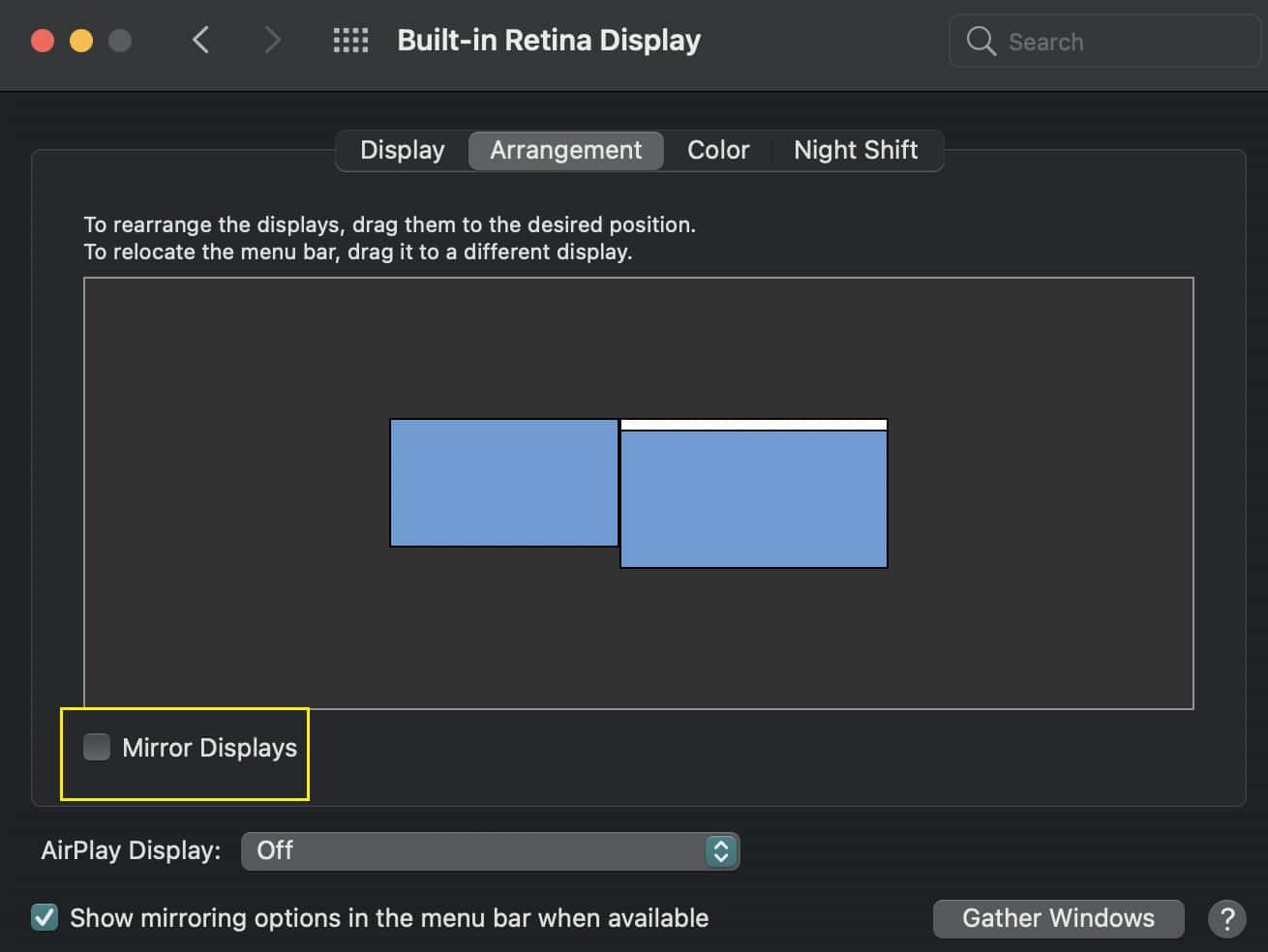
    • Extended Display Mode:  Expands the desktop to allow different programs to run on separate displays.
      • Ensure that all displays appear in the "Arrangement" window, and drag them as necessary to match their physical layout. Ensure that the "Mirror Displays" checkbox is not selected (See macOS Figure 3).


        screenshot

        macOS Figure 3

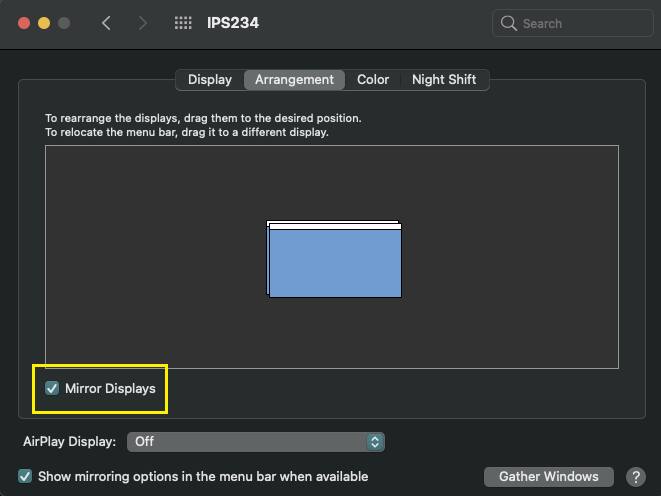
    • Mirrored Display Mode:  Clones the screen, so the same output appears on all displays.
      • Ensure that all displays appear in the "Arrangement" window, and ensure that the "Mirror Displays" checkbox is selected (See macOS Figure 4).
        NOTE:  In cases where the supported display resolution differs between displays, the mirrored display mode will drop the resolution to that supported by the lower resolution display.


        screenshot

        macOS Figure 4


AirPlay

With an Apple TV, the entire display of a Mac can be mirrored to a TV or use the TV as a separate display. AirPlay 2 adds the ability to connect directly to a TV that supports AirPlay 2, without the need for an Apple TV hardware device.

  1. Ensure the TV/Apple TV is powered on.
  2. Click on the "screenshot" Apple menu icon, then choose "System Preferences".
  3. From the "System Preferences" window, then choose "Displays".
  4. Select the "Arrangement" tab.
  5. Click the drop-down box next to "AirPlay Display", and select the appropriate AirPlay device. Tick the checkbox next to "Show mirroring options in the menu bar when available" (See macOS Figure 5).


    screenshot

    macOS Figure 5

  6. If an AirPlay passcode appears on the TV, enter that code on the Mac.
    NOTE:  When AirPlay is active, an AirPlay icon will appear in the menu bar. Depending on the version of macOS on the computer, the icon may look like this screenshot or like two cascading boxes (See macOS Figure 6).
    • To mirror the display, click the AirPlay icon, and under the connected display, choose "Mirror Built-in Display".
    • To use the TV as a separate display, click the AirPlay icon, then choose "Use As Separate Display".


      screenshot

      macOS Figure 6

  7. To turn off AirPlay, click the AirPlay icon, then choose "Turn AirPlay Off".
    NOTE:  For newer Macs with the icon shown in Figure 14click the AirPlay icon, then click "Display Preferences"Change the drop-down for "AirPlay Display" to "Off".
Enable Closed-Display Mode

Refer to How2 Use a Laptop with the Lid Closed to view step-by-step directions to use Closed-Display mode.

Windows

Extended or Mirrored (Windows 7/8/8.1/10/11)
  1. Using they keyboard, press the "Windows screenshot" key + "P", and then choose a way to project based on your desired usage.
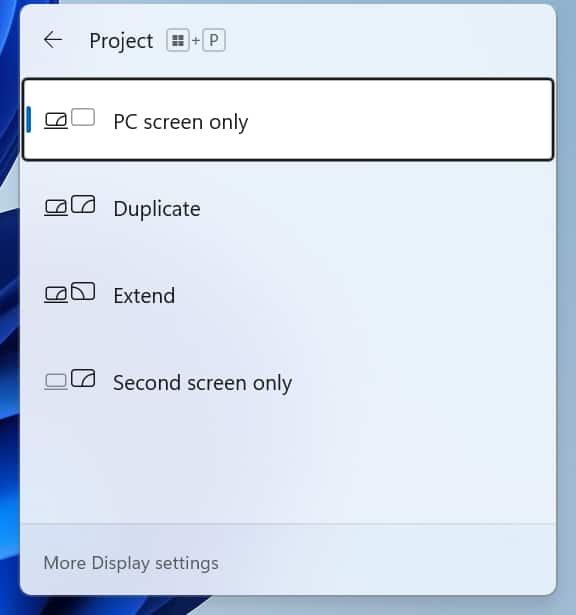
    • View in Windows 11 (See Windows Figure 1)


      screenshot

      Windows Figure 1

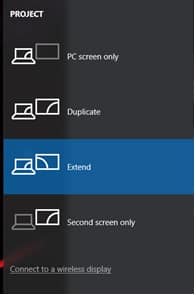
    • View in Windows 8/8.1/10 (See Windows Figure 2)


      screenshot

      Windows Figure 2

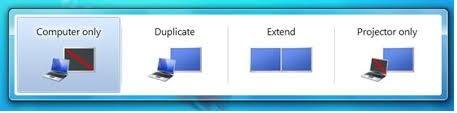
    • View in Windows 7 / Vista (See Windows Figure 3)


      screenshot

      Windows Figure 3

  2. Select a display mode from the list.
    • Computer/PC screen only:  Use computer screen only, not additional connected monitors.
    • Duplicate:  Clones the screen to connected secondary display(s).
    • Extend:  Expands the desktop for use of different windows on each monitor.
    • Second screen only/Projector only:  Turns off computer’s monitor and turns the connected display into the monitor.
Connect to a wireless display (Windows 10/11)
  • Windows 10
    1. Click the "Connect to a wireless display" link at the bottom of the "PROJECT" window (See Windows Figure 2).
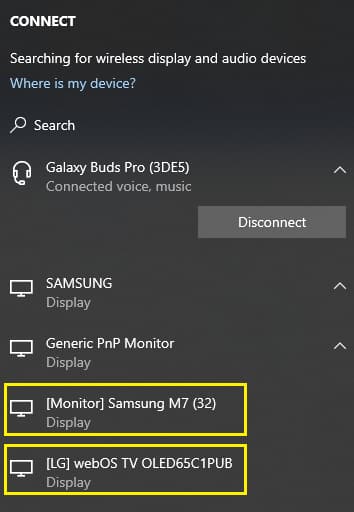
    2. A search for available wireless displays will begin automatically. Click on the desired option (See Windows Figure 4).


      screenshot

      Windows Figure 4

  • Windows 11
    1. Click "More Display Settings" link at the bottom of the "Project" window (See Windows Figure 1).
    2. In the "Display" settings, expand "Multiple Displays", then click the "Connect" button next to "Connect to a wireless display" (See Windows Figure 5).


      screenshot

      Windows Figure 5

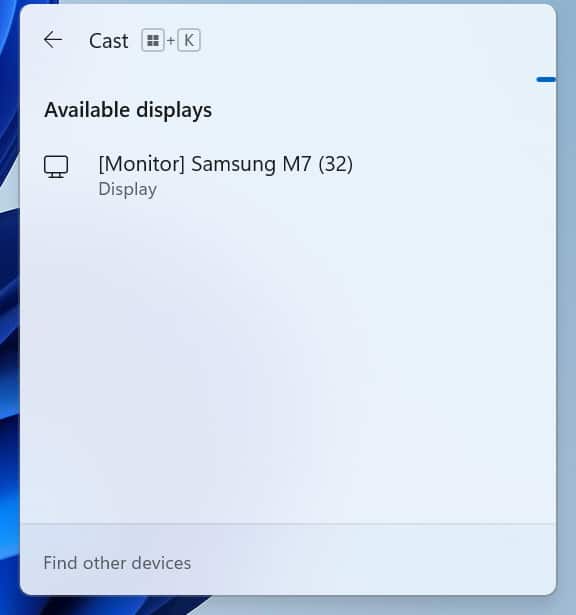
    3. Choose the desired display from the list of detected displays (See Windows Figure 6).


      screenshot

      Windows Figure 6

Enable Closed-Display Mode

Refer to How2 Use a Laptop with the Lid Closed to view step-by-step directions to use Closed-Display mode.

Keywords: Windows, Mac, 11, 10, 8.1, 8, 7, Vista, OS, project, display, multiple, monitors, Chromebook, macOS, OSX, OS X