Logitech - MX Master 4 - Adobe Edition - Wireless Laser Ergonomic Mouse with Advanced Performance Haptic Feedback - Wireless - Black

Key Accessories:
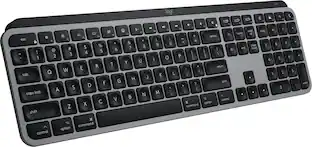
- Logitech - MX Keys S Universal Full-size Wireless Scissor Keyboard for PC and Mac with Backlit keys - Black$129.99

Specifications
- Lighting TypeNoneMaximum Sensitivity8000 dots per inchNumber of Buttons (Total)8Connection TypeWireless
- Key Specs
- Lighting Type: None
- Maximum Sensitivity: 8000 dots per inch (Mouse sensitivity is measured in dots per inch (DPI). The higher the DPI, the more sensitive the mouse is and may be more useful for high-density pixel screens. Lower DPI typically means more precision and accuracy in mouse movement.)
- Number of Buttons (Total): 8
- Connection Type: Wireless
- General
- Brand: Logitech
- Model Number: 910-007561
- Product Name: MX Master 4 - Black Adobe Edition - Wireless Laser Ergonomic Mouse with Advanced Performance Haptic Feedback
- Color: Black
- System Requirements: Via Bluetooth® Low Energy (BLE): Windows 11, or later, macOS 13 or later, ChromeOS, Linux, Android 12 or later, iPadOS 15 or later. Via Logi Bolt receiver: available USB port, Windows 11, or later,macOS 13 or later, ChromeOS, Linux (The software that a product must have for it to be able to integrate with another product.)
- Features
- Mouse Type: Standard
- Lighting Type: None
- Performance
- Mouse Operation: Button(s), Scroll wheel
- Mouse Grip Style: Ergonomic, Standard, Standard (In comparison to many palm and claw grips, ergonomic grip mice are designed for a specific handedness and put the hand and wrist in a position to promote comfort. Customizable grips feature buttons/keys that can be configured to perform specific actions and may also have customizable calibration and sensitivity settings.)
- Handedness: Right-handed
- Tracking Method: Laser (There are several types of computer mice, optical and laser being among the most common. Optical mice detect less detail and provide more precise and accurate movement. Laser mice detect more detail and can be used on a wider variety of surfaces, but are more sensitive to small movements.)
- Maximum Sensitivity: 8000 dots per inch (Mouse sensitivity is measured in dots per inch (DPI). The higher the DPI, the more sensitive the mouse is and may be more useful for high-density pixel screens. Lower DPI typically means more precision and accuracy in mouse movement.)
- Minimum Sensitivity: 200 dots per inch (Mouse sensitivity is measured in dots per inch (DPI). The higher the DPI, the more sensitive the mouse is. Lower DPI typically means more precision and accuracy in mouse movement, but higher DPI may be useful for high-density pixel screens.)
- Number of Buttons (Total): 8
- Number of Thumb Buttons: 3
- Number of Programmable Buttons: 8
- Adjustable Weight: false
- Connectivity
- Connection Type: Wireless
- Wireless Connectivity: Radio Frequency (RF - 2.4 Ghz/Low Latency), Bluetooth (The manner in which a device sends data to another device over a short distance without the use of wires or cables.)
- Maximum Wireless Range: 33 feet
- Operating System Compatibility: Windows, Mac, Apple iPadOS, Chrome, Linux, Android
- Plug and Play Operation: true
- Number of Devices Connectable Simultaneously: 3
- Power
- Mouse Power Source: Battery-powered
- On/Off Switch: true
- Rechargeable Battery (Mouse): true
- Wireless Charging: false
- Charging Interface(s): USB-C (The connection for transmitting power to charge the device.)
- Battery Chemistry: Lithium
- Dimensions
- Product Height: 2 inches (The out of box height of the item. Height is measured as the vertical distance from the bottom of the item to the top as it would be primarily used or placed.)
- Product Length: 5.05 inches (The out of box length of the item. Length is measured as the longest dimension of the item.)
- Product Width: 3.48 inches (The out of box width of the item. Width is measured as the horizontal distance from one side of the item to the other as it would be primarily used or placed.)
- Product Weight: 150 grams (The out of box weight of the item.)
- Warranty
- Warranty - Parts: 1 year
- Warranty - Labor: None
- Other
- UPC: 097855207609
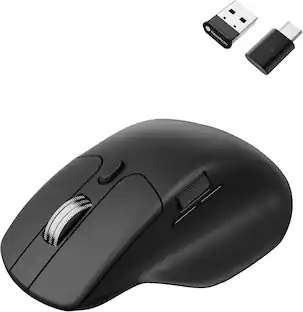
The Logitech MX Master 4 brings immersive control and precision you can feel with haptic feedback. Experience haptic feedback on specific actions, shortcuts, notifications like switching desktops, slider adjustments and more. Customize vibration intensity in Logi Options+. With Actions Ring shortcuts and MX Master 4, save up to 33% of your time by accessing tools and filters at your cursor, reducing repetitive movements by up to 63%. Experience uninterrupted performance with 2X more powerful connectivity, powered by an advanced radio chip, optimized antenna placement, and a new USB-C dongle.
- Precision you can feel with the Haptic Sense Panel: Customizable haptic feedback on specific actions, shortcuts, notifications enhancing productivity on this wireless Bluetooth mouse.¹
- Effortlessly access favorite tools with Actions Ring on this MX Series mouse: A dynamic, customizable overlay adapts to each app, placing most used filters, adjustments, and shortcuts at your cursor.
- Ultra-fast scrolling: Scroll 1,000 lines per second and stop on a pixel with the MagSpeed scroll wheel—Logitech’s fastest, quietest, and most precise scrolling experience.
- More powerful connectivity: Enjoy 2X more powerful connectivity with a USB-C dongle, advanced radio chip, and optimized antenna for faster, stronger, reliable performance—or use Bluetooth for more versatility.²
- Ergonomic mouse designed for comfort: MX Master 4 keeps you in flow with a natural tilt, intuitive buttons, and a thumb scroll wheel that reduces hand stress for fluid navigation.
- Quiet Clicks: Quiet Clicks on MX Master 4 reduce noise and distractions, offering a soft, satisfying feel with 90% less click noise—perfect for focused workflows.³
- MX + Adobe Creative Cloud: Get a complimentary 2-month Adobe Creative Cloud subscription with your purchase of MX Master 4 - Black, exclusively at Best Buy.
- Designed for a positive future: Plastic parts include recycled plastic - 54% Black; 48% Pale Grey; 100% recycled cobalt in the battery; built to last with improved stain resistance.⁴
- 2-months of Adobe Creative Cloud on us: Pair two of the world’s top creative tools. Buy one MX Master 4 Adobe Version and claim your free 2-month Adobe Creative Cloud membership. *Value calculated based on Adobe Creative Cloud All Apps monthly value of $59.99 valid on Adobe.com on Sept 12, 2024. Terms & Conditions apply.¹ ² ³
- Feel precision with native haptics on Windows 11 and MX Master 4: Unlock enhanced control and precision in PowerPoint and other compatible apps with native haptic support for Windows 11
Whats Included
- MX Master 4 wireless mouse
- Logi Bolt USB-C receiver
- User documentation
Disclaimers
- ¹ Requires Logi Options+ app, available for Windows and macOS at app.logi.com
- ² Compared to MX Master 3S
- ³ Compared to MX Master 3, MX Master 4 has 90% less Sound Power Level left and right click.
- ⁴ Excludes plastic in printed wiring assembly (PWA), receiver, wire, FFC cable, and packaging.
Q: Is the battery in this mouse rechargeable?
A: Yes, the mouse has a rechargeable battery.
Q: What is the maximum sensitivity of this mouse?
A: The maximum sensitivity of this mouse is 8000 dots per inch.
Q: What is the wireless range of this mouse?
A: The maximum wireless range of this mouse is 33 feet.
Q: Does this mouse have programmable buttons?
A: Yes, this mouse has programmable buttons.
Q: What kind of scrolling experience does this mouse offer?
A: This mouse offers an ultra-fast scrolling experience.
Q: Can I connect multiple devices to this mouse?
A: Yes, you can connect up to three devices simultaneously to this mouse.
Q: Does this mouse have quiet clicks?
A: Yes, this mouse has quiet clicks that reduce noise and distractions.
Q: Does this mouse have "silent" buttons?
A: Yes, the MX Master 4 is designed with silent buttons to reduce 90% less click noise.
Compare similar products

The Logitech MX Master 4 brings immersive control and precision you can feel with haptic feedback. Experience haptic feedback on specific actions, shortcuts, notifications like switching desktops, slider adjustments and more. Customize vibration intensity in Logi Options+. With Actions Ring shortcuts and MX Master 4, save up to 33% of your time by accessing tools and filters at your cursor, reducing repetitive movements by up to 63%. Experience uninterrupted performance with 2X more powerful connectivity, powered by an advanced radio chip, optimized antenna placement, and a new USB-C dongle.

The Logitech MX Master 4 brings immersive control and precision you can feel with haptic feedback. Experience haptic feedback on specific actions, shortcuts, notifications like switching desktops, slider adjustments and more. Customize vibration intensity in Logi Options+. With Actions Ring shortcuts and MX Master 4, save up to 33% of your time by accessing tools and filters at your cursor, reducing repetitive movements by up to 63%. Experience uninterrupted performance with 2X more powerful connectivity, powered by an advanced radio chip, optimized antenna placement, and a new USB-C dongle.

Logitech MX Master 3S Bluetooth Edition – productivity and precision mouse. With Quiet Clicks and 8K DPI any-surface tracking for more feel and performance.
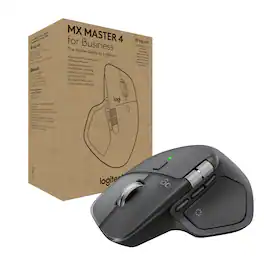
MX Master 4 for Business, our flagship mouse for business professionals, combines premium design with advanced features and enhanced connectivity. Highlights include an 8K DPI Darkfield laser sensor, Quiet Click technology, and MagSpeed scrolling. The advanced radio chip, optimized antenna placement, and Logi Bolt USB-C receiver provide 2x more powerful connectivity to improve performance in congested wireless environments. The Actions Ring, which is enabled and customized with Logi Options+, provides fast access to favorite tools and actions, including Easy-Switch. Haptic feedback enhances productivity by gently notifying the user for situations such as low battery or device disconnected.
| Pros for Logitech - MX Master 4 - Adobe Edition - Wireless Laser Ergonomic Mouse with Advanced Performance Haptic Feedback - Wireless - Black | |||
|---|---|---|---|
| Ergonomics, Button Functionality, Overall Performance, Haptic Feedback, Battery Life | Ergonomics, Overall Performance, Connectivity, Haptic Feedback, Battery Life | Ergonomics, Overall Performance, Button Functionality, Connectivity, Battery Life | There were no pros for this product— |
| Cons for Logitech - MX Master 4 - Adobe Edition - Wireless Laser Ergonomic Mouse with Advanced Performance Haptic Feedback - Wireless - Black | |||
| Weight, Size | Size, Weight | Weight | There were no cons for this product— |
Specs
Reviews
Rating 4.7 out of 5 stars with 247 reviews
- Ergonomics (43)
- Button Functionality (37)
- Overall Performance (33)
- Haptic Feedback (31)
- Battery Life (26)
- Weight (9)
- Size (6)
Customer Images
The vast majority of our reviews come from verified purchases. Reviews from customers may include My Best Buy members, employees, and Tech Insider Network members (as tagged). Select reviewers may receive discounted products, promotional considerations or entries into drawings for honest, helpful reviews.