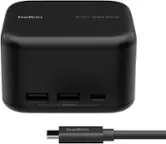
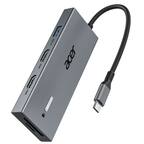
j5create - USB-C 4K HDMI Docking Station with Power Delivery - Grey/ Black
- Key Specs
- Maximum Number of Displays Supported: 1
- Maximum Supported Resolution: 4K (2160p)
- Number of DisplayPort Outputs (Total): 0
- General
- Brand: j5create
- Model Number: JCD533
- Product Name: USB-C 4K HDMI Docking Station with Power Delivery
- Color: Grey/ Black
- Display
- Maximum Number of Displays Supported: 1
- Maximum Supported Resolution: 4K (2160p)
- Maximum Supported Refresh Rate: 30Hz (The number of frames per second the device can support, expressed as a frequency. Higher rates help produce smooth, seamless pictures.)
- Ports
- Display Connector(s): 1 x HDMI (The number and type of connectors used to connect to an external display.)
- Number of DisplayPort Outputs (Total): 0
- Number of HDMI Ports (Total): 1
- Number of VGA Ports: 0 (VGA (Video Graphics Adapter or Video Graphics Array) is a display standard that transmits via analog signals. This type of interface is typically used to connect a computer to a display device such as a monitor, projector, or TV.)
- Number Of Ethernet Ports: 1
- Number of USB Ports (Total): 4
- USB Ports: 3 x USB-A 3.0 (The number and type of USB ports the product has.)
- Headphone Jack: true (The device features an interface that allows for the connection of headphones.)
- Microphone Input: true (The device features an input for connecting an external microphone.)
- Memory Card Slot: true
- Memory Card Type: microSD, Secure Digital
- Power
- Powered: false
- Compatibility
- Maximum Data Speed: 5000 megabits per second
- System Requirements: Available USB-C port that supports DisplayPort Alt Mode and USB Power Delivery 2.0 or 3.0. Microsoft Windows 10 or later. macOS 10.11 or later. (The software that a product must have for it to be able to integrate with another product.)
- Brand Compatibility: Available USB-C port that supports DisplayPort Alt Mode and USB Power Delivery 2.0 or 3.0.
- Model Compatibility: Available USB-C port that supports DisplayPort Alt Mode and USB Power Delivery 2.0 or 3.0.
- Features
- Material: Aluminum
- Dimensions
- Product Height: 0.87 inches (The out of box height of the item. Height is measured as the vertical distance from the bottom of the item to the top as it would be primarily used or placed.)
- Product Length: 3.25 inches (The out of box length of the item. Length is measured as the longest dimension of the item.)
- Product Width: 13.78 inches (The out of box width of the item. Width is measured as the horizontal distance from one side of the item to the other as it would be primarily used or placed.)
- Product Weight: 1 ounces (The out of box weight of the item.)
- Warranty
- Warranty - Parts: 2 year limited
- Warranty - Labor: 2 year limited
- Other
- UPC: 847626005657
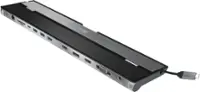
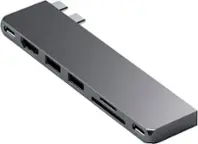
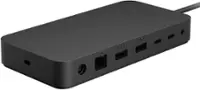
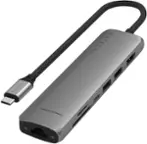
This 4K display docking station is perfect for your MacBook, Dell XPS, or other USB-C laptops requiring additional ports. Featuring a 4K HDMI output and a USB-C Power Delivery port that supports up to 100W pass-through, this USB-C docking station provides all the connectivity you need for enhanced productivity, including a Gigabit Ethernet port, memory card reader/writer, combo audio jack, and three SuperSpeed USB 5Gbps ports to connect your peripherals.
- Crystal Clear 4K HDMI Display: Extend your screen to a large monitor set up and boost your productivity.
- Extend or Mirror: Your laptop display, plus the external monitor, gives you a total of 2 monitors.
- 100W Power Delivery Pass-Through: Power and charge your laptop, and all the devices connected to your laptop and the docking station with a single power adapter (not included).
- RJ45 Gigabit Ethernet: Reliable network connectivity via the Gigabit Ethernet port.
- 3.5 mm Combo Audio Jack: 3.5mm audio jack to connect microphone/headphones.
- SD/microSD Card Reader: Direct access to SD & microSD memory cards for data storage and transfer.
- Connect Your Devices: Features three SuperSpeed USB Type-A ports (5 Gbps) for your USB peripherals.
- Anti-Theft Protection: Equipped with a security slot to protect against theft, making it perfect for use in business organizations (lock not included).
- Crystal Clear 4K HDMI Display: Extend your screen to a large monitor set up and boost your productivity.
- Extend or Mirror: Your laptop display, plus the external monitor, gives you a total of 2 monitors.
- 100W Power Delivery Pass-Through: Power and charge your laptop, and all the devices connected to your laptop and the docking station with a single power adapter (not included).
- RJ45 Gigabit Ethernet: Reliable network connectivity via the Gigabit Ethernet port.
- 3.5 mm Combo Audio Jack: 3.5mm audio jack to connect microphone/headphones.
- SD/microSD Card Reader: Direct access to SD & microSD memory cards for data storage and transfer.
- Connect Your Devices: Features three SuperSpeed USB Type-A ports (5 Gbps) for your USB peripherals.
- Anti-Theft Protection: Equipped with a security slot to protect against theft, making it perfect for use in business organizations (lock not included).
Whats Included
- 1 - JCD533 USB-C 4K HDMI Docking Station with Power Delivery
- 1 - Quick Installation Guide (QIG)
- 1 - JCD533 USB-C 4K HDMI Docking Station with Power Delivery
- 1 - Quick Installation Guide (QIG)
Product Manuals
A: The Network Interface supports Gigabit speeds (10/100/1000 Mbps).
A: Their are no drivers available for the JCD533. It is a Plug n Play device. Your computer's USB-C port must support "DisplayPort Alt Mode" and "Power Delivery" for PnP devices. Not sure what driver you saw for this Docking Station. Please refer to the manufacturer of your hardware for more information on your device. ** Feel free to contact j5create Technical Support if you require further assistance. Their information can be found on our website under the "Support" tab. Thank you.
A: The JCD533 device is a Plug n Play, no drivers are needed. However, computers must support "DisplayPort Mode" and "Power Delivery" for the Dock to function correctly. Please refer to the manufacturer of your hardware for more information on your device.
Q: Does this docking station pass through 120 hz refresh rates?
A: No, the HDMI port supports 3840 x 2160 @ 30 Hz.
Q: I just received an Spectre from my company. Will this supprot two monitors?
A: The Dock will only support 1 external display via HDMI. However, your Spectre must support DisplayPort Mode over USB-C for video out on Plug n Play devices. Please refer to the manufacturer of your hardware for more information on your device.
A: It has a HDMI port. However, the 2019 Surface Go must support "DisplayPort Mode" over USB-C for video out. The JCD533 is a Plug n Play device, no software is required. Please refer to the manufacturer of your hardware for more information on your device.
A: No power adapter included
A: Yes, the Samsung galaxy s22 ultra supports DisplayPort Alt Mode and will work on the USB-C 4K HDMI Docking Station with Power Delivery. Once you have your phone connected to the Dock via USB-C host and an HDMI to a display, you should see DeX mode pop up on your phones screen. If not, Open Settings, then select Connections > Select More connection settings > Select HDMI mode, you should see Samsung DeX. ** Feel free to contact j5create Technical Support if you require further assistance. Their information can be found on our website under the "Support" tab. Thank you.