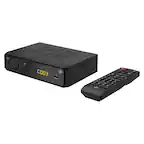
A:AnswerI just purchased this device today and have been playing around with it. I recorded the news at 5pm, pressed the USB button on the remote, selected the PVR option and found a folder named HBPVR that was created on my external drive. In that folder was the file from the news that I had recorded. It has a .MTS file extension if that helps any.
https://fileinfo.com/extension/mts
A:AnswerYou CAN watch a different channel than the one being recorded from, if you choose your TV antenna as your TV's input. Then, you are viewing regular Antenna TV stations using your TV's tuner, while the Aluratec is using it's tuner to record your program. The Aluratec has a "pass-thru", where your antenna's signal goes thru to your TV.
Also curiously with my local stations, like channel 39... they have 39-1, 39-2, 39-3, & 39-4 channels with different programming. I AM able to tune to & watch 39-1 thru 39-3 on the Aluratec, while taping channel 39-4. This is the same on others, I can view different channels if am taping from the same "base" channel.
You can only record 1 channel at a time.
A:AnswerYes, kind of. Not sure if it's a new option or the others answering this question has not seen it. If you are watching a channel and press the INFO button you will see a Quality meter 0% thru 100%. Seems to be a signal strength meter to me.
A:AnswerIt should work with almost any good TV antenna. In the Boston area, most of the stations I like or in the UHF range. So a good UHF antenna works fine for me.
For storage, I ordered one of these thumb-drives for $9.99 during a sale.
SanDisk - Ultra Fit™ 64GB USB 3.1 Flash Drive - Black
Model:SDCZ430-064G-A46 SKU:6182923
A:AnswerI recently purchased this and find it quite confusing to operate. The manual is of little help. I tried to watch a program that was recording, but I think that canceled the recording. It has been a new surprise every time I try to do something. Good luck!
A:AnswerSETUP RECORDING ON TV CONVERTER BOX
You will need to go to the remote control, tap menu, navigate over to the USB tab. choose PVR configure, choose format and make sure your USB stick or drive is formatted for recording. Then back out of that page and go to Record Device. You will see your Disk (C: USB1), choose Timeshift size and set that to 4.0 GB. Then exit.
To record you can simply choose a channel to record and hit the red REC button. Recording will begin immediately.
To set a show to be recorded go to the channel you want, Tap the EPG button on the remote, scroll down or up to choose the show you want to record, hit the OK button, then an EVENT ADD screen will appear. Scroll to the bottom of this screen and you will see a MODE : RECORD section. Tap on OK and that show will be scheduled to record. The screen will show you the event, program, date, time, and the repeat status which defaults to ONCE. You can edit the repeat status in the previous menu (EVENT ADD).
If the show is scheduled to record you will see an Orange, Red, Yellow ball that appears next to the show in the PROGRAM GUIDE, which you can see by tapping the EPG button.
This should get you going.
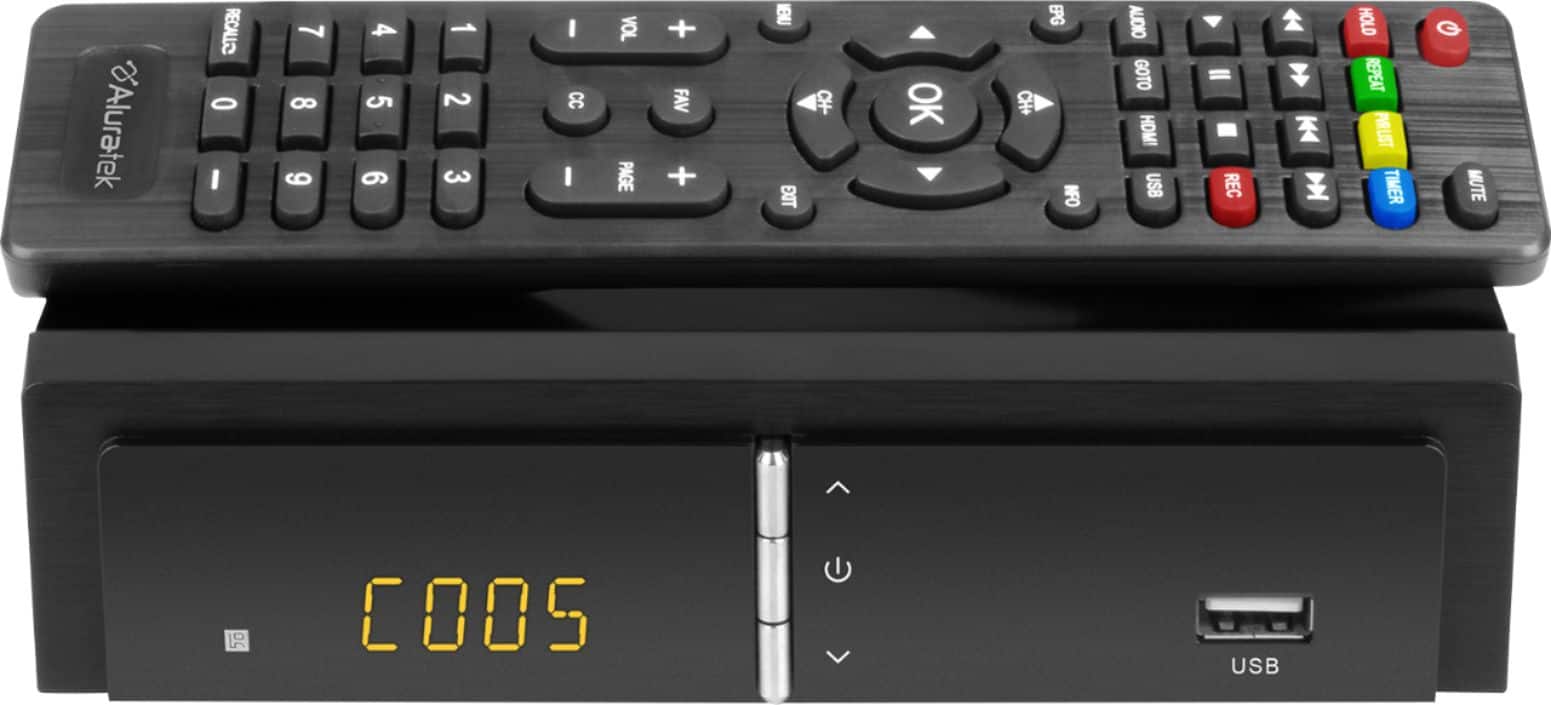
A:Answeri connected this to my lg oled tv and some channels work better in the tv and some work better in the aluratek. i bought this because i work when the programming i watch is on, for this the aluratek works great.
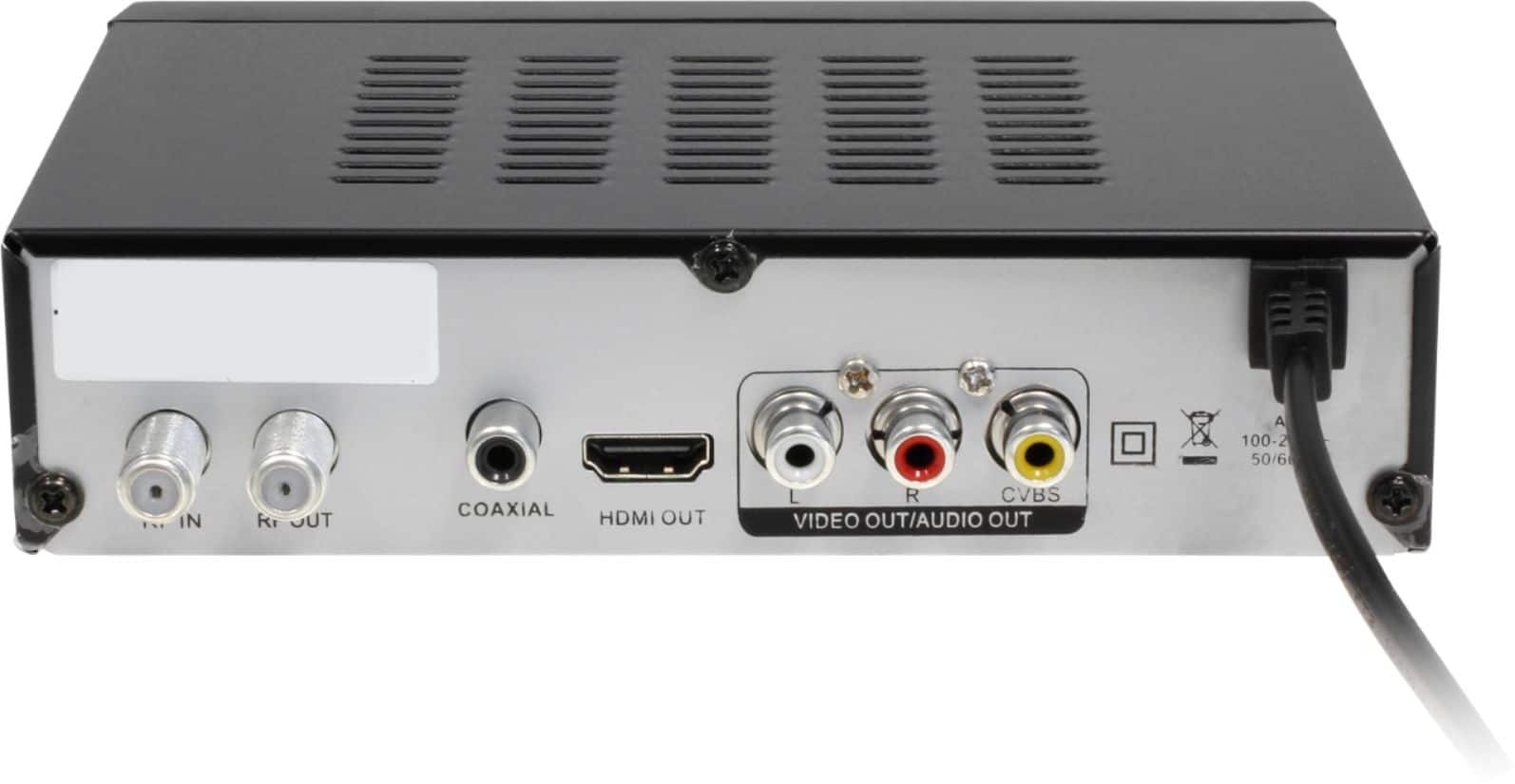
A:AnswerYes, I have a samsung smart tv too, and I use an HDMI cable to connect the dvr recorder to my tv. You also need an antenna cable to connect the recorder to your digital antenna. I attached an antenna splitter to my antenna, running one antenna cable to my tv and another to the recorder. With this setup, I can easily watch one program while recording another. Also, I can disconnect the recorder to move it to another tv, without having to rescan the channels with the antenna - this saves a tremendous amount of wasted time and effort.
A:AnswerThere is not one. I would suggest you contact Aluratek customer service. My remote went out in first 30 days. I'm waiting on Aluratek to give me an alternative.