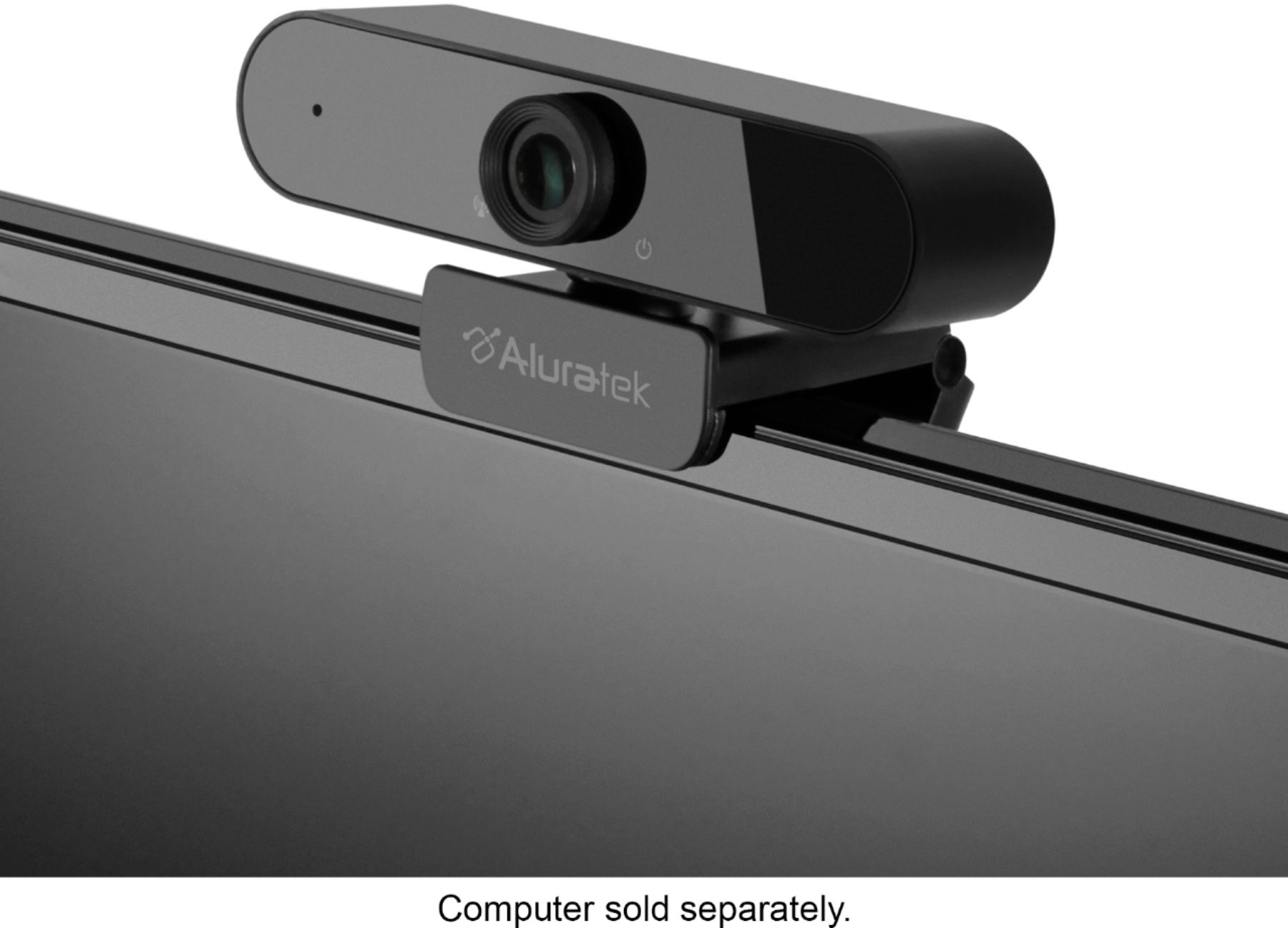
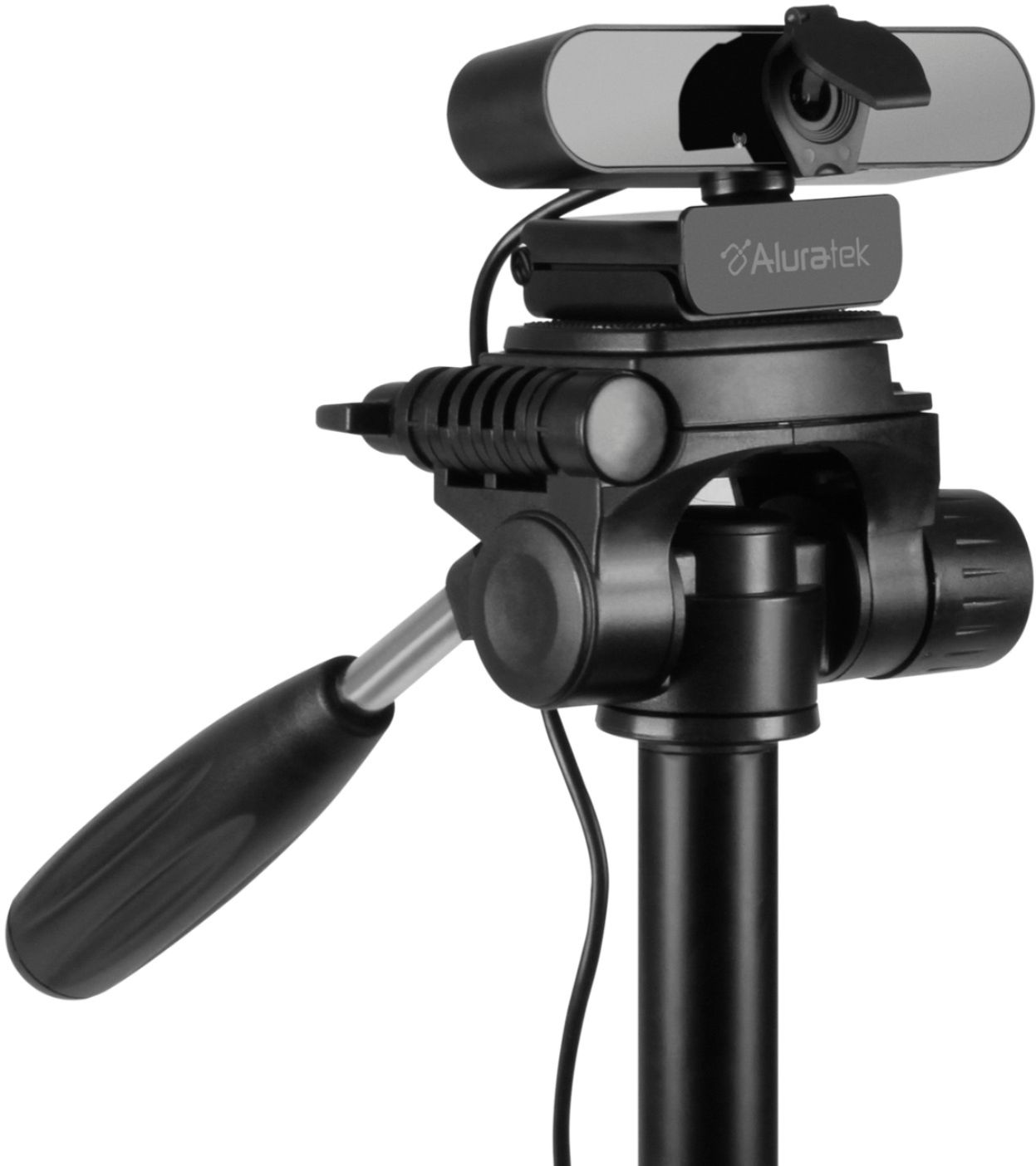
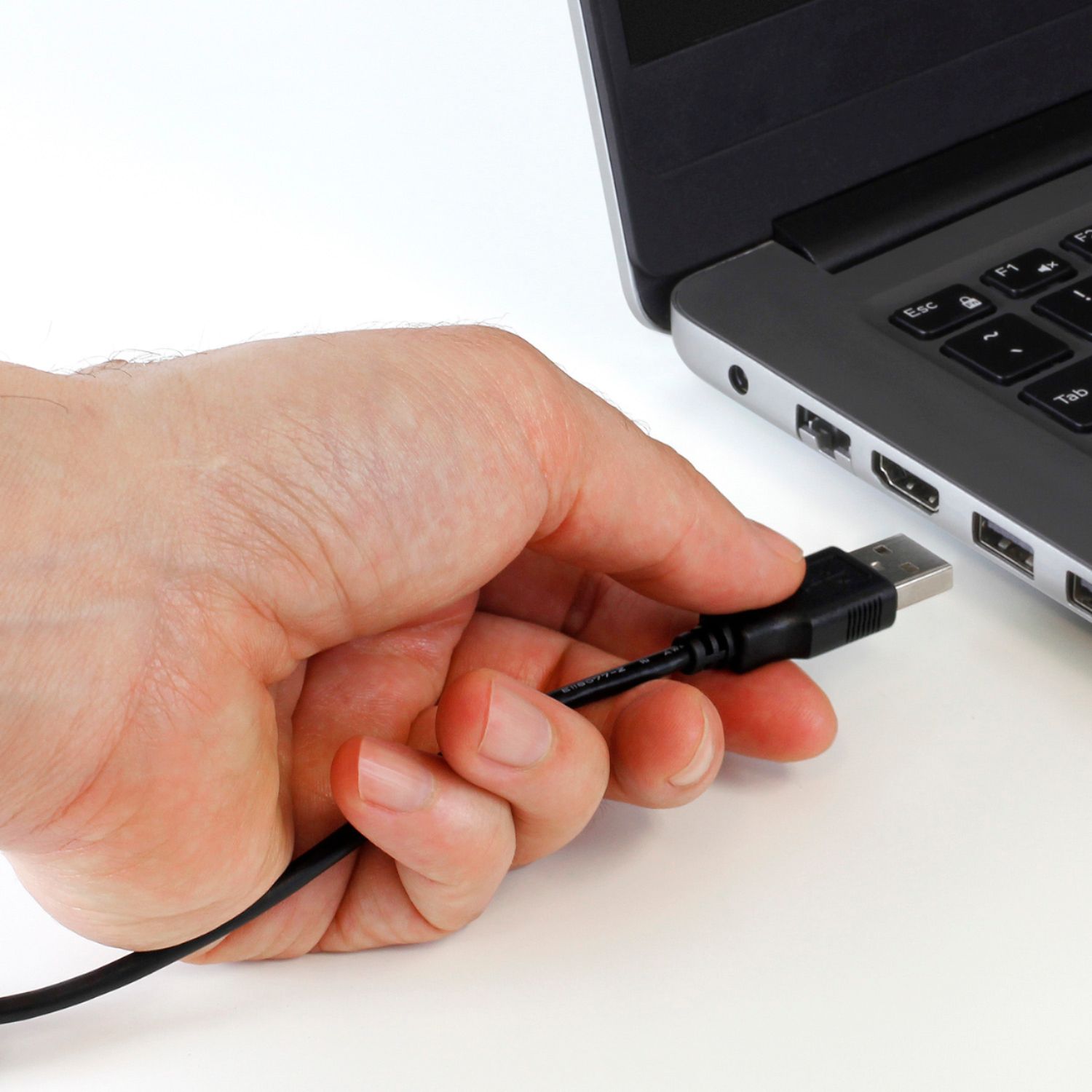
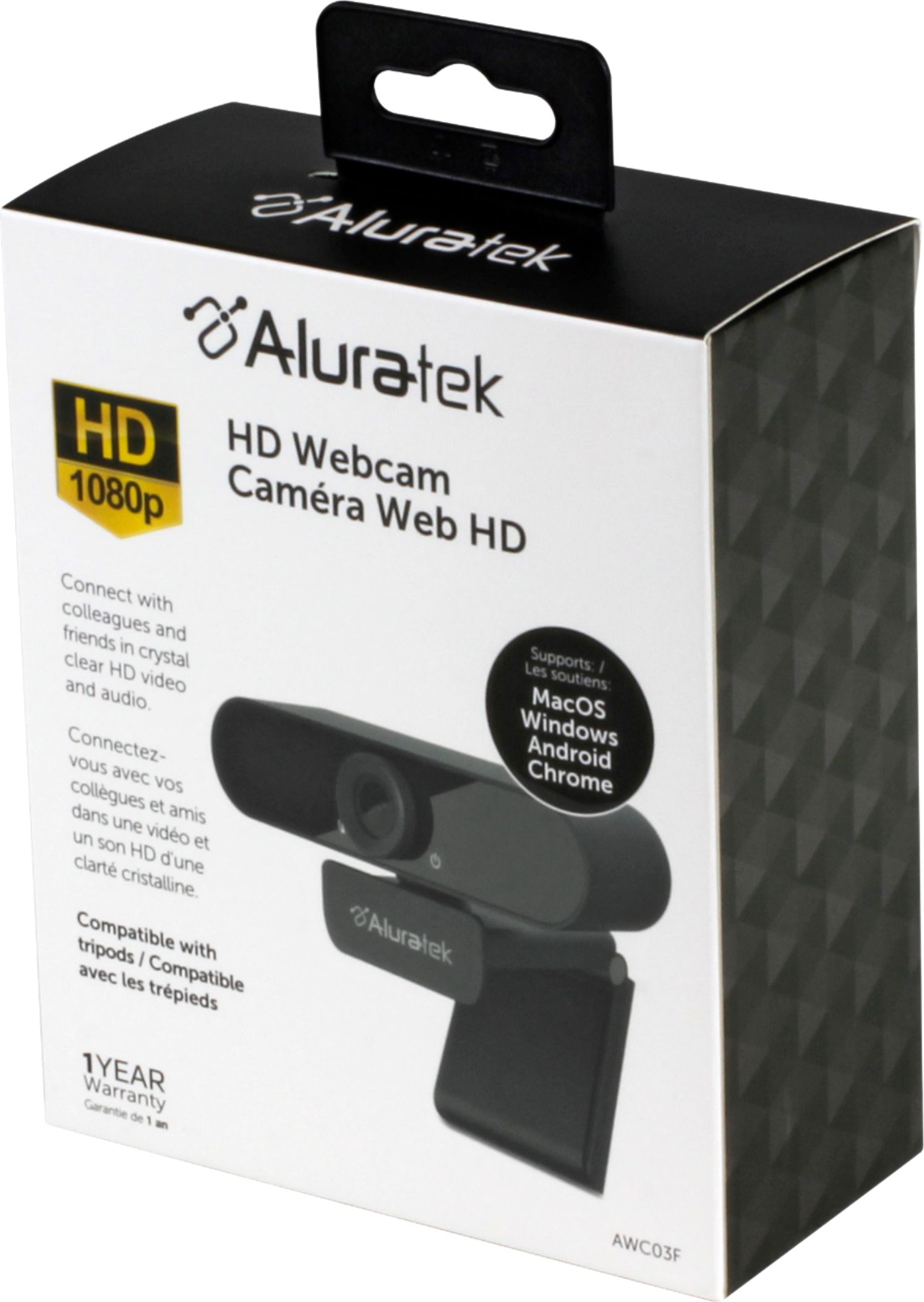
A:AnswerThe camera turns on automatically when plugged into P.C. Go into camera app and switch the camera from the default internal camera. It’s a drop down icon on far right hand side on my windows P.C.
A:AnswerI you're using a laptop, check to see if you have a strong w-fi connection. Move the laptop as close to your router as possible to see if that helps. You can also connect a network cable from the router to the laptop and see if that makes a difference. That's all I've got.
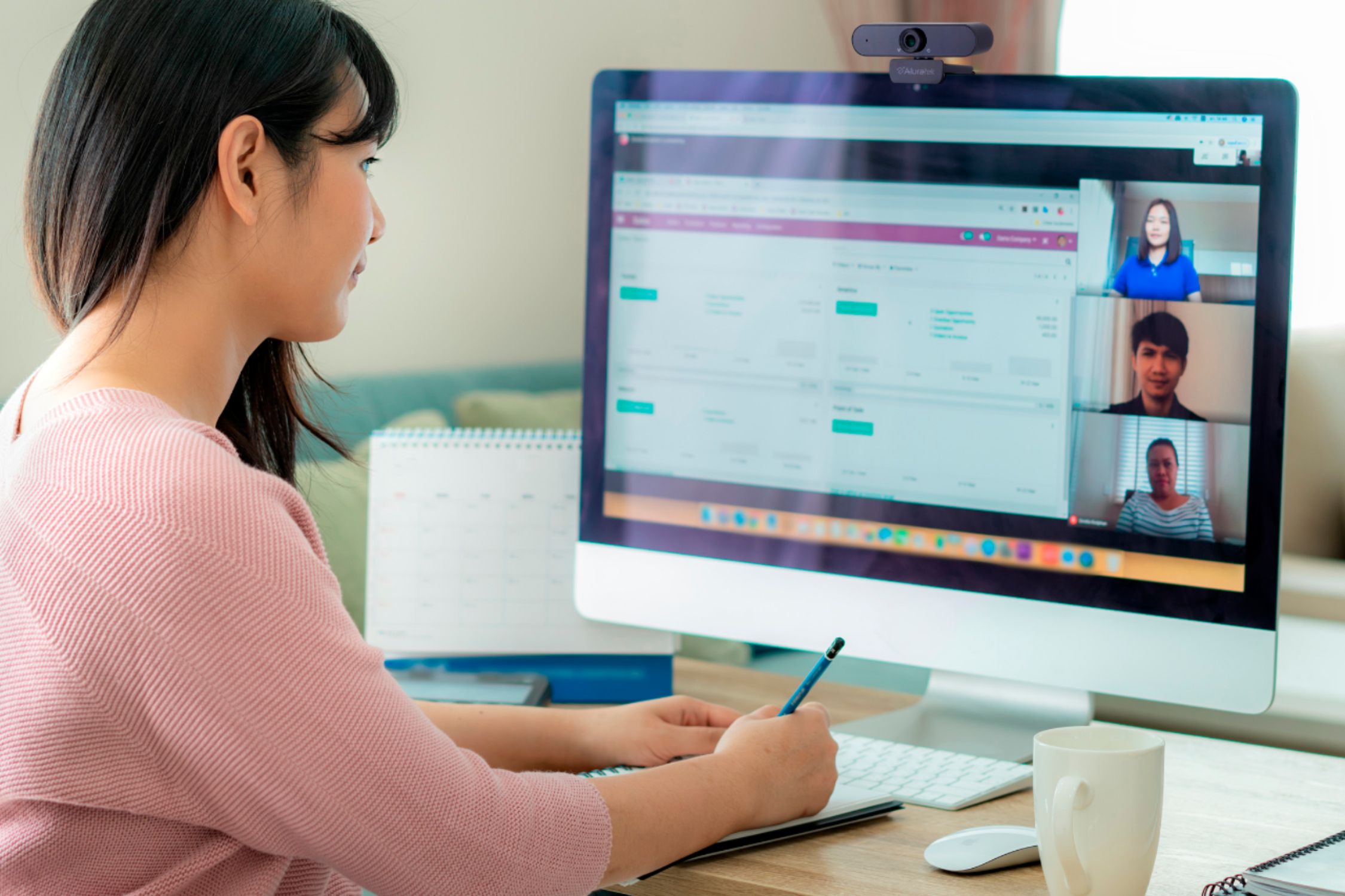
A:AnswerYes, this webcam can be used for video conferencing. I use mine with Zoom without any issues. Microphone included just plug and play. (may need to change a few settings on computer to allow microphone use)
A:AnswerYour recording software should have the option of what video and audio source to use. Make sure it is using the camera mic as the audio source. If that doesnt work give us a call at 866-580-1978 opt 2.
A:AnswerMake sure that your laptop microphone is turned off. Some laptops do not turn off the internal mic when a camera has been added. If you're still having problems give us a call at 866-580-1978 opt 2.