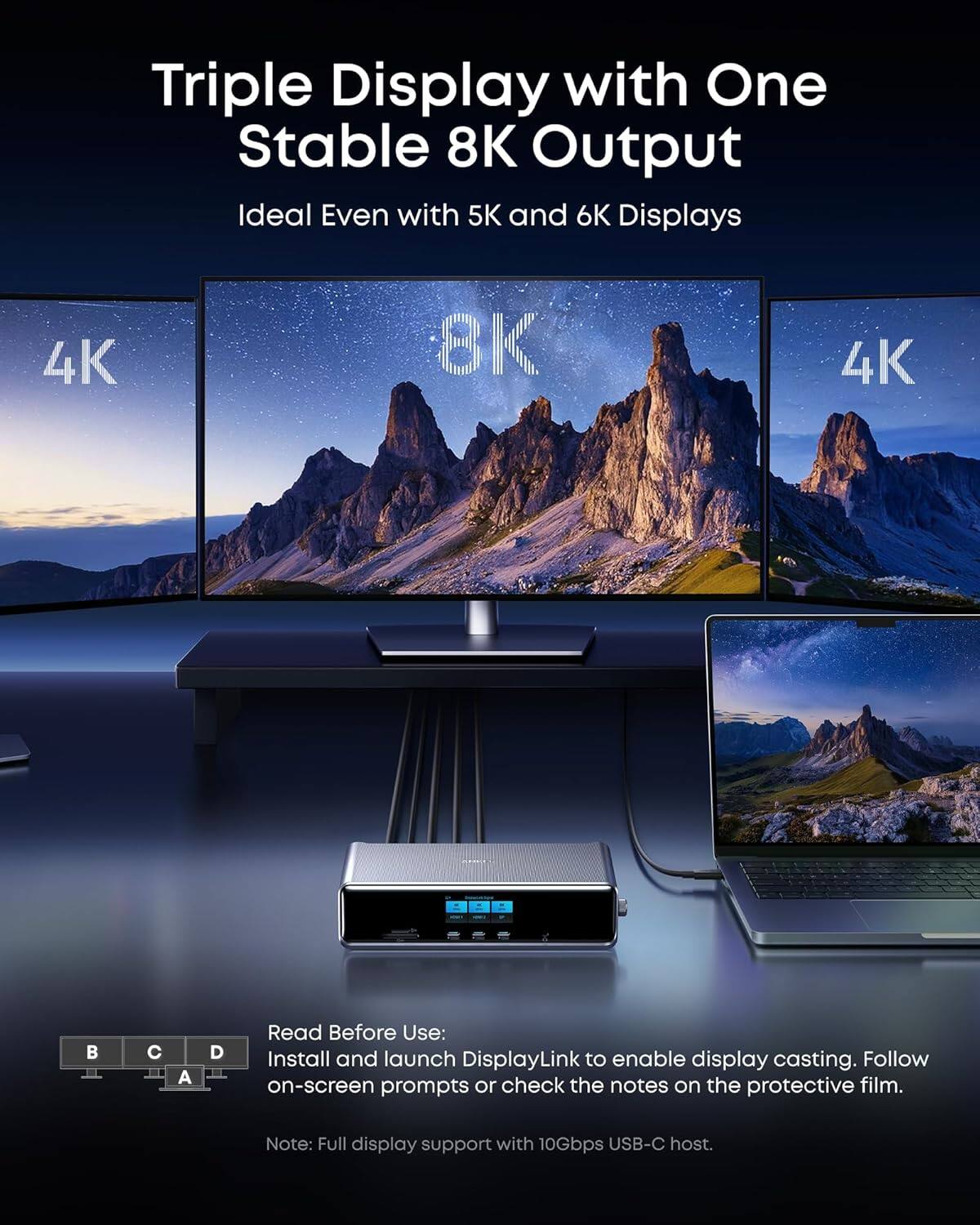
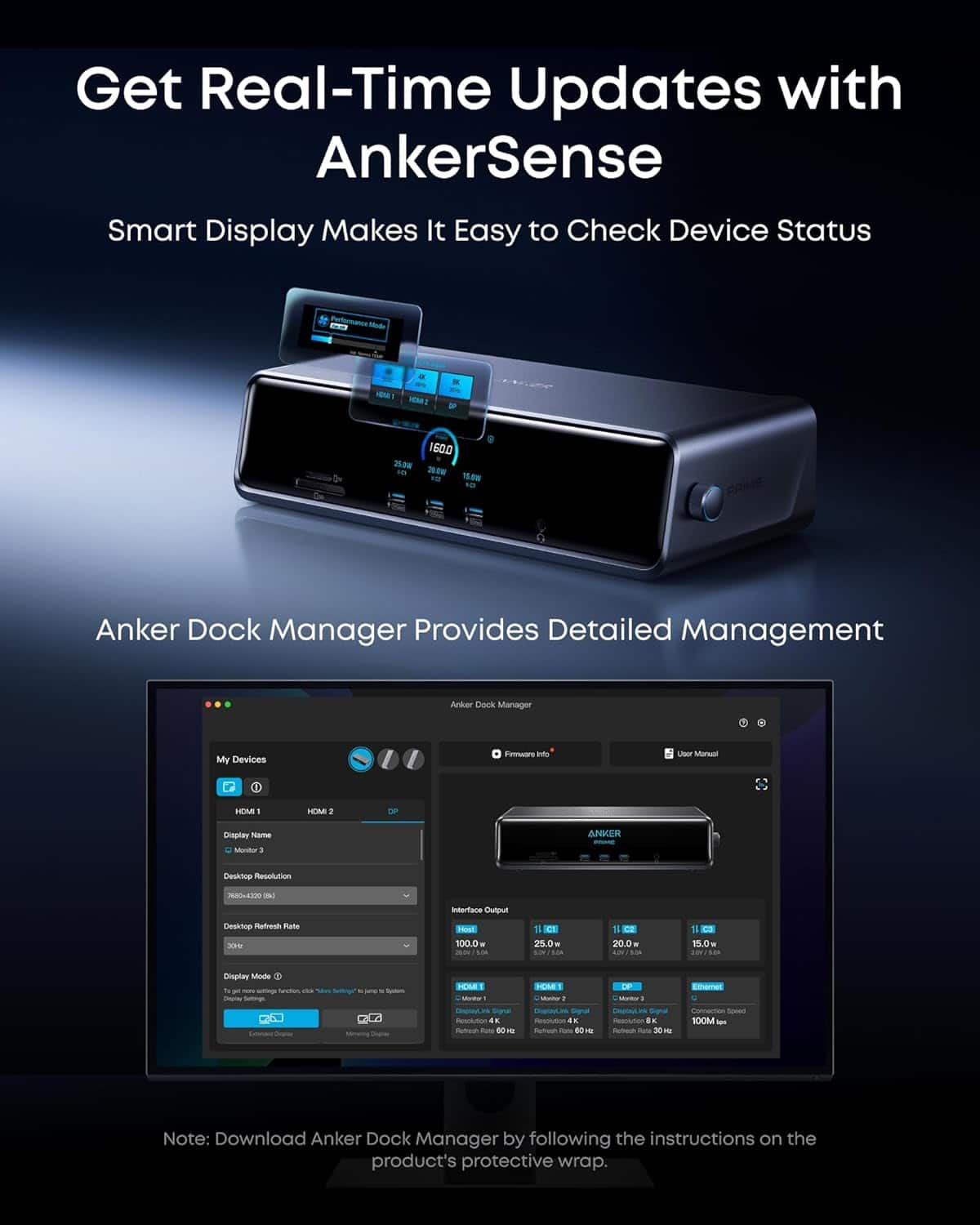
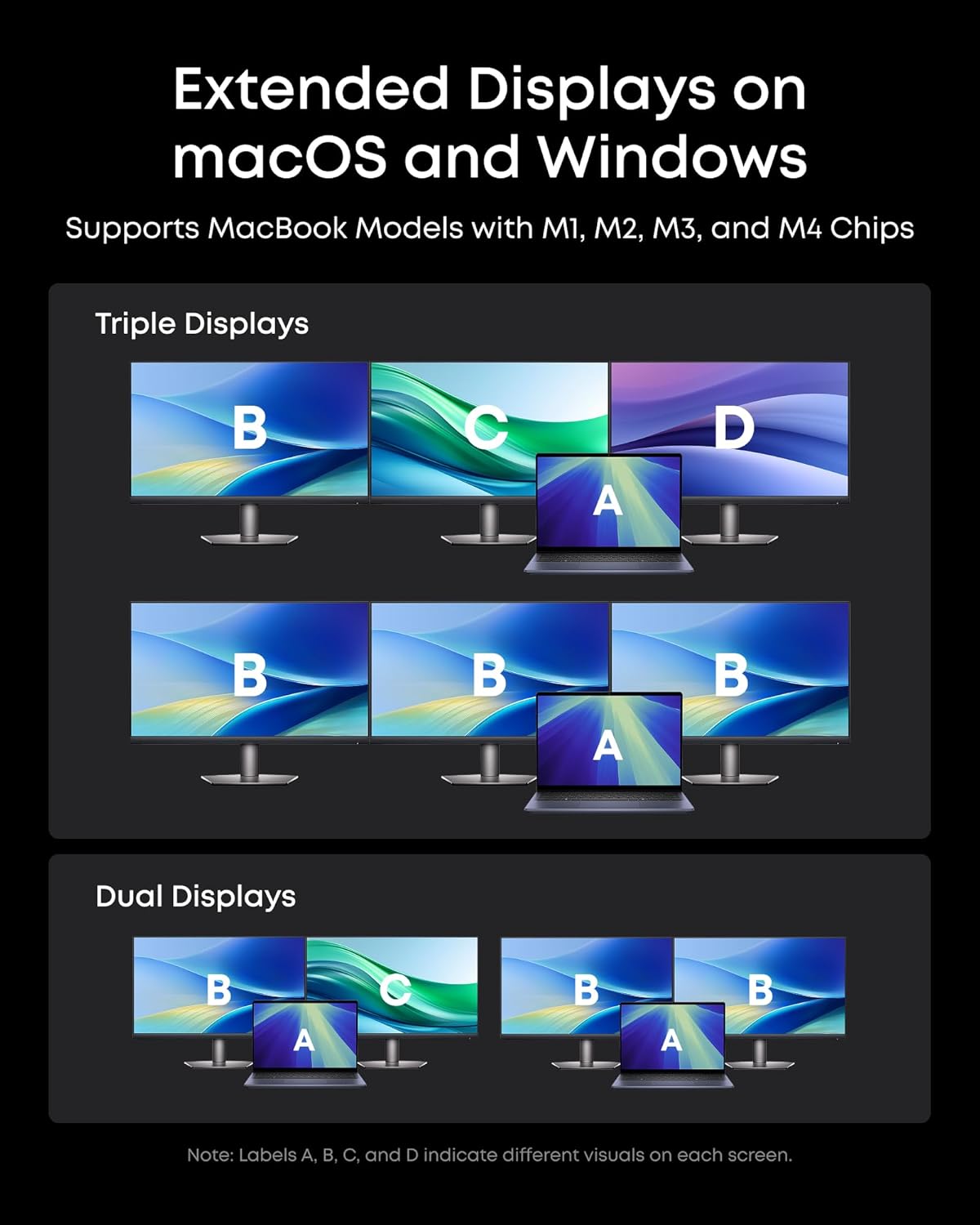
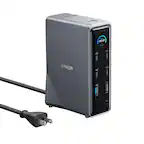
A:AnswerThe Prime Docking Station 14-Port (Model DL7400) does not support dual extended monitor usage with a MacBook Air 2020 running macOS. Devices running macOS only support Single-Stream Transport (SST) mode, which means that if you connect multiple monitors to the dock, the monitors will only mirror the MacBook screen, not act as individual extended monitors.
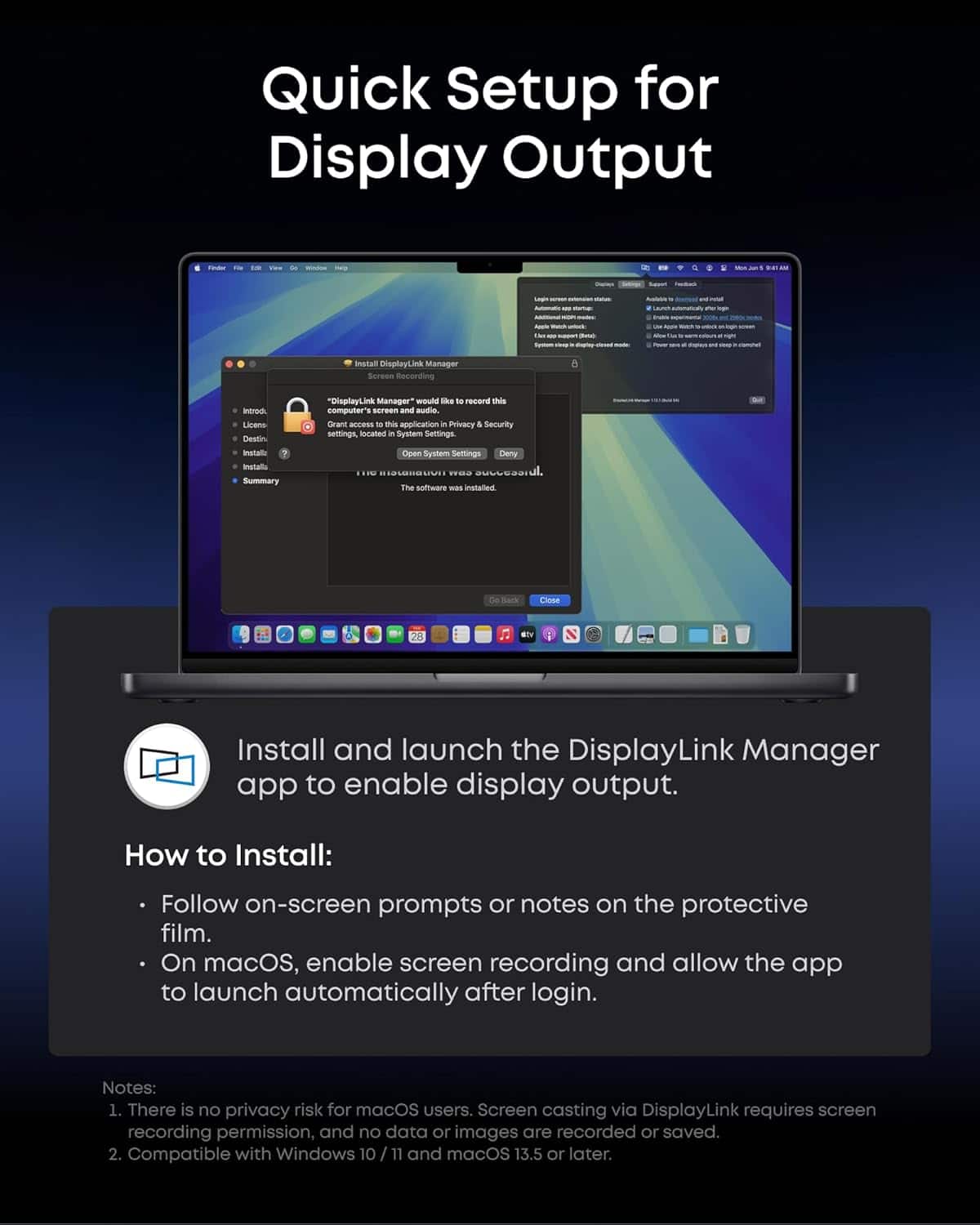
If you want to achieve extended displays with your MacBook, you would need a docking station that utilizes DisplayLink technology, as this can enable extended mode for multiple monitors on a MacBook. Do note that DisplayLink-enabled docks require the installation of the DisplayLink driver and enabling the Screen Recording permission during installation. These steps are necessary for the extended display functionality on macOS.
A:AnswerThe dock you mentioned should be able to work with your MacBook Pro with the M5 chip using DisplayLink technology. However, if you are experiencing lag issues and noting high CPU and GPU usage with the DisplayLink Manager, here are some steps you can take to troubleshoot the issue:
Update DisplayLink Software: Ensure that you have the latest version of the DisplayLink Manager app installed. You can download it from the DisplayLink website: https://www.synaptics.com/products/displaylink-graphics/downloads/macos.
Enable Screen Recording: Confirm that "Screen Recording permission" is enabled for the DisplayLink Manager in macOS. This is required for proper video output through the dock's DisplayLink ports (such as 2K HDMI and 2K DisplayPort).
Check MacOS Updates: Update your macOS to its latest version. Compatibility and performance often improve with system updates.
Optimize Dock Connection: Use the included USB-C to USB-C cable when connecting the dock, and ensure that the USB-C port on your MacBook supports DP Alt Mode. Avoid using adapters or USB-A to USB-C cables.
Reboot and Reconnect: Disconnect the dock and unplug all connected devices. Reboot your MacBook, then reconnect the dock to see if performance improves.
Compatibility Note: If the issue persists, you can try testing the dock with another laptop to confirm whether the lag is specific to your MacBook Pro.
If you've tried these steps and still experience issues, the high usage of DisplayLink Manager may indicate limitations in handling extended displays or an interaction with your specific macOS setup. To reduce the strain on CPU/GPU, consider limiting the resolution or the number of monitors connected at the same time.