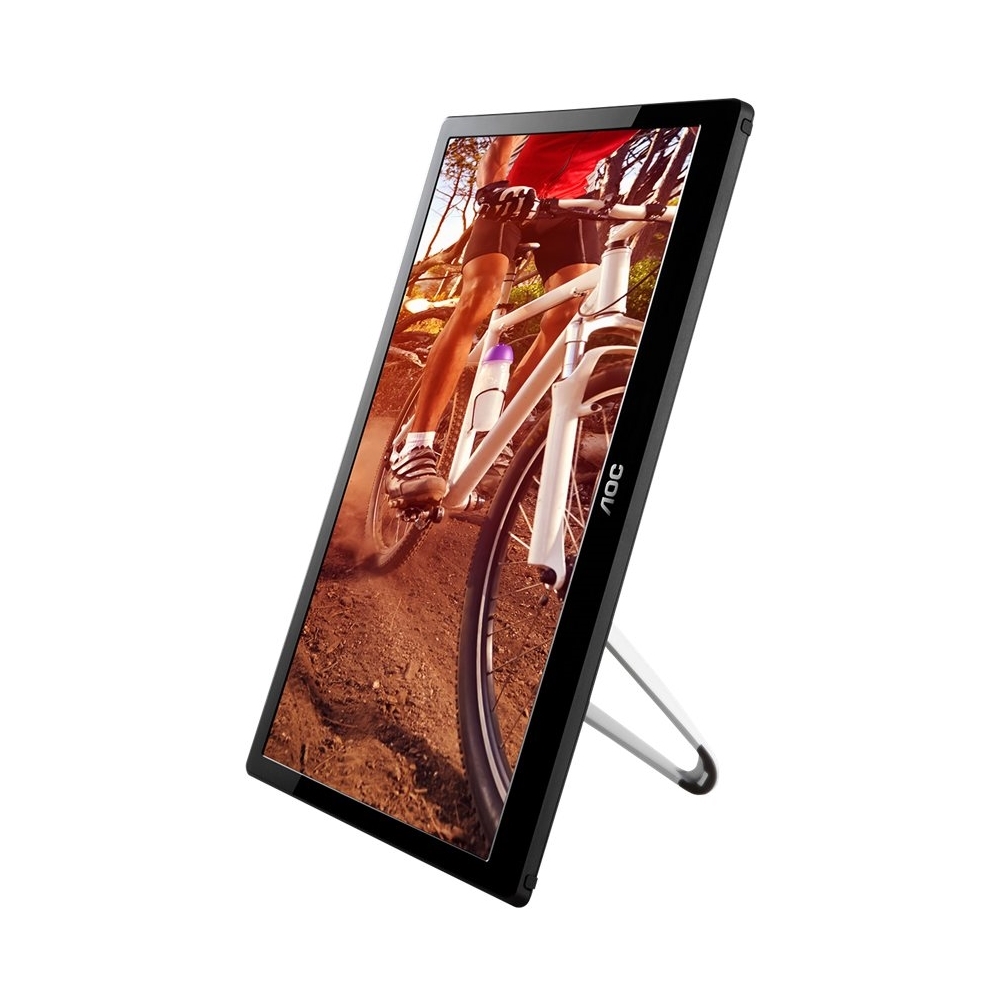
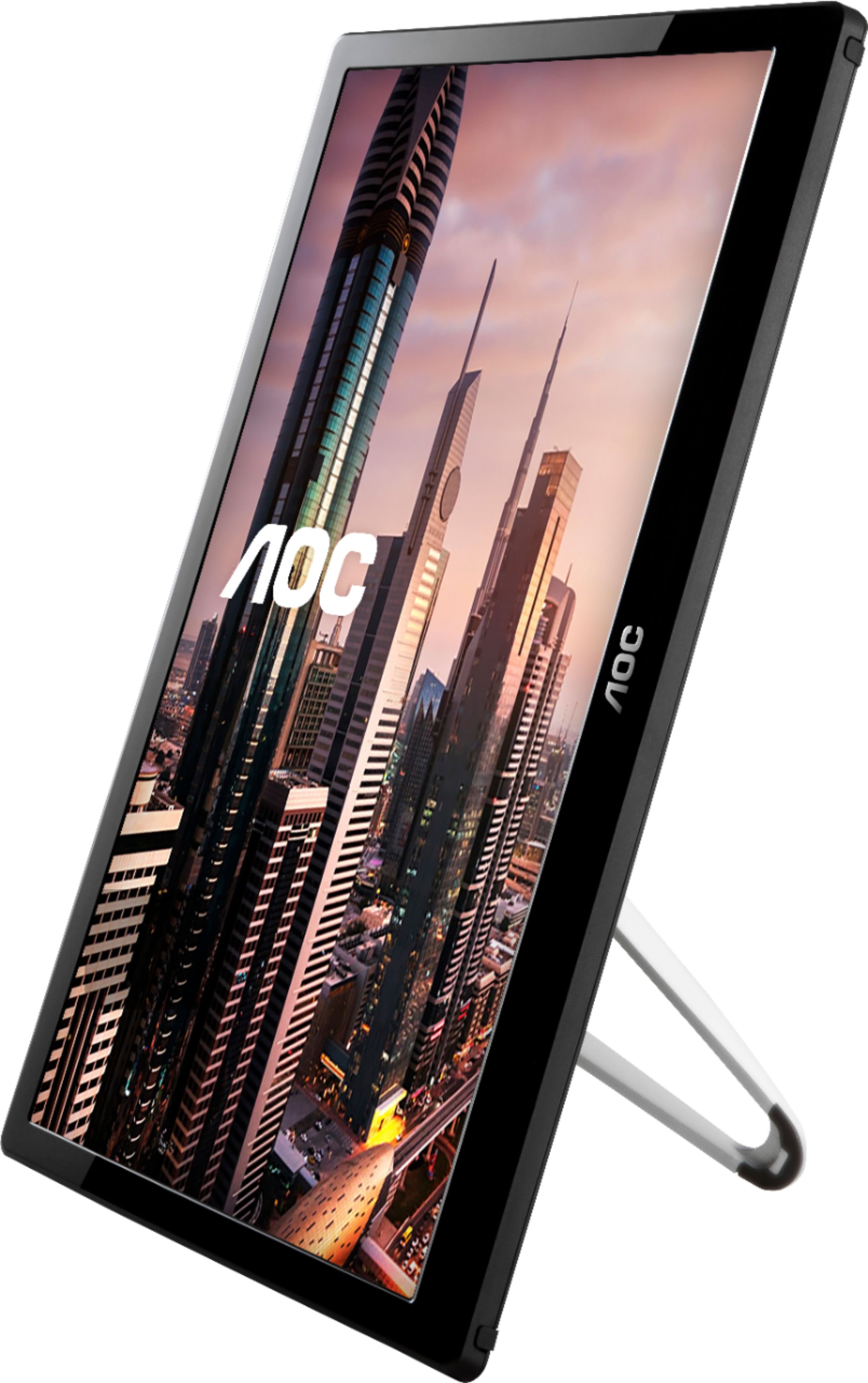
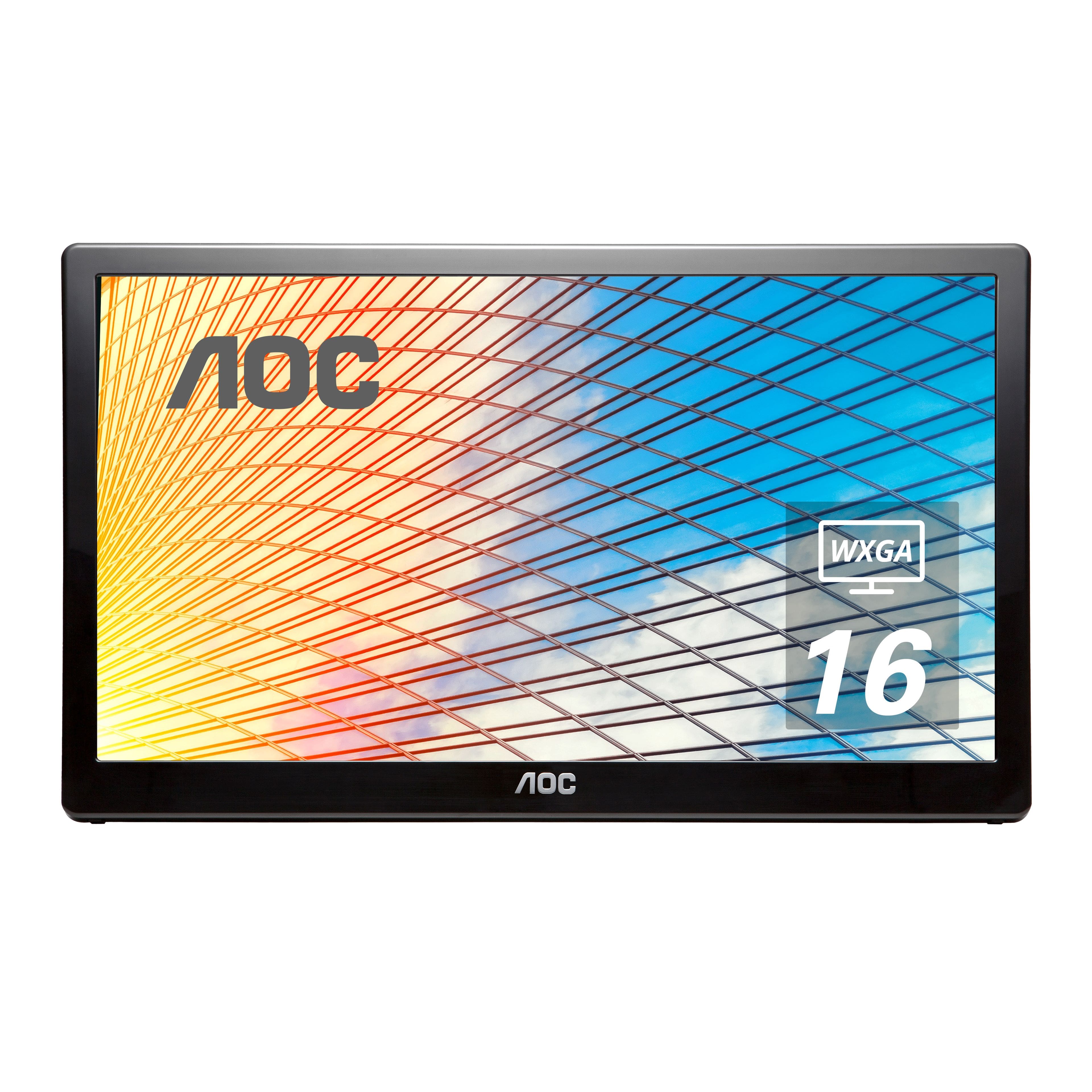
A:AnswerYou don't want to anyway. It has a horrible viewing angle, especially in portrait. Windows will rotate within it's display settings, but I'm not sure about mac
A:AnswerWhen I plugged it into my USB hub, it did not get enough power, so I have it directly plugged into my laptop. I broke down and bought a Bluetooth Keyboard and Mouse because I was regularly running out of USB spots...
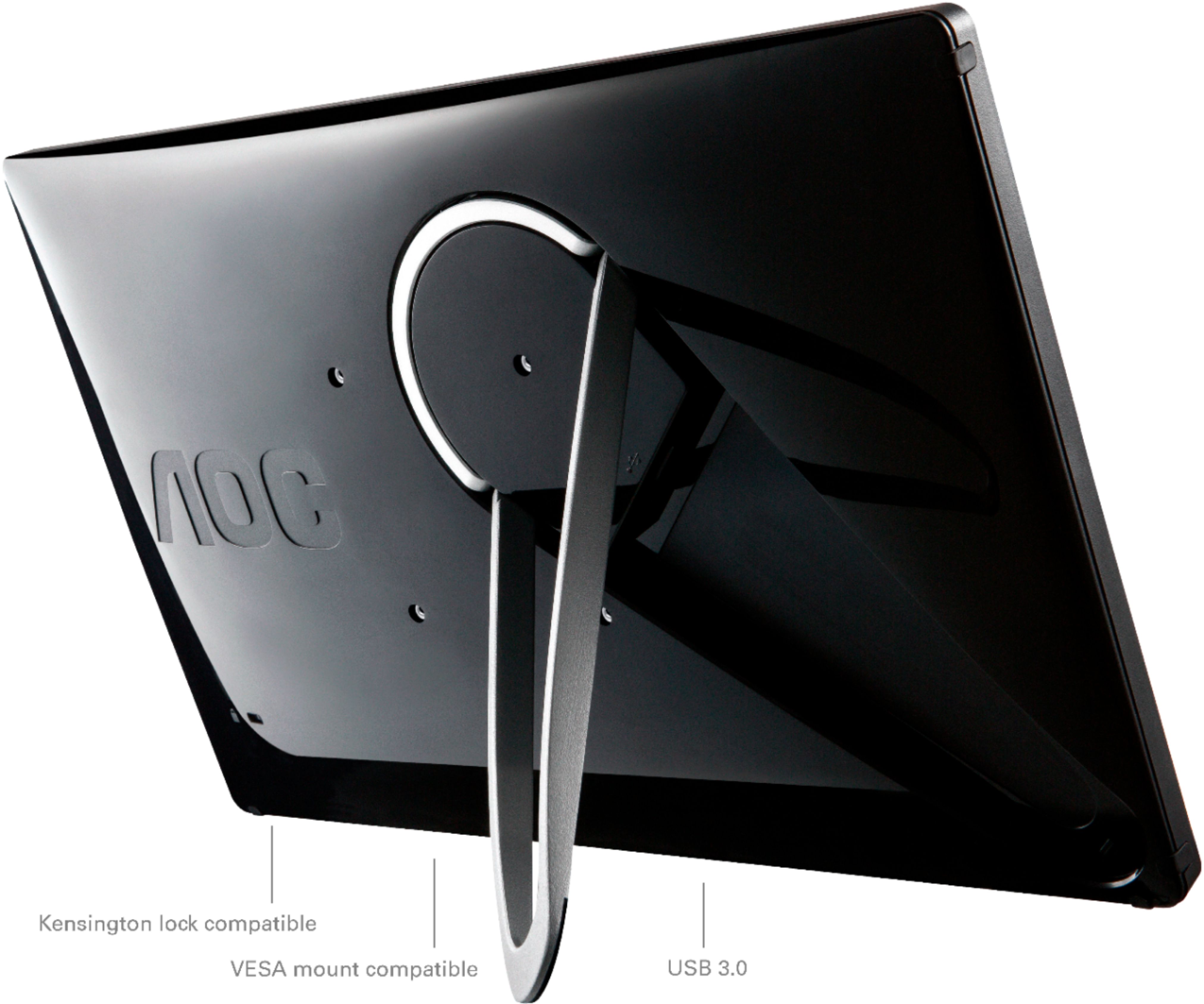
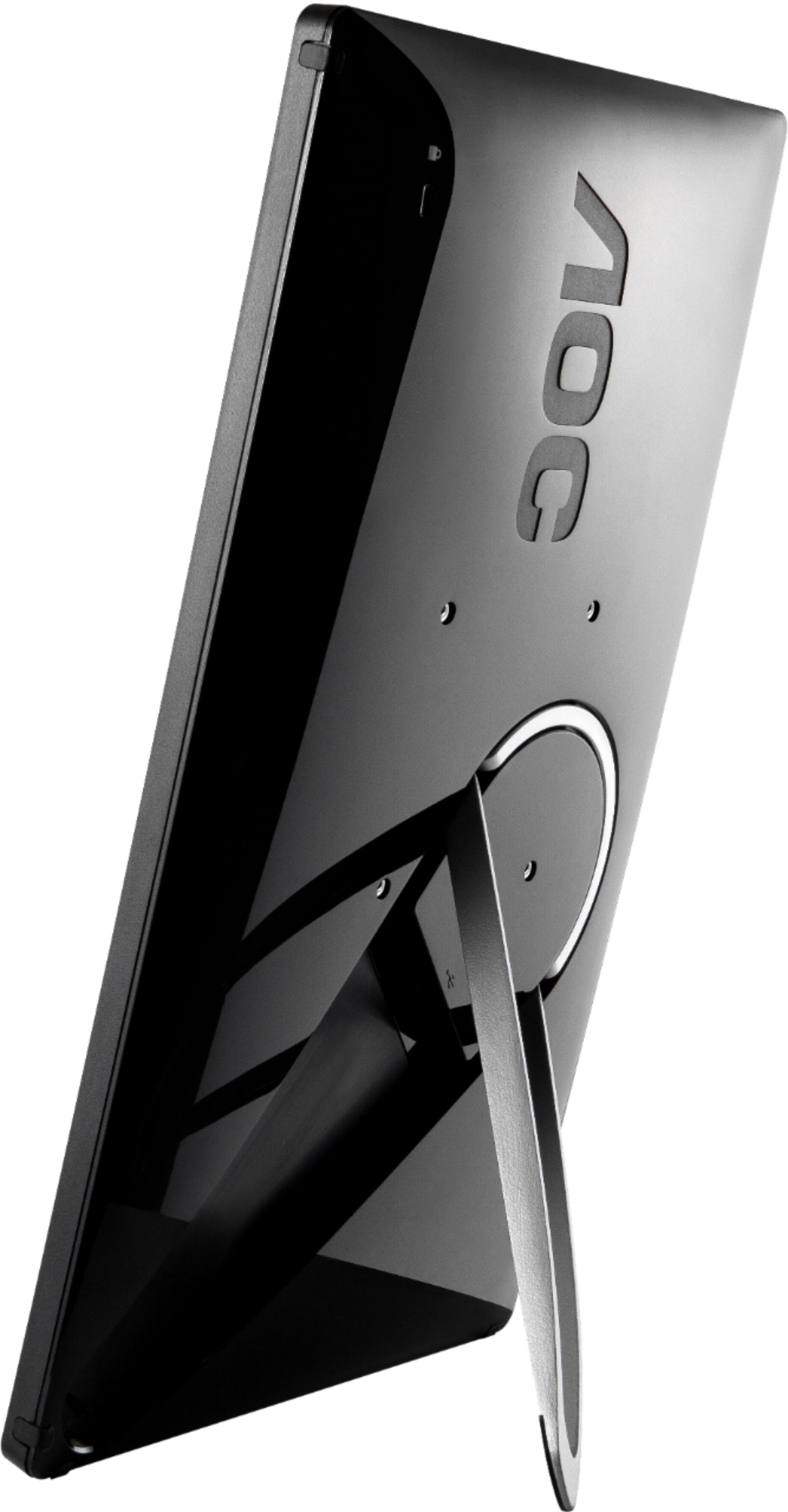
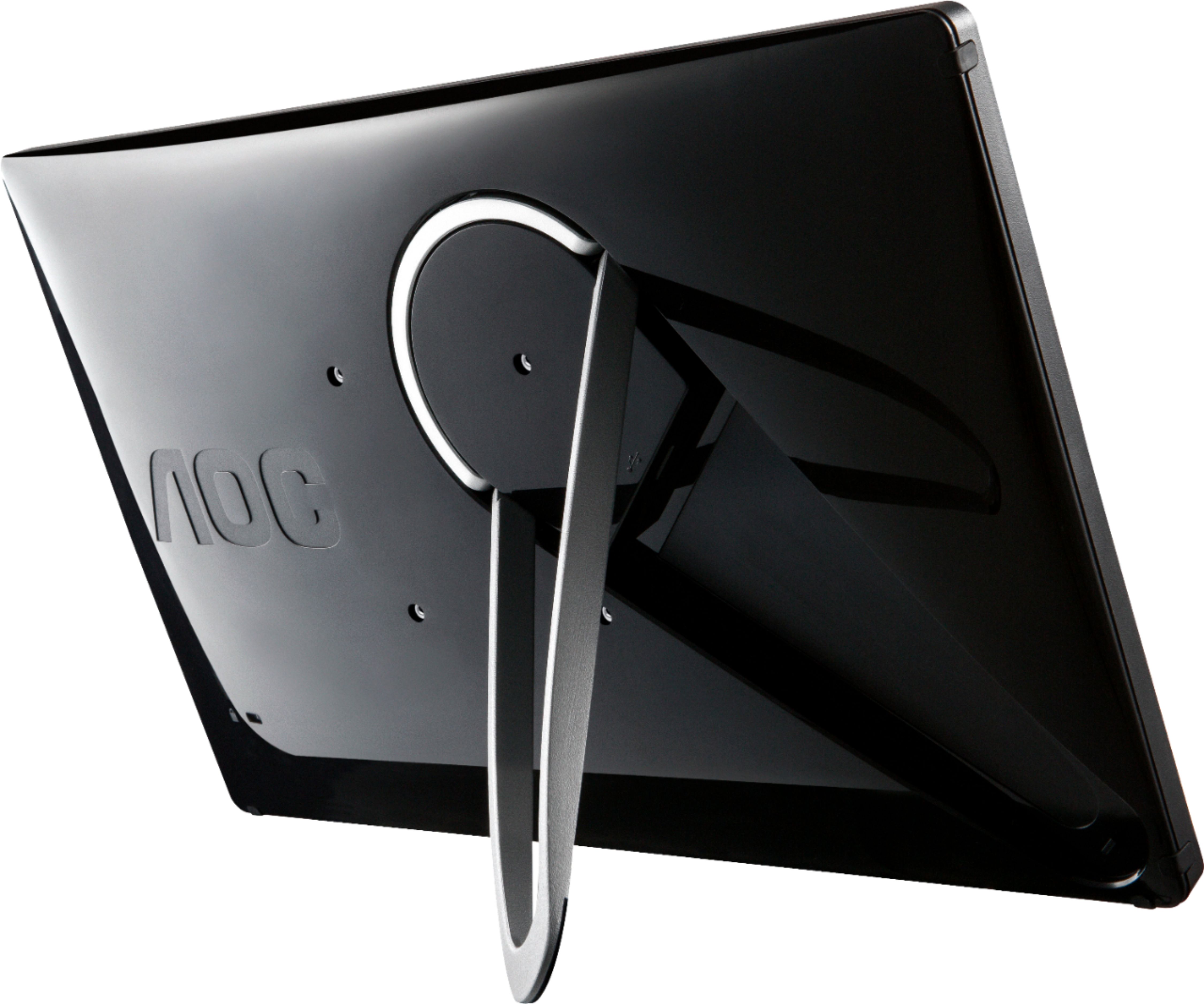
A:AnswerI believe I simply did a plug and play. I suspect there is a download, if you require it. If you have Windows 10, I think you can just plug the usb into your computer. If you only have a 2.0 USB, you will need to have two USB ports available to use the screen without outside power. If you have a 3.0 usb, it will only require one 3.0 usb port.
A:AnswerI could not get this monitor to work with my sons MacBook it would not recognize the device and I could find no mac driver for it on AOC website. We went with another solution for his MacBook. But this works great on a windows laptop.
A:AnswerThey give you two usb plugs because some laptops do not give off enough power to the second screen so you have to use two usb ports to power the screen. Mine works just fine with one.
A:AnswerHi
I’m not certain about the compatibility with other laptops I’m currently using an HP
I believe as long as you have a USB connection you’ll be fine
A:AnswerIt comes with a USB cord. That is how you attach it. You have to download Display Link. You can find the Windows 10 driver on Display Link's website. Then you have to change your display settings to Expand. The directions that come with the monitor are horrible. But the monitor is very nice.