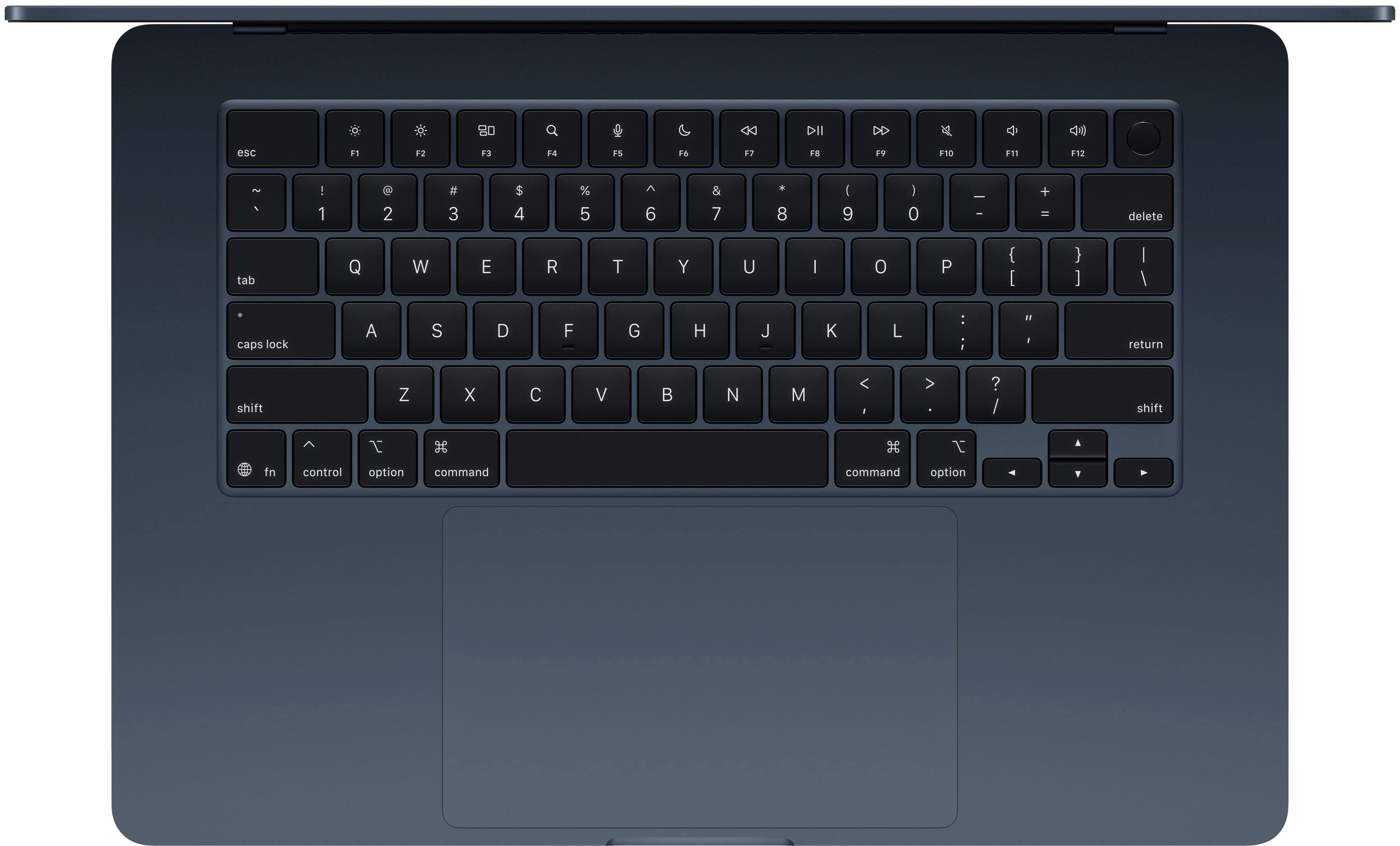
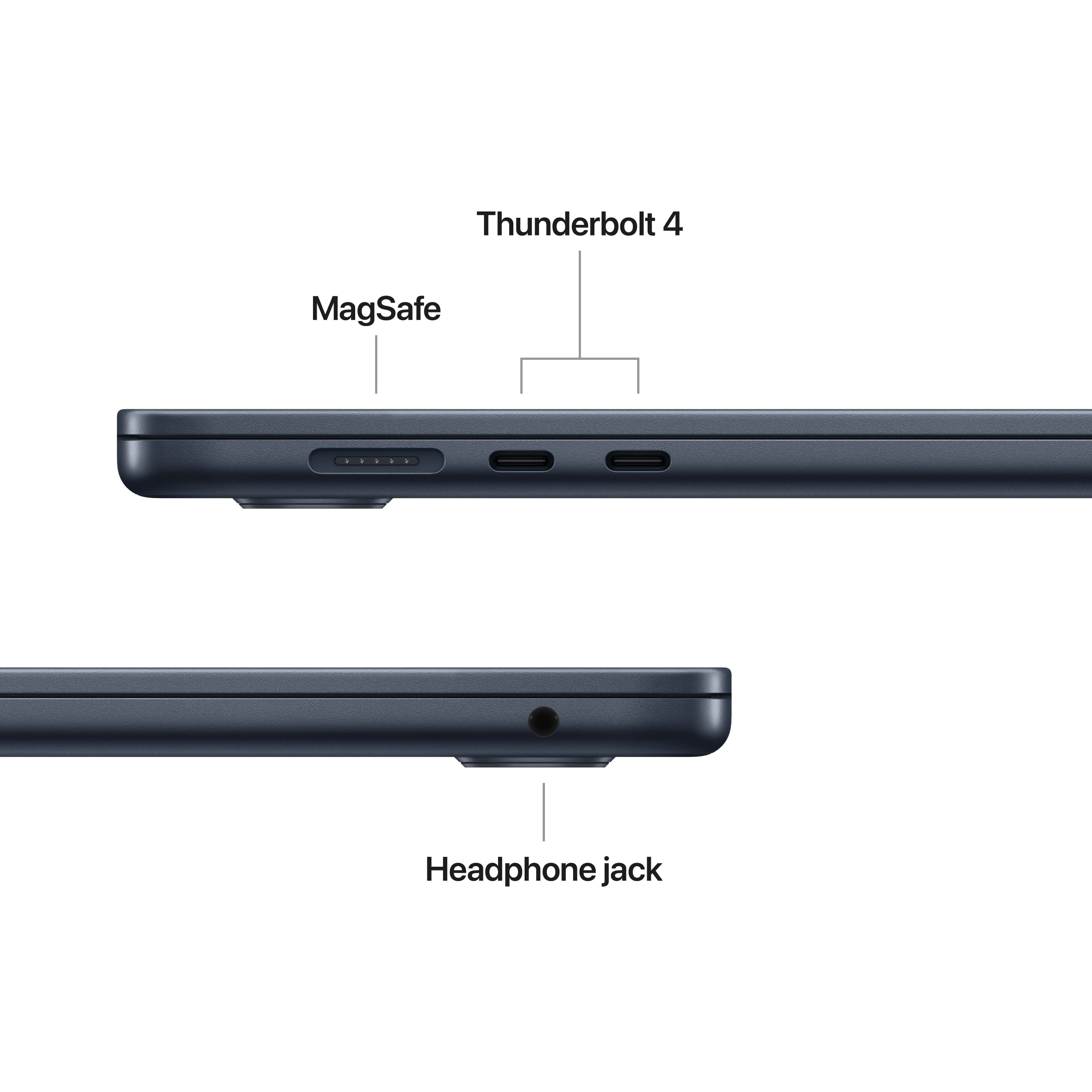
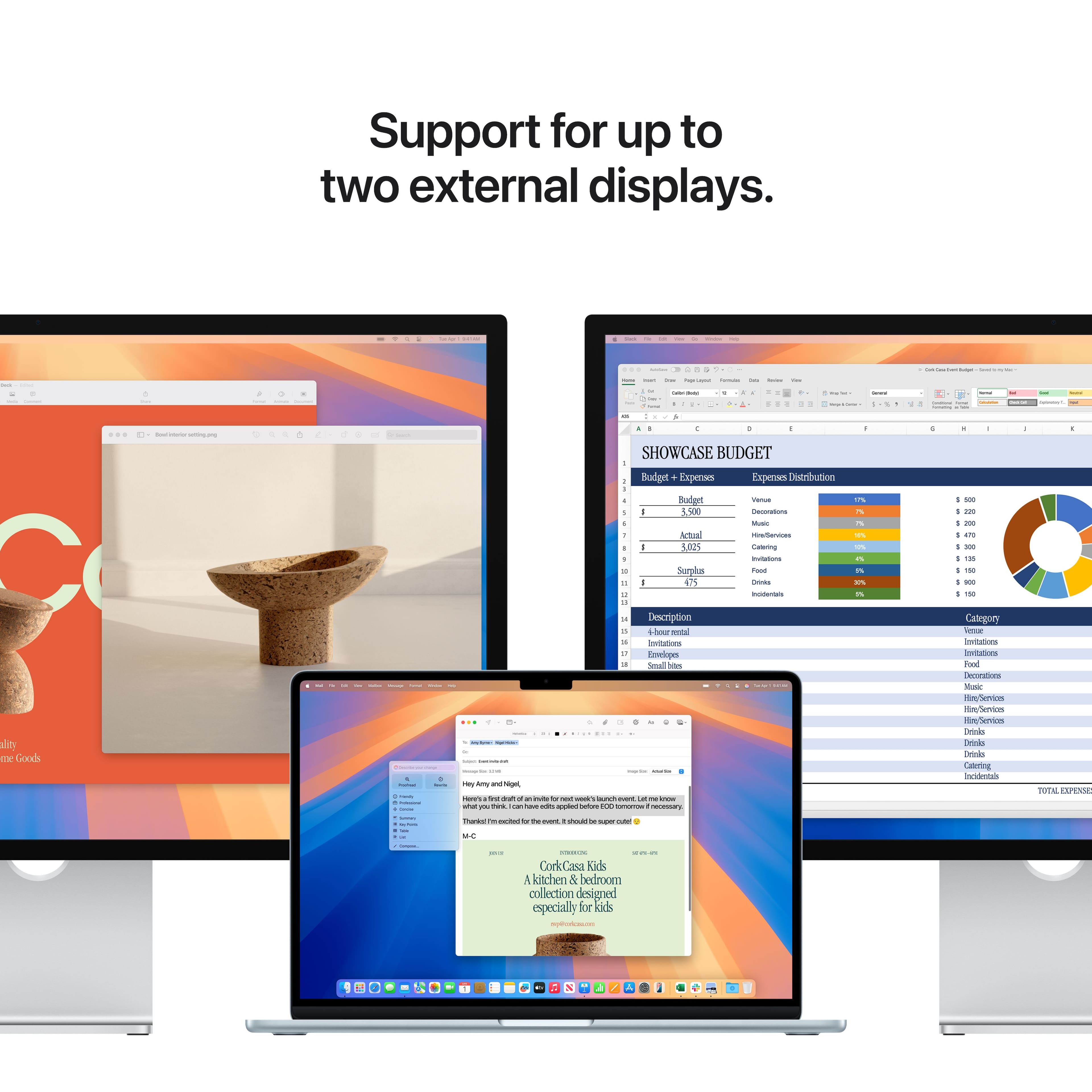
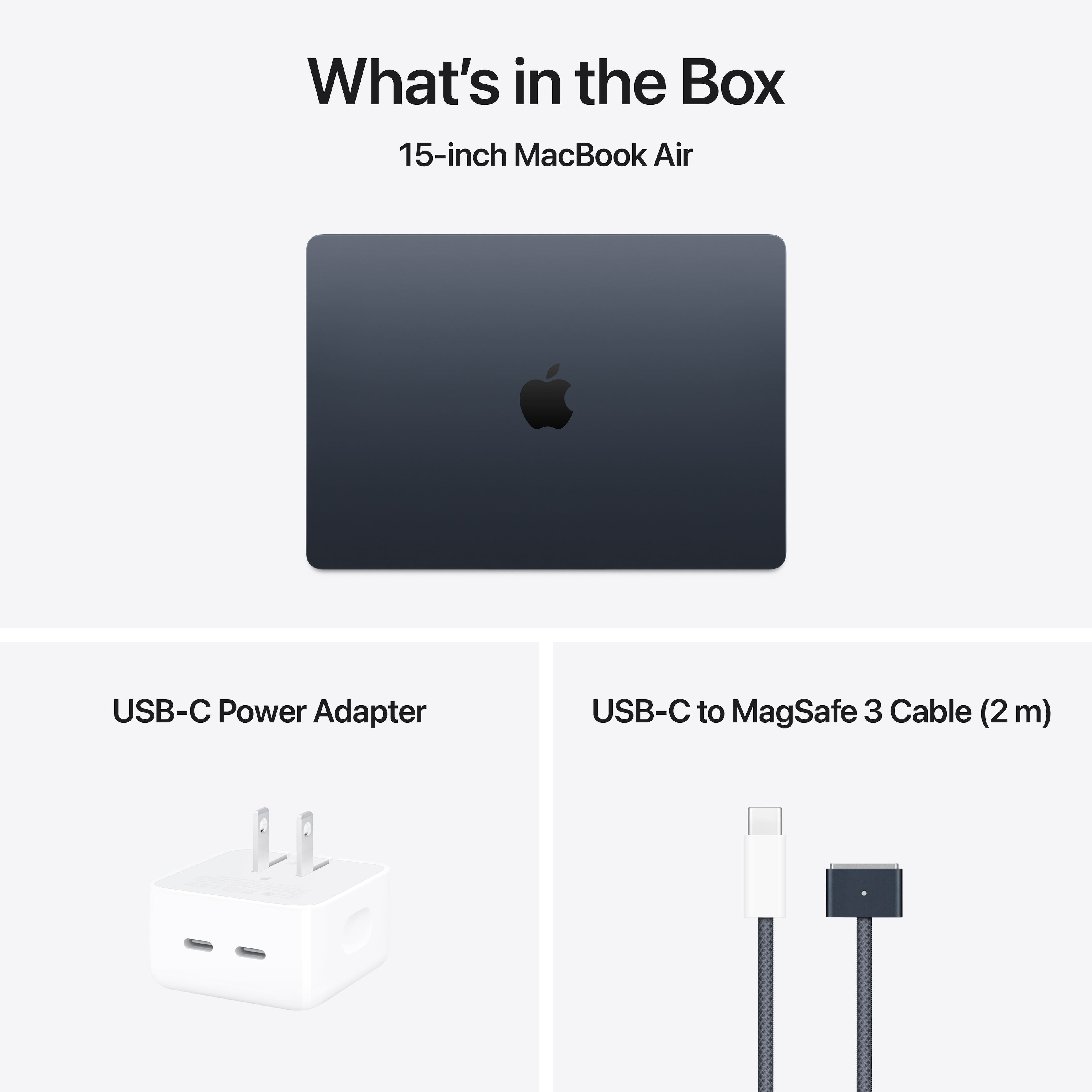
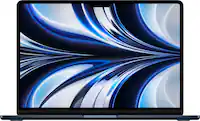
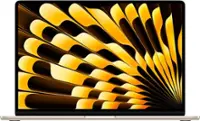
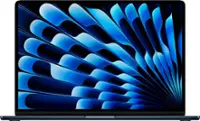
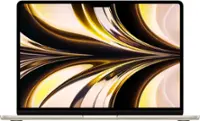
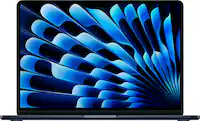
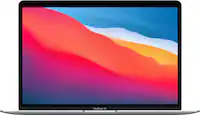
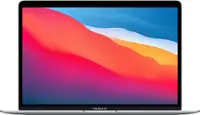
A:AnswerThe M4 MacBook Air does not have a built-in HDMI port, SD card reader, or traditional USB-A ports. Instead, it comes with two Thunderbolt 3/USB-C ports and a standard headphone jack. To connect external displays (like HDMI monitors), SD cards, or older USB-A devices, you’ll need to use a USB-C hub or adapter. These hubs typically offer multiple ports like HDMI, USB-A, Ethernet, and SD card slots all in one, making it easy to expand your MacBook’s connectivity. This design keeps the laptop thinner and lighter but means you’ll need accessories for older or specialized devices.
A:AnswerTo do that in store I would recommend you buy from your nearest Apple Store. They have a setup table just for things like that, and they will assist you if you have questions about what to do free of charge.
A:AnswerThe M4 MacBook Air comes out of the box running macOS Sequoia (as of 2025) and includes Apple’s standard suite of pre-installed apps: Safari for browsing; Mail, Messages, and FaceTime for communication; Contacts, Calendar, Reminders, and Notes for productivity; Photos, Preview, and QuickTime Player for viewing and editing media; Music, Podcasts, TV, and Books for entertainment; Maps, Find My, Weather, Stocks, News, Voice Memos, and Clock for everyday utilities; plus System Settings, the App Store, Siri, and Freeform for collaboration. Apple also bundles creative tools like iMovie and GarageBand, along with its iWork suite—Pages, Numbers, and Keynote—all free. iCloud services, Apple Pay, and Keychain integration are built in as well, but you won’t find Microsoft Office, Adobe software, or other third-party apps preloaded; those must be installed separately.
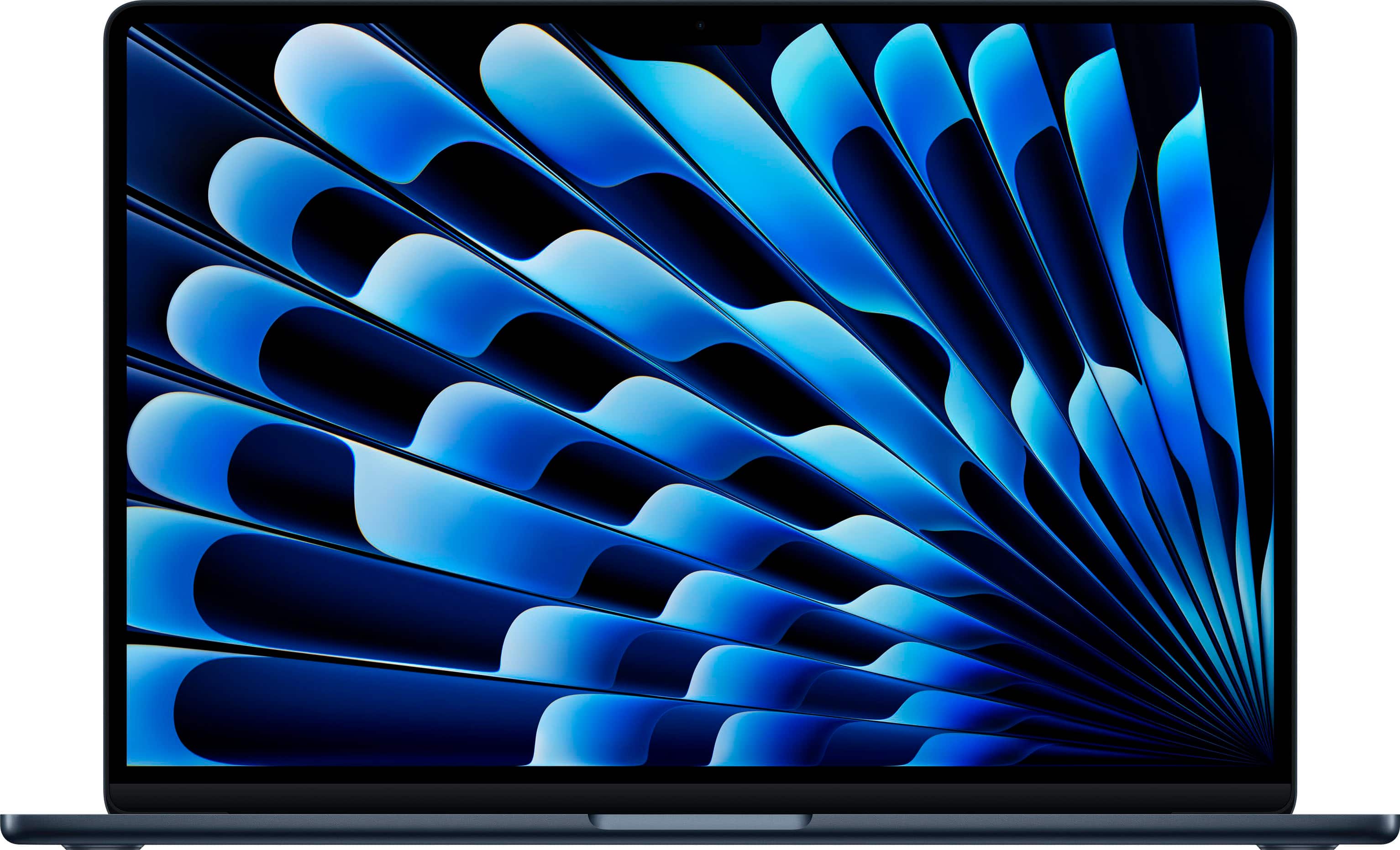
A:AnswerWith the Mac, there is no need for antivirus software, the Mac OS is more secure than Windows 11, and the build quality of the Mac is far superior to most Windows Laptops.
With a Mac, Apple designs the hardware and the software to work together. With Windows machines, Microsoft makes the software and a multitude of companies design the hardware. Apple in my experience gives a more reliable, and unified "It Just Works" experience.
A:AnswerUnfortunately, most iMacs made after 2014 do not support Target Display Mode, and newer MacBooks, including the M4 MacBook Air, do not support this feature either. You would need a third-party app or hardware workaround, such as Luna Display, Duet Display, or Astropad, but keep in mind that these methods are not officially supported by Apple.
A:AnswerYes. Apple is user friendly and there are tips to help you navigate when you set up the MacBook. If purchasing from a retailer like Apple or Best buy, the employees are normally pretty good about assisting with set up too; just ask.
A:AnswerNo! The product is completely yours. You receive it as new, so none of your data will be associated with the seller. Best Buy will not download or access any of your information.