A:AnswerWhat you are hearing is known as needle talk and is normal. This is just the noise created by the mechanical interfacing of the stylus (needle) to the record surface.
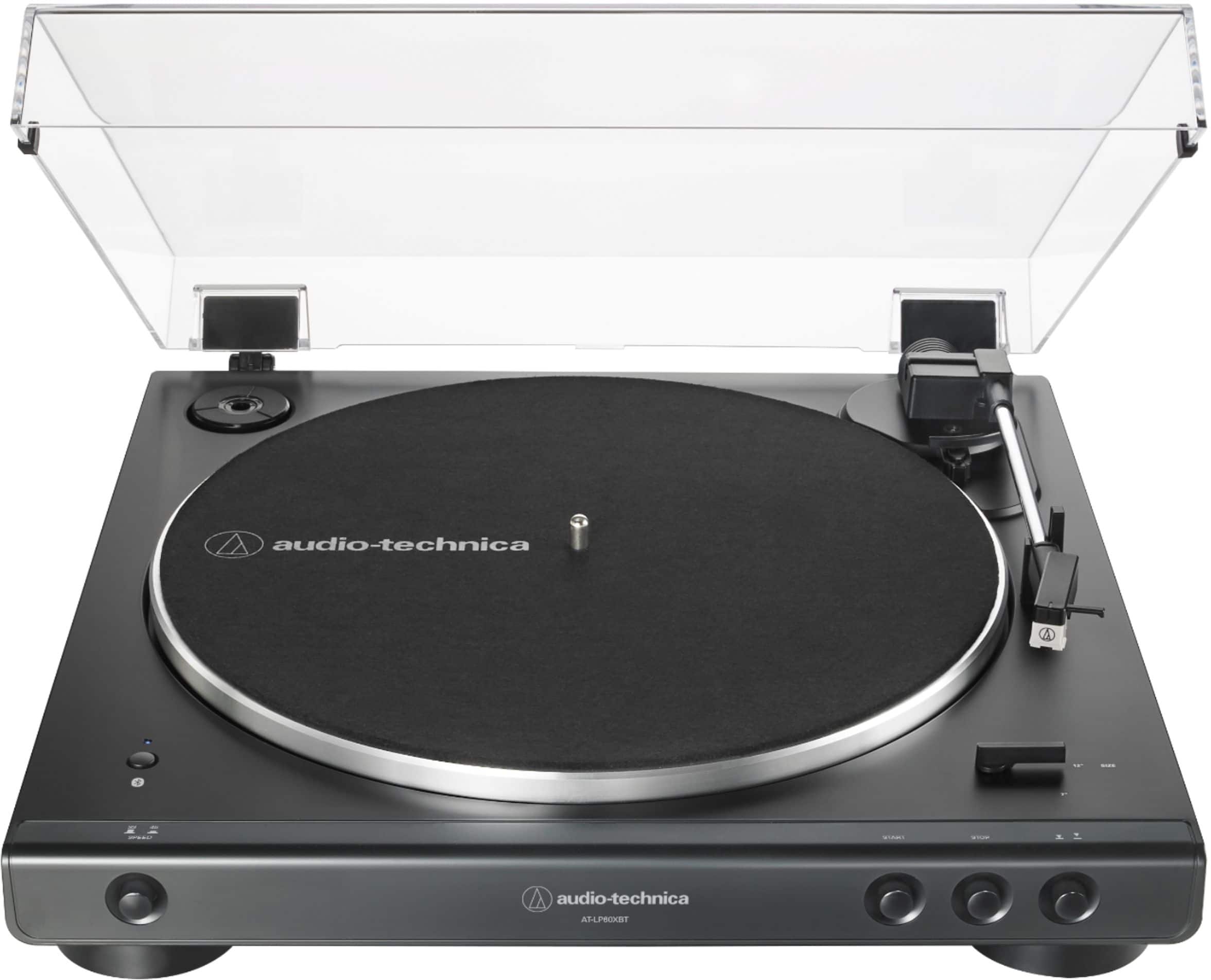
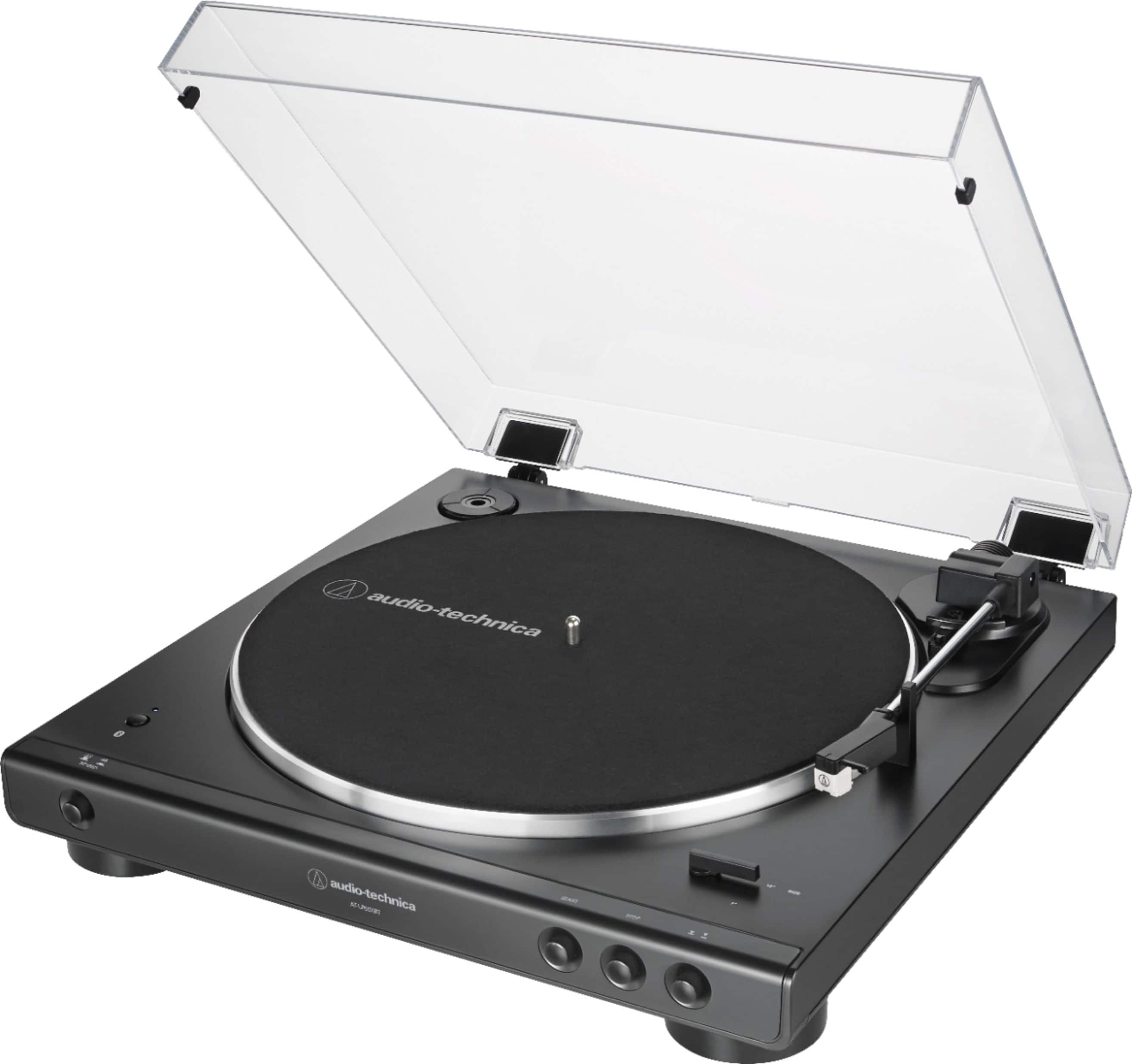
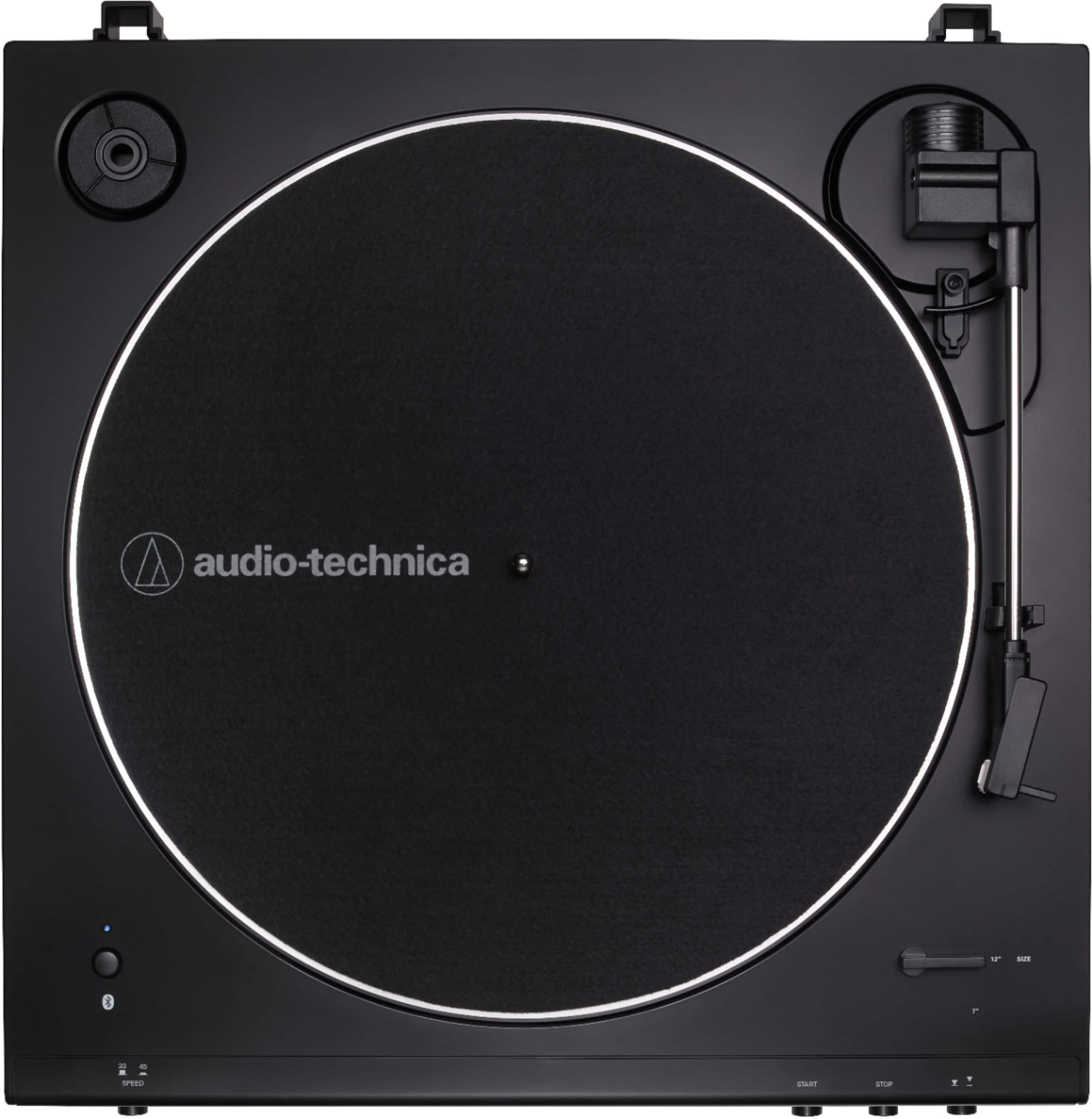
A:AnswerTest the turntable for sound by listening to it directly. To do this, connect a set of wired headphones to the 3.5mm Analog Out jack on the back of the turntable. Make certain that the preamp selector switch located next to the jack is set to the LINE position for this test. You may leave the switch set to the LINE position for Bluetooth use. If you will be connecting the turntables RCA audio cable to the PHONO input on a stereo amplifier or receiver at some point however, the switch will need to set to the PHONO position AFTER this test. Do you hear the record playing in the headphones while the switch is in the LINE position? If you do, the turntable is producing sound and the problem lies elsewhere. If you do NOT hear the record playing n the headphones, remove then reinstall the stylus assembly as if you were replacing it with a new one. Refer to the illustrations on page 10 of the User Manual (below) for assistance with this.
https://www.audio-technica.com/media/wysiwyg/product/pdfs/us/at_lp60xbt_um_162501372_v2_en_web_190527.pdf
A:AnswerSome surface noise (or needle talk) is common due to the mechanical stylus to record surface interface. If you feel that the noise is excessive and it can still be heard with the dust cover closed, you may need to replace the stylus assembly.
A:AnswerYou cannot change the volume. There is no physical volume control on AirPods, the volume level is controlled by the device the AirPods are paired to. There is no volume control on a turntable.
A:AnswerIf you use the cable that comes with it make sure the unit is set on line not phono. Line uses the internal amp so you can connect it to any line in or powered speaker's.
A:AnswerYou cannot use the AT-LP60XBT Turntable with SONOS One Gen2 Speakers. The speaker does not feature Bluetooth, only WiFi, and it does not have a 3.5 mm Line In jack on it (like the PLAY:5 does).
A:AnswerThe Analog Out jack on the rear of the turntable is a 3.5 mm (1/8 in) stereo type jack. You can connect headphones that use a 3.5 mm size plug to it, but keep in mind that the turntable does not have a volume control on it.The volume in the headphones will be at a constant level and only moderately loud. You could install a headphone amplifier between the turntable and the headphones to give you a volume control and more power so the volume can be made louder however.
A:AnswerThe SS-CS5 is a passive-type speaker, intended to be connected to a stereo amplifier or receiver. You will need a set of powered (aka active) type speakers. Powered speakers typically have the Red and White RCA jacks that accept the Red and white RCA plugs on the turntable's audio cable.
You could also connect the turntable via Bluetooth to a Bluetooth speaker.
A:AnswerWe are not aware of any product that the AT-LP60XUSB Turntable will not pair with at this time. Previously, problems pairing to the prior version of the turntable, the AT-LP60-BT model, were resolved by the user updating the firmware on the AirPods.
A:AnswerTry resetting the Bluetooth on the turntable again. Note that the reset procedure was recently amended. Right after you press the button and the light starts flashing red/blue, let go of the button for like 1 second then press and HOLD it down until you see the light flash just RED slowly twice. See the full procedure, step by step, below.
Resetting the Bluetooth on the AT-LP60XBT and AT-LP120XBT-USB-BK Turntables.
1. Power off your Bluetooth audio device (speaker, headphone or sound bar). Turn any other devices that have previously been paired to the turntable off (power them down).
2. Place the turntable and your Bluetooth device within 3 feet of each other.
3.Without the turntable being in the pairing mode (the indicator light on the turntable should be solid red), press and hold down the Bluetooth button on the turntable for about 2 to 3 seconds. You will see the light begin to flash red and blue rapidly back and forth as it does when it goes into the pairing mode. After about 1 to 2 seconds of seeing this, briefly release the button (for about 1 second) then press and hold the button down until you see the light blink just RED slowly - twice, then the light will go back to flashing red and blue. It may take up to a minute or so to see the light blink just RED twice. Once the light goes back to flashing red and blue, you may let go of the button.
4. Wait for the flashing red and blue light to time out, at which time it will go back to being solid red. This may take up to a minute or so to occur. Once the light is solid red, the Bluetooth function has been reset.
5. Power on your Bluetooth device and attempt to pair the turntable to it again.
A:AnswerThank you for your inquiry. You may need to reset the Bluetooth process on the turntable.
1.Press and hold down the Bluetooth button on the turntable for about 8-10 seconds. You will see the indicator light flash red and blue rapidly back and forth, but keep holding down the button until you see the light blink red slowly twice, and then go back to flashing red and blue.
2.Once the light goes back to flashing red and blue you may let go of the button. Wait for the flashing light to time out and go back to solid red. Please note this could take several minutes.
3.Once the light is solid red the reset has been completed. Press and hold down the button again to put the turntable into pairing mode (flashing red/blue) and put your Bluetooth receiving device (speaker or headphones) back into pairing mode.
If your turntable is still having trouble pairing with your devices, then there may be another device (such as a smartphone, tablet, other speakers, or even a WiFi router) causing wireless interference within your environment.