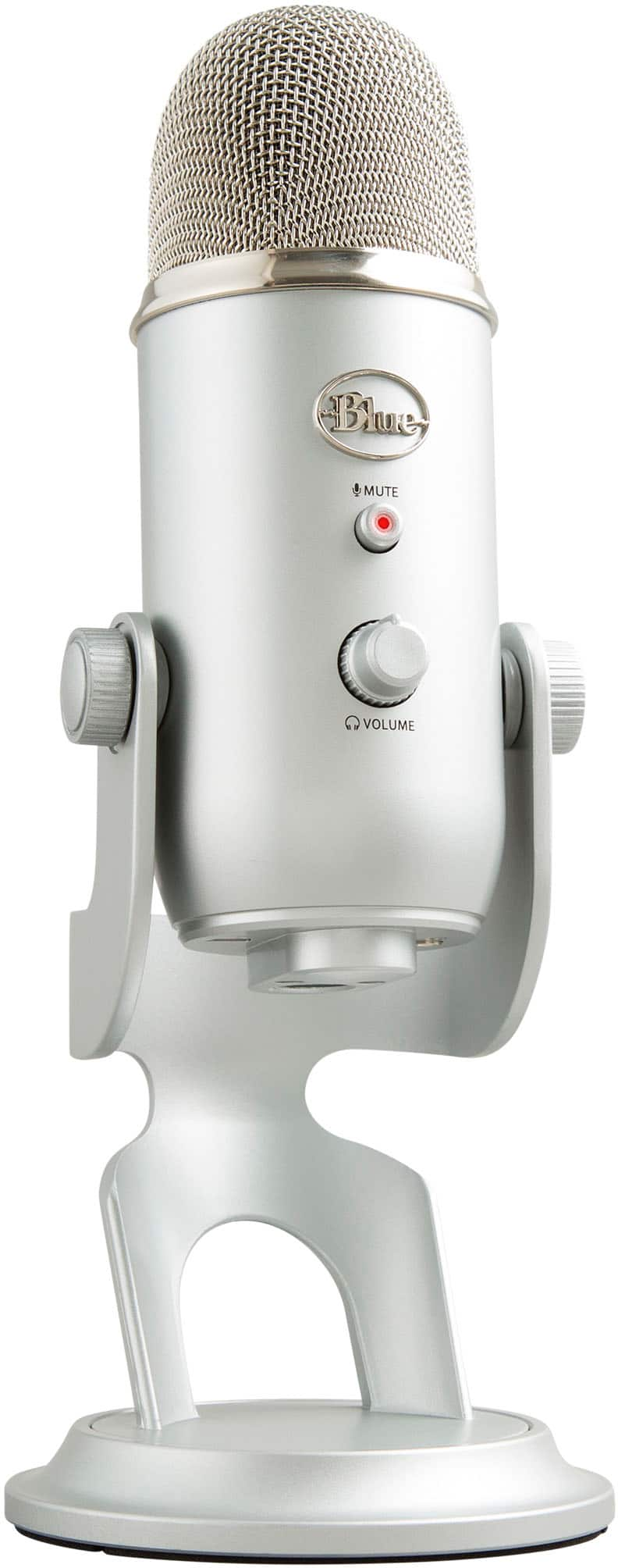
A:AnswerThere are two versions of the Yeti. This one, which has an MSRP of about $139, and the professional model, which has an MSRP of about $249, so I'm not sure which one you're talking about that's only $30 more. Perhaps that's the one which comes with the Assasin's Creed bundle? If so, they are the exact same microphone.
The more expensive version has an XLR microphone connection at the very bottom, which allows you to connect to a sound board or pre-amp, like what recording studios use. It bypasses the USB input in this case, and allows the higher end sound equipment to do the analog to digital conversion, rather than the USB input.
Additionally, the more expensive mic allows for 192khz/24-bit recording, which is DVD quality. This one is 48knz/16bit, which is only CD quality. Of course, what you're pumping the signal into, is going to have an impact on your final product too, so just because one buys the higher priced mic, doesn't mean they're going to have a better quality recording.
Hope that helps explain things a little better because I'm not 100% what mics you were comparing.
A:AnswerHi Samuel.
I don't want to lead you the wrong way on this, so I'm weary to say an outright "yes". However, there is a volume-in control that allows you to change the amount of pickup. You can basically set it to a scale of "everything in your house" to "just your voice". The lower you set it, the more your voice sounds like that of a person on a radio... you'll have to get closer to the mic, etc. I was really surprised by how easy this plug in play mic was. It really works great. That said, when I'm recording, I ensure that my central air is off and try to make everything as quite as possible, but it really depends what you're doing with it.
Final Answer: Try it out - you can always return it if it doesn't work out. Good luck!
A:AnswerSomeone said this is a micro-USB port. That is NOT correct. The cable, which comes with the Blue Yeti is a mini-USB to USB A cable. That's the small one that is a bit taller than the one that most Android devices use these days, and are not interchangeable.
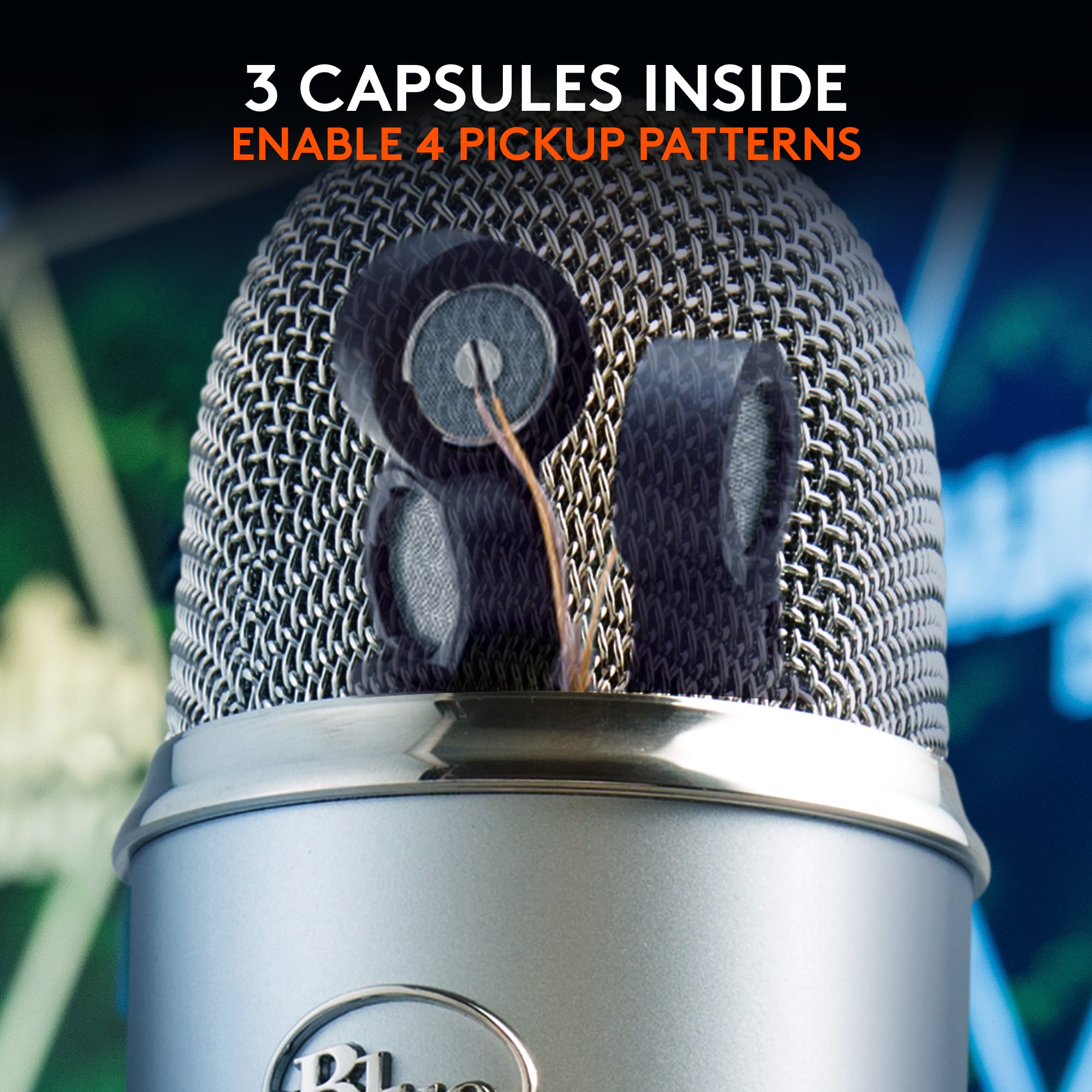
A:AnswerHello, yes, the Blue Yeti microphone has a stereo mode option available. It'll pick up the high and low frequencies exceptionally well. It will sound great on streams, live youtube, or recording audio onto a DAW. You're going to absolutely love it. Have a great day.
A:AnswerHello Jack, although the Yeti was built and designed for computer use, it will work with Xbox. You'll just have to follow a specific process in order to get it working with your Xbox. You'll have to search it up on YouTube to see the process of installing it with your console. Have a great rest of your day.
A:AnswerYes! I have had an ElGato HD60 and ElGato HD60S. Worked perfectly with both of those capture cards along with streamlabs Obs, Obs and also XSplit :)
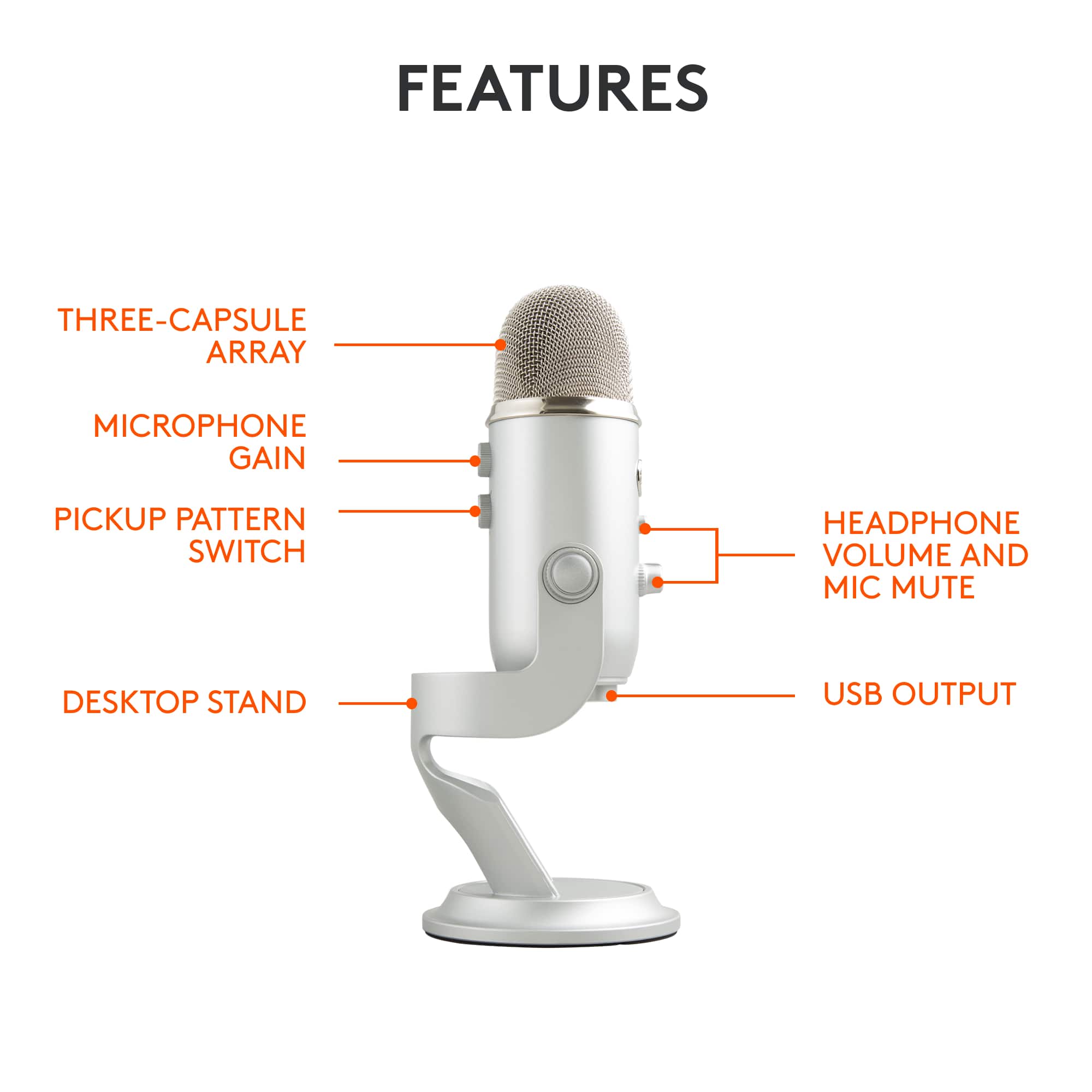
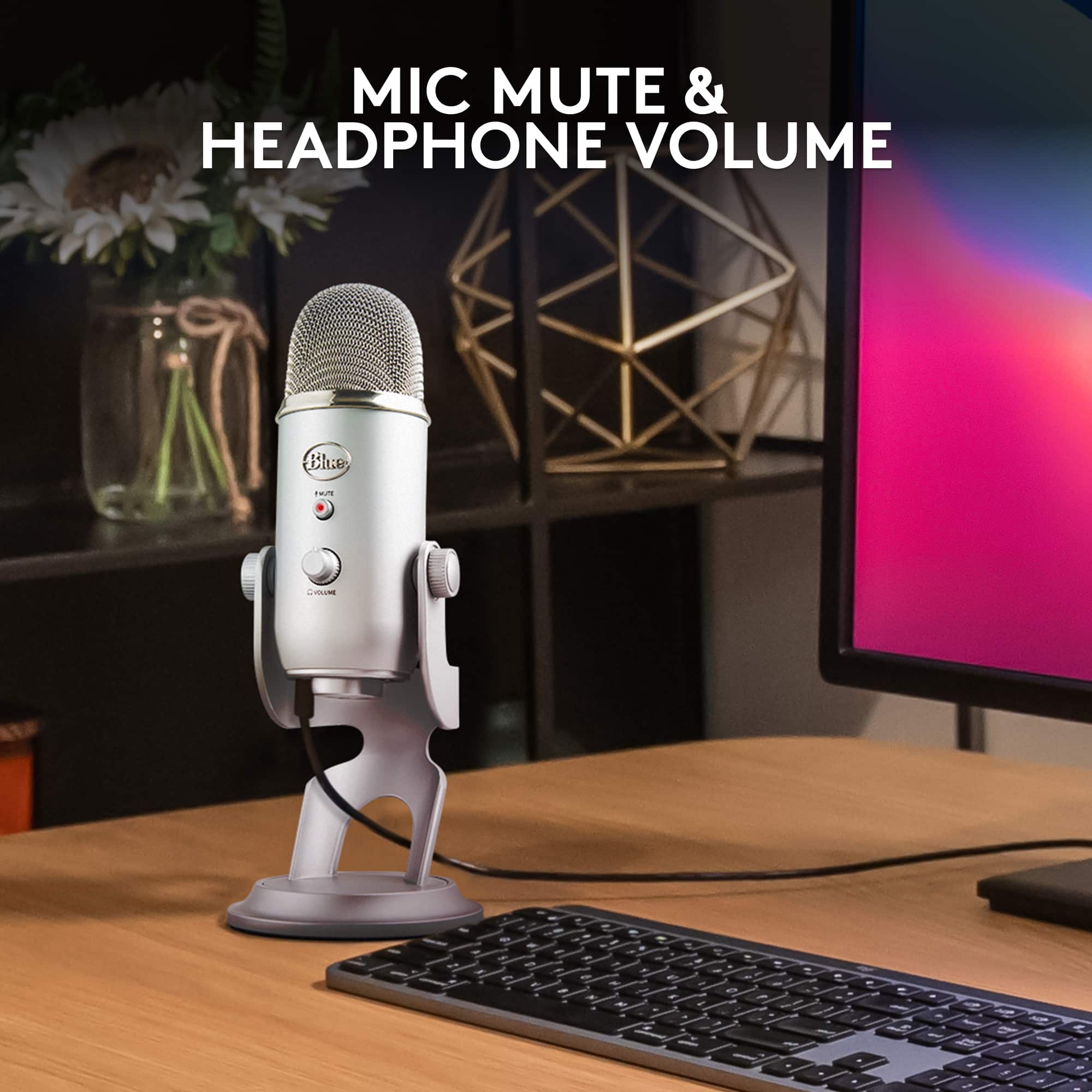
A:AnswerI plug in a headphone jack on the bottom and listen on my headphones. I also have a splitter for up to 4 additional jacks. Otherwise any speakers connected to your computer should work just make sure your mic is muted or you aren't actively listening so that you don't have feedback from the mic hearing itself.
A:AnswerAccording to the manufacturer's website, the Yeti Blue USB microphone has a two-year warranty from date of purchase. Here is the quote from bluedesigns.com FAQ page: "In order to take advantage of this service we offer, you must currently be under our 2 year manufacturer warranty, and you must have purchased your mics from an authorized dealer." So if you purchase from Best Buy, you have purchased from an authorized dealer.
A:AnswerHello Renee,
This Blue Yeti microphone connects with a standard USB (USB type-A) connection. I have personally used the same microphone with a USB to USB-C adapter. I have attached a link to Best Buy sku: 6363182, which would give you the correct connection. I recommend downloading the Blue Sherpa software to get the most out of this microphone. The Blue Sherpa software is available on the Logitech support website.
Best regards,
John at Logitech
https://www.bestbuy.com/site/platinum-usb-a-to-usb-c-adapter-usb-3-0-spec-gray/6363182.p?skuId=6363182
A:AnswerYou don’t NEED an amplifier for this mic. It’s USB compatible so it can be plugged into anything that has a USB port. Once it’s plugged into a USB port, it automatically turns on. But if you want to record with it, you’ll need to plug it into a computer or recording device that’s USB compatible.
A:AnswerIf the karaoke machine has a USB plug-in then you definitely can. If you’re using karaoke off of your computer then you can plug the yeti mic into your Mac or PC and do it that way too!
A:AnswerHey! No, the Blue Yeti microphone does not have a 3.5mm cable for audio output according to the product specifications. It uses USB for both power and audio. However, it does feature a 3.5mm headphone jack that allows you to monitor the audio you're recording in real-time, without any latency delays.
A:AnswerHi Jazz051, The best setting to use for piano would be Stereo mode and I would place the yeti near the opening---use half stick---close to the strings. I'd set the gain at 10% and computer input at 60%. There are some helpful videos on YouTube that I found helpful especially this one: https://youtu.be/A9jQJfCj4J8. Just enter "best placement for blue yeti for piano", and you'll have a wide range of recommendations. Don't forget to download Blue's Sherpa app which will help you set the gain more precisely. Here's a link to the download: https://www.bluemic.com/en-us/products/sherpa/. Hope that you found this helpful and that all is well. Thank you for choosing Blue. - Richard from Logitech/Blue