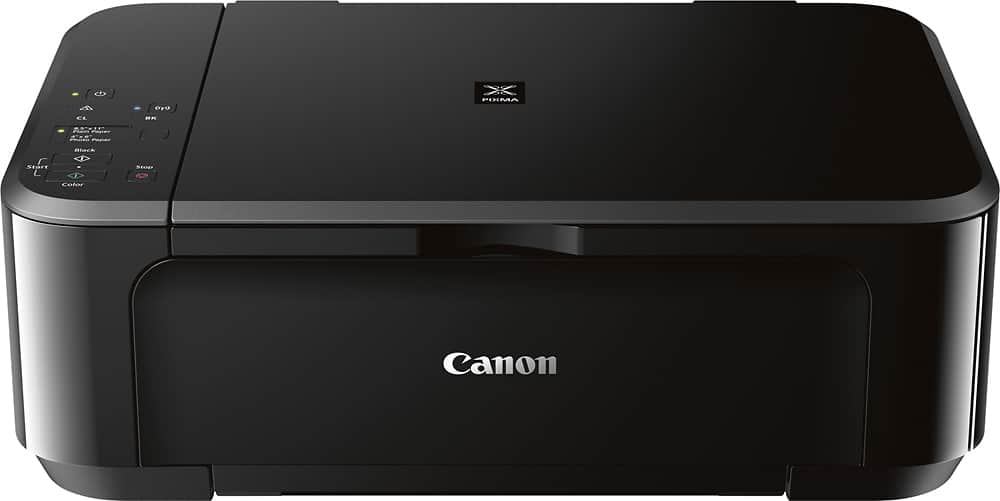
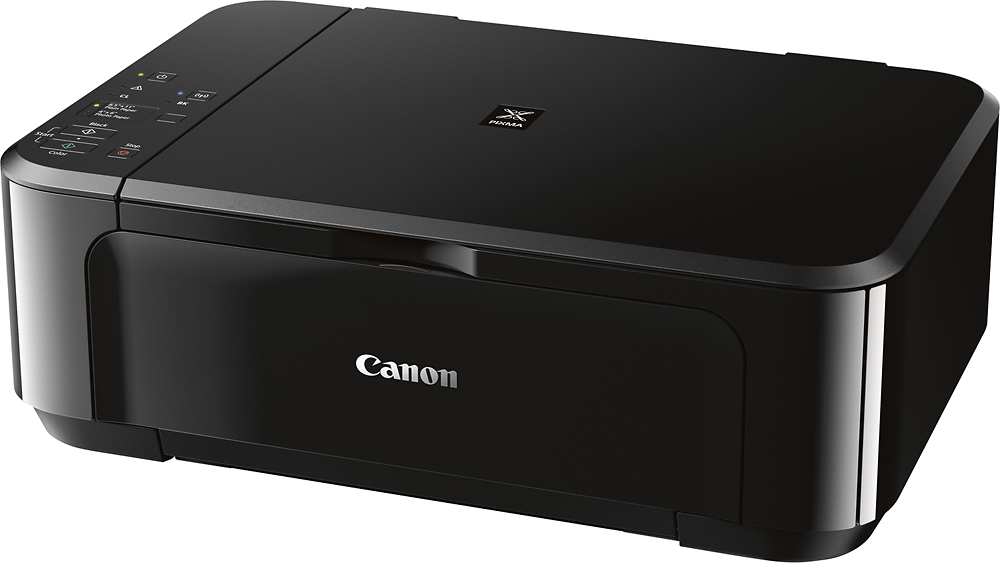
A:Answer Obviously it differs where they are purchased so look around and price them. You can buy the black and color in sets (to save money) or separately, in either regular size or XL. At Best Buy, the set of one each (black and color) is $54.99 currently. The black XL size is $22.99 and the color XL size is $31.99. They are cheaper when you don't buy the XL (which has more ink), but they don't last as long. I have purchased them at BB and a larger set (2 black and one color) at Sam's Club for around $64.