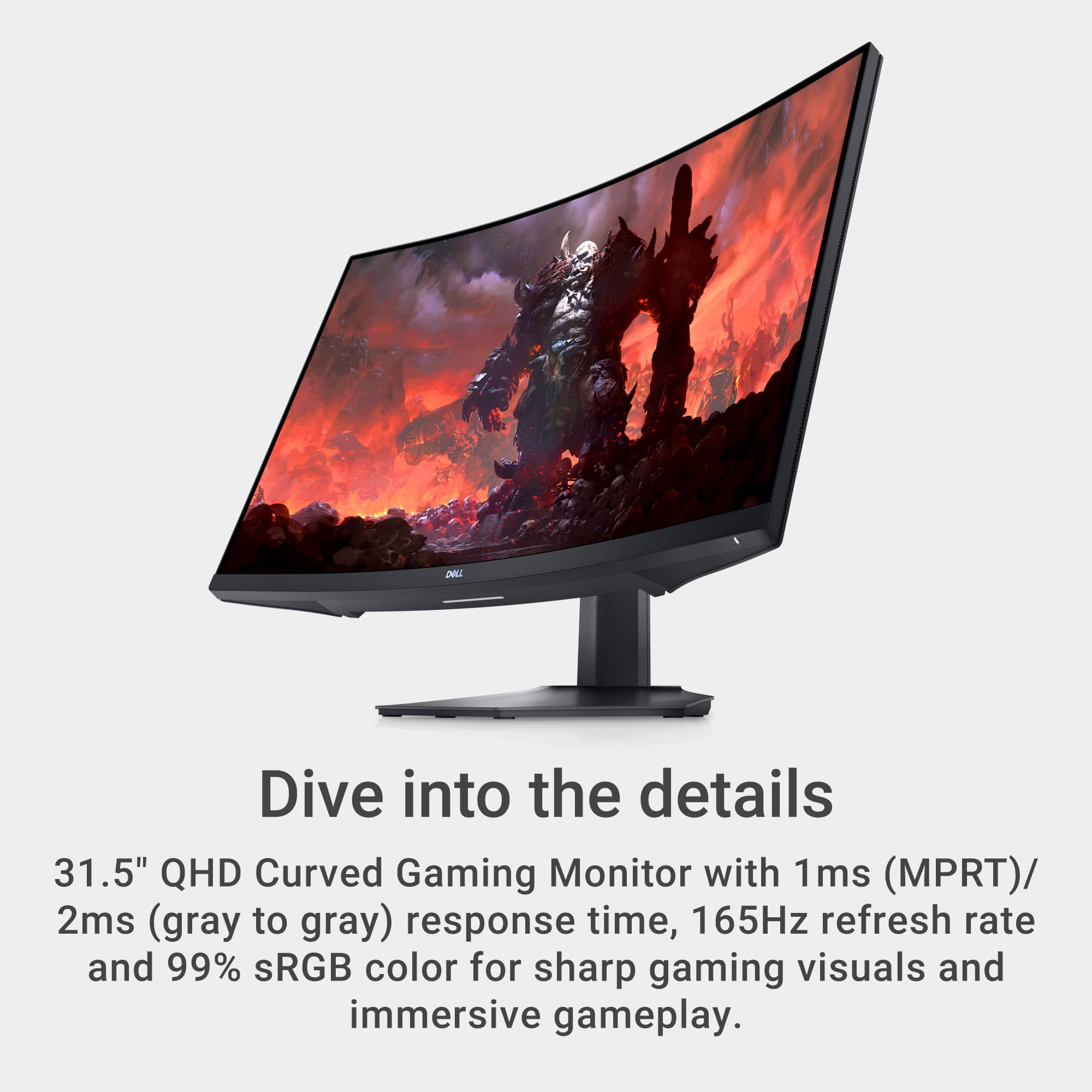
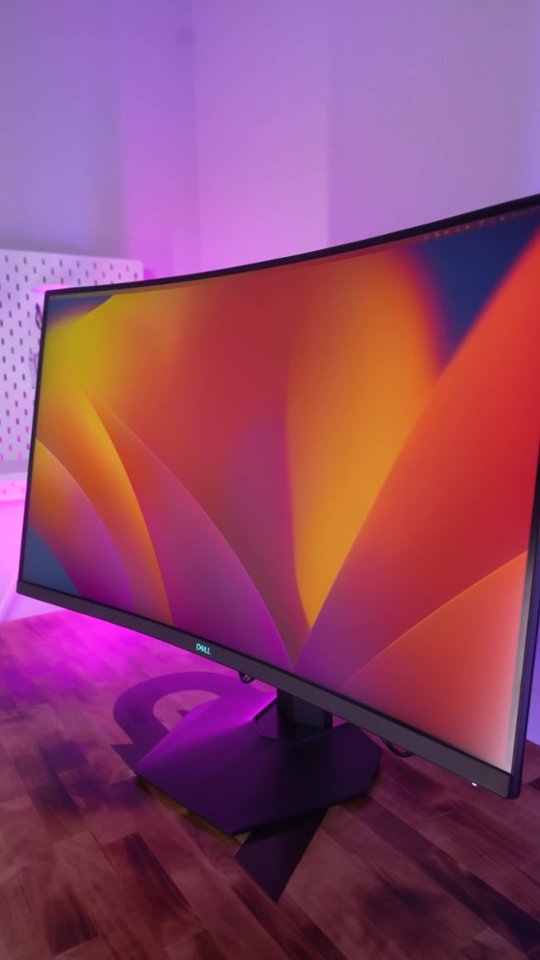
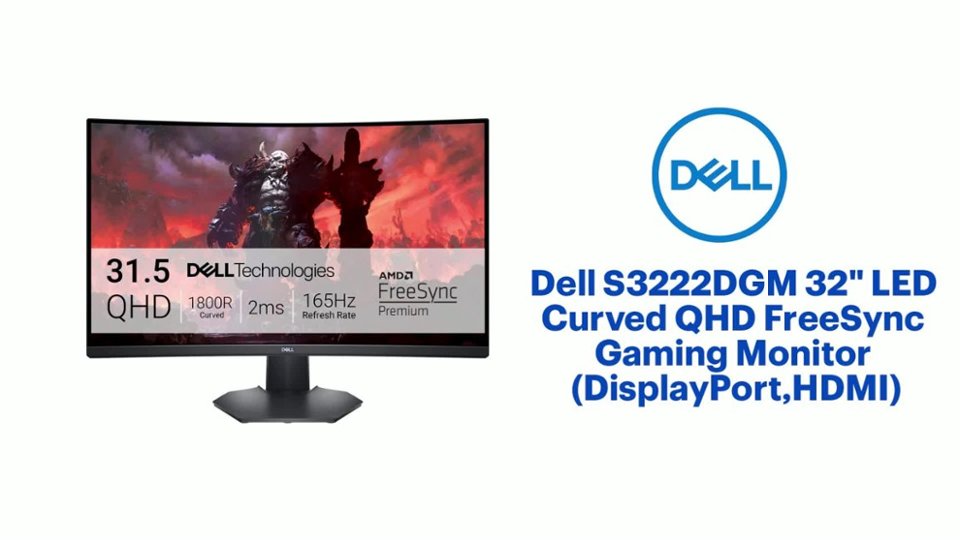
A:AnswerThis Dell monitor offers amazing crisp picture quality, making fine details easily viewable. This can be beneficial for someone with macular degeneration, as the enhanced clarity helps in seeing finer details more clearly.
A:AnswerThe grills on the bottom of the S3222DGM monitor are air vents. This monitor does not have built ins speakers. This monitor haws a Headphone out port. to connect an audio output device.
A:AnswerChanging the language on your Dell S3222DGM monitor can be done through the monitor's on-screen display (OSD) menu. Here's how:
1. Access the OSD menu:
Locate the buttons on your monitor. These are usually located on the bottom or back of the monitor.
Look for a button labeled "Menu" or "OSD" (On-Screen Display). Press this button to enter the OSD menu.
2. Navigate the menu:
Use the up and down buttons (or joystick, if applicable) to navigate through the menu options.
Look for an option related to "Language" or "Localization". It might be under a section like "Settings," "General," or "System."
3. Select English:
Once you find the "Language" or "Localization" option, use the left and right buttons (or joystick) to select it.
A list of available languages will likely appear. Use the up and down buttons to highlight "English" and then press the "Select" or "OK" button (depending on your monitor) to confirm your selection.
4. Exit the menu:
Press the "Exit" button (or navigate to the "Exit" option) to close the OSD menu.
Here are some additional points to consider:
If you're unsure about any option, consult your monitor's user manual for specific instructions.
Sometimes, you might need to press and hold certain buttons or use a specific button combination to access the "Language" or "Localization" option.
If you're still having trouble changing the language, you can visit the Dell support website for your specific monitor model and search for language change instructions.
A:AnswerThe Dell S3222DGM monitor you have does not actually have built-in speakers. Since it's a gaming monitor, the focus is typically on high-quality visuals and refresh rates, and speakers are often omitted to keep the price down.
A:AnswerPlease refer to the monitor user manual for the instruction to change the monitor refresh rate. https://rb.gy/cu804o
Alternatively, Dell technical support team will be able to assist you with this process. They are available 24/7 on Facebook and X(@Dellcares).
A:AnswerThey work with G sync. No problem using 3. I have 2 of them and a Gigabyte M32uc in the center and can use Nvidia surround for super wide angle gaming.
A:AnswerFrom what I know, the ps5 doesn’t have an in between. The ps5 should only run 4K or 1080 because I don’t think I’ve even ever seen a 2k tv. Usually all gaming consoles run a res of 4K or 1080p if we’re talking about new gen. I could be wrong though. This monitor is perfect for displaying virtual reality since oculus or atleast my oculus rift a displays at 2k by default
A:Answerno it's a 2k monitor no matter what it is connected too but it appears only works as 1080p when connected to ps5 unless you get a 4k 60hz monitor since they don't run 4k at 120
A:AnswerGames do not install to monitors they install to computers. You should look at the game requirements and see what kind of computer/graphic card can handle the game. Then make sure you have the proper hardware drivers installed and up to date if your computer works with the game. So long as the drivers are up to date the monitor is along for the ride assuming you have the right connector on your graphics card to hook up with.
A:AnswerThe reviewer at Tom's Hardware says "no". Unless you are willing to shell out the big bucks for an FALD monitor that can do 1000 nits, this monitor will work just as well, especially considering that it has at least a 4,000:1 contrast ratio.