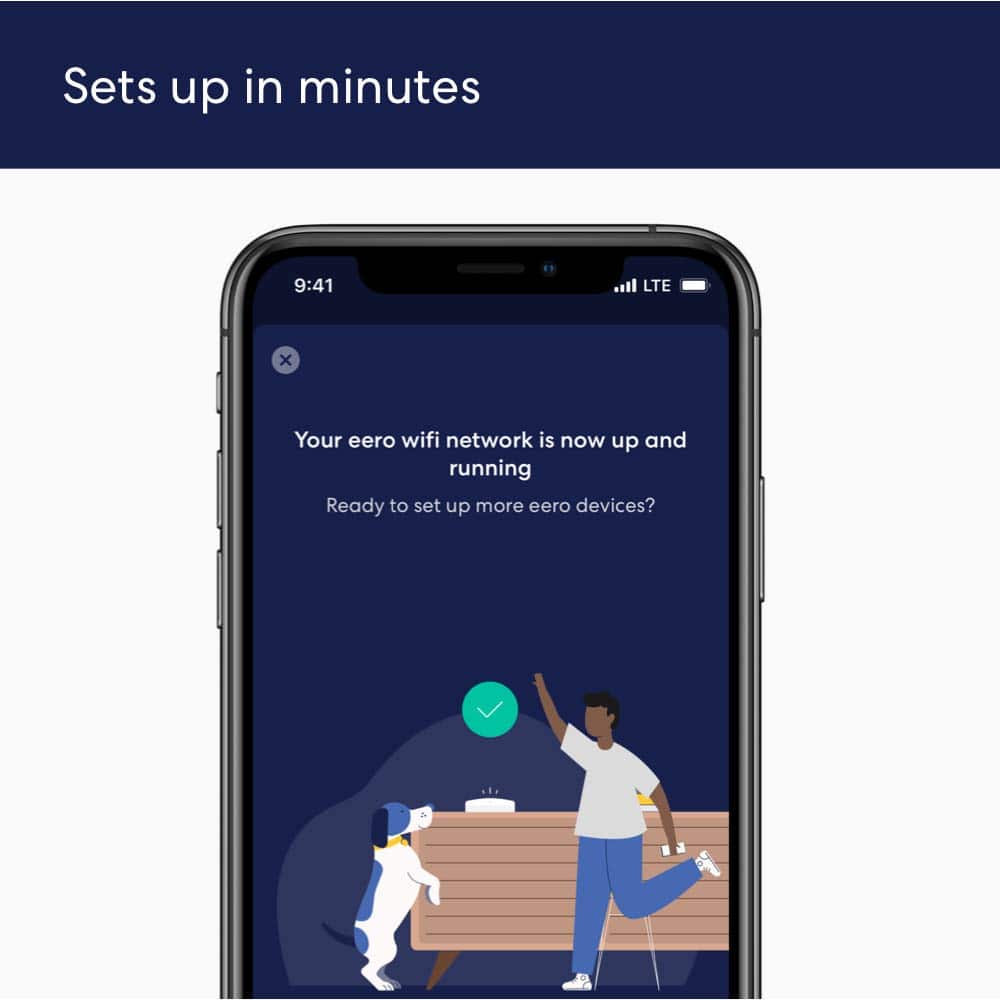
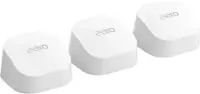
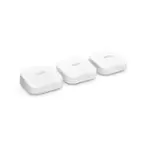
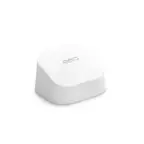
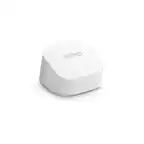
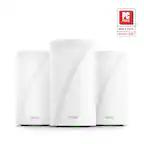
A:AnswerHello! Thanks for reaching out. Since each eero 6 covers up up 1,500 sq. ft., a 3-pack should be fine. The gateway eero will need to be connected directly to your AT&T router via Ethernet cable. The other eeros can then be placed in other areas of the home. The eero app will walk you through the setup process and ensure all eeros will be able to communicate with each other. I hope that helps! Have a great day!
A:AnswerNo, you do not. The default eero account will use your phone and email address, but does not need to be your Amazon account. There are some features, like Built-In (can use some models of Amazon Echos as a low powered eero extender, currently US and Canada only) and Amazon Easy Setup, that require you to use an Amazon log in, but the rest of eero does not.
A:AnswerOnly the first one must be wired to router. The second one will be repeater without the need of physical connection. By the way in every kit only one have the capability to add an ethernet cable to it.
A:AnswerA flashing blue led most likely means that the eero isn't setup yet. Open the eero app, go to the Home Page (bottom left) and click the blue plus ('+') button in the upper right. On there select to Add or replace an eero Device and then push the Add eero Device option. That should walk you through the setup for each one. If you have issues, call support when at the eero.
A:AnswerYou can make a daisy chain of eero to reach a long distance. For example you can use: eero A gateway (...)eero B (...) eero C. In this case eero C can only talk to eero B, it is out of range of eero A. This will work.
A:AnswerHello Tito, you want to know if the Amazon eero 6 AX1800 Dual-Band Wi-Fi 6 Mesh System (2-pack) will work with your AT&T MiFi. In order for the Amazon eero 6 AX1800 Dual-Band Wi-Fi 6 Mesh System (2-pack) to work you will have to connect it to a modem via ethernet port. Hope this has answered your question. Have an amazing day!
A:AnswerYes, you connect the main unit by Ethernet cable to your current router. Then you use the app to connect the other units. This will extend your network to other parts of your home. I set it up as another, separate network that I connect certain devices to while keeping the other Comcast/Xfinity network. It has it's own SSID and password.
A:AnswerNo, the devices automatically jump to the best satellite available. It’s one network and the device doesn’t really care which satellite as long as it can find the signal from one of them.
A:AnswerI got a new modem from Spectrum for free and hooked up the erthnet from the modem to the eerro6 router and placed the other two hubs upstairs and they paired instantly to the eerro6 router and everything works perfectly.
A:AnswerI am sure that they will but you can install this yourself pretty easy. Just connect the main unit to your existing modem by the enclosed Ethernet cable. Then using the application on your phone, you install the other units. If you run into issues, their technical support is excellent.
A:AnswerThere is no charge for it to be a router. It will broadcast your wifi throughout your building free of charge.
There are premium subscriptions that relate to increased threat mitigation/firewall and detailed usage stats but these are not mandatory
A:AnswerThat would depend on your router. I am no expert for sure, but my new system is amazing for speed a coverage. I replaced an Xfinity modem/router with a new modem from Arris and added the Erro 6 system by connecting the Erro router and the 2 satellites and it is 10 times faster with plenty of coverage. Both companies will help you in setting the system up. Visit the Erro website and you will see how the system works.
A:AnswerYes, but you will take a performance hit due to the max speed of 500 Mbps on the dual-band Eero 6, move to the Eero 6 Pro, to able to max out the gig-fiber to your residence
A:AnswerHello, Knute23! Connecting your eero 6 Dual-Band Mesh Wi-Fi 6 System (2-pack) to your Cox system is straightforward, but it requires a specific physical setup to ensure the two systems do not conflict with each other.
Since you have a 3,000 square foot home, your eero 6 (2-pack) is technically rated to cover up to 3,000 square feet under ideal conditions without outside interferences. To get complete, stable coverage across the entire layout, proper node placement is critical.
---Step 1: Hooking up the eero 6 to your Cox System
Your Cox Panoramic equipment acts as both a modem (bringing internet into the house) and a router (broadcasting Wi-Fi). To prevent network conflicts (a configuration issue known as "Double NAT") and interference, use the following connection method:
Power Down: Unplug your Cox gateway from its power source.
Connect the Gateway eero: Take your first eero 6 unit (this will be your primary Gateway). Plug one end of the included Ethernet cable into any available LAN port on the back of your Cox gateway, and plug the other end into either of the two Ethernet ports on the back of your eero.
Power On: Plug your Cox gateway back into the wall outlet and wait about 2–3 minutes for it to fully boot up and connect to the internet. Then, plug your primary eero 6 into a power outlet.
App Setup: Open the eero app on your mobile phone and follow the on-screen instructions to create your network name (SSID) and password.
Turn off Cox Wi-Fi: To prevent your Cox box and your new eero system from fighting over the same wireless airspace, you should disable the Wi-Fi broadcast on your Cox device. You can do this by logging into your Cox account online, using the Cox Panoramic Wifi app, or calling Cox customer support to request they put your gateway into Bridge Mode.
---Step 2: Placement Strategy for a 3,000 Sq. Ft. Home
A 2-pack system gives you two points of contact: your Gateway eero and one Extender eero. For a 3,000 sq. ft. home, placing them properly determines whether you get dead spots or seamless coverage.
The Gateway eero: This unit must remain right next to your Cox modem wherever your cable outlet enters the home (often on an exterior wall or in an office/living room).
The Extender eero: Place this unit halfway between the Gateway eero and your furthest dead zone. A common rule of thumb is to place it no more than 1 to 2 rooms away (about 20–30 feet) from the primary gateway. It needs to be close enough to the main unit to receive a strong signal, which it will then rebroadcast to the rest of the house.
Multi-story layouts: If your house has two levels (e.g., 1,500 sq. ft. downstairs and 1,500 sq. ft. upstairs), try to place the units in a staggered arrangement. If the Gateway is on the west side of the ground floor, place the Extender closer to the center or east side of the second floor. I hope this explanation guides you in the right direction.
A:AnswerHi!
Yes, the Amazon eero - 6 models router fully support IPv6. Amazon configues all EERO models to handle full dual-stack IPv4 and IPv6 traffc natively.
Have a great day!
A:AnswerYes it does. It requires an Apple Silicon Mac, macOS 13.0 or higher. It runs as an iPad app. For older Intel based Macs it is not supported and requires a mobile device. The eero app is available on the Apple App store and Apple Silicon chips are on the Mac App Store. Hope this helps!