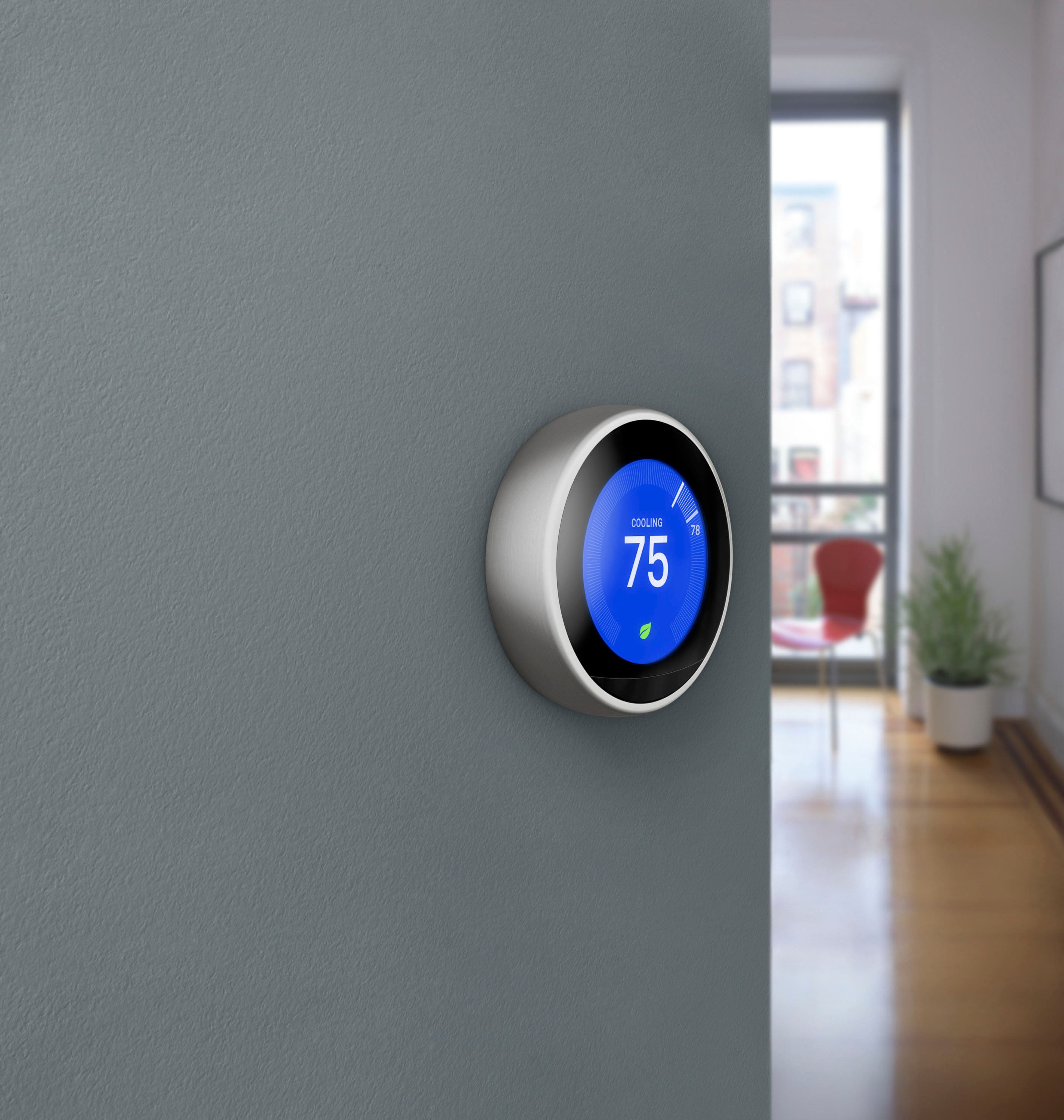
A:AnswerNo..just leave it plugged in overnight the more you play with it it drains battery real fast it's only a 3.68 volt battery you can see that setting in the settings
A:AnswerI don't know if it does but you can't " lock it" anyways. To override the temp you simply turn the Dial. So you can't set it and lock it but what you can do is Jack up the rent!
A:AnswerThe Google Nest Learning Thermostats are compatible with most whole-home humidifiers and dehumidifiers, but we recommend a professional installation. You can find more details about Nest thermostats and humidifier installation in this link : https://support.google.com/googlenest/answer/9255237?hl=en
A:AnswerYou can wire your back up system to Nest Learning Thermostat as an emergency heat.
However, Nest thermostats can operate between 35° F - 105° F and Nest thermostats have the feature Emergency Temperature that can be set to 35° F as the lowest and every time temperatures drop to 35° F, Nest Learning Thermostat will kick in to start heating.
So your indoor temperature may never go down to 25° F for the back up system to start, but here's a support article link to find out more on how to set up the emergency heat system with Nest thermostats : https://support.google.com/googlenest/answer/9276120?hl=en
You can also read up more on Nest Emergency Temperature feature here : https://support.google.com/googlenest/answer/9249790?hl=en
A:AnswerYour Nest thermostat can only send you notifications to your phone, if it is connected to your home Wi-Fi. So if your Nest thermostat is disconnected, it won't be able to send any notifications. But when you go onto Nest app, you will see that it is offline for how long. You can find out more about notifications here: https://support.google.com/googlenest/answer/9244826
A:AnswerYes, you can control your Nest Learning Thermostat from multiple phones by either logging into your account on a different device, or inviting others to your Google Home. To invite others to your Google Home, you can simply send them an invitation in the Google Home app. After the invitation is accepted, they can control your Nest Learning Thermostat on their phones in the Nest app. You can take a look at this article to see the steps to invite others to control your Nest devices https://support.google.com/googlenest/answer/9155535?hl=en
A:AnswerIt will operate without the c wire, but eventually the faceplate will need to be recharged. The c wire will keep a constant to the unit so that you will never have to recharge the face plate
A:AnswerI just had 2 geek crews over to install this Nest thermostat in my manufacture home. My unit 26 years old, I did not have a C wire to power my current Honeywell thermostat. Batteries power my current Honeywell. For this reason, my airhandler/ heat pump not compatible with Nest. It needs to be powered by a live wire controlled by a breaker vs. AA batteries.
A:AnswerDo not set your Nest Thermostat to "Heat & Cool" setting. If you set it to Heat and then set the temperature to say, 70 degrees, the system will not run until it sense the temperature in the house has fallen to the set temp, then will kick on the furnace again.