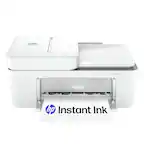
A:AnswerYes, the HP Deskjet Plus 4155 printer will work with a Chromebook. Once you connect the printer to your wireless network, then you can set up the printer on the Chromebook. Here are some instructions on how to connect the printer to the Chromebook: https://support.hp.com/us-en/document/c04122530
A:AnswerYou can set up this printer on your computer. The HP Smart app can help you set up the new printer. You can also use the app to scan or see your ink levels. Here is more information on the HP Smart app: https://support.hp.com/us-en/product/hp-deskjet-2600-all-in-one-printer-series/12319824/model/21481524/document/c04675142
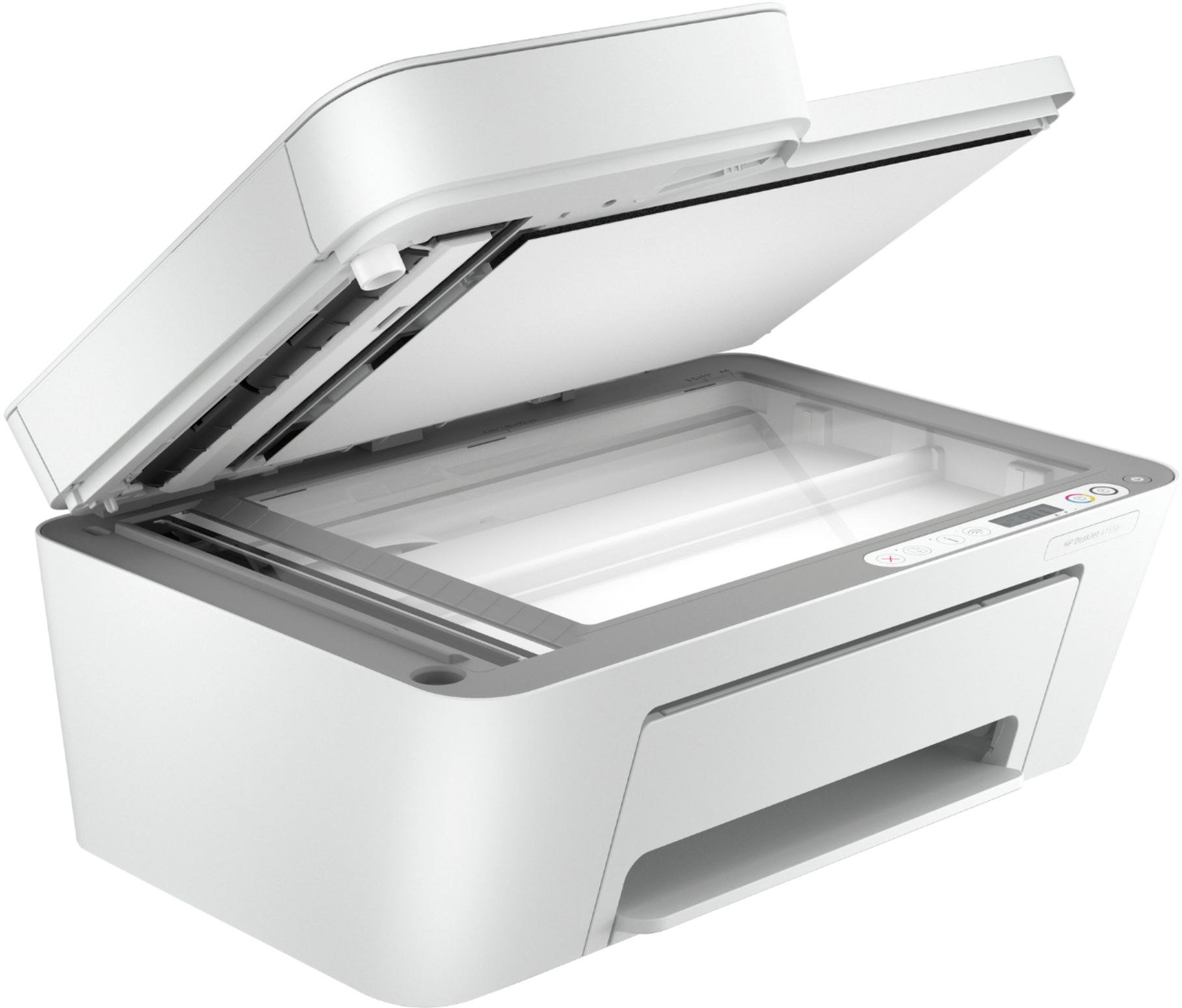
A:AnswerThe printer has an auto enlarge feature that will enlarge the original up to the size of the paper you're copying to. Because the scanner lid opens almost 90 degrees. you should be able to copy any book
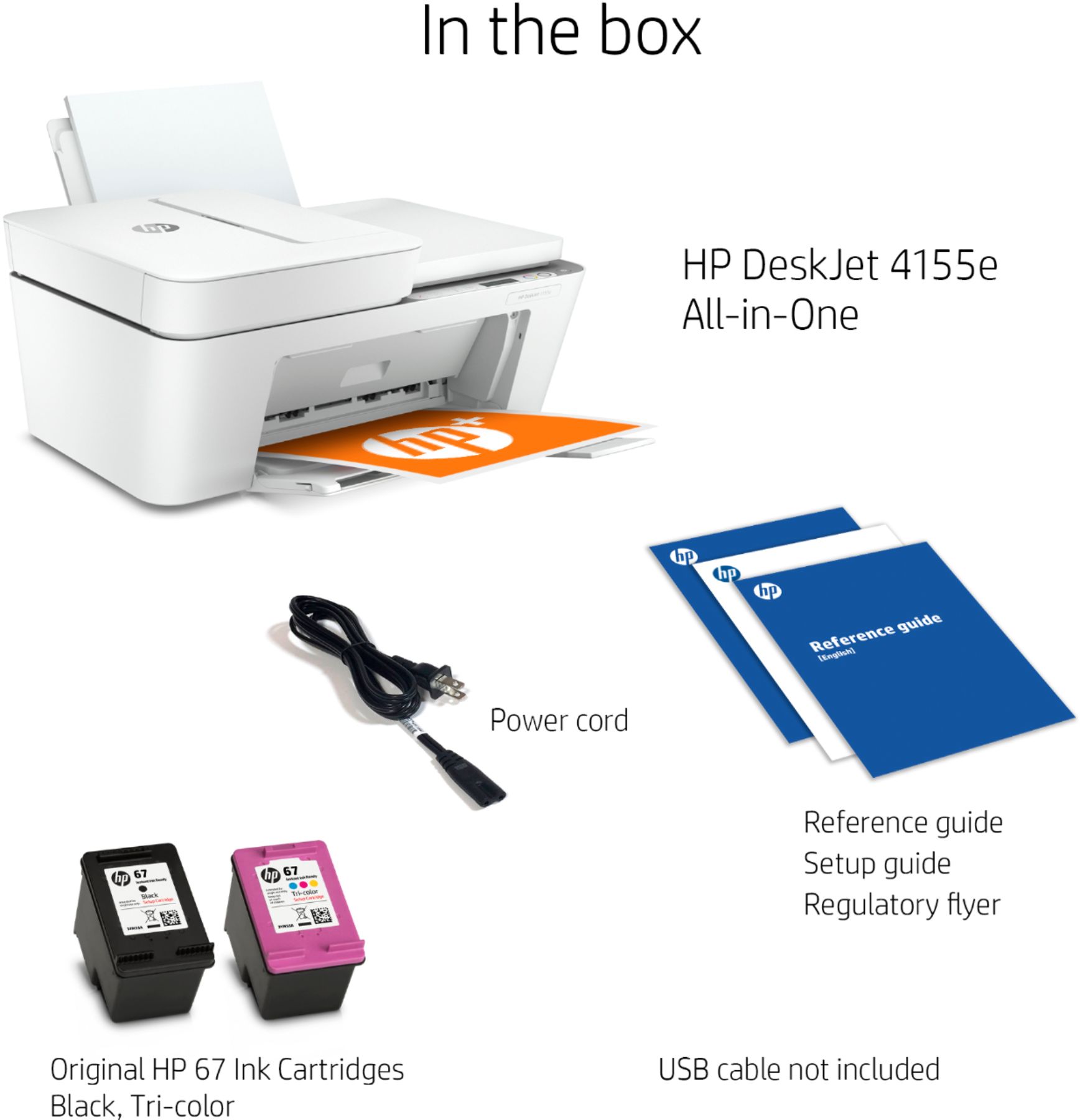
A:AnswerHello! This printer can use a standard USB printer cable. Here is an example of one that will work:
https://www.bestbuy.com/site/insignia-6-usb-a-to-usb-a-extension-cable-black/5884106.p?skuId=5884106
A:AnswerSee below. Yes, it will print labels.
Media weight supported Letter: 16 to 32 lb; HP envelopes: 20 to 24 lb; HP cards: up to 110 lb; HP 4 x 6 inch photo
paper: up to 145 lb
Media sizes supported Letter; legal; 4 x 6 in; 5 x 7 in; 8 x 10 in; No. 10 envelopes
A:AnswerNo 13 x 19.
Media weight supported Letter: 16 to 32 lb; HP envelopes: 20 to 24 lb; HP cards: up to 110 lb; HP 4 x 6 inch photo
paper: up to 145 lb
Media sizes supported Letter; legal; 4 x 6 in; 5 x 7 in; 8 x 10 in; No. 10 envelopes
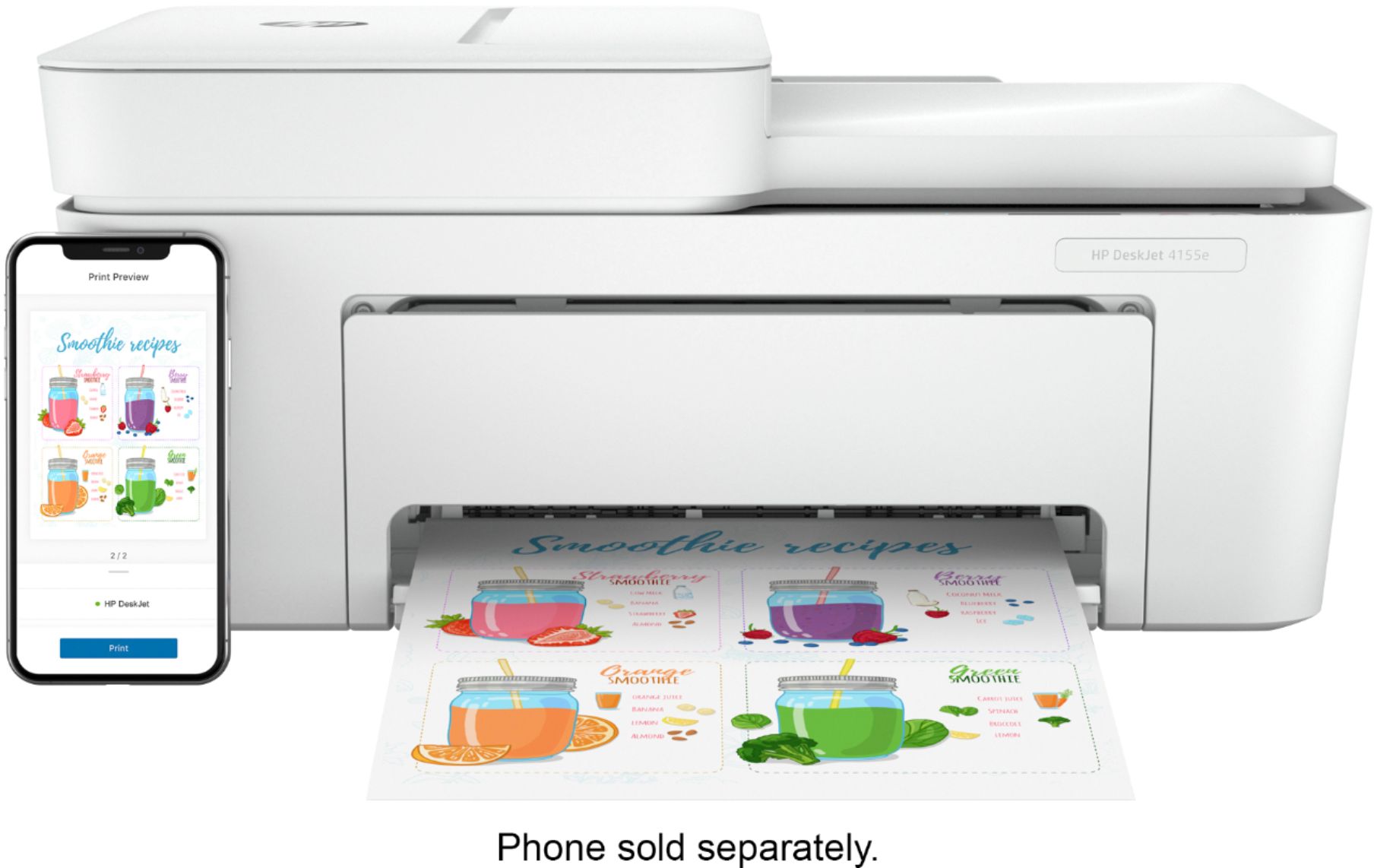
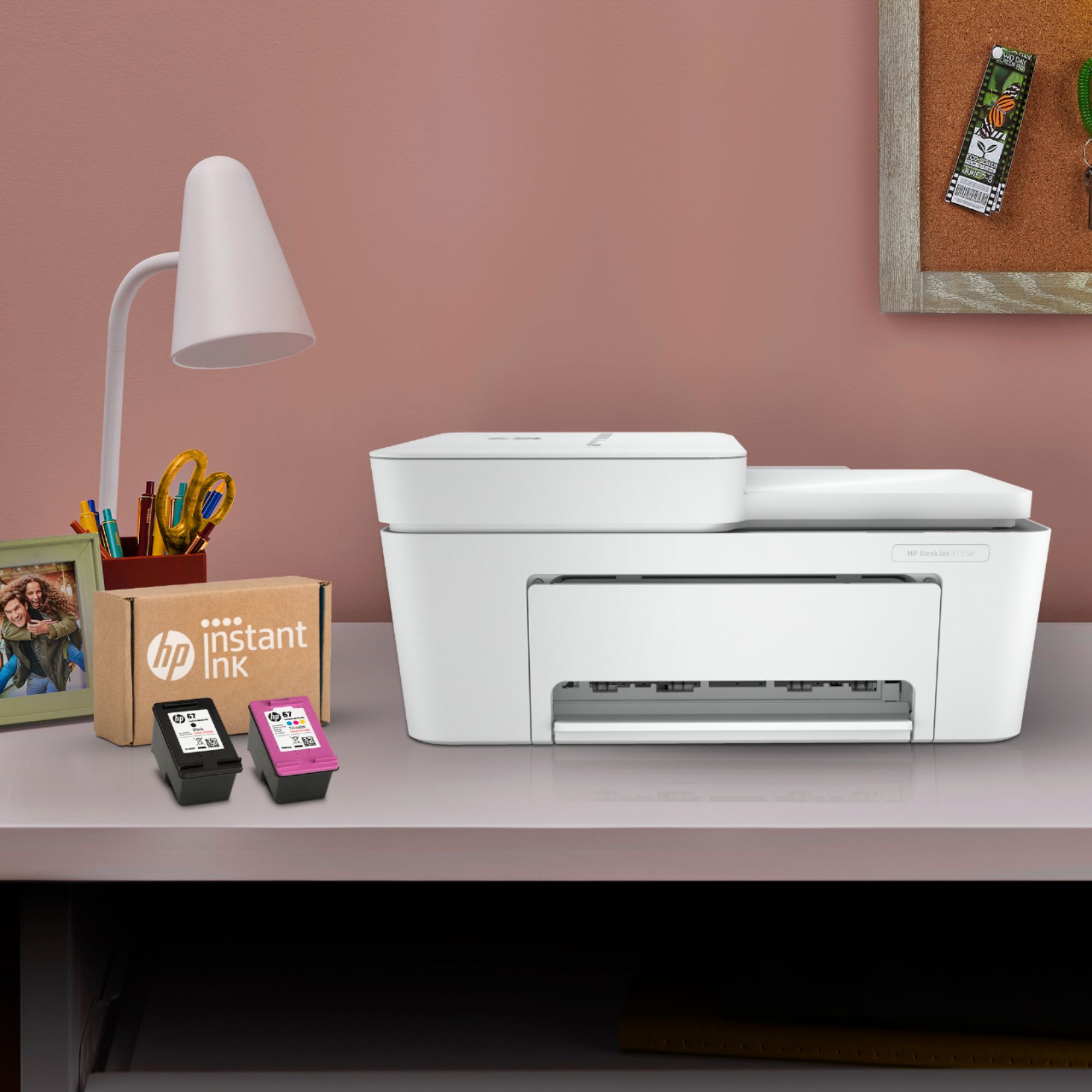
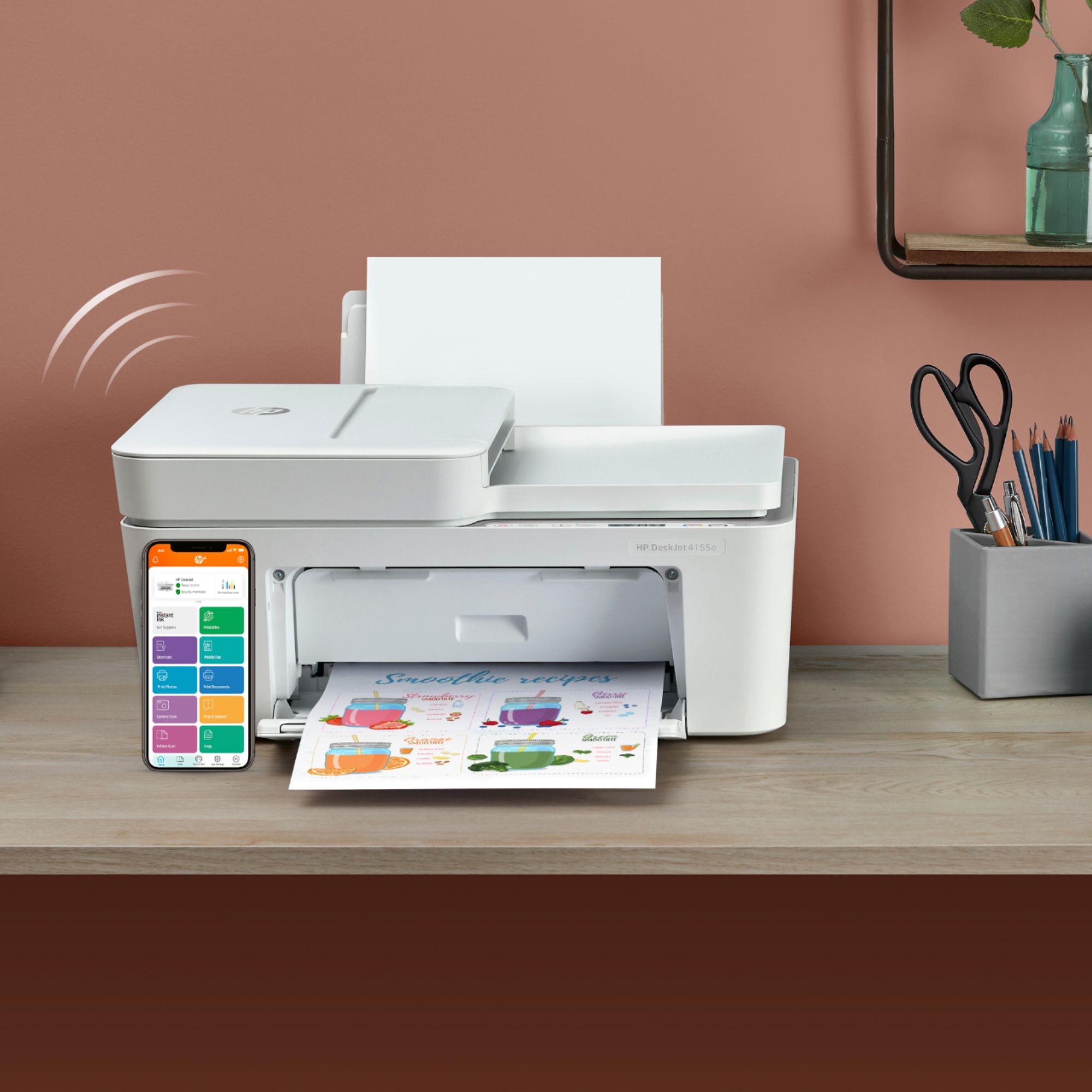
A:AnswerThis question was asked and has been left unanswered multiple times PROBABLY because the image of the printer SHOWS an iPhone with the HP app for wifi printing.
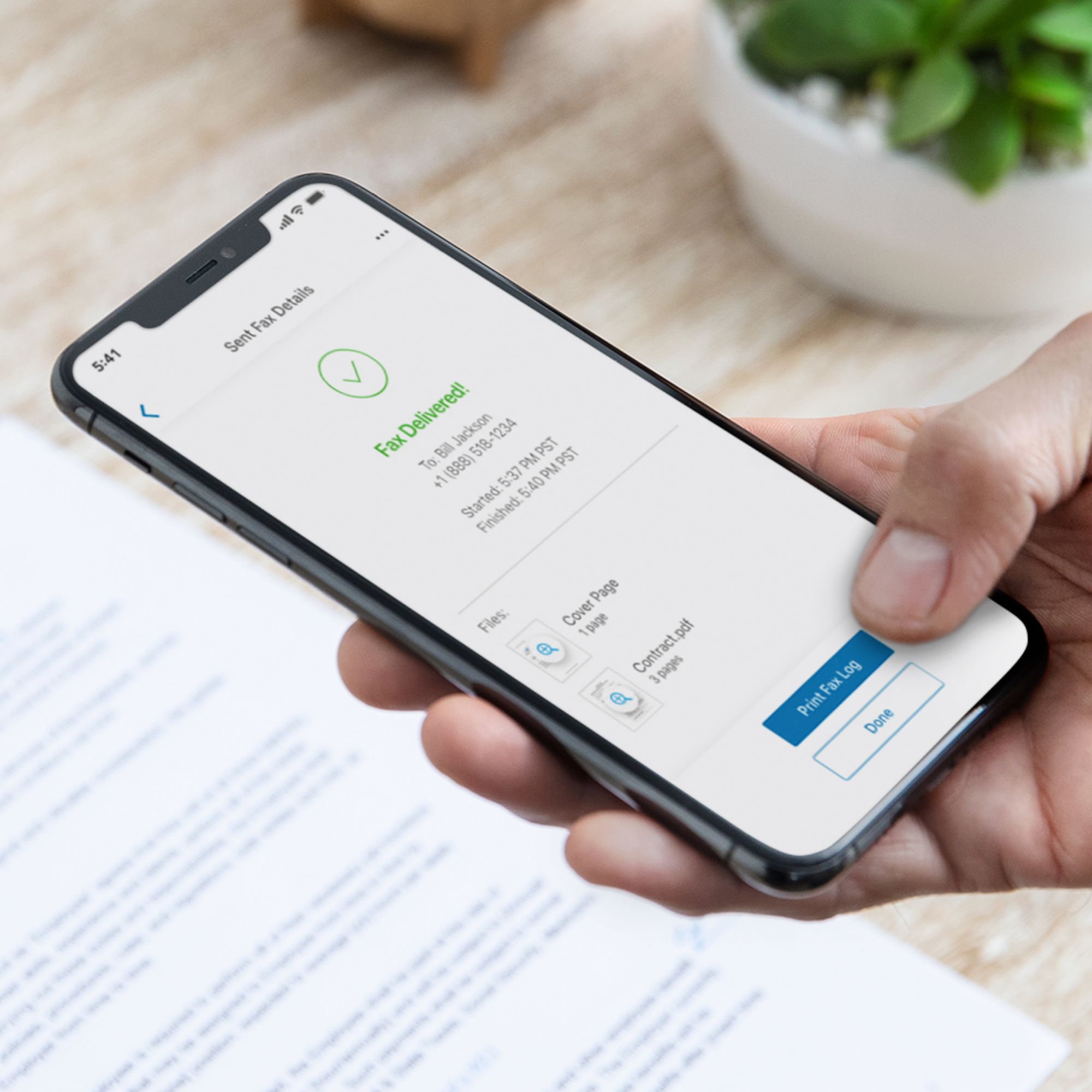
A:AnswerYes, this printer is compatible with the Microsoft Surface Pro 7. This printer does not have a fax function. You can use the HP Smart app to send faxes. Here is more information on the HP Smart app: https://support.hp.com/us-en/document/c03561640
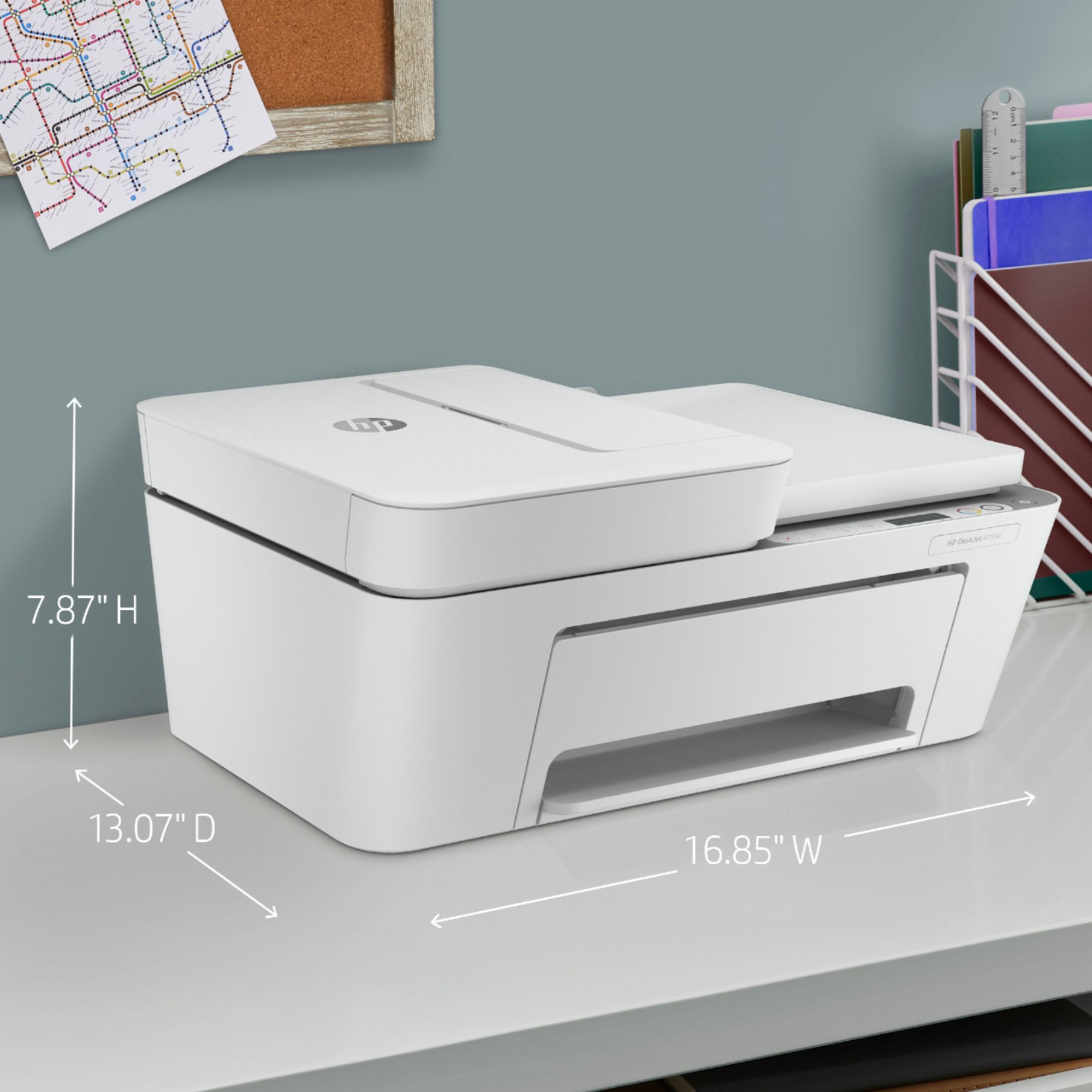
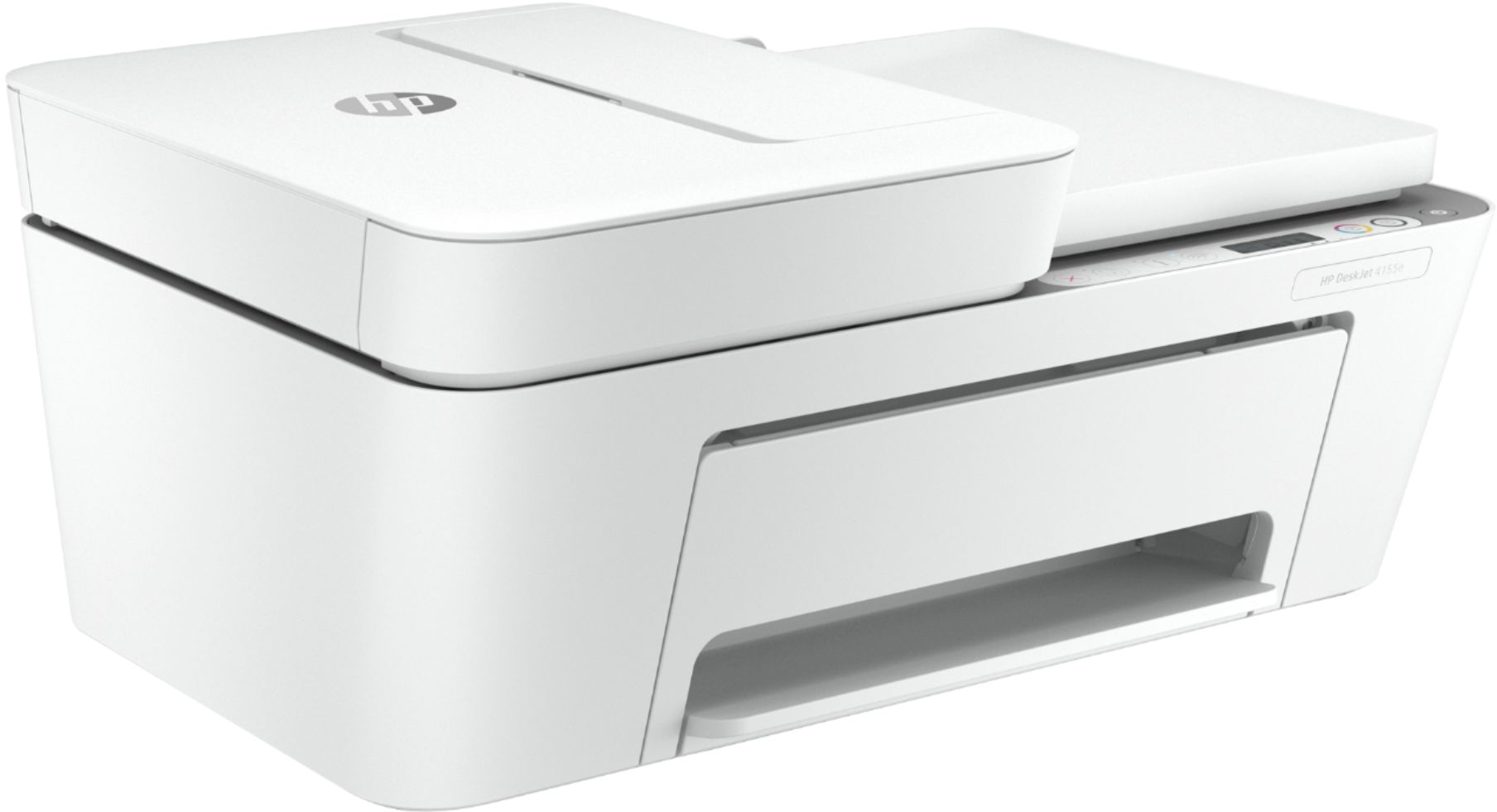
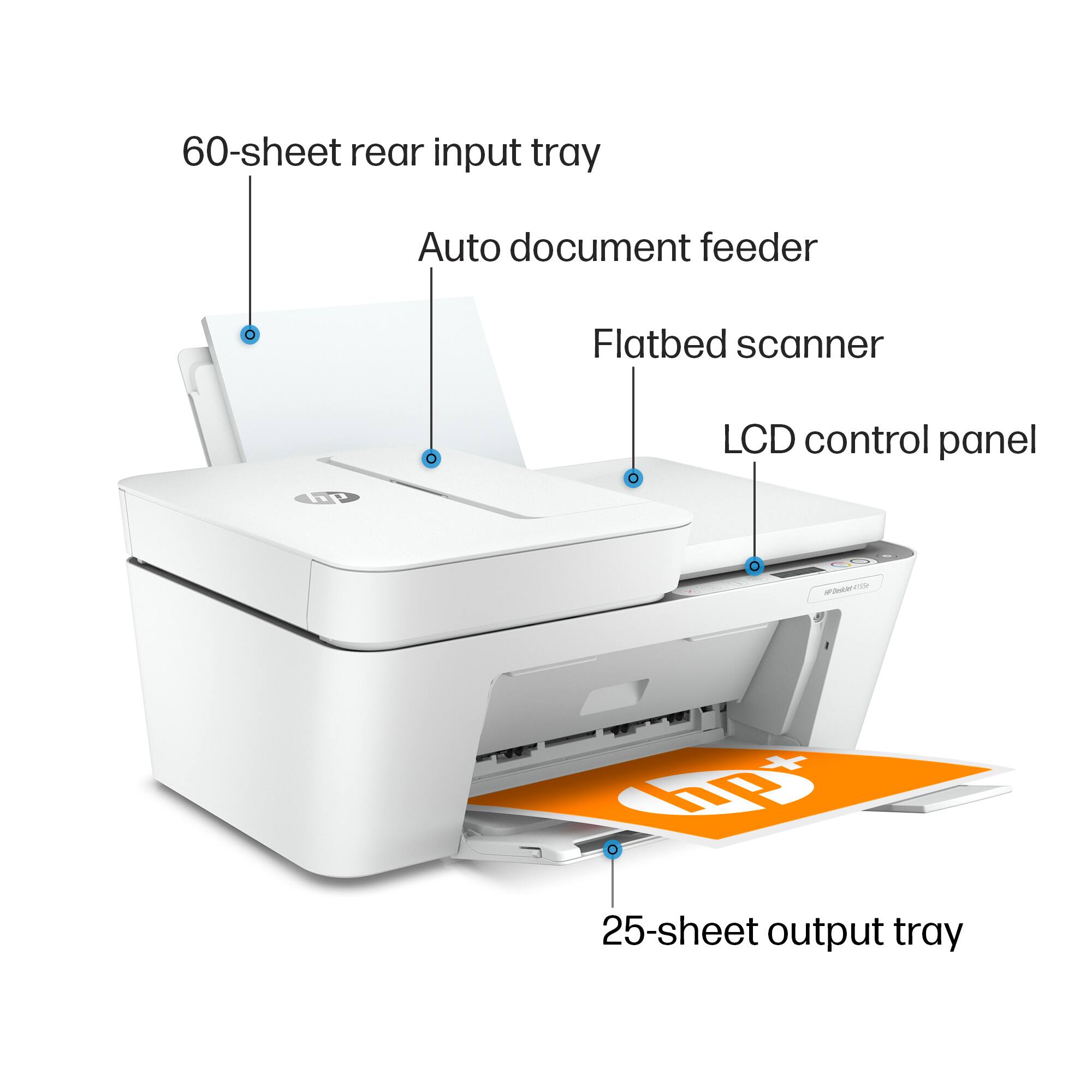
A:AnswerHere are the dimensions for the HP Deskjet Plus 4155 printer: (W x D x H)16.85 x 13.07 x 7.87 inches. And these the dimensions with the output tray extended: (W x D x H) 16.8 x 22.8 x 10.3 inches.