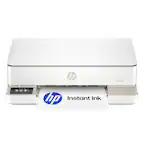
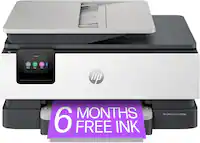
A:AnswerWithout knowing what error messages (if any) you got, it's hard to know what the problem was, but the easiest way to connect the printer is to hook it directly to the computer with a USB printer cable. If your computer is connecting through your router, then the next option would be to connect the printer to the router (They need to be on the same network to communicate with each other)
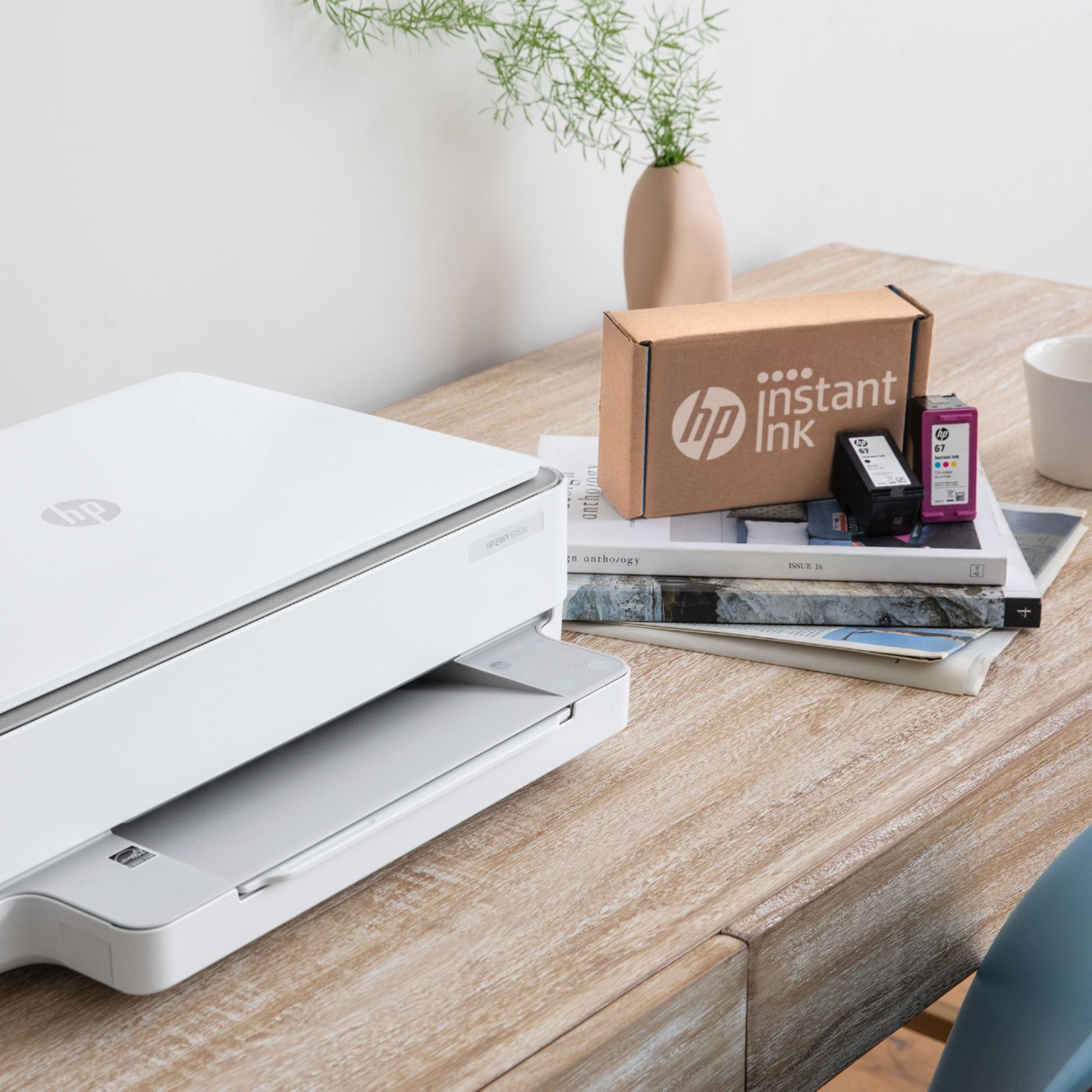
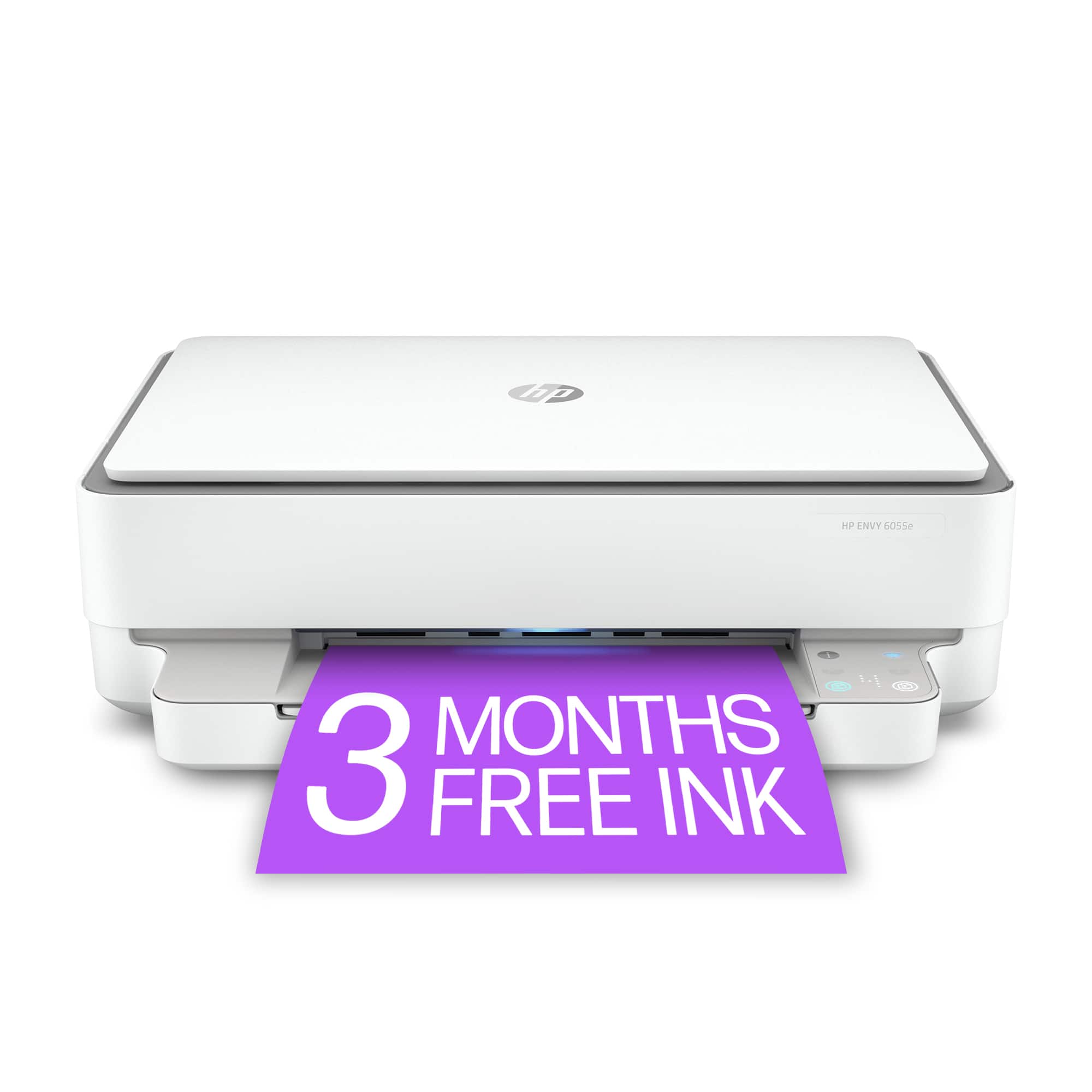
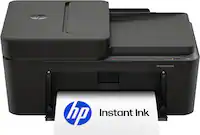
A:AnswerThank you for your question! The new 6055e is an HP+ model. When you connect your printer to the internet and enroll in HP+ (free) you will receive an additional year of warranty and six months of free HP Instant Ink.
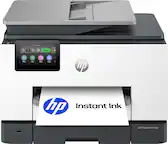
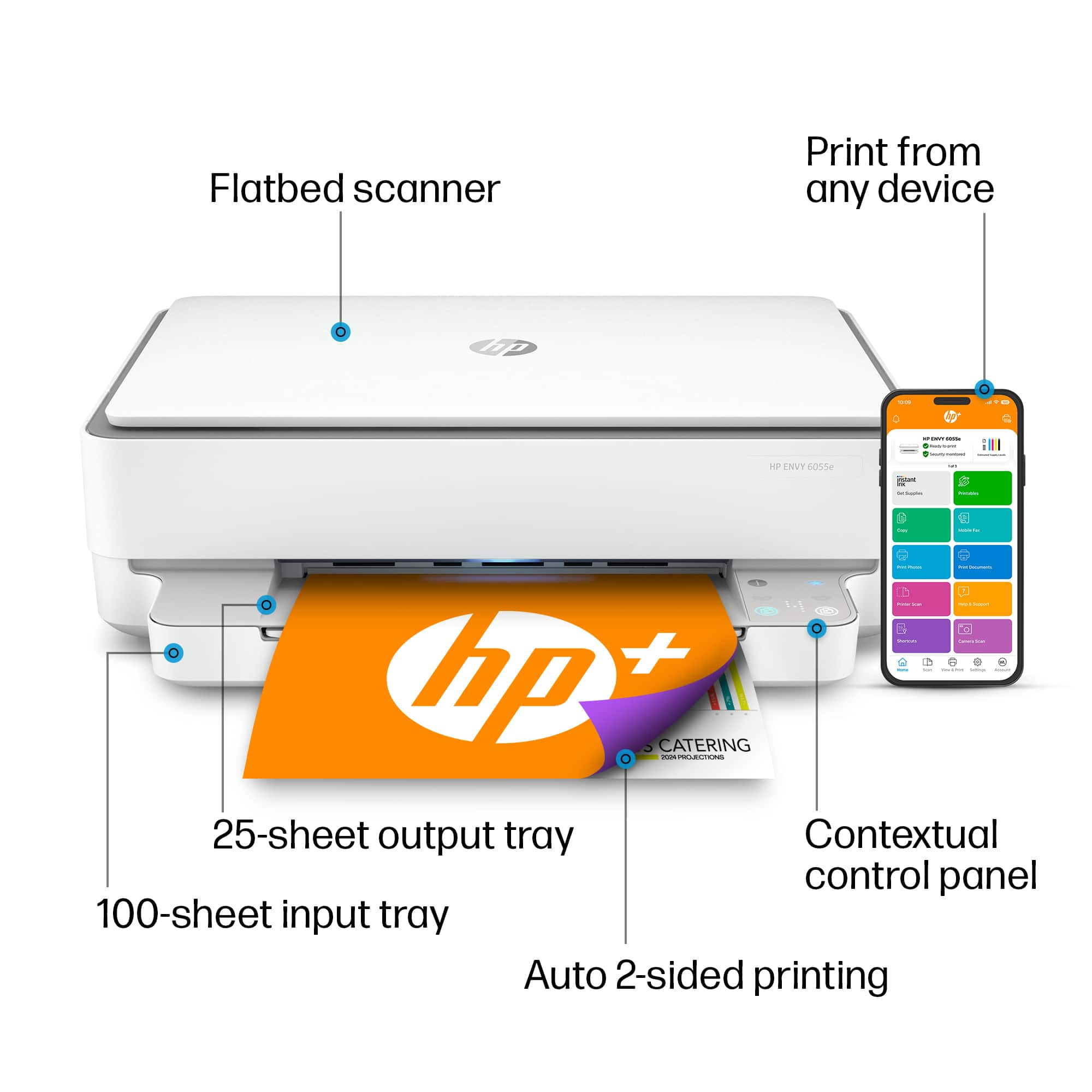
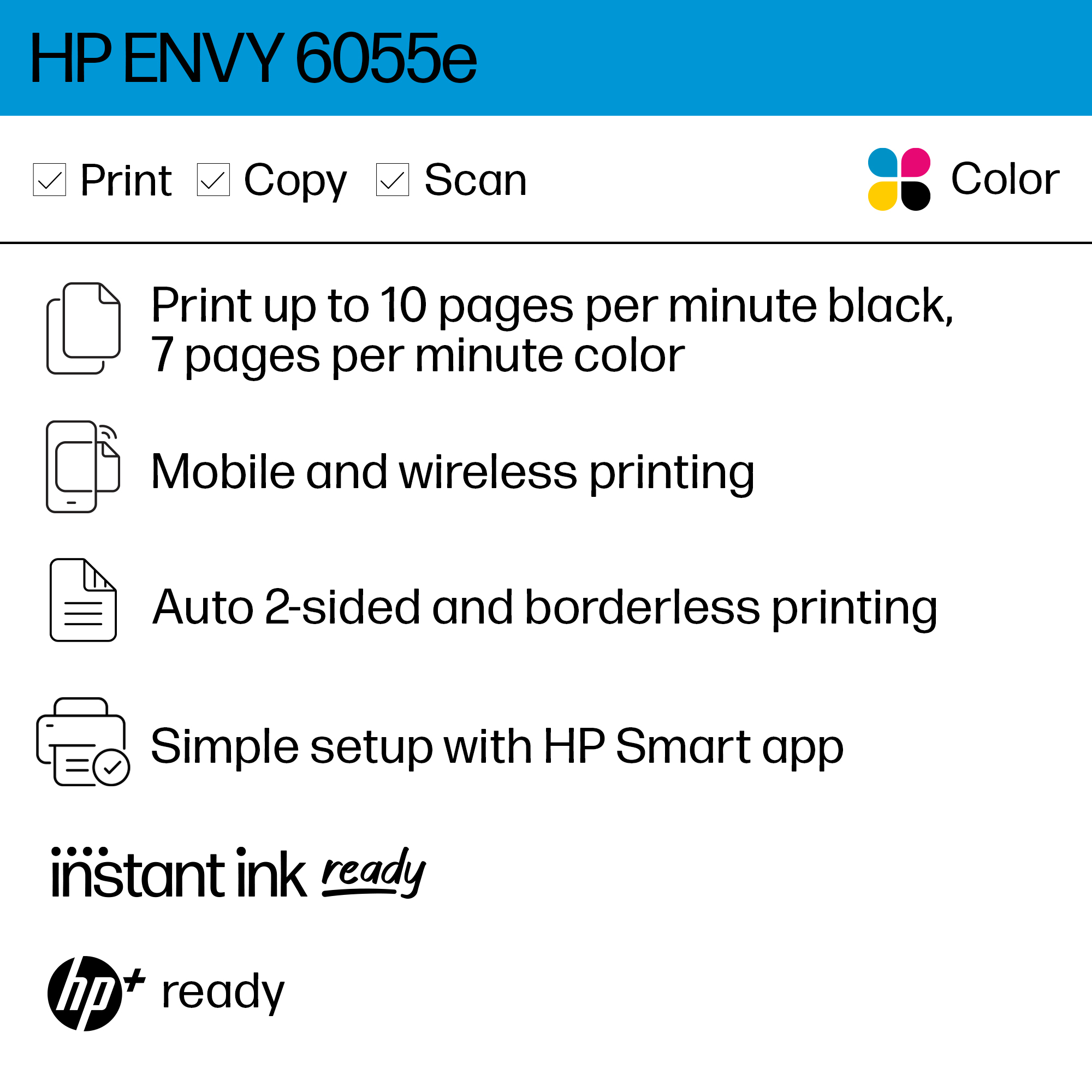
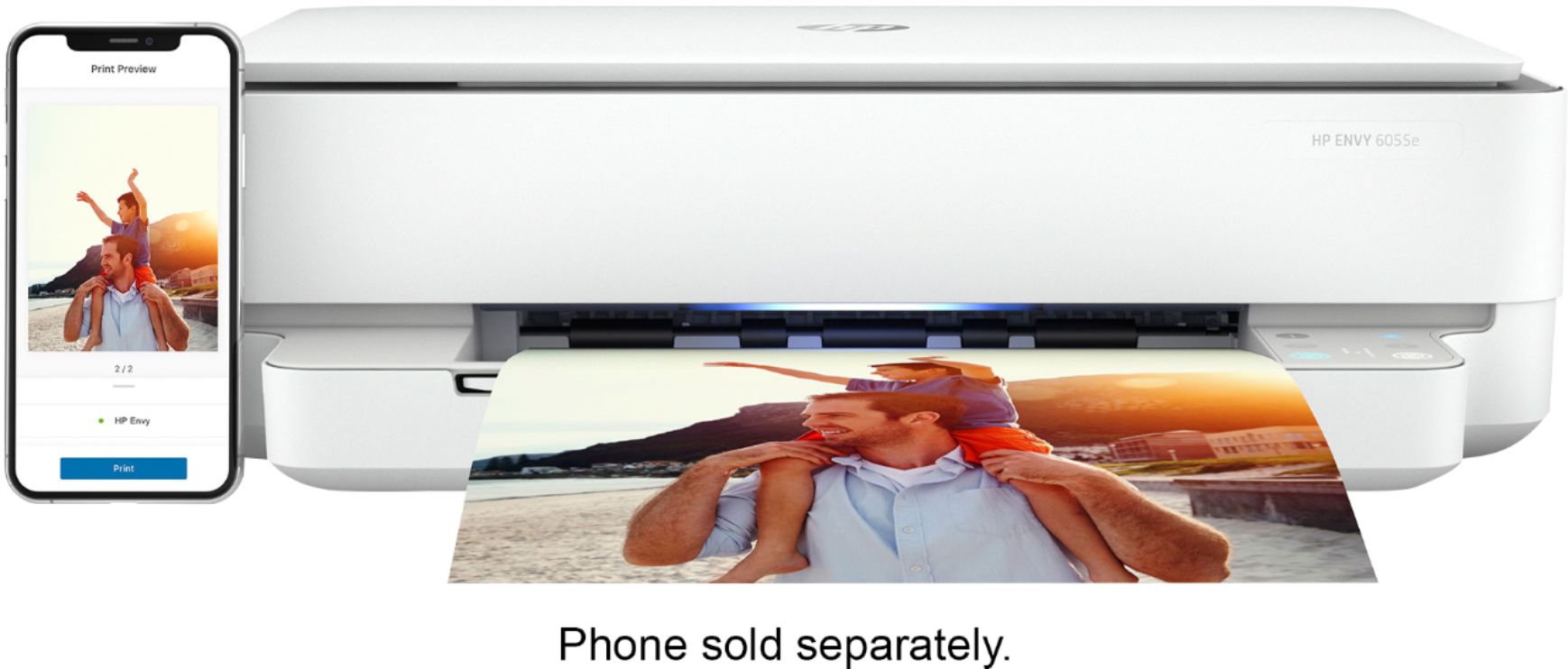
A:AnswerThank you for the question. Yes. The best and simplest set up method is using the HP Smart App on your Smartphone or computer. Download the Android, IOS, Mac and Windows apps at their respective app stores.
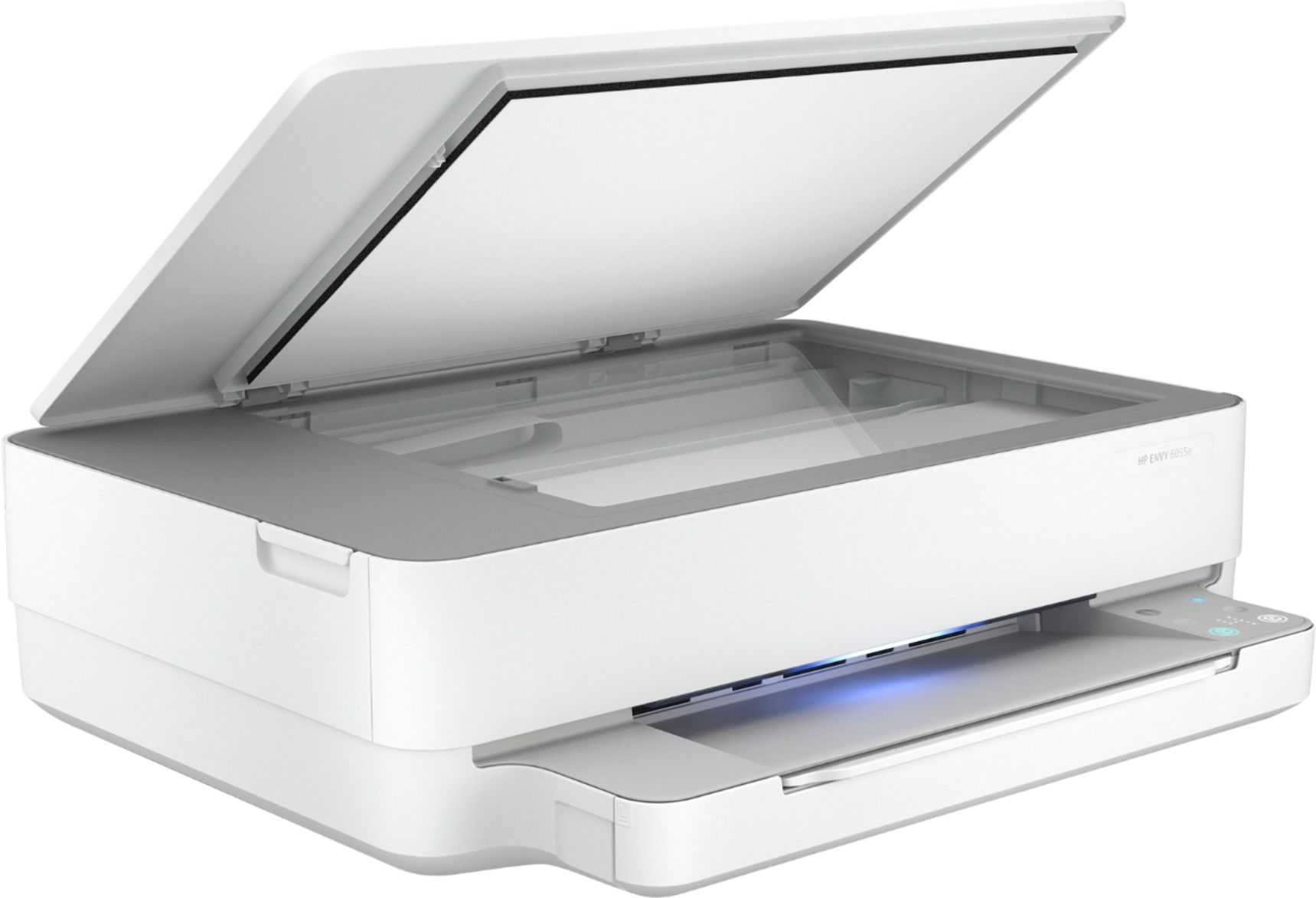
A:AnswerIt can, but you need to understand that scanning negatives (and positive slides) generally works based on shining light through the film, while this printer works by reflecting light off the item. Results may not be up to your expectations, but it depends on the film stock and it's quality.
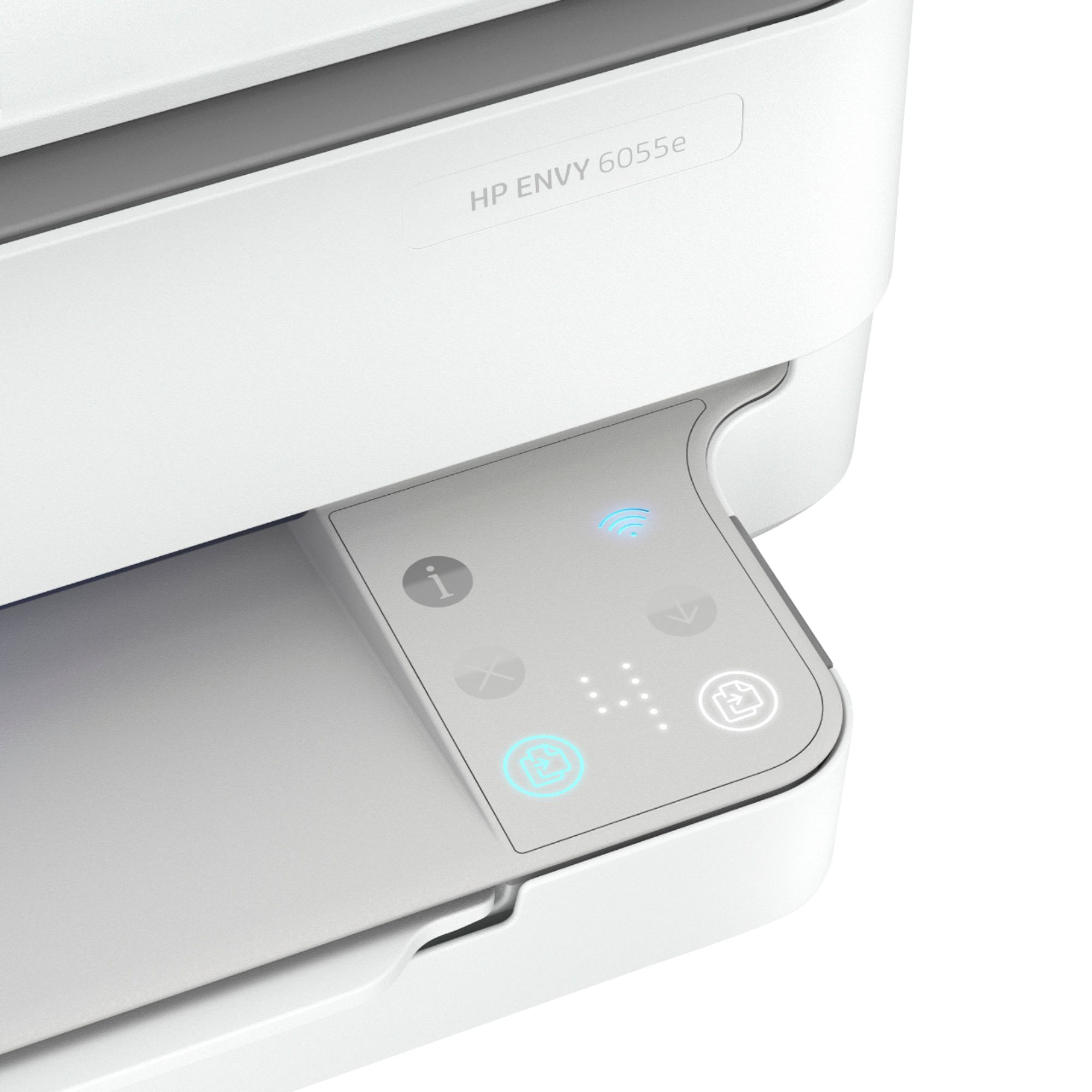
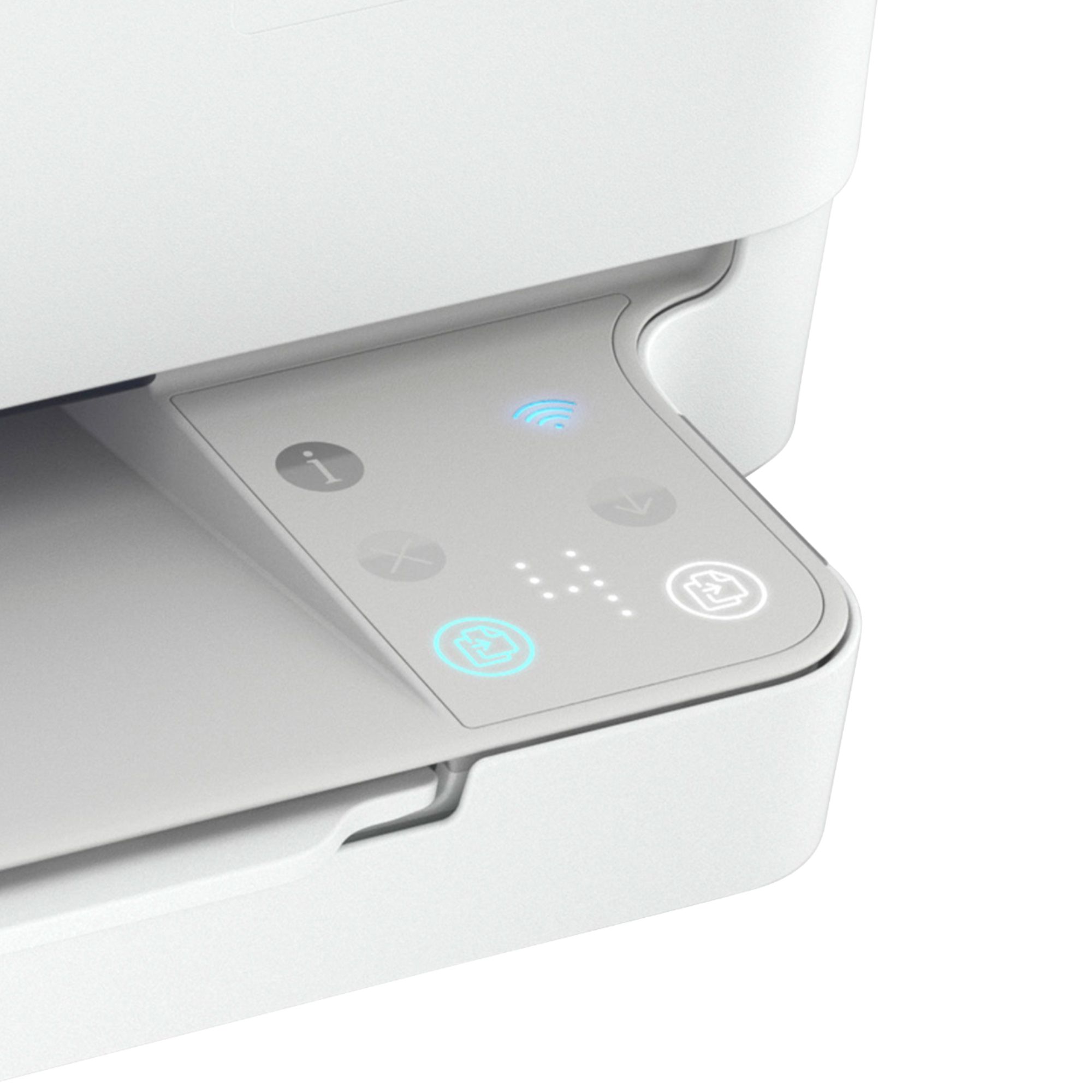
A:AnswerHarry, thank you for telling me where the on/off switch is on this Printer in the back. It is not marked and there are no instructions to tell you where it is, even from the printed help page from pressing the red X. Glowing light stays on the whole time printer is on. I do not know how to reduce images. No instructions. Sorry I cannot help you with that.
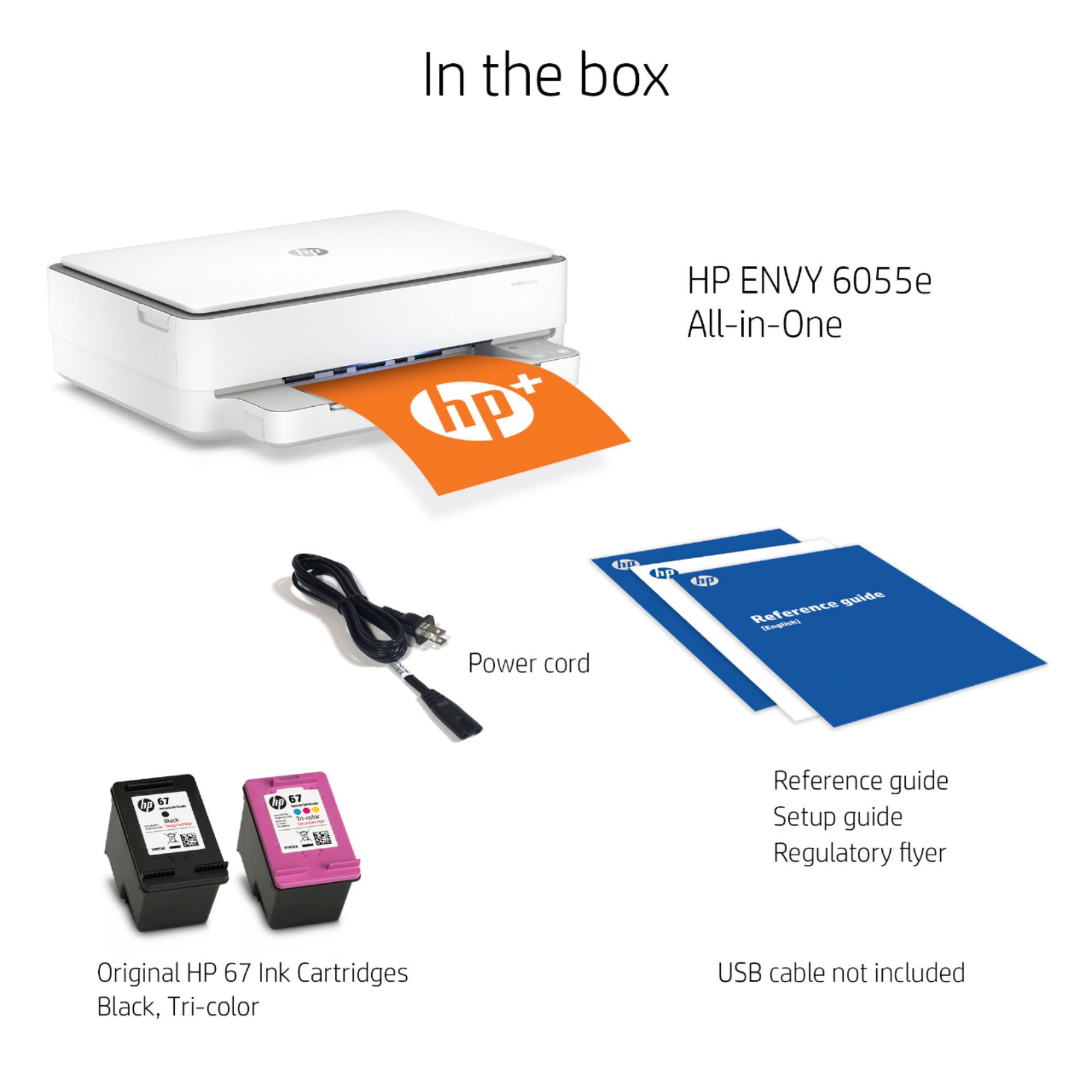
A:AnswerHello. Thanks for your question. This printer comes with setup cartridges in the box. The yield of setup cartridges varies by model but tends to be enough to get the average user through setup and initial printing jobs. You can learn more about Ink and Toner by the model at https://bit.ly/3cQrnaN
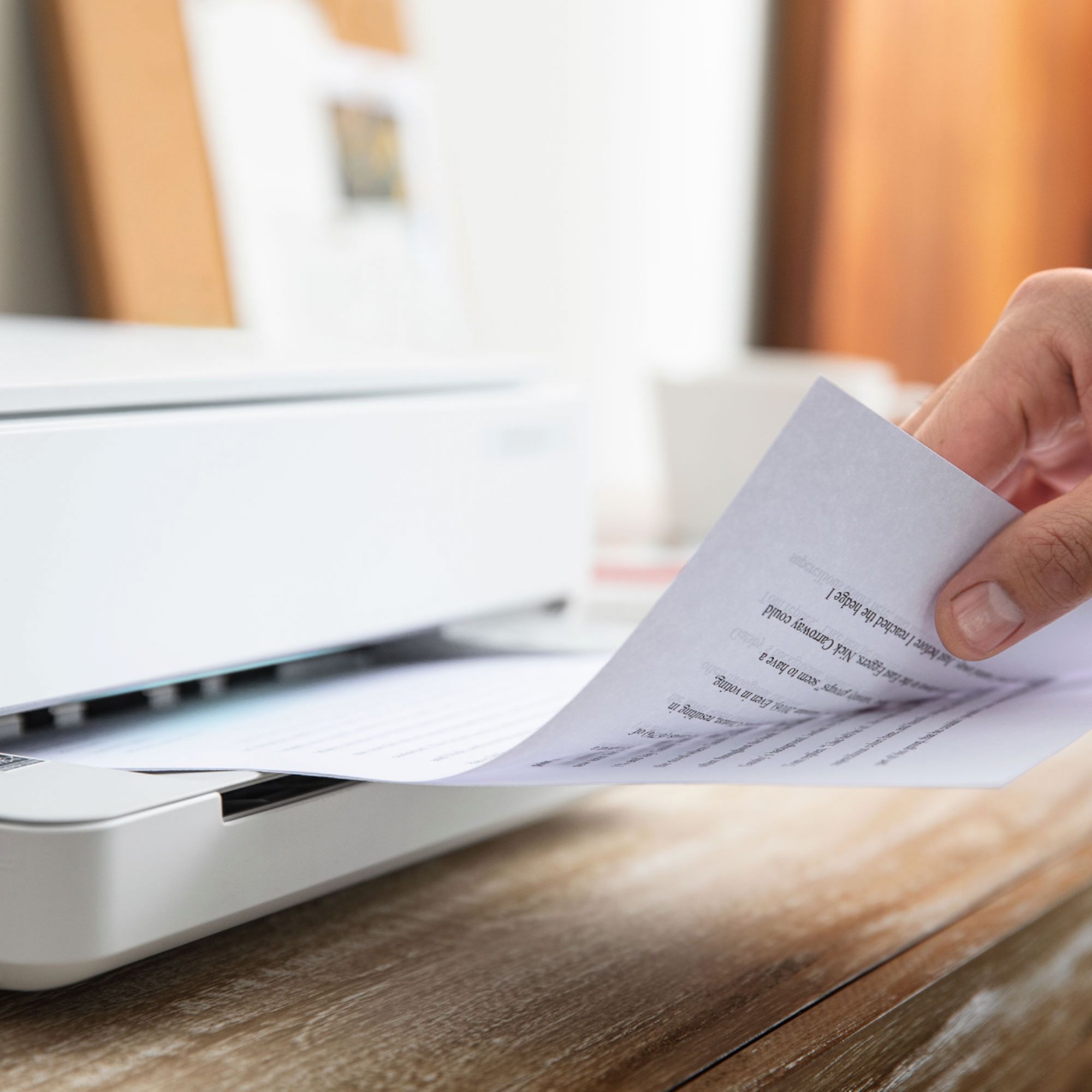
A:AnswerThank you for the question. Click on the option Copies and Pages so that a drop down menu appears. Select the Layout option. Click on the drop down menu next to the words Two-Sided. To turn off the double-sided printing options, select Off.
A:AnswerThank you for the question. You are not required to use Instant Ink. Simply opt-out of the free offer when you set up the printer. Apologies that you don't understand how Instant Ink works. It's a service by which customers can have ink always available for a monthly fee based on the page allotment the customer decides. The monthly page count can be changed at any time - or even cancelled. It's an affordable option, especially when printing photos that typically use lots of color ink, because a page is a page, no matter what's on it. Learn more here: https://instantink.hpconnected.com/