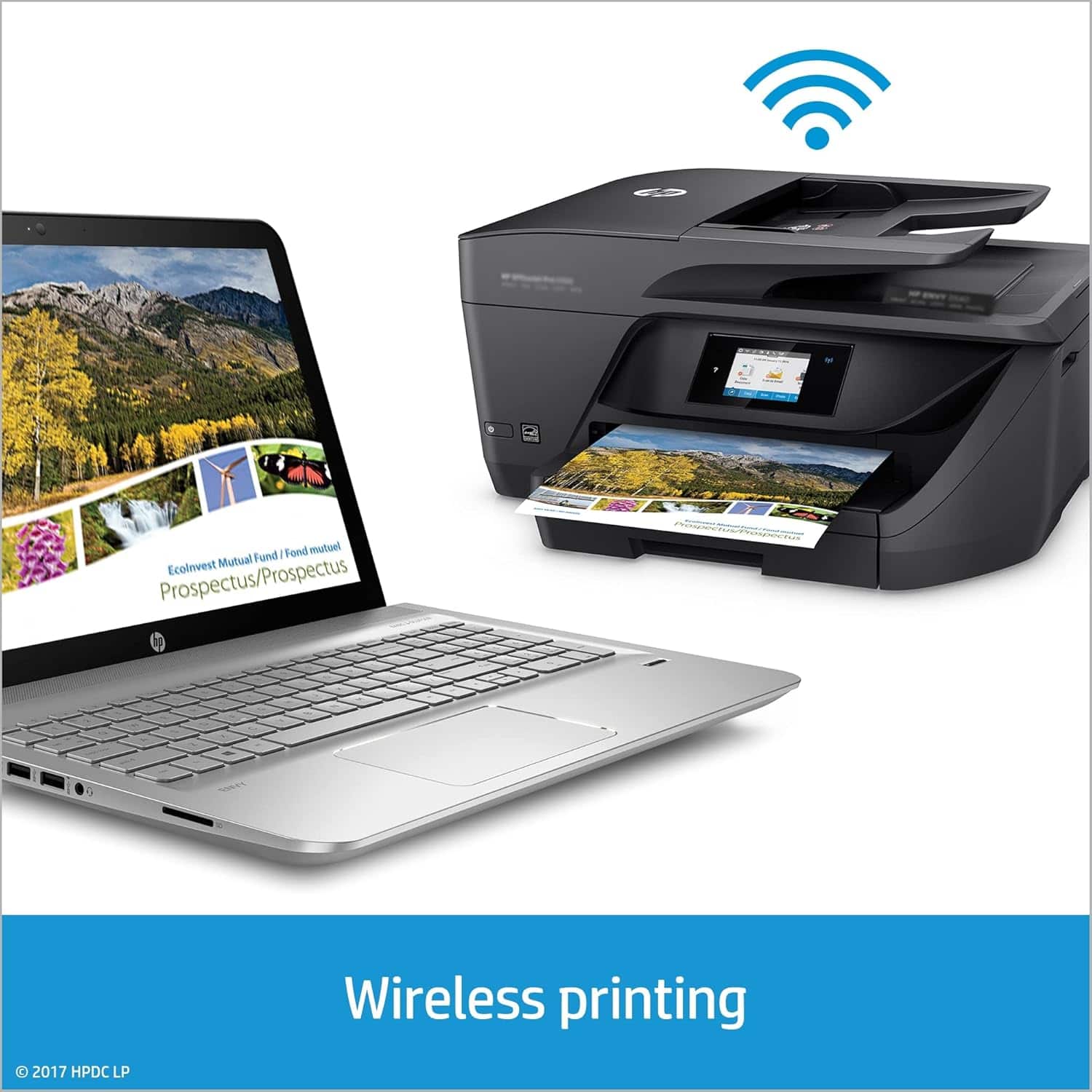
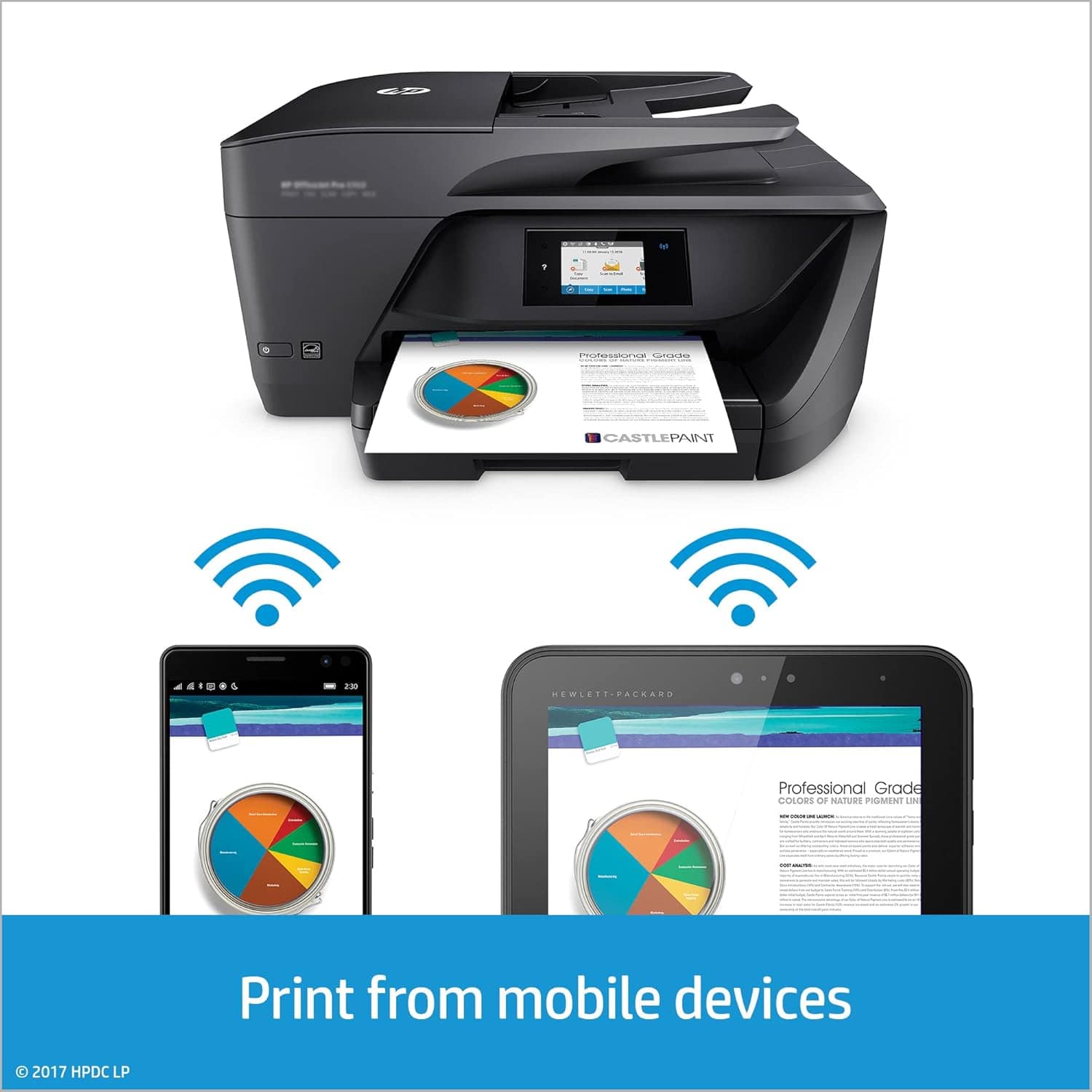
A:AnswerYou should be able to just connect to your network through the network connectivity settings. We recommend checking out our HP Support site for more details and assistance! https://support.hp.com
A:AnswerThe display screen should provide a quick how-to clear a paper jam. If that doesn't help, this link should! https://support.hp.com/us-en/document/c05079673
A:AnswerThat happened to mine. It may be the ink cartridge seat. It’s removable and can be replaced but if your machine is under warranty, HP is very good at replacing the whole machine in a timely manor. Otherwise, replacing the seat needs to be sent through mail and actually takes longer. With the cost of printers, it may be more economical to recycle that printer and get a new one.
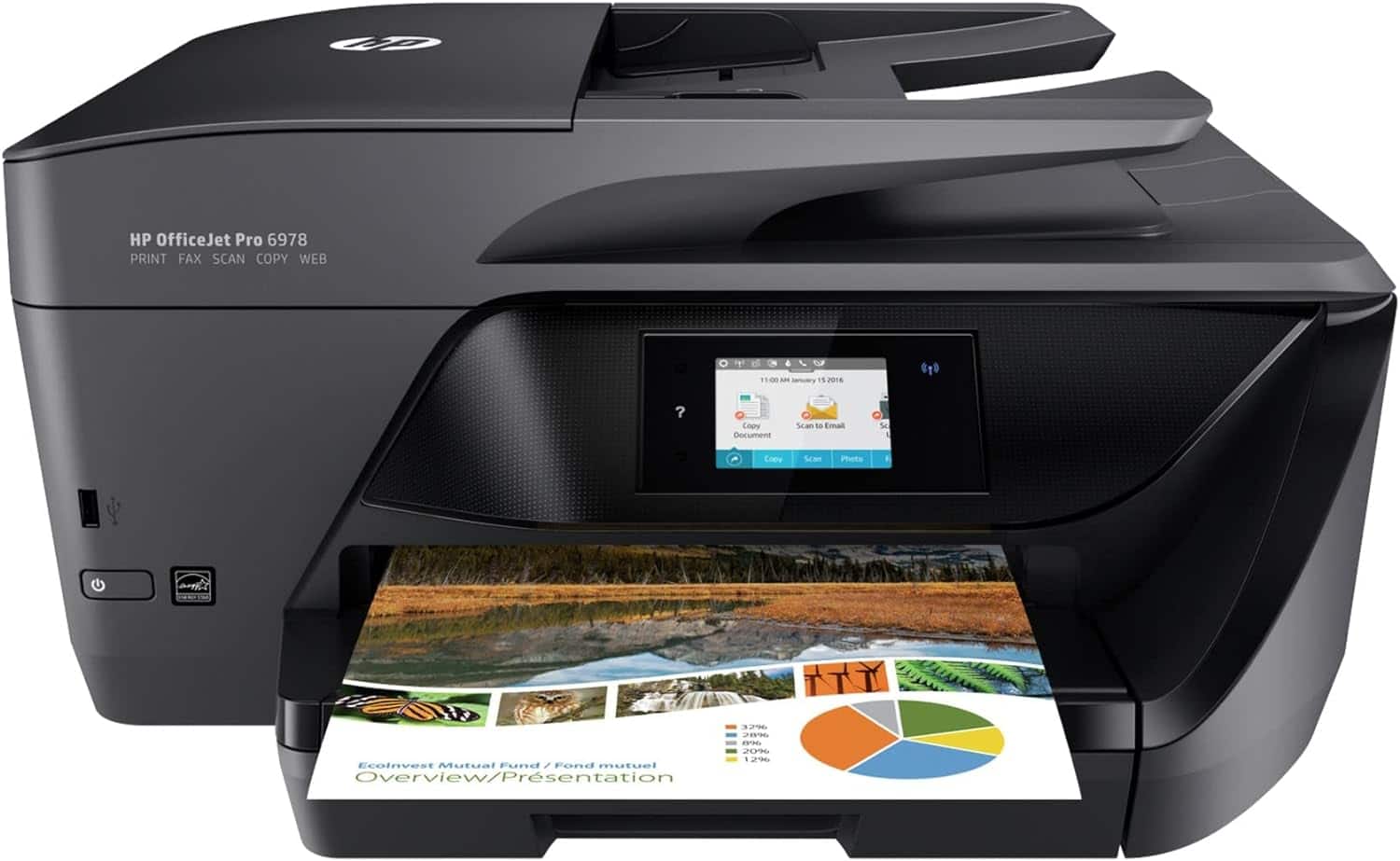
A:AnswerYou will need to make sure your printer and computer are connected, and then on the article itself you can right click to press print, or press CTRL+P, and determine how much of the content you want to print.
A:AnswerI suggest you do what I did the first time I had a serious paper jam (after I thought I had removed the jam but still got an error message), go to You Tube and watch a detailed video for your particular printer. They actually have how-to videos on just about everything.