A:AnswerTo ensure you are able to scan with your HP OfficeJet Pro 9125e printer, we recommend contacting HP Support. Thank you for being a valued HP customer.
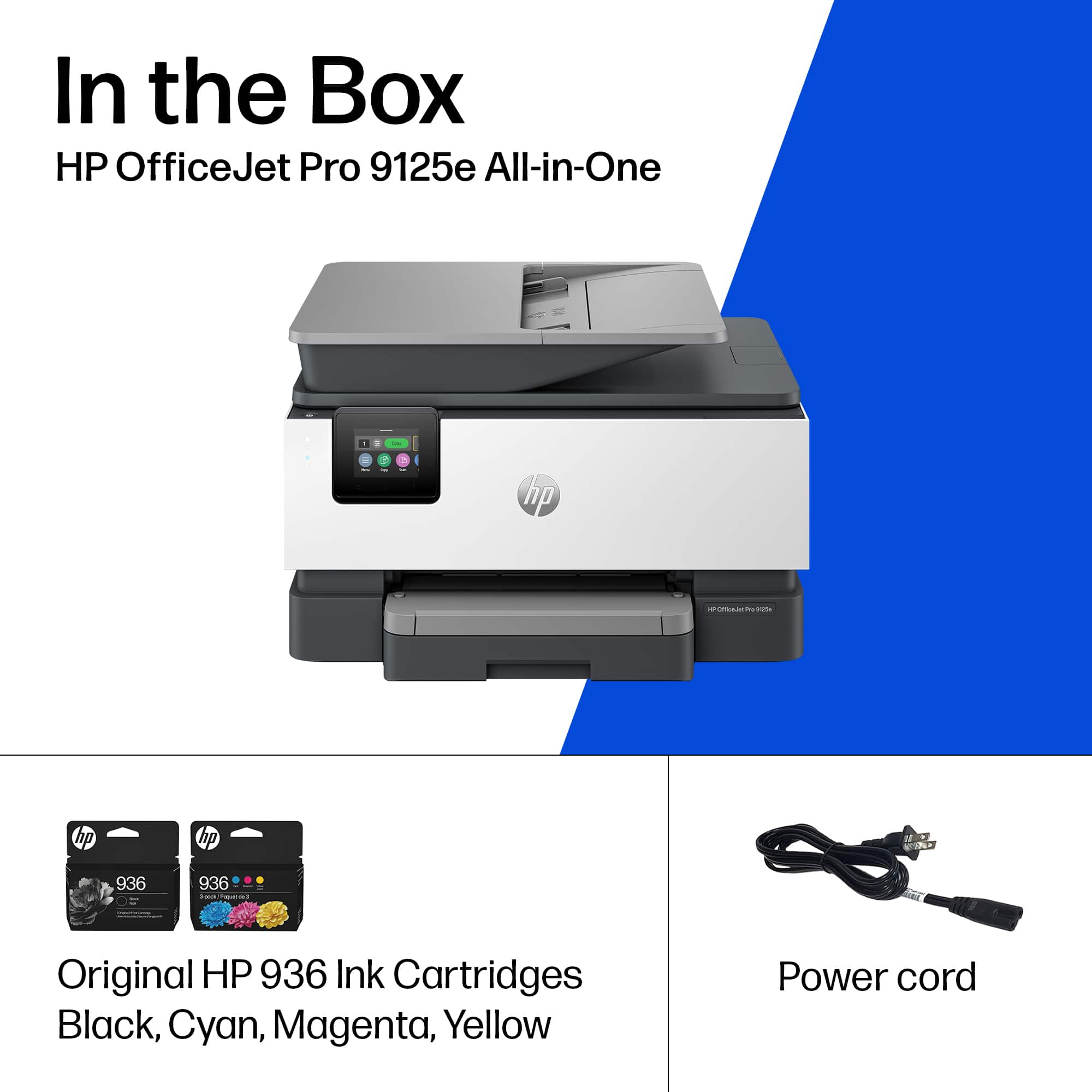
A:AnswerThank you for your question. The OfficeJet Pro 9125e uses HP 936 ink cartridges, available in black, cyan, magenta, and yellow. The HP OfficeJet Pro 9015e uses HP 962 ink cartridges, also available in black, cyan, magenta, and yellow.
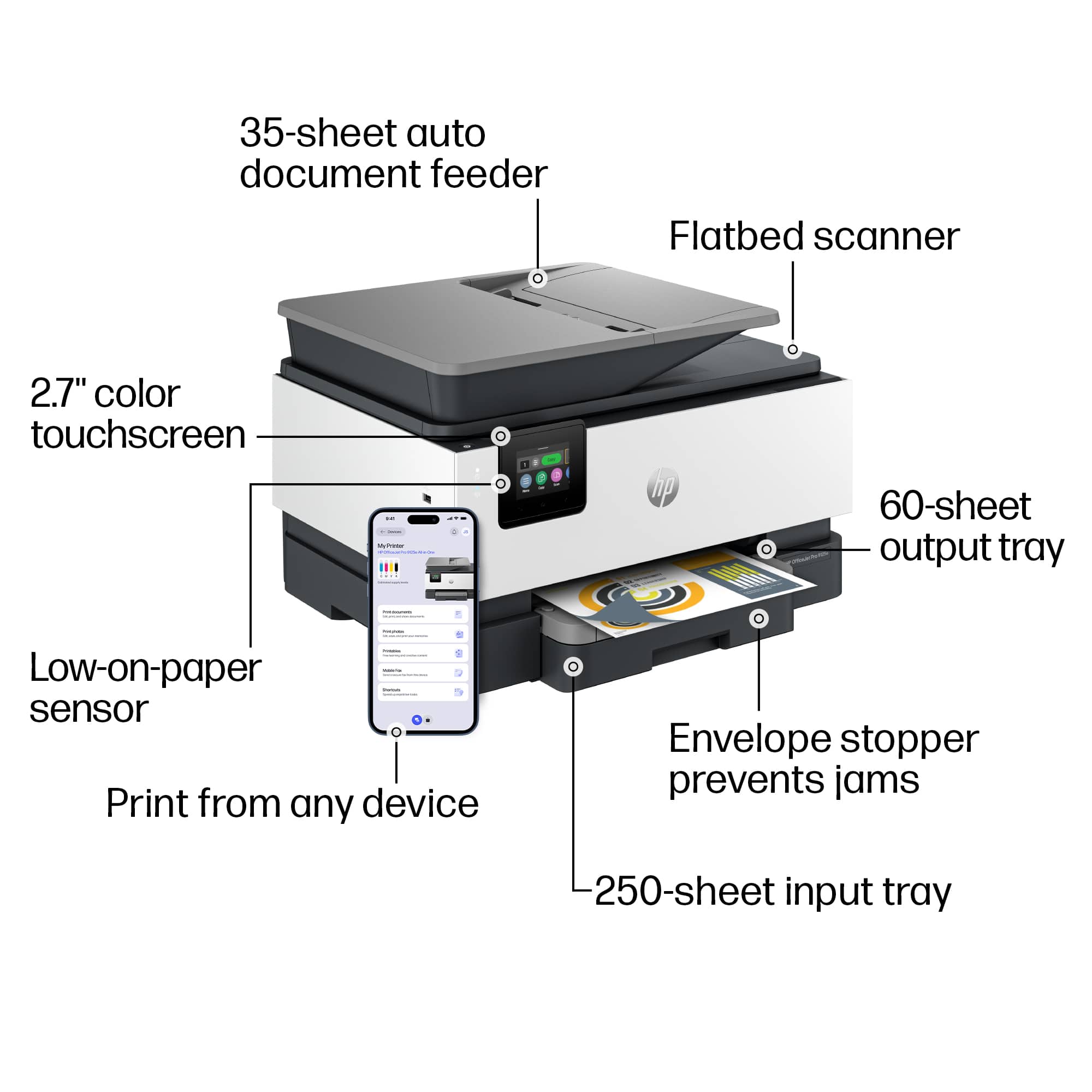
A:AnswerThank you for the question. The method to clear a paper jam depends on the location where the jam has occurred (in the paper path cover, print zone, from the input tray, or in the document feeder). Page 84 of the User Manual illustrates how to clear each type of jam. If you do not have the User Manual, you can obtain it from HP Support online.
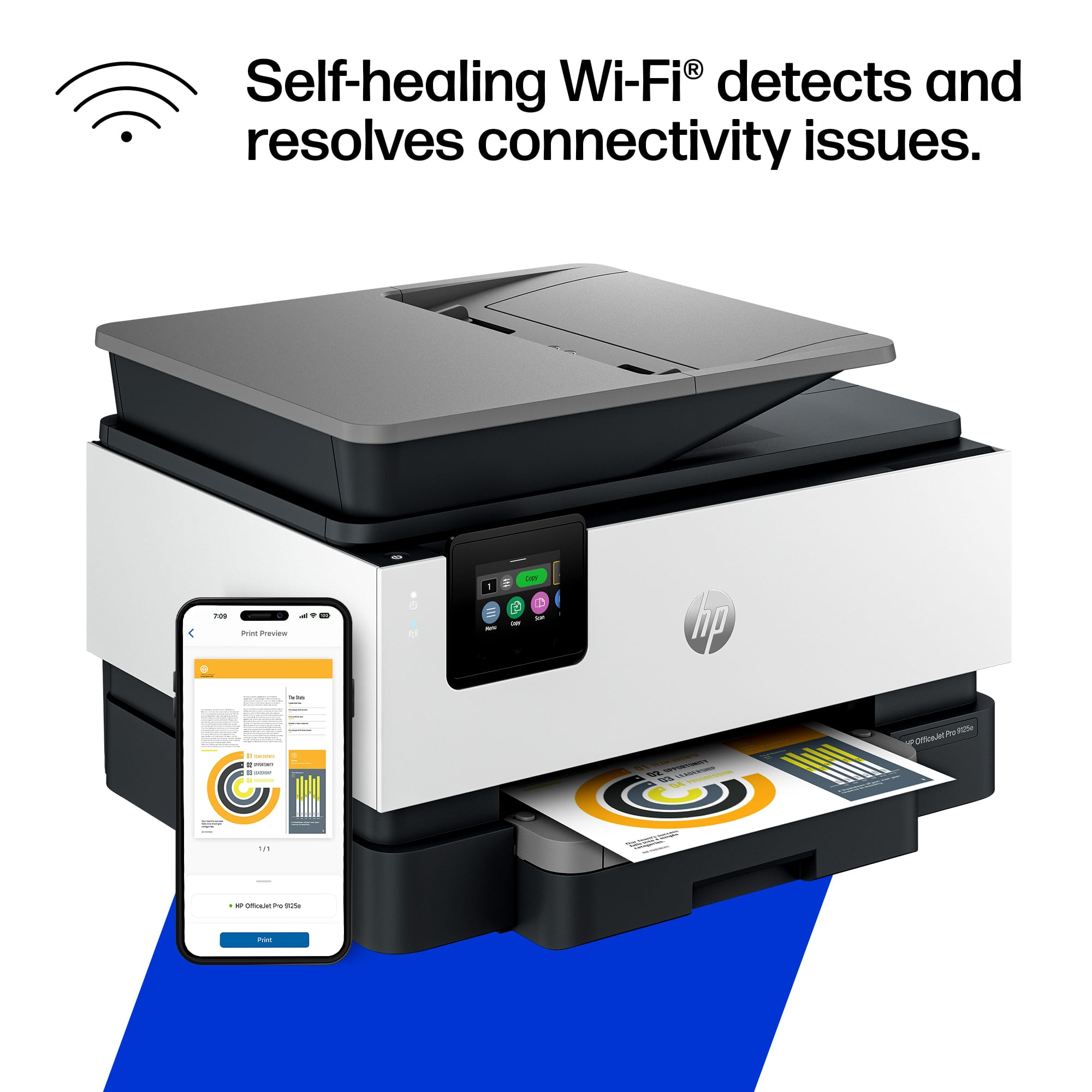
A:AnswerI had trouble with the automatic setup for Wifi also. On the display window, I went into the Menu, then Settings, then Network and manually added the printer to my Wifi. It's worked ever since