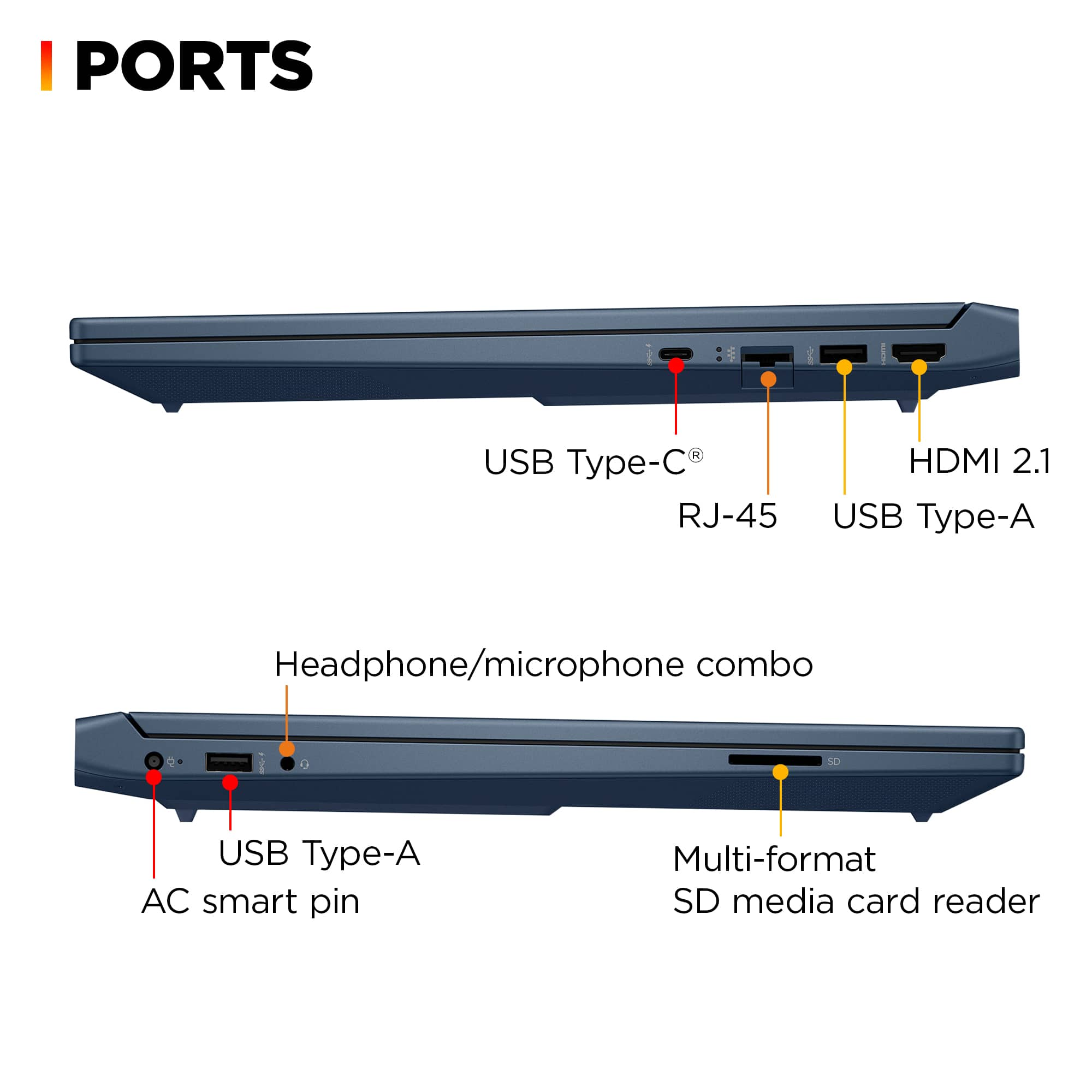
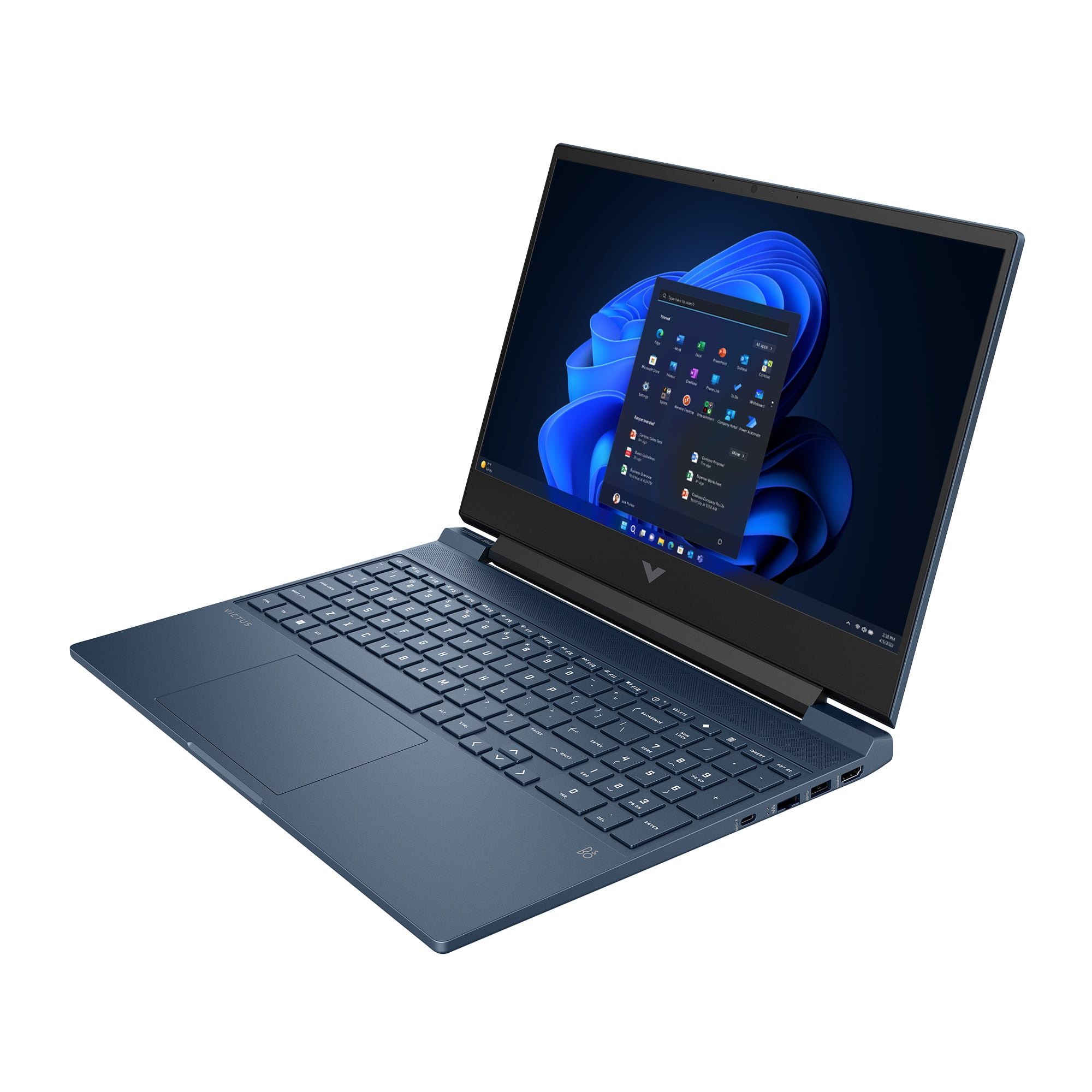
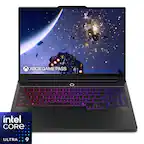
A:AnswerThank you for the question. Yes, the USB Type-C® port supports DisplayPort™ 1.4. You have the option to enable the internal graphics or the dedicated graphics card for gaming. Do this through the NVIDIA control panel.
A:AnswerHi Nick, thank you for the question. The Victus 15-fa1163dx does not have an additional SSD slot, however, you can swap the existing 1TB for one with more capacity. We always recommend that this be done by a professional technician.
A:AnswerThank you for your question about this HP Victus laptop! It is not VR-ready as the 4050 card does not support that feature. You would need at least a 4060 for VR and HP offers that in their Omen gaming laptops, which are sold through Best Buy.
A:AnswerThank you for your question. As system requirements for software constantly change, we cannot answer questions about software compatibility or performance. What is compatible today may not be in a few months. Please check the software manufacturer's website for the most current system recommendations.
A:AnswerJust about anything I've ever seen on Best Buy has an extended payment plan. If it does, it is posted immediately to the right of the full price (sale or otherwise).
A:AnswerThere is disagreement as to the maximum RAM that can be installed. Search Questions for more info.
Soldered RAM is always designated with the name "LPDRR," which this doesn't have. Therefore, it is not soldered.
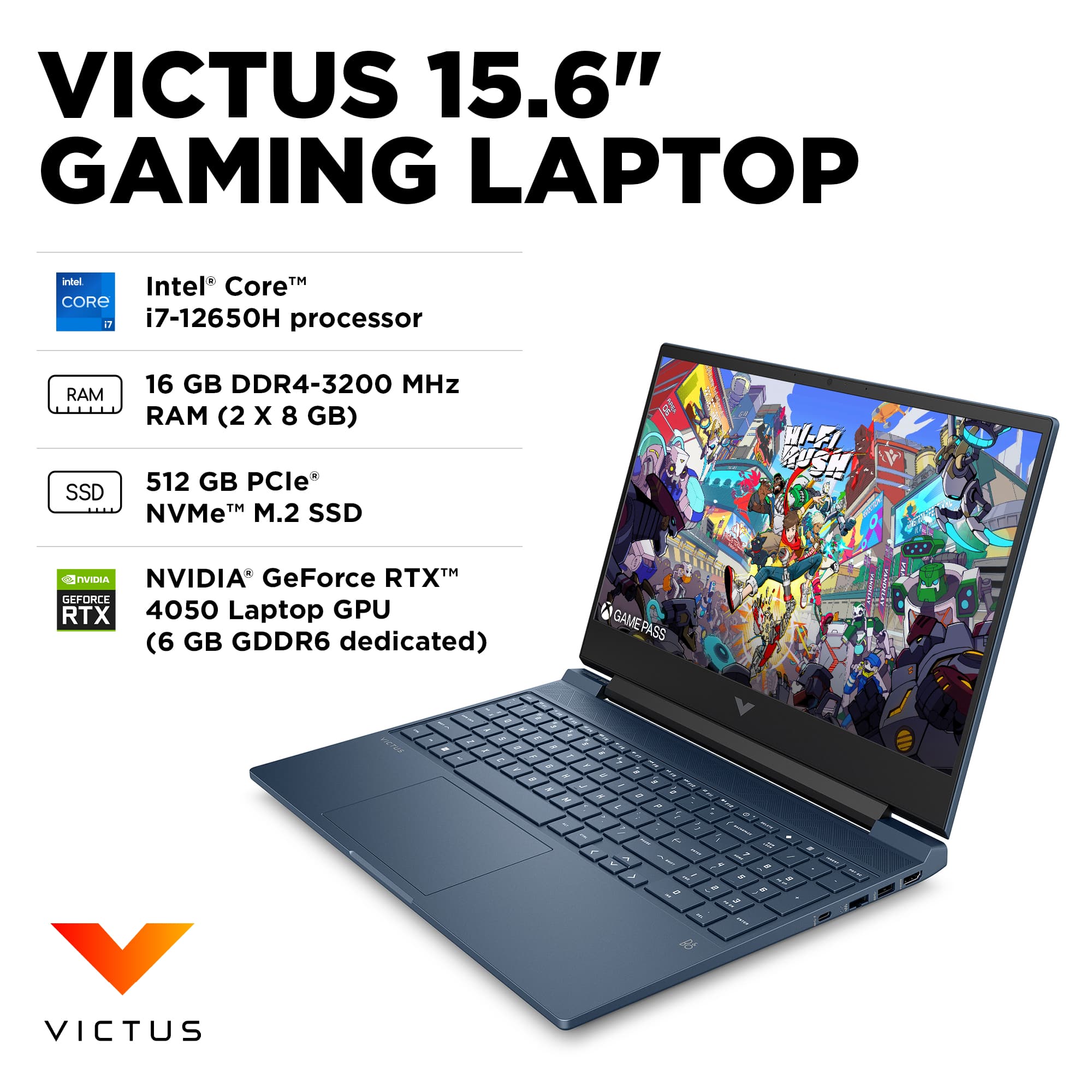
A:AnswerAyman, thank you for your question about this HP Victus gaming laptop! It uses up to two 8GB DDR4-3200 sticks for a total of 16GB of memory. That is the highest amount of memory supported according to the documentation. The Omen series gaming laptops go up to 64GB of DDR5 memory with faster buses, and are available for purchase through Best Buy.
A:AnswerSince you replaced the original 512GB NVMe SSD with a 1TB NVMe SSD, it sounds like you did a fresh Windows installation rather than cloning your original drive. This resulted in:
Loss of preinstalled apps (like Omen Gaming Hub)
Windows not being activated
Missing original settings
How to Restore Your Original Windows
Option 1: Reinstall the Original Windows Image from HP (Recommended)
HP typically provides a recovery image that restores the laptop to its factory state. Here’s how you can do it:
Check for an HP Recovery Partition (If You Still Have the Old SSD)
If your old SSD is still functional, you can reinstall it and check if HP Recovery is available.
Restart your laptop and press F11 during boot to access HP Recovery Manager.
If available, create a recovery USB using HP Cloud Recovery Tool (details below).
Use HP Cloud Recovery Tool (If You Have Another PC)
Download HP Cloud Recovery Tool from HP’s website.
Insert a 16GB or larger USB drive.
Run the tool and follow instructions to create a factory recovery USB.
Boot from the USB and reinstall HP’s original Windows with all preinstalled apps.
Option 2: Re-Activate Windows Manually
If you already installed a fresh version of Windows, but it’s not activated:
Check Activation Status:
Go to Settings → Update & Security → Activation.
If it says “Windows is not activated”, follow the next steps.
Try Activating with a Digital License:
Connect to the internet and restart your PC.
If your laptop came with Windows pre-installed, it should activate automatically.
If not, click “Troubleshoot” and select “I changed hardware on this device recently” to recover your digital license.
Enter Your Original Product Key (If Available):
If your original Windows key is on a sticker (usually under the laptop or in BIOS), enter it manually.
To check for a BIOS-embedded key, open Command Prompt (Admin) and type:
powershell
Copy
Edit
wmic path SoftwareLicensingService get OA3xOriginalProductKey
Copy the key and activate Windows in Settings.
Option 3: Manually Reinstall Missing Apps
If you prefer to keep your new Windows installation, you can manually download missing HP apps:
Omen Gaming Hub → Microsoft Store
HP Support Assistant → HP’s website
HP Drivers & BIOS Updates → Enter your laptop model here
Final Thoughts
If you want everything exactly as it was, the HP Recovery Tool is the best option. Otherwise, manually activating Windows and reinstalling apps should work.
A:AnswerThank you for the question. The harder the laptop has to work while on battery power, the faster the battery drains. When using battery power only, you should be mobile settings - a dimmer screen, fewer tabs or tasks working simultaneously, etc. Please review the User Guide for ideal settings when using only batter power.
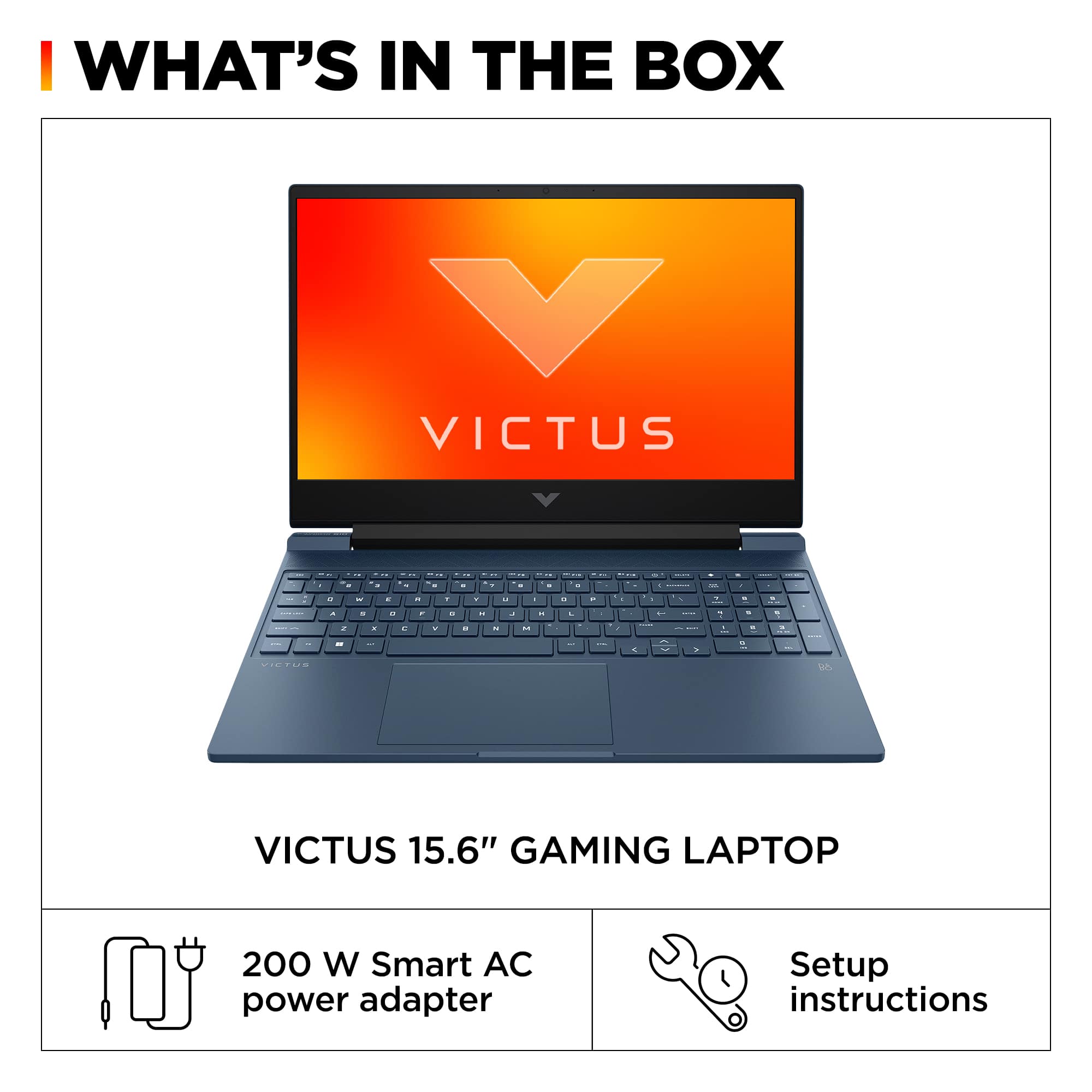
A:AnswerHi, Mjain-no it doesn't have a 200-watt charger. That's the maximum output of the power supply in the computer. While it doesn't list the power that the charger can pass to the computer, that's typically about 90 watts. Thank you for asking the question!
A:AnswerHello and thanks for asking. If you want to run Windows 10 on the HP Victus 15-fa1133dx gaming laptop, you would be doing so at your own risk and HP will not support that configuration. It can be upgraded to Windows 11 Professional by going to the Microsoft Store. Search for “Windows 11 Pro Upgrade.” The cost is $100. The size of a separate partition would depend on the system requirements of that software.