Questions & Answers
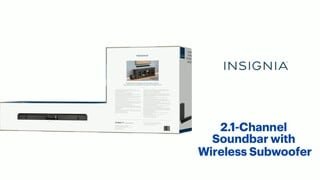
- Model:
- NS-HTSB2123
- |
- SKU:
- 6544290
Highly rated by customers for: Sound Quality, Setup, Bass
$99.99Your price for this item is $99.99
Page Showing 21-32 of 32 questions
Q: QuestionMy soundbar has turned on multiple times by itself no other device is on. I turned the bluetooth on my phone off, that seems to have stopped it... but i was only on my phone I was not watching tv... is this a feature for it to turn on from your android?
Asked by Anonymous.
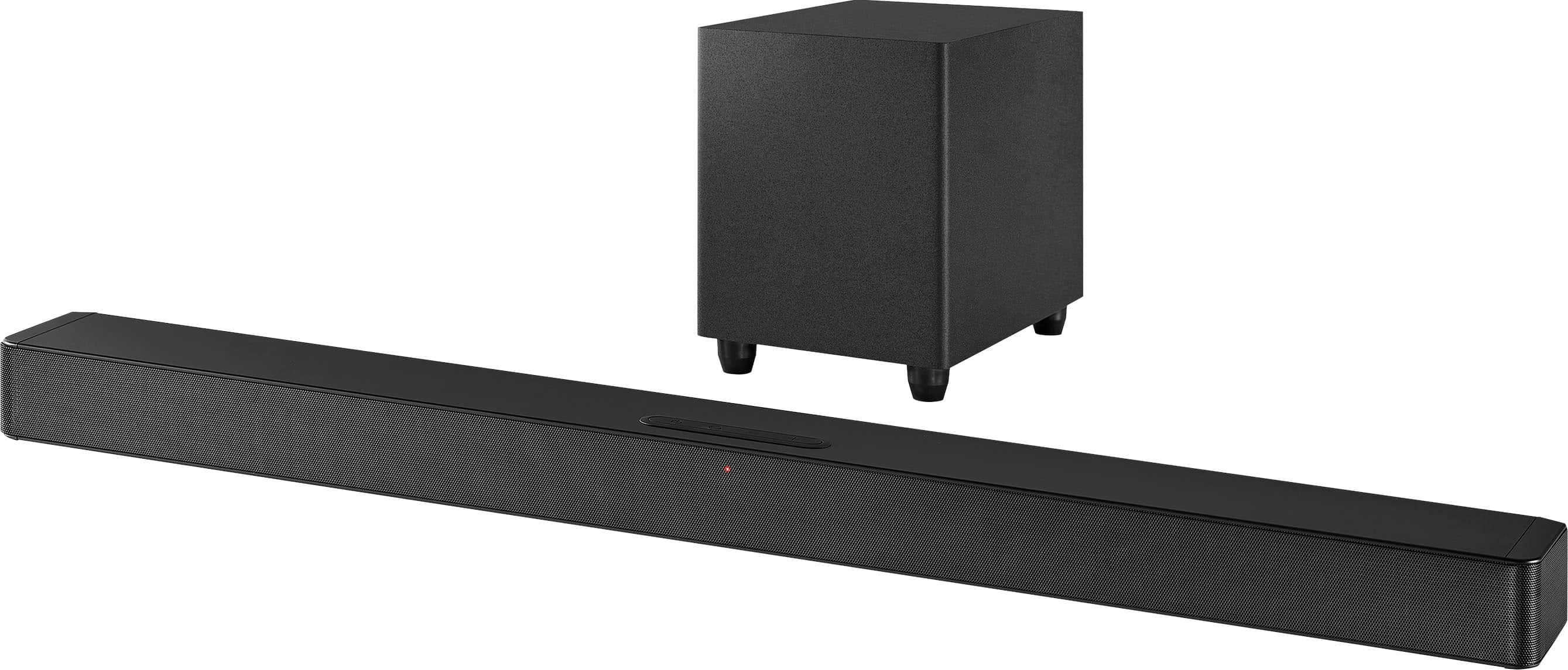
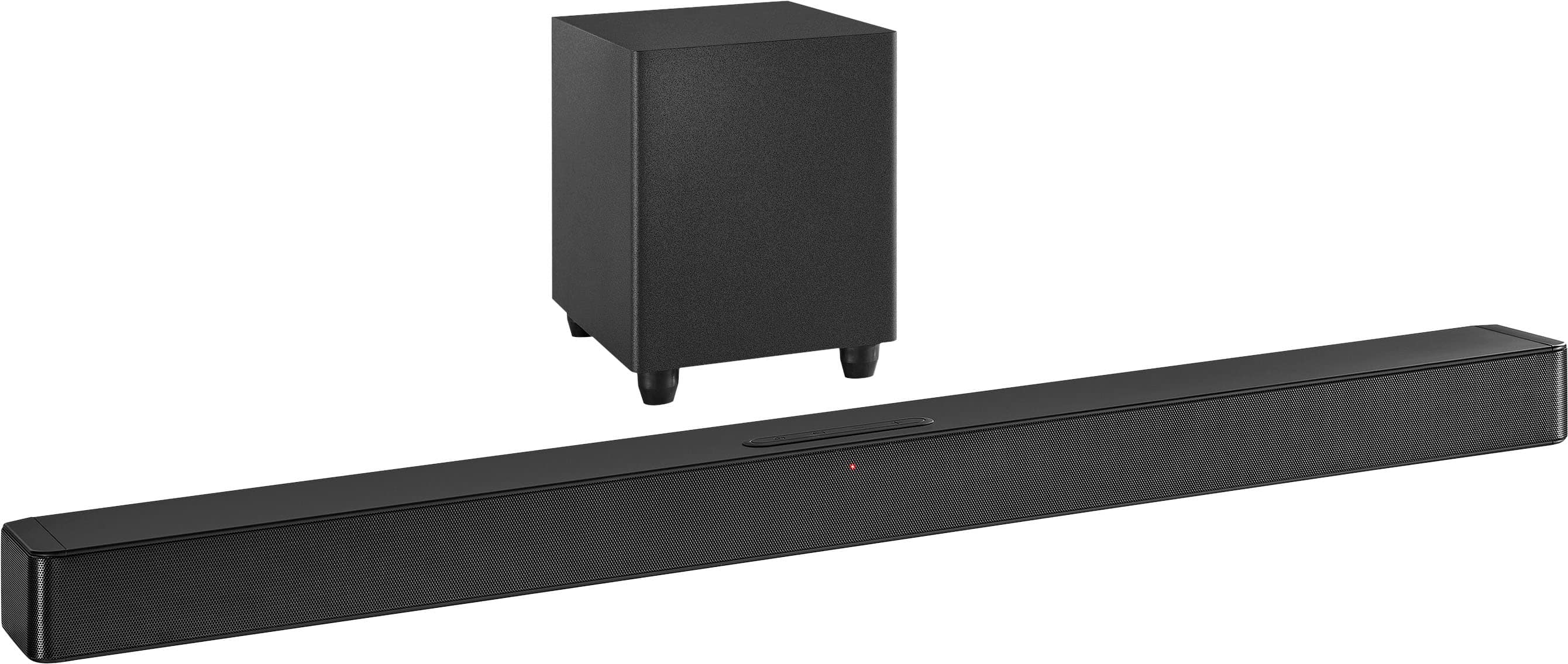
- A:Answer Thank you for reaching out and sharing your experience with the Insignia™ 2.1-Channel Soundbar with Wireless Subwoofer and DTS:Virtual X. I'm sorry to hear about the issue you're encountering with your soundbar turning on by itself. The soundbar does have a feature that allows it to automatically power on when it detects a Bluetooth signal from a paired device. This might explain why it turned on when your phone's Bluetooth was active. To prevent this from happening, you can either keep the Bluetooth on your phone turned off when not in use or unpair the soundbar from your phone when you don't intend to use it. If the issue persists or if you have any other questions or concerns, please don't hesitate to reach out. We're here to help ensure you have the best experience with your Insignia products.
Answered by InsigniaCustomerSupport

Q: Questionhello was wondering if i could use the sound bar for my tv and the subwoofer for something else like a computer
Asked by ethan.
- A:Answer Yes, you can use the Insignia™ 2.1-Channel Soundbar for your TV and the subwoofer for your computer, but they are designed to work best together. Separating them might affect the sound quality. If you have any other questions, feel free to ask! - Mae | BestBuy Essential Support
Answered by InsigniaCustomerSupport

Q: QuestionI am unfamiliar with soundbars. I assume I plug my TV into this bar with HDMI? Can I attach my turntable to these speakers, too? I am trying to replace my receiver and sound system not add more parts.
Asked by Anonymous.
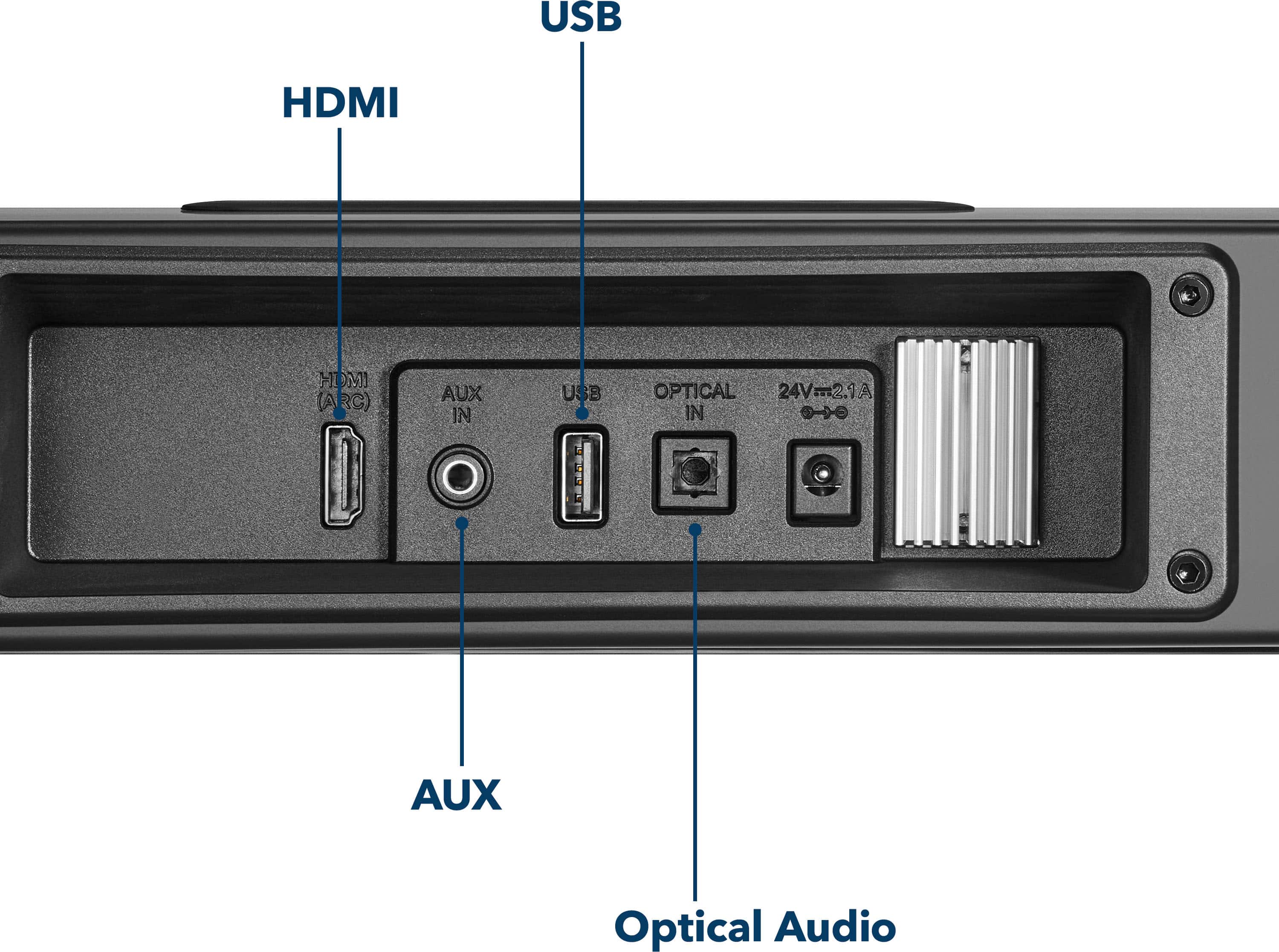
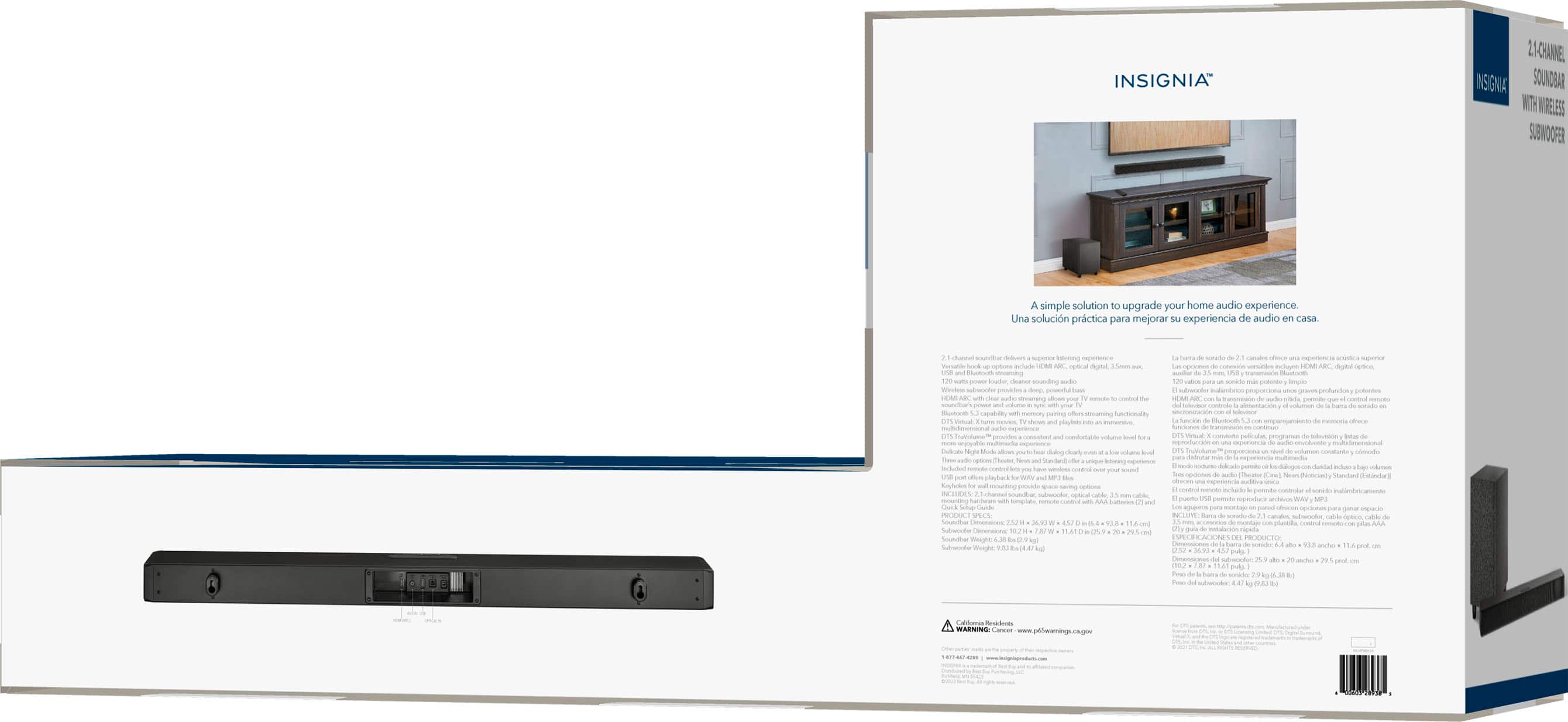
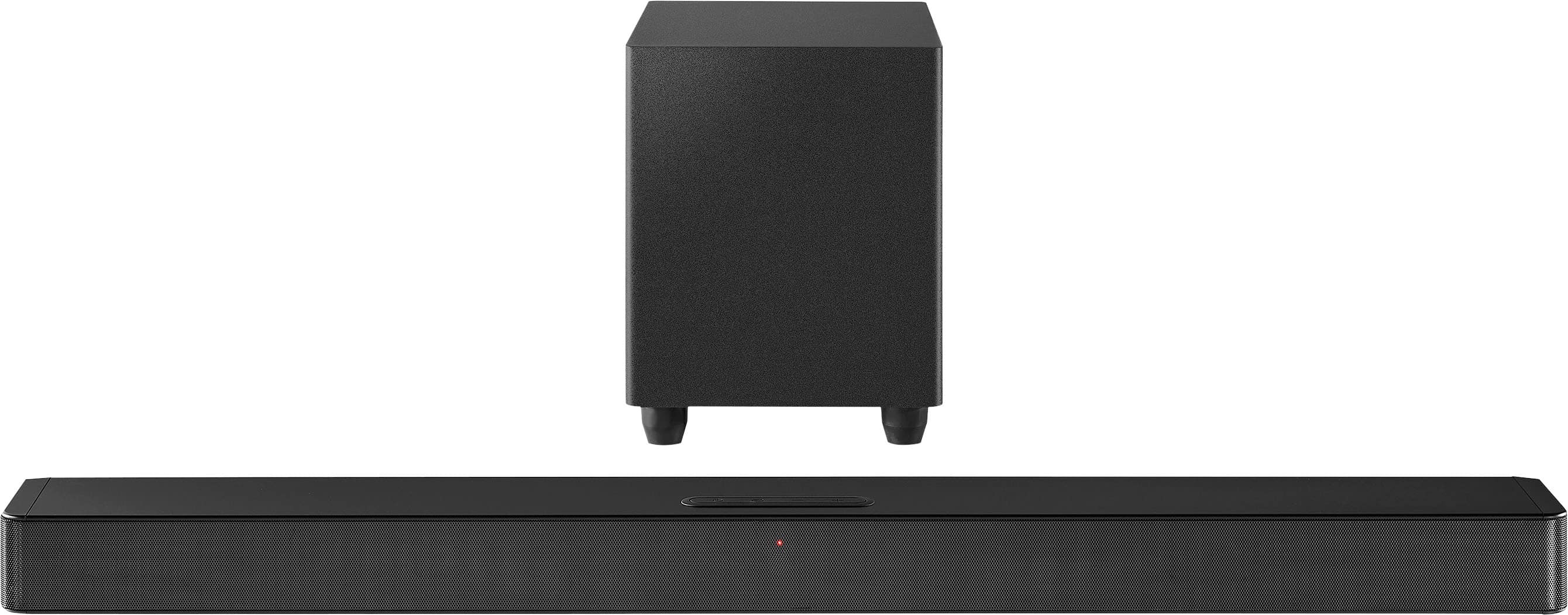
- A:Answer Hi there. Yes, you can connect your TV to the Insignia™ NS-HTSB2123 soundbar using an HDMI ARC (Audio Return Channel) connection. This will allow you to control the soundbar with your TV remote and get high-quality audio. However, connecting a turntable directly to this soundbar might be a bit more challenging. This soundbar has several input options, including HDMI ARC, optical digital, 3.5 mm AUX, USB, and Bluetooth. Most turntables require a phono preamp to boost the signal to a line level that can be used with these inputs. If your turntable has a built-in preamp, you can connect it to the soundbar using the 3.5 mm AUX input. If not, you would need an external phono preamp to connect your turntable to the soundbar. If you have any questions or concerns, don't hesitate to ask. Ivy | Insignia Support
Answered by InsigniaCustomerSupport

Q: QuestionCan the bass be easily adjusted, independent of volume?
Asked by SamK.
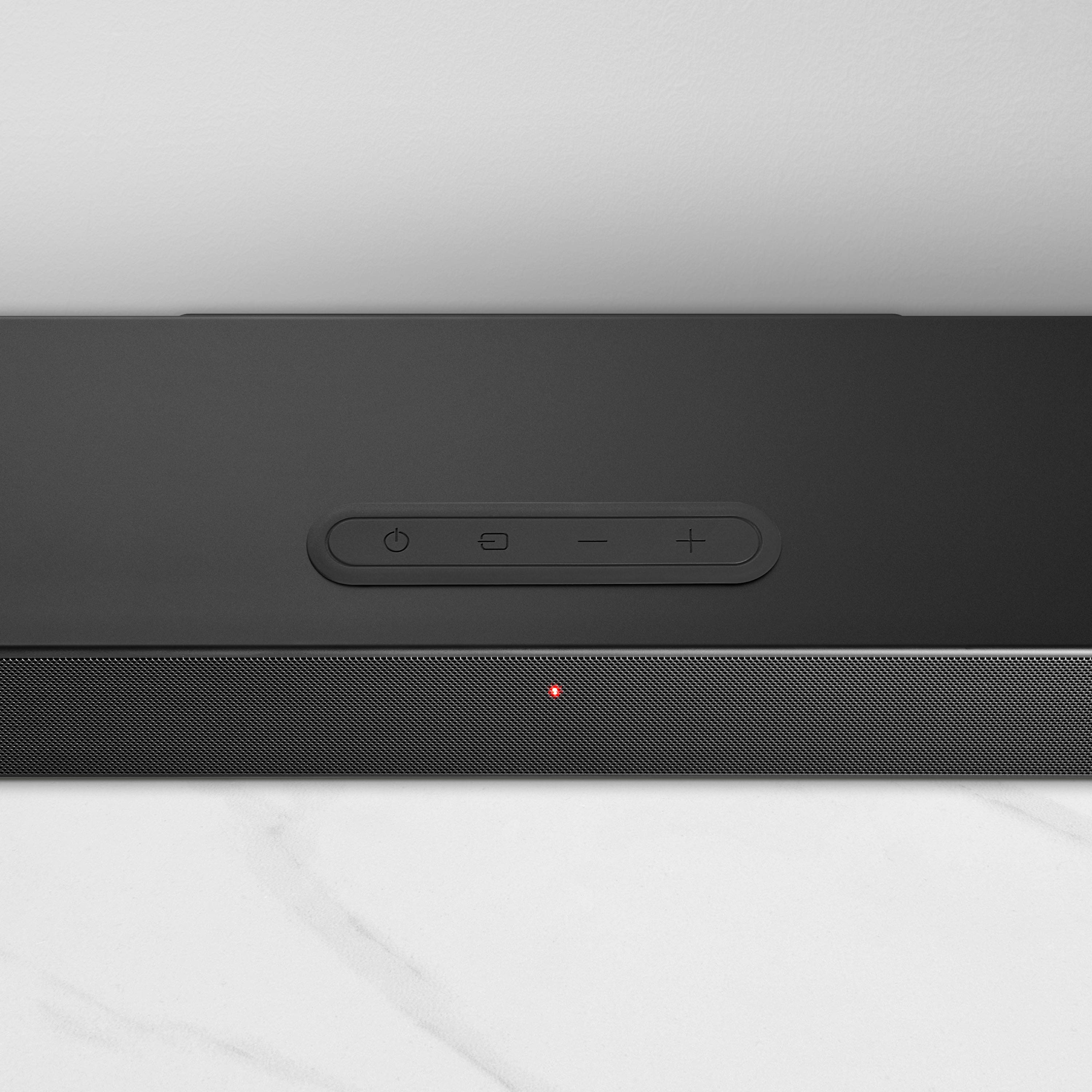
- A:Answer Hello! Unfortunately, there are no settings available to adjust the bass on our soundbar. Adjustments can only be made through your devices or television. Thank you for your understanding. - Carl | Insignia Support
Answered by InsigniaCustomerSupport

Q: QuestionIssue with subwoofer. A few nights ago when we turned on the TV, it sounded like a train was about to run through the house. Ever since, when we turn on the TV, there is just way too much sound coming from the subwoofer and we have to turn it off.
Asked by Clicks12.
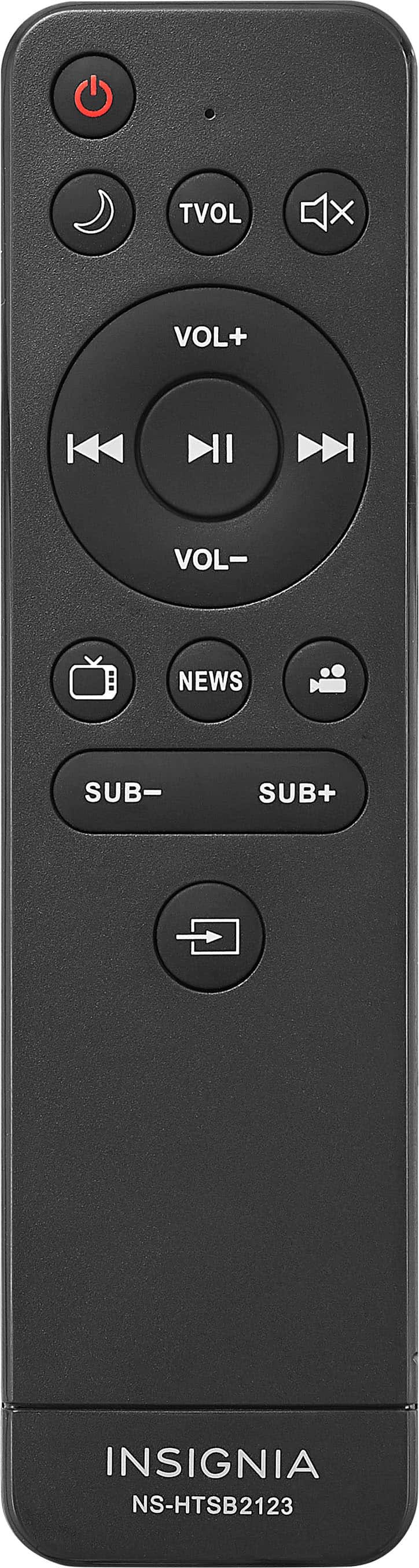
- A:Answer I'm sorry to hear about the issue with your subwoofer. Here are a few troubleshooting steps you can try: 1. Check Connections: Ensure all cables are securely connected. Sometimes, loose connections can cause audio issues. 2. Adjust Subwoofer Settings: Use the remote control to adjust the subwoofer volume. You might find a balance that reduces the excessive sound. 3. Reset the Soundbar: Try resetting the soundbar to its factory settings. This can often resolve unexpected audio issues. Refer to the user manual for instructions on how to reset. 4. Update Firmware: Check if there are any firmware updates available for your soundbar. Updating the firmware can sometimes fix bugs and improve performance. 5. Interference: Ensure there are no other electronic devices nearby that might be causing interference with the wireless subwoofer. 6. Test with Another Device: Connect another device to the soundbar to see if the issue persists. This can help determine if the problem is with the soundbar or the TV. If these steps don't resolve the issue, it might be best to contact Insignia customer support for further assistance. They can provide more specific troubleshooting steps or arrange for a repair if necessary. Let me know if you need any more help!
Answered by InsigniaCustomerSupport

Q: QuestionI’m thinking of buying this along with the 75” Insignia Fire TV. Does Insignia offer “Surround Sound” speakers that are compatible with this system?
Asked by Phil.
- A:Answer Si es compatible y se escucha increíblemente, me siento como en el cine
Answered by Baby
Q: QuestionRemote missing from my Insignia 2.1 Channel soundbar with wireless subwoofer open box purchase order #BBY01-806996183932
Asked by Anonymous.
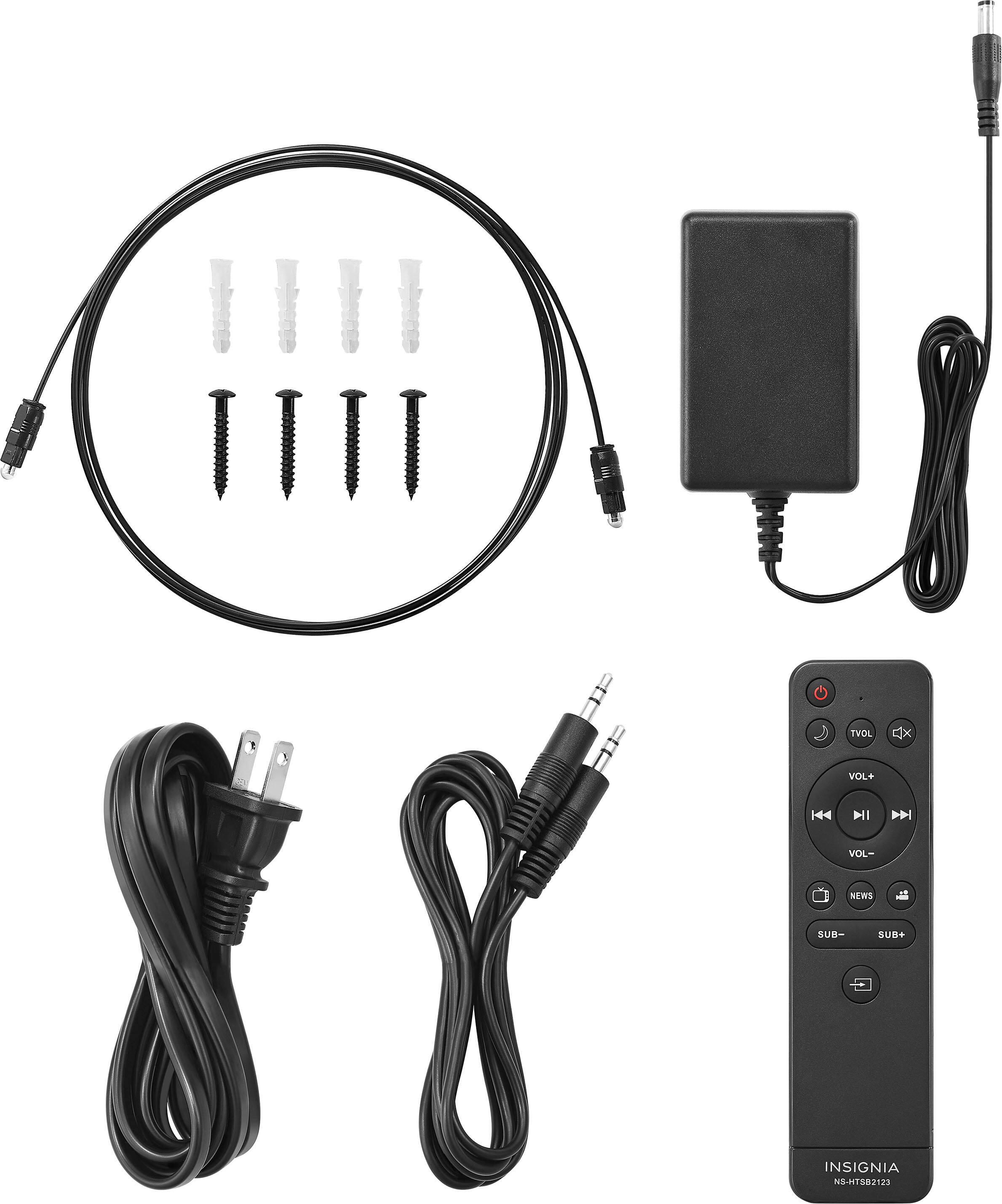
- A:Answer For assistance with your missing remote for the Insignia 2.1 Channel Soundbar with Wireless Subwoofer, please reach out to Best Buy. They will be able to help you with your open box purchase. If you need any further help, feel free to ask! -Ed | Insignia Support | https://www.bestbuy.com/site/brands/best-buy-brands/pcmcat1596746025285.c?id=pcmcat1596746025285

Answered by InsigniaCustomerSupport

Q: QuestionCan this soundbar be used on a computer? I do have a3.5 mm audio jack output on my audio card.
Asked by AustralianTraveler.
- A:Answer Yes, you can definitely use the Insignia 2.1 Channel Soundbar with your computer! It has a 3.5 mm audio input, which means you can connect it directly to your computer’s audio output using a standard audio cable.-Ed | Insignia Support | https://www.bestbuy.com/site/brands/best-buy-brands/pcmcat1596746025285.c?id=pcmcat1596746025285

Answered by InsigniaCustomerSupport

Q: QuestionI've connected it to my new Samsung UN43DU7200F TV via HDMI but the sound bar has no sound when using the Blu-Ray player, only sound from the TV. What is the issue?
Asked by BD.
- A:Answer It sounds like there might be an issue with the audio settings or the HDMI connection. Here are a few steps you can try to resolve this: 1. Check HDMI Connections: Ensure that all HDMI cables are securely connected. Sometimes, a loose connection can cause audio issues. 2. Audio Output Settings: On your Samsung TV, go to Settings > Sound > Expert Settings and make sure the HDMI-eARC Mode is set to Auto. Also, set the Digital Output Audio Format to Pass-Through. 3. Blu-Ray Player Settings: In the Blu-Ray player's settings menu, change the audio output type. Try switching from Bitstream to LPCM. 4. Soundbar Settings: Ensure that the soundbar is set to the correct input source. If your soundbar has multiple HDMI inputs, make sure it is set to the one connected to your Blu-Ray player. 5. Certified HDMI Cable: Use a certified HDMI cable to avoid any connection errors. If these steps don't resolve the issue, you might want to try connecting the Blu-Ray player directly to the soundbar (if it has an HDMI input) and then connect the soundbar to the TV. This can sometimes help with audio pass-through issues. Let me know if you need further assistance!
Answered by InsigniaCustomerSupport

Q: QuestionI've connected this product to an insignia TV via the optical connection. I have yet to find a way control the volume with my tv remote, also I'm not getting any audio whatsoever while my tv is on the antenna input. How do I remedy these issues?
Asked by Kobra504.
- A:Answer I'm sorry to hear you're having trouble with your soundbar. Let's try to address both issues: Volume Control with TV Remote 1. Check Compatibility: - Ensure your TV remote is compatible with the soundbar. Some Insignia soundbars can be controlled by Insignia TV remotes, but this might not work with all models. 2. Enable HDMI-CEC: - If your TV and soundbar support HDMI-CEC (Consumer Electronics Control), enable this feature in both devices' settings. This allows the TV remote to control the soundbar volume. 3. Universal Remote: - If your TV remote is not compatible, consider using a universal remote that can be programmed to control both your TV and soundbar. No Audio on Antenna Input 1. Check Audio Output Settings: - Go to your TV’s audio settings and ensure the audio output is set to "Optical" or "External Speaker" when using the antenna input. 2. Verify Connections: - Make sure the optical cable is securely connected to both the TV and the soundbar. Sometimes, a loose connection can cause audio issues. 3. Select the Correct Input on Soundbar: - Use the soundbar remote to select the optical input. This ensures the soundbar is receiving the signal from the TV. 4. TV Audio Format: - Check the TV’s audio format settings. Set it to PCM (Pulse Code Modulation) if it’s currently set to Dolby Digital or another format that the soundbar might not support. 5. Firmware Updates: - Ensure both your TV and soundbar have the latest firmware updates installed. This can resolve compatibility issues. If these steps don't resolve the issues, it might be helpful to contact Insignia customer support for further assistance. They can provide more specific troubleshooting steps or suggest repair options if needed. Let me know if you need any more help!
Answered by InsigniaCustomerSupport

Q: QuestionCan I use Bluetooth headphones with this soundbar?
Asked by Osito.
- A:Answer The Insignia™ 2.1-Channel Soundbar with Wireless Subwoofer and DTS:Virtual X does support Bluetooth connectivity, but it is designed specifically to receive audio signals rather than transmit them. This means you can stream music or audio from your smartphone, tablet, or other Bluetooth-enabled devices directly to the soundbar for playback. However, it does not have the capability to send audio to Bluetooth headphones. Patricia | Insignia Support
Answered by InsigniaCustomerSupport

Q: QuestionWhat to do if subwoofer is not connecting ?
Asked by Nicole.
- A:Answer Brand response from Insignia Support Posted 1 month ago. Hi there! I’m sorry to hear that your Insignia™ 2.1-Channel Soundbar with Wireless Subwoofer is not working as intended. It’s designed to automatically pair with the subwoofer on initial set up. If this is not the case, there are detailed instructions in the manual to assist you in reestablishing the Bluetooth connection. https://files.bbystatic.com/lOwSXimkcs5YsGygDcCbew%3D%3D/Quick%2BSetup%2BGuide “Manually connecting the subwoofer and soundbar If your subwoofer does not connect automatically to your soundbar, the subwoofer pairing LED slowly blinks turquoise. To manually pair them: 1 Make sure that your soundbar is powered on and positioned next to your subwoofer. 2 Press and hold the (source selector) button on your soundbar for three seconds. The soundbar enters pairing mode and its LED blinks turquoise quickly. 3 Press and hold the PAIRING button on the subwoofer for three seconds. The subwoofer enters pairing mode and its LED blinks turquoise quickly. 4 The soundbar and subwoofer should pair automatically. The soundbar's LED lights solid based on the selected source. The subwoofer's LED lights solid turquoise”
Answered by Anonymous
Page 2, Showing 21-32 of 32 questions
Most-viewed items
Samsung - HW-B650/ZA 3.1 Channel Soundbar with Wireless Subwoofer, Dolby 5.1 / DTS Virtual:X - BlackBlack Friday Deal$199.99Your price for this item is $199.99- $199.99Your price for this item is $199.99$399.99The comparable value for this item is $399.99
- Black Friday Deal$879.00Your price for this item is $879.00
- Black Friday Deal$199.99Your price for this item is $199.99
- Black Friday Deal$349.00Your price for this item is $349.00
- $1,499.99Your price for this item is $1,499.99$1,999.99The comparable value for this item is $1,999.99
- Black Friday Deal$149.99Your price for this item is $149.99
- Black Friday Deal$999.99Your price for this item is $999.99
- Black Friday Deal$99.99Your price for this item is $99.99
- Black Friday Deal$599.99Your price for this item is $599.99
- Black Friday Deal$349.99Your price for this item is $349.99
- $199.00Your price for this item is $199.00$219.00The comparable value for this item is $219.00
- $499.00Your price for this item is $499.00$599.00The comparable value for this item is $599.00
- Black Friday Deal$34.99Your price for this item is $34.99
- $399.99Your price for this item is $399.99$549.99The comparable value for this item is $549.99
- Black Friday Deal$99.99Your price for this item is $99.99
- Black Friday Deal$699.99Your price for this item is $699.99
- Black Friday Deal$399.99Your price for this item is $399.99
- $99.99Your price for this item is $99.99$119.99The comparable value for this item is $119.99
- Black Friday Deal$249.99Your price for this item is $249.99