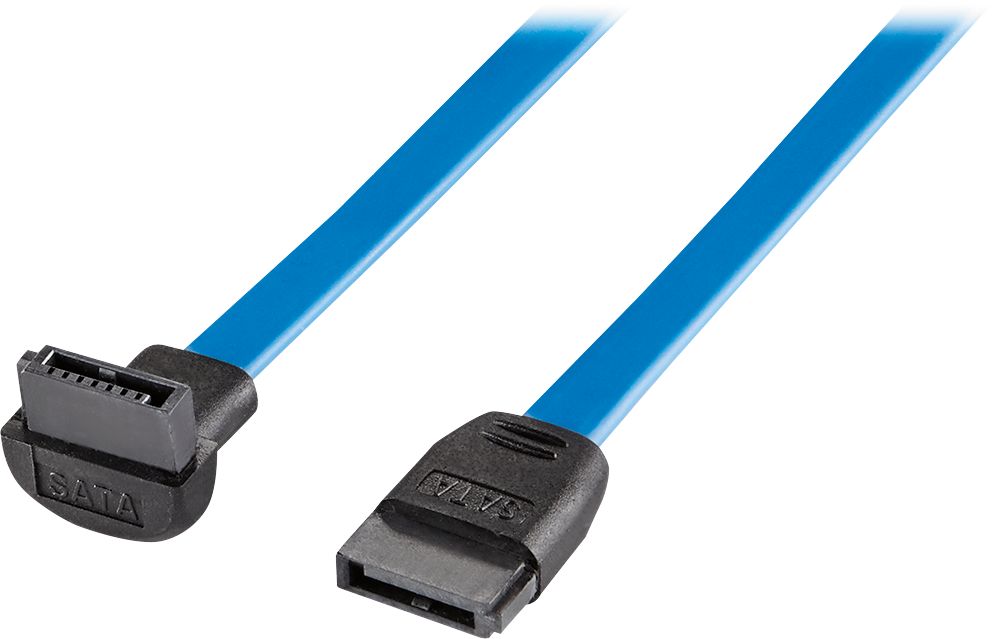
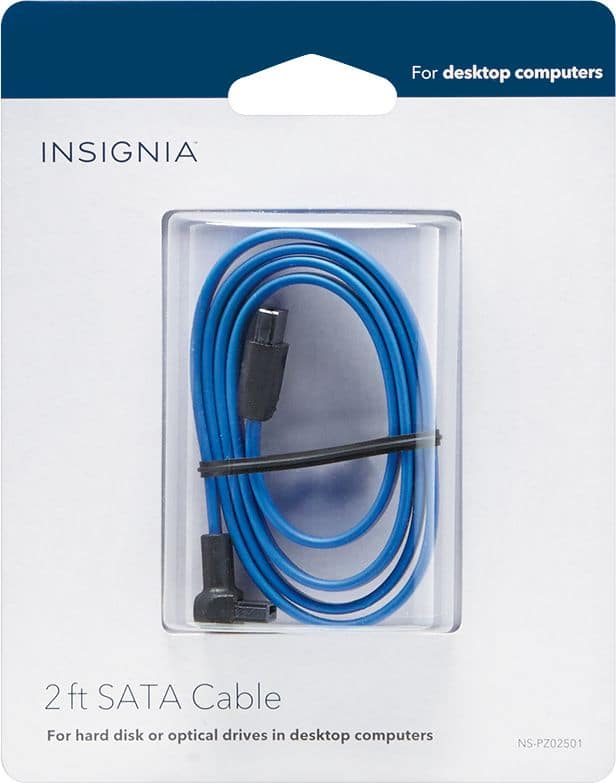
A:AnswerI found the same issue when I went to install mine and ended up using a knife to cut a bit off the side of this connector's end. Seems to work fine after that. SATA cables are not something I read reviews for before I go shopping so hopefully others do...
A:AnswerIt depends.
If you are adding an SSD as an extra drive, you will need another SATA cable (this).
If you are replacing a current hard drive with an SSD, you just use your old SATA connection (you don't need a new cable).
A:AnswerThe short answer is no, 3Gbps is written right on the package.
The longer answer is it doesn't really matter. Just search online for SATA II vs SATA III. The benchmarks show little if any difference between SATA II (3Gbps) and SATA III (6Gbps) cables. So while the packaging says it's 3Gbps (SATA II), SATA III isn't faster.
(Caveat: the article I'm citing does say it's possible that the cable technology has just vastly outrun the consumer hard drive technology, so their tests may be simply showing that hard drives aren't able to truly take advantage of 6Gbps bandwidths yet.)
A:AnswerSATA data cables are all backwards compatible. It is SATA I, II, AND III (1.5 to 6gbps depending on your devices and controllers). Your speed will default back to the lowest common denominator in regards to what you're connecting it to.
Read my review for why I returned Insignia cables.
A:AnswerNo, it is very unlikely to be the cable. Step 0 is to make a system restore point while you're in Windows as a precaution.
First, take a look at the port you've got the cable in on your motherboard. It should be labeled something like "SATA-01" but that will depend on who made the board. The writing will be small and hard to read so have a flashlight handy. Write down which port you're trying to use. Your Main Hard Disk Drive (HDD) should be in "SATA-00" if your system is configured properly. Again, these labels vary and yours will probably be different from what I've written here. While you're here you may as well re-seat the cable on both the HDD and motherboard sides. Unplug the cable and plug it back it. Sounds silly, I know, but it's a good thing to do. Oh, if you have any other drives, like an optical drive, in your system they will probably be connected here as well. Note the labels of all drives just to be on the safe side and it will help a bit in the next step.
Next, you should go into your system BIOS and check your ATA/IDE settings. The method for getting into your BIOS will vary but is usually by tapping ESC, F10, F12, F2, sometimes DEL, or there could be other keys and/or key combinations. USUALLY, there will be a brief message as your machine boots that will tell you how to "enter setup." Whatever your machine displays here is what you'll need to do. You may need to try a few times. While you're in the BIOS, note the motherboard manufacturer and model number. Anyway, sometimes the port you're trying to use will be disabled by default. Some BIOS will have an "AUTO" setting that you could use or simply change it to "ENABLED." Again, these names will vary. If you have to set it manually choose SATA from the options. You don't want to use IDE or RAID at this point. Save and Exit the BIOS.
Your machine will now reboot. Let it go into normal mode Windows. What comes next depends on which version of Windows you're running. Hopefully, Windows will automatically detect the drive if you've done everything correctly to this point. It will probably offer to Format the drive and this should be done, even if the HDD is allegedly pre-formatted. I'm not sure this really applies to SSD's but you can research that for yourself. I'm trying to focus on common causes of drives not being recognized in Windows. You may need to go into Device Manager and ... well, I don't want to say what you should do next here because it's potentially quite complicated, up to and including editing the system Registry. Do some research online with keywords that match exactly what you've got for hard drive, motherboard, and version of Windows. Unless the cable is obviously kinked it is unlikely to be the problem. If you have a spare cable, swap it out and see what happens. Isn't PC troubleshooting fun?!
The enumerator (how the BIOS "sees" the drive) for the SSD is part of the SSD and has nothing to do with the cable. The best way to be sure if the cable is the problem is to simply swap it out for a different cable. The cable WILL affect data transfer speeds from the system bus to the drive though. But I think your problem is much more likely to be a simple BIOS setting. It is possible that the drive is bad too. That is unlikely though. It is also possible that the SATA port you're trying to use on the motherboard is bad or also the power connector could be bad. Try a different port and power connector if you have one available. This stuff really isn't that complicated once you get used to it. Windows is another matter though. I can't suggest strongly enough that you at least create a System Restore Point before you do any of these steps.
Good luck!