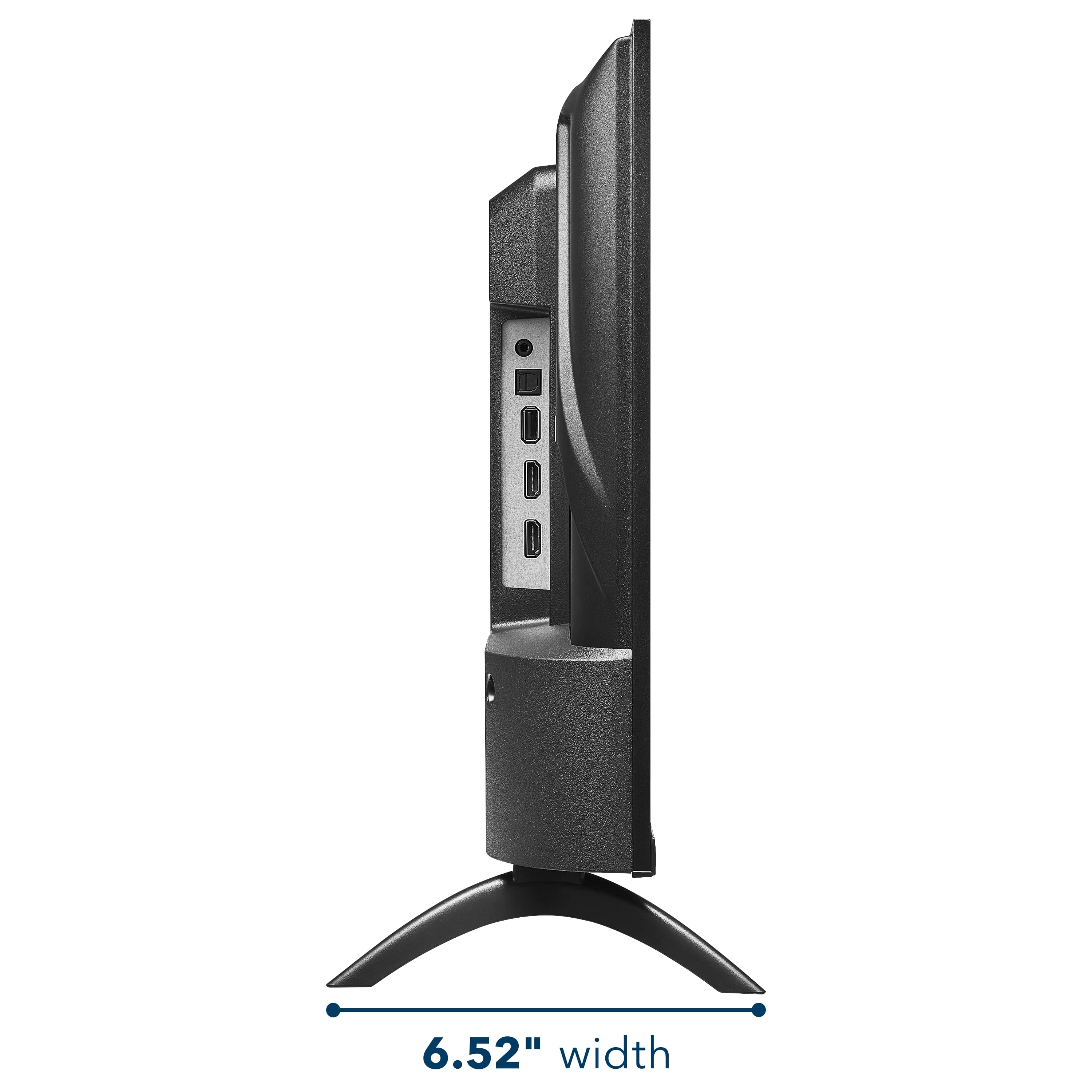
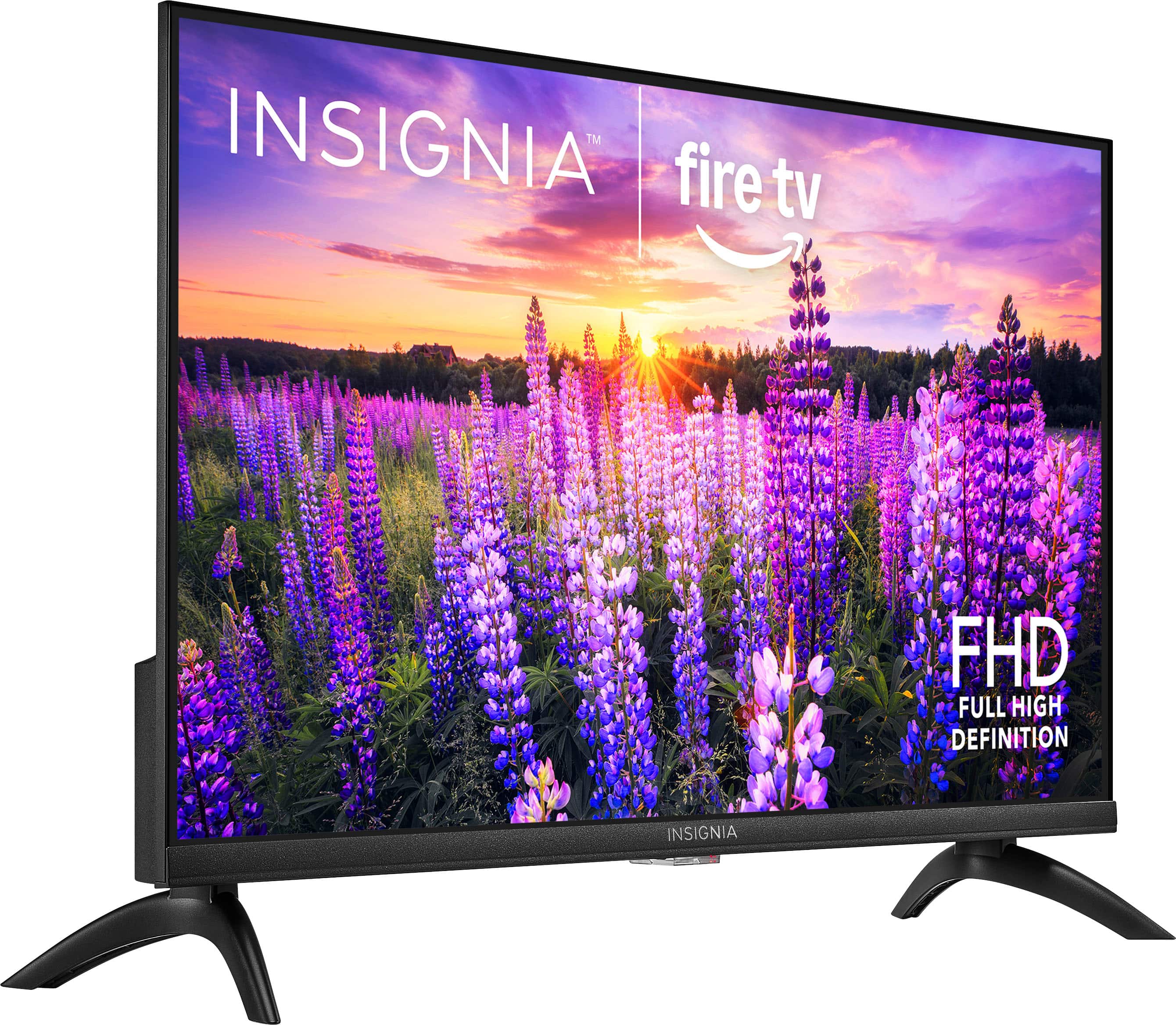
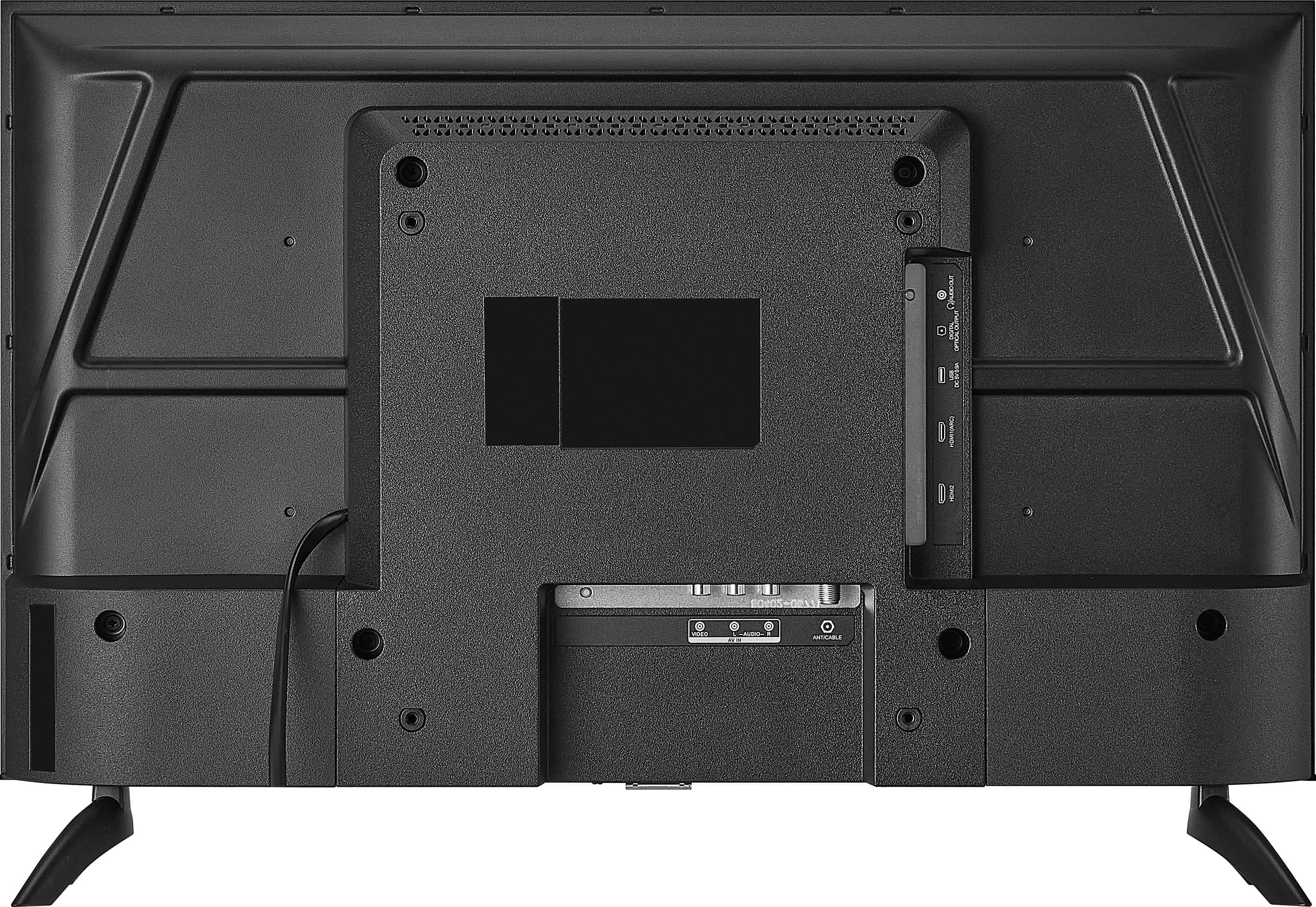
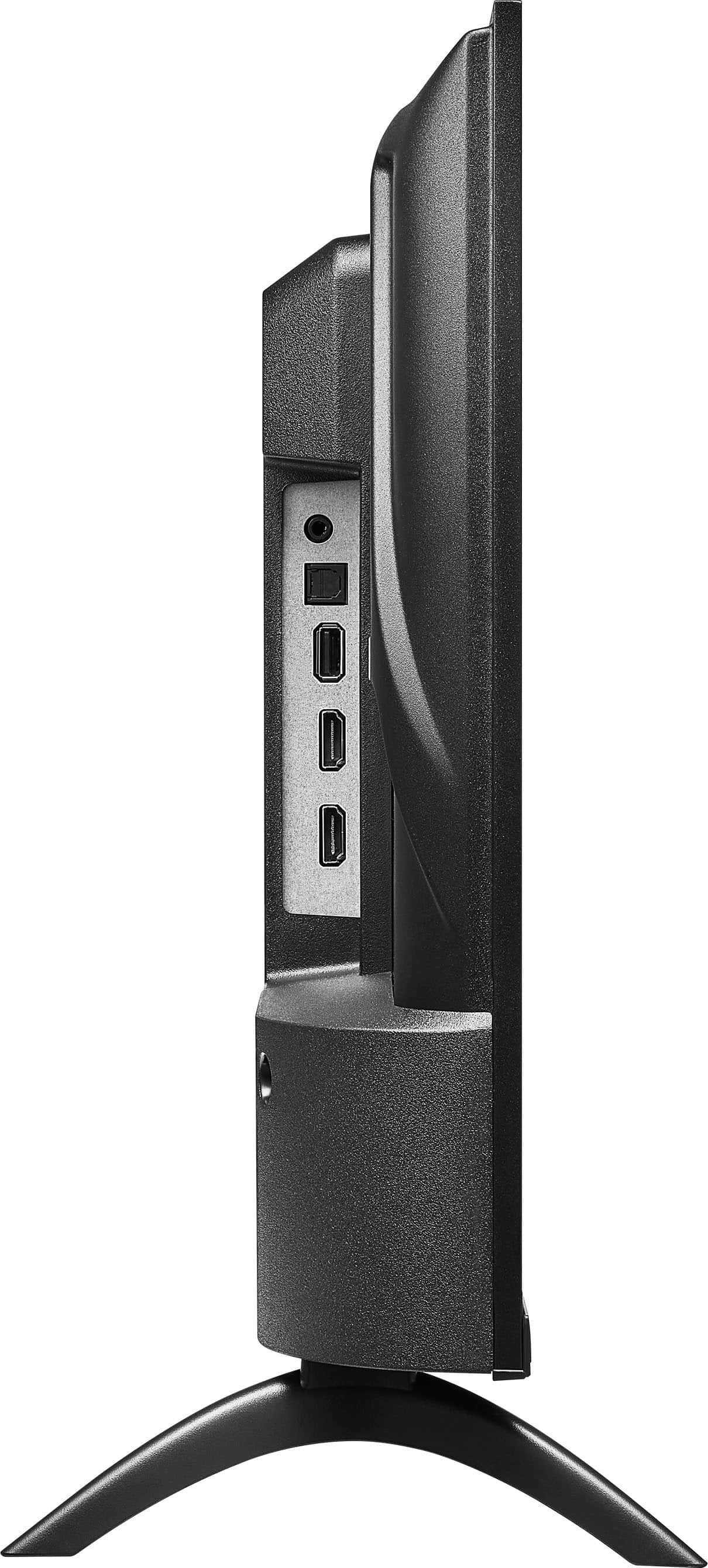
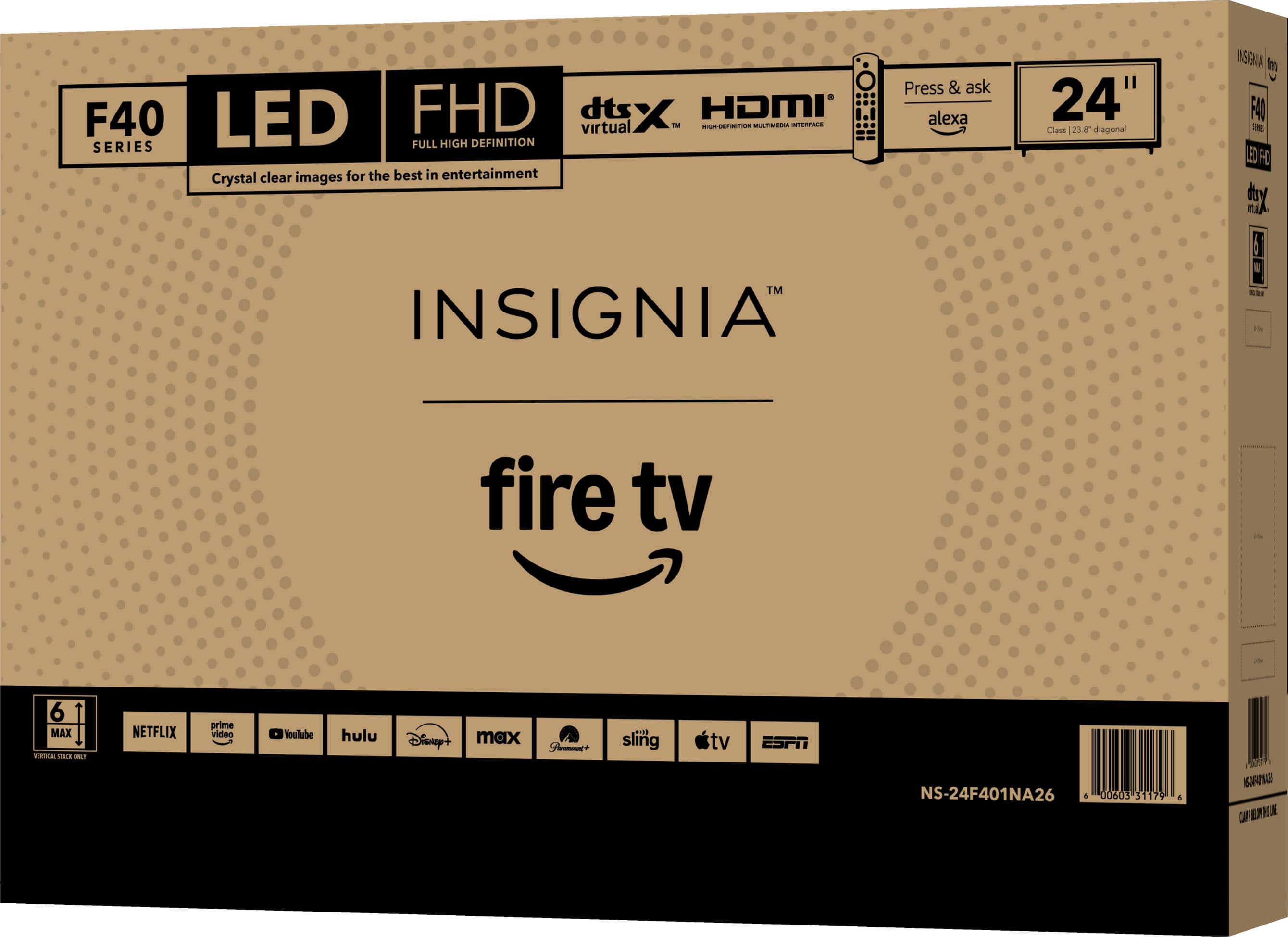
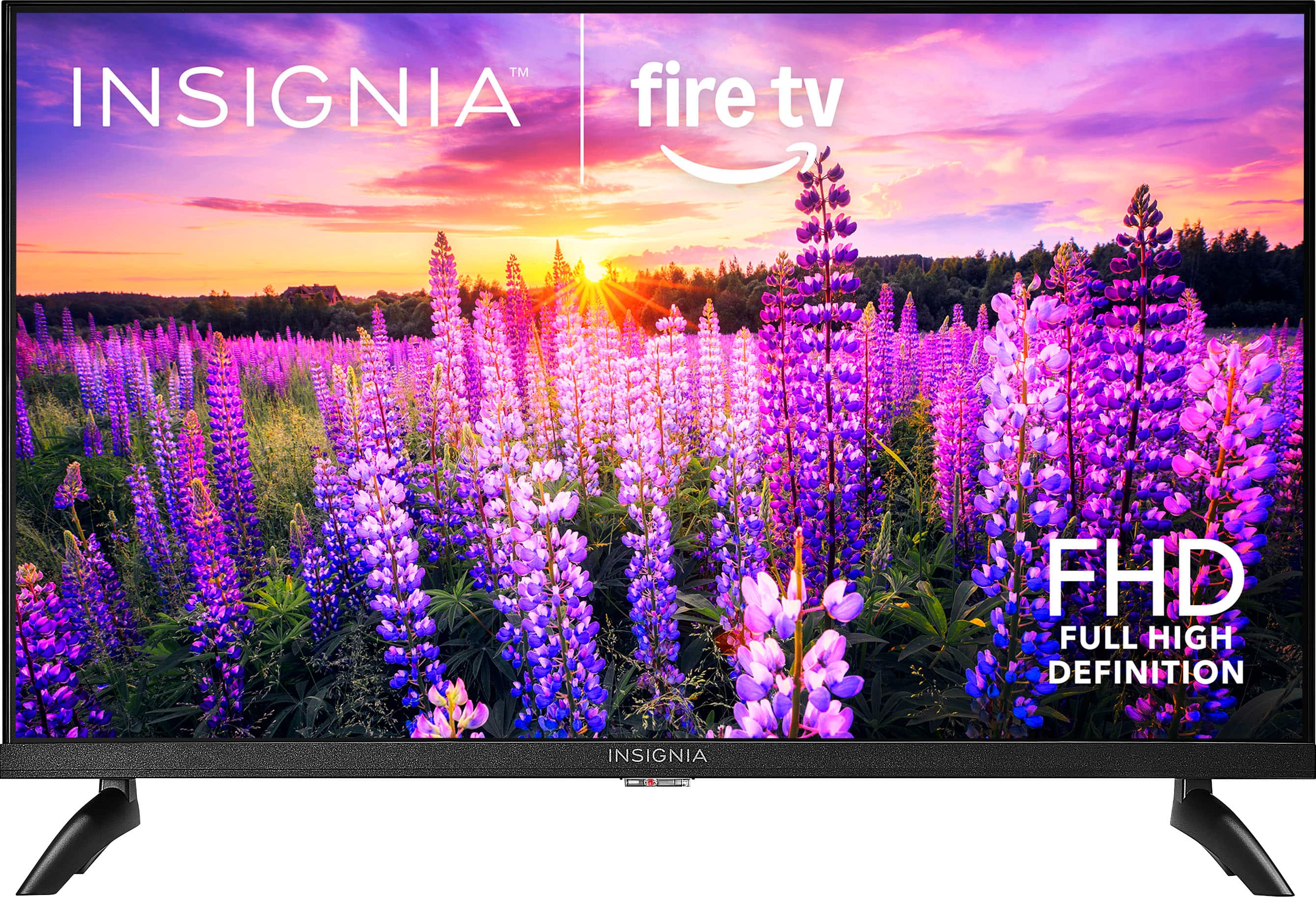
A:AnswerHello Brenda, Thanks for contacting us. The height of the Insignia 24" F40 Series TV is 14.4 inches with the stand and 12.6 inches without the stand. The box height is 16.1 inches.
Narendra | Insignia
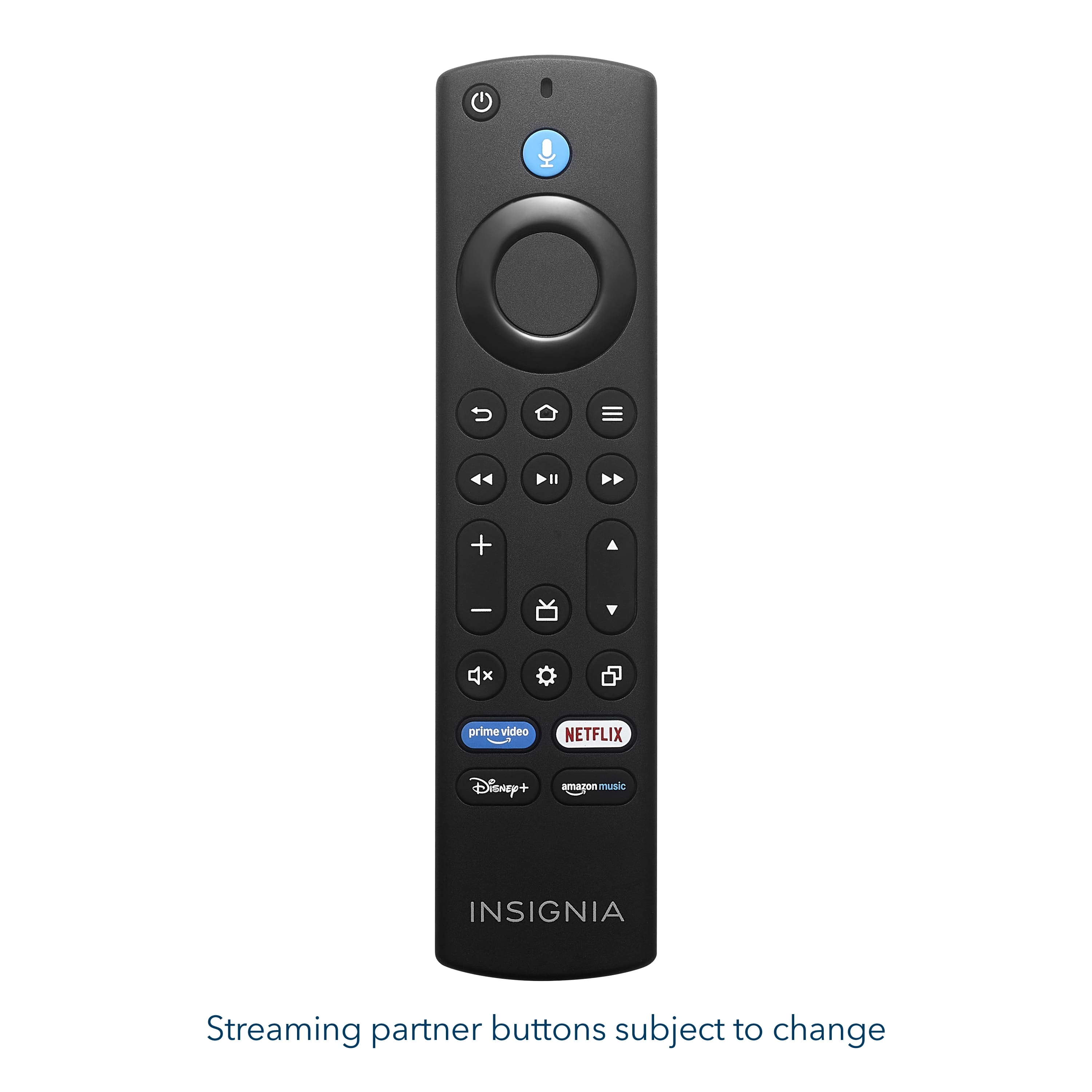
A:AnswerThank you for your inquiry! Yes, the Insignia™ 24” Class F40 Series LED 4K FHD Smart Fire TV does support closed captions for over-the-air (OTA) programs. This means that when you're watching live TV using an antenna, you can enable captions to display dialogue and other audio information as text on the screen. The TV runs on the Fire TV platform, which includes built-in accessibility features like closed captioning and subtitles. To activate captions, you can usually press the Menu or Options button on your remote while watching a program, then navigate to Subtitles & Audio or Accessibility, and turn on Closed Captions. Keith | Insignia Support
A:AnswerHi there! thank you for your feedback. We understand how important convenience is when navigating channels. For assistance or to explore remote alternatives, please contact Insignia Support at 1-877-467-4289. We're here to help!
— Shiela | Insignia Support
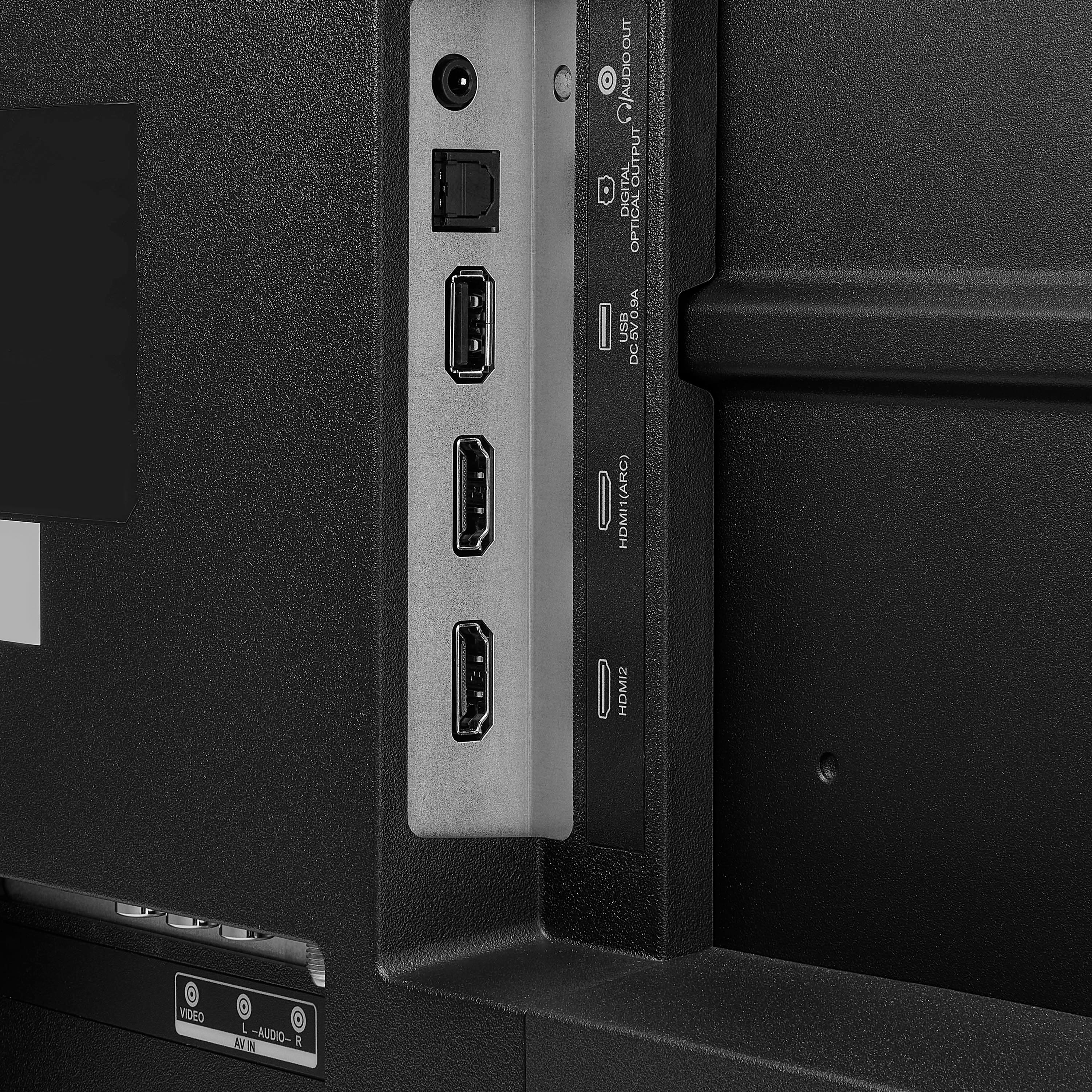
A:AnswerThank you for your inquiry! Yes, you can connect compatible cameras to your Insignia™ 24" Class F40 Series Fire TV, but it depends on the type of camera and how you want to use it. You can connect it using your USB, HDMI, AirPlay or Casting. Tip: Always check that your camera model is compatible with Fire TV for the best experience. You may try to contact the manufacturer of your camera for compatibility confirmation or you can contact Insignia Customer Service (877-467-4289) to try checking its compatibility. Tine | Insignia Support
A:AnswerThank you for your inquiry, AlexKuku! The Insignia™ - 24” Class F40 Series LED Full HD Smart Fire TV (Model: NS-24F401NA26) is currently listed as “Coming Soon” on Best Buy’s website. While the product page is live, Best Buy has not yet announced an official release date. If you're interested, it's a good idea to keep an eye on the listing or sign up for stock alerts to be notified as soon as it becomes available. Tine| Insignia Support
A:AnswerFrom the home screen, go to Settings. Open Display and Sounds, then choose Display Settings, on that screen, choose the Input you're using (HDMI 1 or whatever), you'll get the option to choose Auto Aspect or 4:3.
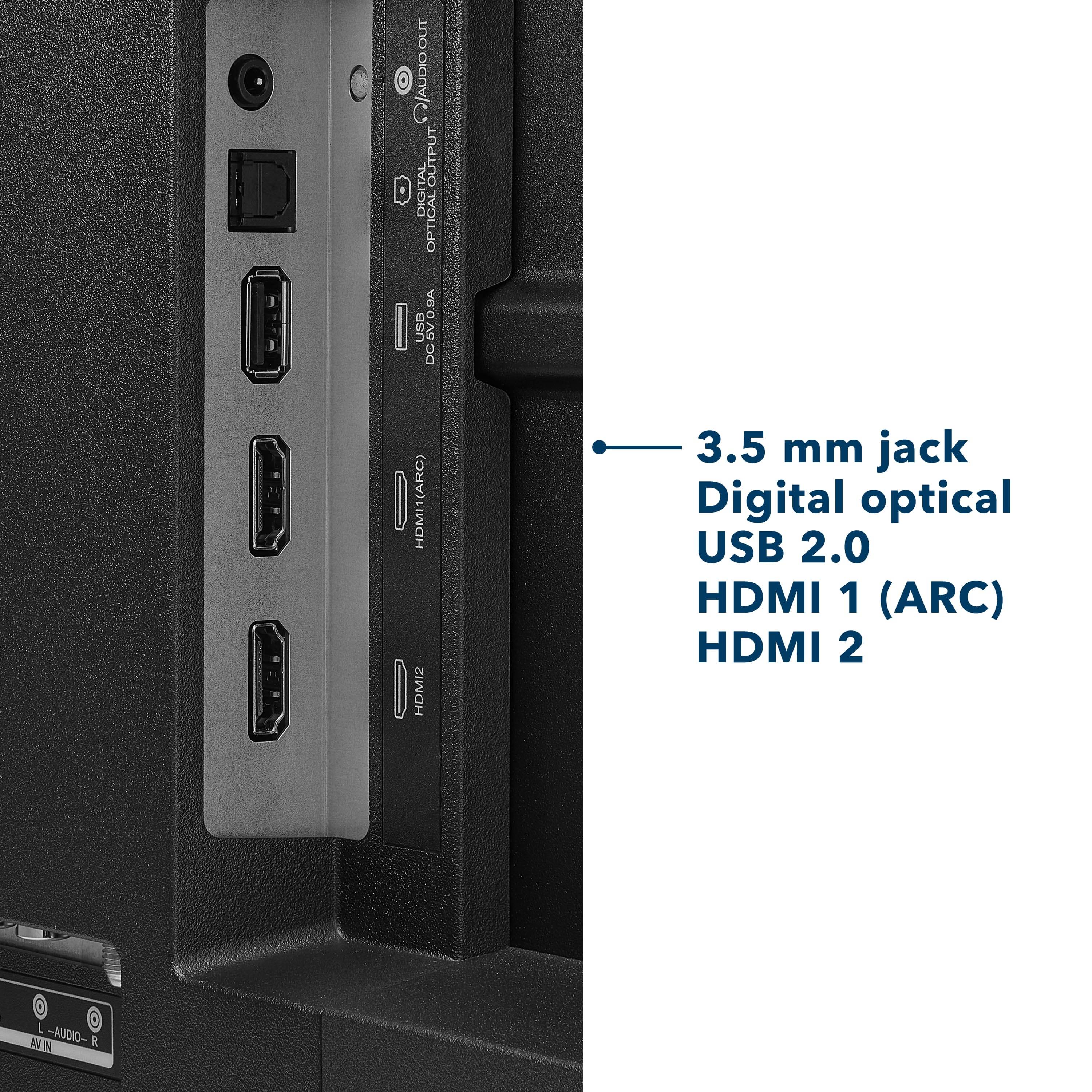
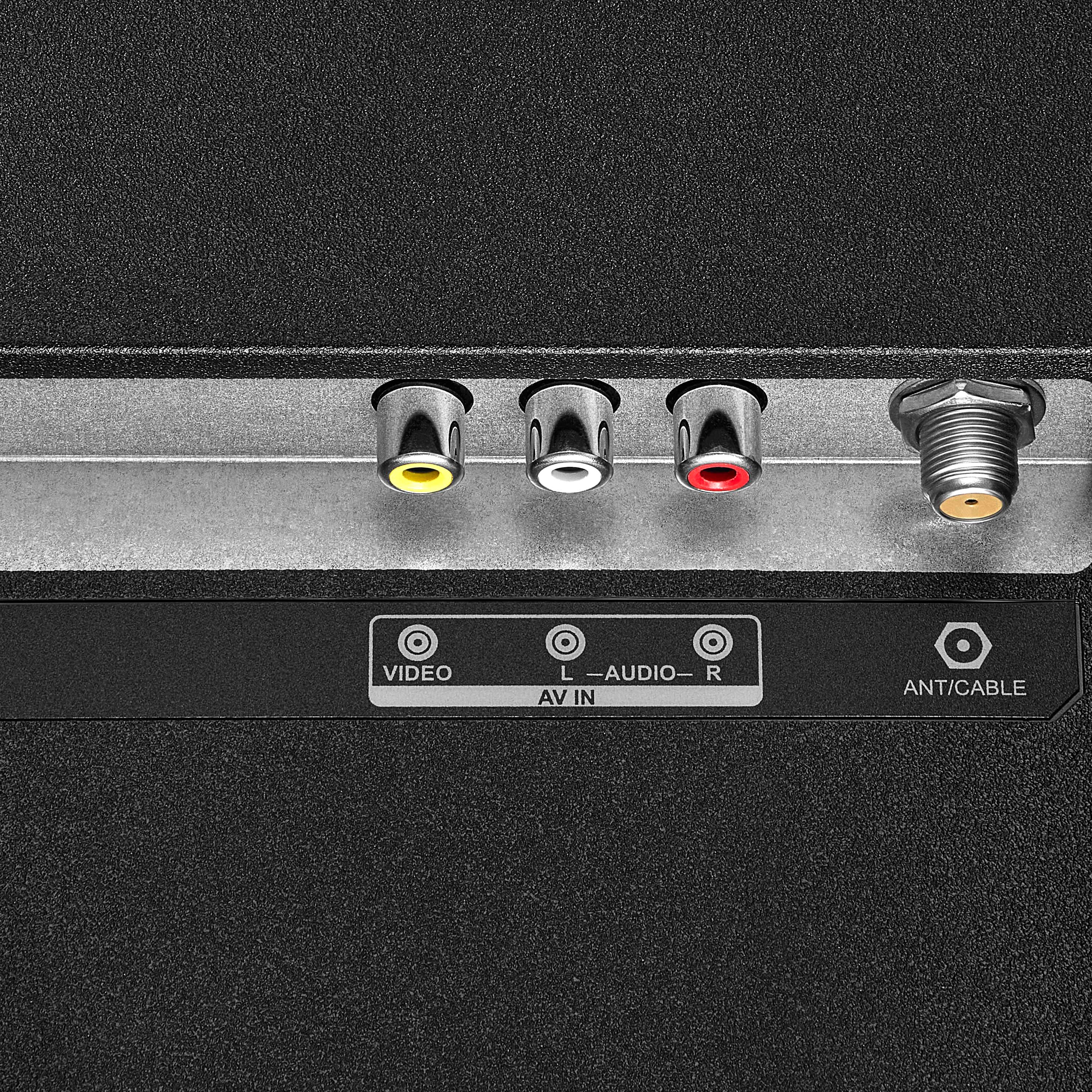
A:AnswerI just purchased this TV planning to use the Bluetooth to connect to earbuds or headphones via Bluetooth based on this QA. The user guide makes no mention of Bluetooth and the TV does not show up in my iPhone Bluetooth device discovery. So unless someone knows where Bluetooth can be enabled (found nothing in settings either), this TV does not support Bluetooth. There is apparently a headphone jack on the back.