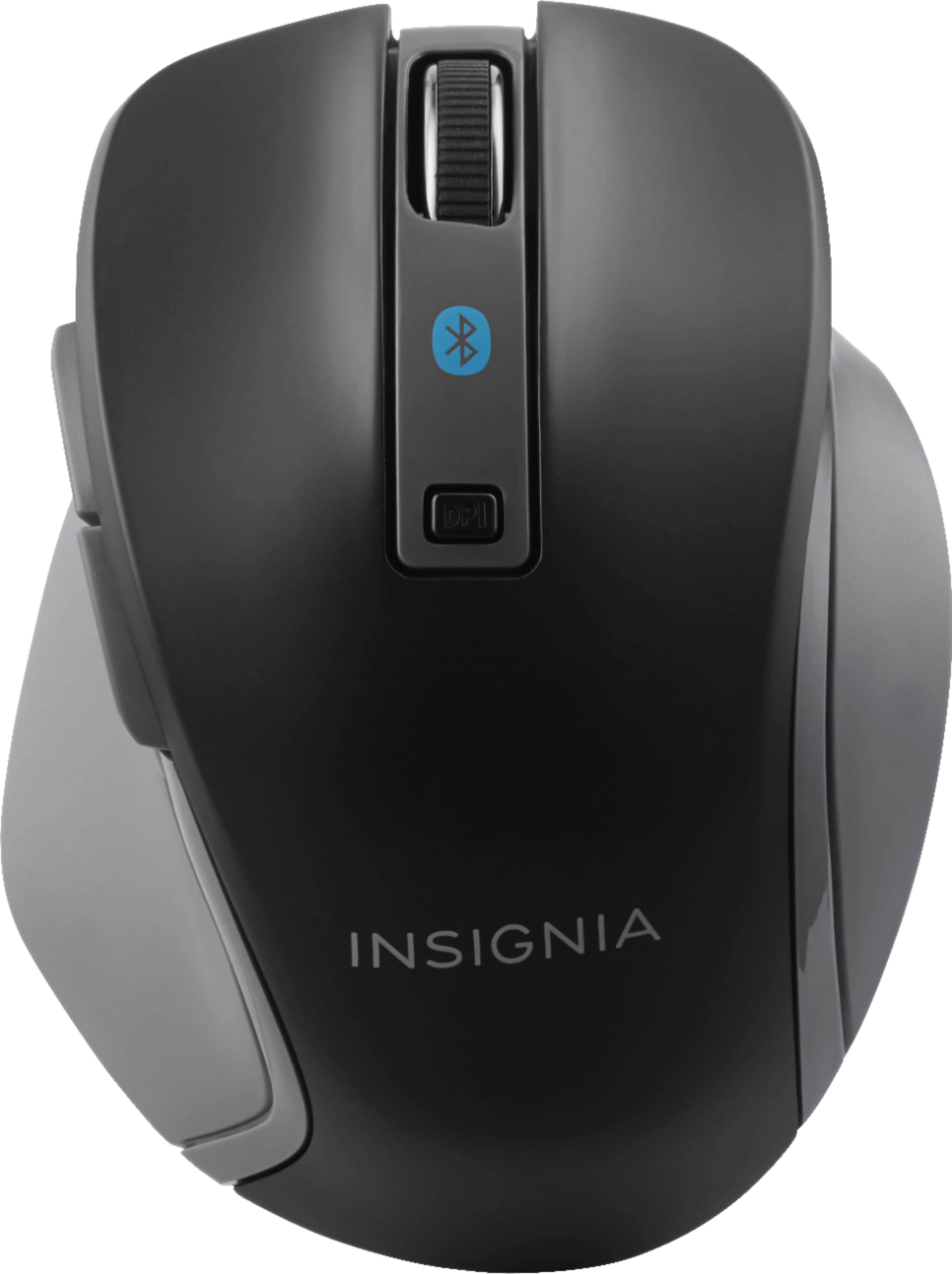
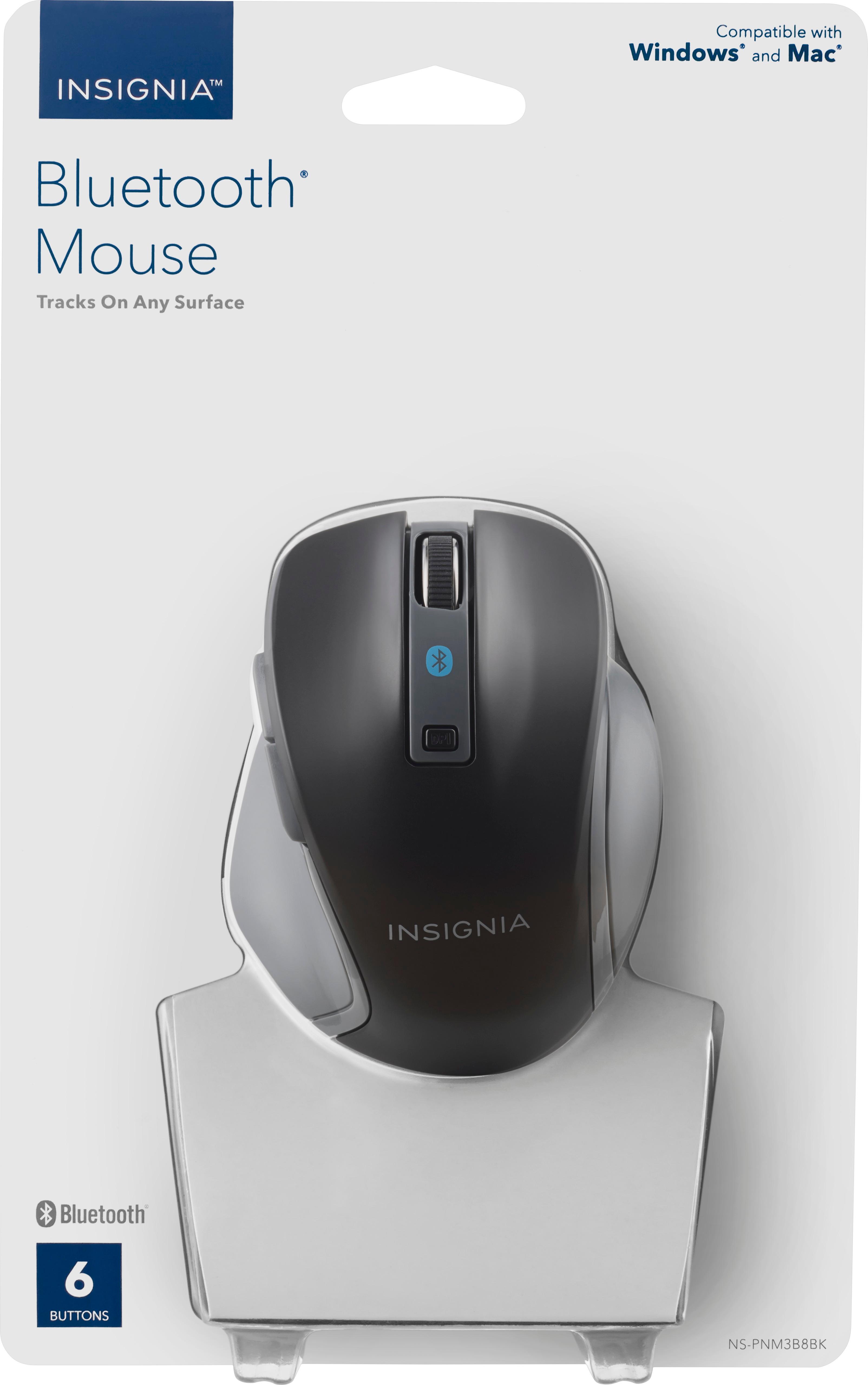
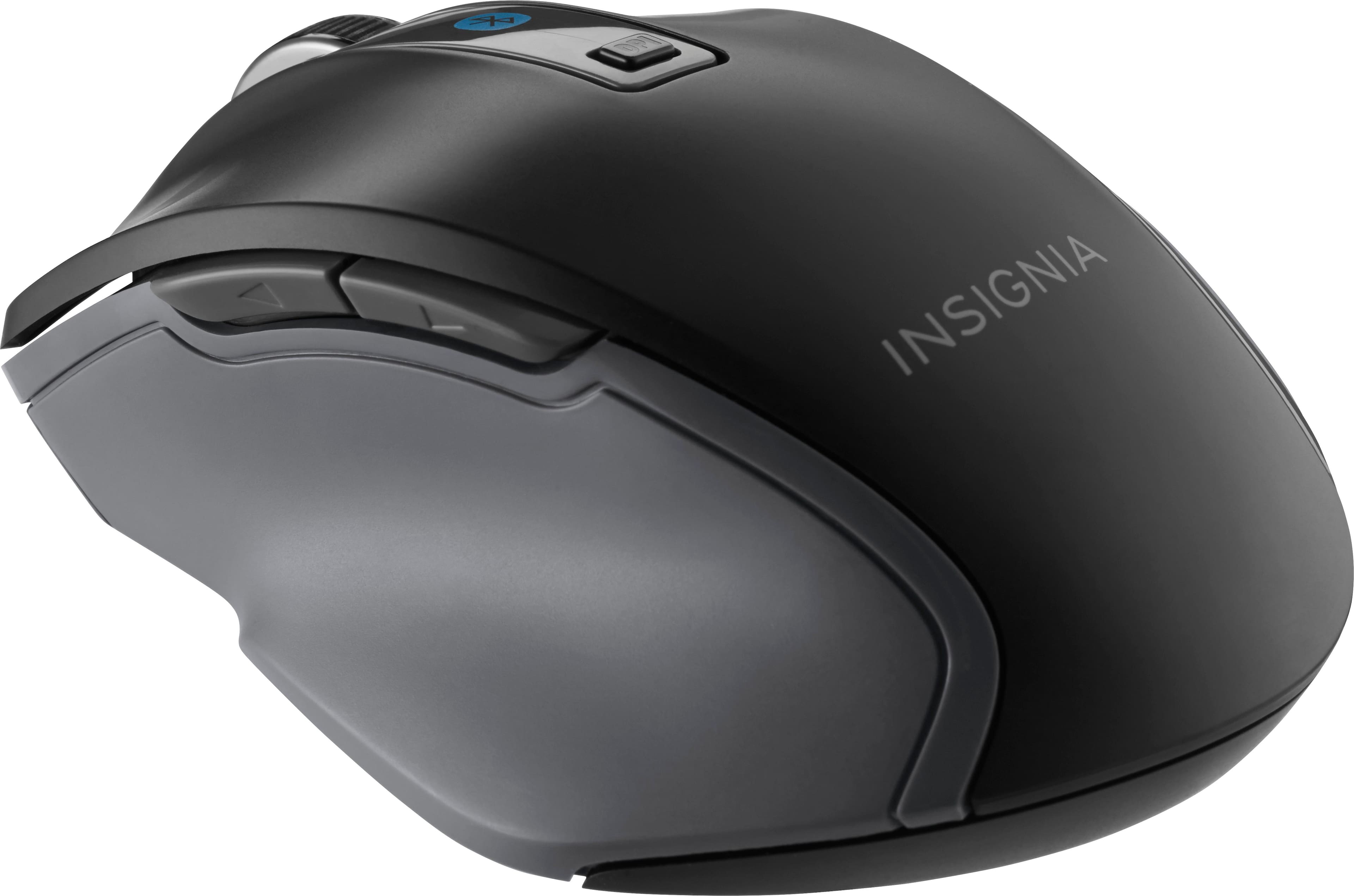
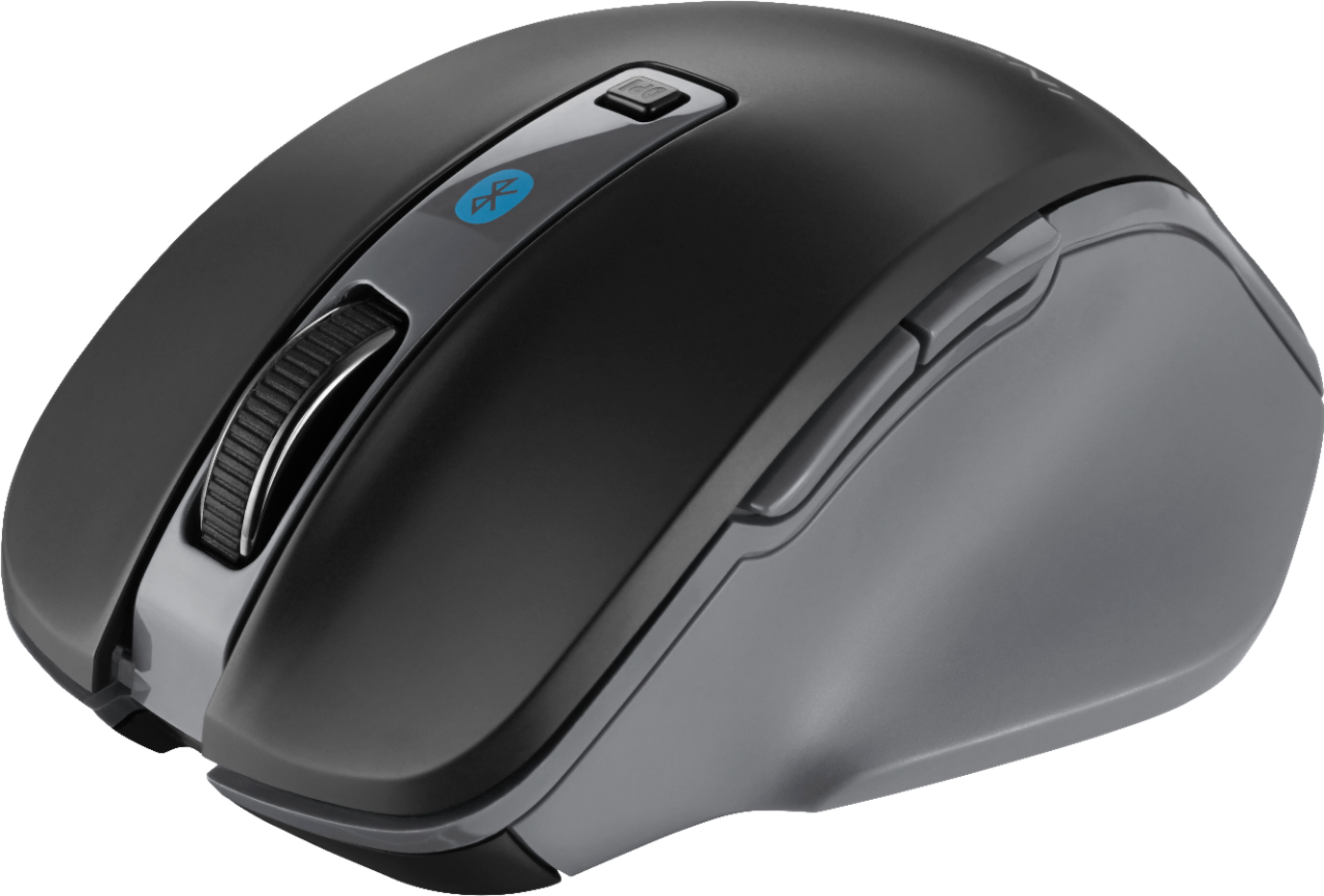
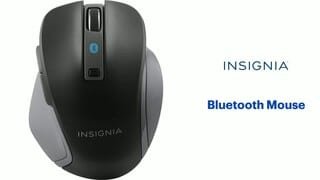
A:Answer When you're at the point to click 'Add Bluetooth Device'''Mouse, Keyboard' etc., try turning on the mouse right after clicking. It seems to go into pairing mode when turned on. If it doesn't find it within 20 seconds, push the little blue button on the underside of the mouse for 3 seconds, and that should do it. Of course make sure Bluetooth is turned on in the laptop. If still no go, perform troubleshooting on Bluetooth. Also, If you go to Device Manager and expand Bluetooth to view drivers, you should have a minimum of 4 drivers, and most likely more. If you have less than 4, go to the Manufacturers support website and download them. Last thought is that if you can pair a keyboard or speakers, etc. but not this mouse, mouse is bad, return for another. Actually, my last thought should have been the first sentence. Good luck Sandy.