A:AnswerI was just informed by Insignia that it is a server error and they are working on fixing it. I'm very upset, bc I threw out what I thought was a garbage product. Terrible CS.
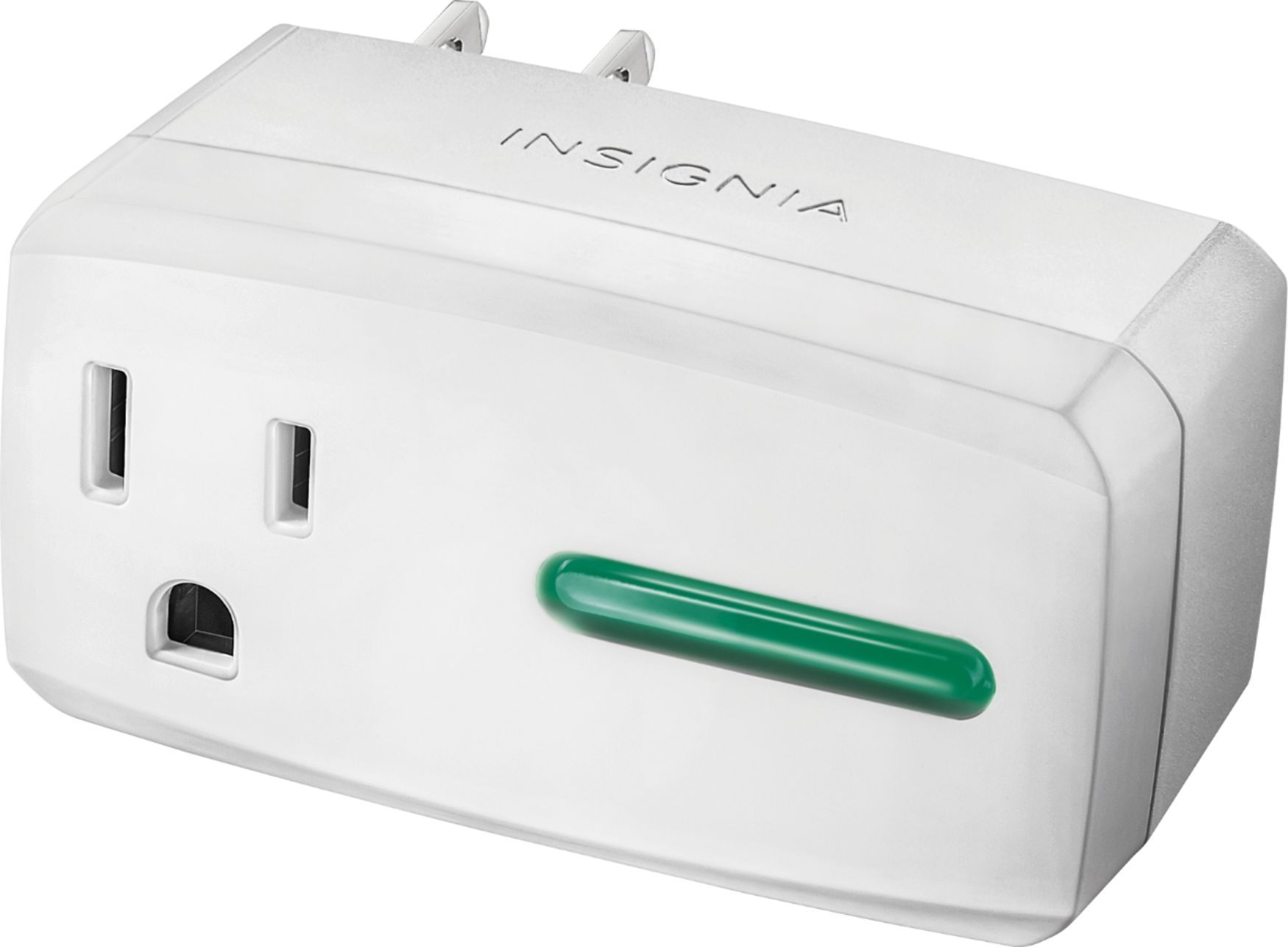
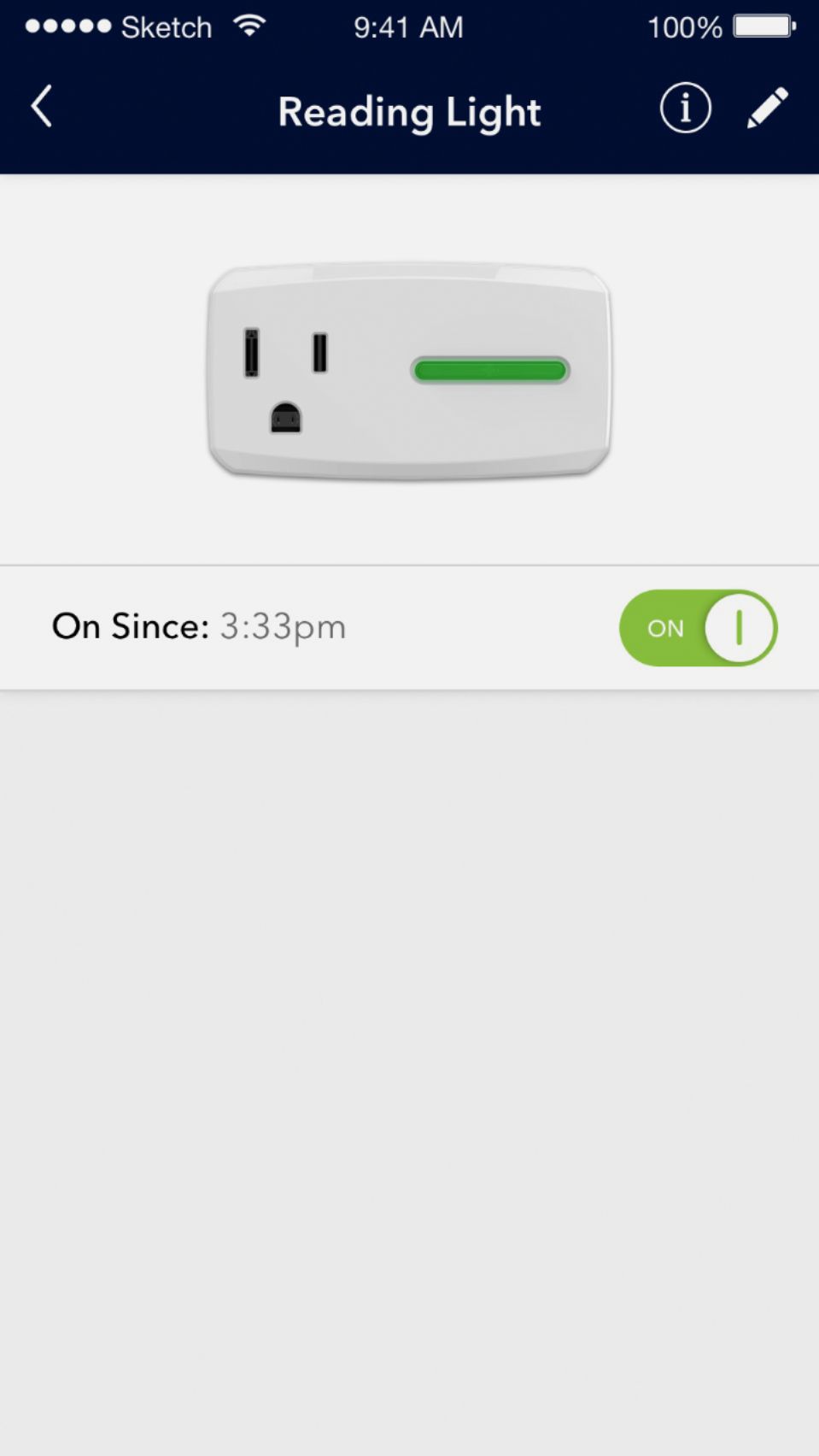
A:AnswerThe green light should be on only to indicate that there is power available for what ever device is plugged into it. When the light is off, no power is available. The flashing light indicates it is trying to connect to WiFi.
A:Answerit is not linking to the internet, try resetting the internet, these plugs live on the 2.4 ghz channel while we with our phones tv and alexa live on the 5ghz channel so sometimes you wont realize your 2.4 ghz channel is down until the green flashing of terror begins
A:AnswerI have an Echo Dot and it works well the only way that I know of to turn the smart plug on and off is to ask Alexa to turn it on or off or through the insignia app
A:AnswerChoose this time zone - I am also in Atl — Eastern Time- New York
Had issues at set up as well but was finally able to do it - gets tricky on what to do inside the app vs within settings on ur device - on app directions are not the best I just kept playing with it
A:AnswerThat happened once to me when neighborhood had a power outage; had to reset plugs; unlink them from Insignia Connect app; remove them from Google Home. Pretty much started all over again. Works fine again. It's a pain but I heard from other friends that other brands of smart plugs suffer the same mishaps when power is disconnected for an extended period.
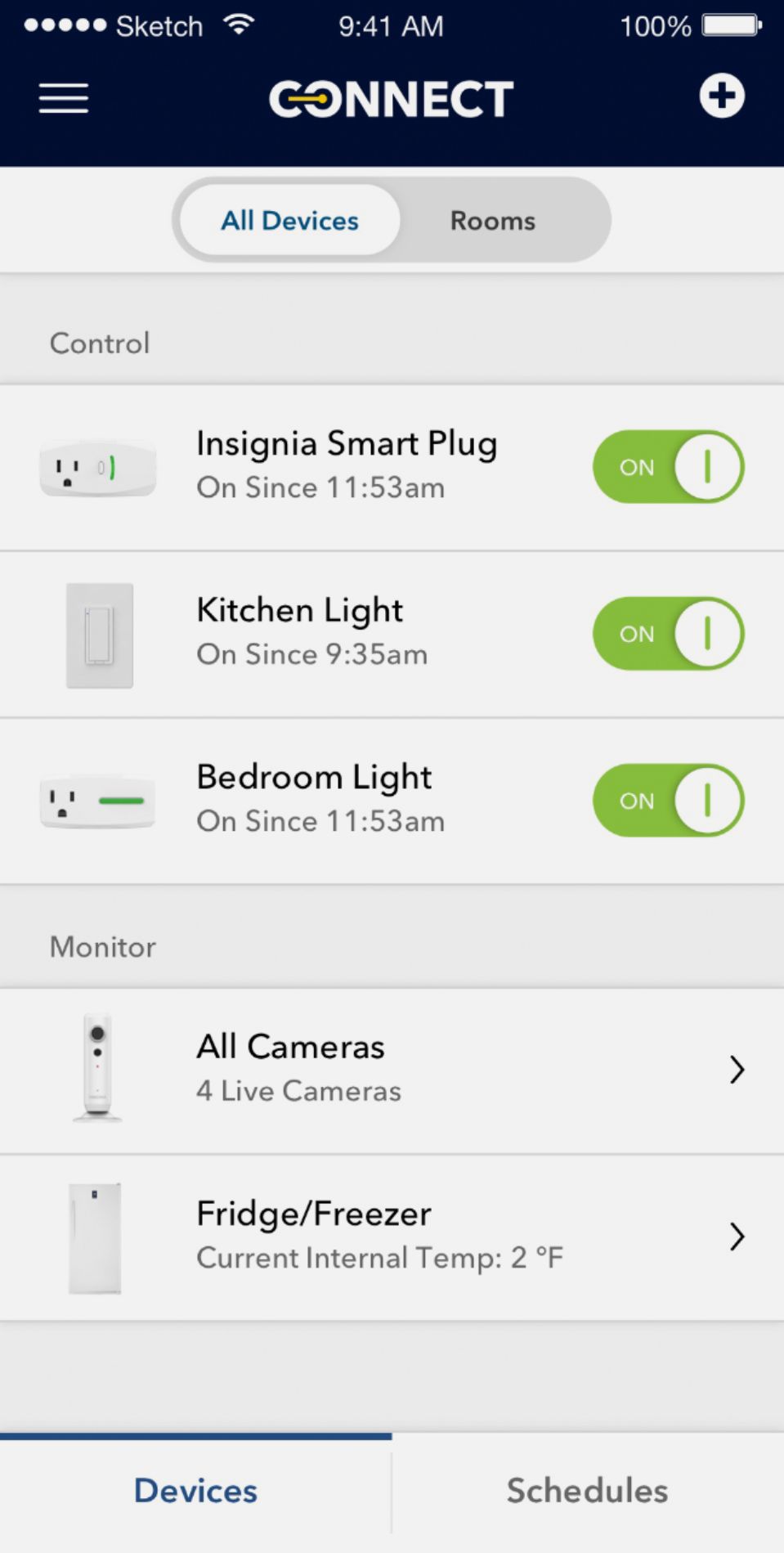
A:AnswerYou can create a schedule that will kick it on when you want and off when you need it to. If you know it gets dark around 6pm then set it to 6pm and adjust the schedule as the season changes and it gets darker earlier or lighter. The interface is pretty easy and I have different schedules for the different devices (some shared). Hope this helps.
A:AnswerI needed to install the Alexa skill in order for Alexa to be able to interact with the switch. It works fine with both the Amazon Dots and Amazon Echo that we have on our network.
A:AnswerOnce you’ve connected your plug to your WiFi network, open the Amazon Alexa app. Click on Skills in the menu and enable the insignia app. You’ll then have to program what you want her to do.
A:AnswerQuestion did u select the desired plug initally? Remember u have to name it as well. The name is different from the plug itself. Example Xmas tree is the original name but the schedule name I will call it "Xmas" then go through all steps ensure at the end u again select the desired plug.