A:AnswerYes, you can connect it without using the dongle using Bluetooth. You may need to use the dongle first to install the drivers for the mouse, though. After that, you should be all set.
A:AnswerI had the same problem... towards the front of the cover itself there is a small plastic clip that gets bent over. I didn't see it right away because it looked like a small triangle when it was bent down. Pull on this small piece lightly and it will go back on. Just don't bend it too far out or it won't click into place again.
A:AnswerThe Yoga Wireless mouse can work with any Windows 10 device that has Bluetooth capability or a USB port available for the 2.4GHz WiFi receiver.
A:AnswerFirst be sure the mouse is fully charged. Although the mouse is charged at the factory, the battery may drain by the time you bring it home. Charge the mouse for about 1-hour before you try to use it. Then be sure you have the mouse power button turned on. Move the power switch to the icon showing the USB receiver. The mouse should work with any Windows computer. Here is a link to the User Manual for the Lenovo YOGA Wireless Mouse: https://download.lenovo.com/consumer/options/lenovo_yoga_mouse_qsg_v2.0_201701.pdf. If the issue continues, we recommend you call Lenovo Tech Support at: 877-453-6686.
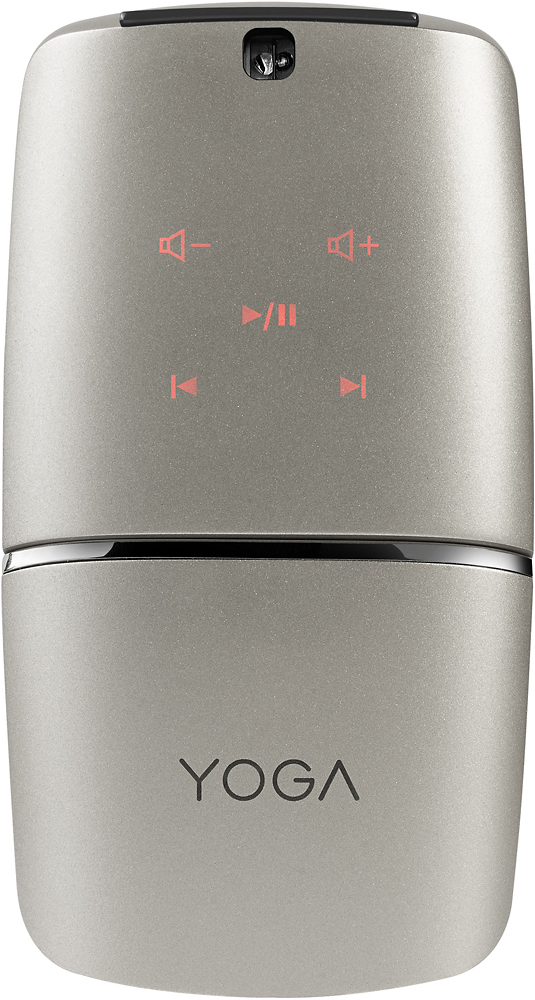
A:AnswerI believe USB 3.0. The mouse isn’t designed to be used when plugged in though. I believe you can use the remote function when plugged but not as a mouse. I plug mine in and charge it overnight once a week.
A:AnswerI recently tried to use this device to sync to a macbook pro using an Anker Dock station to receive the included USB dongle and then use the native wireless bluetooth function of the mouse to drive a lenovo yoga laptop. I tested each function independently before attempting to run both (consecutively to allow for easy switching of work between two laptops). It appears that the mouse will only see the most recent connection despite having a switch to go between features. This device is not great to go between multiple devices with ease.
A:AnswerThe Yoga mouse will work in the Bluetooth mode with the Android version of Yoga Book. Be sure you turn on the Bluetooth feature on the Yoga Book first. Then move the connectivity selector on the YOGA Mouse to the Bluetooth Pairing position (the extreme right position). The YOGA Mouse should appear in the list of available devices on the Yoga Book. Release the pairing button and be sure the connectivity switch on the YOGA Mouse is in the middle, Bluetooth position after pairing. If you have further issues, we recommend you call Lenovo Tech Support at: 877-453-6686.
A:AnswerHere is a link to the quick start guide for the Lenovo YOGA Mouse, if you continue to have issues with the YOGA mouse, we recommend you call Lenovo Tech Support at 877-453-6686. Here's the link to the Quick Start Guide: https://download.lenovo.com/consumer/options/lenovo_yoga_mouse_qsg_v2.0_201701.pdf