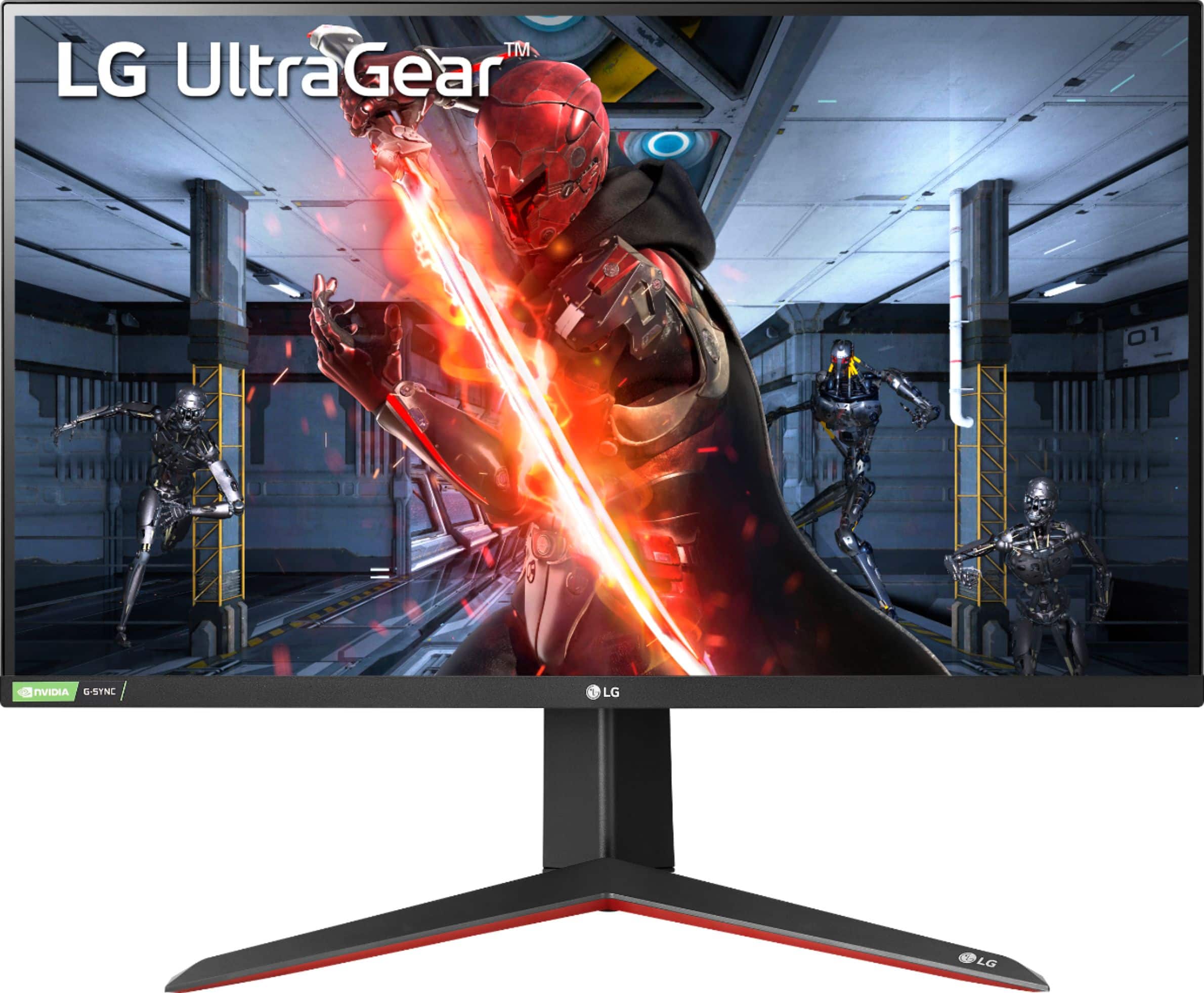
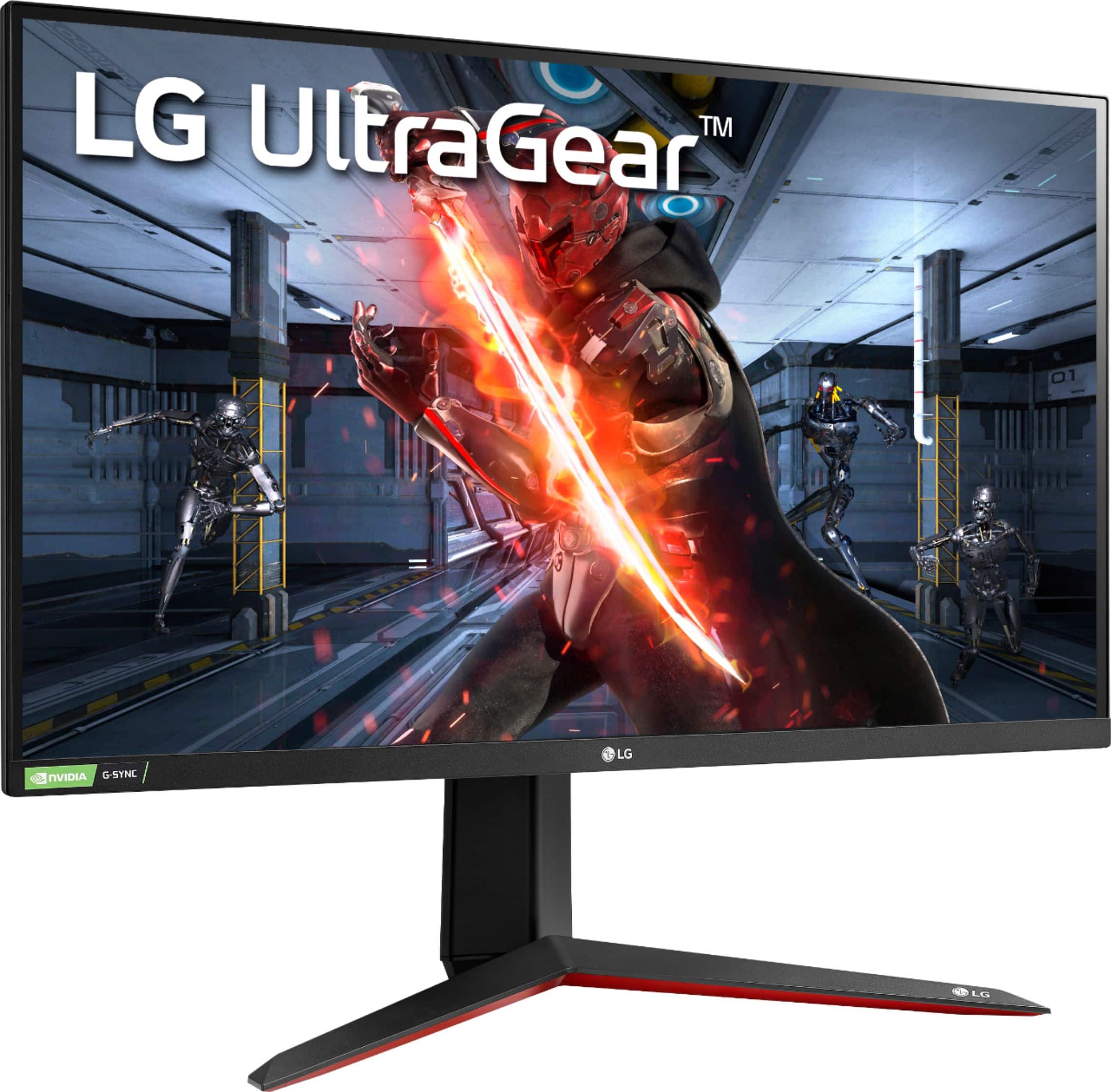
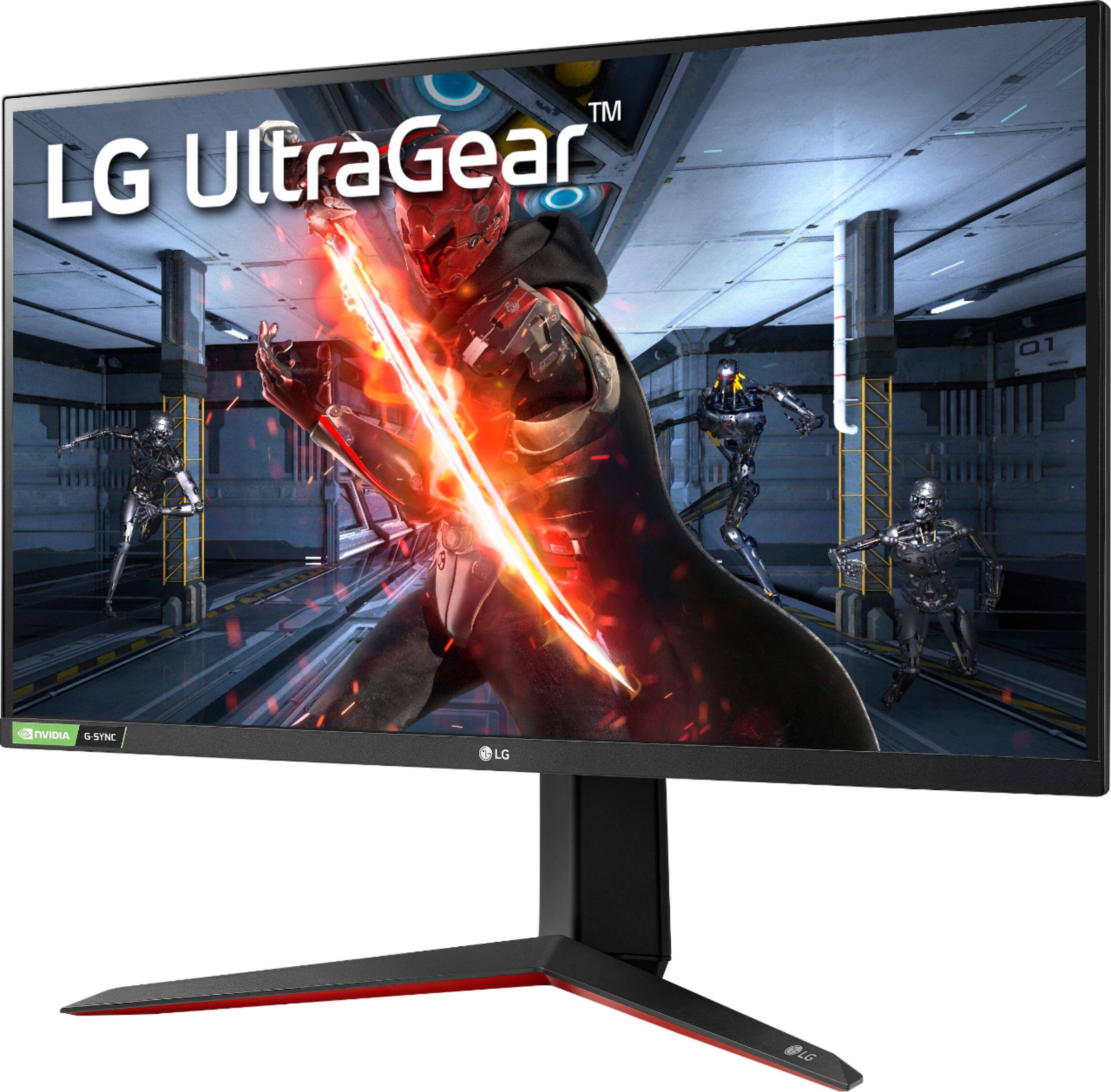
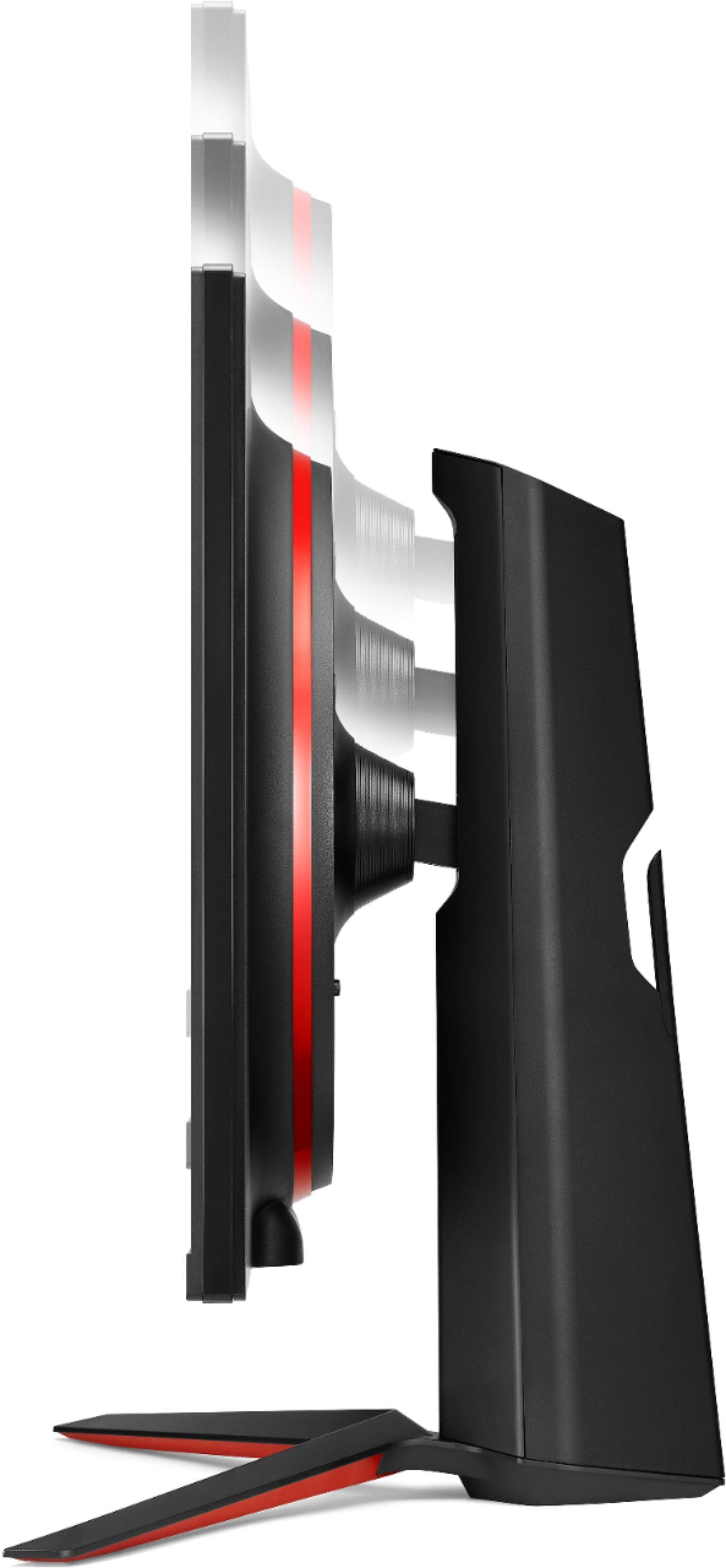
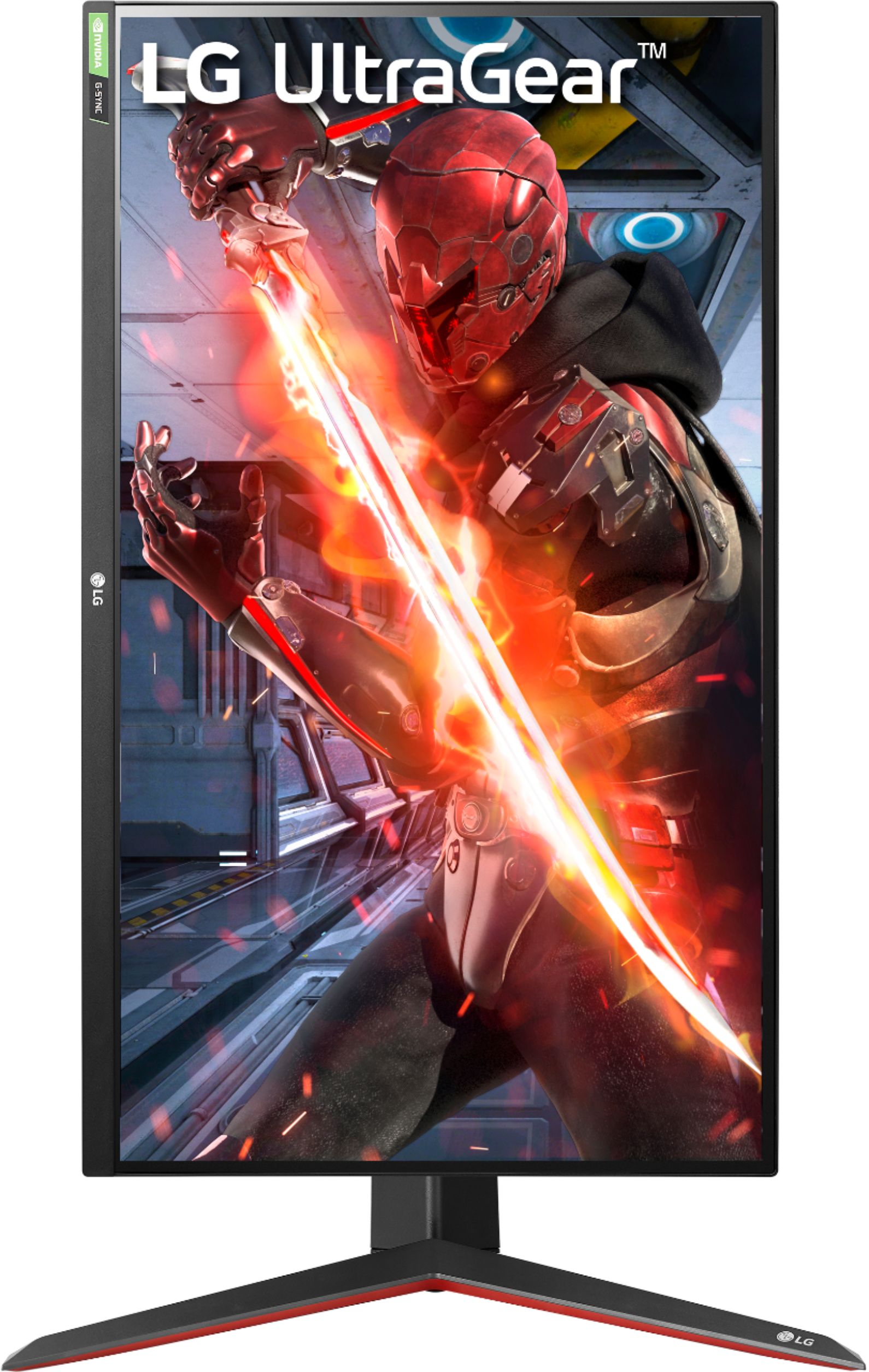
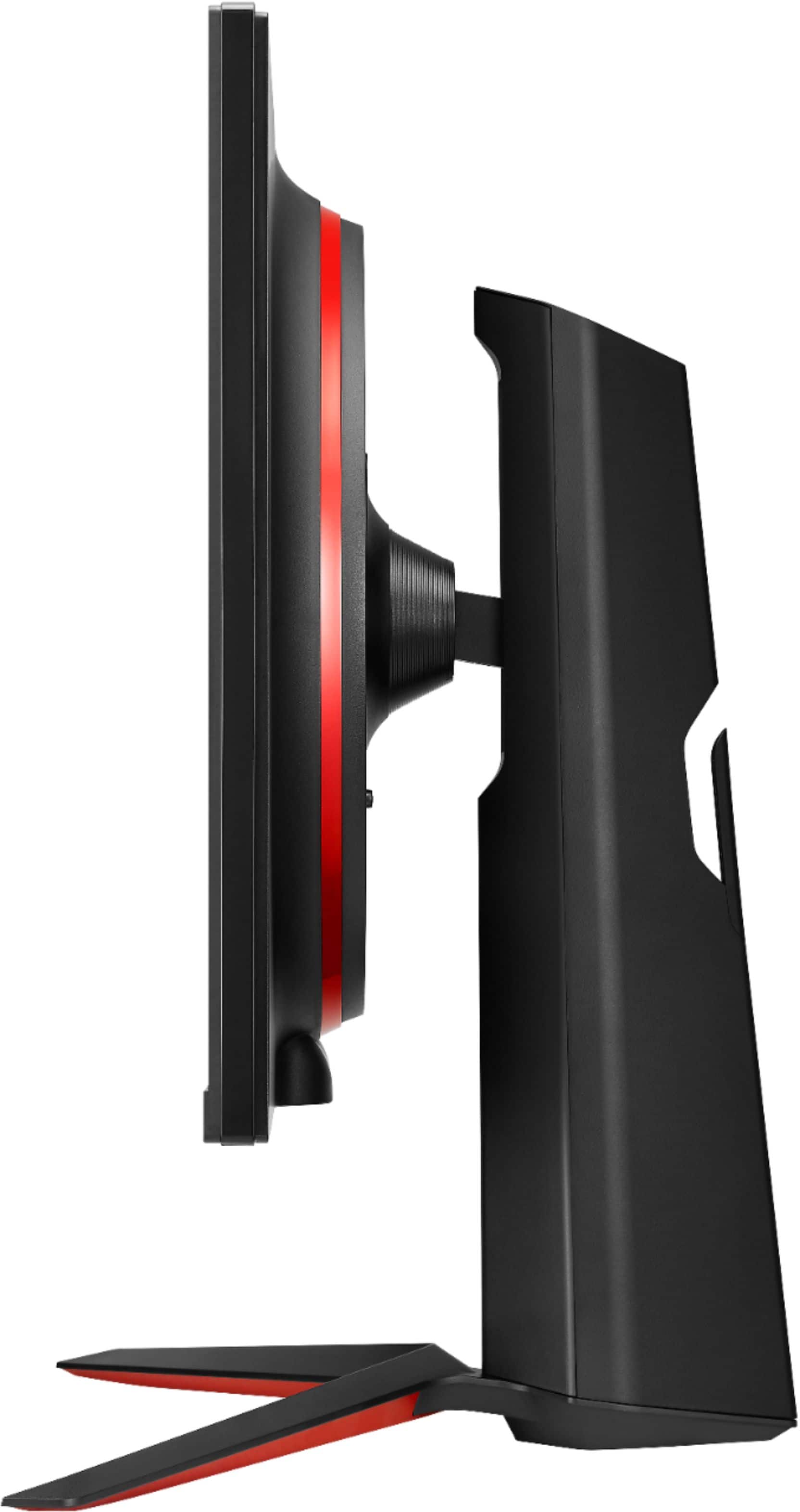
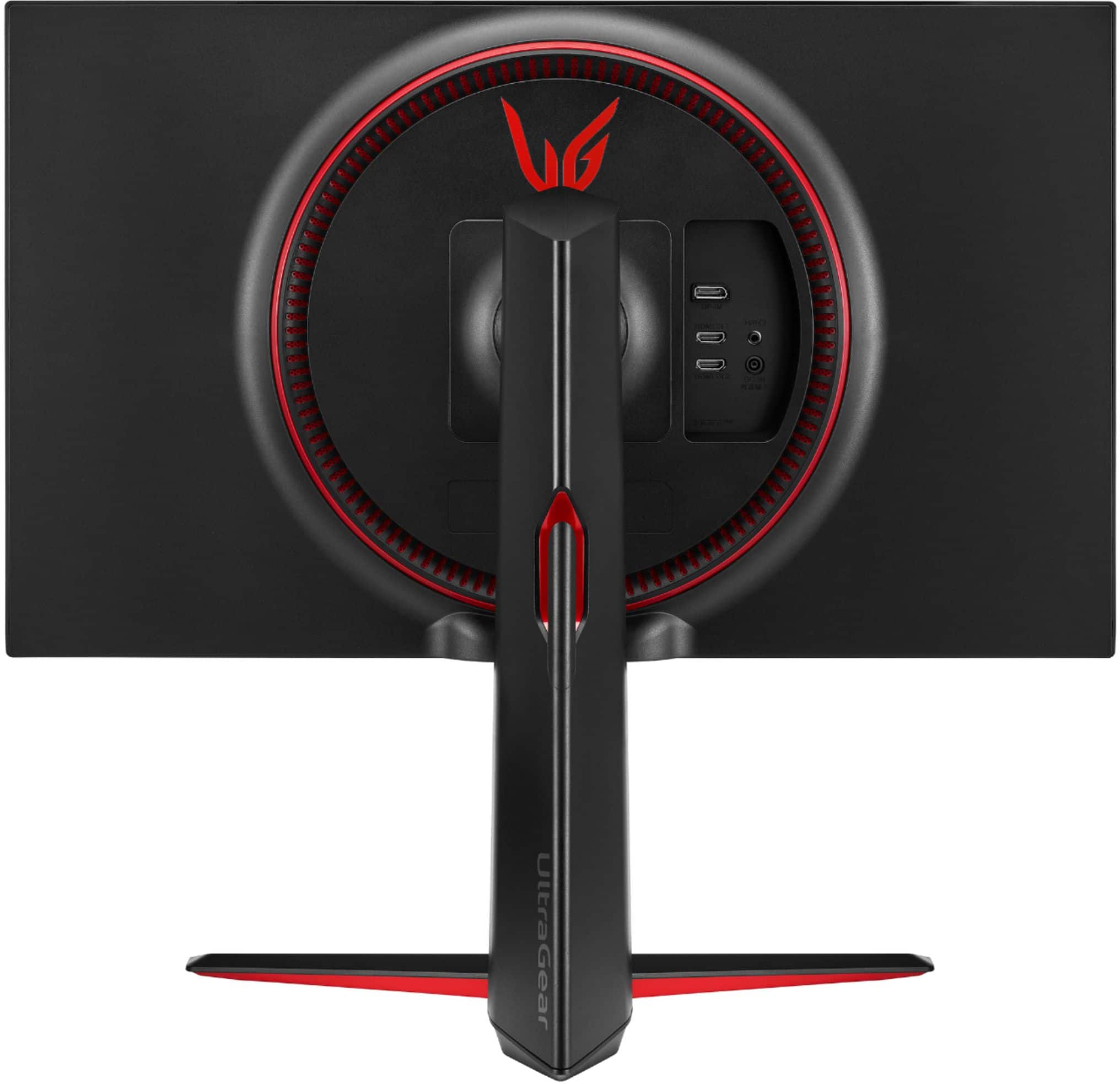
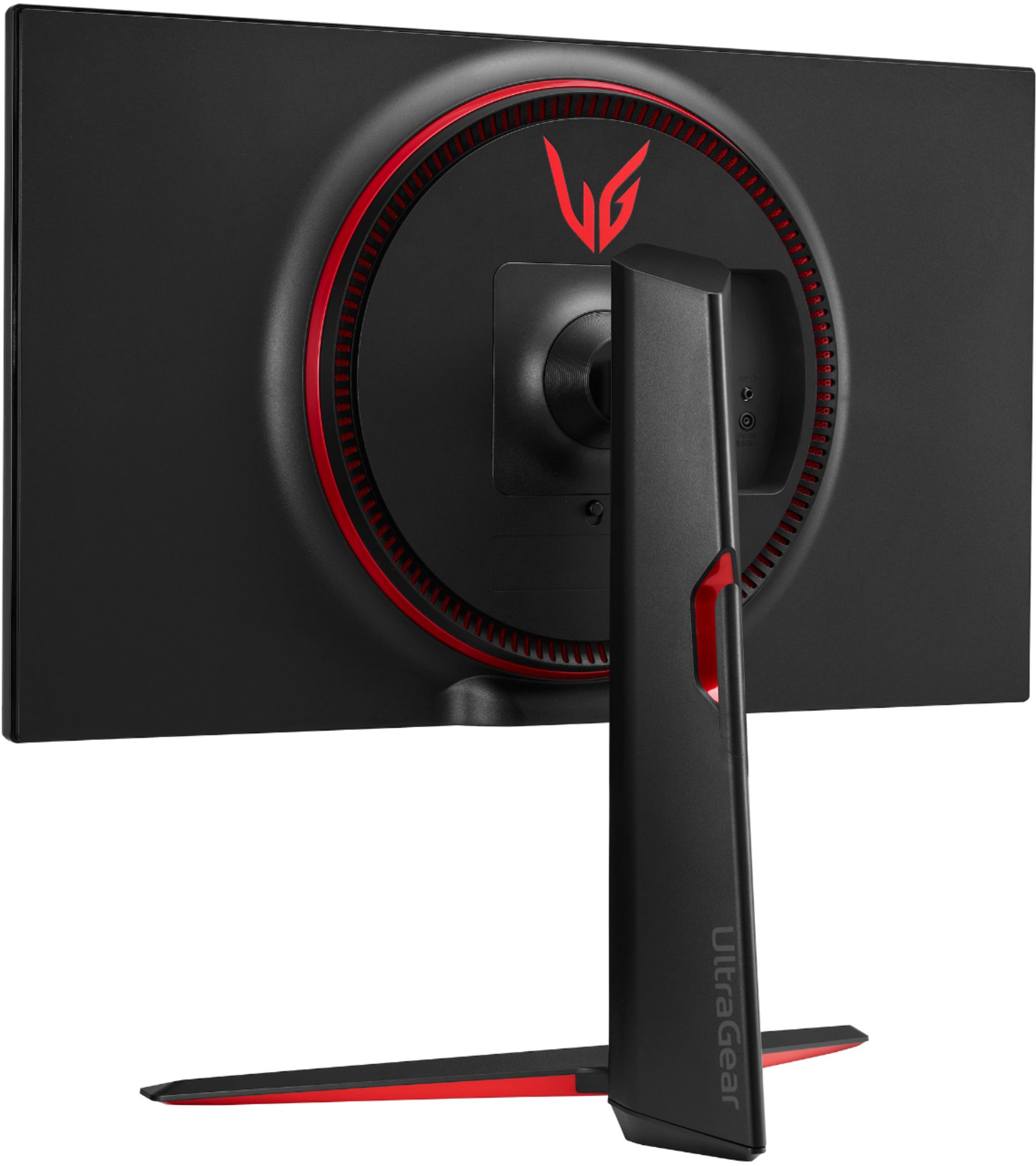
A:AnswerHi Jason. The "N" in the model number for the LG 27'' UltraGear™ QHD Nano IPS 1ms 144Hz G-SYNC Compatible Gaming Monitor, Model # 27GN850-B identifies its year of development as 2020 and the "L" in the model number for the LG 27GL850 27'' UltraGear™ Nano IPS 1ms Gaming Monitor with G-Sync® Compatibility identifies it as a 2019 model. The differences between the monitors is that the 2020 model does not have the USB Up-Stream (ver 3.0) and 2 x USB Down-Stream (ver 3.0) ports...^IFV
A:AnswerHi Jon. The LG 27'' UltraGear™ QHD Nano IPS 1ms 144Hz G-SYNC Compatible Gaming Monitor, Model # 27GN850-B will support 2560 x 1440 @144Hz, 120Hz, 75Hz or 60Hz over HDMI...^IFV
A:AnswerThe LG UltraGear 27" IPS LED QHD FreeSync and G-SYNC Compatible Monitor with HDR, Model # 27GN850-B and Model # 27GL850-B both use the same IPS panel...^IFV
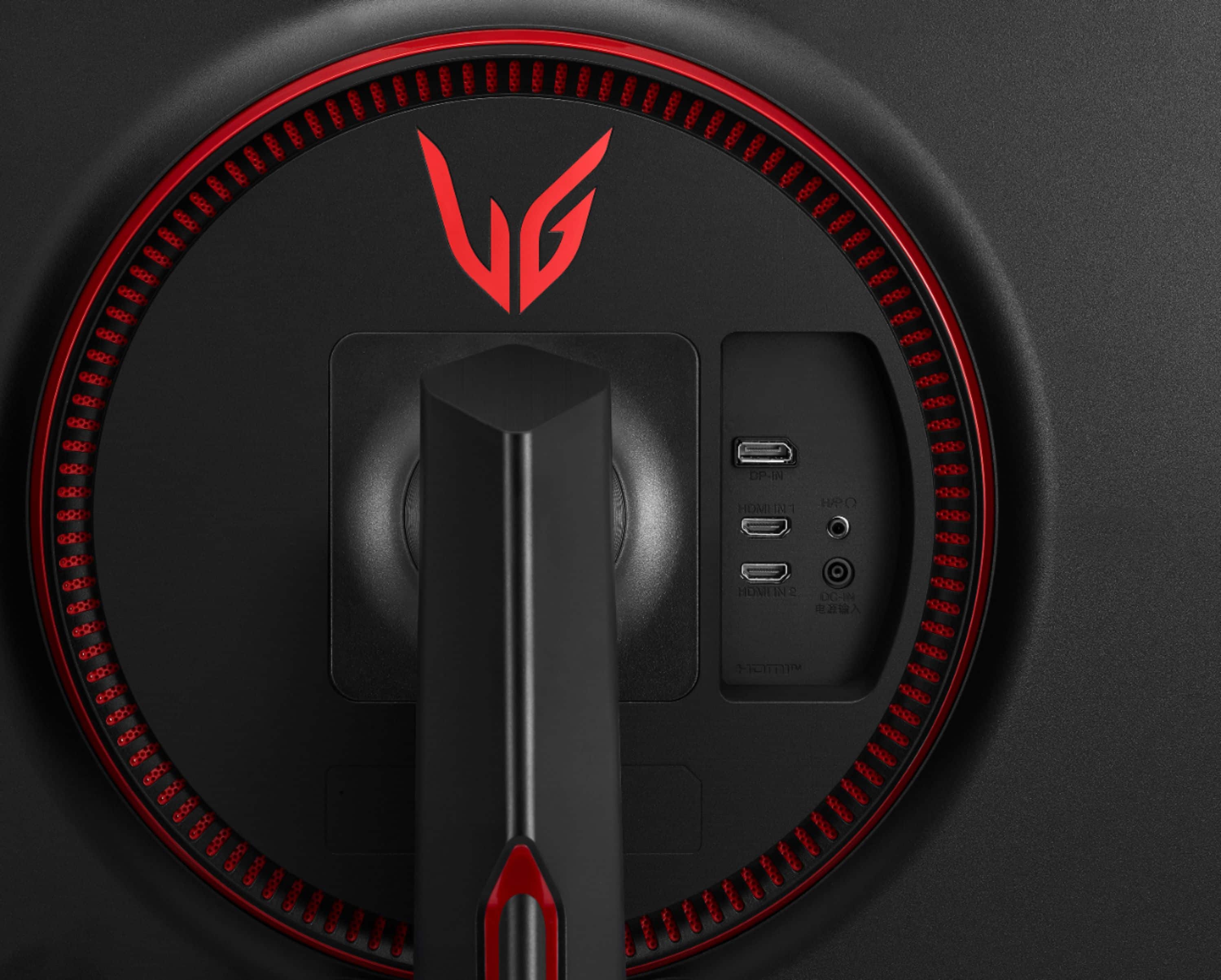
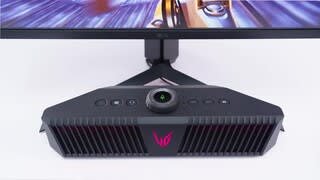
A:AnswerHello MK. The LG 27'' UltraGear™ QHD Nano IPS 1ms 144Hz G-SYNC Compatible Gaming Monitor, Model # 27GN850-B does not have built-in speakers. It has a Headphone Out that you can connect a pair of computer speakers or a Soundbar with a portable in port to...^IFV
A:AnswerThe HDR on this monitor is technically there but you will not be able to notice it. Plus the 1ms thing, while technically achievable is of no use in games because of picture distortion. The real number whilst still being able to see everything properly is around 4.65ms which is still pretty impressive. Lastly there is a huge difference between 4k and 1440p on a large tv screen, there is not on a 27 inch monitor. 1440p looks amazing on a good monitor like this one. Just forget about HDR on this monitor, it's not happening.
A:AnswerNo, this has HDMI 2.0, which is sufficient because it’s only a 1440 display. HDMI 2.1 is for up to 4k at 120hz or 8k at 60hz with high dynamic range support. If you’re getting a 4k/8kdisplay, then absolutely make sure it has HDMI 2.1, but for this monitor, it’s not needed to use max spec capability of the monitor.
A:AnswerThe LG UltraGear 27" IPS LED QHD FreeSync and G-SYNC Compatible Monitor with HDR - Black, Model # 27GN850-B dopes not have any protective film on the screen. If it did have ove, there would be a sticker on the screen letting you know to peel it off...^IFV
A:AnswerYes I have it paired with a 2070 and the G-sync compatibility is smooth as butter. You can check some reviews online for the 27GL850 as it's the same panel the GN850 just lost the USB ports.
A:AnswerThe LG 27'' UltraGear™ QHD Nano IPS 1ms 144Hz G-SYNC Compatible Gaming Monitor, Model # 27GN850-B is a VESA compliant display that has a VESA Wall Mount Interface Pattern of 100 x 100 mm...^IFV
A:AnswerI got this figured out. You have to disable free sync in monitor and use an hdmi 2.0 or 2.1 and it will work on Xbox One X and S at 120Hz at 1440P.
A:AnswerThe LG 27'' UltraGear™ QHD Nano IPS 1ms 144Hz G-SYNC Compatible Gaming Monitor, Model # 27GN850-B does not have built-in speakers. It has a Headphone Out port in the back that you can connect to a pair of computer speakers or a Soundbar that has a Portable In (3.5mm) port...^IFV
A:AnswerA DisplayPort cable and an HDMI are included accessories with the LG 27'' UltraGear™ QHD Nano IPS 1ms 144Hz G-SYNC Compatible Gaming Monitor, Model # 27GN850-B...^IFV
A:AnswerIn fact, this monitor DOES have a built in FPS counter. However it's not a subtle one that lives in the corner of the screen but rather an abnoxious one that fills the bottom portion and disappears after a few seconds. But it works great for confirming you are at the correct frame rate.
A:AnswerHi Jeremy. The LG 27'' UltraGear™ QHD Nano IPS 1ms 144Hz G-SYNC Compatible Gaming Monitor, Model # 27GN850-B does not have Sphere Lighting...^IFV
A:AnswerSounds like LG being lazy. This has the nano display compared to the GL model..... it would be nice for LG to provide specific firmware for the GN850 over the GL.
A:AnswerWhat operating system do you have on the PC/Laptop that you have connected to the LG UltraGear 27" IPS LED QHD FreeSync and G-SYNC Compatible Monitor with HDR, Model # 27GN850-B? Screen flickering in Windows 10 is usually caused by a display driver issue or incompatible app. To determine whether a display driver or app is causing the problem, check to see if Task Manager flickers. If Task Manager flickers along with everything else on the screen, a display driver is probably causing the problem. If Task Manager doesn't flicker while the rest of the screen is flickering, an incompatible app is probably causing the problem. The monitor is a Plug and Play monitor so the issue is more likely to be with an application or if the refresh rate isn't optimal, or is too low, flickering, lag, and other issues can occur. You can check the refresh rate on a Windows 10 PC by hitting the Windows key, typing "refresh rate" into the search field, and then clicking on View Advanced Display Info. From there click on Display Adapter Properties For Display 1 (or whichever number display is causing the issue). Click the middle tab, titled Monitor, in the properties window that appears and you'll see an area to set the refresh rate. A video card that isn't properly seated on the motherboard can cause a lot of problems, including a screen flicker. Turn the computer off and open the case. Find the video card and check to see if it's properly connected. If the card is seated on the motherboard properly but the issue persists, a faulty card is likely the issue. Testing this is easy, especially if the problem computer has an onboard GPU that you can plug into. Power down the computer, remove the video card, and connect the monitor cable to the onboard card or a second video card you've replaced the old one with. If the problem persists then the issue isn't the card--it's something else. It doesn't matter if you're using a VGA, HDMI, DVI, or DisplayPort cable to connect your monitor to a computer: If the cable isn't securely connected there are going to be issues. Check the cable at both the computer and monitor ends. If tightening it down or reconnecting it doesn't fix the problem try replacing the cable with a new one. If that doesn't fix the issue it's time to investigate something else...^IFV
A:AnswerSame thing happened to me. You have to change the settings on the Xbox. Change it to 1440 and 120hz, and make it so 4K isn’t allowed otherwise it will try to switch to 4K. Then, turn off freesync on the monitor’s settings to allow 120hz.