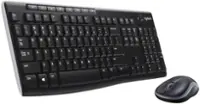
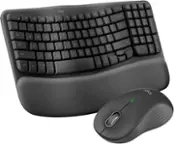
A:AnswerIf your mouse pointer disappears, try pressing Ctrl + Alt + Del to refresh the display, or unplug and reinsert the USB receiver. Also, check “Mouse Settings” in Windows to ensure the pointer is enabled. If issues persist, reinstalling Logitech drivers may help. If issue still persists, we recommend reaching out to our social care team via email at [email protected] with your
- Name:
- Email Address:
- Country:
- Product Name:
- Brief description of issue:
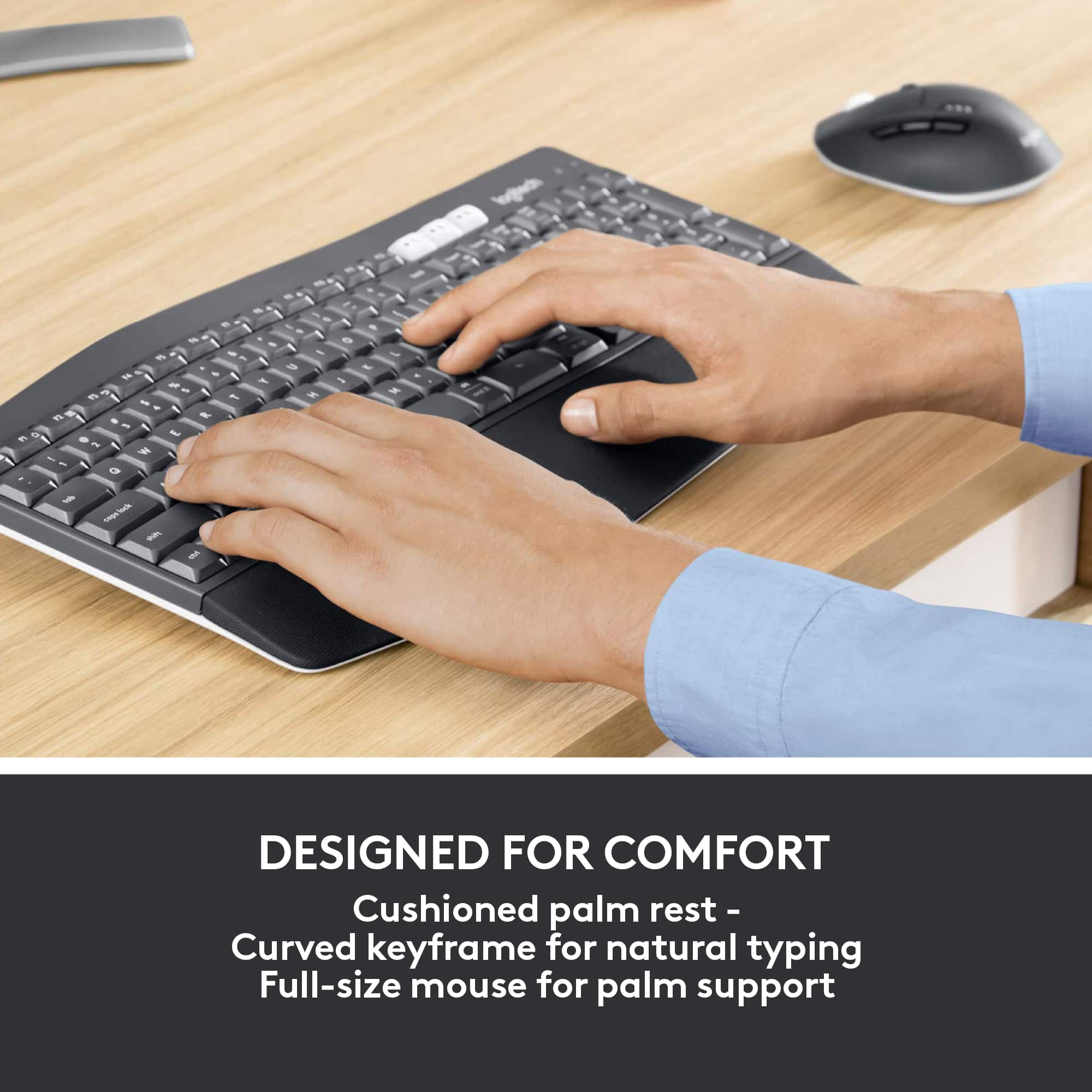
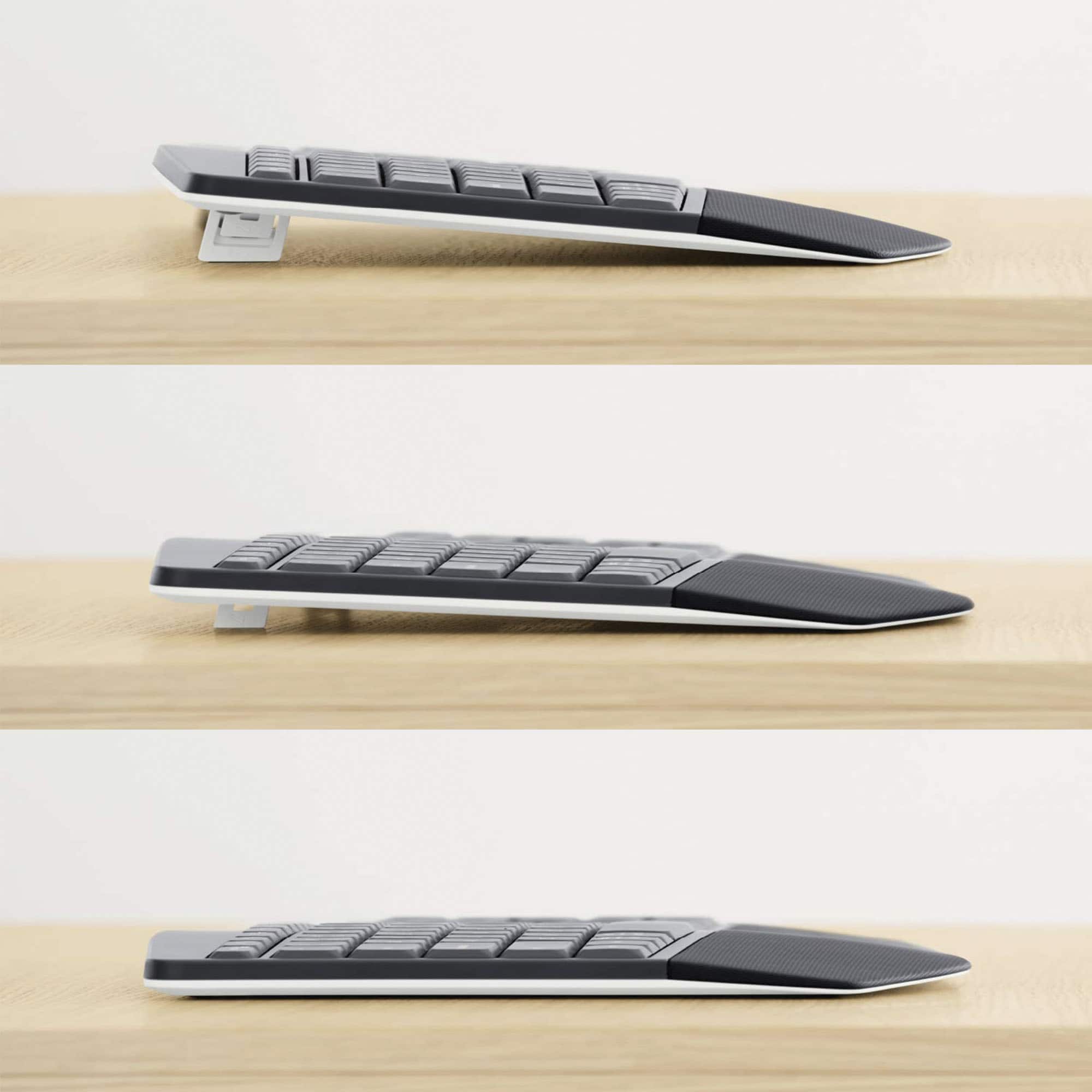
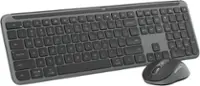
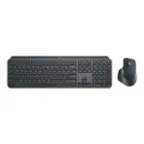
A:AnswerThe MK850 costs more because it’s a premium productivity set. The keyboard has a curved keyframe, cushioned palm rest, and multi‑device switching, while the mouse is ergonomic and supports up to three devices.
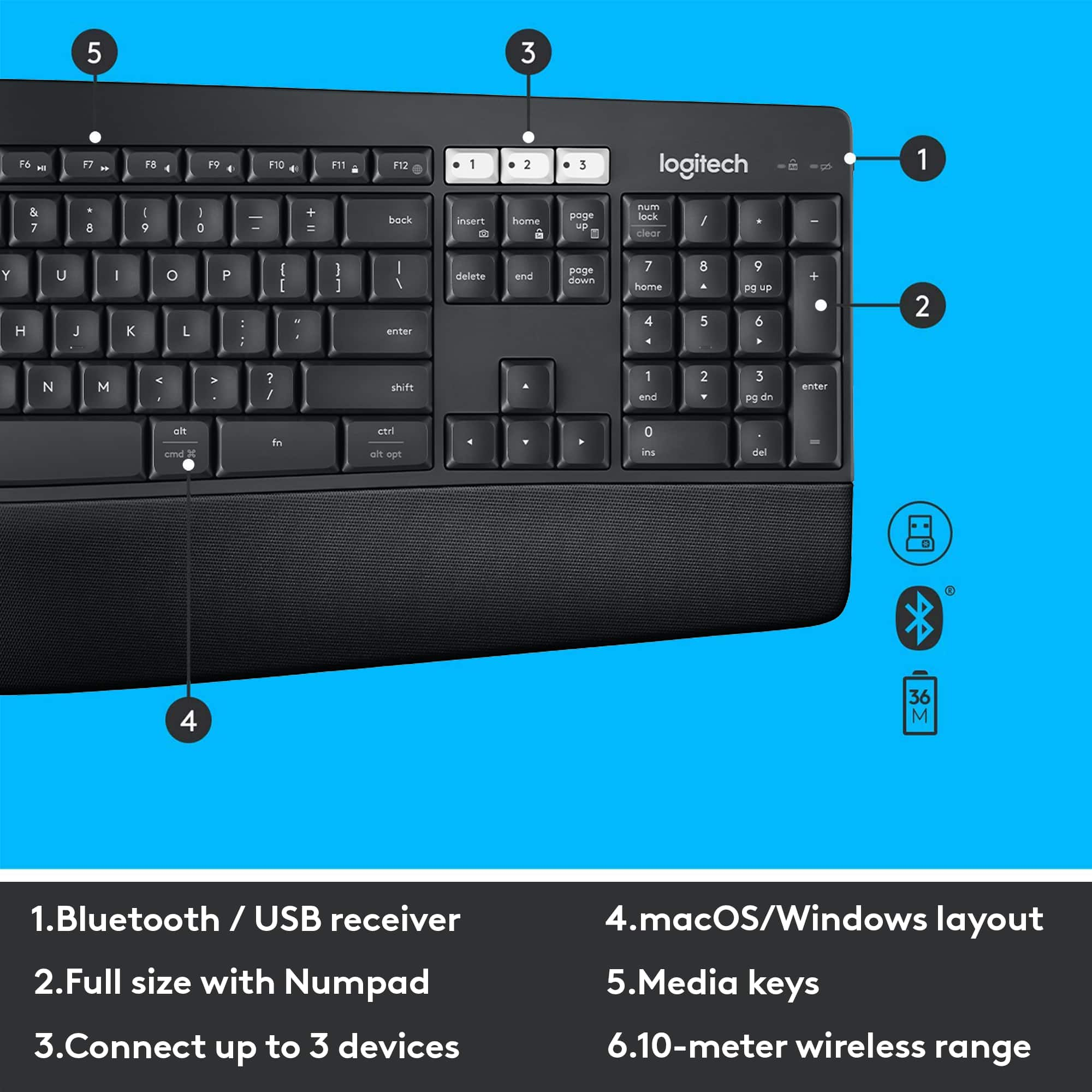
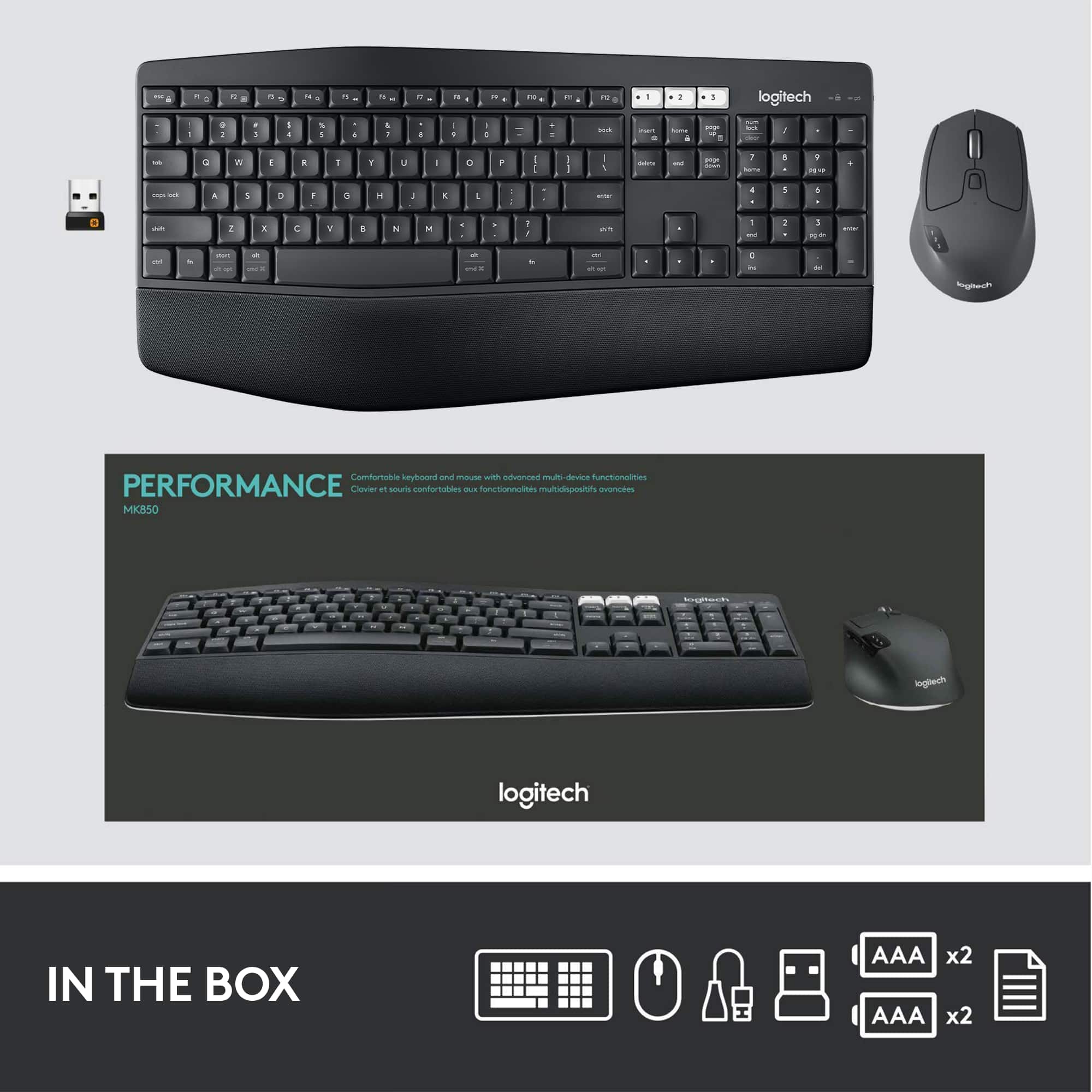
A:AnswerYes — the MK850 keyboard does have a caps lock indicator light. It’s a small LED that lights up when caps lock is active, so you’ll know at a glance.
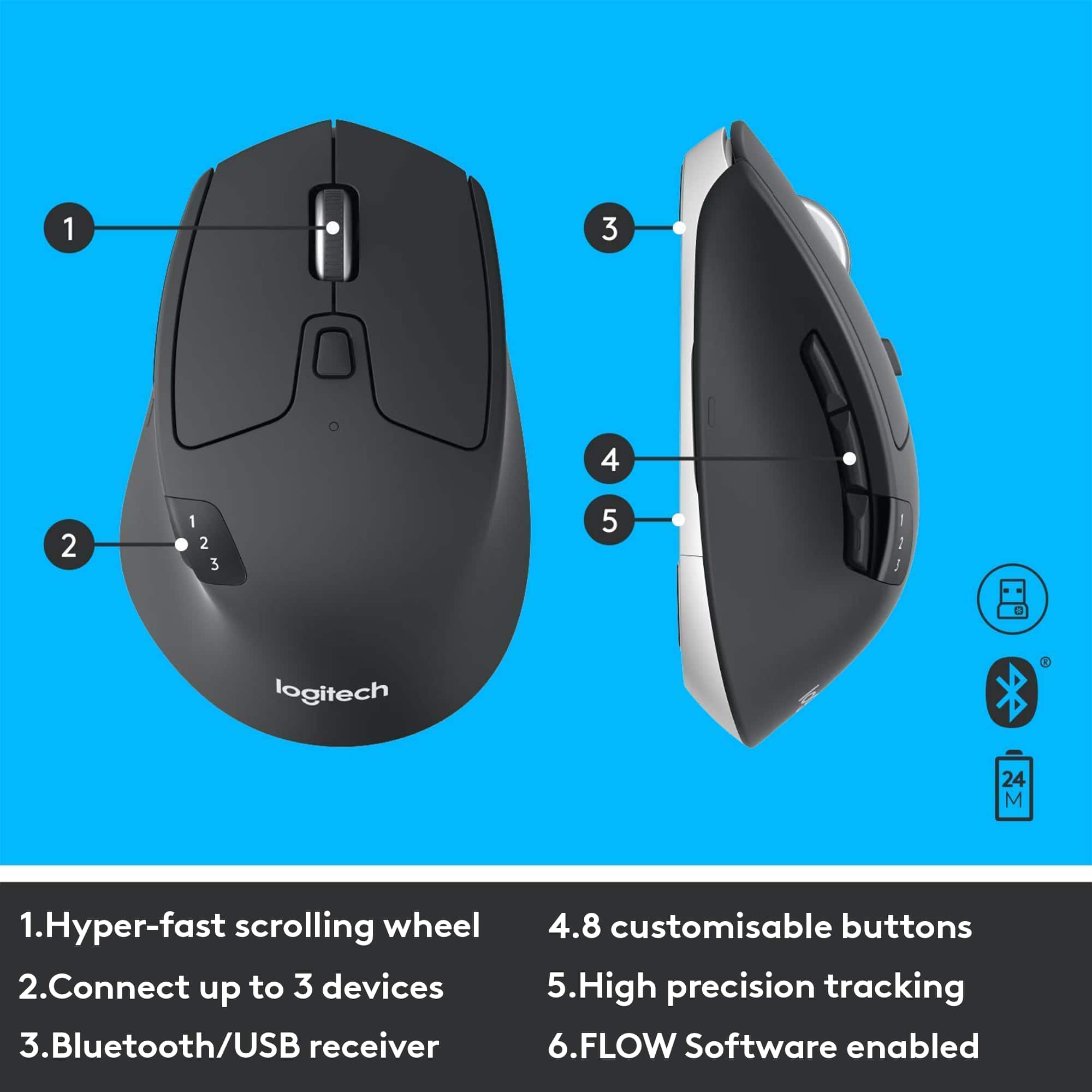
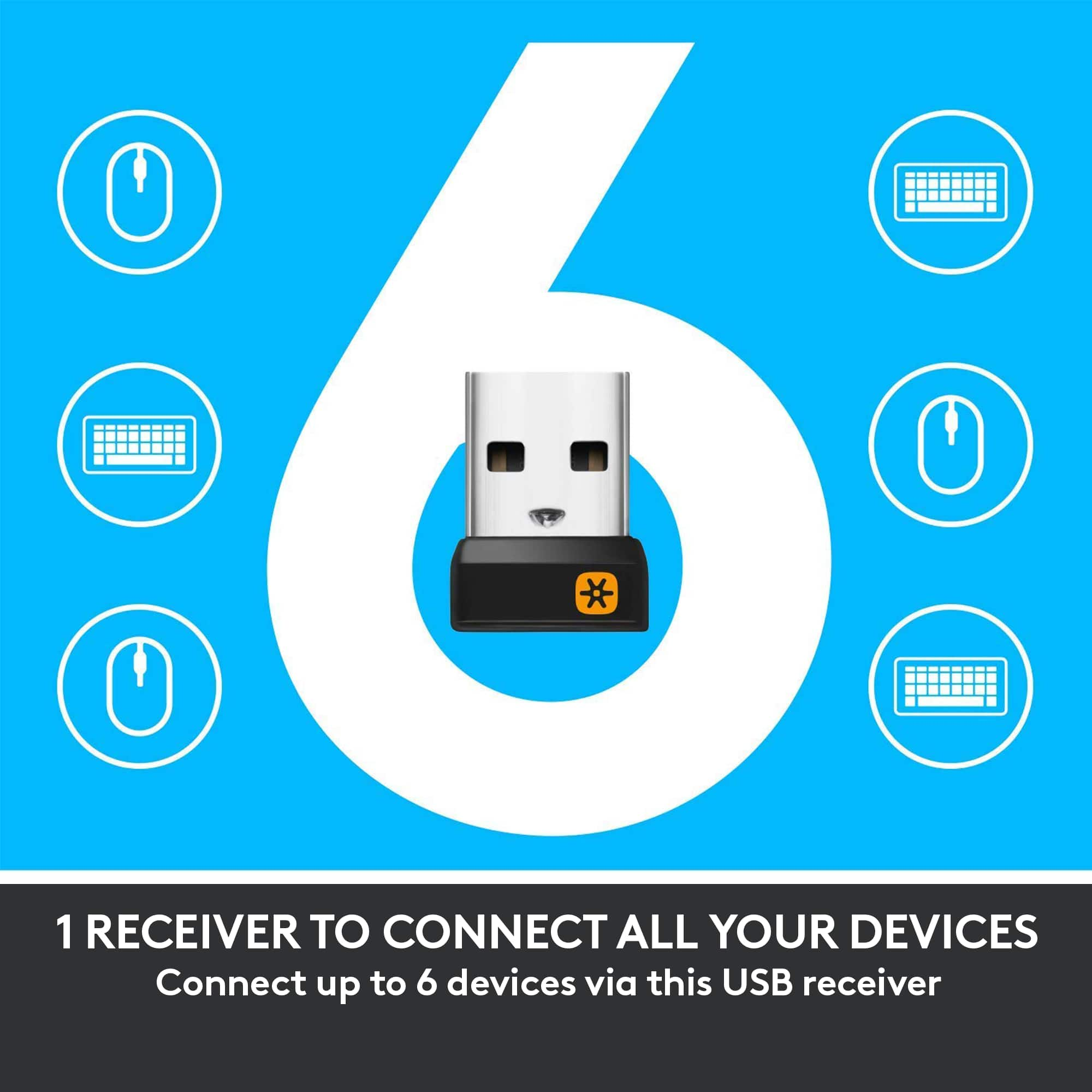
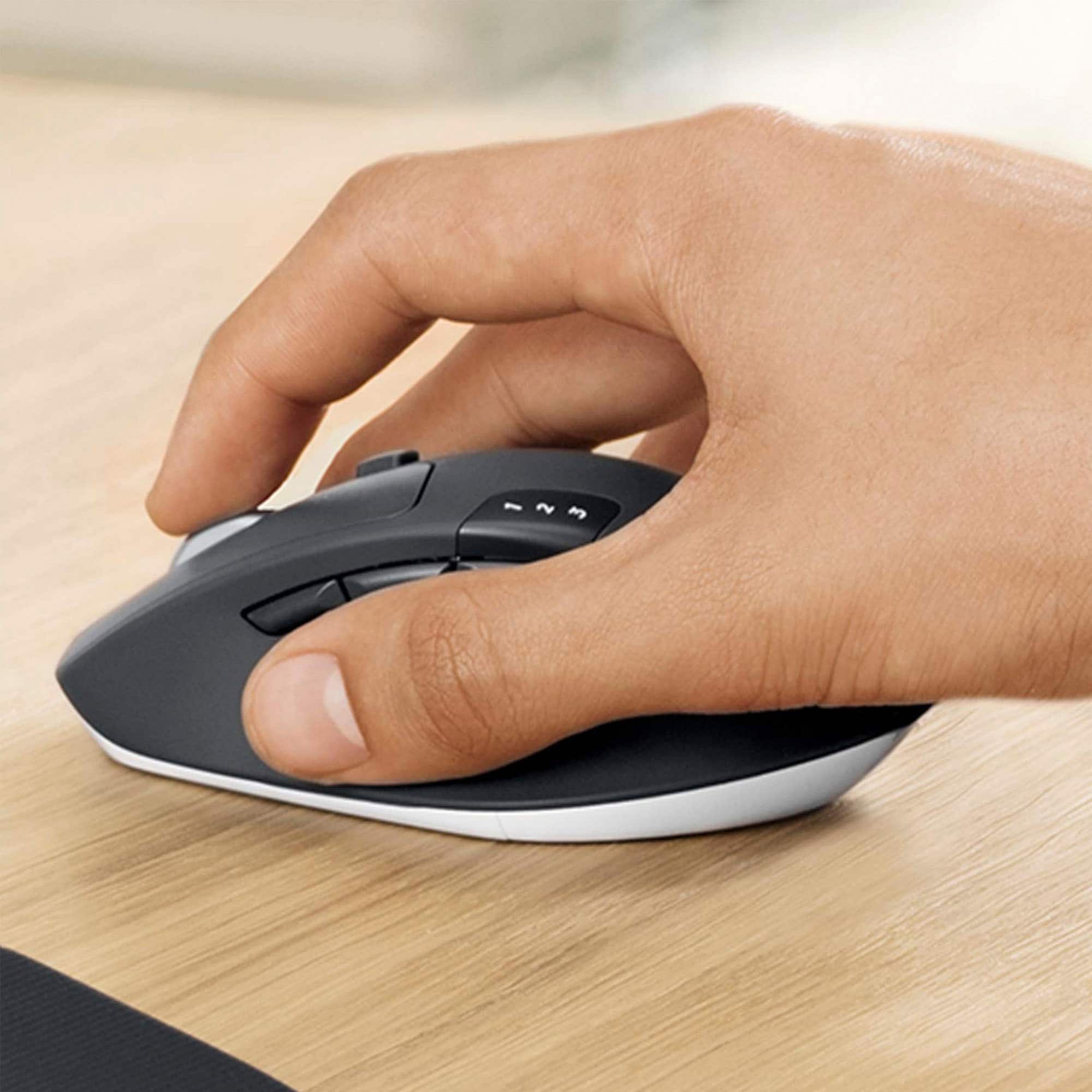
A:AnswerFor the M720 mouse there shouldn't be any need for a driver. You can try re-connecting the bluetooth by pressing and holding the 3rd left mouse button for 4-5sec until it flashes. It should then be discoverable in bluetooth devices. That button also switches between the different connections you set with 1 by default being the usb receiver. connection.
A:AnswerThat's unexpected! In order to help you effectively, please provide your information to our support team via email at [email protected] with your
- Name:
- Email Address:
- Country:
- Product Name:
- Brief description of issue:
A:AnswerI mean you can't buy it without the mouse but also you can just not use the mouse. Just take the batteries out of the mouse and put it in a drawer. You can either use the USB dongle or Bluetooth to connect the keyboard.
A:AnswerThe dimensions of the Logitech MK850 Performance Wireless Keyboard and Mouse Combo are as follows:
Keyboard:
Height: 210 mm
Width: 430 mm
Depth: 25 mm
Weight: 733 g
Mouse:
Height: 115 mm
Width: 74 mm
Depth: 45 mm
Weight: 135 g (with AA battery)
You can find more detailed specifications on the Logitech website:
https://www.logitech.com/en-ae/products/combos/mk850-wireless-keyboard-mouse.html
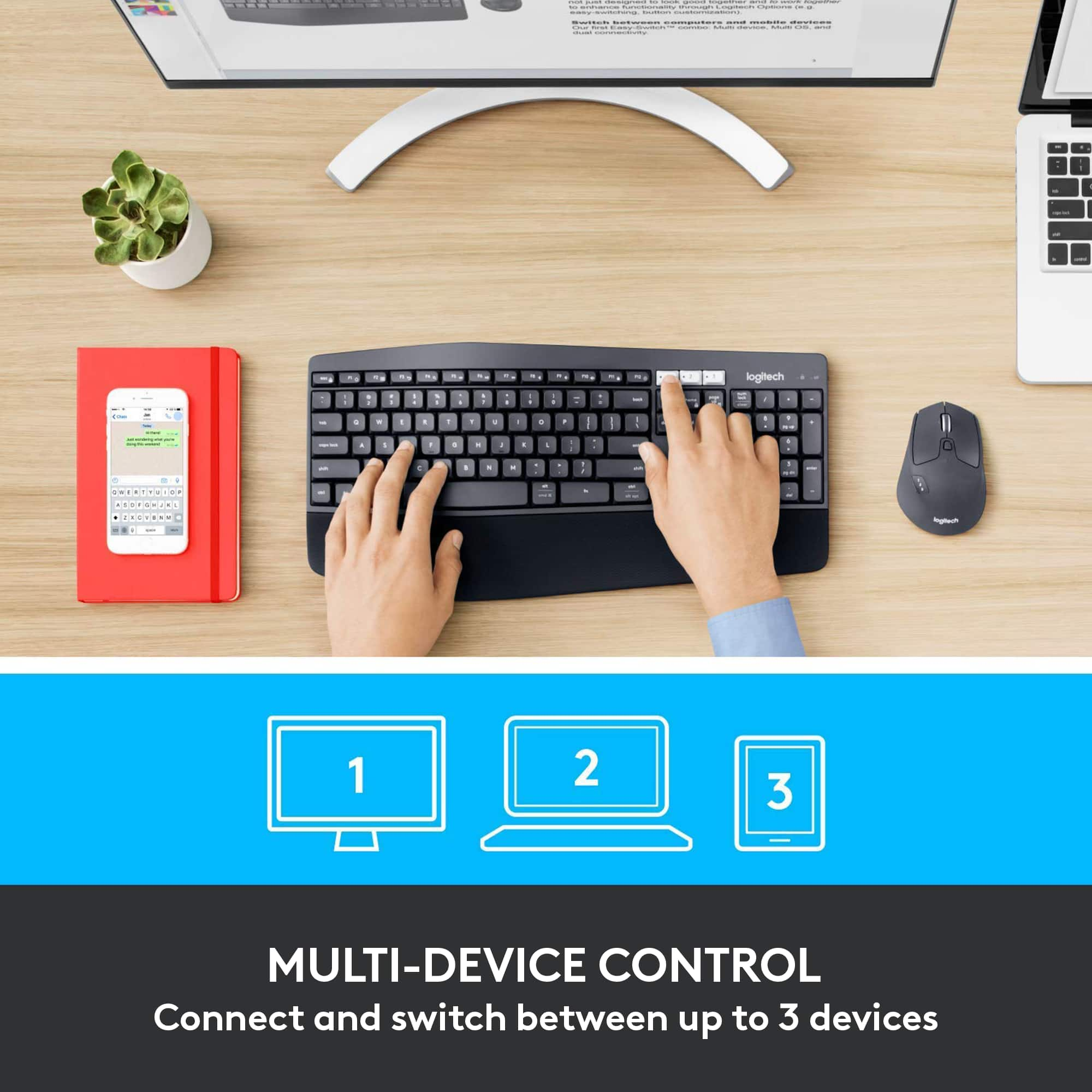
A:AnswerThere are three switches in both Keyboard and Mouse. Let's say your first device is configured at number 2 for both Keyboard and Mouse. Now when this device is on, Number 2 will be connected. You can use switch 1 and 3 for other devices. Now let's say you configured another device with switch 1 for both mouse and key board. When you click 1 it will be connected to device setup with 1, when click 2 it connects with device setup with 2.
![Sure, here is the corrected and grouped text:
```
ESC F1 F2 F3 F4 F5 F6 F7 F8 F9 F10 F11 F12 1 2 3 logitech - - 1 2 # $ 4 % 5 6 & 7 8 9 0 - - back insert home page up num lock clear / . tab Q W E R T Y U I O P { [ } ] / delete end page down 7 home 8 A 9 P9 up + caps lock A S D F G H J K L : ; a enter 4 5 6 shift Z X C V B N M < > ? shift 1 end 2 3 pg dn enter ctrl fn start alt opt alt crnd x alt cmd x fn ctrl alt opt 0 ins del 1 logitech
```](https://pisces.bbystatic.com/image2/BestBuy_US/images/products/5761/5761911_sd.jpg)