A:AnswerHi there,
You should be able to use your Wireless Display Adapter as long as your Android device is running version 4.2.1 or later, and is a Miracast Android device.
Kindly,
Victoria
Microsoft Customer Care
A:AnswerFor this type of device the latency is very low I think but not for game playing. Maybe for people watching you play but the CPU hit could be more than you want.
A:AnswerIt should as long as you're running Windows 10. It's standard in settings to connect to a wireless display. This just makes the computer recognize any tv or monitor with an hdmi port as a wireless display. I don't know what you have for hardware though so I'm not sure if your particular Surface Pro will struggle to keep up three seperate displays but if so this should allow you to do it.
A:AnswerI had the same question so I did some googling and couldn't come up with anything. From what I've read there is no real difference in how they function and one may have been a part number made for CA just so they knew which ones were shipping where. Someone even asked on Microsoft help center and Microsoft didn't answer. I got the one ending in 20 and it works perfectly if that's any help.
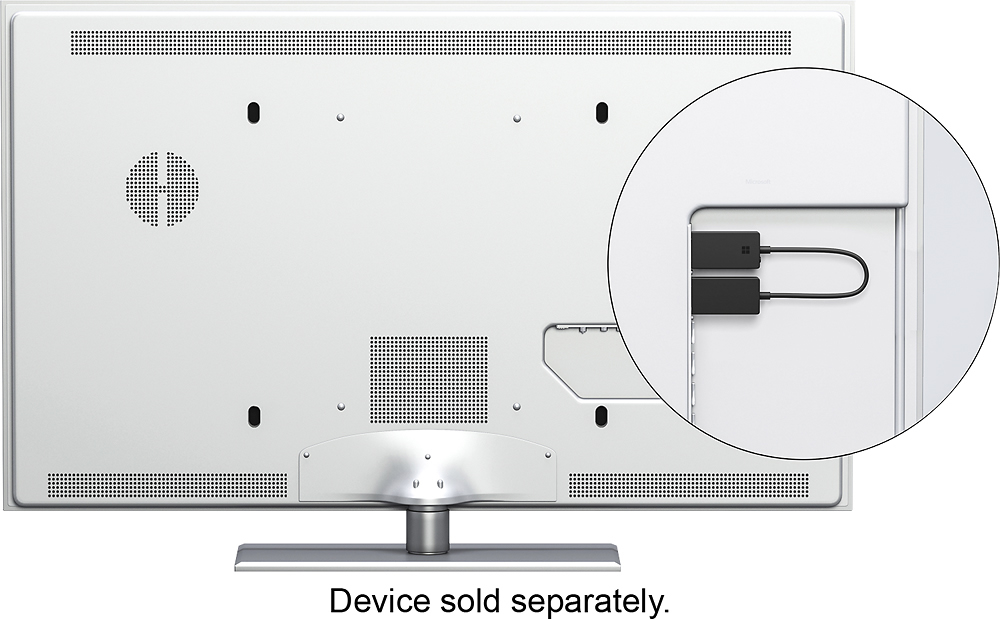
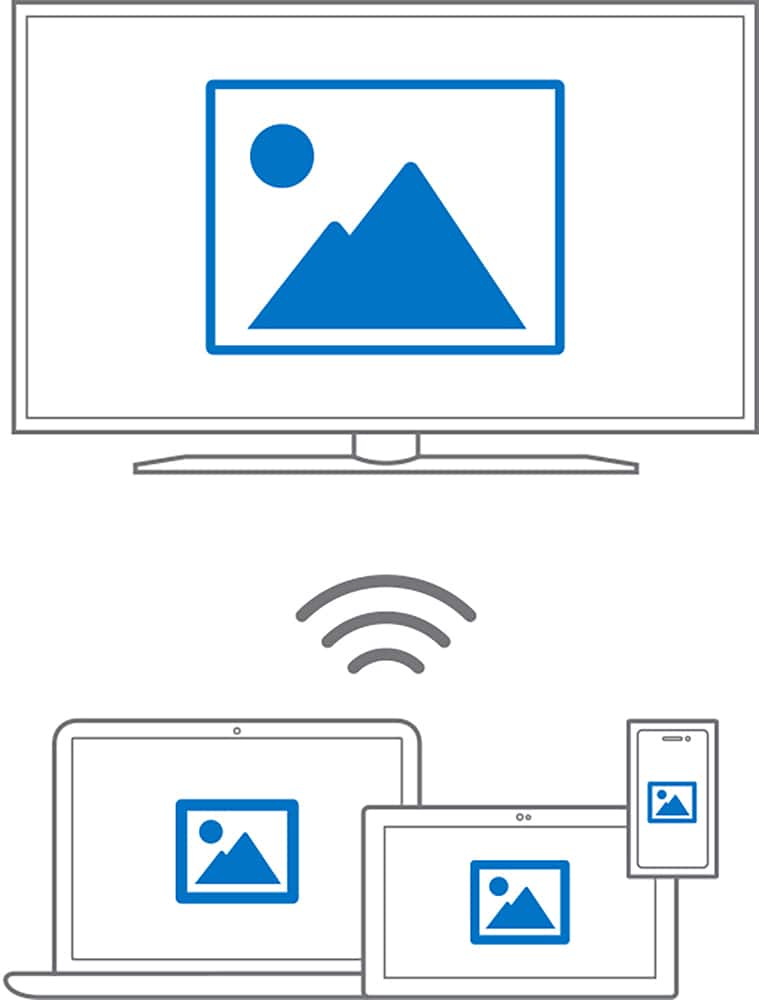
A:AnswerIf it’s a desktop with a newer operating system (I. E. Windows 8.1 or win 10 according to instructions and is near the room you want to project to it may be possible. Instructions say best to keep devices within 20’. You connect the single to a hdmi and USB port together on your smart tv. Then you go to a location on your pc to connect to the dongle device.
A:AnswerSince the adapter requires a current display of your device, you will need to keep your laptop open in order for the display to be cast. If you close your device while in use, the screen will stop casting its display to your monitor.
A:AnswerYou can use it as an extended display, however the adapter does sometime drop signals from my experience. For consistency, I recommend going with a wired solution.