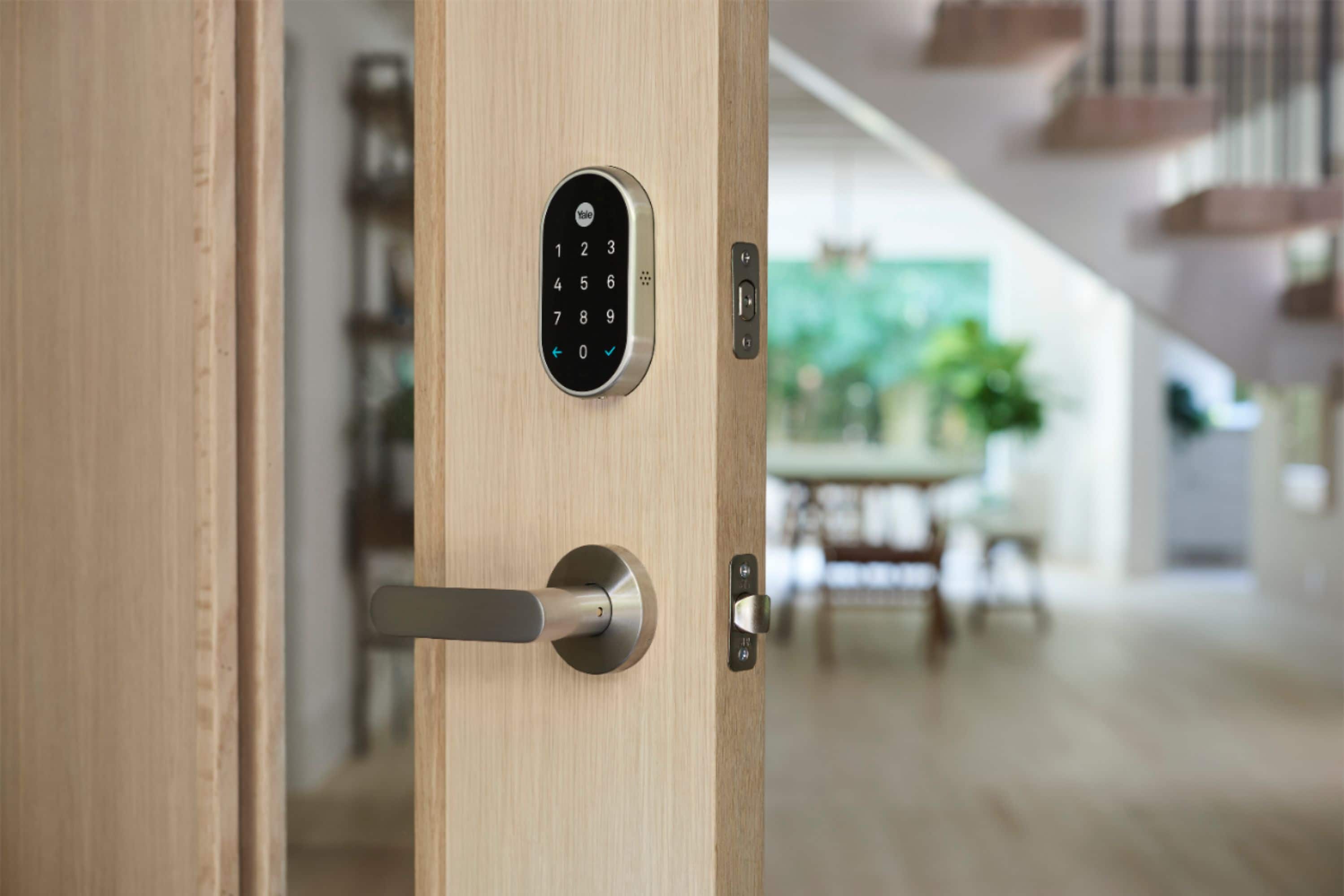
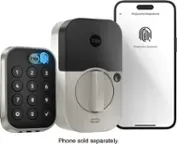
A:AnswerNest x Yale Lock is battery-powered and when it’s time to change the batteries, the Nest app will send you a notification. Check this support article to see the instructions on how to change batteries: https://support.google.com/googlenest/answer/9231025
A:AnswerThe Nest × Yale Lock is certified ANSI/BHMA A156.36, Grade 2. It was designed to work in outside temperatures as cold as –22° and as hot as 140°F (–30° to 60°C).
It additionally offers an IP65 rating which means that it can withstand dust, rain, and snow.
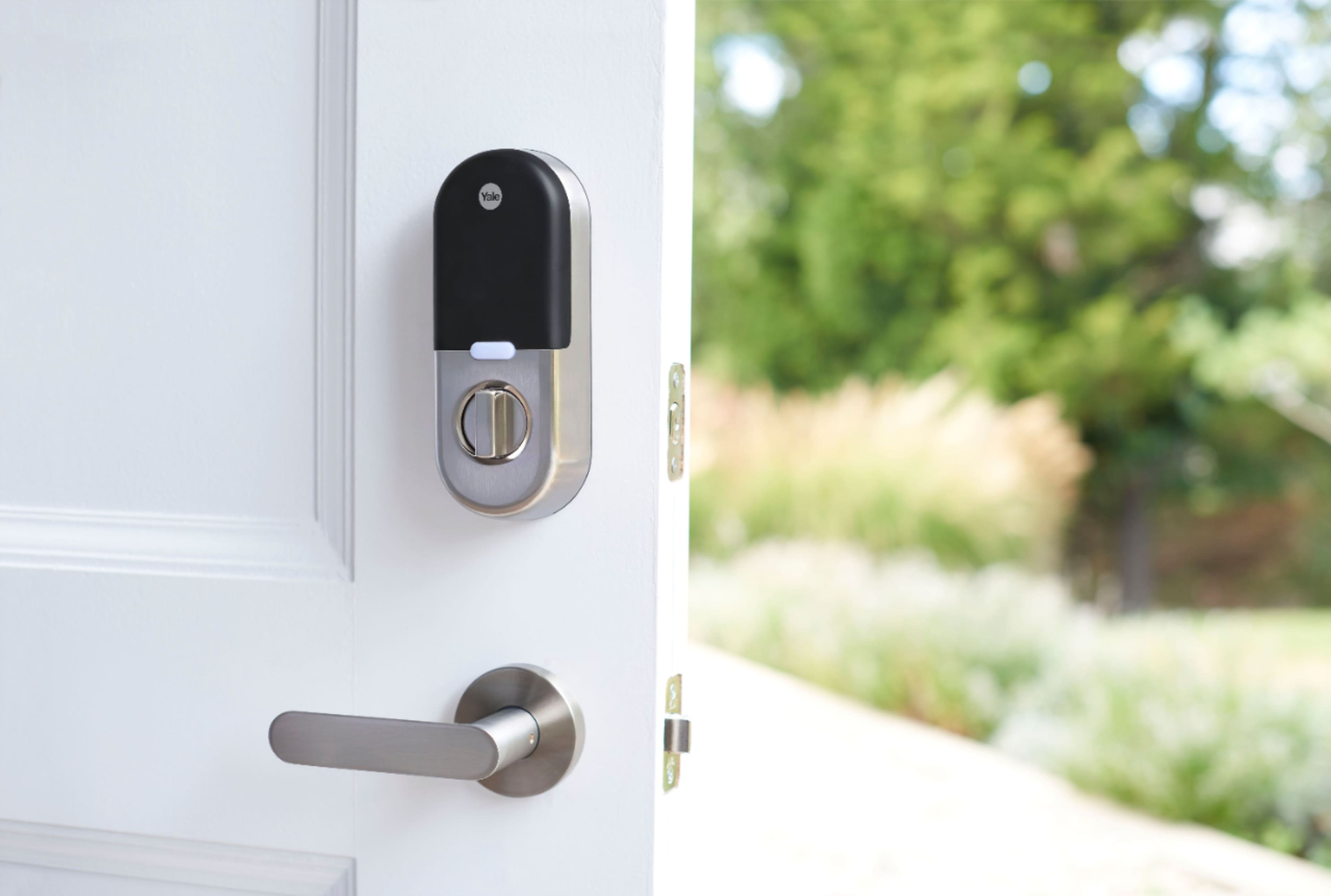
Since the Nest × Yale Lock is mounted on your door, part of the lock will be inside your home, and part of the lock will be outside your home. These weather ratings refer to the portion of the lock outside your home.
A:AnswerYou could easily use this for your apartment door. The lock fis any standard door lock cutouts so you do not have to modify the door. You can put the original door lock back on if you move.
A:AnswerHi there, vep. Yes, the Nest x Yale Lock works with both the Home app and the Nest app to control the device. With the Google Home app you’re able to connect with a wide variety of speakers, cameras, thermostats, lights, and a range of other products, all from one place.
Check out this article for more information on setting up and discover more features: https://support.google.com/googlenest/answer/9893532?hl=en
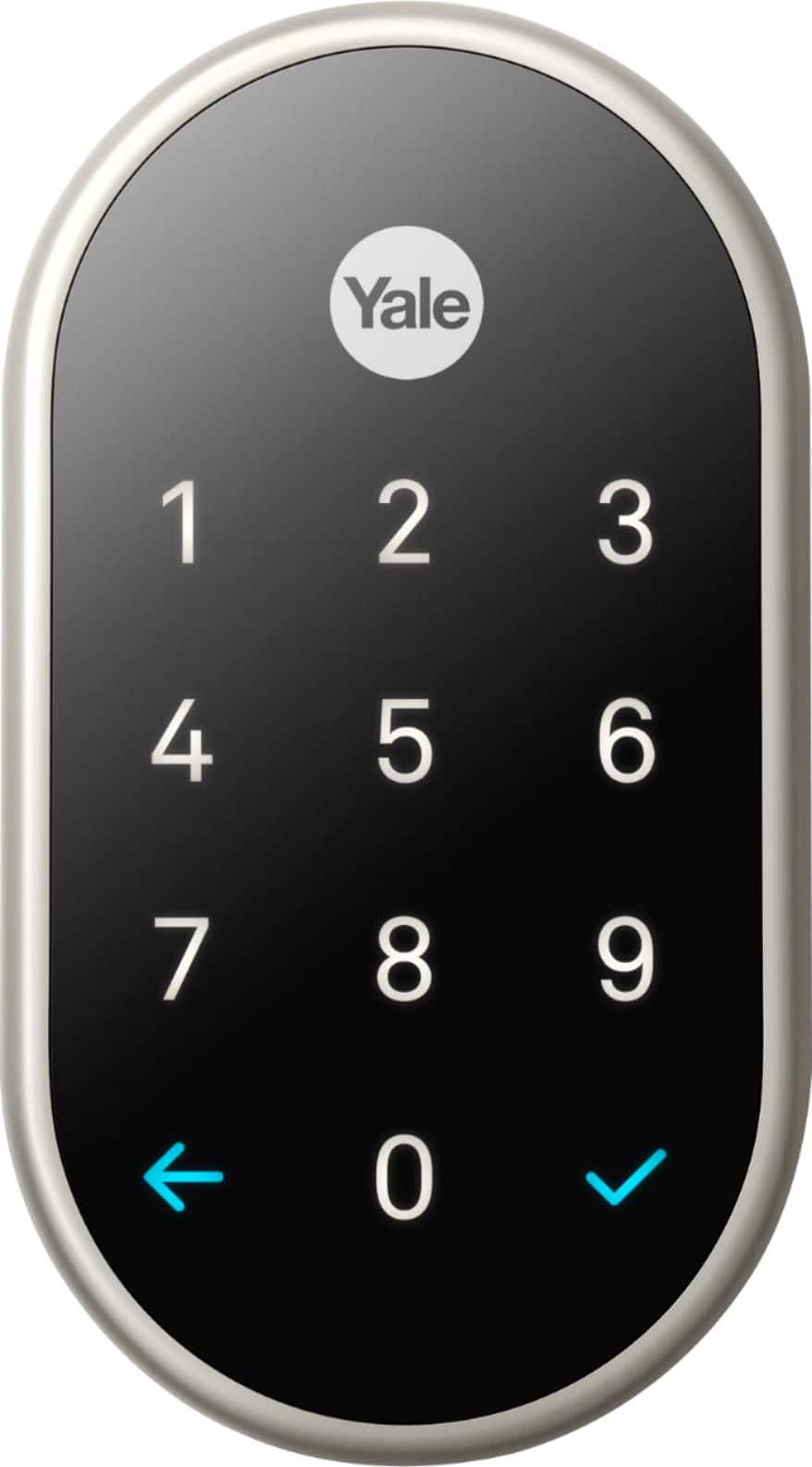
A:AnswerHey there. We're sorry to hear you're having trouble setting up your Nest x Yale Lock. Here's some troubleshooting steps to fix connection issues:
1. Keep your lock awake during setup: The keypad on your lock should light up when the app is setting up the lock's connection. If the keypad is not lit, press the Yale button to wake up the lock.
2. Connect your phone to Wi-Fi only: Turn off your phone's cellular data connection, but keep Wi-Fi on.
3. Connect your phone and Nest products to the same network: Make sure that your Connect has already been added to the app and is online before trying to set up your lock in the app.
Here’s a link with more tips: https://support.google.com/googlenest/answer/9240245
If you need an extra hand, reach out here: https://support.google.com/googlenest/gethelp?
A:AnswerGreat question, Theresan7. The Nest x Yale Lock was designed to work in outside temperatures as cold as –22°F and as hot as 140°F. For more details, here’s a link: https://support.google.com/googlenest/answer/9251009?hl=en#zippy=
A:AnswerHi, Tom. To replace the batteries in your Nest x Yale smart lock, you'll need either the battery cover key that came in the box with your lock or a thumbtack. A small screwdriver or hex wrench may also work.
1. Insert the key or thumbtack into the hole on top of the battery compartment and press down firmly.
2. Grip the cover near the top and pull it off while you continue pressing with the key or thumbtack.
3. Remove all the batteries, then replace them with any standard AA alkaline batteries.
4. Note: Do not use rechargeable NiMH batteries or other kinds of batteries.
5. To replace the cover, insert the two tabs on the bottom into the holes in the lock, then push it on until the tab at the top locks it on. You’ll hear a click when it does. Any low battery notifications you see in the app should disappear. Here's a video to guide you.
https://www.youtube.com/watch?v=4UBIcD4DpnY
A:AnswerHi Jojo. We're sorry to hear that you're missing a part of your device.
Please reach out to our support team for more information on your options.
Tap here to contact us. https://support.google.com/googlenest/gethelp
A:AnswerHi Andres. There are several ways to lock and unlock your Google Nest x Yale Lock. You can find detailed instructions here: https://support.google.com/googlenest/answer/9218571
To change your lock's password, you'll need to use the Nest app. Follow these steps: https://support.google.com/googlenest/answer/9207205
A:AnswerHi Lunadad. Absolutely! While the Nest x Yale Lock is a fantastic product within the Google Nest ecosystem, it doesn't integrate directly with Apple Home at this time. We're always working to expand Nest's compatibility with other smart home platforms, so stay tuned for future updates!
A:AnswerHello there, Marty. Thank you for your interest in Nest x Yale Lock. To change the passcode of your lock, we suggest following the steps below:
- Open your Nest app, tap 'Settings'
- Tap 'Family & Guests'
- Tap 'You' to change your own passcode
- Tap 'Passcode'.
If you have additional inquiries or need assistance with changing your passcode, please don't hesitate to contact us on our Google Nest Help page here: https://support.google.com/googlenest/gethelp
A:AnswerPrivacy Mode can give you added control over who can access your home during a certain time. When Privacy Mode is on, it disables Google Nest × Yale Lock's keypad so it can't be unlocked by entering a passcode on the keypad. You can turn Privacy Mode on and off with the Nest app or on the lock itself.
A:AnswerHey there, Vet! Thanks for your question. You have two options for unlocking your Nest x Yale Lock with your phone. You need to download the Nest app to set up your device and then you can use the Google Home app to control your devices. If you have questions and other concerns, you can reach out to our dedicated team of specialists on the Google Help Center here: https://support.google.com/googlenest/gethelp
A:AnswerHey there, Sven! We appreciate your interest. Setup and controls are found in the Nest app. While you can manage and change the lock settings with either Nest app or Google Home app, full features and functionality are found in the Nest app. Voice control with Google Assistant requires a compatible smart device (sold separately).
Feel free to visit us anytime if you have other inquiries, here: https://support.google.com/googlenest/gethelp