A:Answer Hello,
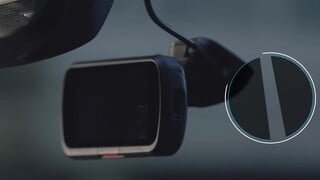
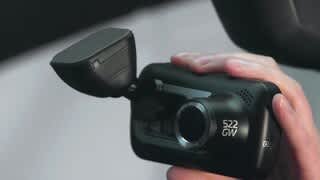
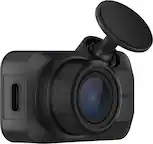
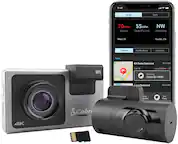
You can connect your 322GW Dash Cam to your computer using the provided USB cable.
1) Plug your Dash Cam in. Ensure the cable is plugged directly into the dash cam and NOT via the mount.
2) On the dash cam's screen you'll see a menu of 3 options. Please select 'Access Files' on the Dash Cam's screen.
3) If the dash cam does not appear as a drive on your computer, please try all the USB ports on your computer. Double check that the cable is via the camera and not via the mount. If it still does not show, please remove the cable from the computer, press the reset button on the underside of the camera and plug the USB cable back into the camera.
4) Then the Dash Cam will be visible as a removable drive on your computer. If you go into My Computer (Windows) or Finder (Mac) you will be able to see the Dash Cam listed as a drive, usually called NEXTBASE.
5) Double click on this drive. You should then see nextbase.com, nextbase.info and DCIM.
6) Double click on 'DCIM'. Inside this you'll see a selection of folders. Inside these folders are your photos and footage.
7) You can copy the files onto your PC to save, view them using your computer's media player, or view the files using the correct Nextbase app- MyNextbase Player.
This can be downloaded on the 322GW's Nextbase Support Page here:
https://www.nextbase.com/en-gb/help-and-support/dash-cams/322gw-dash-cam-support/